Test, Publish, and Manage Access
Testing and Publishing Actions
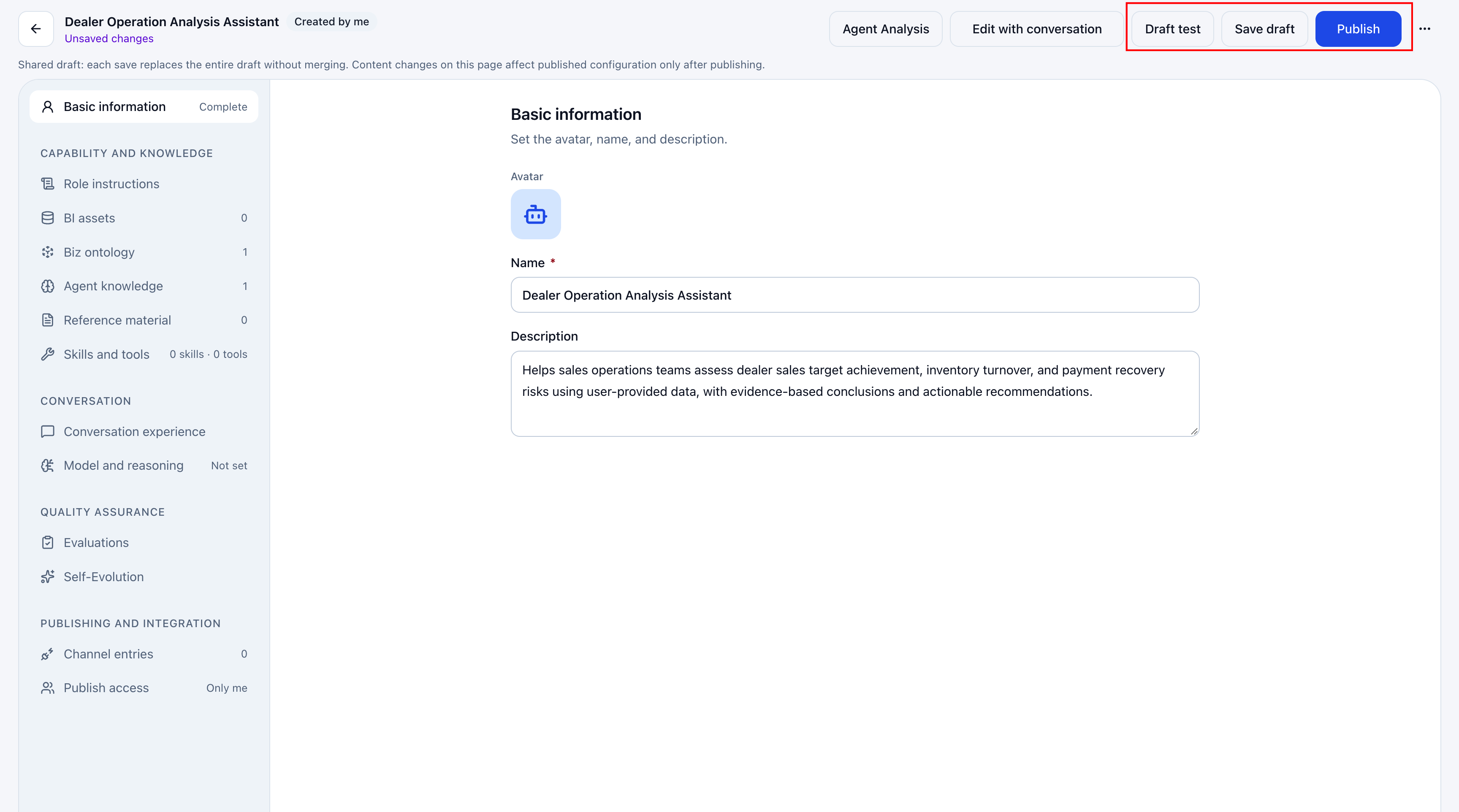
The top of the agent configuration page provides these actions:
| Action | Purpose |
|---|---|
| Test Draft | Test the current page configuration, including unsaved changes. |
| Save Draft | Save changes without updating the production configuration. |
| Publish | Review and confirm changes, then update the production configuration. |
Availability depends on permissions and modification status. Save Draft and Publish may be disabled when there are no new changes.
When Changes Take Effect
| Content | Effective time |
|---|---|
| Basic configuration, BI assets, ontology binding, reference materials, skill and tool selections, conversation experience, model and reasoning | Saving a draft retains changes. Publishing updates the production configuration. |
| Agent knowledge | Available to subsequent retrievals after saving. Republishing the agent is not required. |
| Channels | Managed through each entry's own save, enable/disable, and credential actions. Not submitted with the draft publishing action at the top. |
| Publishing permissions | Usage scope, member access, collaboration, and ownership are managed independently and take effect after successful operations. |
The most recently saved full draft replaces the shared draft. Changes from multiple editors are not merged automatically. Coordinate saves when working together. Publishing content and authorizing users are separate operations.
Testing and Publishing
Test a Draft
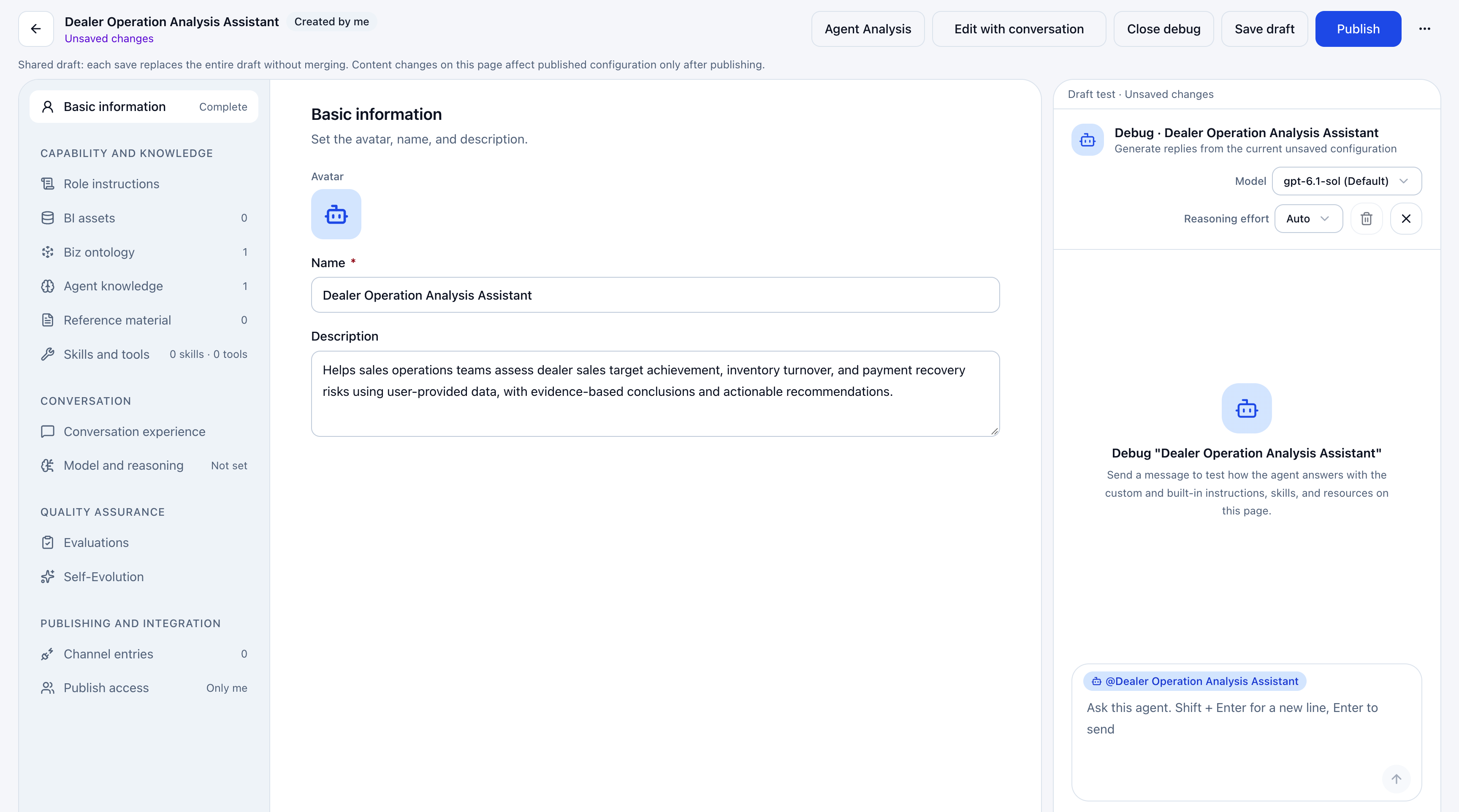
- Click Test Draft to open the test panel on the right. It uses the current page configuration, including unsaved changes.
- Enter a typical question and click Send or press Enter. Check the response against role instructions, data definitions, and output requirements.
- Adjust the configuration and test again, covering key scenarios and exceptional inputs. Change the test model or reasoning level if needed.
- Click Close Test when finished. A successful test does not publish the configuration.
Save a Draft and Publish
For an existing agent:
- Click Save Draft after editing. The unpublished-changes status indicates that production has not been updated.
- Check results with Test Draft.
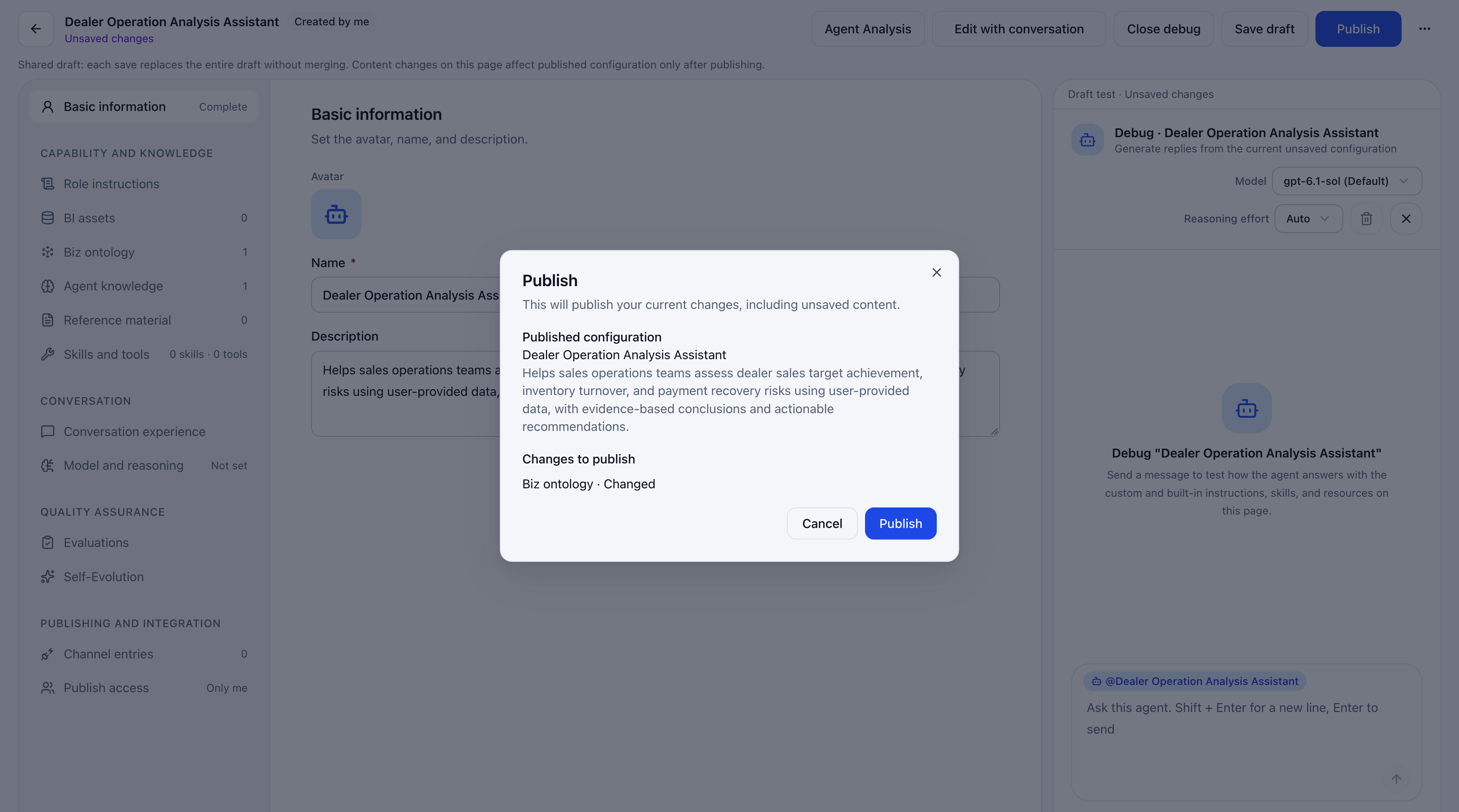
- Click Publish. Compare the current production configuration and proposed changes in the confirmation dialog. Publishing includes unsaved changes on the current page, so review all changes first.
- Click Publish in the dialog. The page returns to the current-production-configuration state.
To discard a draft, choose More Actions > Discard Draft. This restores the latest production configuration and clears the shared draft and current page changes. Coordinate saves between editors. If production content has changed, copy anything you need to retain before reconciling against the latest production configuration.
Publish updates content. Publishing Permissions determines who can use the agent. Check both separately.
Publishing Permissions
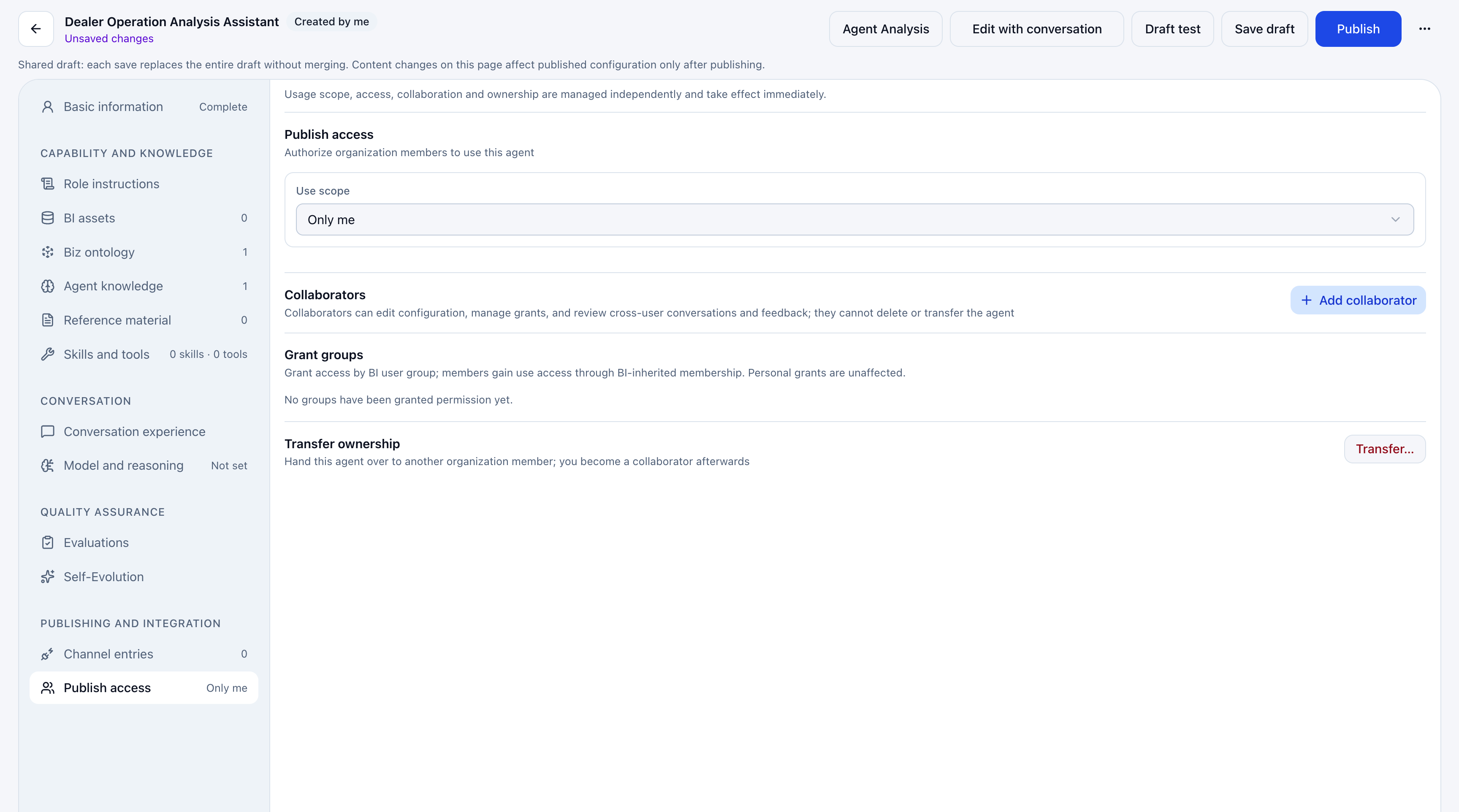
Manage usage permissions, collaboration permissions, and ownership separately.
| Setting | Purpose |
|---|---|
| Usage Scope | Select yourself only, specified members, or all organization members. For specified members, search by name or email and grant access. Revoke authorization to remove usage access. |
| Collaborators | Allow members to maintain the agent together. Collaboration is different from permission to ask questions only. |
| Transfer Ownership | An authorized owner transfers the agent to another organization member and becomes a collaborator. |
These operations take effect independently after success. The top Publish action is not required. Agent authorization does not automatically grant access to the bound ontology. Check related resource permissions separately.
Ownership transfers take effect immediately and have no one-click undo. Before confirming, review the stated effects on permissions, skills, channels, and scheduled tasks. Revoking usage access prevents further agent use, but preserves existing conversation history.