Business Ontology Components and Configuration
Component Overview
After creating or importing an ontology, open it from the ontology list to configure its components. See Create Business Ontologies.
The details navigation groups components into four areas:
- Understanding and validation: overview and modeling preview.
- Definitions: objects, relationships, risks, actions, and question scenarios.
- Associations and usage: metric bindings, data associations, and usage.
- Management: snapshots of stable versions.
| Component | Purpose | Example or focus |
|---|---|---|
| Overview | Review basic information, quality, and pending checks. | Completeness and missing configuration. |
| Modeling Preview | Inspect the model as a graph. | Connections between objects, relationships, risks, and actions. |
| Objects | Define entities, attributes, and data sources. | Customers, products, and stores. |
| Relationships | Connect business objects. | Customers purchase products; orders belong to customers. |
| Risks | Define issues and assessment criteria. | Declining sales of key products. |
| Actions | Describe responses to business issues. | Store replenishment and member reactivation. |
| Question Scenarios | Organize objects and related content for recurring questions. | Product sales anomalies and store performance reviews. |
| Associations and Usage | Inspect data associations and usage. | Metric bindings, datasets, agents, and decision tracking. |
| Version Snapshots | Preserve stable definitions for version-specific agent use. | A validated version before launch. |
Start with Objects, data sources, metrics, and relationships, then add risks, actions, and scenarios. Check Quality, Modeling Preview, and Associations and Usage, then save a Version Snapshot as needed.
Overview and Ontology Quality
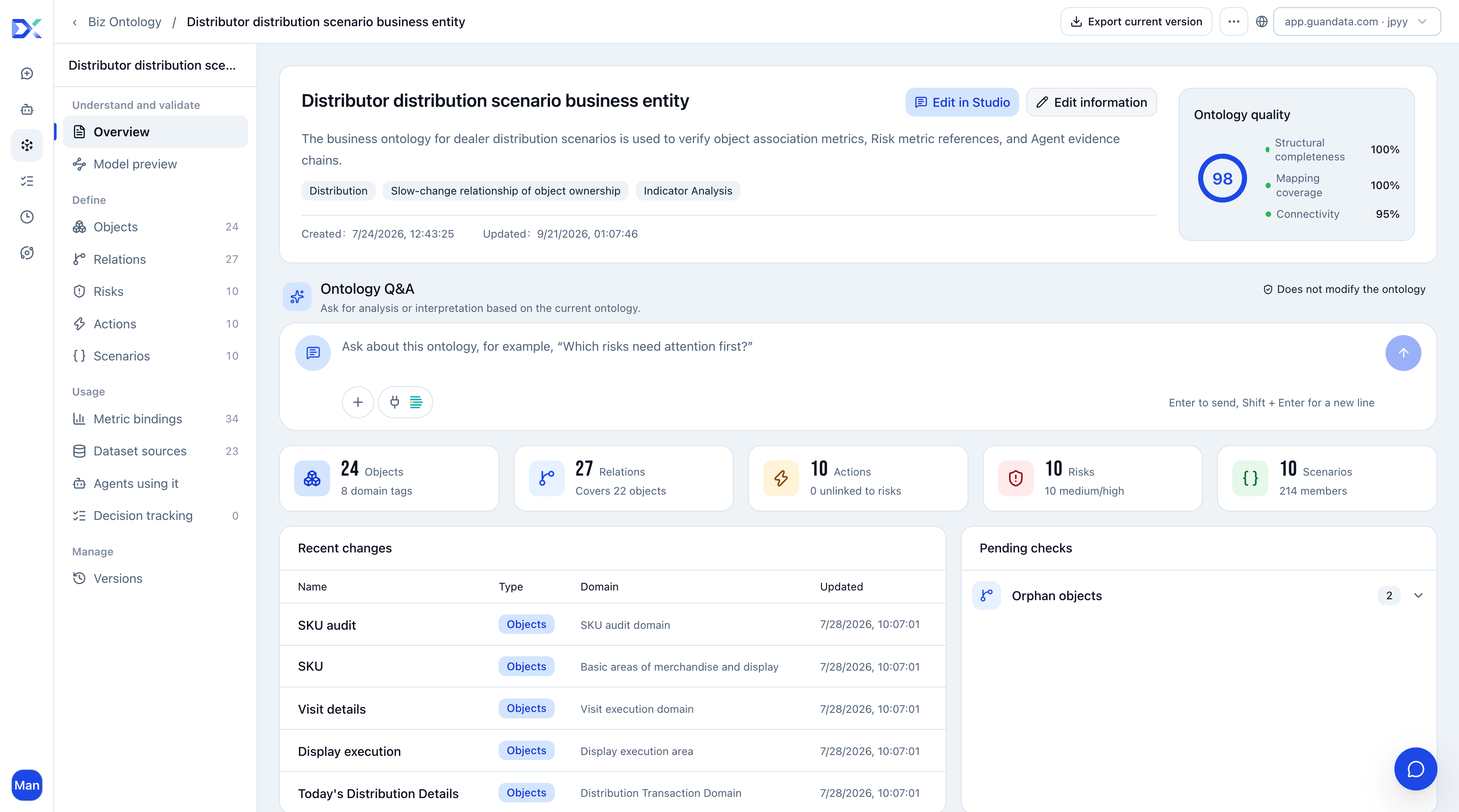
Click Overview to review basic information, quality, component counts, and pending checks. You can also ask questions about the current ontology.
| Content | Description |
|---|---|
| Basic information | Name, description, tags, and creation/update times. The top shows the BI environment and an action to export the current version. With edit permission, edit basic information or modify the ontology through conversation. |
| Ontology quality | Overall score, structural completeness, mapping coverage, and connectivity. These reflect object attributes, instance data sources, and links among objects, risks, and actions. Scores assess configuration completeness, not the correctness of business definitions or results. |
| Ontology Q&A | Ask questions or request analysis of the current ontology without modifying it, for example “Which risks should we address first?” |
| Component counts | Counts of objects, relationships, actions, risks, and question scenarios. Click cards to open modules. Additional counts cover domain tags, objects covered by relationships, actions without risks, medium/high risks, and scenario members or scenarios with invalid references. |
| Recent changes | The five most recently updated objects, risks, and relationships, with name, type, domain, and update time. |
| Pending checks | Counts and entries for unconfirmed dimension mappings, missing attribute sources, risks without mitigation actions, orphan objects, and scenarios with invalid references. Expand an item and open the relevant object or module to resolve it. |
Review this information after creation, import, or changes. Resolve relevant issues before binding the ontology to an agent or creating a snapshot.
Modeling Preview
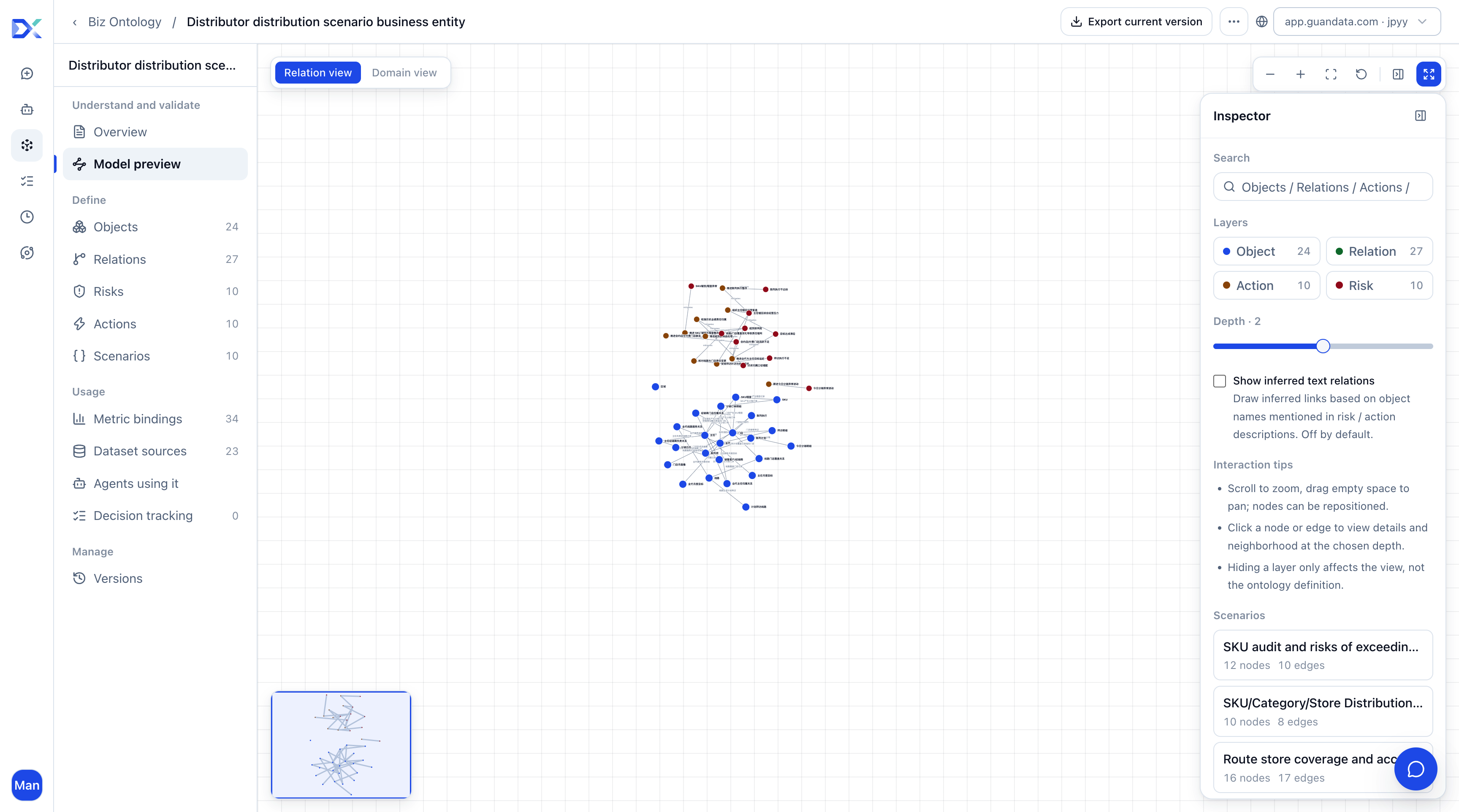
View objects, relationships, actions, and risks as a graph. Switch between relationship and domain views, search entities, and use layers to control visibility. Click nodes or edges for details and adjust the association depth to control the scope shown.
In relationship view, filter by question scenario. In domain view, filter by domain tags. Zoom, pan, and drag nodes as needed. Hiding a layer changes only the display, not the definition.
Objects
Objects define business entities such as customers, products, and stores, along with attributes and data sources. They help agents interpret terminology and locate data. Start with core objects used in frequent questions, then extend their attributes and associations.
Create an empty object and add sources later, or create one from an existing BI dataset.
Create an Object
Create an Empty Object
-
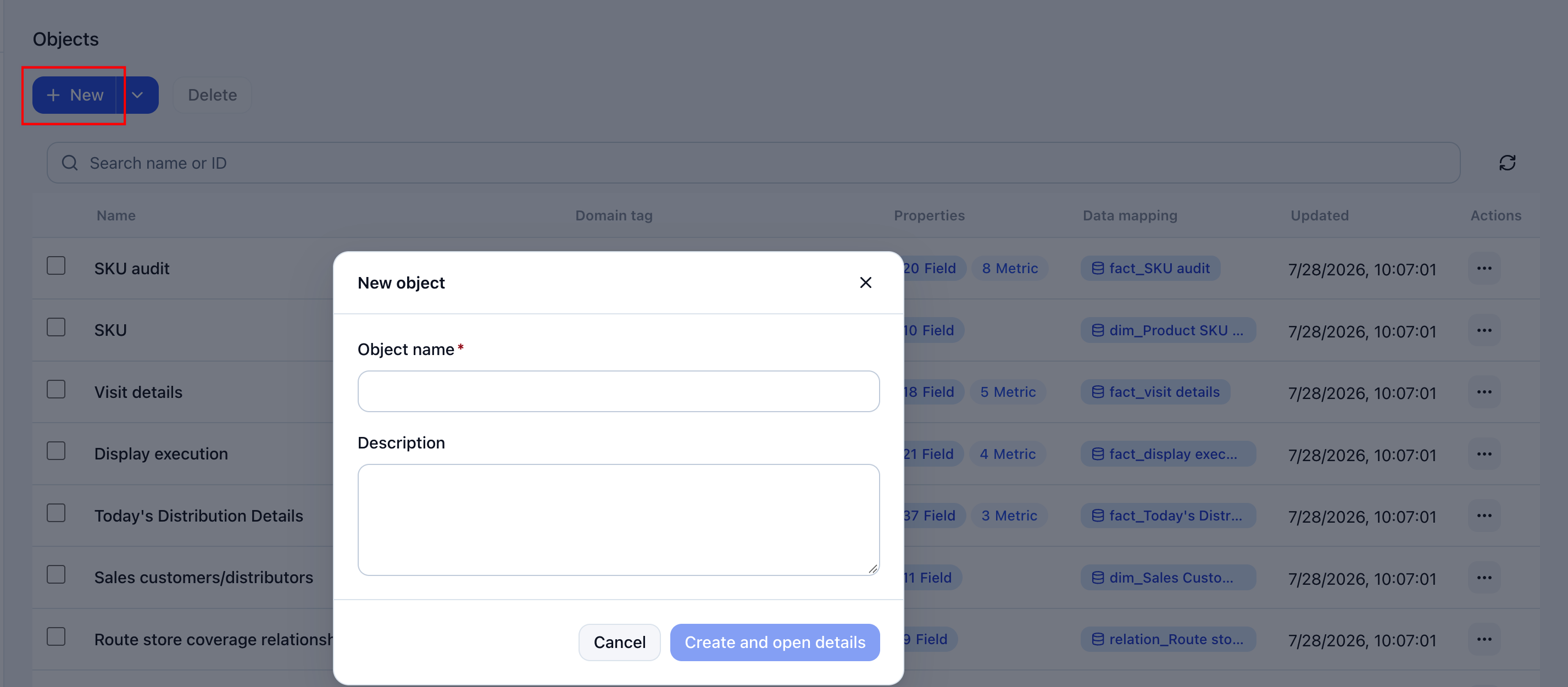
Click Objects > Create.
-
Enter an object name and description. Use familiar business terminology and explain the meaning.
-
Create the object and open its details to configure attributes and sources.
Create from a Dataset
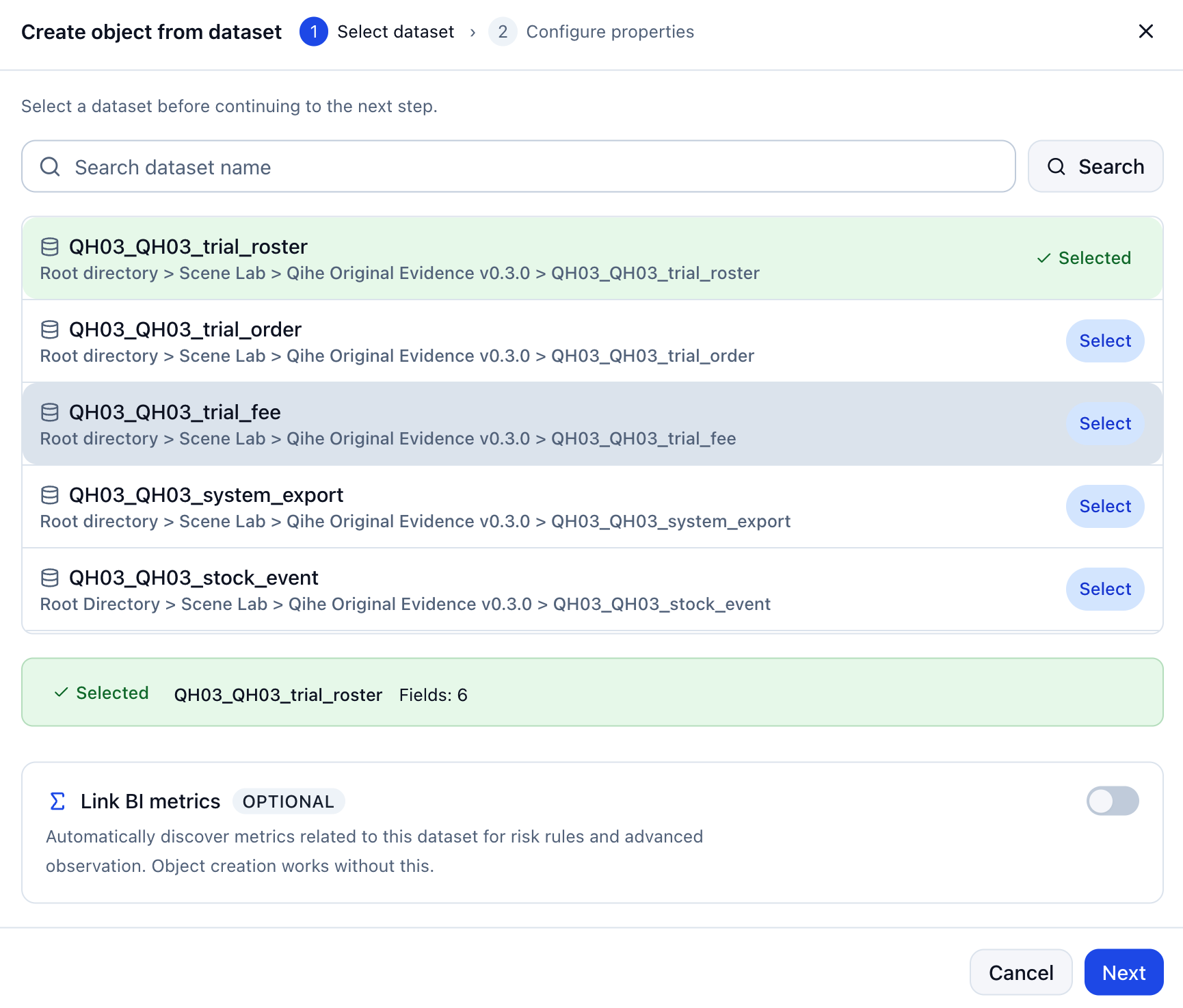
This method configures field attributes and can associate BI metrics. Datasets come from the ontology's bound BI environment. Dashboards cannot be selected here.
-
Open the arrow beside Create and choose the dataset-based creation option.

-
Search for and select a dataset. Optionally enable BI metric association, then click Next. Enabling it discovers metrics associated with the dataset, but it is not required to create the object.
-
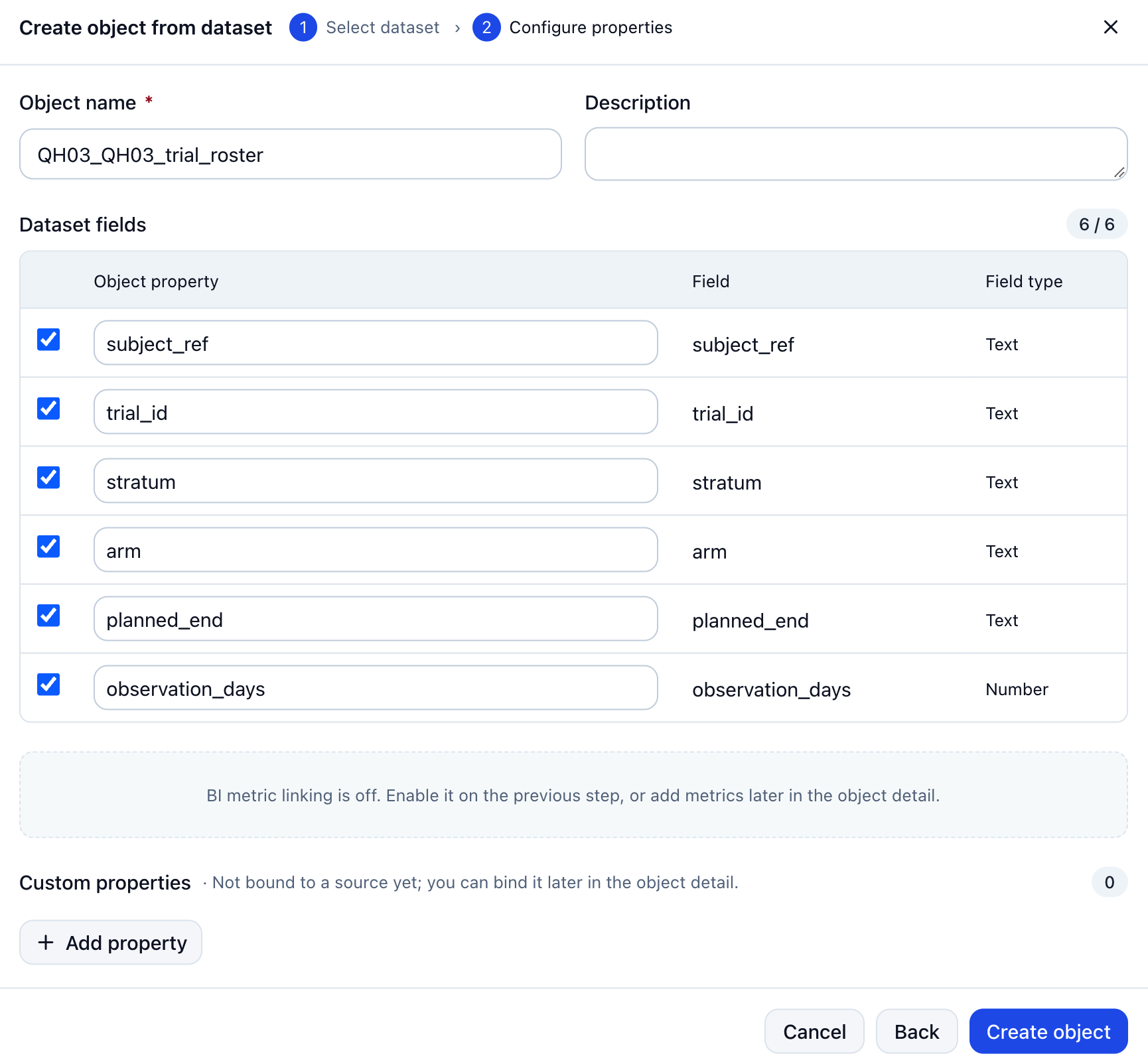
Configure the observation attributes:
Setting Description Object name and description Confirm the name and explain its business meaning. Dataset fields Select fields to use as attributes and adjust names. Prefer fields used for filtering, grouping, and display. Associated metrics Select discovered metrics if metric association was enabled. Custom attributes Add attributes as needed and bind their sources after creation. Attribute names must be nonempty and unique.
-
Create the object, then inspect its attributes and sources.
Edit and Manage Objects
Search the list by object name or ID. Use … on the right to edit or delete.
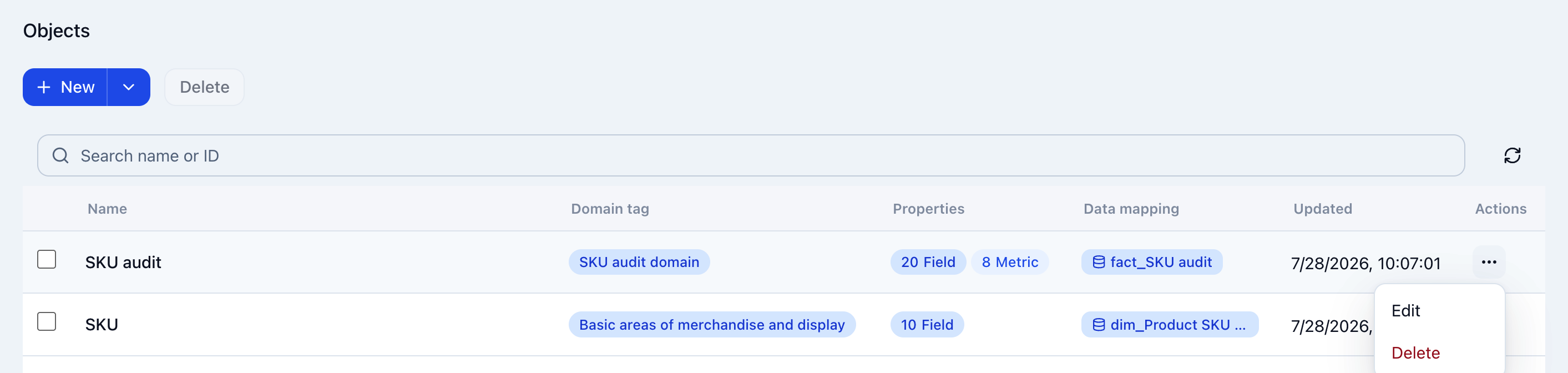
| Action | Description |
|---|---|
| Edit | Choose … > Edit to maintain basic information, data assets, and attributes, and review validation. |
| Delete one object | Choose … > Delete and confirm, or delete from the quick actions in object details. |
| Delete multiple objects | Select objects, click Delete above the list, and confirm. |
Deleting an object also deletes its attributes. An object referenced by a relationship cannot be deleted until those relationships are handled.
Object details contain:
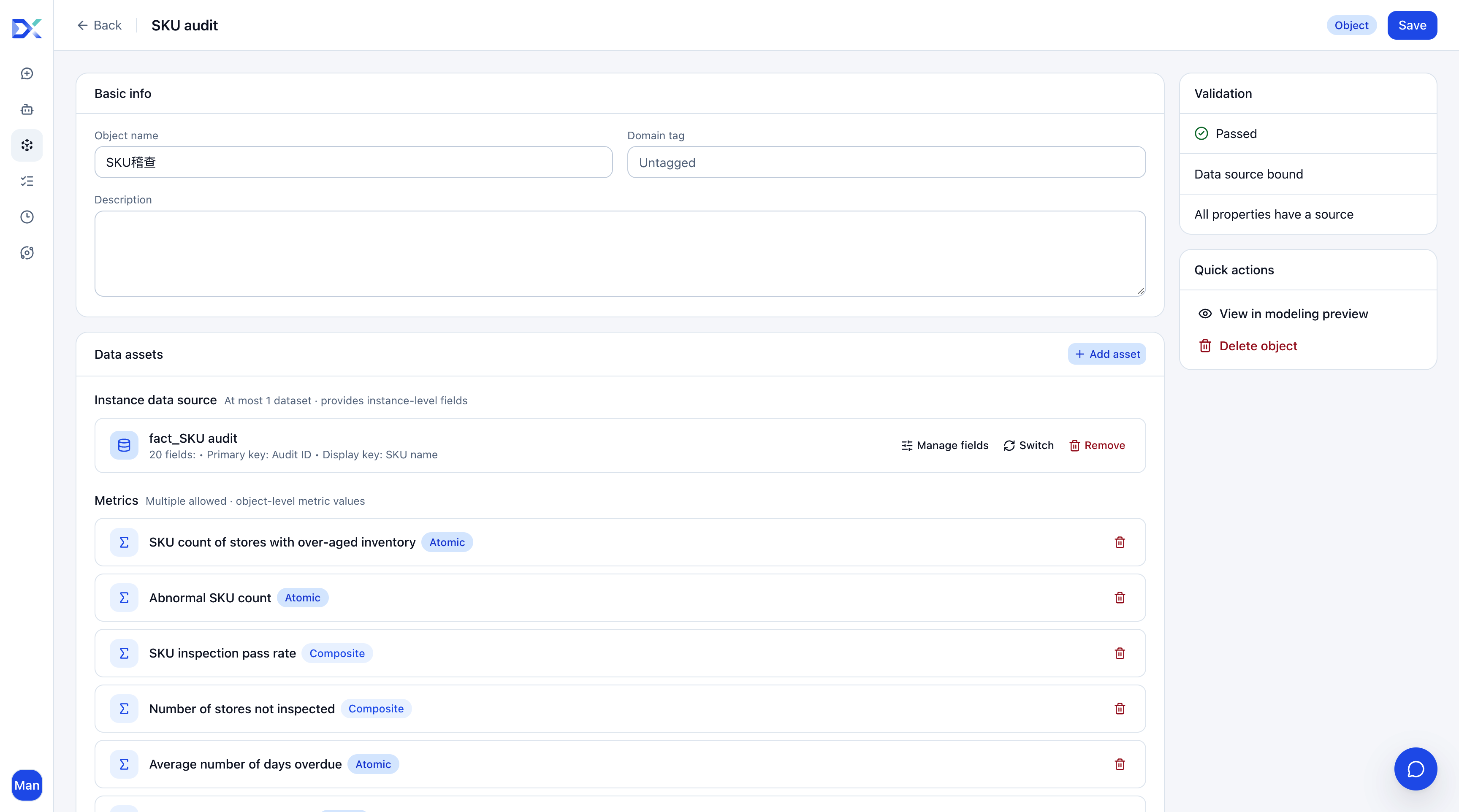
| Area | Description |
|---|---|
| Basic information | Object name, domain tags, and description. |
| Data assets | Instance source and metrics. At most one dataset supplies instance-level fields. Manage fields, switch, or remove the source as needed. Multiple metrics can describe aggregate object-level values. |
| Attributes | Attribute names, source types, data types or definitions, and source fields or metrics. Edit using the actions on the right. Field attributes describe basic properties; metric attributes describe performance. Verify calculation definitions, such as revenue, against business definitions. |
| Validation | Source and attribute binding status, with missing configuration to complete. |
| Quick actions | View the object in modeling preview or delete it. |
Click Save after changing basic information. Back in the list, review names, tags, attributes, mappings, and update times.
Relationships
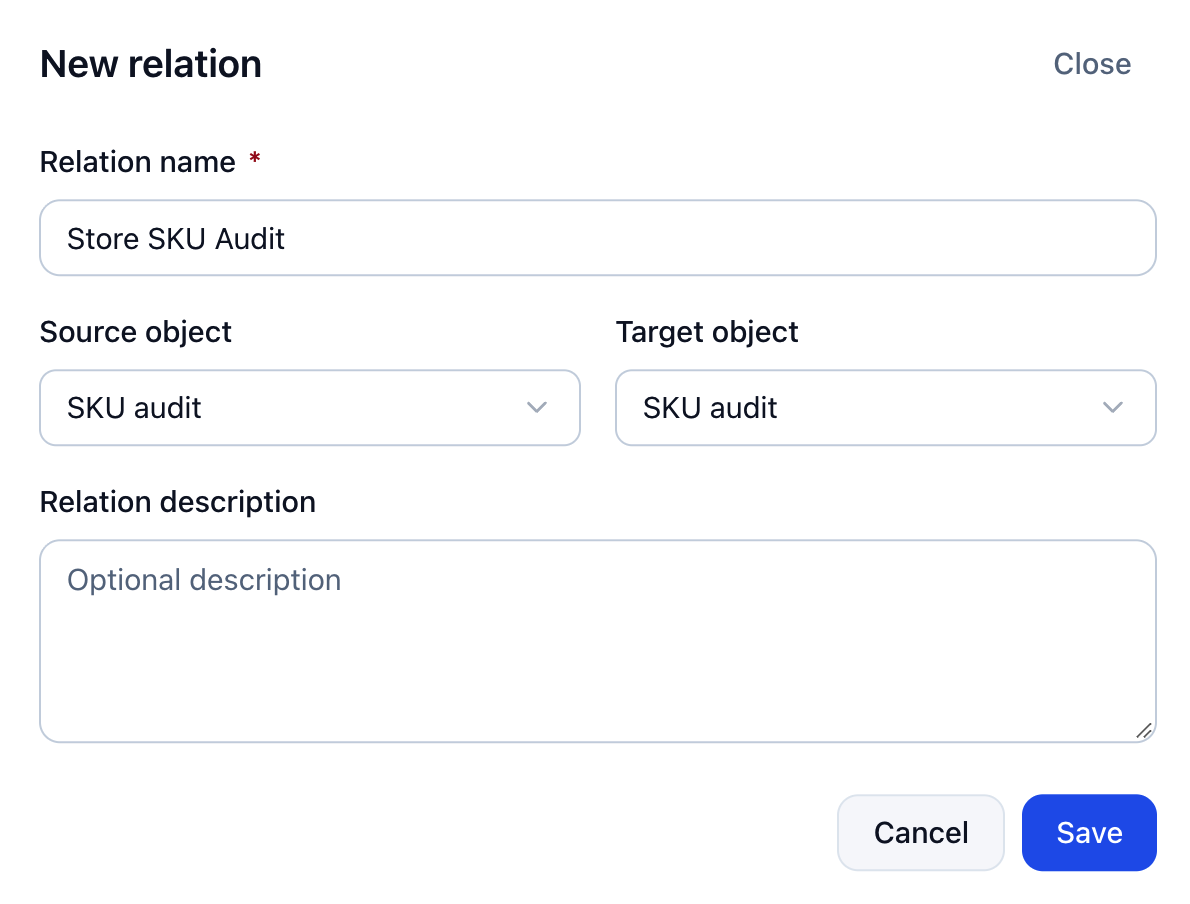
Relationships connect business objects, such as customers purchasing products, stores selling products, or orders belonging to customers. They support cross-object follow-up and attribution. Create both endpoint objects first.
-
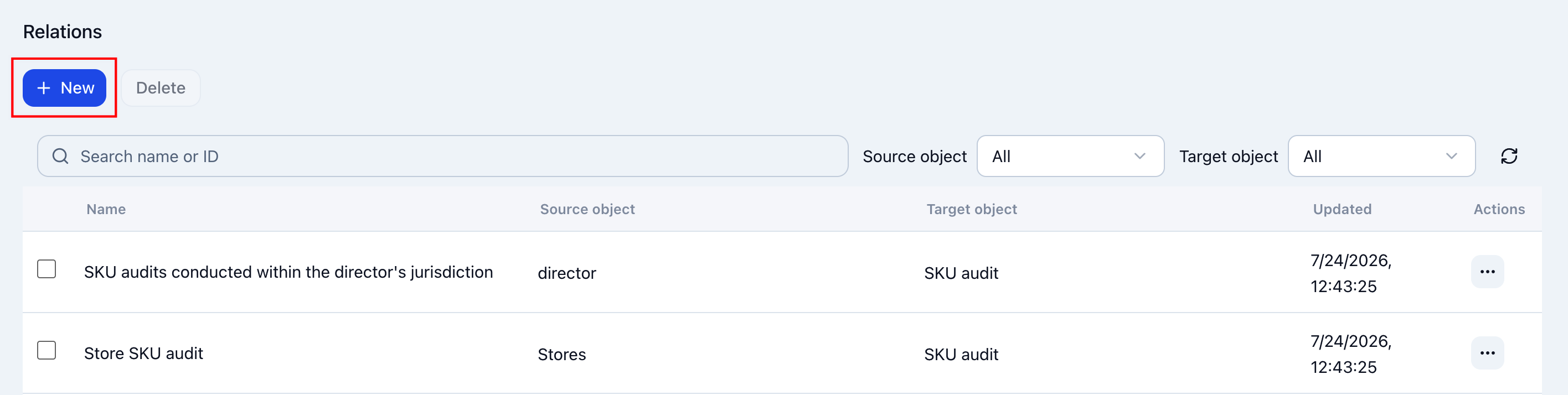
Click Relationships > Create.
-
Enter a relationship name, select the source and target objects, add a description, and save. Use a meaningful business name instead of vague terms such as “related to.”
Risks
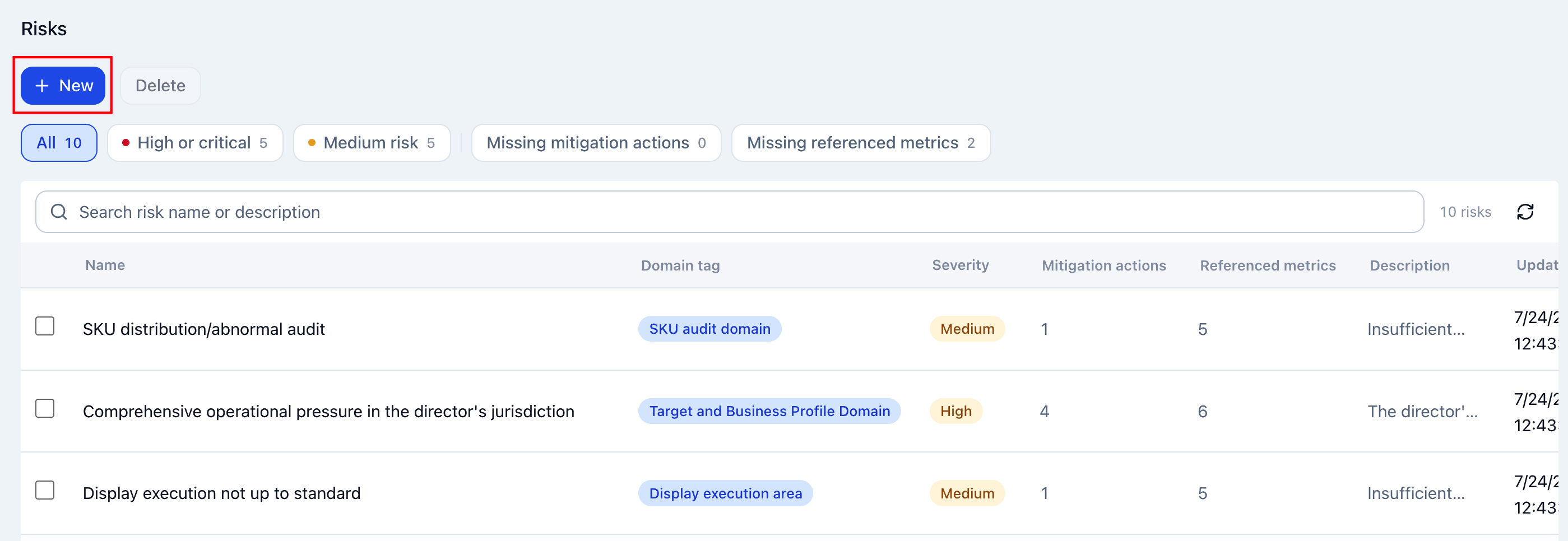
Risks represent business issues to identify and address. Use business language and explain the criteria. “Declining sales of key products” is clearer than “metric anomaly.” Specify applicable objects, evidence, and responses to focus analysis.
-
Click Risks > Create.
-
Enter the risk name and configure:
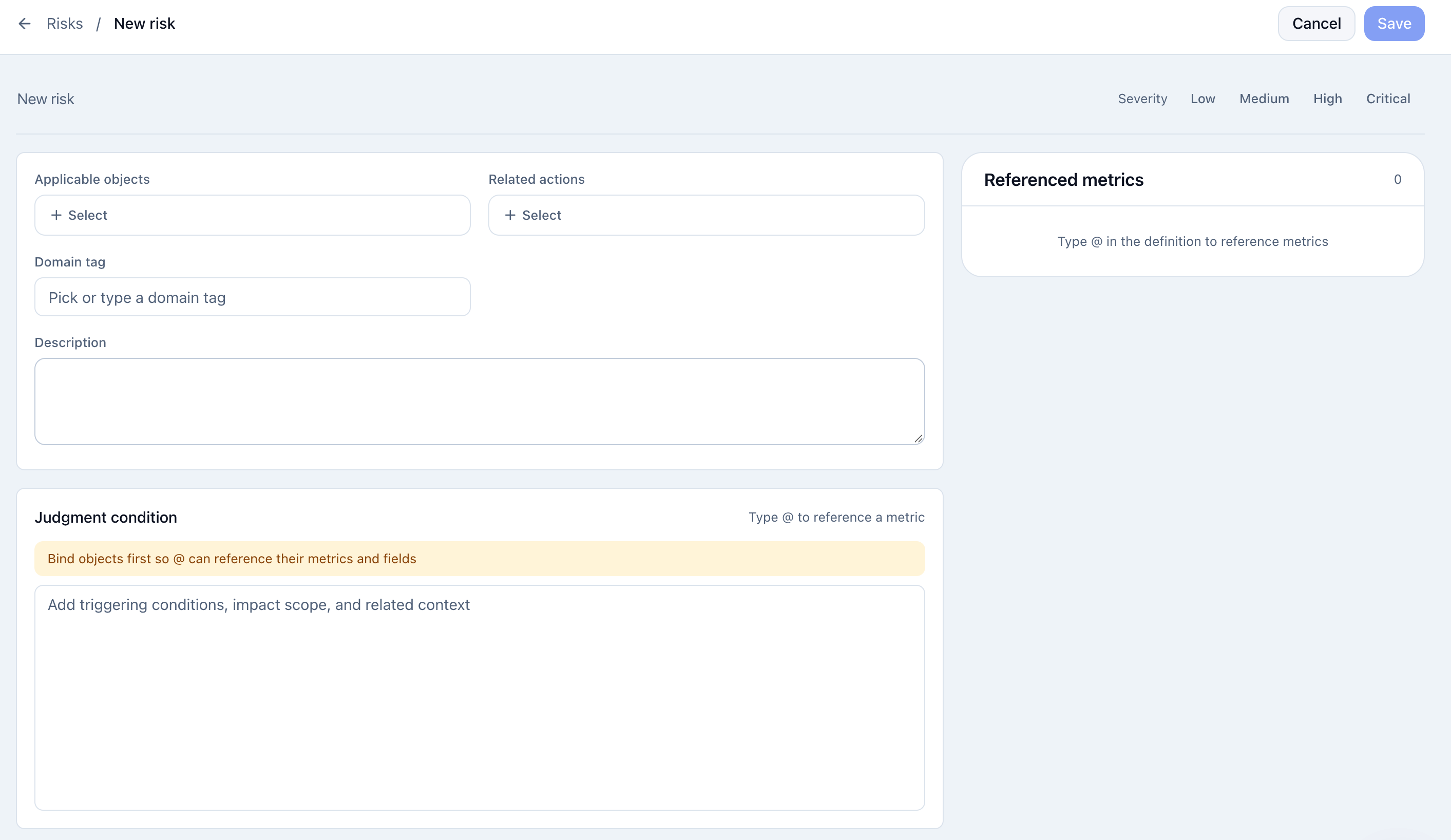
Setting Description Risk level Low, medium, high, or critical. Applicable objects Objects involved in the risk. Associated actions Actions responding to the risk. Domain tags Select or enter the business domain. Description Brief business meaning. Assessment conditions Trigger conditions, impact, and context. Enter @to reference metrics or fields of selected objects. -
Select applicable objects before entering
@in the conditions. Check the referenced-metrics area on the right. -
Review and save.
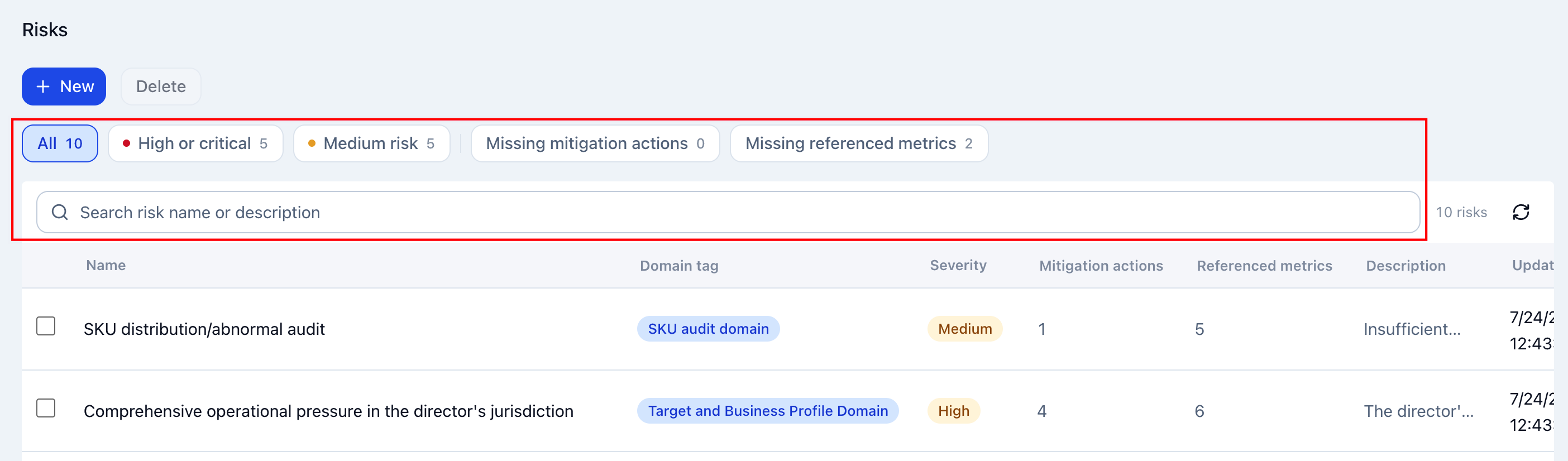
Filter the list by all risks, high and above, medium, missing actions, or missing referenced metrics, or search by name or description to find definitions needing work.
Actions
Actions are steps the business team can take or has taken. They connect analysis to execution. Prefer actions actually recorded, discussed, or reviewed, such as increasing advertising, adjusting prices, replenishing stores, or reactivating members.
-
Click Actions > Create.
-
Enter the action name and optionally domain tags, a description, and details, then save.
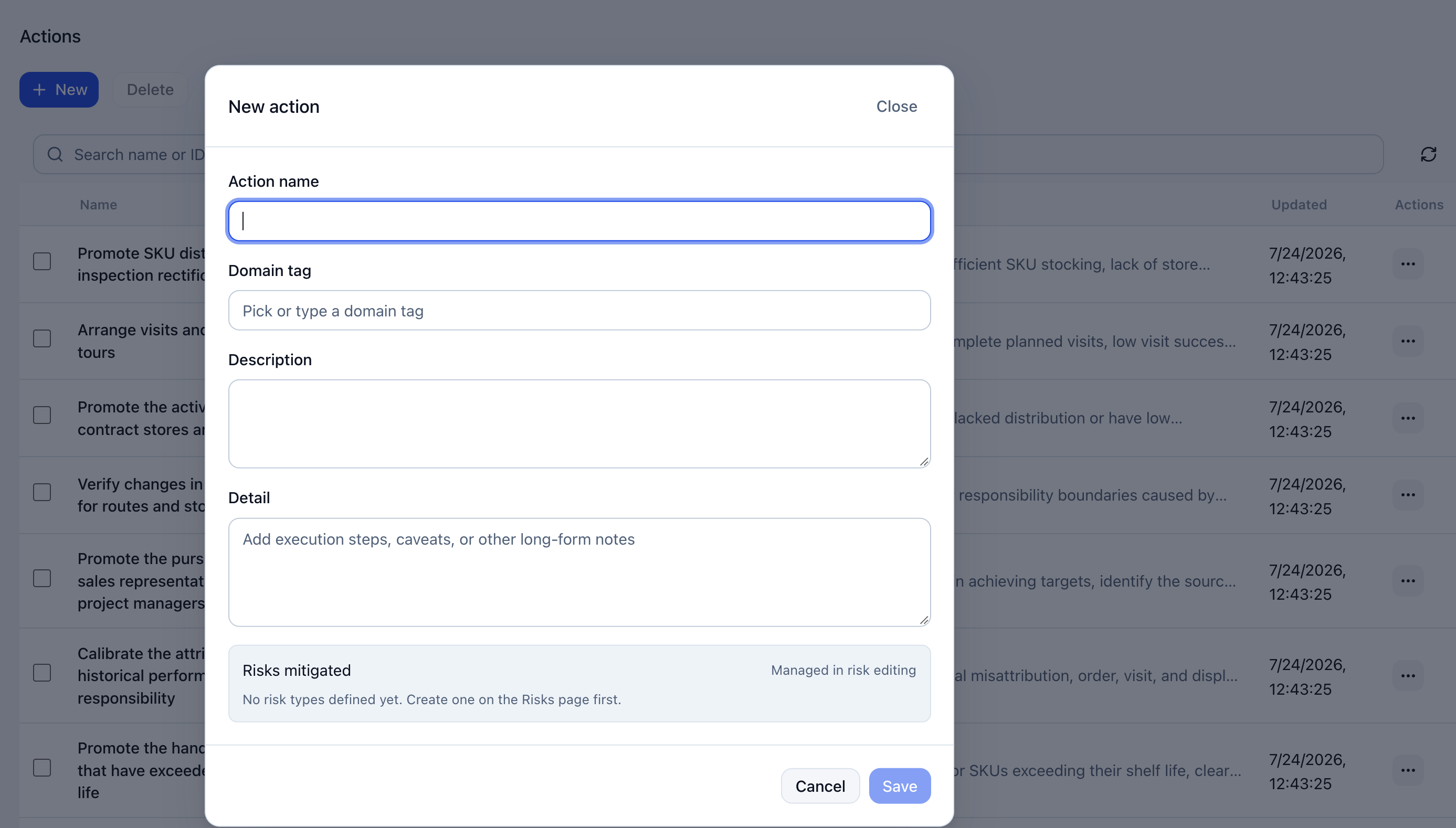
Associated risks are read-only here. Create or change associations in the risk editor's associated-actions setting.
Question Scenarios
Question scenarios organize recurring analysis paths such as sales anomaly analysis, churn warnings, or store performance reviews. Related objects and their associations provide scope and context. Base them on real questions from meetings, reviews, and dashboards.
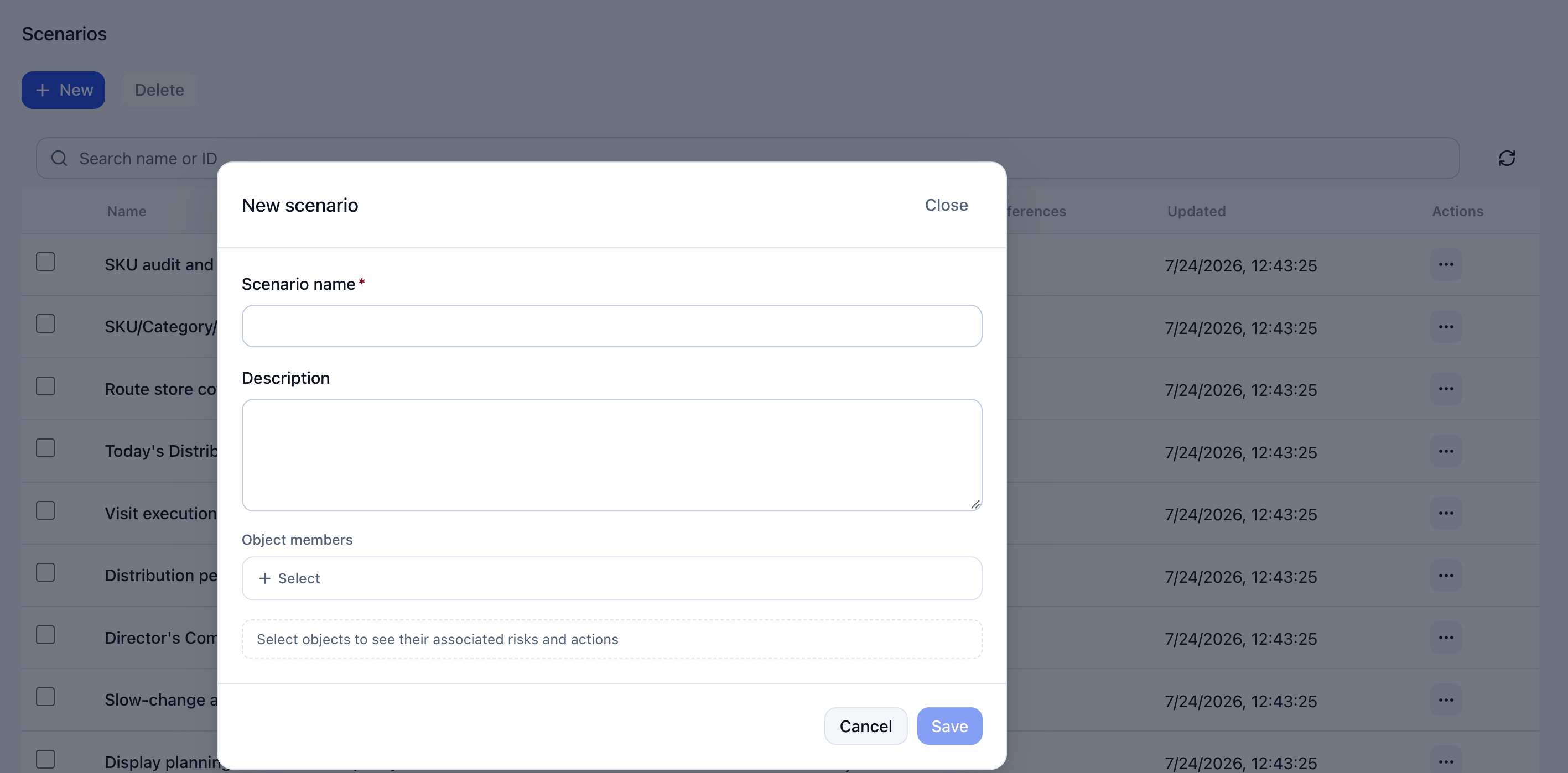
- Click Question Scenarios > Create.
- Enter a name and description.
- Select the object members involved. Their associated risks and actions are displayed.
- Review and save.
Associations and Usage
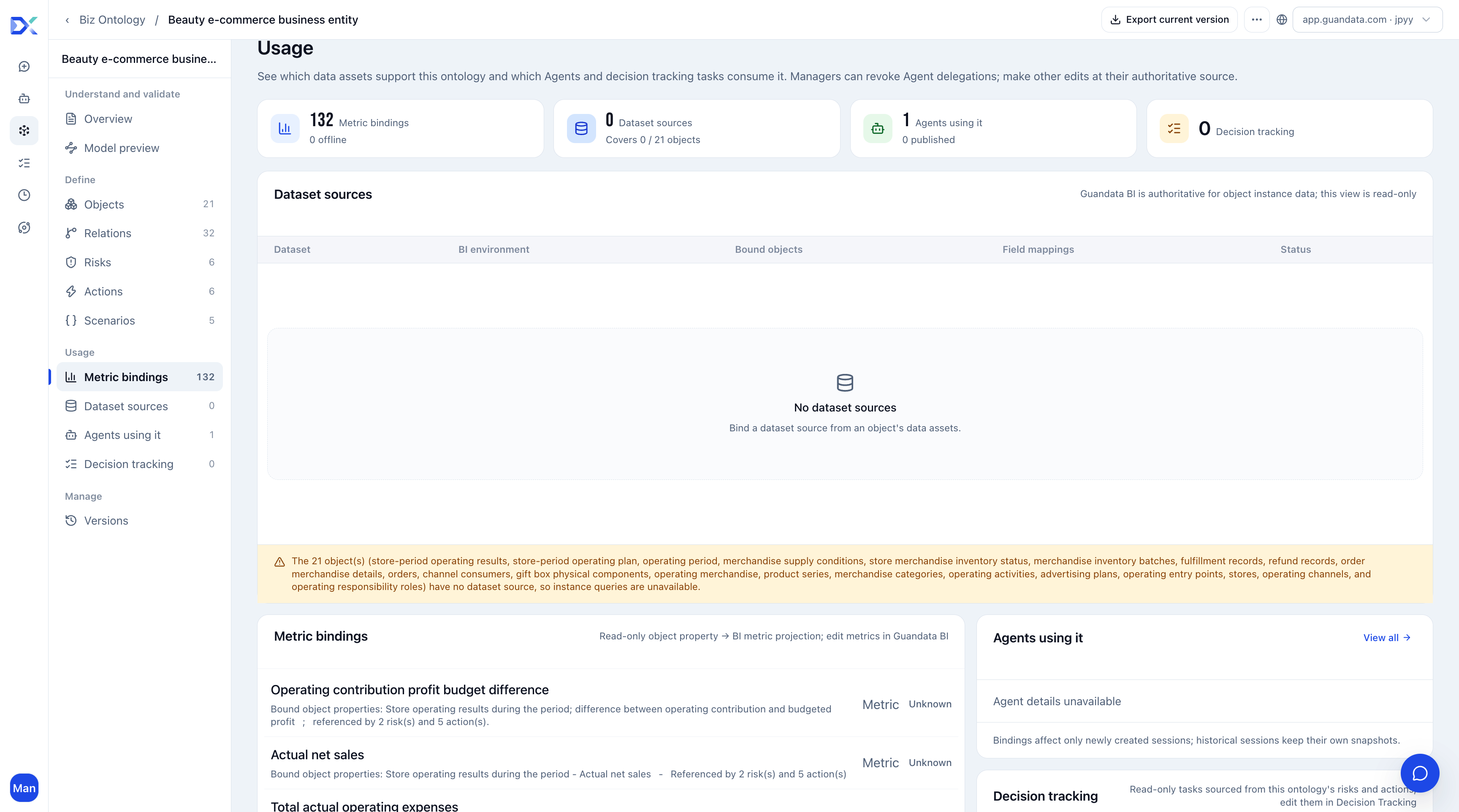
Review supporting data assets and the agents and tracking tasks using the ontology. Open metric bindings, dataset sources, agents in use, or decision tracking from the left navigation.
The top summarizes metric bindings and unpublished metrics, dataset sources and object coverage, agents and published agents, and tracking tasks.
| Content | Description |
|---|---|
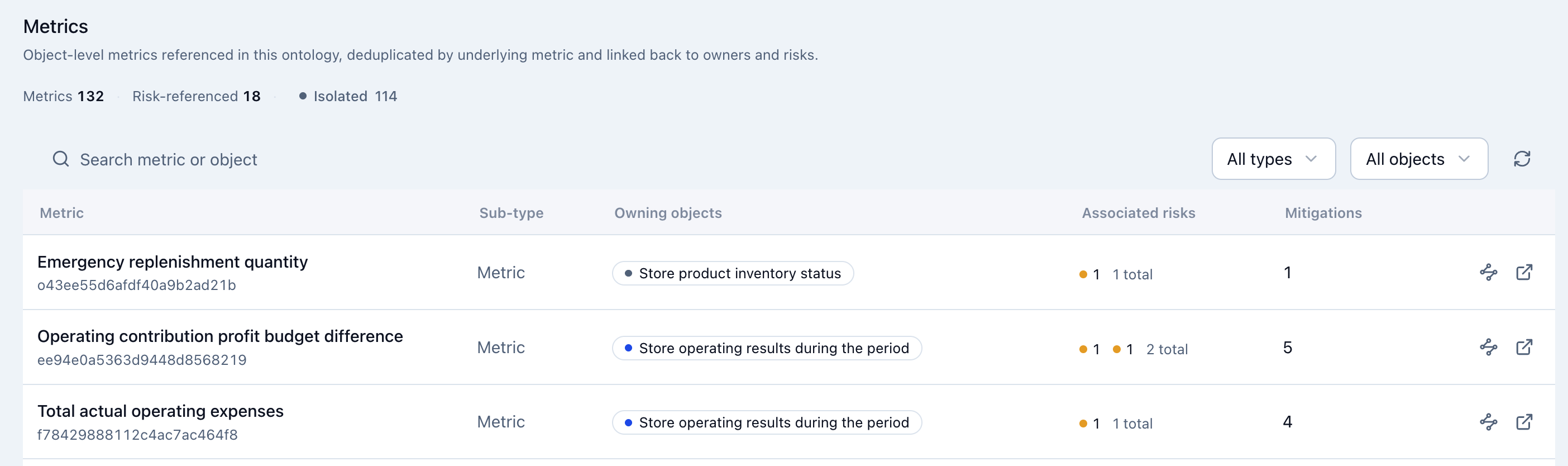
| Metric bindings | Read-only associations between object attributes and BI metrics, including metric names, bound attributes, risk/action reference counts, and status. Maintain definitions in BI. The top five are ranked by reference count; open the full list for more. The full list deduplicates underlying metrics and shows objects, risks, and mitigation actions. Search metrics or objects and filter by object. View lineage or open the metric in BI using the row actions. |
| Dataset sources | Datasets, BI environments, bound objects, field mappings, and status. Sources are read-only here; bind them in the object's data assets. Objects without a source show a warning and cannot query instances. |
| Agents in use | Agents using the ontology. Open the full list as needed. Agents whose details you cannot access show a permission notice. Bindings affect new conversations only; existing conversations retain their snapshots. |
| Decision tracking | Read-only tasks created from the ontology's risks or actions. Edit them in the decision tracking module. |
Version Snapshots
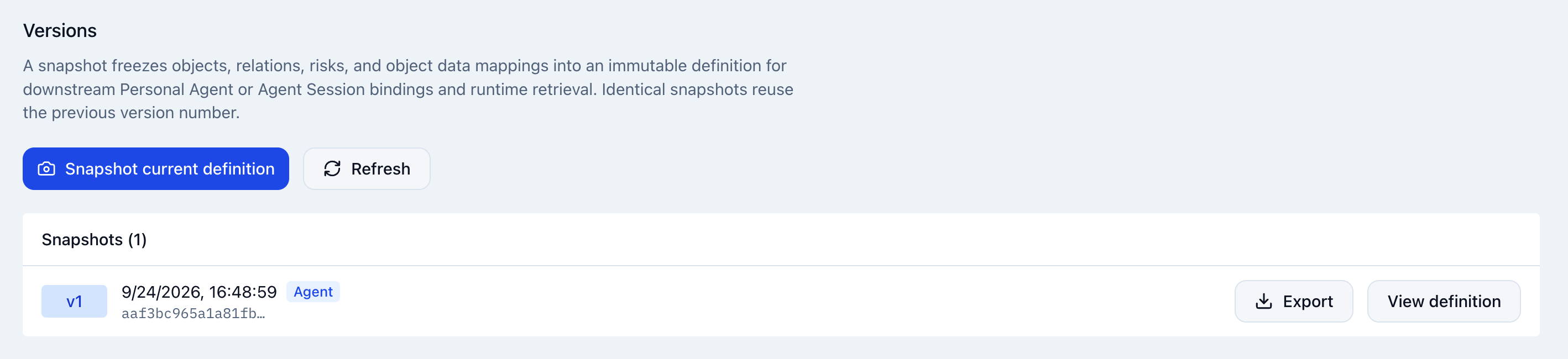
Snapshots preserve the definition at creation time for viewing, exporting, and version-specific agent use.
- Open Version Snapshots. With edit permission, snapshot the current definition.
- Review the version list. If the definition matches the previous snapshot, the system reuses that version instead of creating a new one.
- View or export a version as needed.
When binding an ontology to an agent, select the latest or a specific version. Creating a snapshot does not pin existing bindings to it. Select a specific version in agent configuration to fix the business definition.
Related Guide
See Distributor Distribution in Consumer Goods for an end-to-end industry example of objects, relationships, metrics, and business rules.