Home Workspace
Introduction
The home workspace is the default page after you sign in to DecideX. Start AI conversations, select agents, review recent conversations, or open Agents, Business Ontology, Decision Tracking, Scheduled Tasks, Explore, and Settings.
On the desktop home page, click Help in the upper-right corner to open the first-time feature guide. It explains how to select an agent, start an analysis, inspect the evidence chain, and create decision tracking.
Access the Page
Sign in to DecideX to open the home workspace. Click New Chat in the left navigation to return home and start a new task.
For your first task, ask the General Assistant a question or select an agent suited to your business scenario. See Use an Agent.
Page Areas
The following table describes the main areas and entry points on the desktop home page.
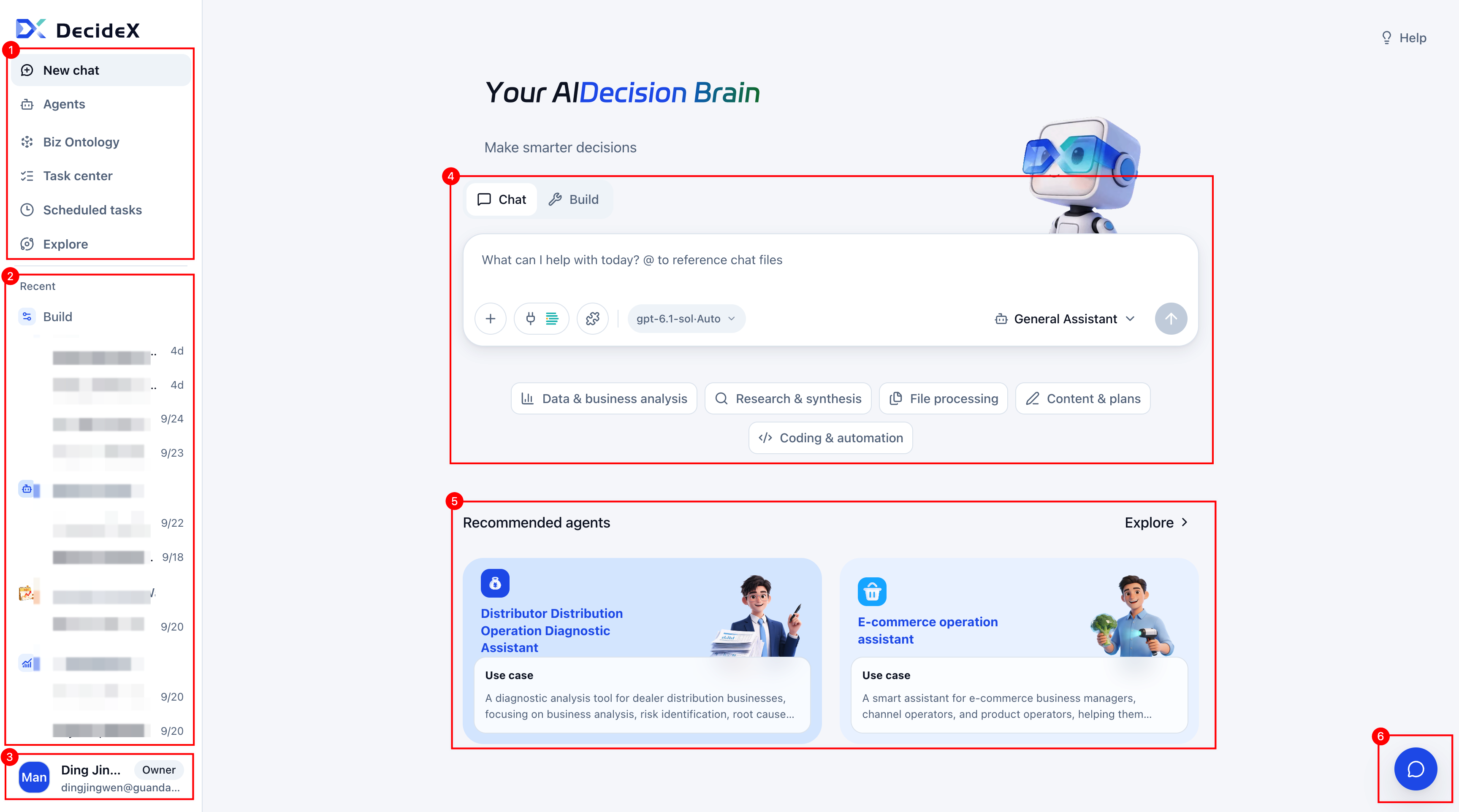
| No. | Area | Description |
|---|---|---|
| 1 | Left navigation | New Chat: Start a conversation. Agents: View, search, create, and manage agents. Business Ontology: Manage business objects, concepts, relationships, risks, and actions. Decision Tracking: View and manage tasks that require ongoing review. Scheduled Tasks: Manage scheduled agent runs and their execution history. Explore: Browse, install, and manage agents, skills, connectors, and other extensions. See Get Agents and Configure Plugin Connections. |
| 2 | Recent | View previous conversations and continue reviewing results or asking follow-up questions. |
| 3 | Profile menu | View your account and role. Open Settings, personal memory, and operations monitoring. Available entries depend on account permissions. |
| 4 | Conversation and build area | Chat: Use the general assistant or an existing agent for questions, data analysis, and file processing. Enter your request and add supporting materials. Use the organization BI environment configured by the administrator without a separate connection. Data access follows your BI resource permissions. Configure plugin connections only when you need test environments, personal environments, or other external services. You can also select skills, a model, a reasoning level, and an agent, then click Send. Build: Uses the build agent to create, modify, and improve agents, skills, and BI data assets, and to build business ontologies through conversation. Task examples: When using the general assistant or build agent, browse example prompts by task category. Click an example to fill the input box, edit it, and send. See Add Materials and Configure Conversation Capabilities for materials, connections, skills, and model settings. |
| 5 | Recommended agents | Select a recommended agent suited to your scenario, then enter a request. Use Explore to find more resources. |
| 6 | Feedback | Open the feedback window to report a problem or suggestion. |