Configure Plugin Connections
Overview
Connectors give DecideX authorized access to Guandata BI or custom MCP services so agents can query data and call external tools.
For BI data, prefer the organization connection configured by the administrator. Members do not need individual connections and retain their own BI resource permissions. See System Integrations. Configure an additional connector for test environments, personal BI environments, or other external resources as needed.
Open Explore and find Connector under Recommended or Plugins. Click Connect to configure a service, or Manage Connections to inspect and maintain existing authorization.
Configure a Personal BI Connection
These steps are for additional BI connections, such as test or personal environments. They are not required for an administrator-configured organization BI environment.
Personal connections support BI analysis and content creation/publishing within the account's permissions. Authentication supports Personal Access Token and username/password. Prefer PAT; use username/password where PAT is unavailable.
The target BI environment must be 8.2 or later. Prepare its address and a valid PAT or account/password, and confirm the account can access the required data.
-
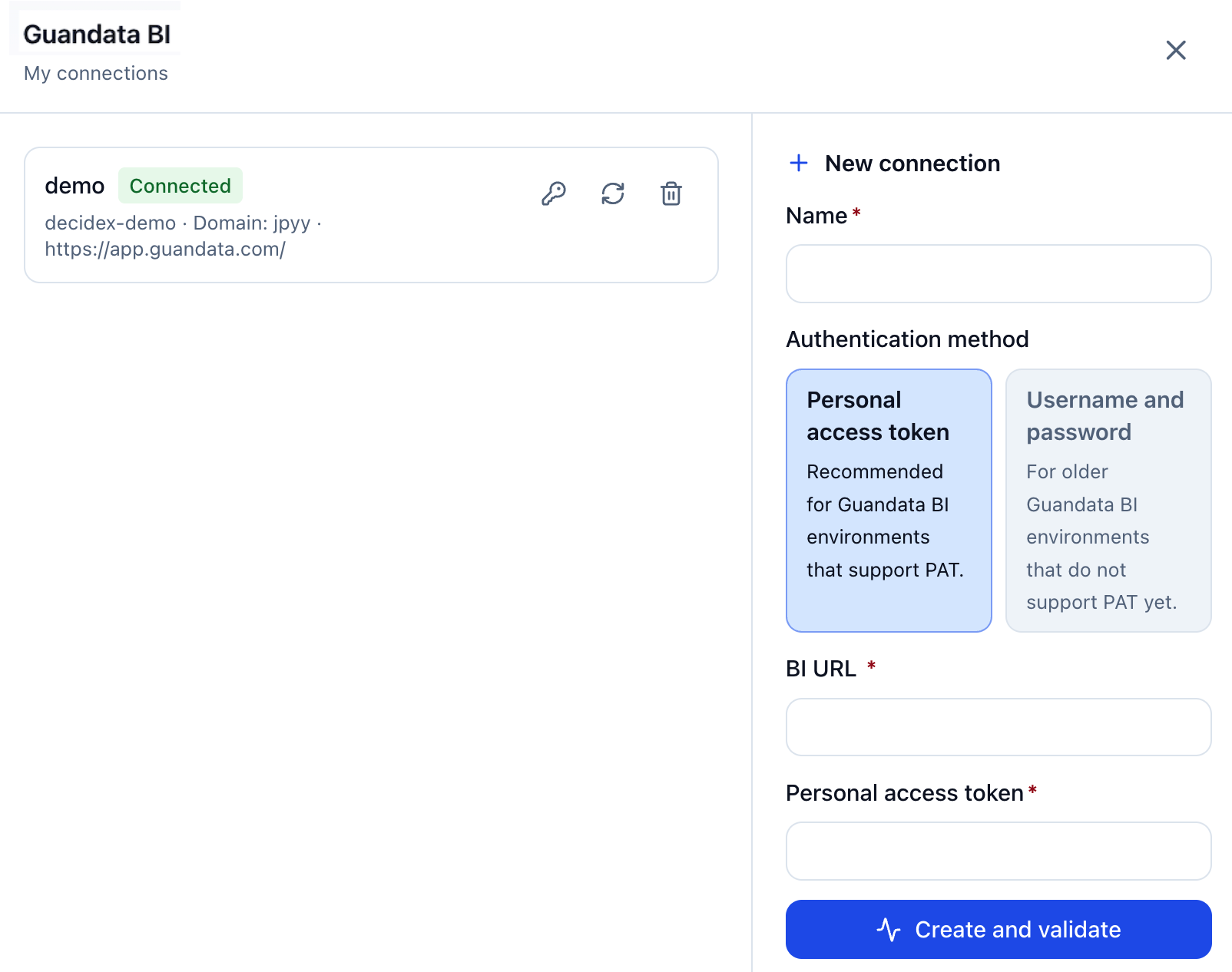
In Explore, open Recommended or Plugins and find Guandata BI under Connector. Click Connect or Manage Connections.
-
Choose an authentication method under the new-connection area and provide its settings.
Method Required information Personal Access Token (recommended) An identifiable connection name, BI address, and valid PAT for that environment. Username/password Connection name, BI address, optional Domain, login account, and password. -
Create and validate the connection. My Connections lists names, statuses, and associated BI environments.
-
Validate an existing connection to check it. If authorization expires, reauthorize with valid credentials.
Connect Custom MCP
Custom MCP connects an HTTP MCP service so agents can call its tools. Obtain the endpoint and required authentication details from the provider.
-
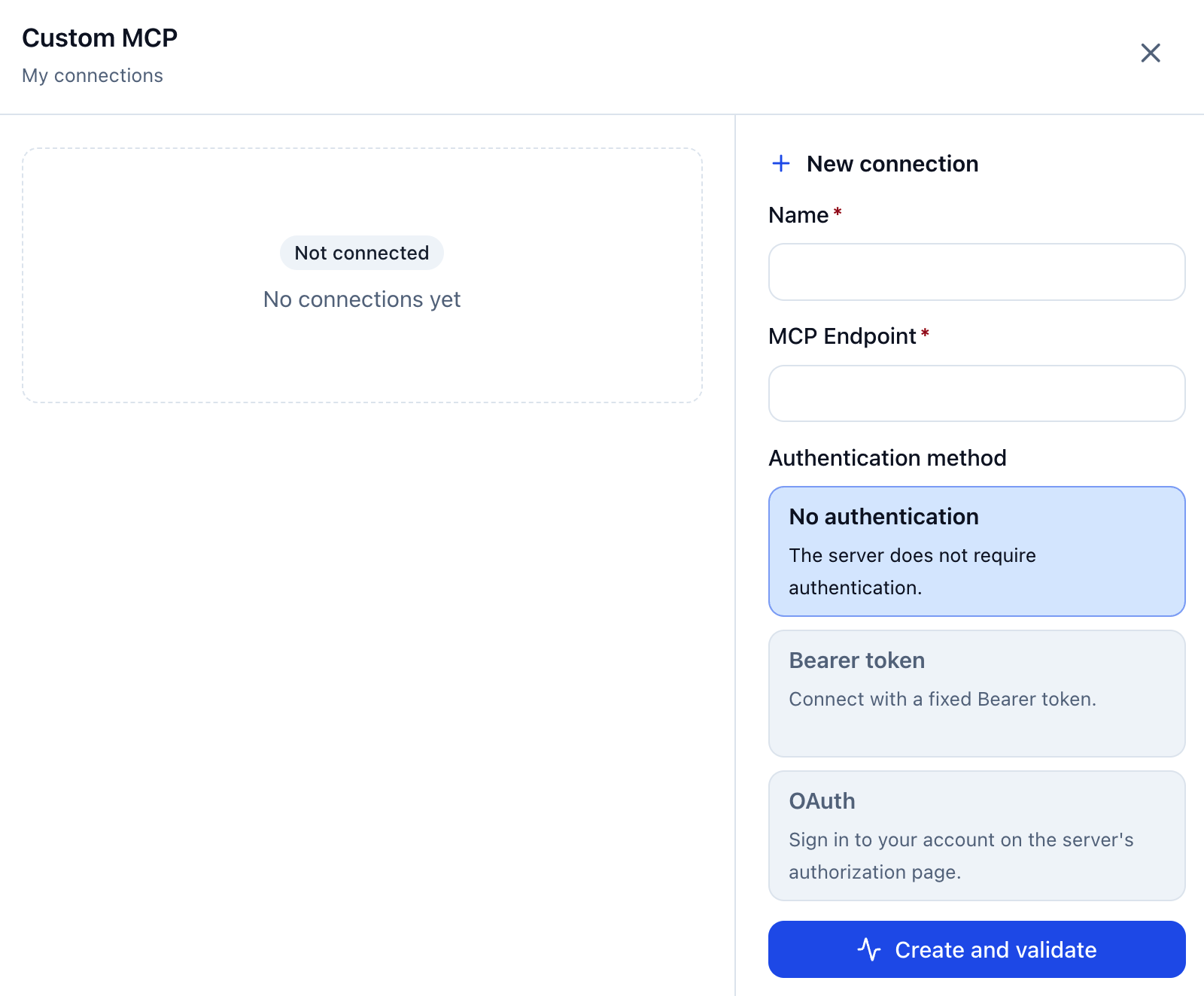
Find Custom MCP in Explore under Connector, then click Connect or Manage Connections.
-
Enter a name and the provider's MCP Endpoint in the new-connection area.
-
Select the required authentication method:
Method Description No authentication No credentials for services that do not require authentication. Bearer Token A valid bearer token from the provider. OAuth Sign in and authorize on the service's authorization page. -
For no authentication or bearer token, create and validate. For OAuth, start authorization and follow the provider's prompts.
-
Return to My Connections and confirm the connection is created and connected.
Manage Connections
Click Manage Connections on a connector card to inspect status and maintain authorization in My Connections.
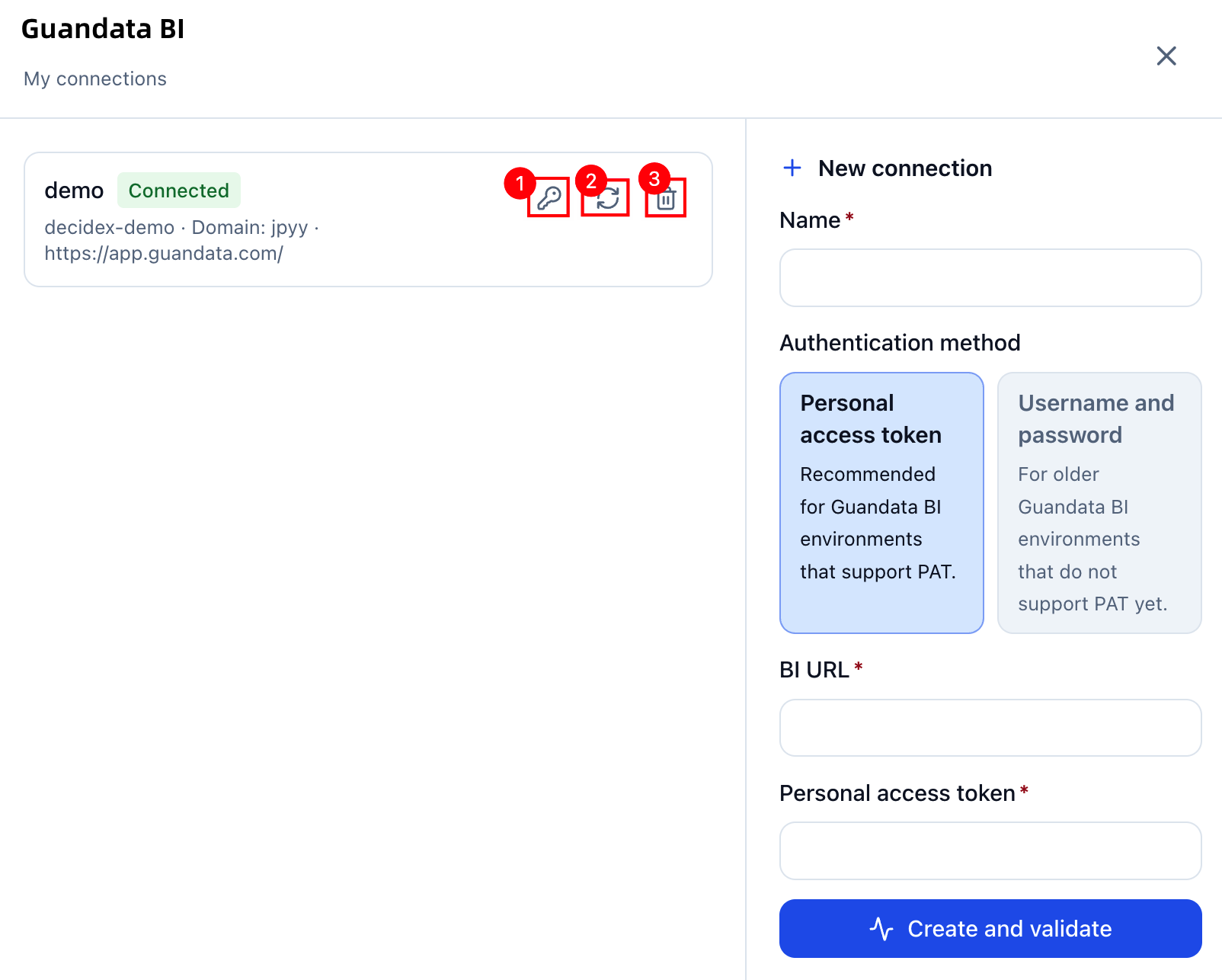
| No. | Action | Description |
|---|---|---|
| 1 | Reauthorize | Update expired credentials or repeat authorization. BI credentials can be updated only for the original environment and account. Follow the prompts for OAuth. Available actions depend on the connector type. |
| 2 | Validate | Check availability. Resolve expired authorization or connection errors as prompted, then validate again. |
| 3 | Delete | Remove an unused connection. First check whether subsequent conversations or tasks still need it. |
After connecting, select the connector in a conversation. Accessible resources depend on the connected account's authorization.