Create and Manage Agents
Agent Overview
An agent is an AI assistant for a specific business scenario. It combines role instructions, business data, business ontologies, knowledge, reference materials, skills, and tools to answer questions, analyze data, and process files.
After creating an agent, configure its capabilities and conversation experience, validate it through testing and evaluation, then publish it and grant members access. Scheduled tasks can also run an agent at specified times.
Agent List
Click Agents in the left navigation. The list displays agents visible to your account as cards. You can filter by ownership or sharing scope, search by name, switch views, and import agents in bulk.
Page Layout
The toolbar at the top provides the following entries.
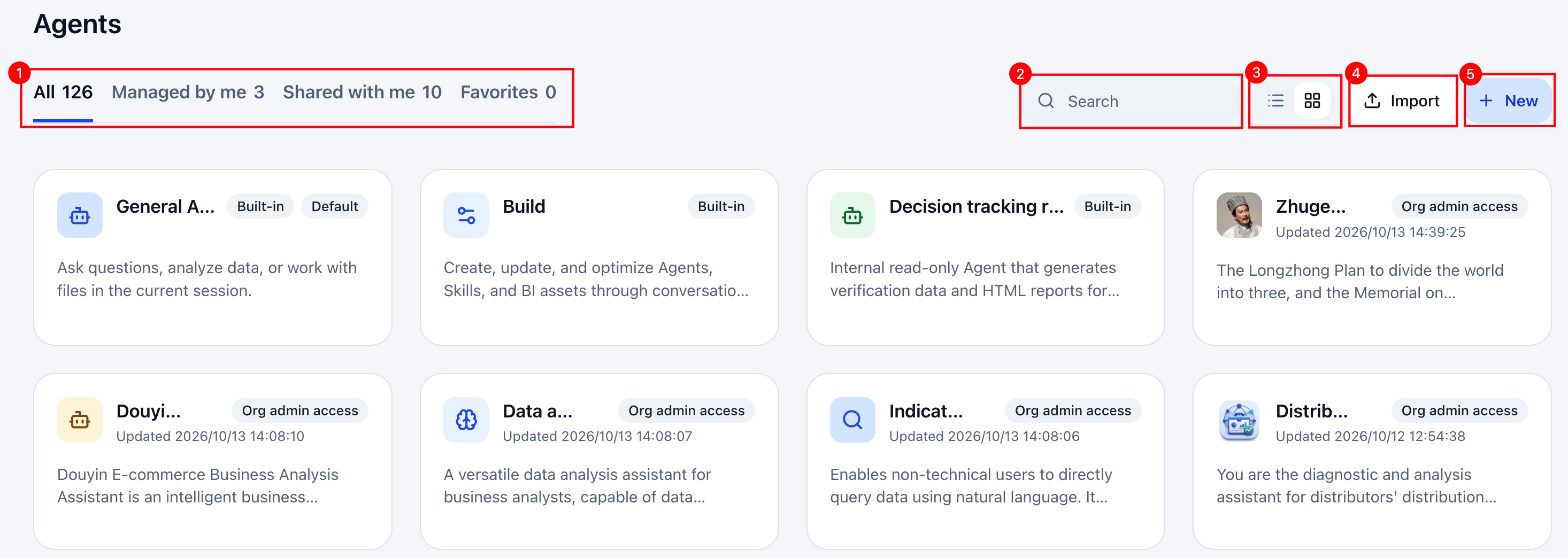
| No. | Entry | Description |
|---|---|---|
| 1 | Scope | Filter by All, Managed by Me, Shared with Me, or Favorites. |
| 2 | Search | Enter an agent name to find it. |
| 3 | View switch | Switch between list and card views. |
| 4 | Import | Upload a configuration file to import existing agents in bulk. |
| 5 | New | On desktop, click New to open the creation page. See Create an Agent. |
Agent Types
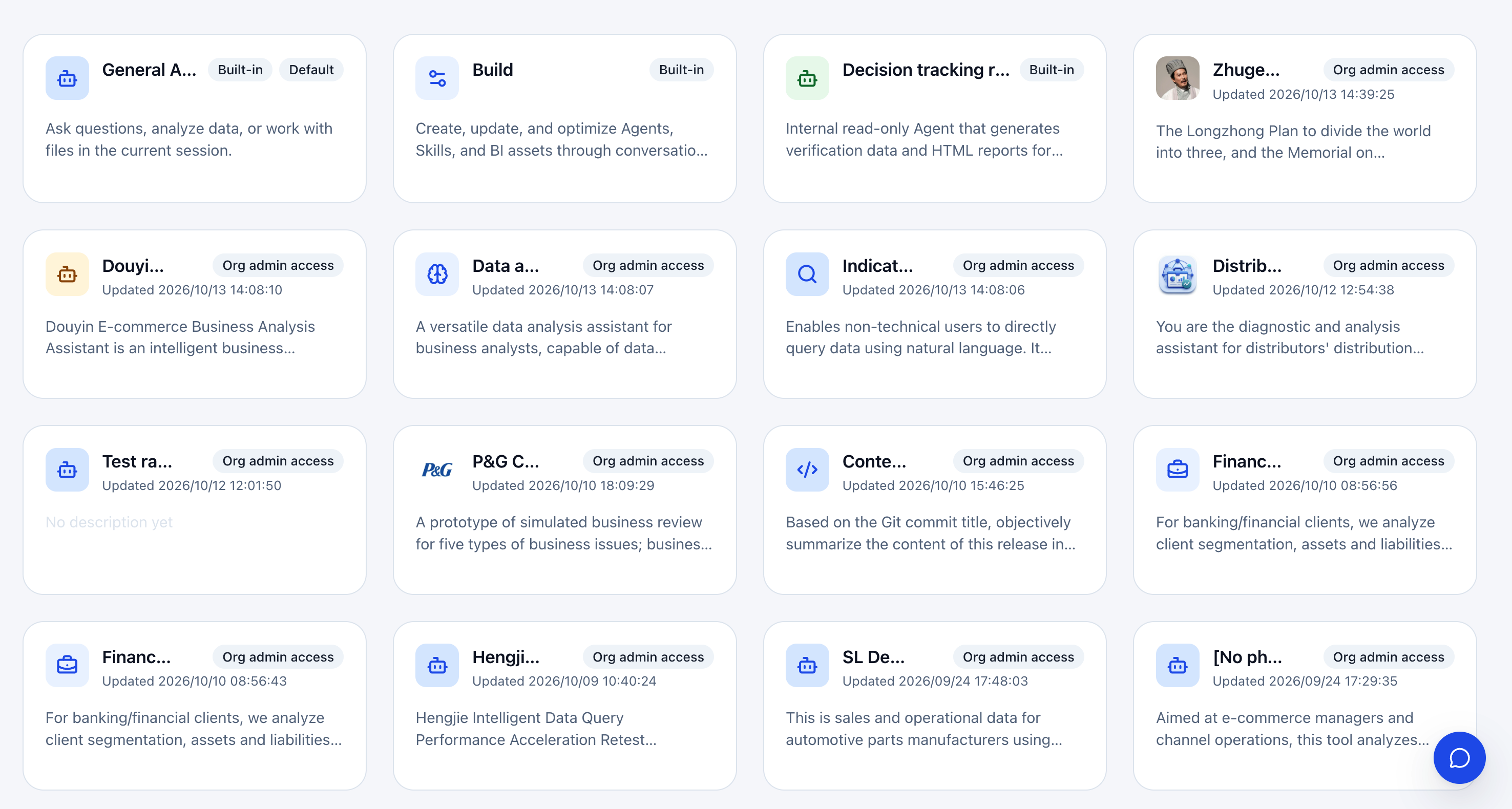
The list includes system agents and agents created for specific business scenarios. Check the card name, description, and badges to understand their purpose.
Use the General Assistant for an immediate task, choose an existing business agent for a matching scenario, or create an agent to define your own business rules and analysis workflow.
System agents
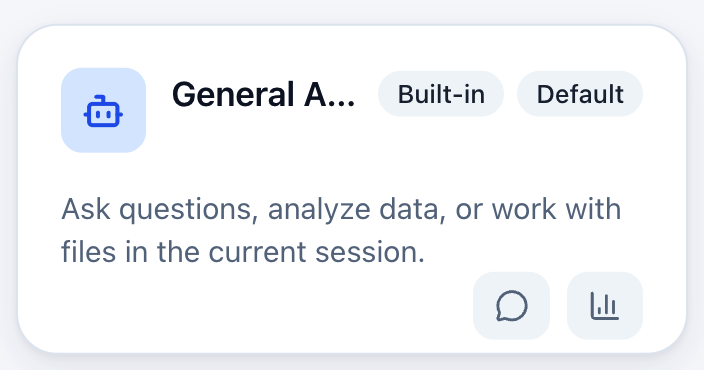
System agents provide general task handling, resource building, and tracking review capabilities. Their cards display a Built-in badge.
| Agent | Purpose |
|---|---|
| General Assistant | Ask questions, analyze data, and process files within a conversation. You do not need to create a business agent first. Add materials and service connections as the task requires. |
| Build | Create, modify, and improve agents, skills, and BI data assets through conversation. Business ontology operations retain their confirmation steps. |
| Tracking Review Executor | An internal read-only agent that generates verification data and HTML reports for tracking tasks. |
Business agents and ownership badges
Business agents are configured for scenarios such as distributor diagnostics, e-commerce operations, or financial analysis. Ownership badges describe your account's relationship to the agent, not its business capabilities.
| Badge | Meaning |
|---|---|
| Created by Me | Created by the current account. |
| Shared with Me | Available to the current account through sharing permissions. |
| Org admin access | Visible through organization management access. Available actions still depend on permissions. |
| Default | Selected by default for new conversations. This badge can appear with other badges. |
Agent Cards
Cards show the name, description, and associated resources. Badges such as Built-in, Shared with Me, and Org admin access indicate the resource's origin and visibility.
Actions vary by agent type and account permissions:
- Chat: Open a conversation with the agent.
- Analytics: View agent quality and feedback within your permissions.
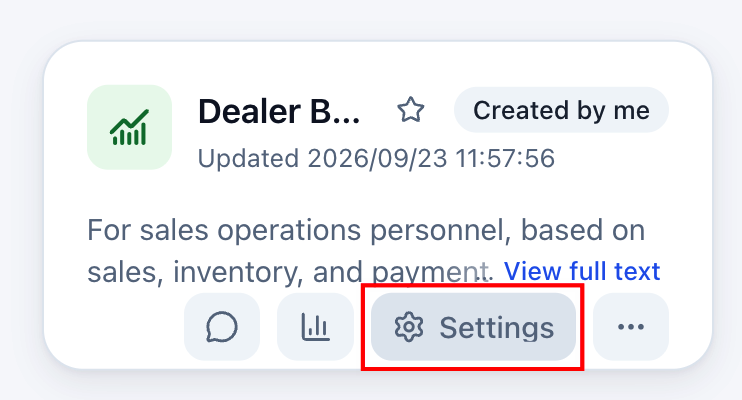
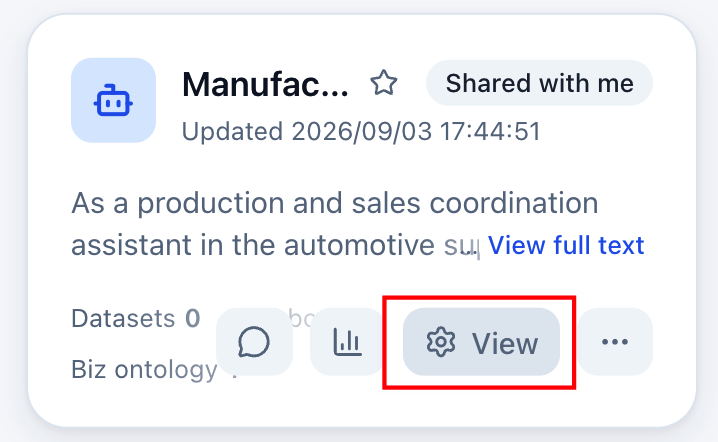
- Settings: Manage agents you are authorized to manage.
-
With edit permission, the button is Settings. See Configure Agents.
-
With view-only permission, the button is View.
-
Without permission, the button is not shown.
-
- More: Open additional actions. The menu depends on permissions and agent status.
- Set as Default Agent: Make an accessible agent the default for new conversations.
- Export and Delete: Available for agents you own and can edit.
- Official marketplace actions: With official marketplace publishing permission, publish an agent you own and can edit using Publish to Official Marketplace. For published agents, use Update Official Version or Unpublish Official Version. An unpublished agent can be republished.
Seeing an agent in the list does not grant permission to edit, delete, or transfer it. Organization management visibility does not imply permission to change its configuration.
Create an Agent
On desktop, click Agents > New. Generate an initial draft through conversation or fill in the configuration manually. Both methods use the same page draft, and you can switch between them.
AI-generated or modified drafts are not saved automatically. Review them, then click Save or Update.
Create Through Conversation
Use this method when you know the business goal and want AI to help draft the name, description, role instructions, and conversation experience.
-
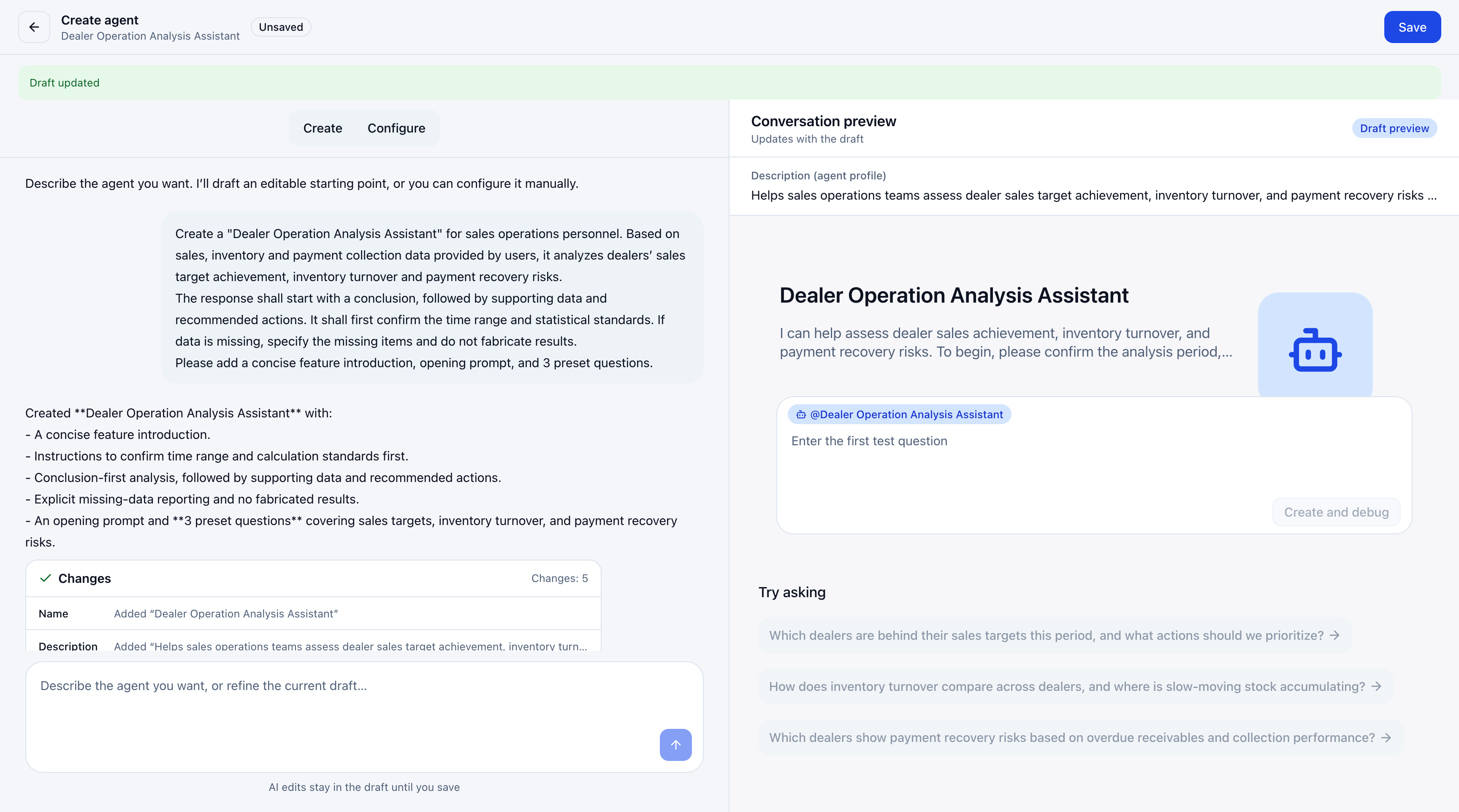
On the Create tab, describe the intended users, tasks, and response requirements. For example:
Create a Distributor Performance Analysis Assistant for sales operations teams. Use the sales, inventory, and payment collection materials provided by the user to analyze sales target attainment, inventory turnover, and collection risks. Present conclusions first, followed by supporting data and recommended actions. Confirm the time range and calculation definitions first. Identify missing data instead of inventing results. Add a concise introduction, a welcome message, and three suggested questions.
-
Click Send and wait for the draft to update. Check the name, introduction, welcome message, and suggested questions in Conversation Preview on the right.
-
Describe further changes, such as “Add a suggested question about overdue payments,” or switch to Configure to review individual fields. Click Save in the upper-right corner when ready.
-
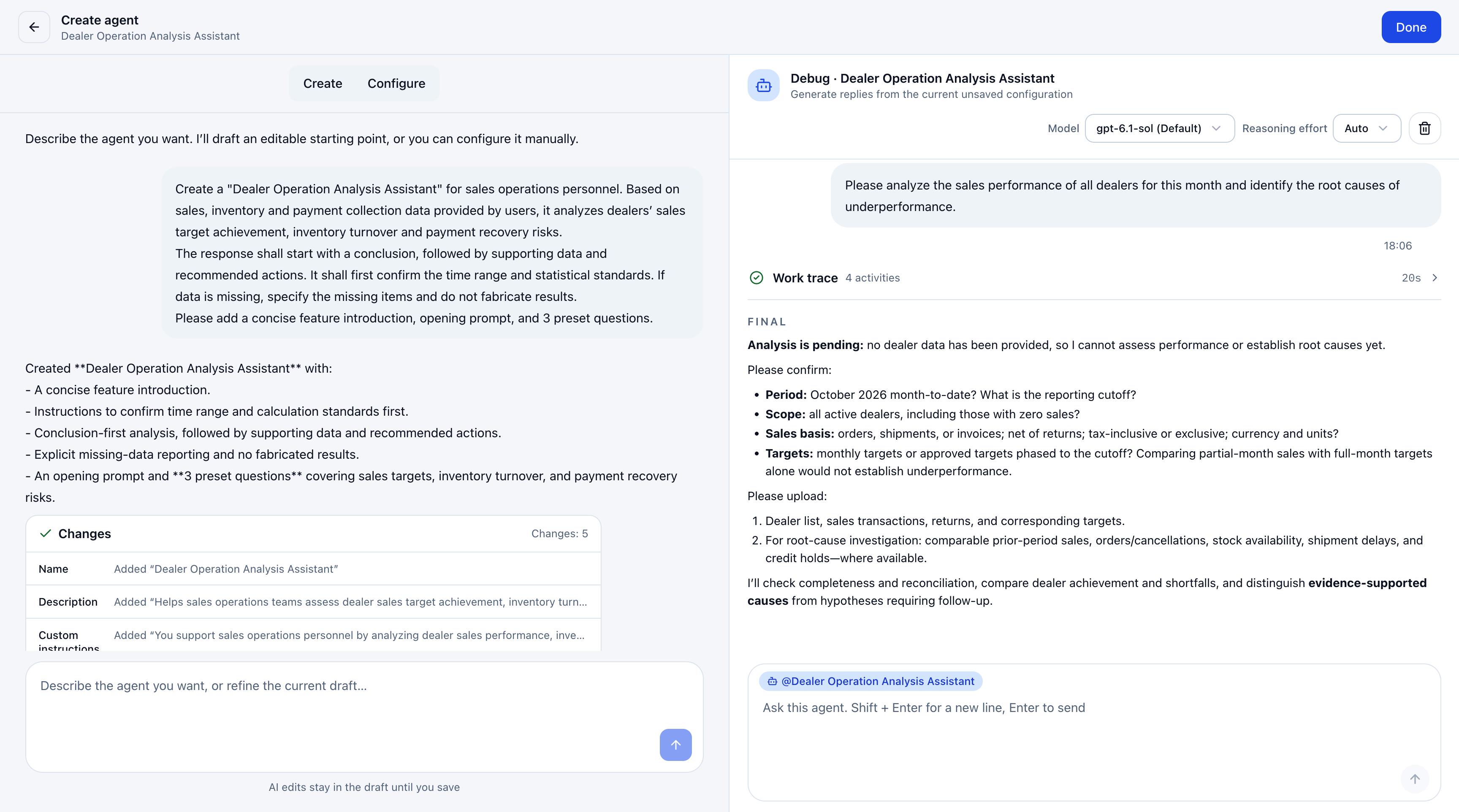
After saving, enter questions in Conversation Preview to test the agent. If you change the configuration, click Update. When testing is complete, click Done to open the agent configuration page.
Configure Manually
Use this method when the agent's responsibilities and response requirements are already defined. The following example uses a Financial Expense Analysis Assistant.
-
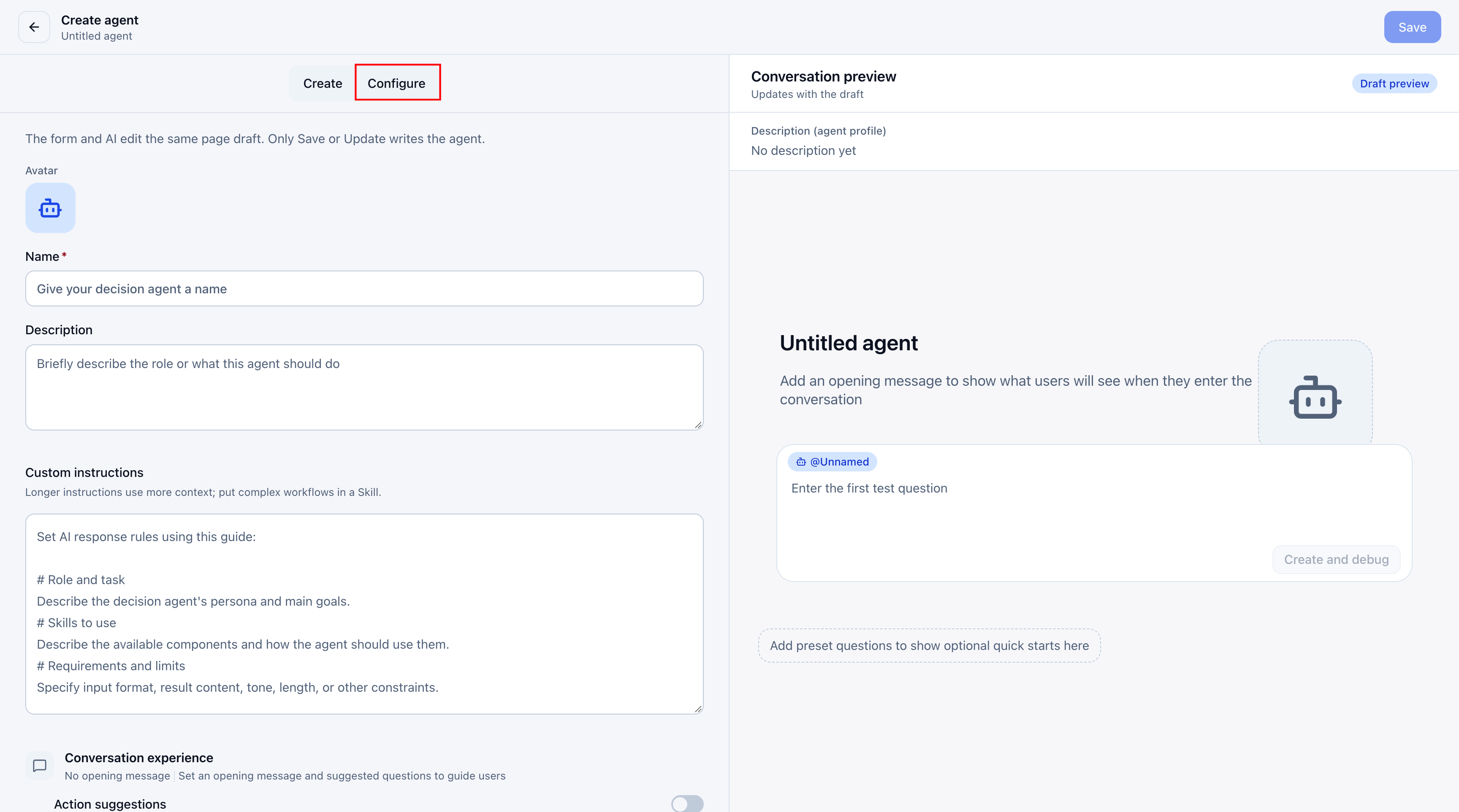
Switch to Configure. Enter Name, Description, and Role Instructions, and optionally upload an avatar. Only the name is required.
Field Description Name Required. Identifies the agent. Use a name that reflects its business scenario or purpose. Description Explain the purpose, intended users, and supported tasks so users can judge whether the agent fits their needs. Role Instructions Define the role, tasks, response requirements, and capability boundaries that guide the agent. -
Expand Conversation Experience. Add a Default Welcome Message and Suggested Questions if needed. For example, ask users to provide expense and budget data, and add “Which departments exceeded their budgets?” as a suggested question.
-
Check Conversation Preview. See Basic Configuration and Conversation Experience for field details.
-
Click Save, or enter a test question in Conversation Preview and click Create and Test to save and validate. After further changes, click Update. Click Done when testing is complete to open the agent details page.
The first save creates the initial production configuration. Continue configuring data, knowledge, and skills as needed. Subsequent changes take effect through the Test, Publish, and Manage Access workflow.
Get Agents from the Marketplace
Install a suitable agent from the Guandata marketplace, then adjust it to your data and business definitions.
-
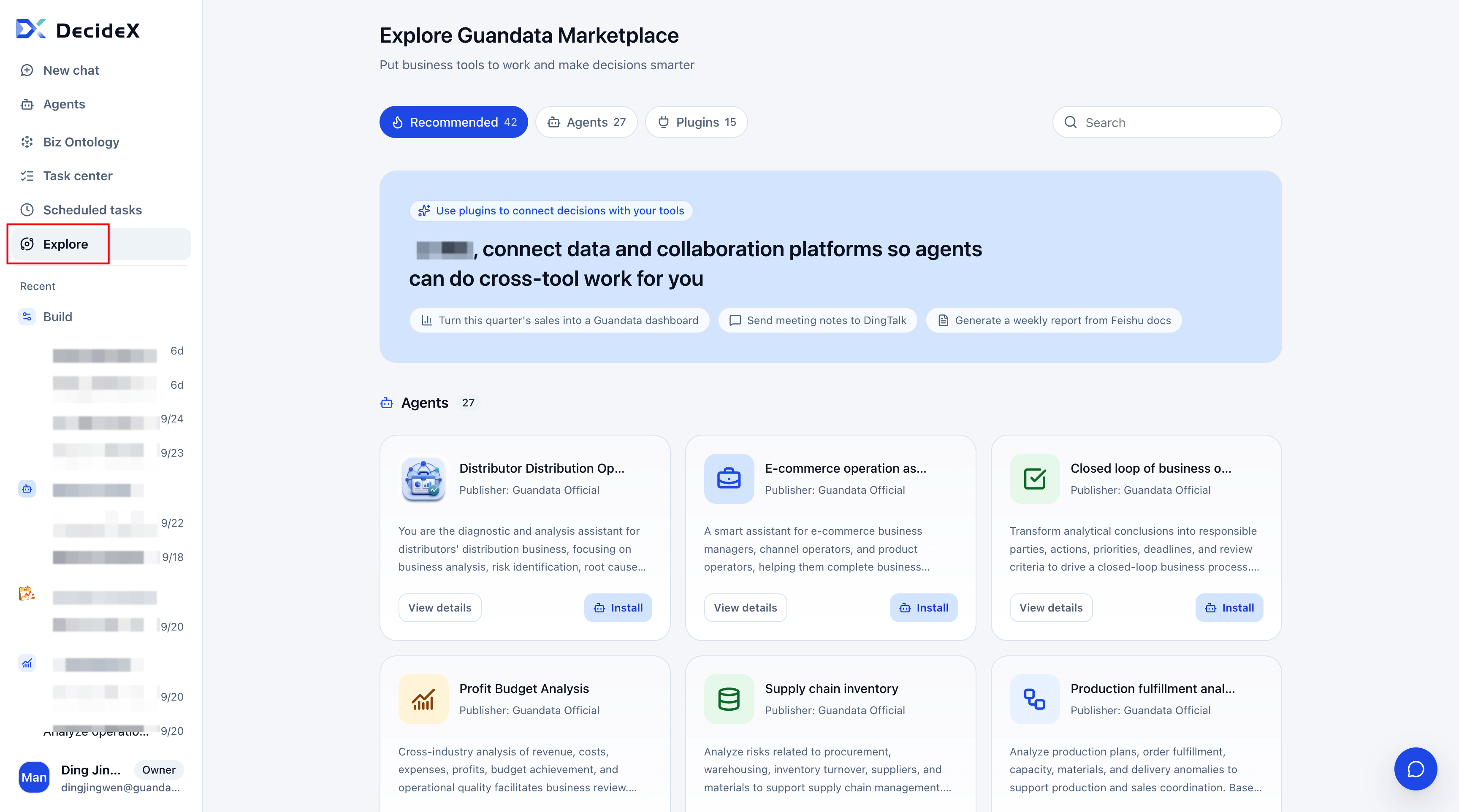
Click Explore to open the Guandata marketplace.
-
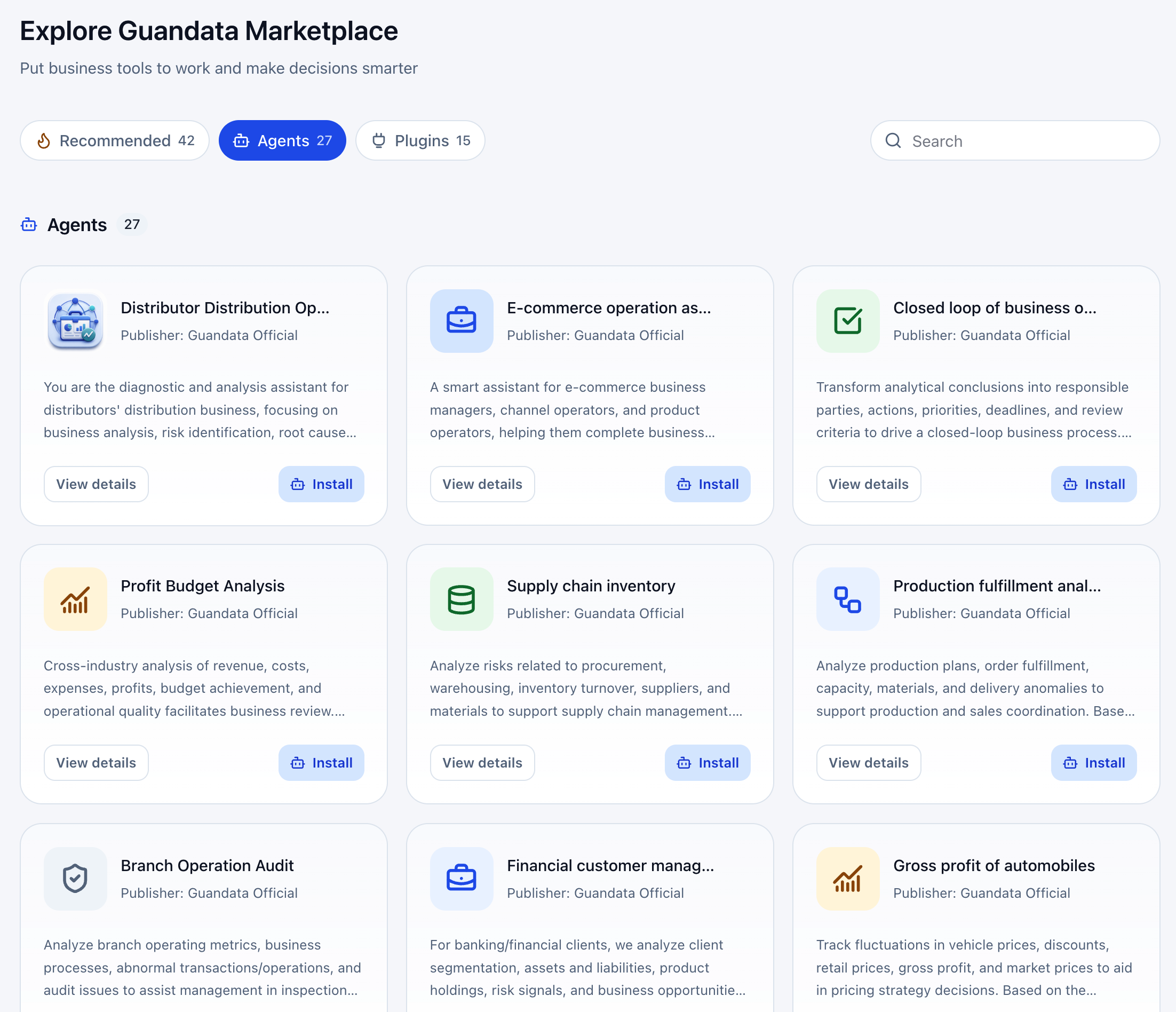
Open Agents and browse or search. Review card names, publishers, tags, and descriptions. Click View Details for the full description and usage scope.
-
Click Install for a suitable agent. It then appears in the agent list.
-
Before production use, open Settings if you have edit permission. Add real BI assets, bind an ontology if needed, and check the role instructions and suggested questions. See Configure Agents.
-
Test, publish, and grant access. Validate typical questions and authorize the members who need the agent.
For additional capabilities, see Create and Manage Personal Skills and Configure Plugin Connections.
Import and Export
Export and import agent configurations for backup or migration between spaces.
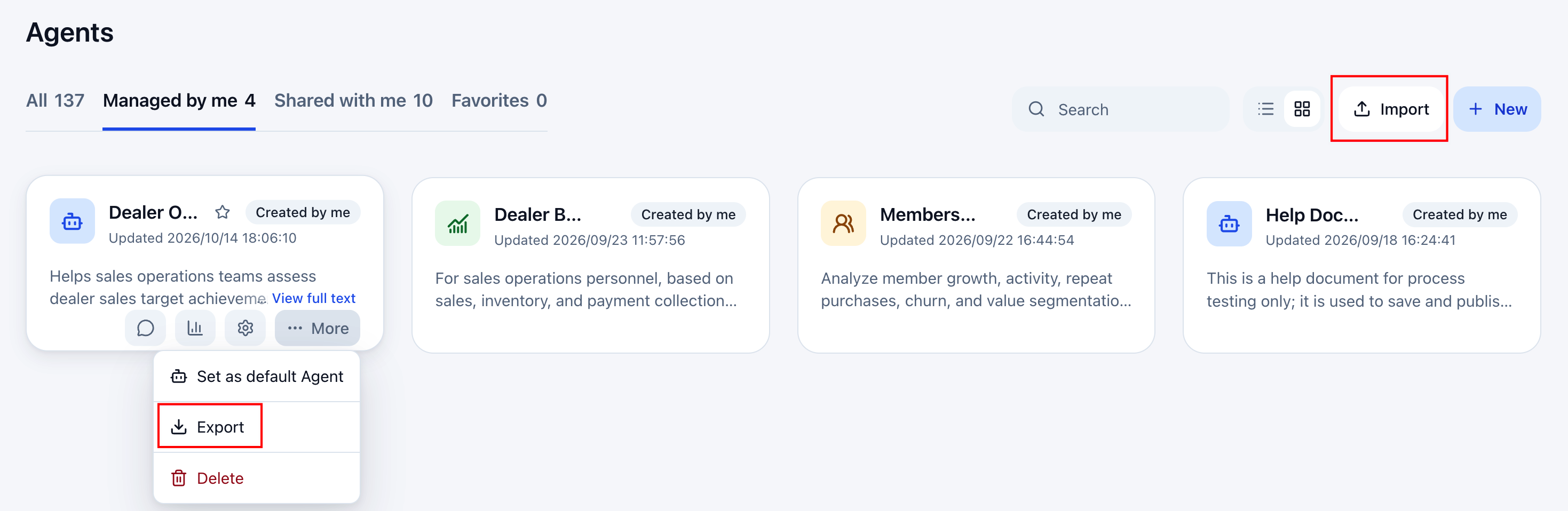
- Export: Select More > Export on the agent card to save its configuration to a file.
- Import: Click Import on the agent list and select a configuration file to reuse agents in the current space.
Next Steps
- Configure Agents: Configure roles, data, knowledge, and skills.
- Test, Publish, and Manage Access: Validate changes and update the production configuration.
- Agent Evaluation: Check performance with fixed cases.
- Start a Conversation: Learn the consumer workflow.