Agent Evaluation
Agent Evaluation Overview
Use Evaluation to repeatedly check performance with fixed tasks and scoring criteria. Click it on the configuration page to open the evaluation workspace.
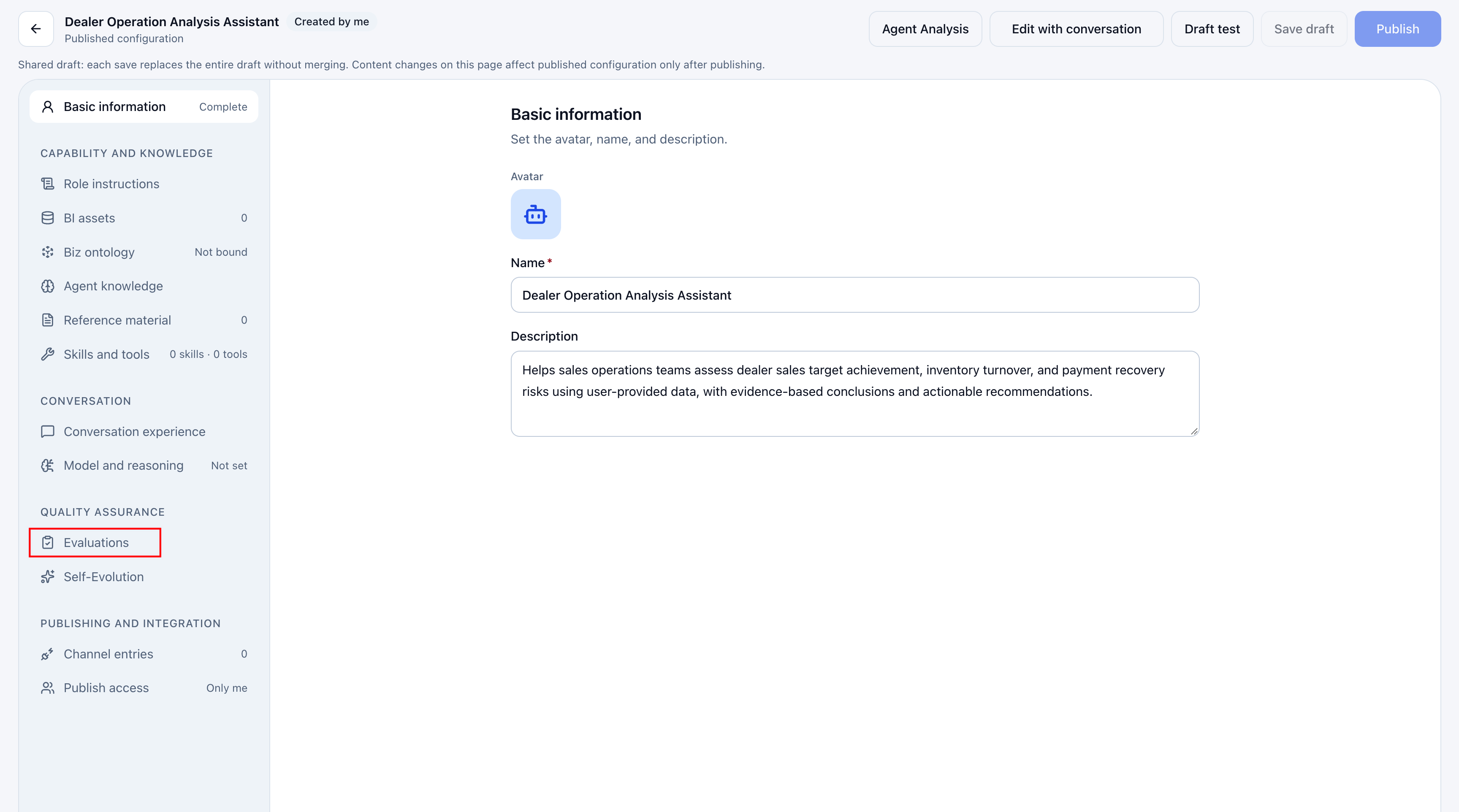
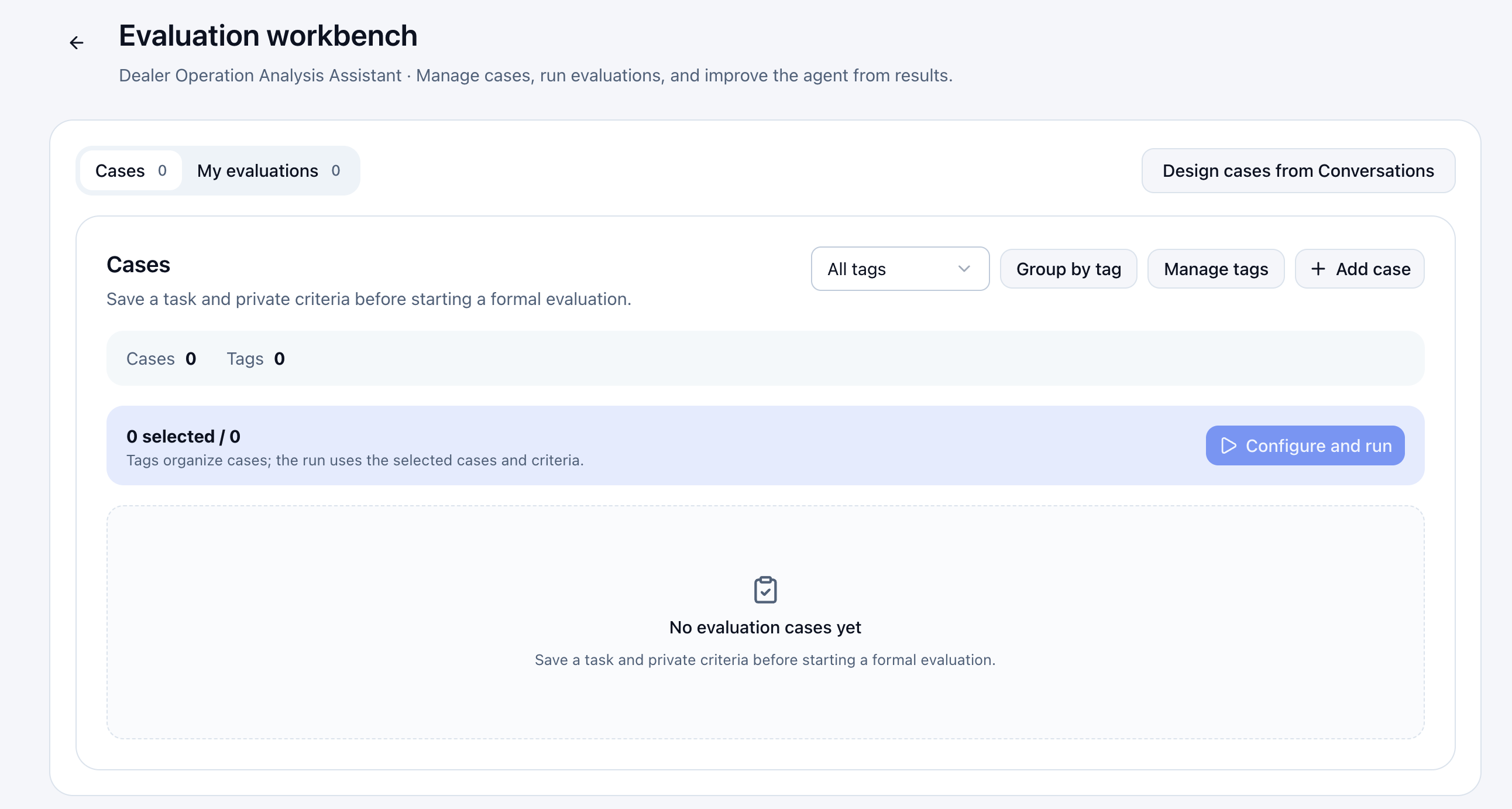
| Entry | Purpose |
|---|---|
| Cases | Create and manage tasks and scoring instructions. Select cases for a run. |
| Tag filtering, grouping, and management | Organize cases by tags. Tags do not determine the run scope; the selected cases do. |
| Design cases from a conversation | Generate candidate cases from completed conversations and review them before saving. |
| My Evaluations | View run history, execution status, and scores. |
Prerequisites
Edit permission for the agent is required. Edit cases and start or stop evaluations on desktop. Mobile supports viewing only.
Evaluations use the saved production configuration, not unpublished drafts. Each run fixes its cases, scoring items, models, and agent configuration. External data and connectors are read in their actual state at execution time, so results may change as the data changes.
Run an Evaluation
-
On the workspace's Cases tab, click Add Case.
Alternatively, design cases from an existing conversation you can view. It must not be running and must contain completed turns. Generate candidates, review and adjust them, then save them to the case library and continue from step 3.
-
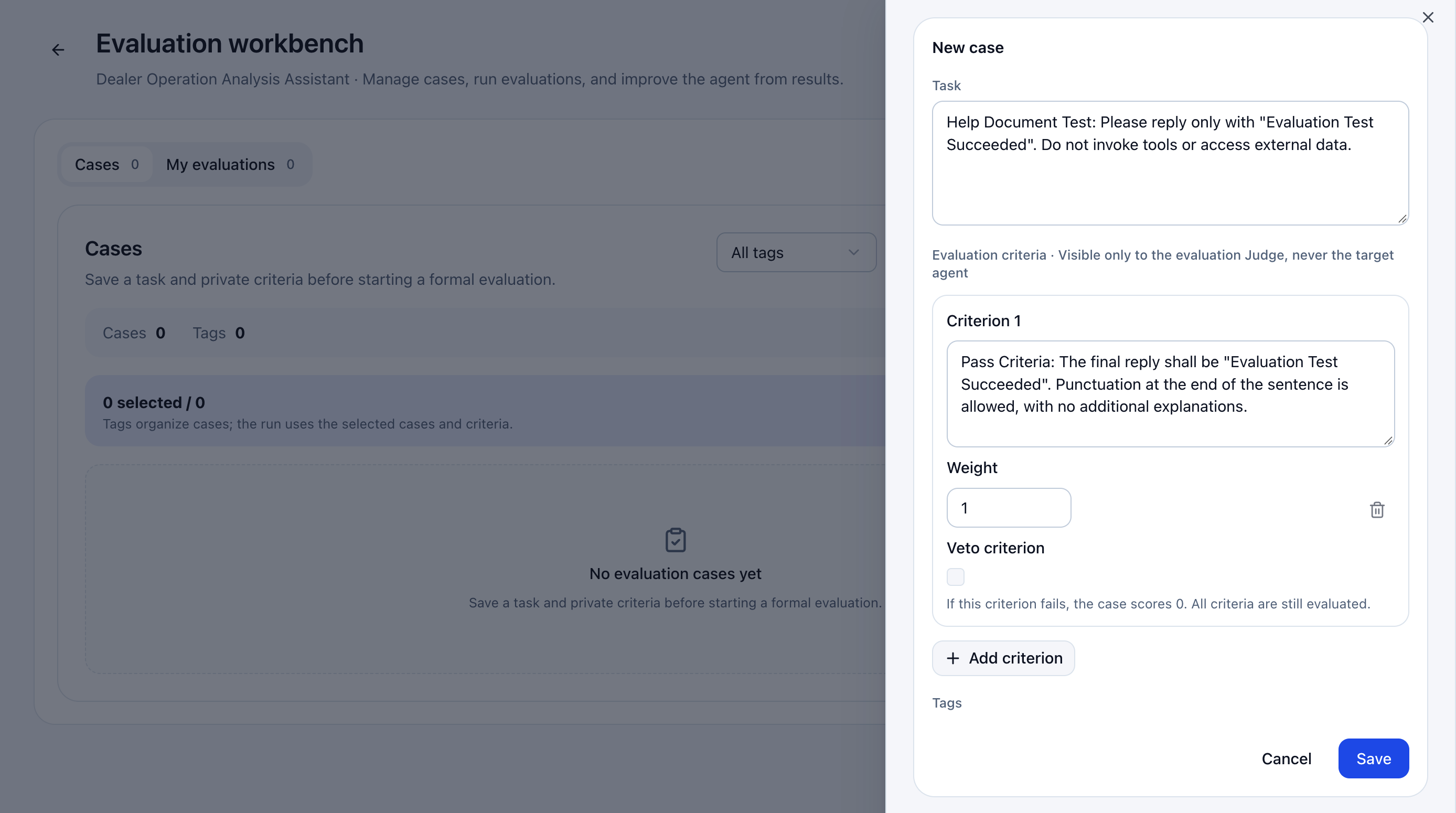
Enter a Task the agent can execute directly. Add scoring items and weights in the scoring instructions, using Add Item for multiple conditions. Scoring instructions go only to the judge model, not to the agent being tested.
For example, when a task requires an exact response, specify the pass conditions and whether punctuation or extra explanations are allowed.
-
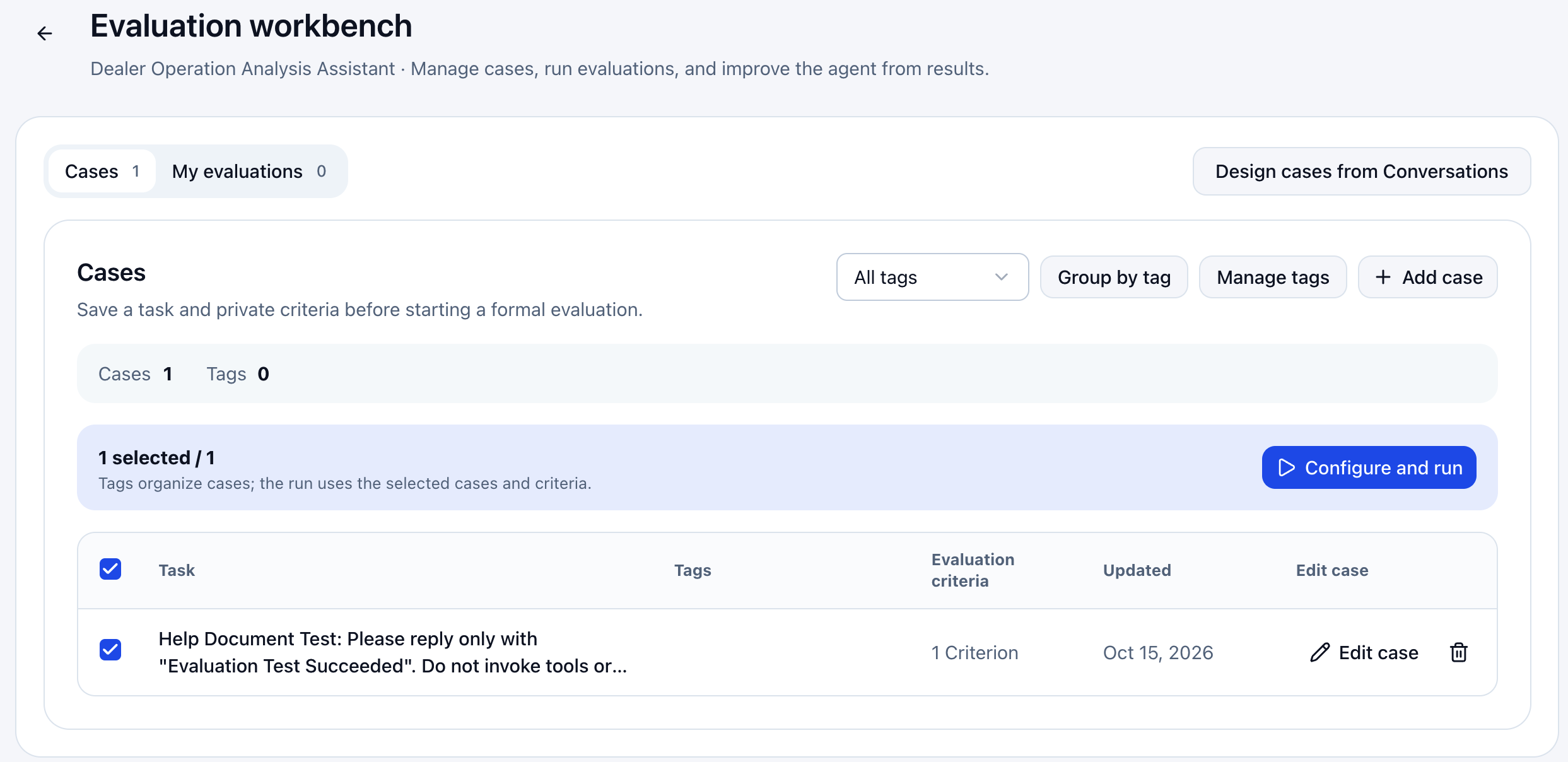
Click Save. Select cases in the list and click Configure and Run. Confirm the model under test, judge model, and each model's reasoning level, then start the evaluation. The tested model executes the task; the judge scores the response. At least one case must be selected.
-
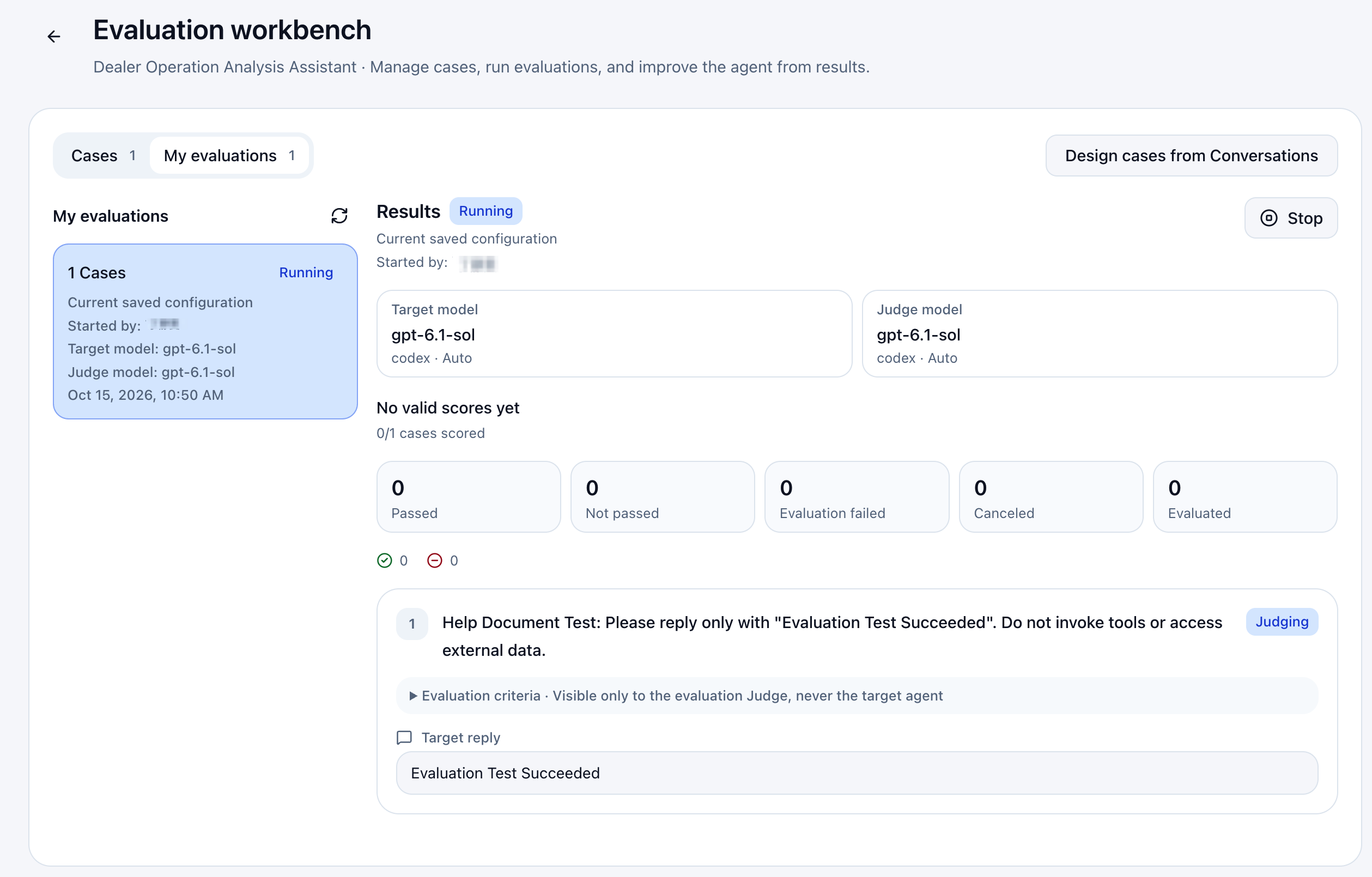
Select a run under My Evaluations and inspect Results on the right. Use Refresh while it runs. No valid scores means no results are eligible for scoring yet, not a score of zero. For a one-case run showing 0/1 valid scores, wait for execution and judging to finish.
-
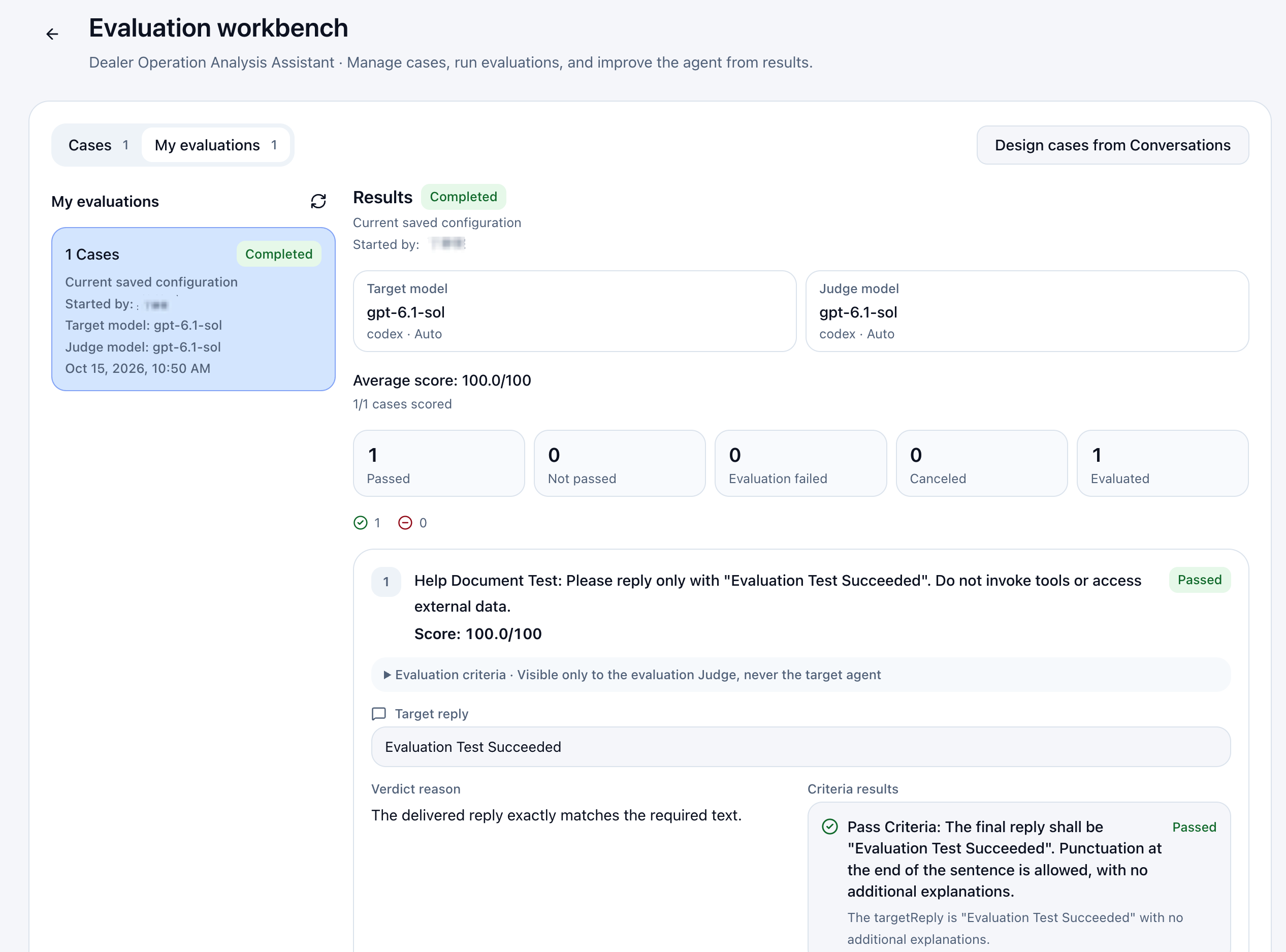
Review the tested response, judgment reasoning, and scoring details, alongside the average and valid-score count. Investigate failed or canceled executions separately; they are not completed scores. After changing configuration, rerun cases and compare. A single draft test does not replace fixed-case evaluation.
Scoring and Run Management
| Item | Description |
|---|---|
| Case score | Sum of passed-item weights ÷ sum of all item weights × 100. A case passes only when all items pass. |
| Veto item | If any veto item fails, the case scores 0. Other items are still judged. |
| Average and valid scores | Only valid scores enter the average. A case that does not pass may still have a valid score. Execution failures, cancellations, and invalid scoring results are not counted as zero. |
| Stop | Stop an active evaluation. Cases not yet started are canceled, and existing results are retained. |
| Delete a case | Historical runs retain their case snapshots after deletion from the library. |
| Go to self-evolution | Use a case judged not to pass as evidence for an improvement draft. |
Next Steps
See Agent Self-Evolution to generate drafts from failed evaluations or feedback. You can also edit the configuration directly and rerun cases. See Testing and Publishing for delivery.