Configure Agents
Before You Configure
This guide covers maintaining an existing agent and requires edit permission. If needed, create an agent first.
See When Changes Take Effect to determine whether a change requires publishing.
Jump to BI Assets, Business Ontology, Agent Knowledge, Reference Materials, Skills and Tools, Conversation Experience, or Quality Assurance.
Configure an Agent
Click Settings on the agent card. The left navigation groups settings into Basic Configuration, Capabilities and Knowledge, Conversation Experience, Quality Assurance, and Publishing and Integration. The selected section appears on the right.
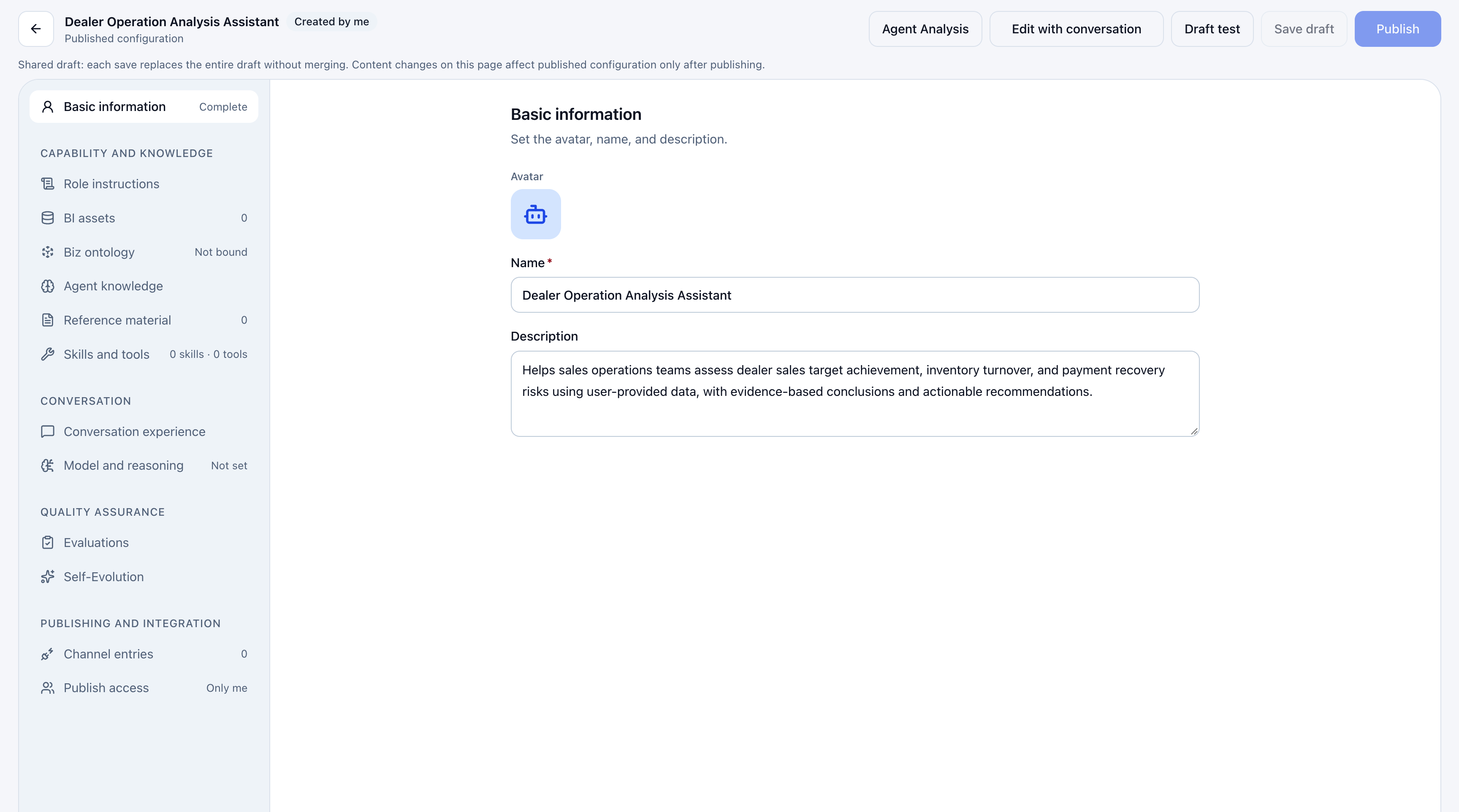
The top of the page provides these actions:
| Action | Description |
|---|---|
| Agent Analytics | View usage analysis within your permissions. |
| Edit Through Conversation | Open a build conversation for an agent you created and describe changes in natural language. Handle unsaved changes before leaving the page. |
| Test Draft, Save Draft, Publish | Test and save changes, then publish after validation. See Test, Publish, and Manage Access. |
Basic Configuration
These fields control how the agent appears in lists and conversations.
| Field | Description |
|---|---|
| Avatar | Select or upload an avatar. |
| Name | Required. Identifies the agent in the list. Use a name that reflects its business scenario. |
| Description | Explain the purpose and use cases, consistent with the actual configuration. |
| Role Instructions | Define how the agent works. Use business language to describe the scenario, analysis steps, and evidence requirements. Example for a store performance assistant: “You help users analyze sales changes, identify anomalies, and recommend actions. Confirm the time range, store scope, and metric definitions before analysis. Use only authorized data. Present conclusions first, followed by key data, possible causes, and recommended actions. Distinguish verified facts from assumptions. Identify missing data instead of inventing values.” Adapt this to your actual data and definitions. Instructions define the work requirements. Data access still requires assets, tools, and permissions. Package complex, reusable procedures as skills. |
Capabilities and Knowledge
BI Assets
Use BI Assets to select the resources supporting analysis. BI permissions and query-scope settings still govern access. Prefer the administrator-configured organization BI environment and add assets relevant to the agent's purpose.
Prerequisites
The Guandata BI environment must be 8.2 or later.
If the administrator has configured the organization BI environment and you have permission to access the target resources in BI, you can select assets without a personal connection. Otherwise, ask the administrator to configure System Integrations.
Steps
-
Click BI Assets > Add BI Assets to open the BI asset picker.
-
In Connection, select the organization BI environment. Choose Datasets, Dashboards, or Metrics.
-
Browse the folder tree or enter a name and click Search. Select an item and verify its name, asset ID, path, and environment on the right to distinguish resources with the same name.
-
Select one or more assets, or use Select All. Check the selected count and the additions and removals shown at the bottom, then click Add.
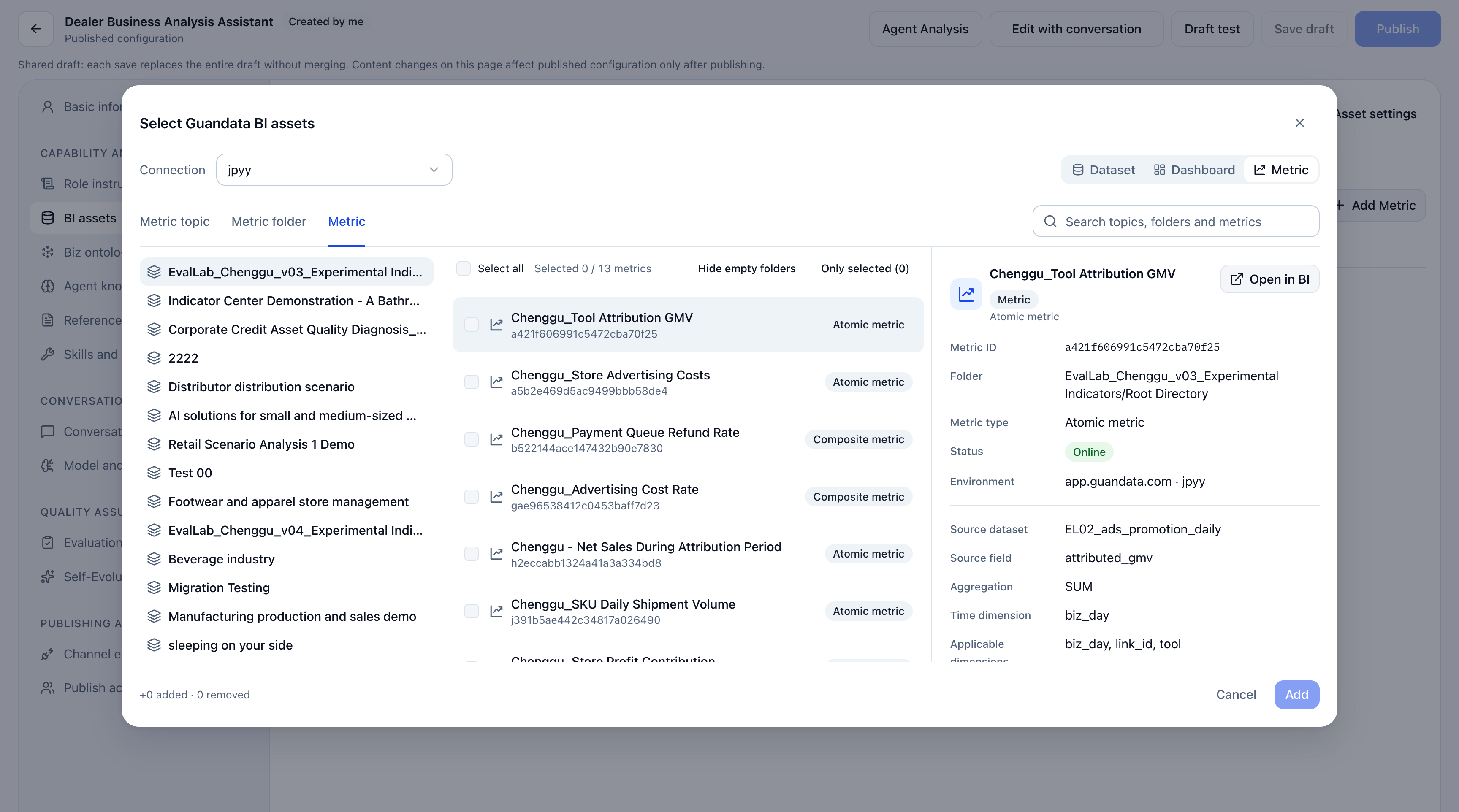
The process is the same for datasets, dashboards, and metrics. Start with assets related to the business goal, such as member and transaction datasets and an operations dashboard for member analysis.
-
Review the assets, click Save Draft, and use Test Draft with typical questions. Publish after confirming data availability and analysis scope. See Testing and Publishing.
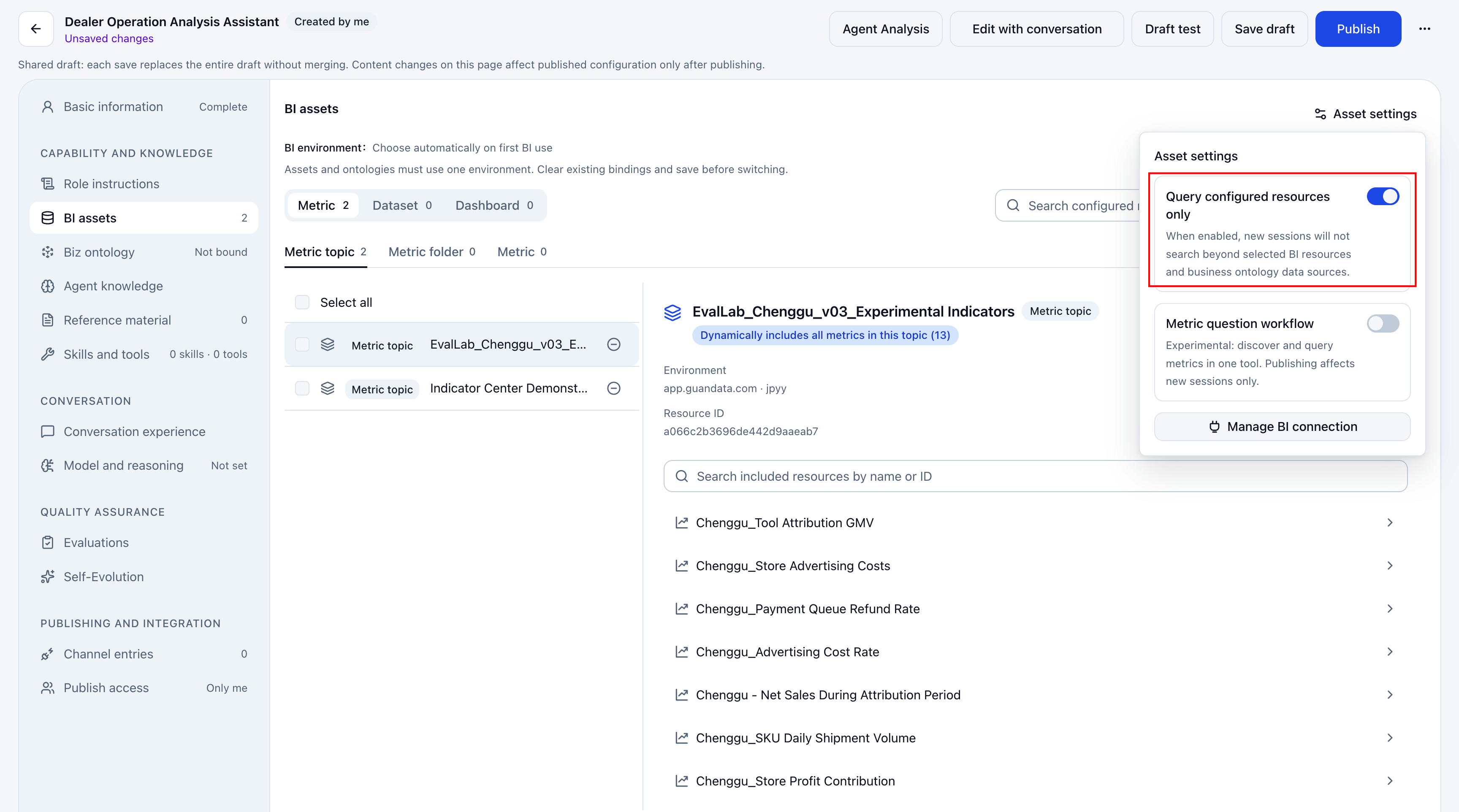
Enable Query Configured Resources Only if needed. New conversations then do not search beyond the selected BI resources and the ontology's data sources. Removing an asset association does not delete the BI source data.
Additional scenario: Test or personal environments
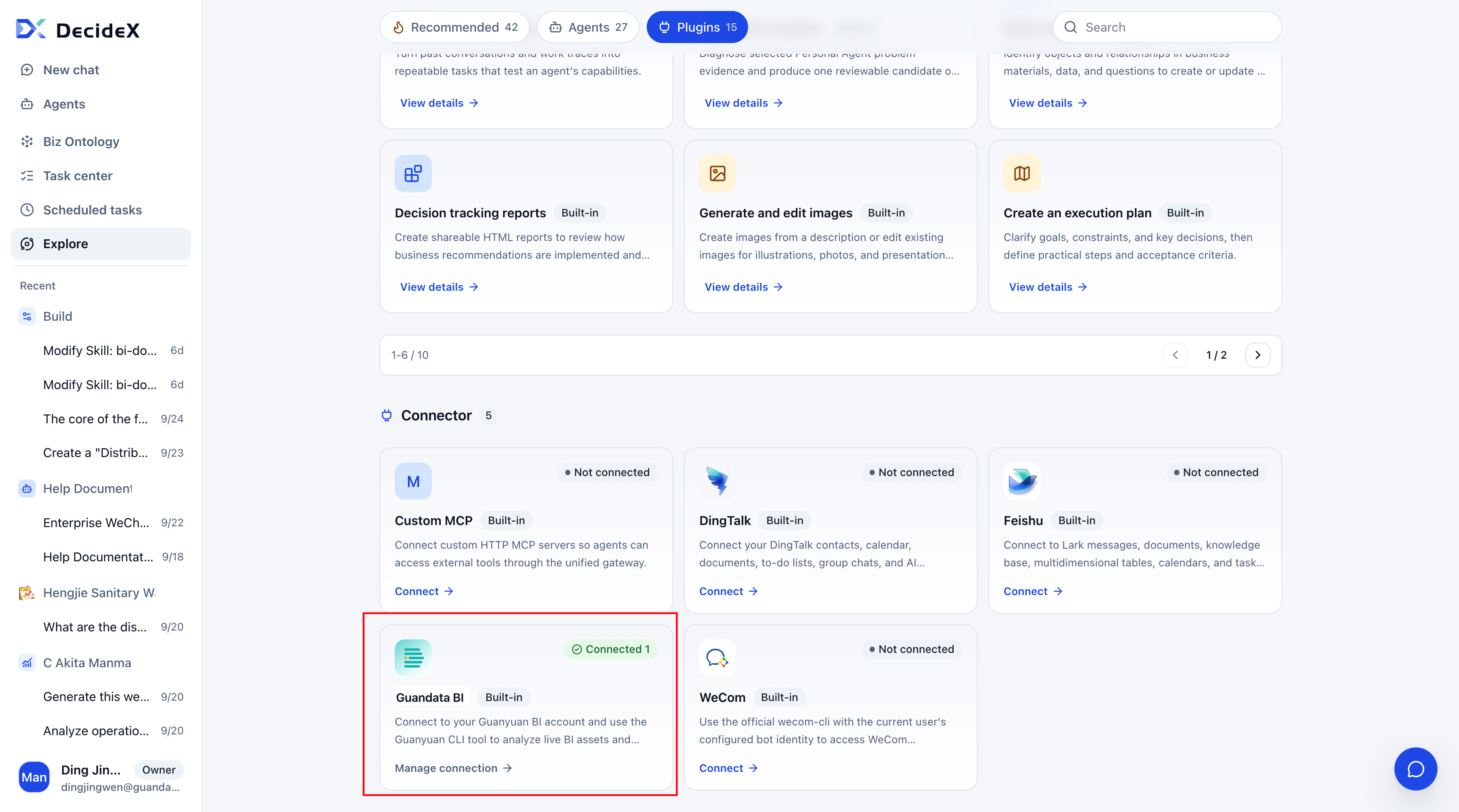
To add assets outside the organization environment, click Manage BI Connections and configure a personal connection. See Configure a Personal BI Connection. Return to add assets after the connection shows Connected in My Connections.
You can also find Guandata BI in the Connector section of Recommended or Plugins under Explore to manage personal connections.
Business Ontology
An ontology gives the agent consistent business terminology and an analysis framework. An agent can bind at most one ontology. Remove the current binding before replacing it. See Create Business Ontologies if needed.
-
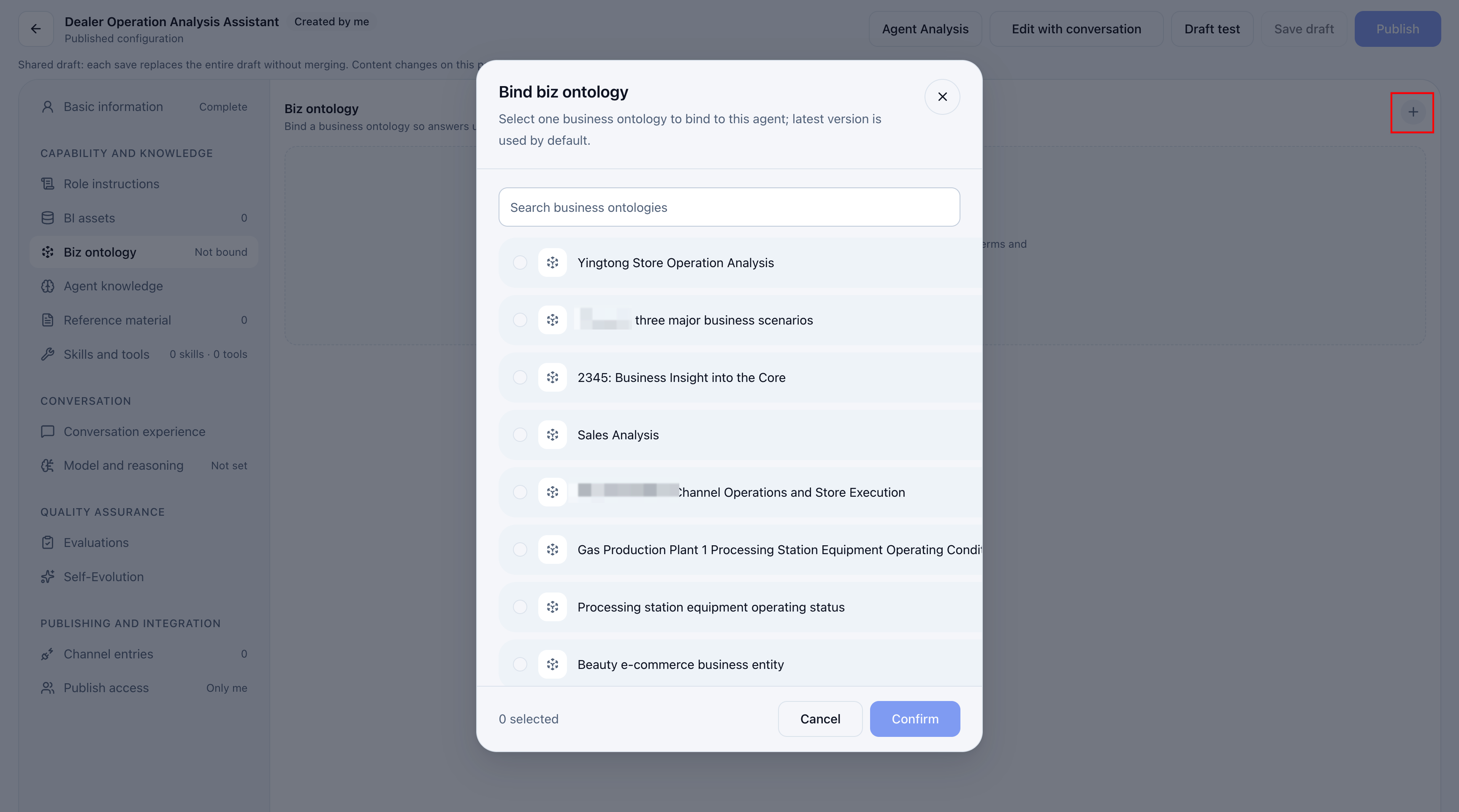
Click Business Ontology, then + to open the binding dialog.
-
Search for and select an ontology, then click Confirm. The binding follows the latest version by default.
-
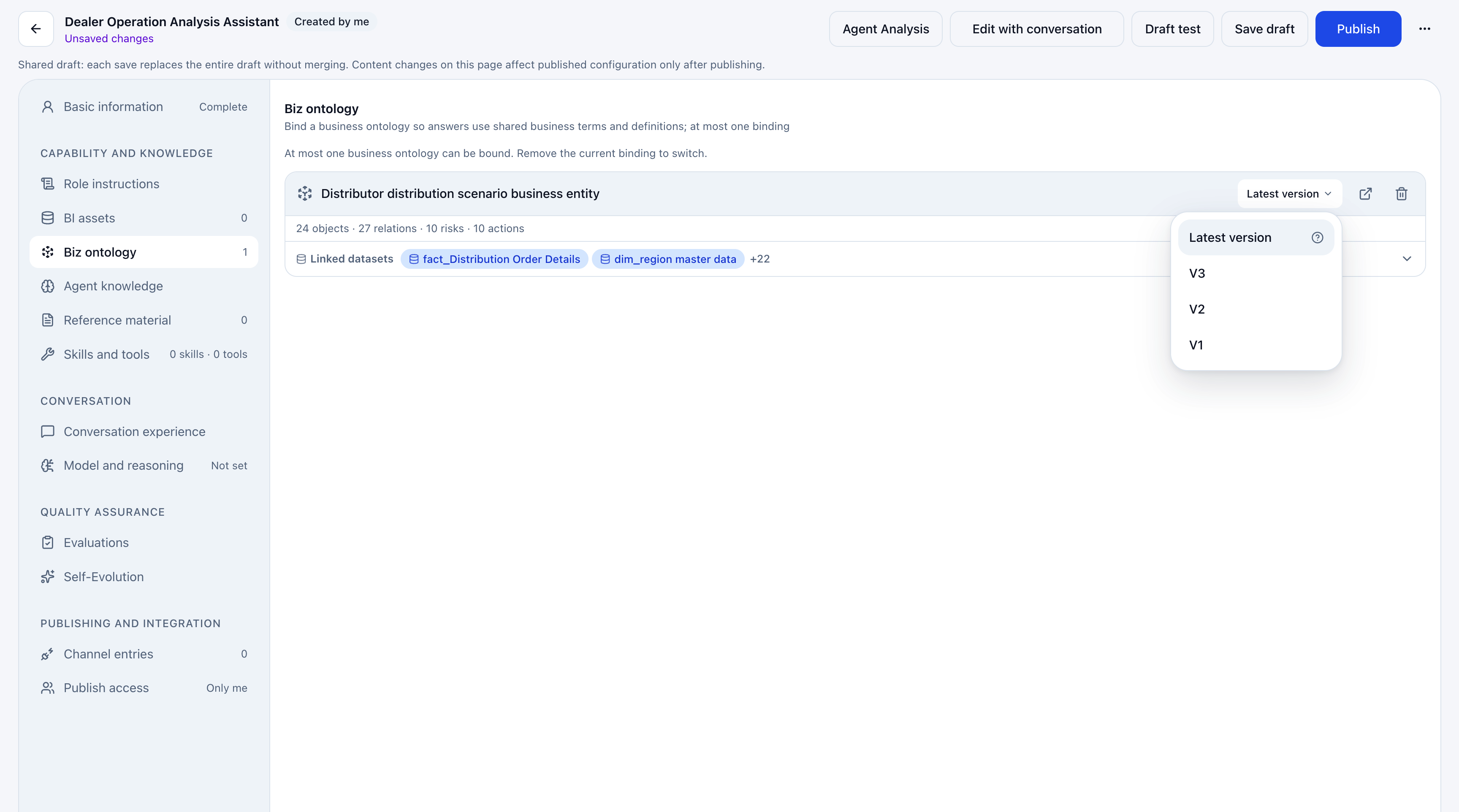
Click Latest Version at the upper right of the bound ontology card. Keep following the latest snapshot or select a fixed version such as V3, V2, or V1.
-
Save the draft, test the business definitions and analysis, then publish.
An ontology is optional, but recommended for complex definitions, relationships between multiple objects, or risk assessment.
Agent Knowledge
Agent Knowledge stores stable terminology, definitions, data conventions, and effective methods accumulated during the agent's work. It is shared with all users of that agent. Put personal communication preferences in Personal Memory.
-
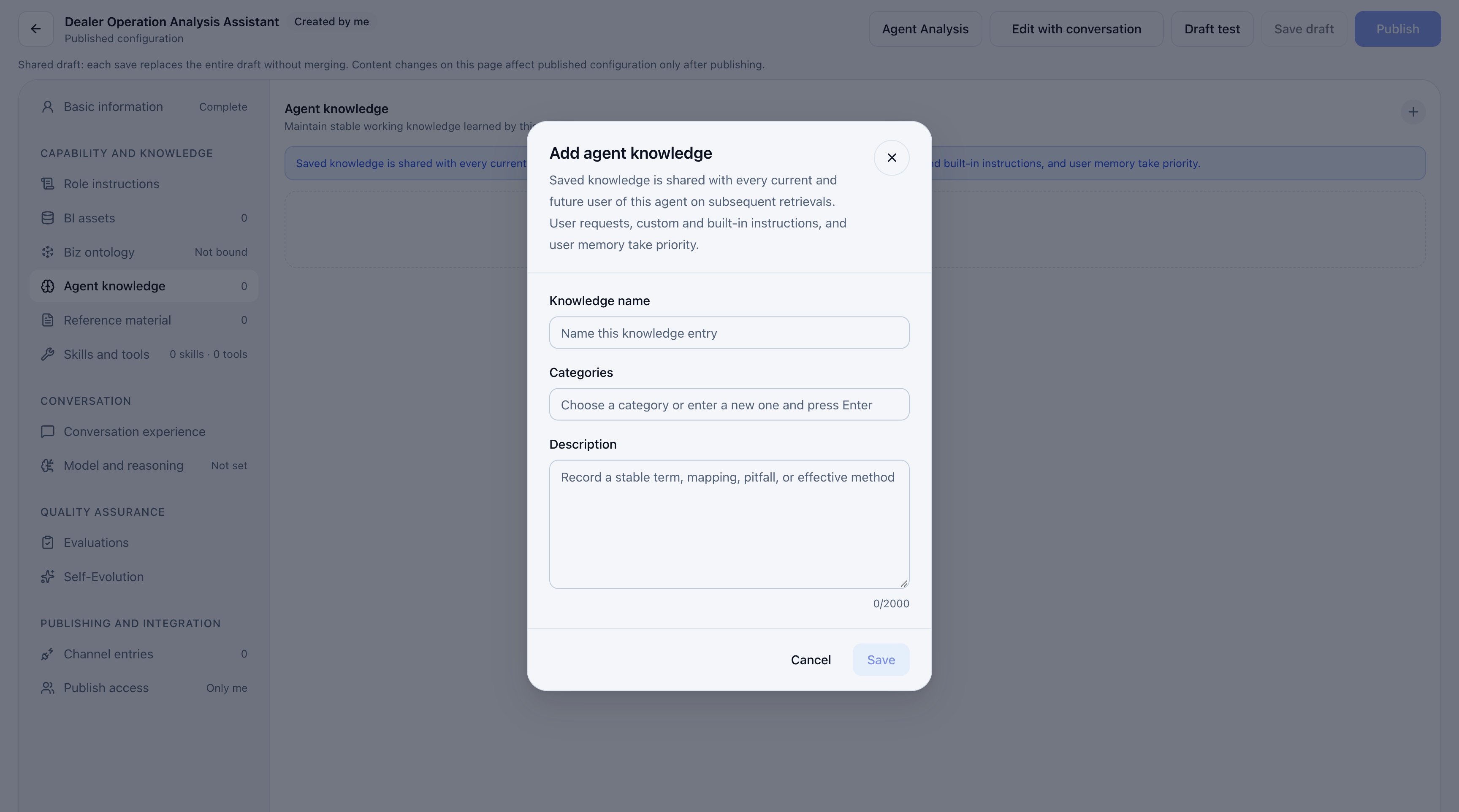
Open Agent Knowledge and click Add Agent Knowledge.
-
Select a Category and enter verified knowledge. The default category is Other. Each entry supports up to 2,000 characters and cannot be empty. Click Save.
Categories cover terminology and aliases, metrics and calculations, time and periods, business scope and data conventions, analysis conventions, presentation and expression, and other knowledge. For example, “Sales in this scenario means payments net of refunds” belongs to metric definitions, but must first be checked against the actual data.
-
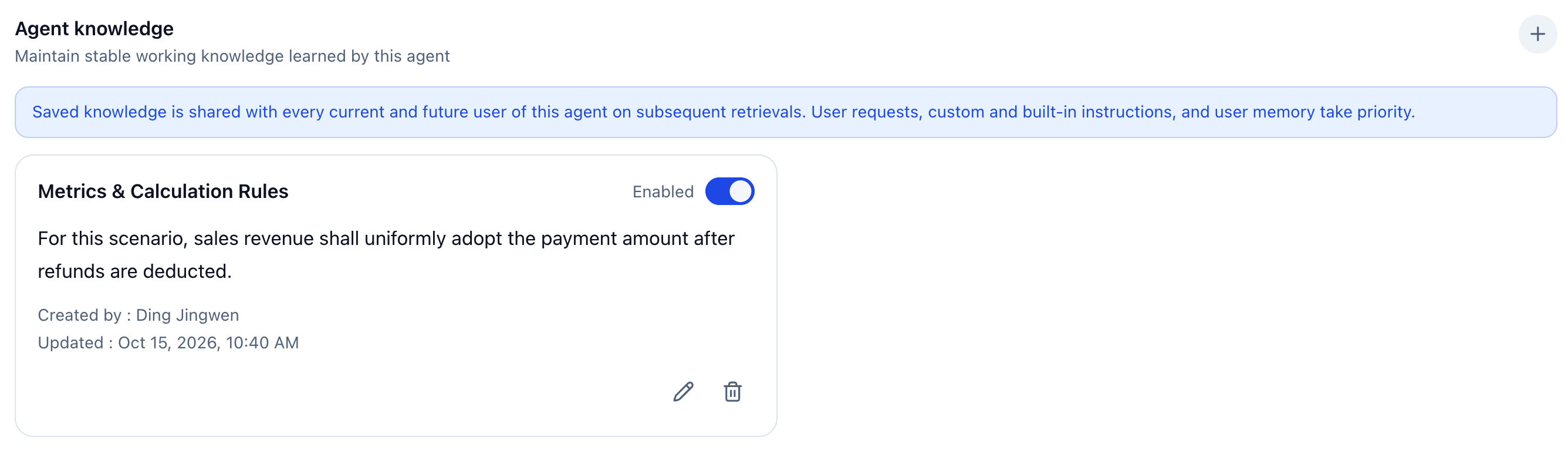
Review the saved entry. Use Edit Agent Knowledge to correct it or Delete Agent Knowledge when it no longer applies.
When the system identifies reusable knowledge in conversations, it appears under Pending Suggestions. Agent managers can check the suggestion type and click View Source to review context. Choose Accept if it applies to the agent or Reject otherwise.
Saved agent knowledge is available to subsequent retrievals and shared with all current and future users of the agent. Republishing is not required. It has lower priority than user instructions, role instructions, and personal memory. Do not add information intended only for personal use. Deleted knowledge is no longer returned by subsequent retrievals.
Reference Materials
Reference materials supplement datasets and ontologies with metric descriptions, policies, review templates, and analysis methods.
- Click Reference Materials in the configuration navigation.
- Click Upload Reference Files to add local file snapshots.
- Review the materials, click Save Draft, test, and then click Publish.
File changes are saved with the draft and update production reference materials only after publishing. Uploading a file alone does not apply it to the production agent.
Skills and Tools
Select skills and tool plugins for capabilities such as file processing, report generation, and external tool calls.
- Click Skills and Tools to open the selection dialog.
- Search and select capabilities under Skill or Plugin, then confirm.
- Check the selected list and availability, test the draft, and publish.
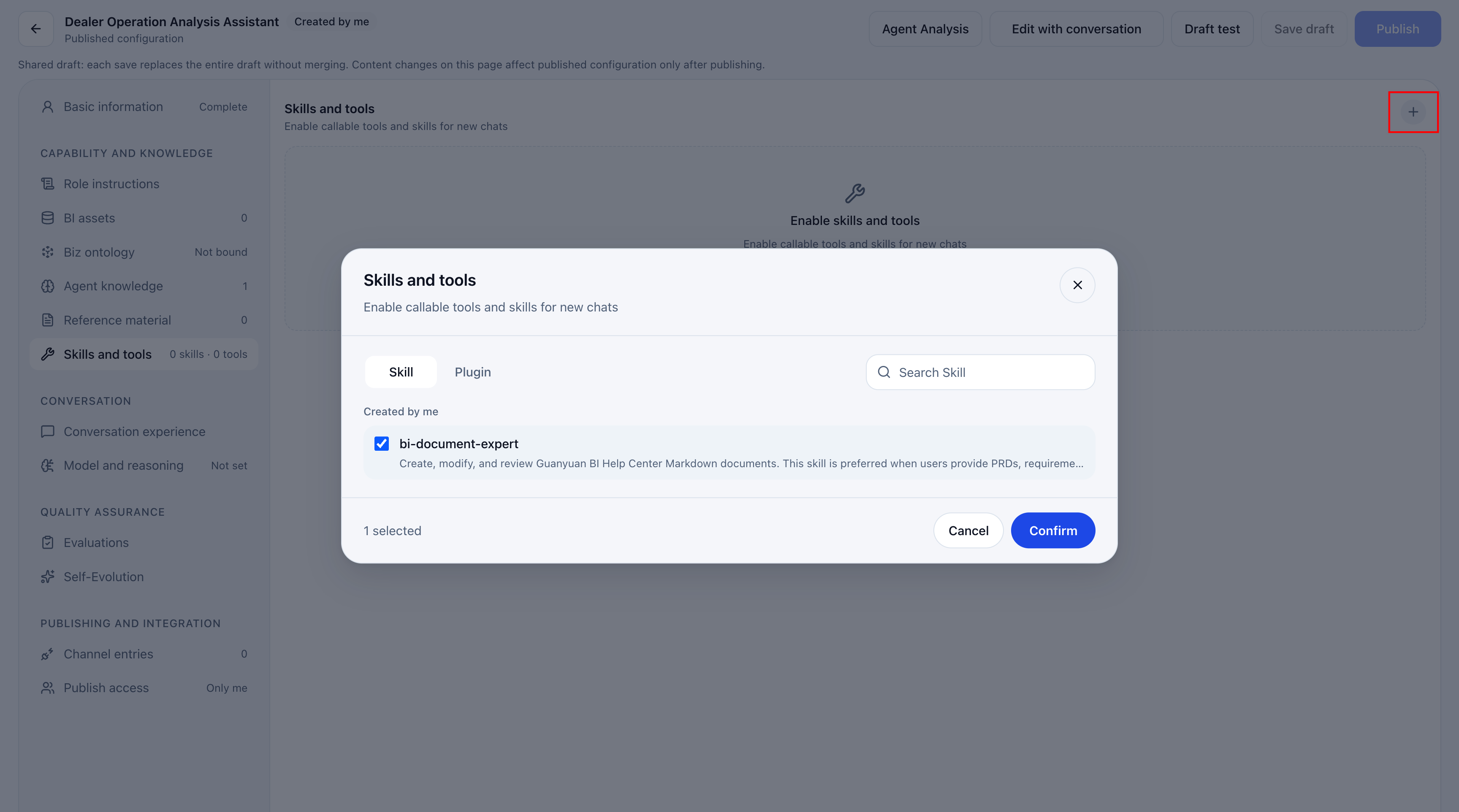
To obtain or create skills, open Explore. See Skills. You can view associated skills here, but edit the source skill in the skill library. Associations and source content are managed separately. Changing a shared skill can affect other agents using it.
Conversation Experience
Conversation Experience
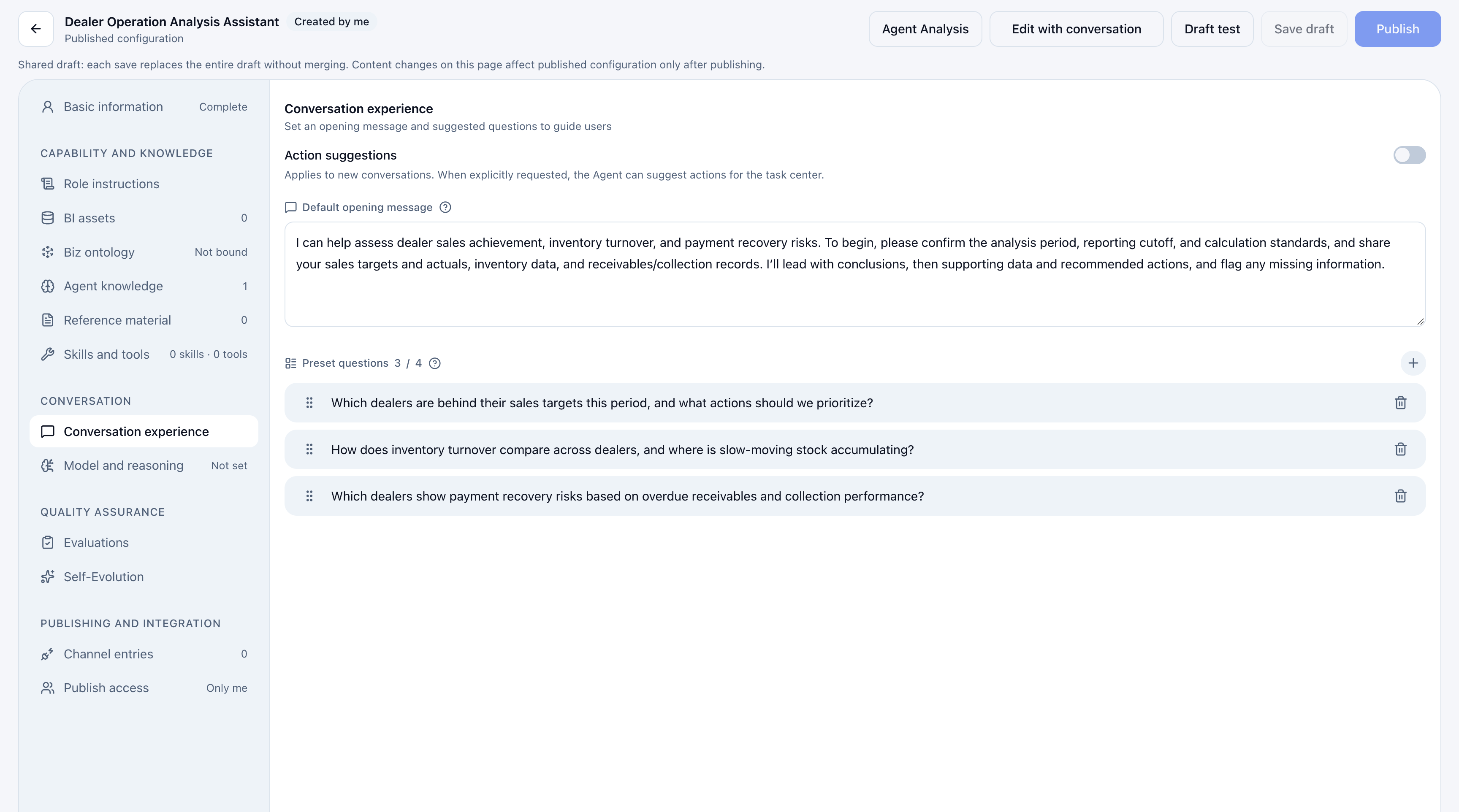
Configure the guidance shown when users open an agent conversation so they understand the questions it can handle.
| Setting | Description |
|---|---|
| Default Welcome Message | The first message users see. Explain the business scenario, supported questions, and data or scope they can provide. |
| Suggested Questions | Up to four recommended questions. Clicking one fills the input box, where users can edit it before sending. Base questions on routine meetings, dashboards, or management actions, such as “Which stores contributed most to this week's sales decline?” or “Which products have the highest inventory?” For a fixed scenario, arrange questions as a sequence from identifying anomalies to investigating causes and recommending actions. |
Model and Reasoning
Model and Reasoning sets the initial model and reasoning level for new interactive conversations.
- Select a model or follow the platform default.
- Select a supported reasoning level and compare the original configuration with the currently effective settings.
- Test, save the draft, and publish.
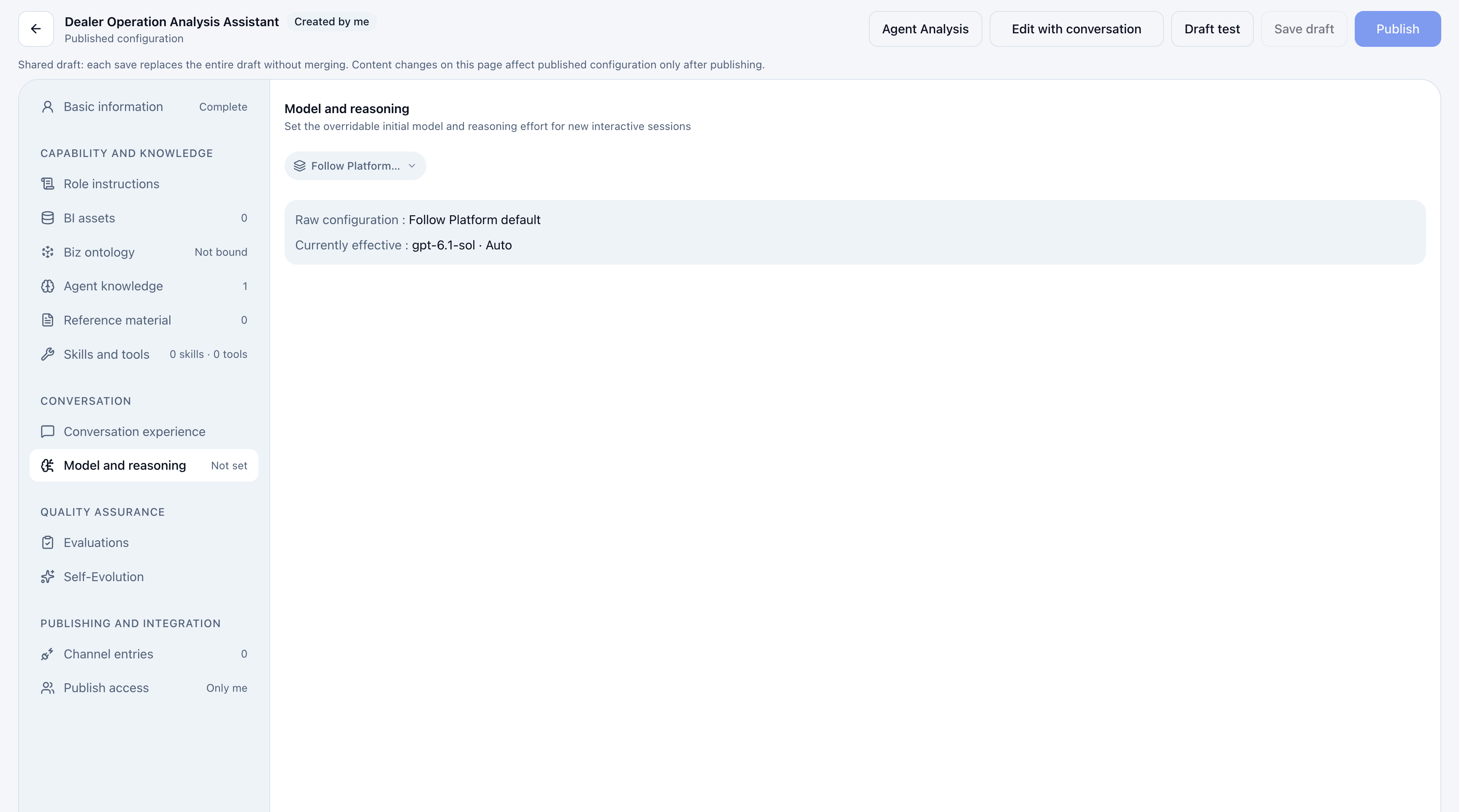
Users can change the model and reasoning level before sending the first message of a new conversation. These settings do not switch the model of an existing conversation. If a saved model or level is unavailable, the page shows the fallback defaults while retaining the original configuration.
Quality Assurance
Quality Assurance provides Evaluation and Self-Evolution to check performance before and after publishing and turn findings into reviewable improvements.
Evaluation
Repeatedly check performance using fixed tasks and scoring criteria. Producers maintain cases, select models for testing and judging, run evaluations, and inspect scores, reasoning, and responses against expectations.
See Agent Evaluation to create cases, run evaluations, and review results.
Self-Evolution
Generate reviewable improvement drafts from failed evaluations, disliked responses, or recent slow responses. Generation neither runs evaluations again nor changes production resources automatically. Review the changes and their impact before applying them.
Use self-evolution for recurring issues such as inconsistent response formats, insufficient evidence, unclear role constraints, or skill procedures that need improvement. See Agent Self-Evolution.
Publishing and Integration
Channels
Use the channel settings to expose the agent to third-party applications through an API. See Configure API Access.
Publishing Permissions
Set the usage scope and member collaboration permissions. See Publishing Permissions.
Configuration Tips
- Use names and descriptions that clearly identify the business scenario.
- Define clear capability boundaries. Avoid assigning too many responsibilities to one agent.
- Specify available data sources and output formats in role instructions for consistent responses.
- Test typical questions and exceptional inputs before publishing.
When configuration is complete, follow Draft Testing and Publishing.