Personal Settings
Settings and Availability
Settings provides personal preferences, organization management, operations monitoring, and feedback. This guide covers account, organization, interface preferences, and memory. Personal settings also apply to producers.
Open Settings
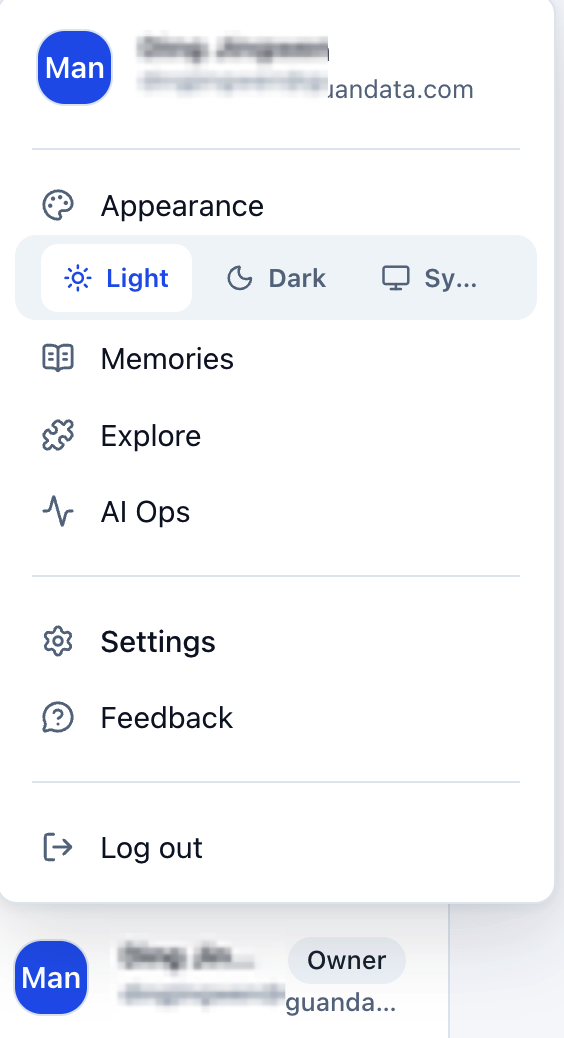
- Click the profile avatar at the bottom of the sidebar.
- Click Settings.
- Select a feature on the left and use it on the right. Return to the workspace using the upper-left return-to-app action.
The account menu also offers shortcuts for appearance, personal memory, Explore, operations monitoring, feedback, and sign-out.
Availability
| Module | Purpose | Available to |
|---|---|---|
| General | Account, organization, avatar, language, and appearance. | Signed-in users. |
| Personal Memory | Work preferences within the current organization. | Organization members. |
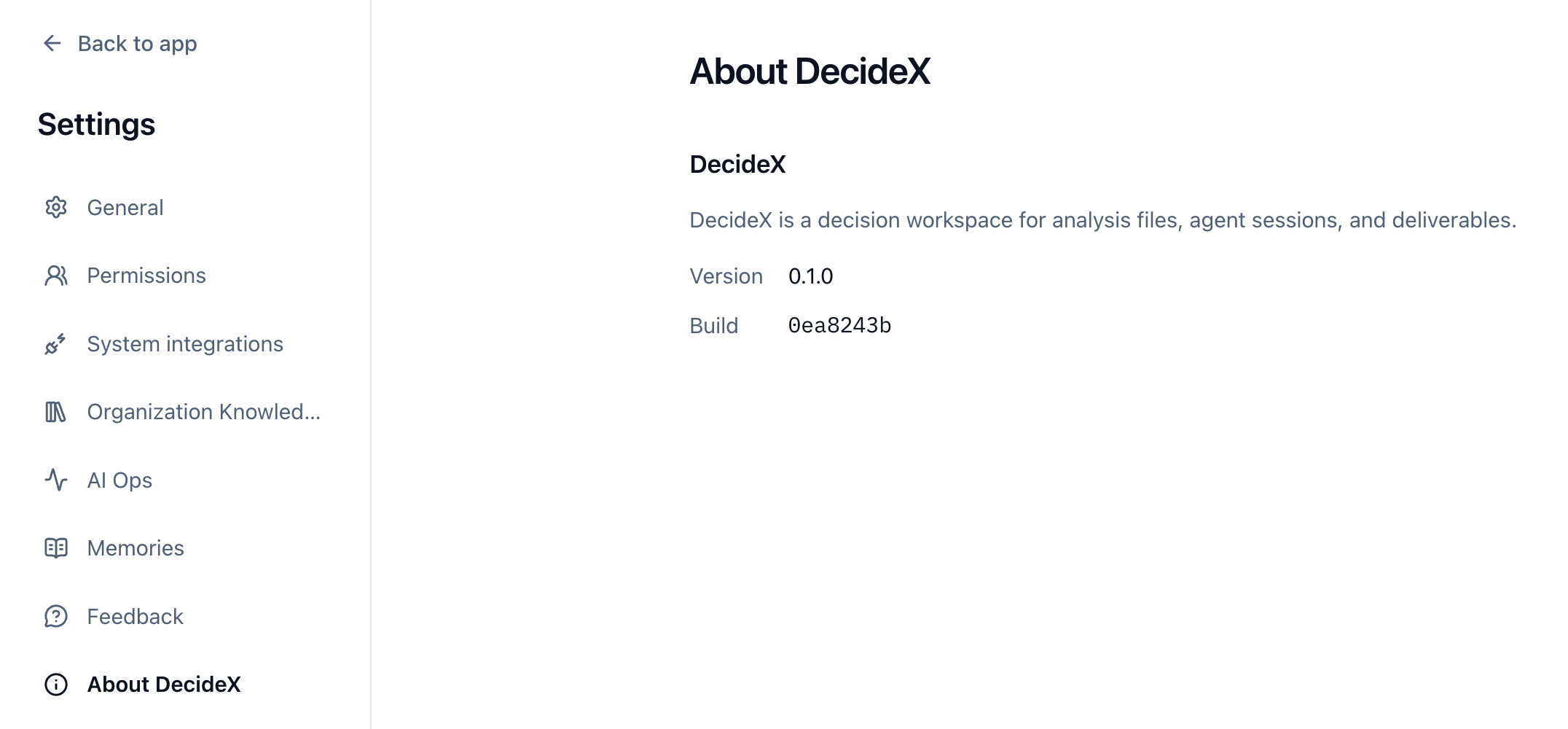
| About DecideX | Product introduction. | Signed-in users. |
See Organization Members and Knowledge for owner operations.
Accounts with platform management or official marketplace publishing permission can also see platform management. Owners, agent managers, and platform administrators have different scopes. Entries and actions follow your actual permissions.
General Settings
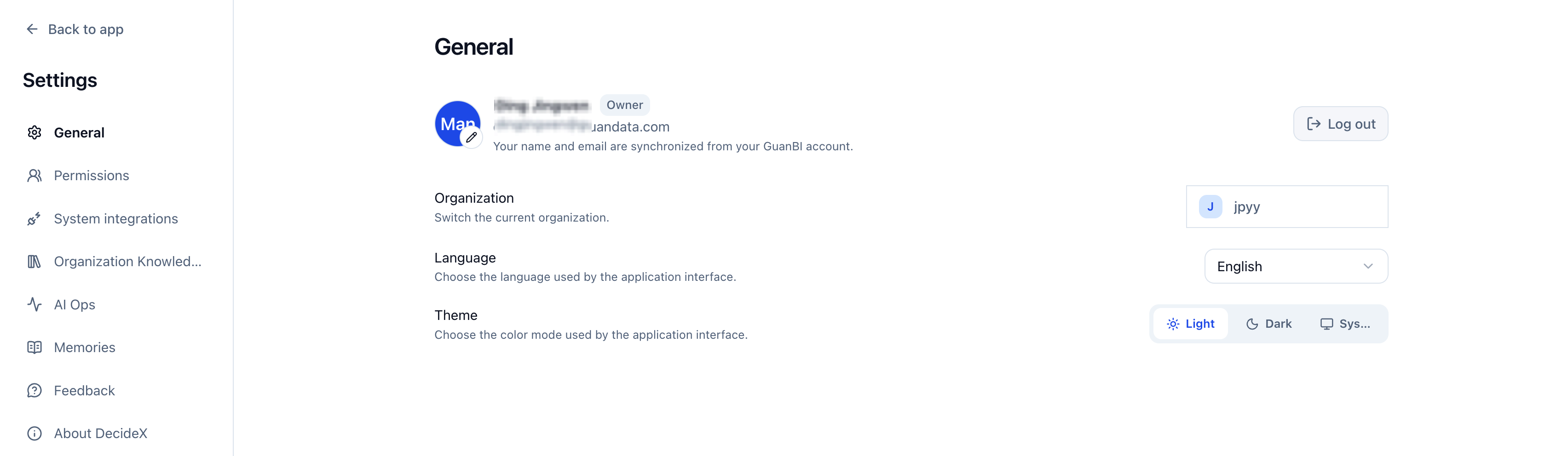
Open general settings to view account, role, and organization information and set interface preferences.
| Content | Operation |
|---|---|
| Avatar | Click its edit icon and upload a PNG, JPEG, GIF, or WebP image no larger than 2 MB. |
| Account and role | View username, email, and organization role. In GuanBI-synchronized environments, username and email follow GuanBI. |
| Organization | View the current organization. Where switching is supported, choose another organization you belong to. GuanBI-synchronized environments show only the current organization. |
| Language | Select the interface language. |
| Appearance | Choose light, dark, or system appearance. Also available in the account menu. |
| Sign out | End the current sign-in from settings or the account menu. |
Account and Sign-In
Use account information to confirm your identity. In GuanBI-synchronized environments, change username, email, or credentials in the source account system or contact its administrator.
Personal Memory
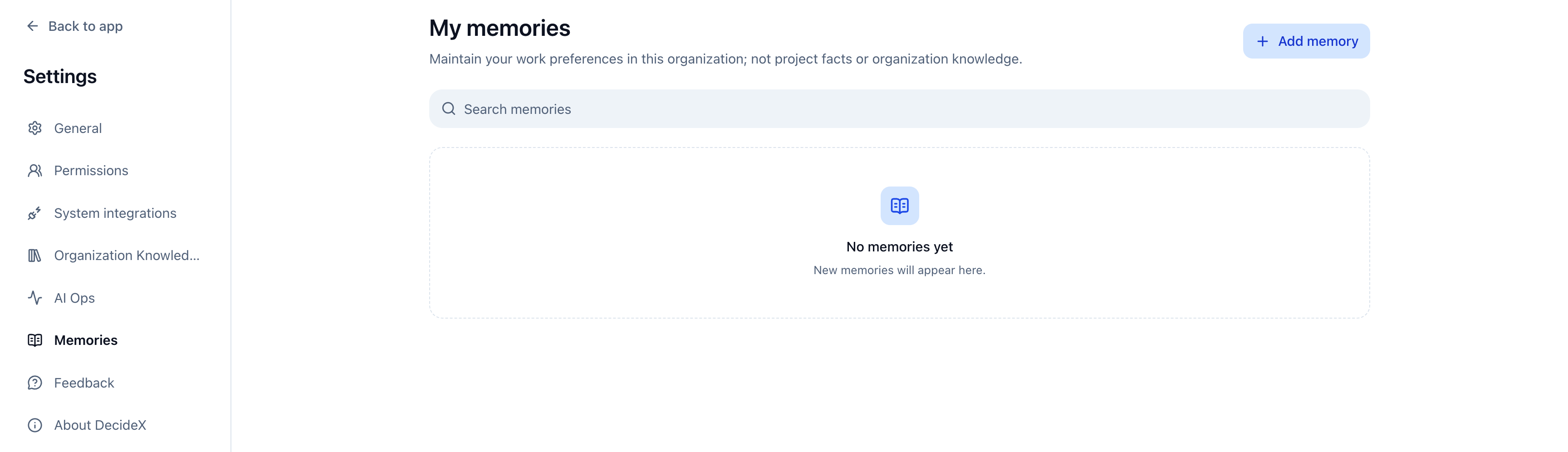
Open personal memory from settings or the account menu. It stores stable personal work preferences within the current organization, such as response format and communication style.
Add and Maintain Memory
- Add a new memory.
- Enter up to 2,000 characters of preference, for example “Keep answers concise. State the conclusion first, then the key evidence.”
- Save and check the list.
Search memories as needed. Edit and save an existing entry, or delete and confirm. Saved memory is available to agents in subsequent conversation turns.
Do not use personal memory for project facts, customer information, or organization-wide rules. Owners maintain shared information in Organization Knowledge.
Review Memory Suggestions
Review proposed additions, replacements, or deletions in pending suggestions, then accept or reject them. Unaccepted suggestions are not official memory and do not affect agent behavior.
About DecideX
Open the about page in settings to view the product name and introduction.