Offline Development Task Version Management
Overview
Offline Development Task Version Management adds version records for draft and published states during task editing. When users save a task, they can choose Save as Draft or Publish. The system retains corresponding historical versions and supports viewing version history, switching to a specified version for further editing, and applying the correct logic by version state in scenarios such as run, migration, and monitoring.
Business Value
This feature solves the problem where a later submission directly overwrites a previous change to the same task, making historical changes impossible to trace. By retaining draft versions and published versions, teams can track changes more clearly, quickly identify problematic versions, and restore a stable version when a new version becomes abnormal, thereby reducing recovery time and data contamination risk.
Applicable Scenarios
This feature is suitable for daily iteration of Offline Development Tasks, multi-user collaborative development, troubleshooting, historical change tracing, task migration, and post-release rollback scenarios. It is especially useful for tasks whose processing logic changes frequently and that require stable releases.
Prerequisites
Before using this feature, confirm that the following conditions are met:
- The current account has permission to view and edit
Offline Development Tasks. - When publishing a task, no node in the task has a configuration exception.
- When referencing a
Subprocess, only aSubprocessthat already has a published version can be selected.
A configuration exception node refers to a node with missing required fields or a node whose current owner lacks permission for the related resources. When a task contains configuration exception nodes, the task can still be run, canceled, or saved as a draft, but it cannot be published.
Changes to Page Features
This section describes the new operations added to the Offline Development Task editing page and the availability rules for these operations under different states.
Entry Description
On the Offline Development Task page, click Create Offline Dev to create a new task, or click a target task in the task list to open the editing page.

Button Descriptions on the Editing Page
After entering the Offline Development Task editing page, the original Save and Cancel actions are adjusted to the following operations:
| Button | Description |
|---|---|
| Run | Runs the current draft version or published version of the task. |
| Cancel | Exits the current editing page and returns to the task list. |
| Save as Draft | Saves the current task definition as a draft version. |
| Publish | Saves the current task definition as a published version and stays on the current page. |
| Publish and Exit | Saves the current task definition as a published version and returns to the task list. |
| View Version History | Views task history and switches to a specified version. |
| Current Version | Displays the version state and version information of the current page. |
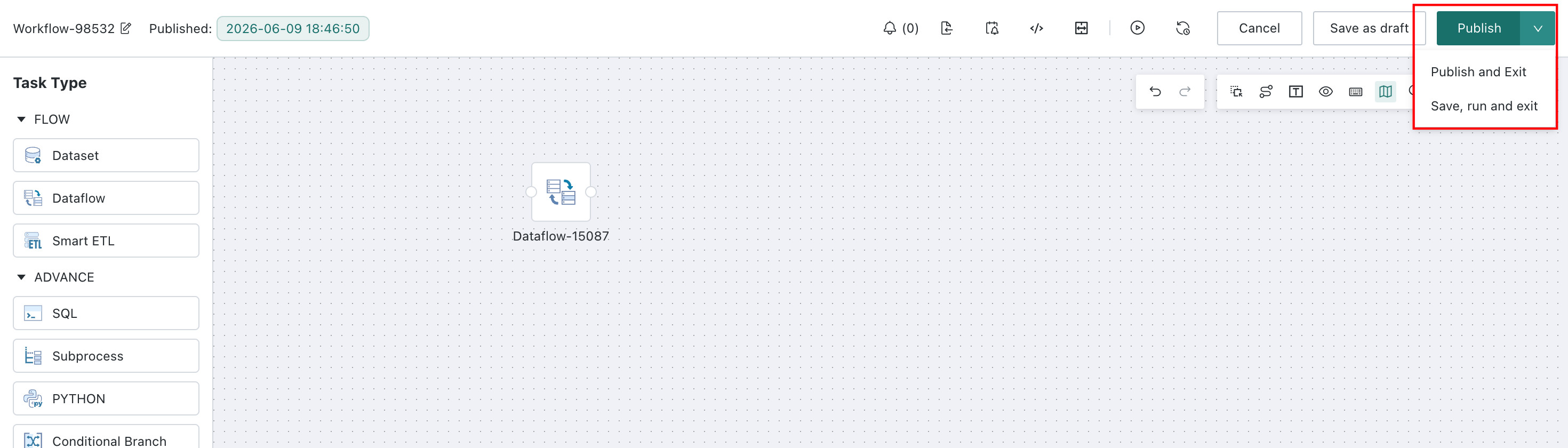
Button Availability Rules
The available buttons differ depending on the editing state.
- When there are no nodes on the canvas, only the
Cancelbutton is available. All other buttons are disabled and display the messageAt least one node is required. - When nodes have been added to the canvas but some nodes still have configuration exceptions, the
Run,Cancel, andSave as Draftbuttons are available. ThePublishandPublish and Exitbuttons are disabled and display the messageThere are nodes with configuration exceptions. - When all nodes are fully configured,
Run,Cancel,Save as Draft,Publish, andPublish and Exitare all available. - When the task contains a
Subprocessnode, onlySubprocesstasks that already have a published version can be selected. When the parent task is triggered by scheduling, the published version of theSubprocessis used.
Save Drafts and Publish
This section describes how to save draft versions and published versions, and how the system state changes after saving.
Entry Description
After completing task orchestration on the Offline Development Task Editing page, you can save the current version using the action buttons at the top of the page.
Save as Draft
Save as Draft is used to record the current editing progress without affecting the availability of the existing published version.
- On the
Offline Development Task Editingpage, click theSave as Draftbutton. - The system saves the current task definition and remains on the current page.
- The latest draft version in version history is overwritten, and the draft save time is updated.
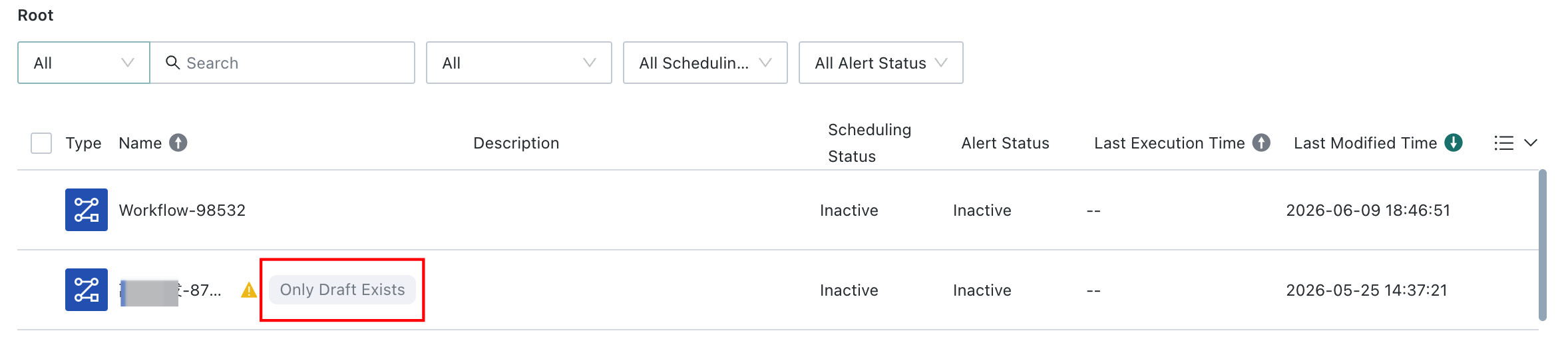
- If the task has only a draft version and no published version yet, the task list displays the
Draft Onlyindicator. - If the task has only a draft version, scheduling cannot be configured. The
Scheduling SwitchandURL Trigger Switchare disabled and display the messageOnly published tasks support scheduling.
Tasks that only have draft versions can still be edited and run manually, but cannot be formally executed as scheduled tasks.
Publish
Publish is used to generate a formal version that can be scheduled, migrated, and reused reliably.
- On the
Offline Development Task Editingpage, confirm that all nodes are fully configured. - Click the
Publishbutton. - The system adds a published-version record and distinguishes different published versions by save time.
- The page remains on the current editing page, and the version state is updated to
Current Version XXX.
Publish and Exit
Publish and Exit is used when you want to return to the task list immediately after finishing configuration.
- On the
Offline Development Task Editingpage, click thePublish and Exitbutton. - The system adds a published-version record and distinguishes different published versions by save time.
- The system returns to the
Offline Development Task Listpage.
Run Tasks
This section explains how the system determines whether to use a draft version or a published version when an Offline Development Task is run manually, and how it prompts users to save changes if the task has been modified.
Entry Description
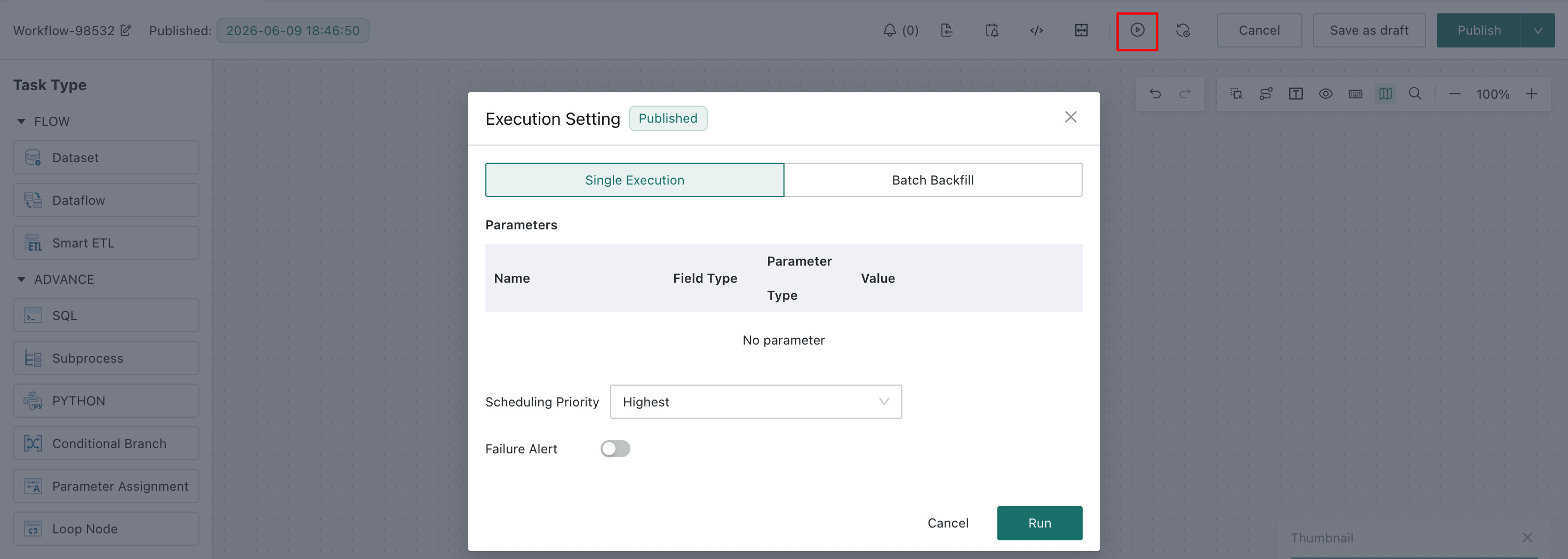
You can click the Run button on the Offline Development Task Editing page, or run a task directly from the Offline Development Task List page.
Run from the Editing Page
-
On the
Offline Development Task Editingpage, click theRunbutton. -
If the task definition has not changed, the system runs it according to the current manual-run logic and indicates whether the latest version is a draft version or a published version.
-
If the task definition has changed, the system displays the prompt
You need to save the task before running it. Do you want to save it?.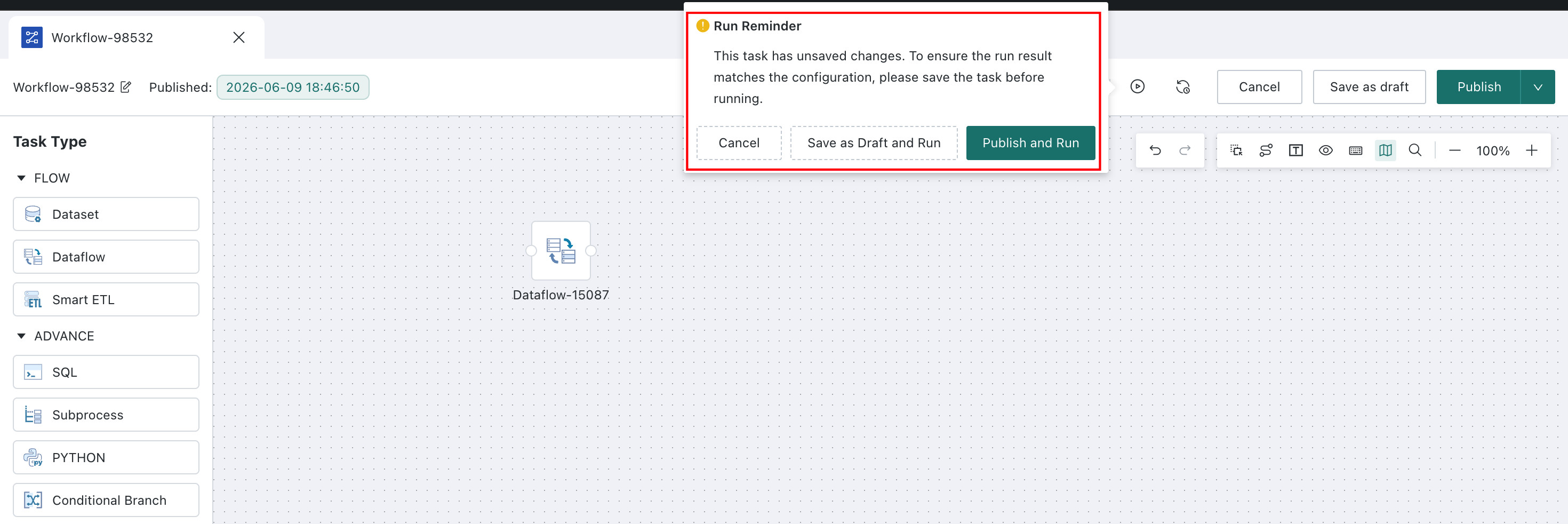
-
In the prompt dialog, select one of the following operations as needed:
| Action | Description |
|---|---|
| Cancel | Closes the dialog and does not run the task. |
| Save as Draft and Run | Saves the current draft version and then runs it. The version state is updated to Updated to Latest Version XXX. |
| Publish and Run | Publishes the current version and then runs it. The version state is updated to Current Version XXX. |
- If the task contains unconfigured items, the
Publish and Runbutton is disabled and cannot be selected.
Run from the List Page
- On the
Offline Development Task Listpage, locate the target task and run it. - The system runs the latest version of the task.
- During execution, the system indicates whether the current version being run is a draft version or a published version.
Scheduled tasks and URL-triggered tasks always use the published version. Manual runs from the list page always use the latest version of the task.
View Version History and Switch Versions
This section explains how to view the history of an Offline Development Task and how to switch to a specific historical version for continued editing.
Entry Description
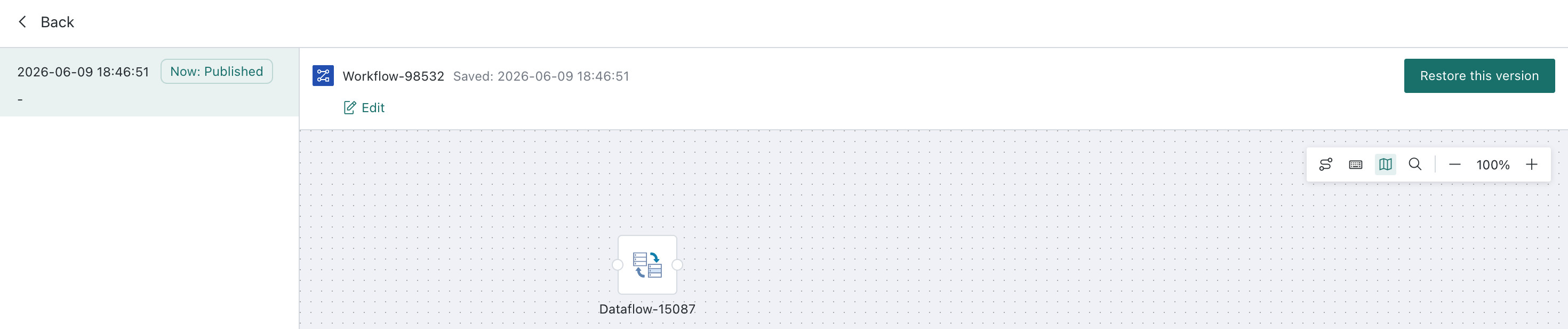
On the Offline Development Task Editing page, click the View Version History button.
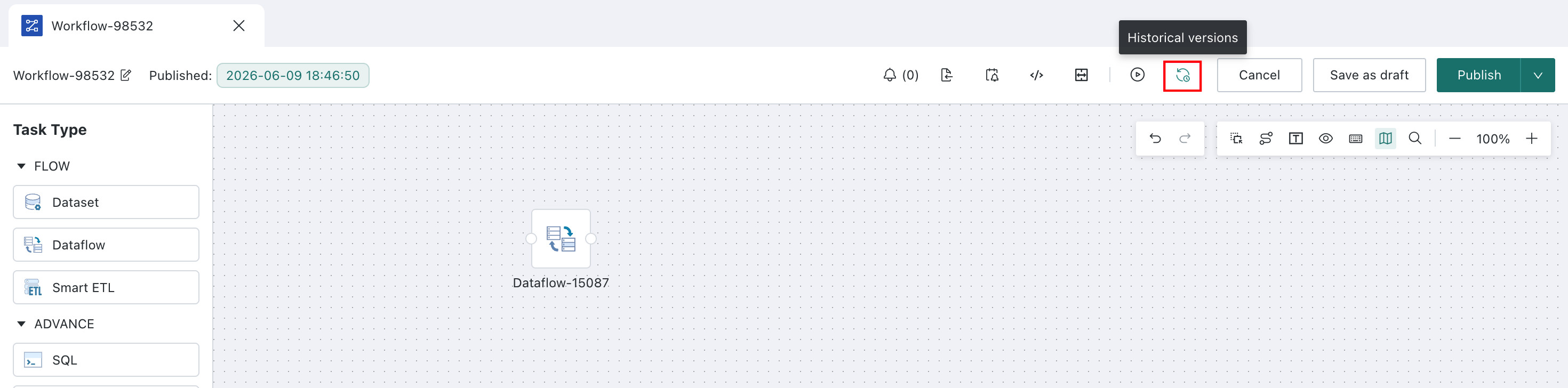
View Version History
- On the
Offline Development Task Editingpage, click theView Version Historybutton. - The system displays the task canvas of the latest version by default.
- Currently, only node distribution is displayed. Direct editing is not supported in this view.
Switch to a Historical Version
- In the version history list, select the target version.
- After switching, return to the task canvas page.
- The node configuration on the canvas is updated to the configuration of the selected historical version.
- The version state on the page is updated to
Current Version XXX.
After switching to a historical version, the system loads that version into the current editing context, making it easy to continue modifying or republishing it.
Rollback and Recovery Recommendations
This section describes typical rollback usage patterns to help users restore a stable version more quickly when a task becomes abnormal.
Rollback Recommendations
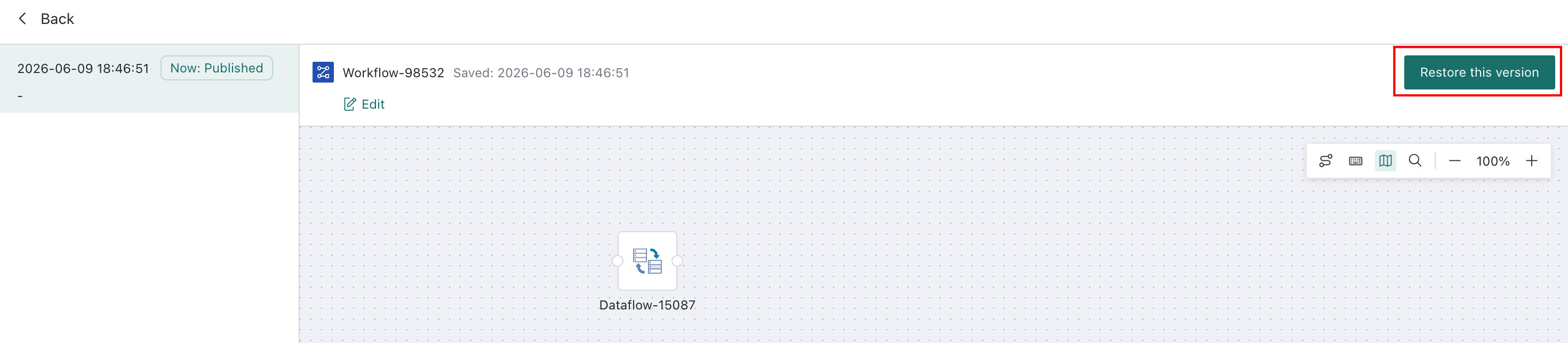
If the latest modification causes a task to fail, produce abnormal results, or require quick restoration of stable logic, you can roll back by switching to a historical version and publishing it again.
- On the
Offline Development Task Editingpage, clickView Version History. - Select the most recent stable and usable historical version.
- Return to the canvas and confirm that the node structure matches expectations.
- Click
PublishorPublish and Exitto make that stable version the latest published version again.
Effects on the List Page and Related Features
This section summarizes how the task list page and related features behave after version management is introduced, making it easier to understand which version state each operation uses by default.
Task List Page Operation Rules
The relationship between each capability and version state on the task list page is as follows:
| Feature | Version Rule |
|---|---|
| Edit | After entering the editing page, version-management rules apply. |
| Run | Runs the latest version and indicates whether it is a draft version or a published version. |
| Rename | Does not modify any version. |
| View Resource Lineage | Uses the published version. |
| View Instances | Not affected by version management. |
| Transfer Ownership | Not affected by version management. |
| Save As | Uses the published version. The copied task is created as a draft version. |
| Move To | Not affected by version management. |
| Delete | Not affected by version management. |
| Cross-Environment Migration | Uses the published version. Tasks that only have a draft version cannot be migrated. |
| Admin Permission Transfer | Not affected by version management. |
| User Access to Task | Uses the latest version. Users can see version history, but cannot switch to a historical version. |
Capabilities That Are No Longer Shown
When a newly created task only has a draft version, the following capabilities are hidden:
Save AsResource LineageUser AuthorizationCollaborator Authorization
Cross-Environment Migration Rules
This section explains how the system decides whether an Offline Development Task can be migrated across environments based on its version state, and what the migration result looks like after import.
Migration Rules
Offline Development Tasks that only have a draft version cannot be migrated.Offline Development Tasks that have a published version can be migrated, and the migrated content is the latest published version.- If no
Offline Development Taskwith the same ID exists in the target environment, the system creates a new task and saves the migrated content as a draft version. - If an
Offline Development Taskwith the same ID already exists in the target environment:
| Scenario | Result |
|---|---|
| The target task already has a draft version | Overwrites the draft version of the target task. |
| The target task does not have a draft version | Adds a new draft version. |
The result of cross-environment migration always lands as a draft version in the target environment, making it easy to review and adjust the migrated task before publishing it there.
Management and Monitoring
This section describes newly added version-management-related capabilities in the Management Center and Task Monitor, helping administrators and operations personnel track version usage.
Management Center Configuration
The Management Center adds a historical version limit setting to control the maximum number of historical versions retained for a single Offline Development Task.
- In the Management Center, open the configuration page related to
Offline Development Tasks. - Find the
Offline Development Historical Version Limitsetting. - Set the retention count as needed. The valid range is
1to100.
Task Monitor
Task Monitor adds version information to the instance details page so that you can identify which task version is associated with the current instance.
- On the
Task Monitorpage, open the details page of the target instance. - Check the newly added version information field to confirm the version state and version content used for that run.