Resource Migration
Feature Overview
Offline Dev resources support cross-environment migration. Their migration logic and entry points are consistent with BI resources.
Applicable scenario: migrating from test to production. When test and production environments are strictly separated, resources that have already been updated in the test environment can be migrated to production to reduce direct changes in production, maintain consistency between the two environments, and improve migration efficiency.
Migration methods:
Online Migrationis suitable when the test and production environments can communicate over the network. Configure migration centrally inManagement Center > O&M Management > Resource Migration, then use the migration action on the corresponding resource page to synchronize test resources to production.Offline Migrationis suitable when the test and production environments are isolated. Export a resource package fromManagement Center > O&M Management > Resource Migrationin the test environment, then import it under the same path in the production environment to synchronize test resources to production.
Migration Logic
Terminology
- Export setting -
Export Upstream Resources: If this option is not selected, the system exports the selectedOffline Devtask together with the resources it uses, such as datasets andData Accounts, but it does not export upstream resources of those datasets. If selected, upstream resources are included as well, such as the dataset'sData Accountand upstream ETL resources. During import, you can still choose not to import some of them. - Import setting - whether to change the resource ID:
- If you choose to keep the ID unchanged, the migrated resource ID is preserved and imported directly. The next time the same resource is imported, the previously imported resource is updated.
- If you choose to change the ID, all migrated resources are imported with new IDs. The next time the same resource is imported, it is not updated automatically because the ID has changed. A new resource is created instead.
Migration Path
Feature entry: Management Center > Resource Management > Resource Migration.
Notes Before Migration
Version: using the same version is recommended.
Feature switches: make sure the two environments have consistent feature availability.
Export an Appropriate Resource Package
You can export Offline Dev tasks that you have permission to access.
Package name: supports names up to 20 characters. Use a meaningful and unique identifier such as a date or content label to make future lookup easier.
Export settings:
Export Upstream Resources: It is recommended to enable this option for the first migration unless the corresponding upstream resources already exist in the target environment. For subsequent migrations, this option is usually not required.
Resource selection: choose the resources to export for the corresponding resource type.
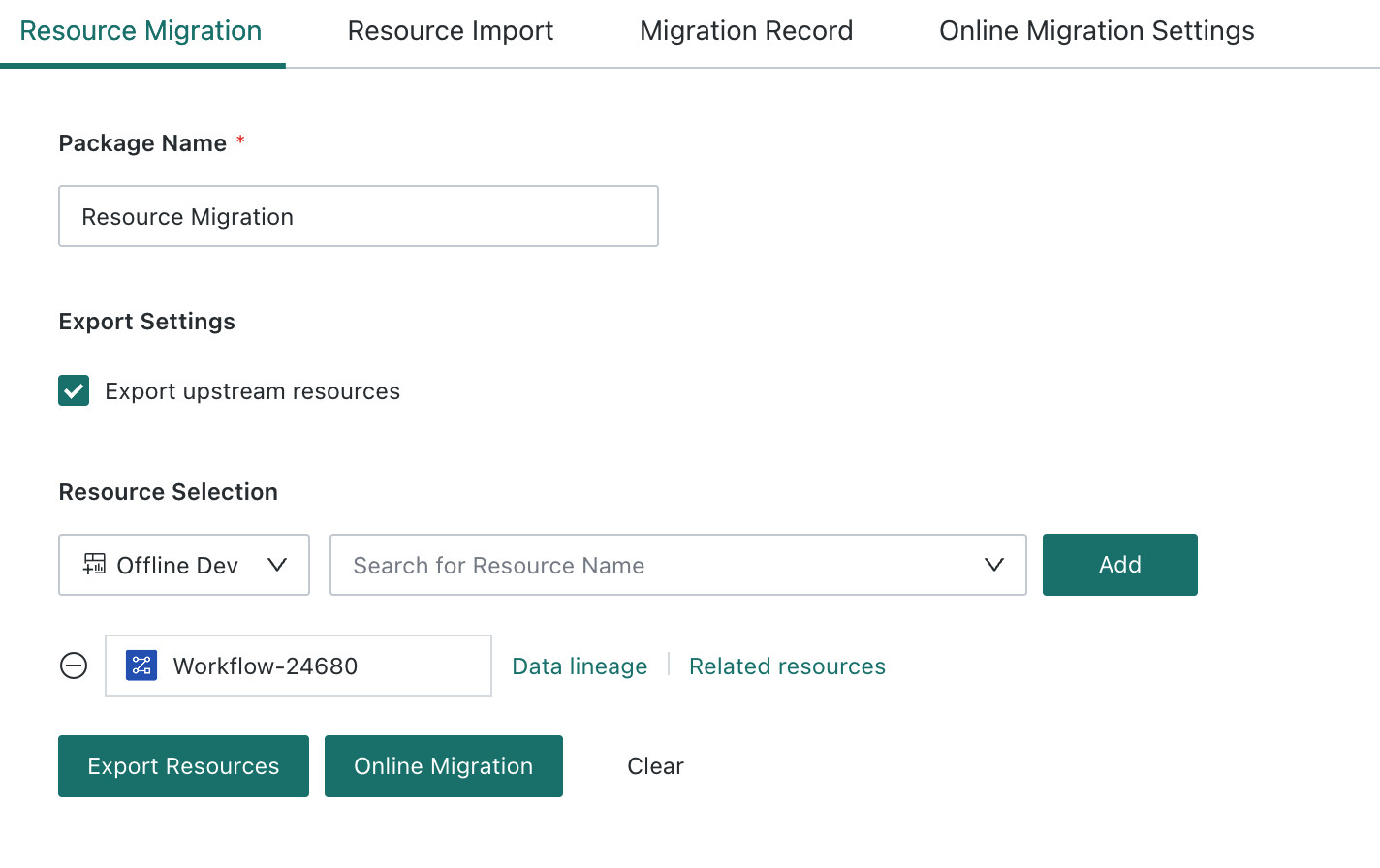
After clicking export, go to the migration records tab to download the resource package. If the package contains many resources, some waiting time may be required.

Import a Resource Package
Resource import: only .zip packages exported by the system are supported.
Resource parsing:
-
Whether to change the resource ID
- Select
Yesif the imported resources should receive new IDs. This is commonly used in the following scenarios: 1) one-time import with no further iterative migration; 2) the same resource is needed in multiple domains of the target environment. - Select
Noif the imported resources should keep the original IDs. This is commonly used in the following scenarios: 1) the target environment will continue to receive iterative updates through migration; 2) you want to ensure the uniqueness of the same resource in the target environment. - Because an
Offline Devtask can reference otherOffline Devtasks, it is recommended to keep resource IDs unchanged, or export all parent tasks together at one time, to avoid importing multiple subtasks with different IDs but identical content.
- Select
-
Parsing list
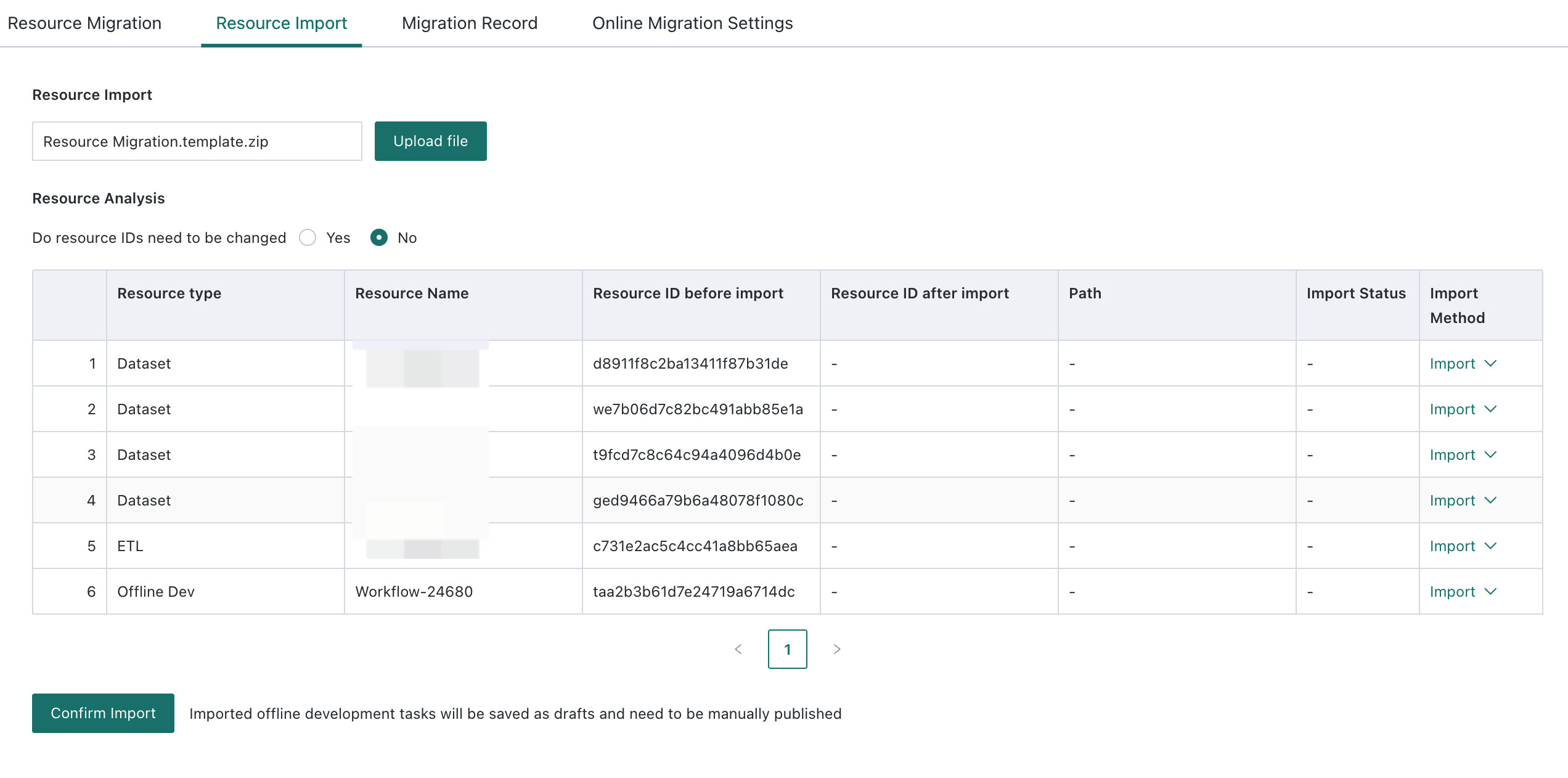
- Before import, the list shows the resource type, resource name, pre-import resource ID, and import method. You can choose whether each resource should be imported, but if you decide not to import an upstream resource, make sure a resource with the same ID already exists in the target environment. Otherwise, the import may fail.
-
After import, the page also shows the post-import resource ID, path, and import status. Keep this page open until Step 3 is completed.
If import errors occur, adjust the package based on the error message and import it again.
- If you chose to keep IDs unchanged, you can directly re-import the adjusted package.
- If you chose to change IDs, make sure to clean up the resources that were successfully created in the previous attempt.
Possible Failure Causes
| Failed Resource Type | Error Description | Example Error |
|---|---|---|
| Entire package | The feature switch is disabled. Contact your Guandata CSM to enable the feature. | - |
| Entire package | The resource count exceeds the license limit. Contact Guandata sales. | Error message: [message] = This application contains Data Visualization Walls, and the current number of Data Visualization Walls exceeds the upper limit. |
| Offline Dev task | The input dataset is not included in the import package. | Input Dataset XXX not matched |
| Offline Dev task | The Data Account is not included in the import package. | Data Account XXX not matched |
| Offline Dev task | The Subprocess is not included in the import package. | Subprocess XXX not matched |
| Offline Dev task | The ETL resource is not included in the import package. | ETL XXX not matched |
| Offline Dev task | Datasets under the same directory cannot share the same name. Rename the dataset in the export environment before importing. | A file with the same name already exists in the output dataset directory. Please modify it. |
| Card | When IDs are changed, the import path becomes invalid. Modify the import path and import again. | The attachment file path [/guandata-store/images/bb021cf8dd1004239939ede7.jpg](51) is invalid. |
| ETL | The ETL input dataset is not included in the import package. | Input Dataset not matched |
| ETL | Datasets under the same directory cannot share the same name. Rename the dataset in the export environment before importing. | A file with the same name already exists in the output dataset directory. Please modify it. |
| Dataset | A dataset with the same ID has been deleted in the target environment. Use ID-changing import, or copy a new dataset in the export environment and replace the reference. | The current dataset has been deleted in the target environment and cannot be imported again. |
| Dataset | In a multi-domain target environment, another domain already contains a dataset with the same ID. Use ID-changing import, or copy a new dataset in the export environment and replace the reference. | Another domain already contains the same dataset ID, so the dataset cannot be imported again into the current domain. |
| Dataset | A field with the same ID has been deleted from the dataset. Use ID-changing import, or copy a new dataset in the export environment and replace the reference. | Duplicate entry 't991094c76a394229b308950-a23d2757620fc47b7a6e0534' for key 'ds_fd' |
| Data Account | The Data Account name must be unique, but the ID is inconsistent. Rename the Data Account in the export environment. | Duplicate Data Account name |