Parameter Assignment
Overview
The Parameter Assignment node is used in an Offline Dev workflow to assign query results from database tables or BI datasets to task parameters. Once configured, downstream nodes can reference these dynamic parameters directly in scenarios such as incremental updates, conditional branch evaluation, script execution, file reading, and API requests.
Business Value
The Parameter Assignment node solves the problem of reusing upstream results in downstream nodes. By converting query results directly into parameters, you can pass incremental timestamps, drive conditional logic, construct dynamic script inputs, and assemble request parameters without adding extra intermediate processing logic. This reduces workflow complexity and avoids redundant data synchronization.
Applicable Scenarios
The Parameter Assignment node is suitable when you need to extract a single value or a set of field values from upstream results and continue using them in downstream nodes.
- During incremental updates of a detail table, first retrieve the latest timestamp of synchronized data, then sync only data greater than that timestamp to avoid duplicate writes.
- When a
Conditional Branchdepends on source table status to decide the execution path dynamically, first extract the required condition value by usingParameter Assignment. - When
Python Node,SQL Node (Advanced), orHTTP Nodemust build script parameters, query conditions, or request bodies dynamically from upstream results, reuse the assigned parameters directly.
Add a Parameter Assignment Node
This section explains how to add a Parameter Assignment node to a workflow and open its configuration page.
Entry Point
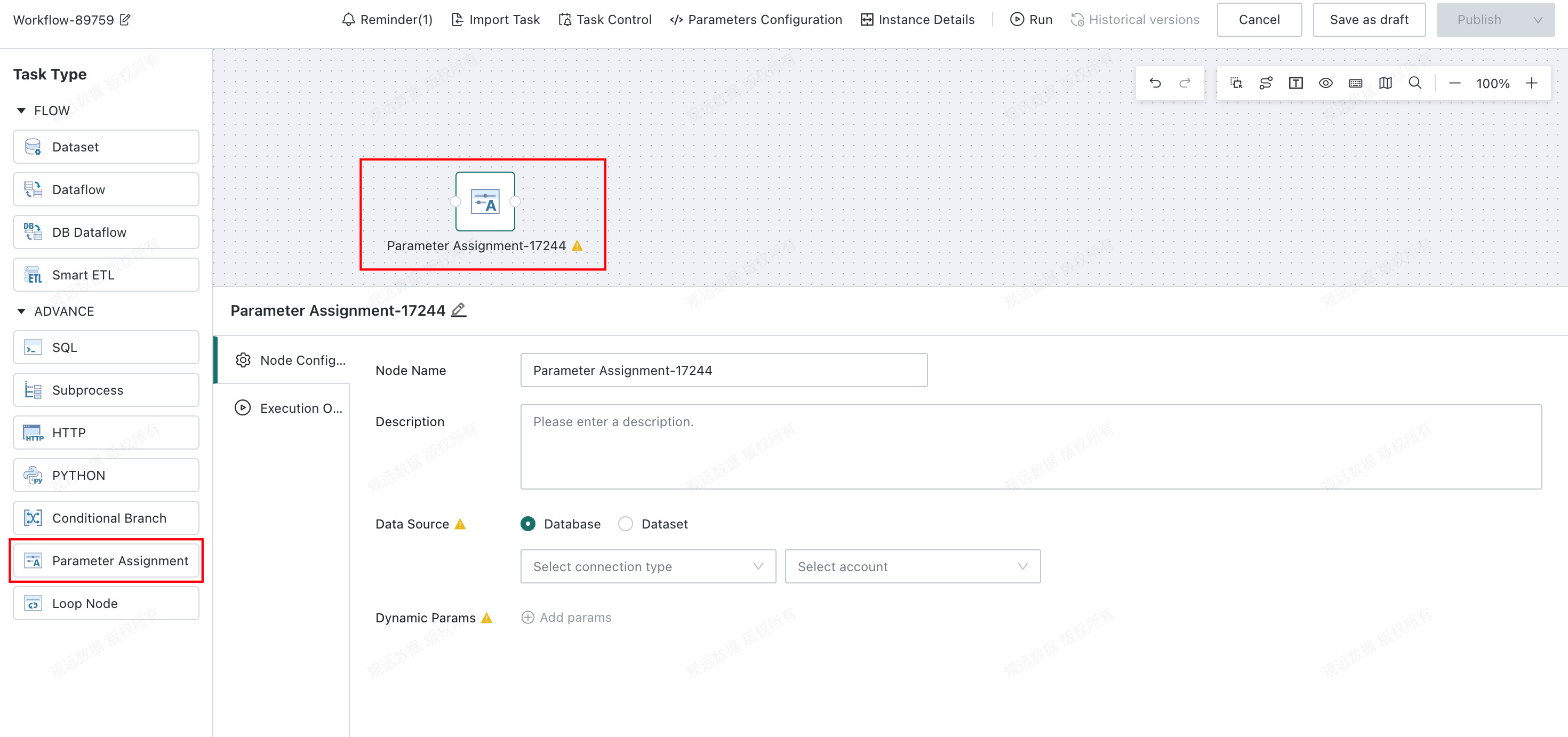
On the Task Editing page, choose the Parameter Assignment node type when adding a new node.
Configure the Data Source
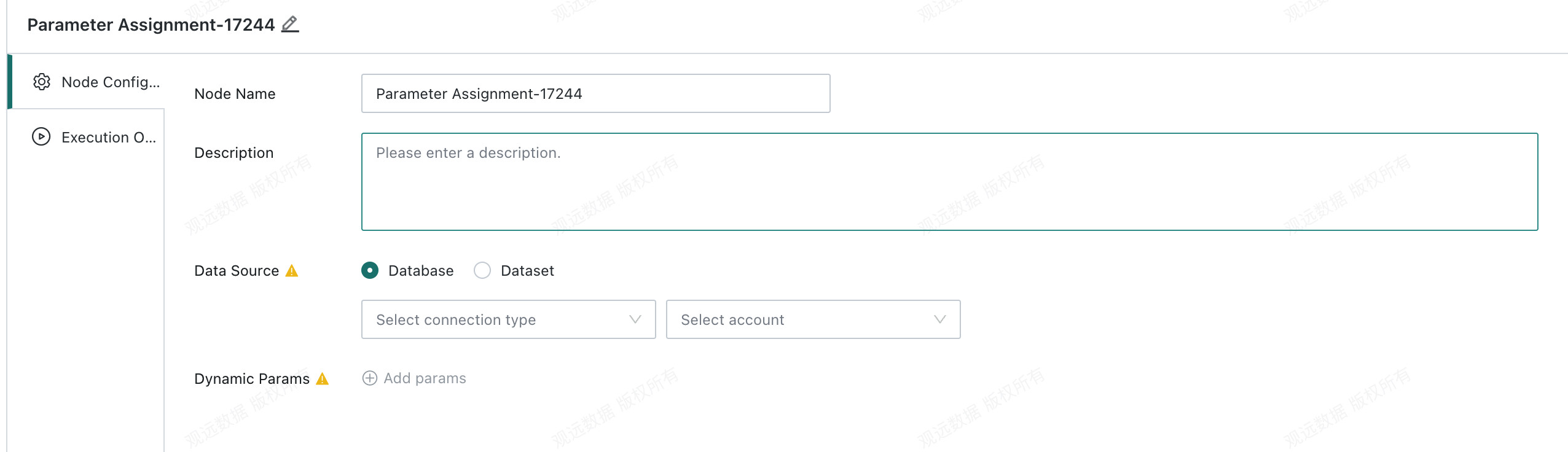
This section explains how to configure the data source for a Parameter Assignment node. The node supports values from both databases and BI datasets. The default data type is Database.
Entry Point
On the Parameter Assignment Node Configuration page, first complete the basic information and data source settings.
Basic Configuration Items
After the node is created, configure the following basic information first:
| Configuration Item | Description |
|---|---|
| Node Name | Defines the name of the current Parameter Assignment node for easier identification in the workflow. |
| Description | Describes the purpose of the node for collaboration and later maintenance. |
| Data Source | Specifies the source type of the parameter value. |
| Data Type | Supports Database or BI Dataset. The default value is Database. |
Retrieve Values from a Database
When Data Type is set to Database, follow these steps.
- On the
Parameter Assignment Node Configurationpage, setData TypetoDatabase. - Select the database connection information.
| Configuration Item | Description |
| Select Database | Specifies the database to be queried. |
| Account Type | Required. Determines the connection method. |
| Data Account | Required. Used to connect to the target database. |
| Display Area | Shows the selected database and account information. |
- Enter the query statement in the
Query SQLfield.
| Configuration Item | Description |
| Query SQL | Required. Use the syntax of the selected database to write a select query. |
| Supported References | Supports time macro parameters, task parameters, and global parameters. |
| Editing Capability | Supports formatting and expanded view. |
| Display Area | Shows the SQL content. |
Retrieve Values from a BI Dataset
When Data Type is set to BI Dataset, follow these steps.
- On the
Parameter Assignment Node Configurationpage, setData TypetoBI Dataset. - Select the dataset information.
| Configuration Item | Description |
| Dataset Type | Choose the type of the target dataset. |
| Specific Dataset | Required. Specifies the dataset to be queried. |
| Display Area | Shows the selected dataset information. |
- Confirm or modify the query statement in the
SQL Queryfield.
| Configuration Item | Description |
| SQL Query | Required. The default value is select * from XXX dataset. |
| Query Result | Keeps only the data that matches the query conditions. |
| Supported References | Supports task parameters, global parameters, and time macros. |
| Display Area | Shows the SQL content. |
- If you need to switch datasets, select another target dataset.
The system refreshes theSQL Querycontent automatically.
Preview Data
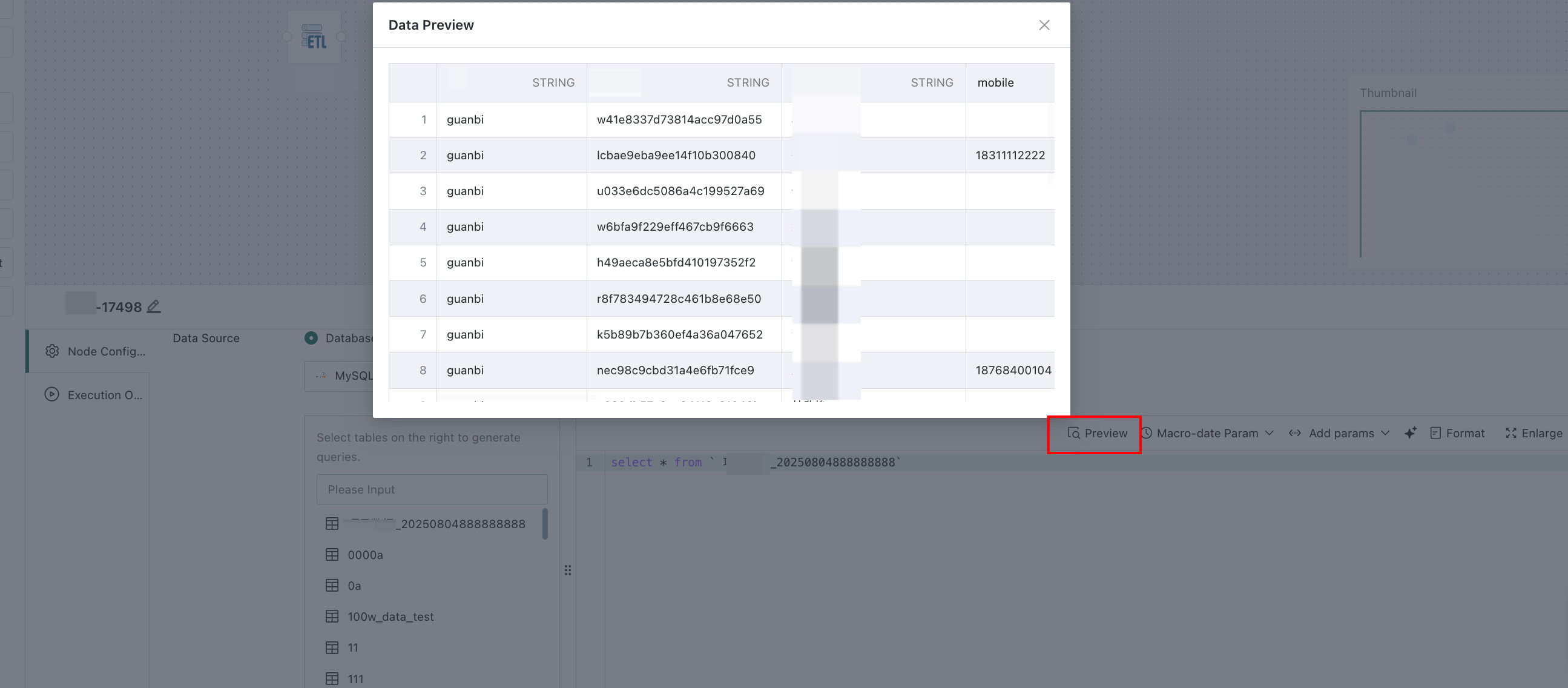
After completing the data source configuration, it is recommended to preview the data first and confirm that the fields and result set match expectations.
- On the
Parameter Assignment Node Configurationpage, preview the data after all required fields are configured. - The system returns the preview result and shows up to
30rows. - When the SQL changes, the system prompts:
The SQL has changed. Please preview again.
If dynamic parameters have already been configured and any required data source field is modified, the system prompts you to preview the data again. After re-previewing, if the fields do not match the configured dynamic parameters, the system displays a warning.
Configure Dynamic Parameters
This section explains how to configure dynamic parameters based on query results. Multiple dynamic parameters are supported. Each parameter can extract either a single value or a full column of values from the query result.
Entry Point
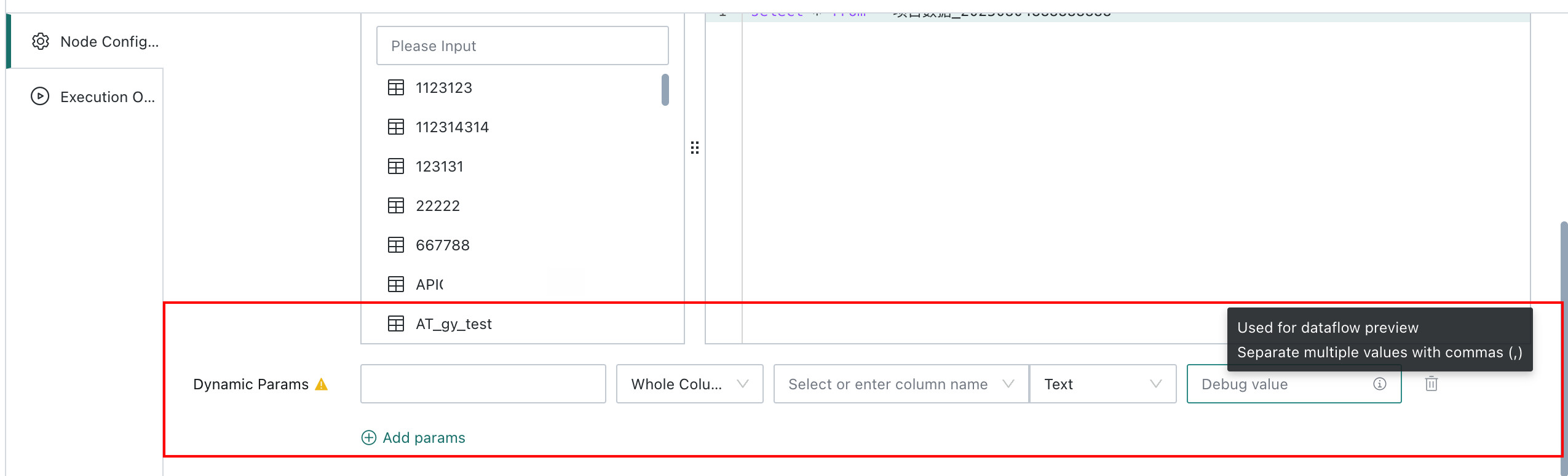
On the Parameter Assignment Node Configuration page, after completing required data source settings and previewing successfully, click Add Dynamic Parameter.
Rules for Adding Parameters
Before adding dynamic parameters, note the following restrictions:
Add Dynamic Parameteris available only after all required data source fields are configured.- When you click the button, the system retrieves field names from the database table or dataset. If field retrieval fails, the system reports an error directly.
- Dynamic parameter names must be unique at the task level and support Chinese, English,
_, and-.
Step-by-Step Guide
- On the
Parameter Assignment Node Configurationpage, clickAdd Dynamic Parameter. - In the dynamic parameter configuration area, fill in the basic parameter information.
| Configuration Item | Description |
|---|---|
| Parameter Name | Required. Must be unique at the task level. |
| Value Type | Supports Date, Text, and Numeric. |
| Value Source | Specifies how the parameter value is extracted from the query result. |
| Debug Value | Optional. Used only for downstream node preview. |
| Display Area | Shows the current parameter configuration. |
- In
Value Source, choose the extraction method.
| Extraction Method | Description |
| Full Column | Uses one field as the value source for the full column. Up to 500 values are supported. |
| Single Value | Extracts a single value from one field. By default, the value from the first row is used. |
- If you need to verify logic during
Dataflow Nodepreview, fill inDebug Value.
The system uses this value only during preview.
Debug Value is used only for preview and does not replace the actual runtime value retrieved from the data source.
Use Assigned Parameters in Downstream Nodes
This section describes where dynamic parameters generated by the Parameter Assignment node can be referenced and how they are used in different nodes.
Entry Point
When a Parameter Assignment node is upstream of another node, the assigned parameters can be referenced in the parameter input area of that downstream node.
Supported Reference Scope
Downstream nodes support these assigned parameters in the following scenarios:
| Node or Capability | Reference Location |
| Dataflow Node / DB Dataflow | General parameter input area |
| Database Input | SQL Query |
| Database Output | Pre-Cleanup |
| Output Dataset | Incremental and Pre-Cleanup |
| File Input | File Address and File Name |
| ERP | Data Filter |
| Add Calculated Column | Expression configuration area |
| Group Aggregate | Add Calculated Column |
| Filter Data Rows | Filter condition area |
| SQL Input | SQL content area |
| Python Node | Python Script |
| SQL Node (Advanced) | SQL Script |
| HTTP Node | Request Parameters and Request Body |
| Conditional Branch | Condition configuration area |
Usage Rules in Conditional Branch
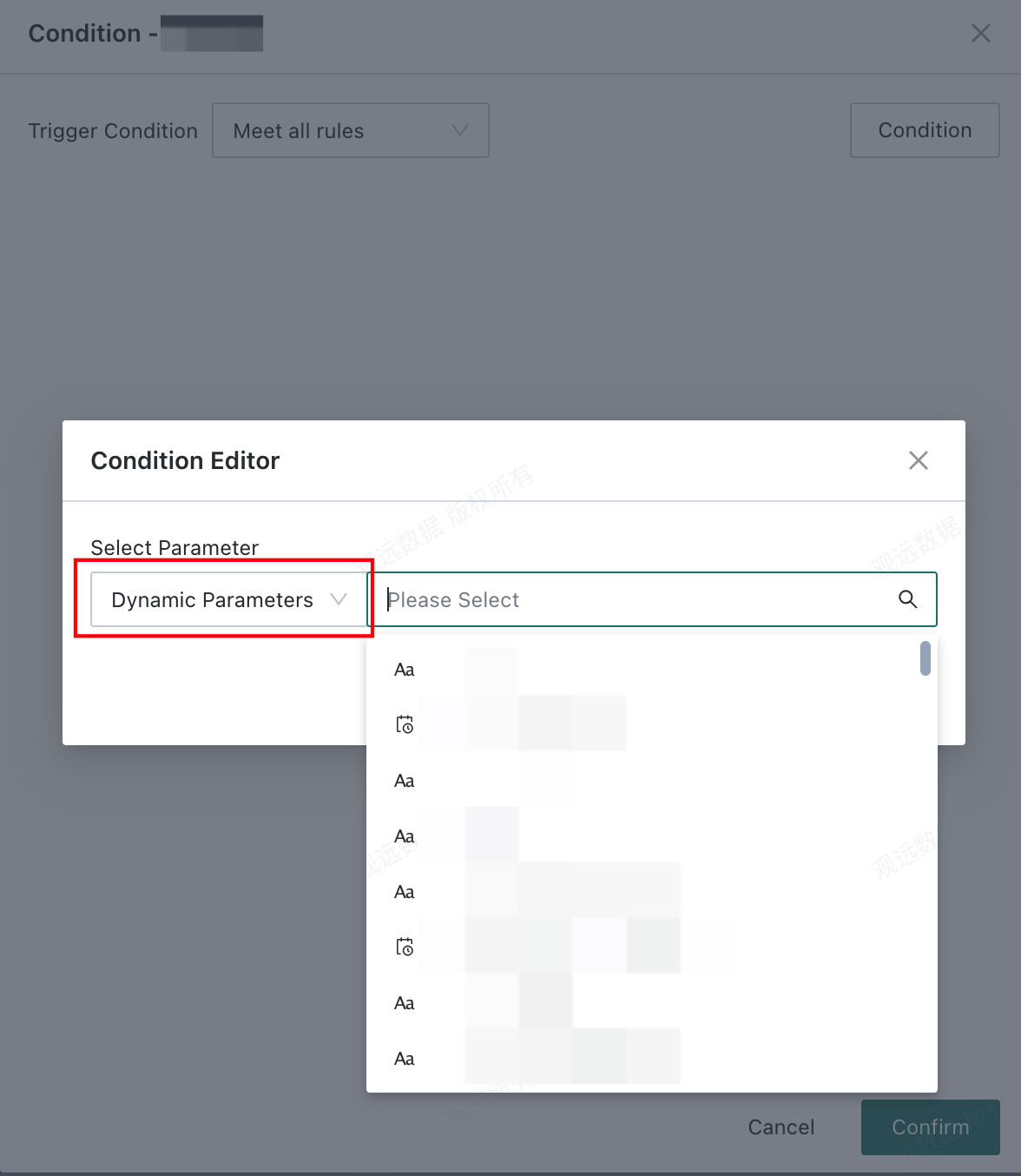
Dynamic parameters can be used directly in the Conditional Branch node.
- In the condition configuration area of the
Conditional Branchnode, select a dynamic parameter as the condition item. - The system provides available condition methods based on the dynamic parameter’s
Value Type. - In
Comparison Item, the system shows available dynamic parameters based on prior configuration and the parameter value type.
Usage Rules in Subprocess
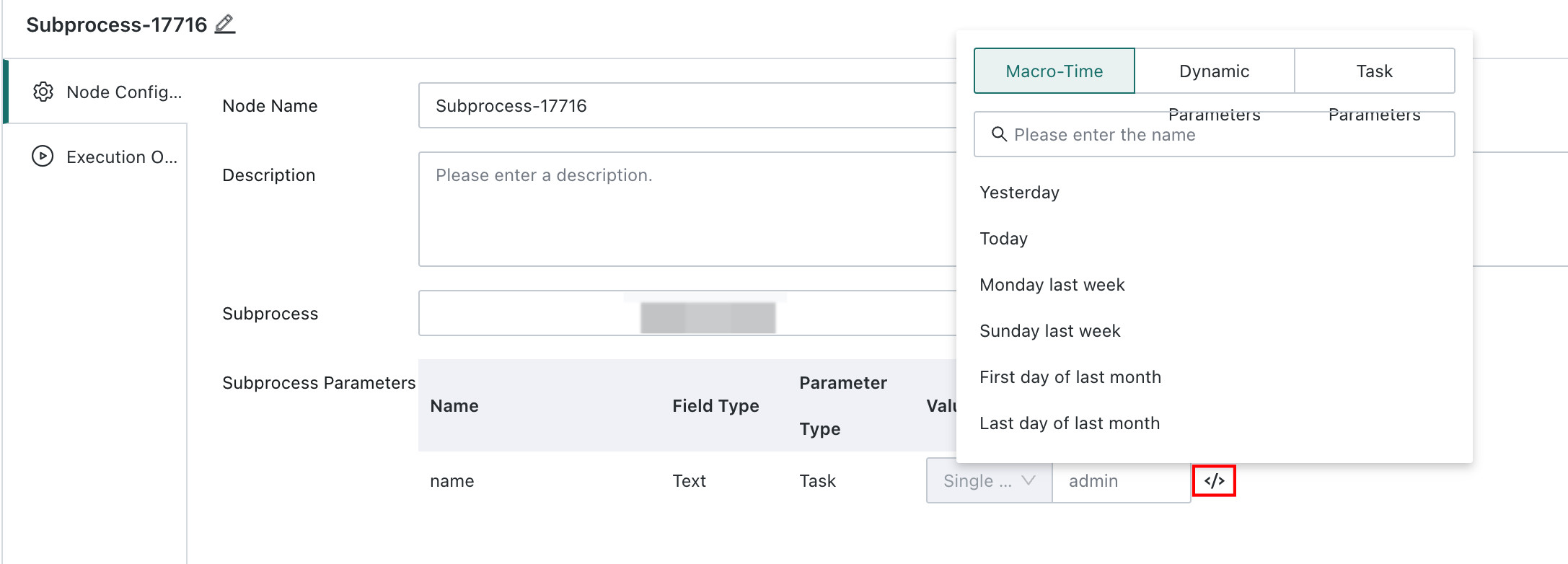
When assigned parameters are passed to a Subprocess node, they are only available inside that subprocess and are not exposed externally.
Display in the Task Parameter List
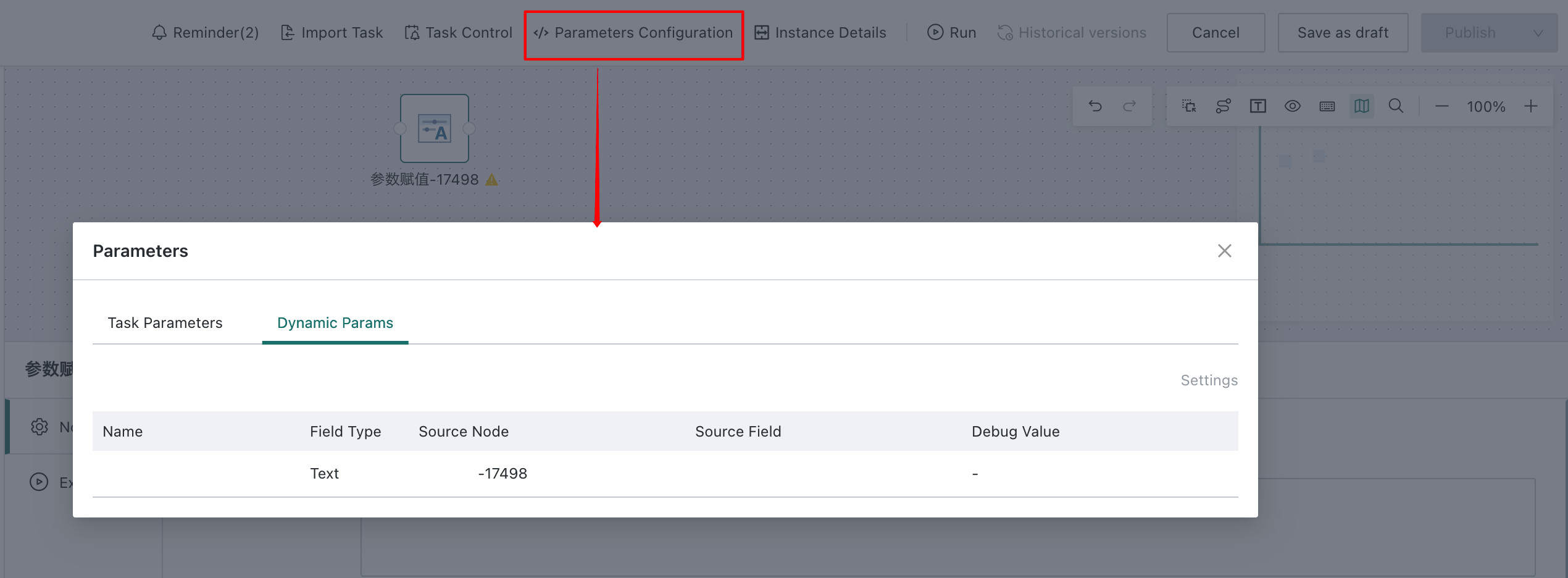
This section explains how the task parameter area distinguishes regular task parameters from dynamic parameters, making it easier to identify parameter sources during editing and debugging.
Display Rules
The task parameter area distinguishes between Task Parameters and Dynamic Parameters [DATADRIVEN_PARAMS.].
| Parameter Type | Description |
| Task Parameters | Existing task parameters, maintained using the original logic. |
| Dynamic Parameters | Generated by the Parameter Assignment node and cannot be modified manually in the parameter list. |
Display Fields for Dynamic Parameters
Dynamic parameters display the following information in the parameter list:
| Field | Description |
| Parameter Name | The name of the dynamic parameter. |
| Value Type | The data type of the dynamic parameter. |
| Source Node | The Parameter Assignment node that generated the parameter. |
| Debug Value | The currently configured debug value. |
View Runtime Logs and Instance Parameters
This section explains where to view assignment results after the node runs and how the system displays failure reasons.
Runtime Logs
After the Parameter Assignment node finishes, the runtime log shows the parameter values or failure reasons for each node.
- Open the log information of the
Parameter Assignmentnode in workflow instance details or node runtime logs. - Review the result of each
Parameter Assignmentnode.
| Log Content | Description |
| Node Name | The specific name of the Parameter Assignment node. |
| Parameter Value | The actual value generated by the node. |
| Failure Reason | Displayed when value retrieval fails. |
Instance Runtime Parameters
The runtime parameter area of a workflow instance also displays assigned parameters so you can review all final execution parameters in one place.
| Field | Description |
| Parameter Name | The name of the assigned parameter. |
| Source Node | The node that generated the parameter. |
| Value Type | The data type of the parameter. |
| Actual Value | The real value retrieved at runtime. |
Notes and FAQ
This section summarizes key restrictions, warnings, and common questions for the Parameter Assignment node.
Notes
- If the data source, query SQL, or other required configuration changes after dynamic parameters have been configured, preview the data again.
- The
Full Columnextraction method supports up to500values. If the result exceeds this limit, filter the result set first with SQL. - The
Single Valuemethod uses the value from the first row by default. - Dynamic parameter names must be unique at the task level. Avoid duplicate names with existing task parameters.
FAQ
- Question: Why can’t I add a dynamic parameter?
Answer: Make sure all required data source fields are configured and the data preview has completed successfully. If the issue remains, check whether the database table or dataset fields were retrieved successfully. - Question: Why can’t I use a dynamic parameter in a
Dataflow Node?
Answer: Confirm that theParameter Assignmentnode is upstream of the currentDataflow Node. Also check whether aDebug Valueis configured. Without a debug value,Dataflow Nodepreview does not support the parameter. - Question: Why does the existing dynamic parameter become invalid after I modify SQL?
Answer: After the SQL changes, the returned fields may also change. Preview the data again and revalidate or adjust the dynamic parameter configuration based on the latest fields. - Question: Why can’t I see an assigned parameter in
Conditional Branch?
Answer: Confirm that theParameter Assignmentnode is upstream of the currentConditional Branchnode, and make sure the parameter value type is compatible with the current comparison condition. - Question: Why is no parameter value generated after execution?
Answer: Check whether the query result is empty. If the source data is empty, the system reports that the table or dataset is empty and no value can be assigned.
Terminology
This section explains key concepts related to the Parameter Assignment node.
| Term | Description |
| Parameter Assignment Node | A node type in a workflow that converts query results from a database or BI dataset into parameters that can be referenced by tasks. |
| Dynamic Parameter | A parameter generated by the Parameter Assignment node and referenced by downstream nodes at runtime. |
| Task Parameter | A parameter preconfigured at the task level, distinct from runtime-generated dynamic parameters. |
| Debug Value | A temporary parameter value used only for Dataflow Node preview and not for formal execution. |
| Value Type | The data category of a dynamic parameter, including date, text, and numeric. |