Loop Node
Overview
A Loop node repeatedly runs a published Offline Dev task in a workflow. Use multi-value parameters to run a task in sequence, or use execution conditions to decide whether the next iteration runs.
Business Value
Use one reusable node instead of manually copying the same subflow. A Loop node supports bulk execution over parameter values and condition-driven repetition, reducing workflow complexity and improving maintainability.
Applicable Scenarios
- Run the same subtask for each date, partition, or business-code value.
- Use a Parameter Assignment node to generate multi-value parameters and process each value in a downstream task.
- Run a task once, then decide whether to continue from its result or the iteration count.
- Continue with later batches after one iteration fails.
Prerequisites
- Open the Offline Dev workflow editor.
- Ensure that you can edit the workflow.
- Create a published Offline Dev task to use as the loop task.
- Ensure that you are the owner or a user of the loop task.
- Prepare task, dynamic, global, or time-macro parameters if the loop needs traversal parameters or execution conditions.
Add a Loop Node
Entry Point
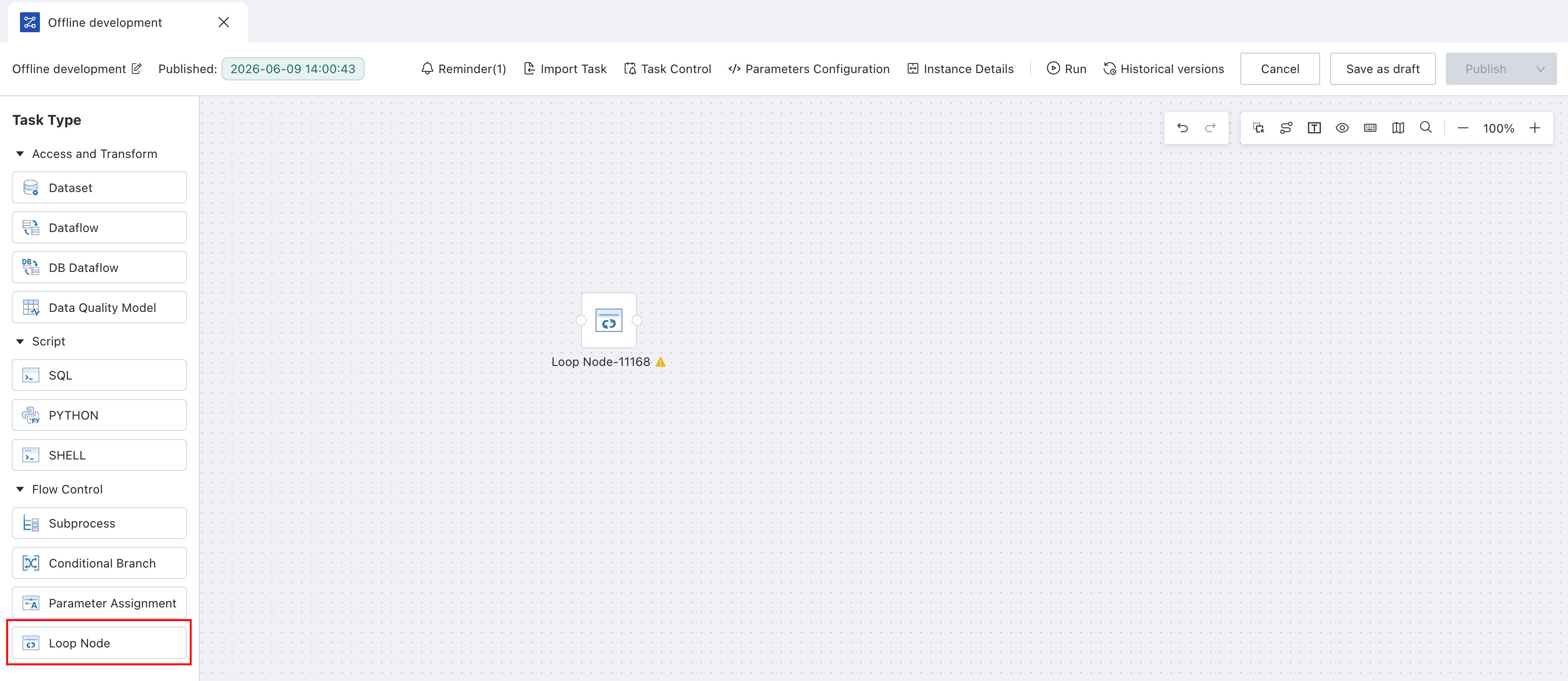
In the workflow editor, select Loop Node when adding a node.
Steps
- In the workflow editor, click the add-node entry point.
- Select Loop Node from the node type list. The platform adds the node to the canvas.
- Select the new node to open its configuration.
Configure the Loop Mode
Entry Point
On the Loop Node configuration page, select a loop mode before configuring the node and its run options.
Modes
| Mode | Description | Typical use |
|---|---|---|
| Traverse Mode | Runs the loop task once for each traversal-parameter value, then exits. | Dates, partitions, or batches. |
| Conditional Mode | Runs the loop task once, then determines whether to run again from the execution condition. | Status, iteration-count, or threshold processing. |
Traverse Mode is the default.
Configure Traverse Mode
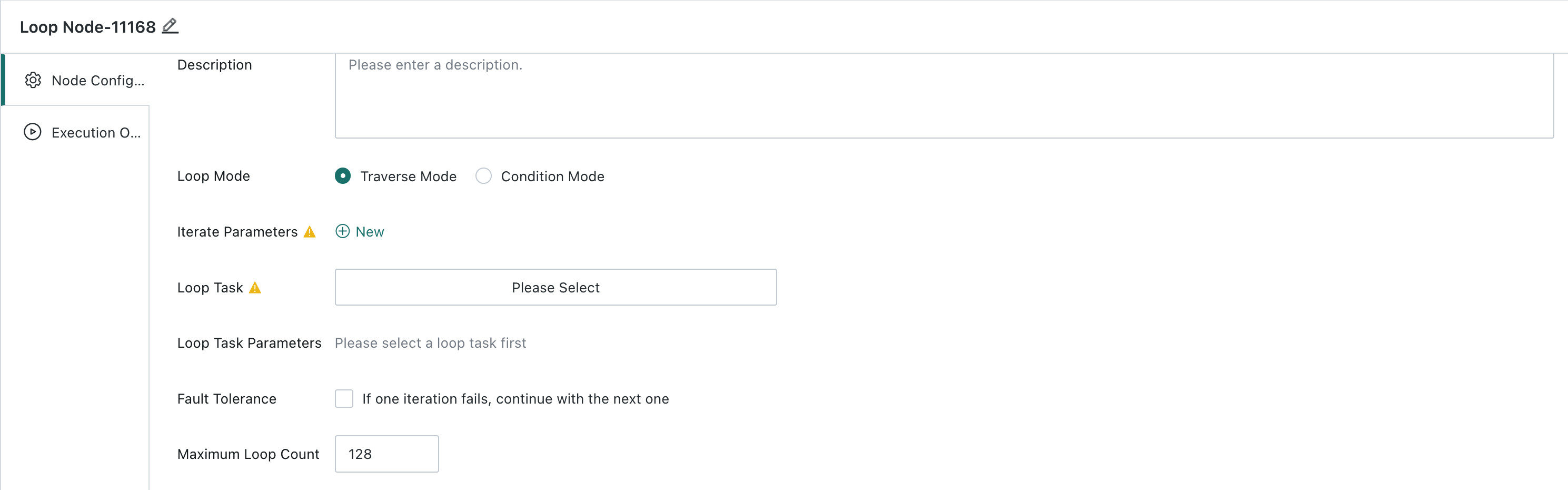
Entry Point
Set Loop Mode to Traverse Mode.
Steps
- On the Loop Node Configuration page, set Loop Mode to Traverse Mode.
- Configure Iterate Parameters.
| Setting | Description |
|---|---|
| Iterate Parameters | Required. You can select global, dynamic, and task parameters, and add multiple parameters. |
| Parameter value handling | The platform processes parameter values one by one and exits after all values are processed. |
- Select a Loop Task.
| Setting | Description |
|---|---|
| Loop Task | Required. You can select only a published Offline Dev task for which you are an owner or user. |
| Cycle validation | If the selected loop task has a nested relationship with the current task, the platform reports an error and cannot save the configuration. |
- If the loop task has task parameters that must receive loop values, configure Loop Task Parameters.
| Setting | Description |
|---|---|
| Loop Task Parameters | Displays task parameters defined in the loop task. |
| Parameter value source | Supports task, dynamic, and global parameters from the current task. |
| Multi-value parameter rules | If a multi-value parameter is an Iterate Parameter, each iteration passes the corresponding single value. Otherwise, the whole multi-value parameter is passed. |
- Configure run options.
| Setting | Description |
|---|---|
| Fault Tolerance | Continue after an iteration fails and report the Loop node as successful. Without it, any failed iteration fails the node. |
| Maximum Loop Count | Defaults to 128; allowed range is 2–500. When the limit is reached, the node stops and reports success. |
Configure Conditional Mode
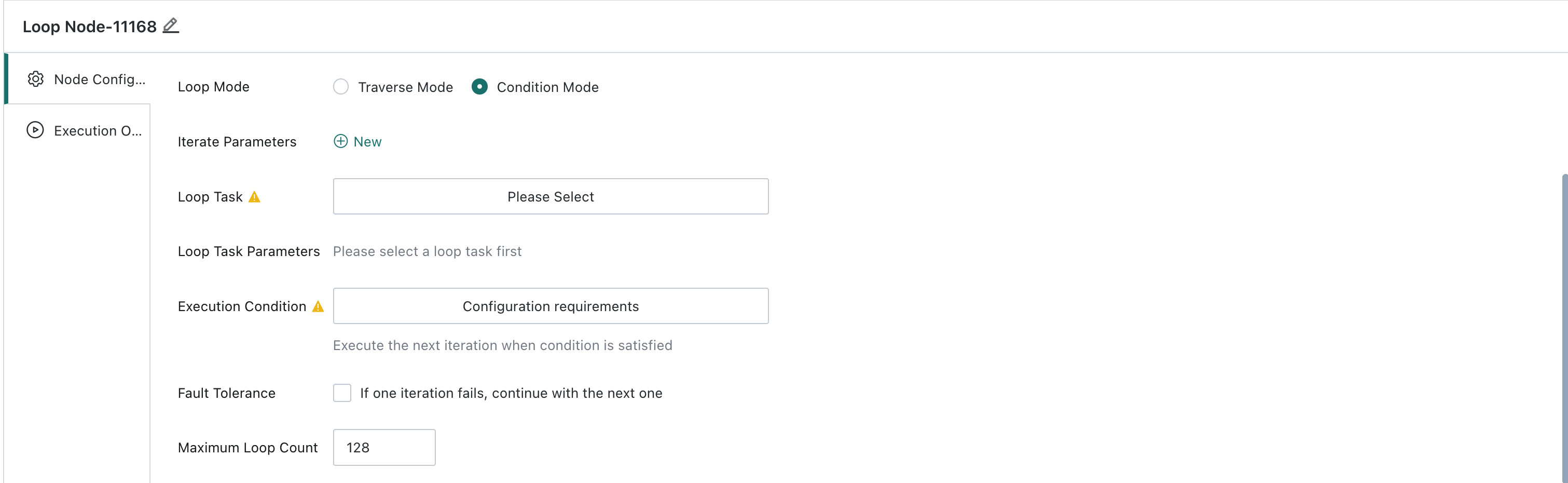
Entry Point
Set Loop Mode to Conditional Mode.
Steps
- On the Loop Node Configuration page, set Loop Mode to Conditional Mode.
- Optionally configure Iterate Parameters.
| Setting | Description |
|---|---|
| Iterate Parameters | Optional. You can select multiple global, dynamic, and task parameters. |
| Multi-value parameter handling | A selected Iterate Parameter is evaluated and passed one value at a time; other multi-value parameters are evaluated and passed as a whole. |
- Select a Loop Task.
| Setting | Description |
|---|---|
| Loop Task | Required. Select a published Offline Dev task for which you are an owner or user. |
| Cycle validation | The platform reports an error if the selected task creates a nested task cycle. |
- Configure Loop Task Parameters when the loop task needs task parameters.
| Setting | Description |
|---|---|
| Loop Task Parameters | Displays parameters defined in the loop task. |
| Parameter value source | Supports task, dynamic, and global parameters from the current task. |
| Multi-value parameter rules | Selected Iterate Parameters pass values by iteration; other multi-value parameters pass as a whole. |
- Configure Execution Conditions. Click Execution Conditions to open the dialog, add one or more rules, and run the next iteration only when the condition is met.
- Configure run options.
| Setting | Description |
|---|---|
| Fault Tolerance | Continue after an iteration fails and report the Loop node as successful. Without it, any failed iteration fails the task. |
| Maximum Loop Count | Defaults to 128; allowed range is 2–500. When the condition remains met but the limit is reached, the node stops and reports success. |
Conditional Mode runs once before it evaluates whether to continue. The first iteration does not evaluate the execution condition; subsequent iterations do.
Configure Execution Conditions
Configure execution conditions for Conditional Mode by parameter type, operator, and trigger condition.
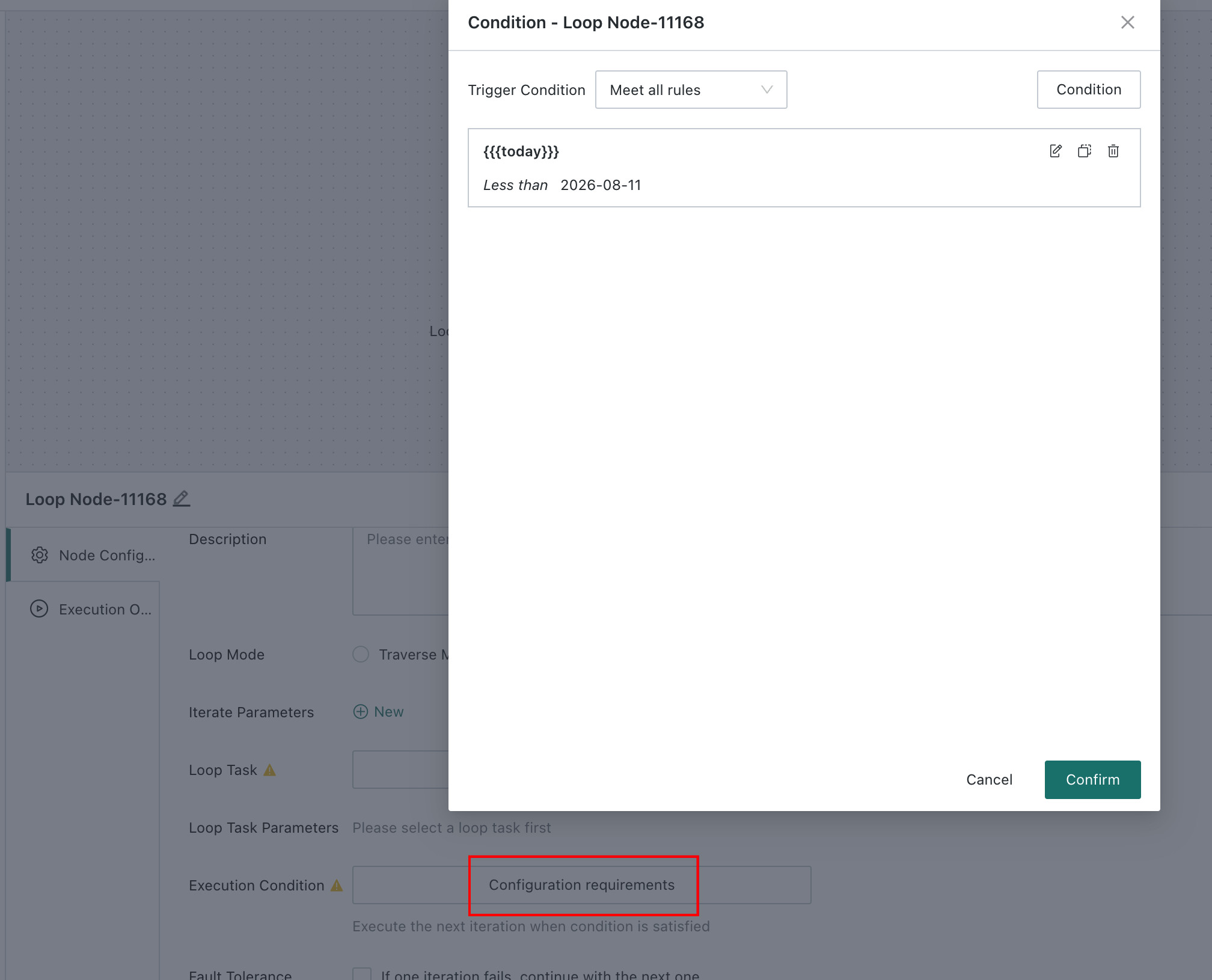
Entry Point
On the Loop Node Configuration page, select Conditional Mode and click Execution Conditions.
Condition Rules
Add multiple rules and use the trigger condition to control their relationship.
| Setting | Description |
|---|---|
| Trigger Condition | Select Meet All Rules or Meet Any Rule. The default is Meet All Rules. |
| Available parameters | Task, time-macro, dynamic, global, and built-in parameters. |
| Built-in parameter | BUILT-IN_PARAMS.looptimes is the numeric current loop count. |
| Configuration display | After saving, the page displays the trigger condition and every rule expression. |
Configure Rules by Parameter Type
Available comparisons depend on the parameter type.
| Parameter type | Supported comparisons | Key rules |
|---|---|---|
| Text | Range and condition | Range supports comparisons, intervals, and null checks. Conditions also support contains and starts or ends with. |
| Number | Range | Supports comparisons, intervals, and null checks. Compare numeric parameters or the built-in looptimes parameter. |
| Date | Range | Supports comparisons, intervals, and null checks. Compare global, task, time-macro, and dynamic date parameters. |
Comparison Value Rules
The platform adjusts available inputs according to the operator and parameter type.
- Equals Null and Does Not Equal Null hide the comparison item and value.
- Interval lets you configure start and end values and inclusive boundaries.
- For Fixed Value, enter or select a value.
- For parameter comparison items, the platform shows only compatible parameter types.
View Loop Run Details
After a Loop node runs, use instance details to review each iteration and drill into subtasks.
Entry Point
In Task Monitor, open the target task instance, then double-click the Loop node or click the Loop Task name.
Available Information
Loop node instance details provide the following information:
| Item | Description |
|---|---|
| Default view | Logs for the first iteration. |
| Loop count | Switch among logs for different iterations. |
| Success / Failed tabs | View loop records by result. |
| Start time | Start time of each iteration. |
| Duration | Execution duration of each iteration. |
| Drill-down | Open nested loop subtasks. |
Handle Failed Iterations
Use the Failed tab to continue processing failed child instances.
- In Loop node instance details, open the failed records.
- Find the failed child instance.
- Click Rerun to run that child instance again.
Operate Loop Instances in Task Monitor
Task Monitor provides these operations while a Loop node runs or after it fails.
Entry Point
Open the relevant instance from Task Monitor > Task Instances or Task Monitor > Loop Node Instance Records.
Task Instance Operations
When a task reaches a Loop node, the Task Instances page provides these operations:
| Operation | Description |
|---|---|
| Rerun | Runs the task again. |
| Run from failure | Continues from the failed node in the failed iteration. |
| Stop | Stops execution at the running node in the current iteration. |
Loop Node Instance Record Operations
On the Loop Node Instance Records page, you can operate a Loop node instance directly:
| Operation | Description |
|---|---|
| Stop | Stops the running node in the iteration and marks the parent task as stopped. |
| Rerun | Reruns the complete loop task. |
| Run from failure | Continues from the failed node in the failed iteration. |
Example
This example shows typical batch processing with a Loop node.
Before: To run the same subtask for multiple date partitions, users had to duplicate nodes or repeatedly trigger the task manually.
After: Configure the date parameter as an Iterate Parameter and select one Loop Task. The platform runs the task for each date until all values are processed or the Maximum Loop Count is reached.
Notes and FAQ
Notes
- A loop task must have a published Offline Dev version.
- A task cannot select itself, and the platform prevents nested task cycles.
- Selecting a multi-value parameter as a traversal parameter changes both task input and condition evaluation.
- With fault tolerance enabled, an individual iteration can fail while the Loop node reports success.
- The node stops and reports success when it reaches the maximum loop count.
FAQ
Why is a loop task unavailable? Verify that it is not the current task and does not form a nested reference cycle.
Why did the loop stop before all values were processed? Check the maximum loop count or, for Conditional Modes, whether the execution condition stopped matching.
Why did a failed iteration not fail the Loop node? Fault tolerance is enabled.
Why did a Conditional Mode run once when its condition was not met? Conditional Modes run once before evaluating whether to continue.
Terms
| Term | Definition |
|---|---|
| Loop node | A workflow node that repeatedly runs a loop task. |
| Loop task | The Offline Dev task called repeatedly by a Loop node. |
| Traversal parameter | A parameter whose values are processed one iteration at a time. |
| Conditional Mode | A mode that runs once, then uses conditions to decide whether to continue. |
| Fault tolerance | Controls whether later iterations continue after an individual failure. |
| Maximum loop count | The maximum number of allowed iterations. |