File Input
Overview
When data from a business system is pushed to a server through Excel or CSV files, the File Input node can retrieve those remote files and parse the data for downstream operators.
Procedure
-
Drag the
File Inputoperator from the dataflow operator panel into the canvas on the right.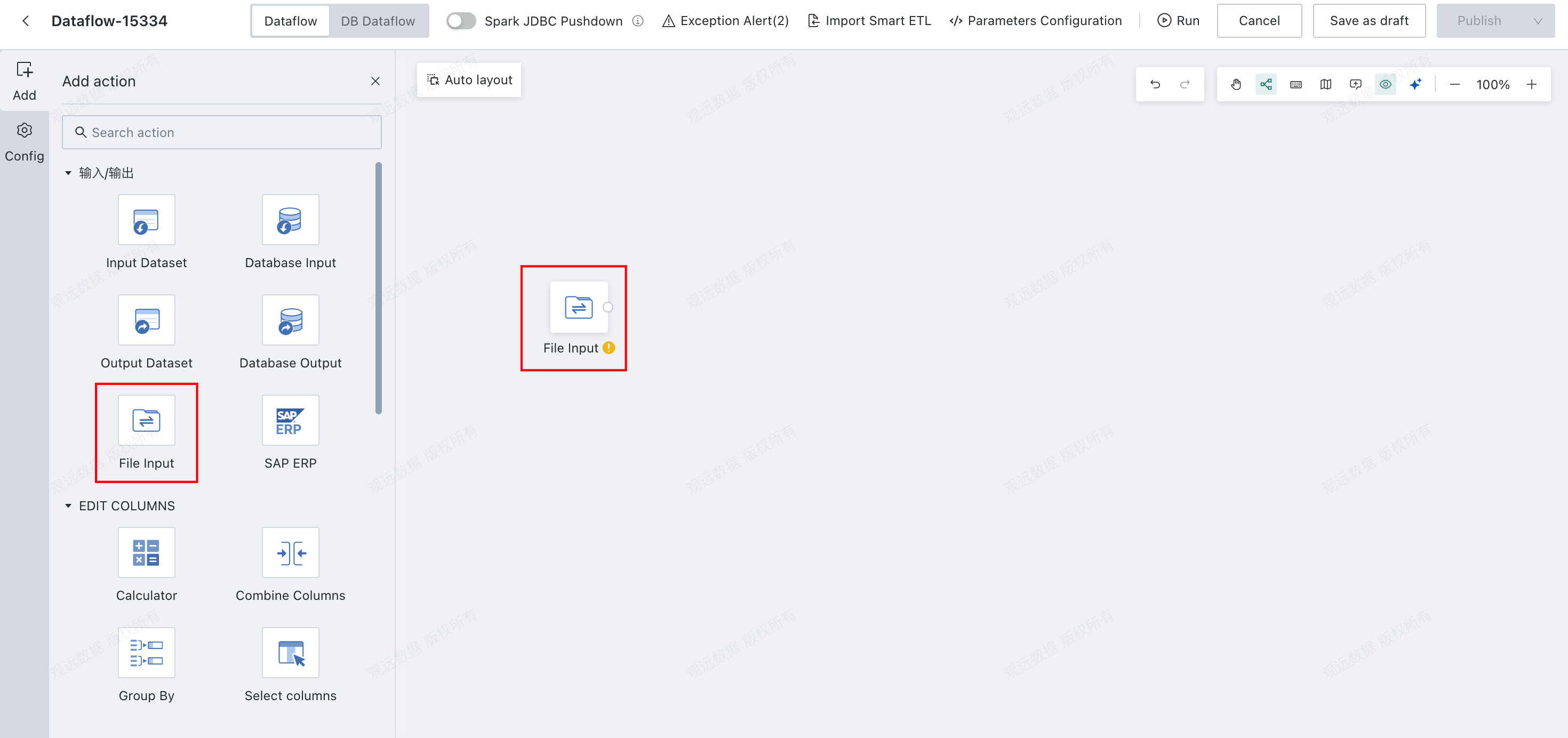
-
Configure
File Input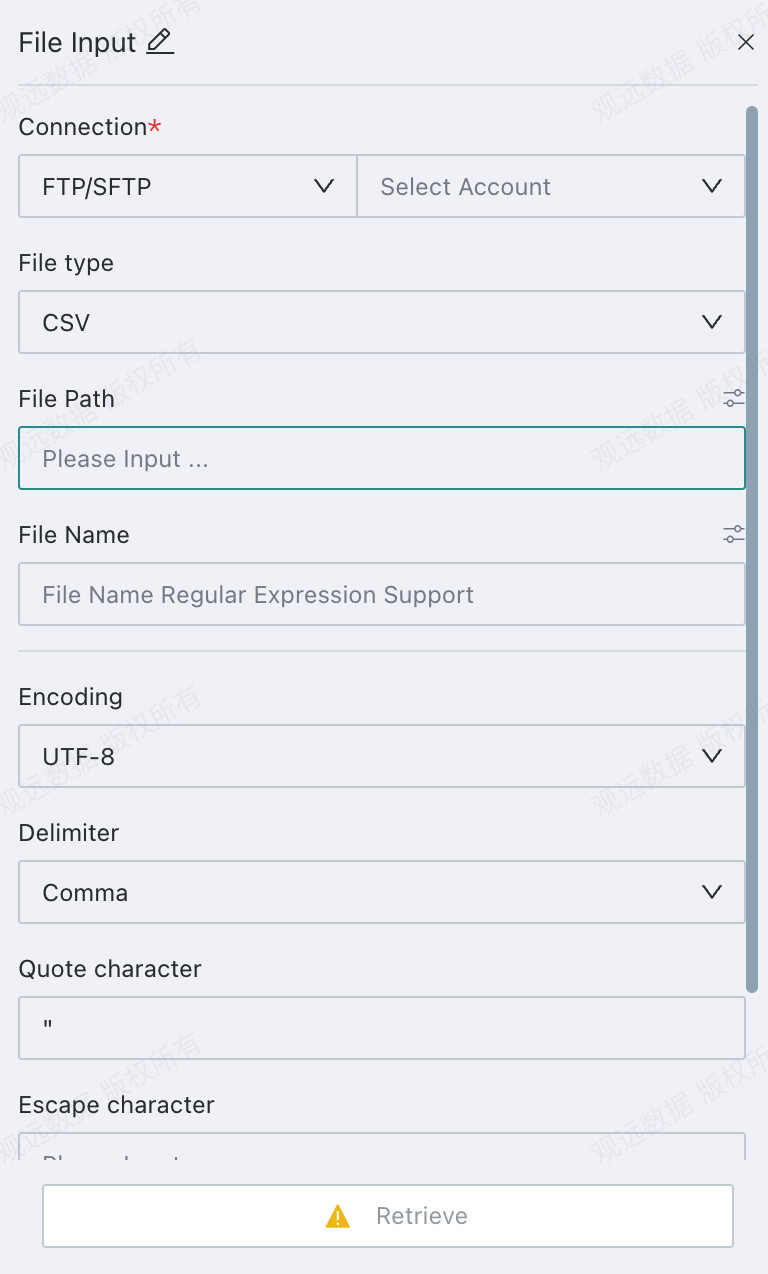
-
Data Connection: Select a configured
FTPconnection. -
File Type: Supports
CSVandExcel. -
File Path: Manually enter the folder path. Parameters can also be configured and selected manually.
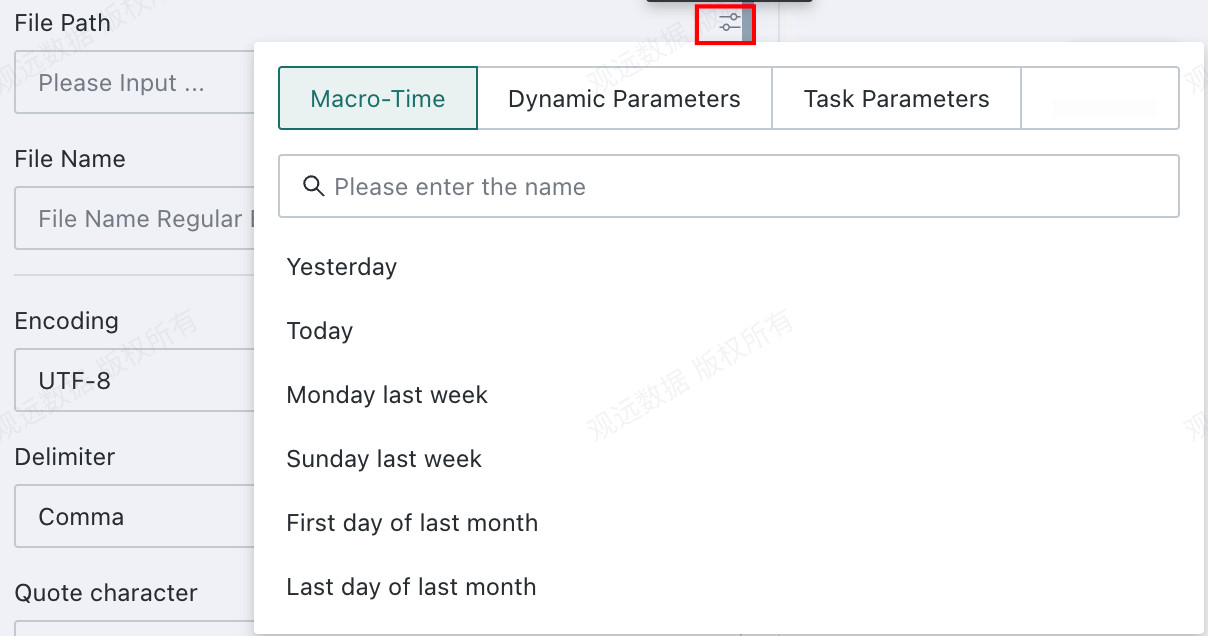
-
File Name: Use a regular expression to match files under the specified FTP directory. If multiple files are matched, the system performs a
unionacross all files. File names support parameter references. -
When
File TypeisCSV, configure the following:- File Encoding: Supported values are
UTF-8,GB18030, andUTF-16. - Delimiter: Splits data into multiple columns. It must match the actual delimiter in the file. The default is a comma, and custom delimiters are supported.
- Enclosure Character: Adds a pair of enclosure characters around field data. If the data itself contains delimiters, the enclosure character ensures the delimiter is treated as part of the data.
- Escape Character: If field data contains special characters such as quotes, the
Tabkey,\n,\t,\r, or slashes, an escape character can be added before them to ensure proper parsing. - Field Parsing: You can choose
First Row as HeaderorFirst Row as Data.First Row as Headeris the default. IfFirst Row as Datais selected, column names such ascol1,col2, and so on are generated automatically.
- File Encoding: Supported values are
-
When
File TypeisExcel, configure the following:- Sheet Name: Select a sheet from the Excel file. If left blank, the first sheet is used by default.
- Header Row: Choose which row is used as the header. If the header contains merged cells, the cells are split and filled with the merged name. Duplicate names automatically receive suffixes such as
_1. - Data Columns: By default, data is imported from column
Ato the last non-empty header column. You can also specify a custom column range.
-
Click
Get Fieldsto parse data types automatically. Field names and field types can be adjusted, and selected fields can be used as input for downstream operators.
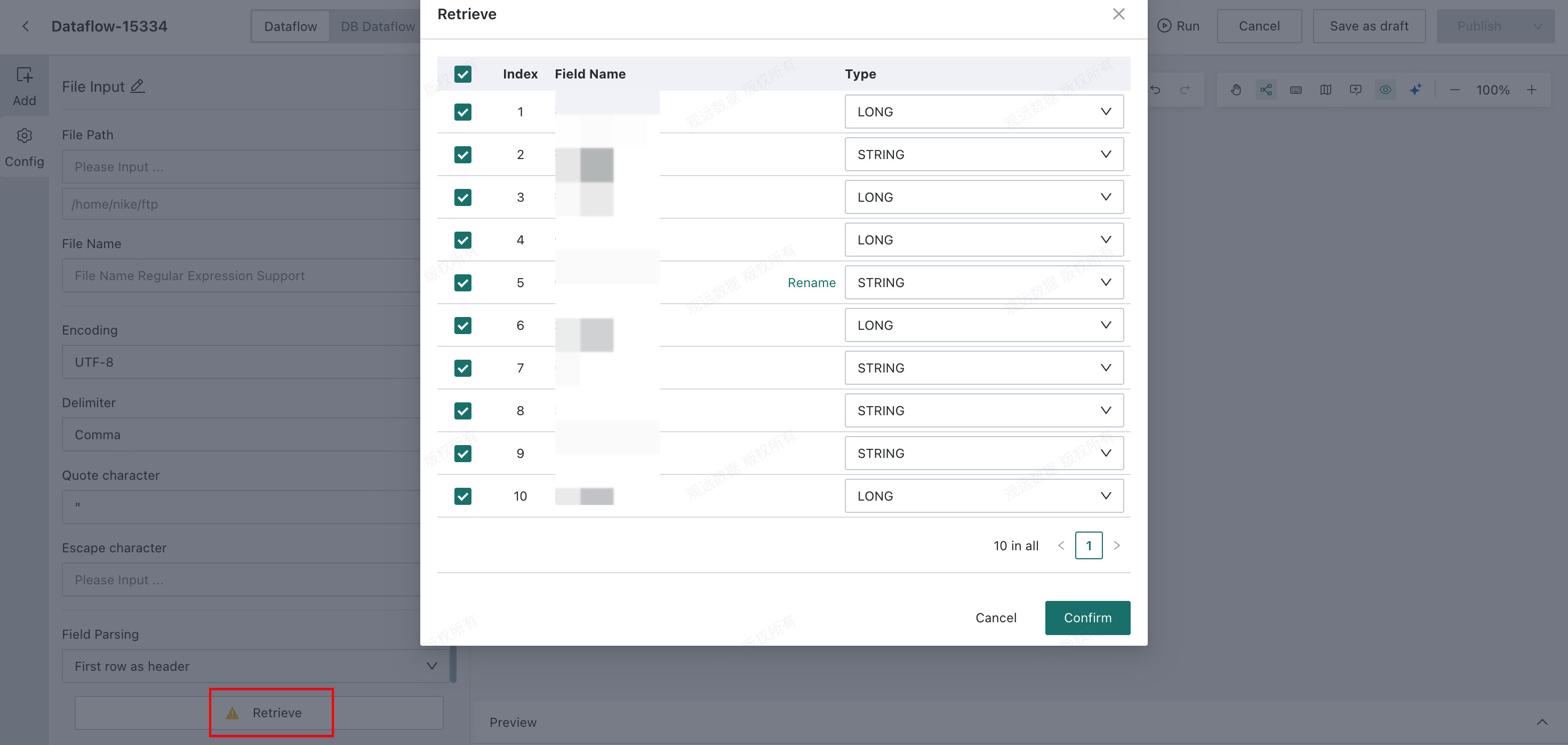
-
Preview
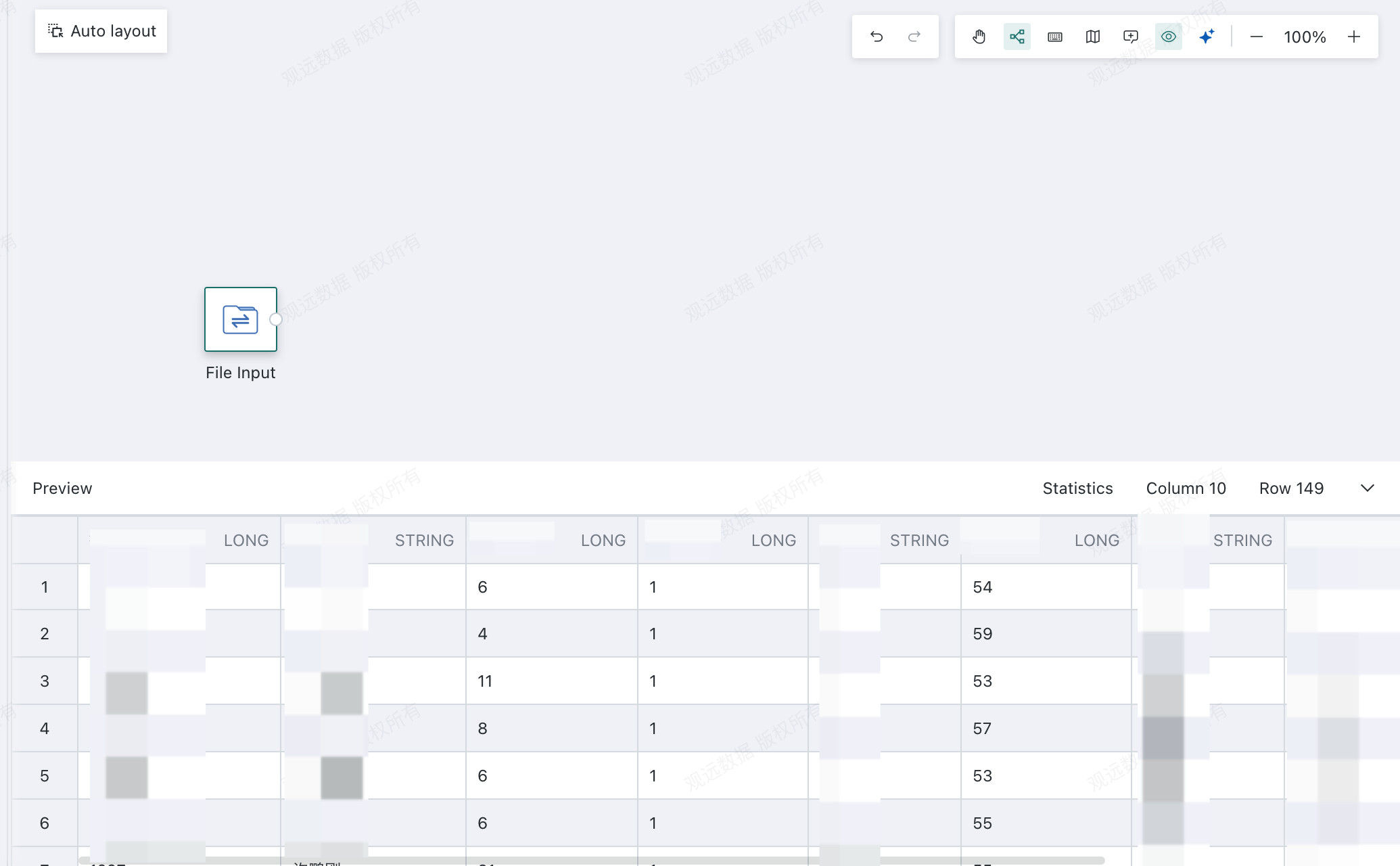
Preview the parsed CSV data.