Offline Development Permission Management
Prerequisites
- You already have access to the
Offline Devmodule. - The
Offline Development Taskthat needs permission configuration has already been created. - You have task owner permission or administrator permission.
Permission Types
Offline Dev supports configuring an owner, collaborator, and user for a single task.
| Term | Description |
|---|---|
| Owner | The user with the highest management permission for the task. The owner can edit, run, and manage permissions for the task. |
| Collaborator | A collaborative user who can participate in task editing and maintenance. Runtime execution still uses the owner's data permissions. |
| User | Can view the task, run the task, and reference it in other tasks. |
| Subprocess | An Offline Development Task referenced by a parent task and used for modular reuse. |
Detailed operation restrictions are shown below:
| Task Editing Status | Operation | Task Owner | Collaborator | User |
|---|---|---|---|---|
| Not Editing | View Task | Can view tasks where the current user is the owner, collaborator, or user. Administrators can view all tasks. | ||
| List Filters | All / I am the owner / I am a collaborator / I am a user | |||
| Manage Collaborators (Batch) | ✅ | ❌ | ❌ | |
| User Authorization | ✅ | ❌ | ❌ | |
| Run | ✅ Runs as the task owner | ✅ Runs as the task owner | ✅ Runs as the task owner | |
| Rename | ✅ | ✅ | ❌ | |
| Transfer Ownership | ✅ | ❌ Only the owner can transfer ownership | ❌ | |
| Delete | ✅ | ❌ Only the owner can delete the task | ❌ | |
| (Batch) Move | ✅ | ❌ Only the owner can move or batch move tasks | ❌ | |
| (Batch) Alerts | ✅ | ✅ | ❌ | |
| Scheduling | ✅ | ✅ | ❌ | |
| Save As | ✅ | ❌ | ❌ | |
| Open Details Page | ✅ | ✅ | ✅ | |
| Edit Task | ✅ | ✅ | ❌ | |
| View Resource Lineage | ✅ | ✅ | ✅ | |
| View Instances | ✅ | ✅ | ✅ | |
| Editing | Preview | ✅ Previews as the task owner | ✅ Previews as the current collaborator | ❌ |
| Rename | ✅ | ❌ | ❌ | |
| Move | ✅ | ❌ | ❌ | |
| Referenced by Other Tasks | Reference Subprocess | ✅ | ✅ | ✅ |
| Task Import | ✅ | ✅ | ✅ | |
Grant Task Access
Grant Access for a Single Task
-
On the
Offline Devpage, open the details page of the task that needs authorization. The task details page shows the task configuration information. -
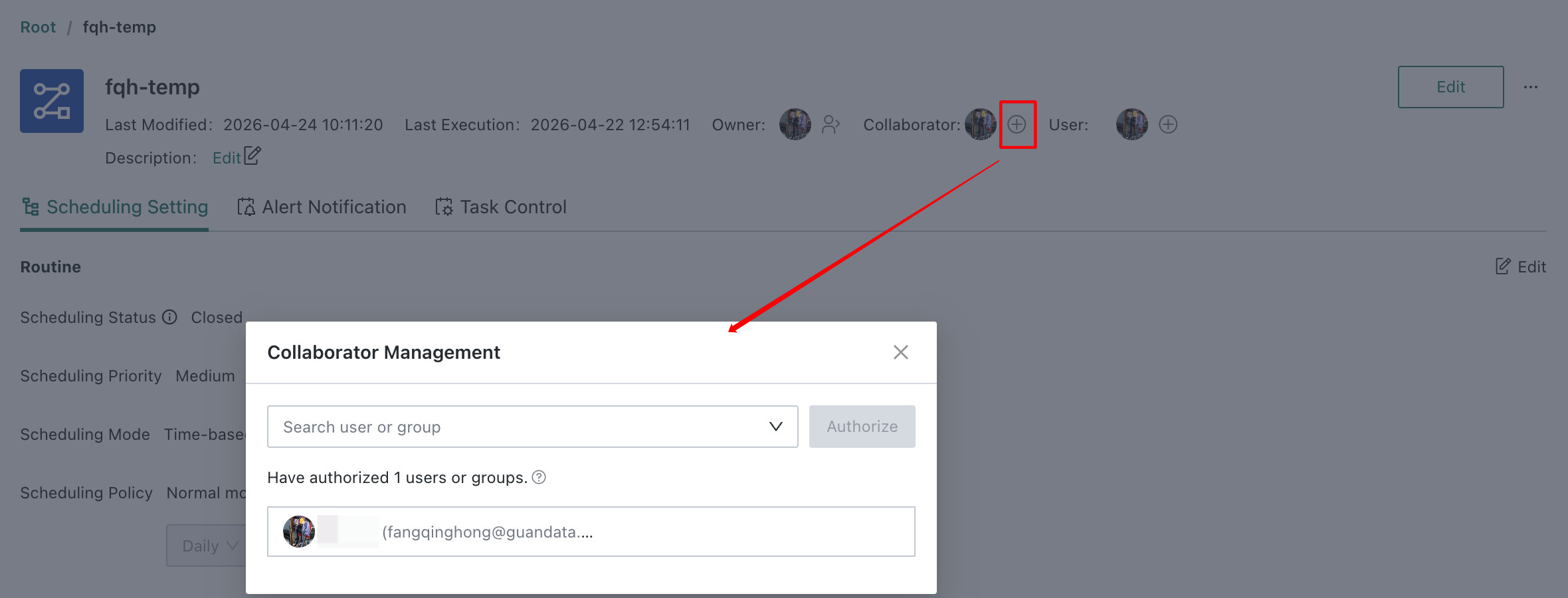
On the task details page, click the
+icon in theCollaboratororUsersection, then select the user or user group to authorize. The user selection dialog displays the list of available users. -
After confirming the selection, click the
Authorizebutton. The selected collaborator or user is added successfully and receives the corresponding permissions.
Batch Authorization
-
On the
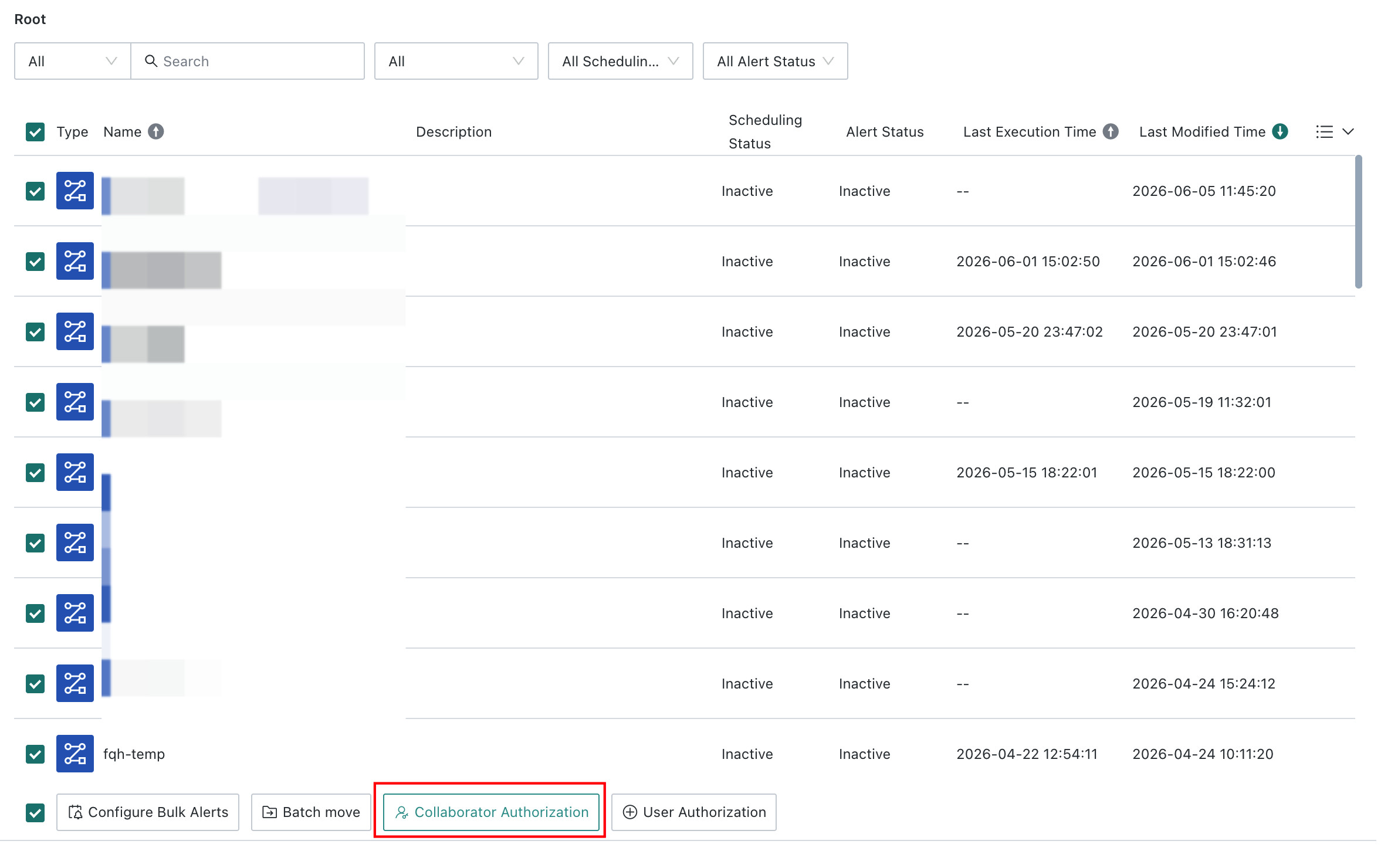
Offline Devtask list page, select multiple tasks that need authorization. The task list displays the selected state. -
Click
Collaborator Authorizationto grant collaborator access in batches. UseUser Authorizationwhen you need to grant user access in batches. The batch-authorization page shows the task list and the user selection area. -
Add the users or user groups to authorize, then click the
Authorizebutton. The same collaborator or user permissions are added to multiple tasks at the same time.
Notes and Frequently Asked Questions
Notes
-
Permission Inheritance: When the task runs, it still uses the task owner's resource permissions and data permissions. If a collaborator adds resources that the owner does not have permission to access, such as datasets orData Accounts, the corresponding nodes in the workflow show exception warnings and the task cannot be saved. -
Avoid Concurrent Editing:Offline Development Tasks do not support shared editing. If multiple collaborators edit and save the same task at the same time, content may be overwritten. Collaborators should avoid editing the same task simultaneously.
Frequently Asked Questions
-
Problem: resources added by a collaborator are displayed as abnormal in the task.
Solution: check whether those resources are within the task owner's permission scope. If not, the owner must add the corresponding resource permissions. -
Problem: content is overwritten when multiple collaborators edit at the same time.
Solution: establish collaboration rules to avoid simultaneous editing of the same task, or use version-control mechanisms. -
Problem: a collaborator cannot save task changes.
Solution: check whether the collaborator added resources that the owner does not have permission to access. Remove those unauthorized resources and save again.