Data Quality Node
Overview
Use a Data Quality node to automatically validate a dataset or database table before the data reaches reports and business analysis. Create reusable data quality models, configure filters and rules, reference a model from an Offline Dev task, and review exceptions and alerts in the workflow instance.
Add a Data Quality Node
-
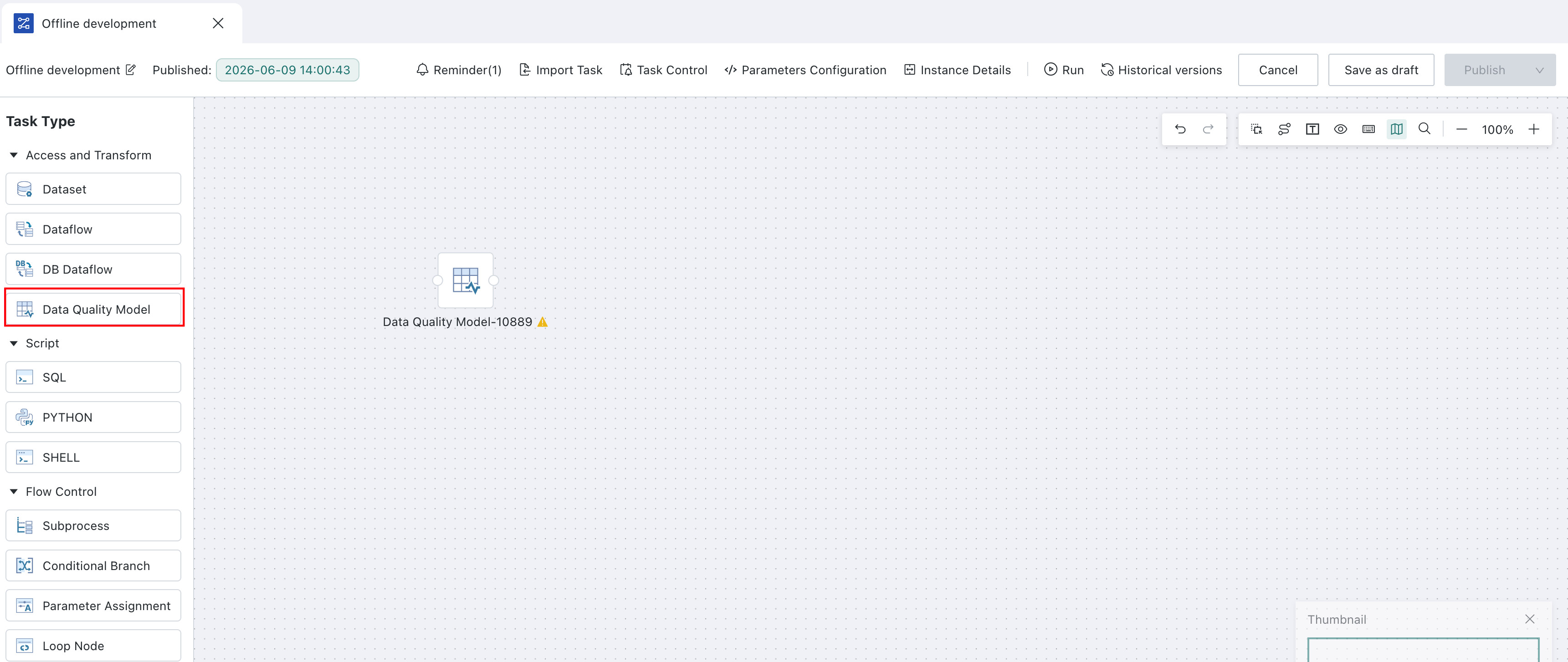
In the Offline Dev task editor, add a Data Quality node.
-
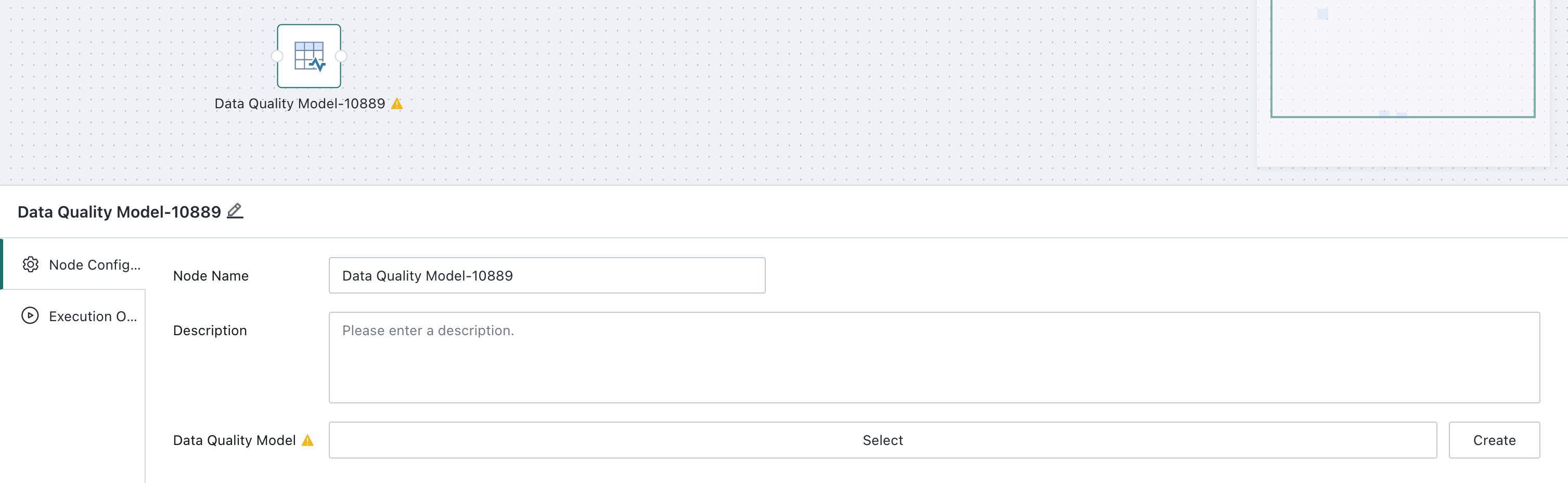
Enter a node name and optional description.
-
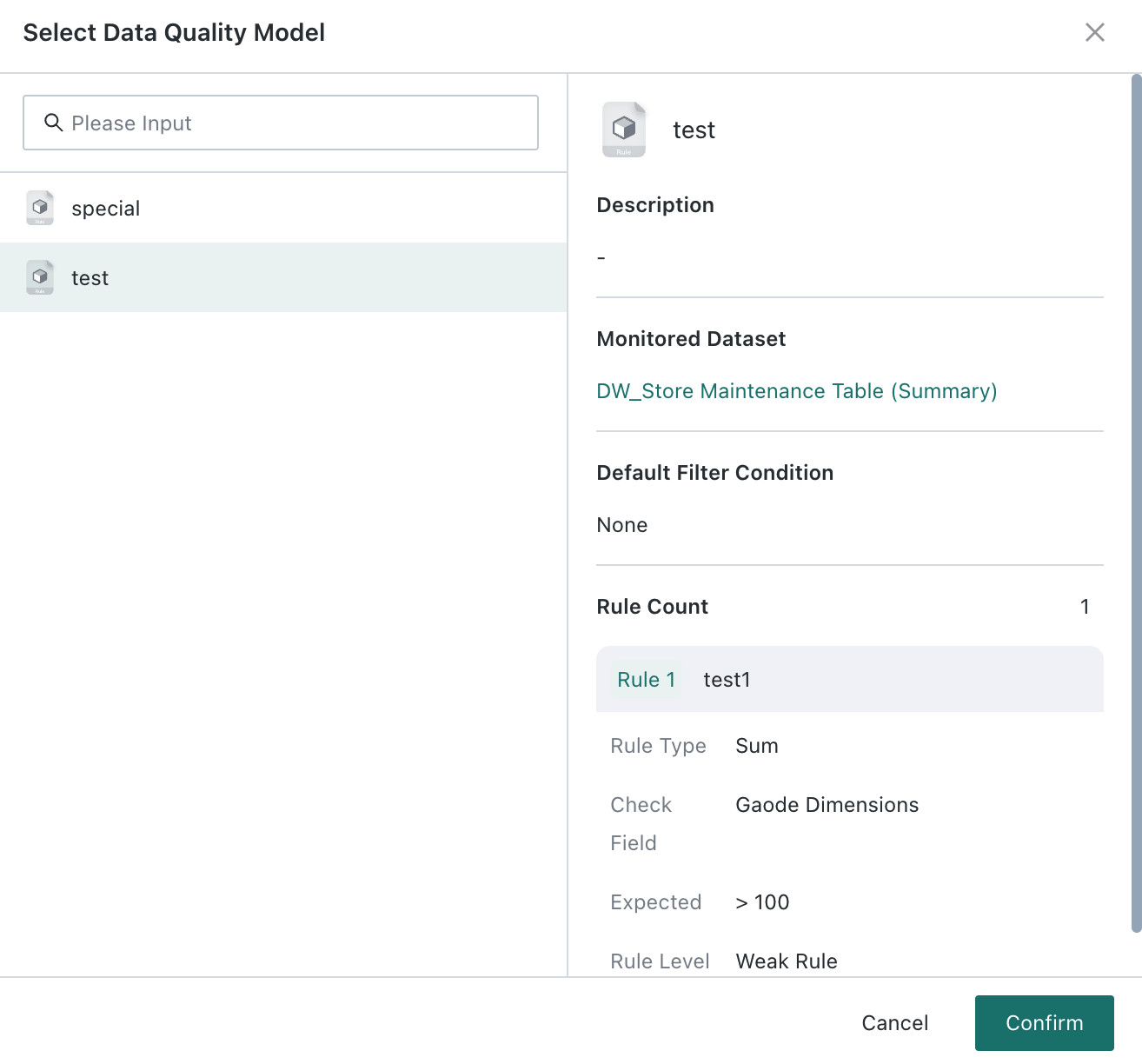
Search for and select one available data quality model.
-
The platform automatically loads the monitored object and the model's default filter.
-
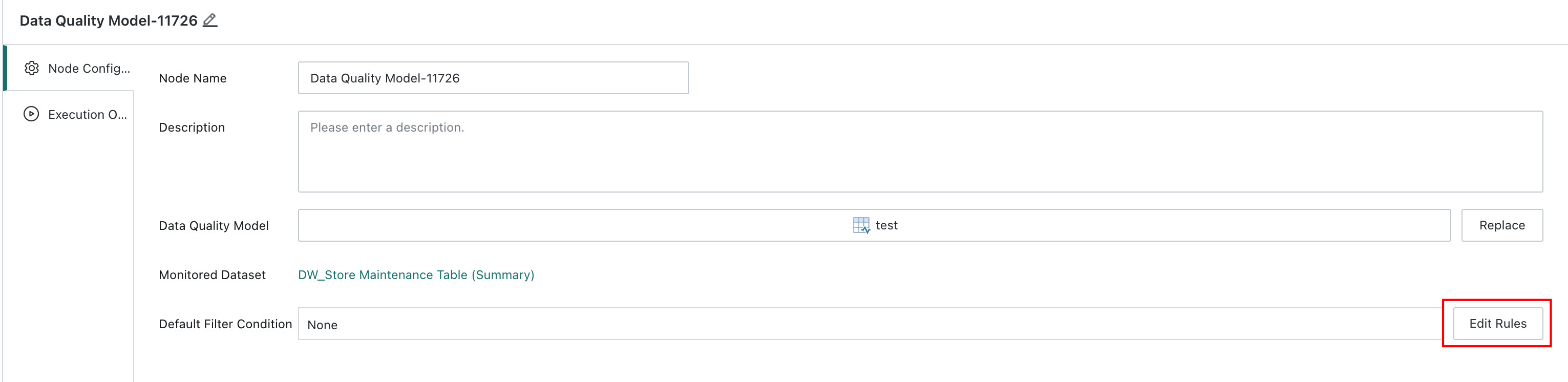
Click Edit Rules to adjust the filter for this node. Filters can use task, global, dynamic, and time-macro parameters. When an Offline Dev task runs, the node uses its own filter. A model running on its own schedule continues to use the filter stored on the model.
-
Configure whether the node blocks the Offline Dev task.
When a strong rule in the model fails, the Data Quality node fails and sends a quality alert. If downstream nodes use the Run on success dependency, the platform blocks them and interrupts the task.
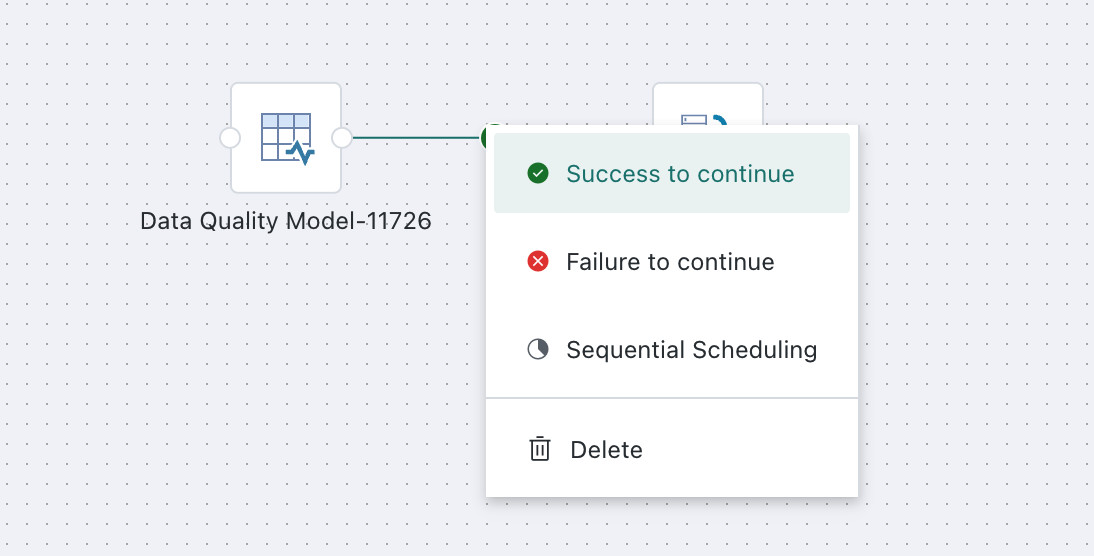
When a weak rule fails, the Data Quality node succeeds and does not block downstream tasks, but it still sends a quality alert.
-
Select Save as Draft or Publish.
A Data Quality node can reference only one model. Changing the model replaces the original reference and resets the filter to the new model's default.
Publishing rules:
- Saving as draft does not require a complete node configuration.
- Publishing requires a node name and a selected data quality model.
If no model is available, click Data Quality Model to create one in a new tab. Return to the node and refresh the model options.
Data Quality Node Run Options
On the Run Options tab, configure:
- Run flag: Enables normal execution or disables the node.
- Failure retry: Sets the retry count and retry interval after a failure.
- Timeout limit: Sets the maximum execution time. The platform treats a node that exceeds the limit as timed out.
View Run Logs
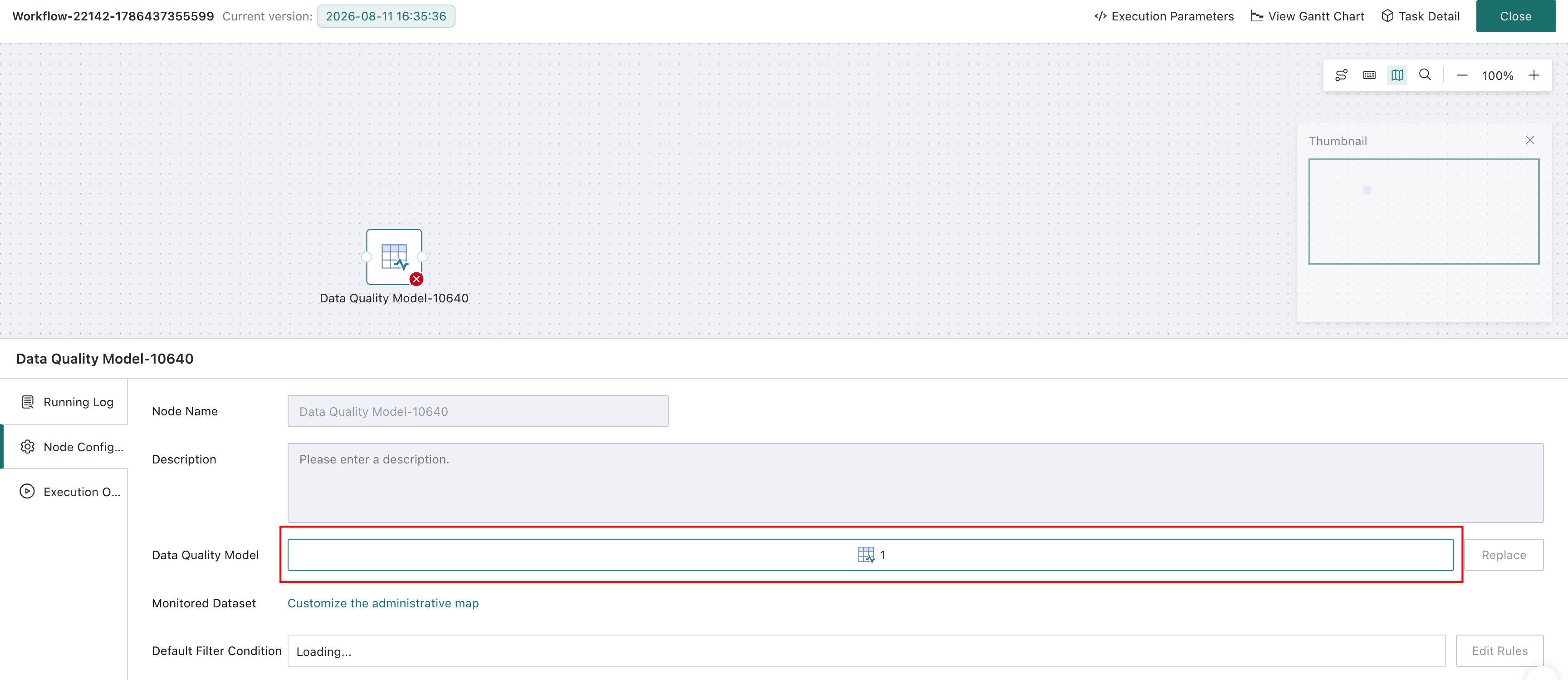
After the task runs, open the workflow instance to view the Data Quality node status and logs.

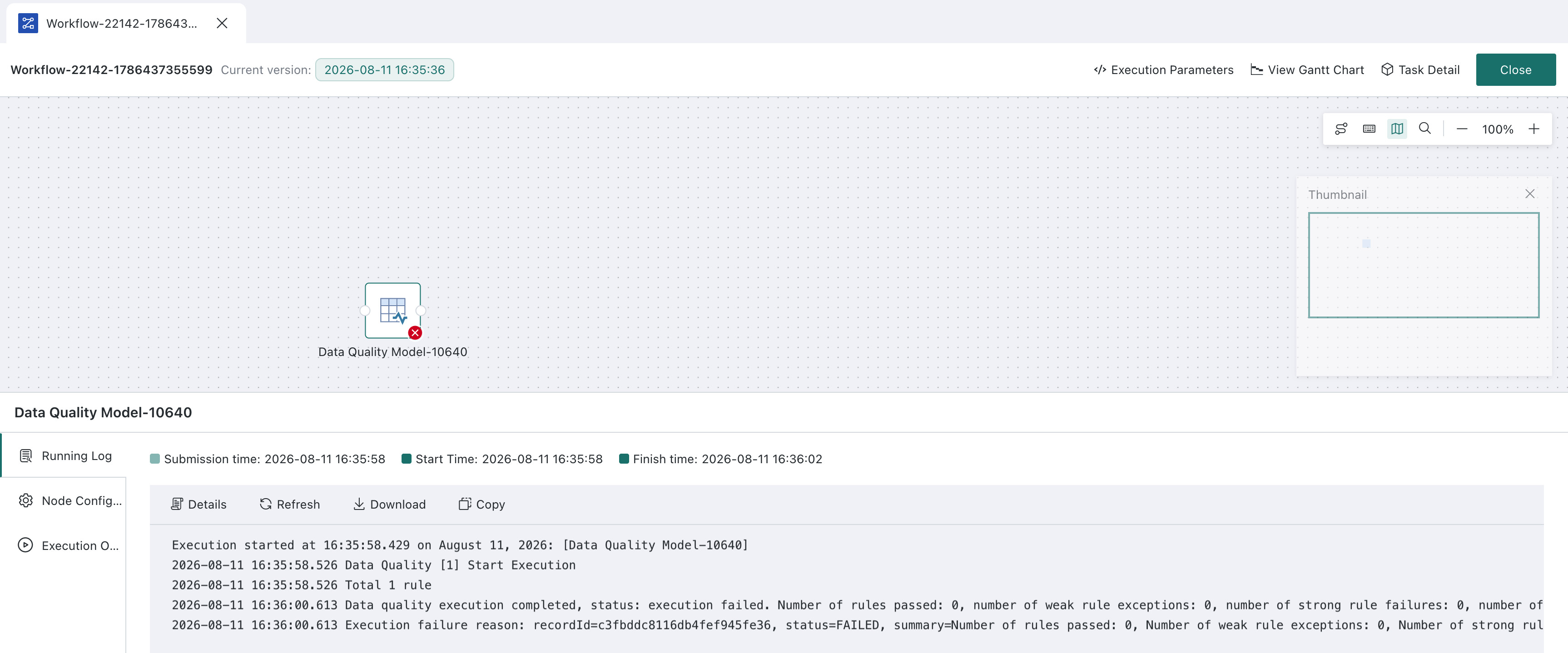
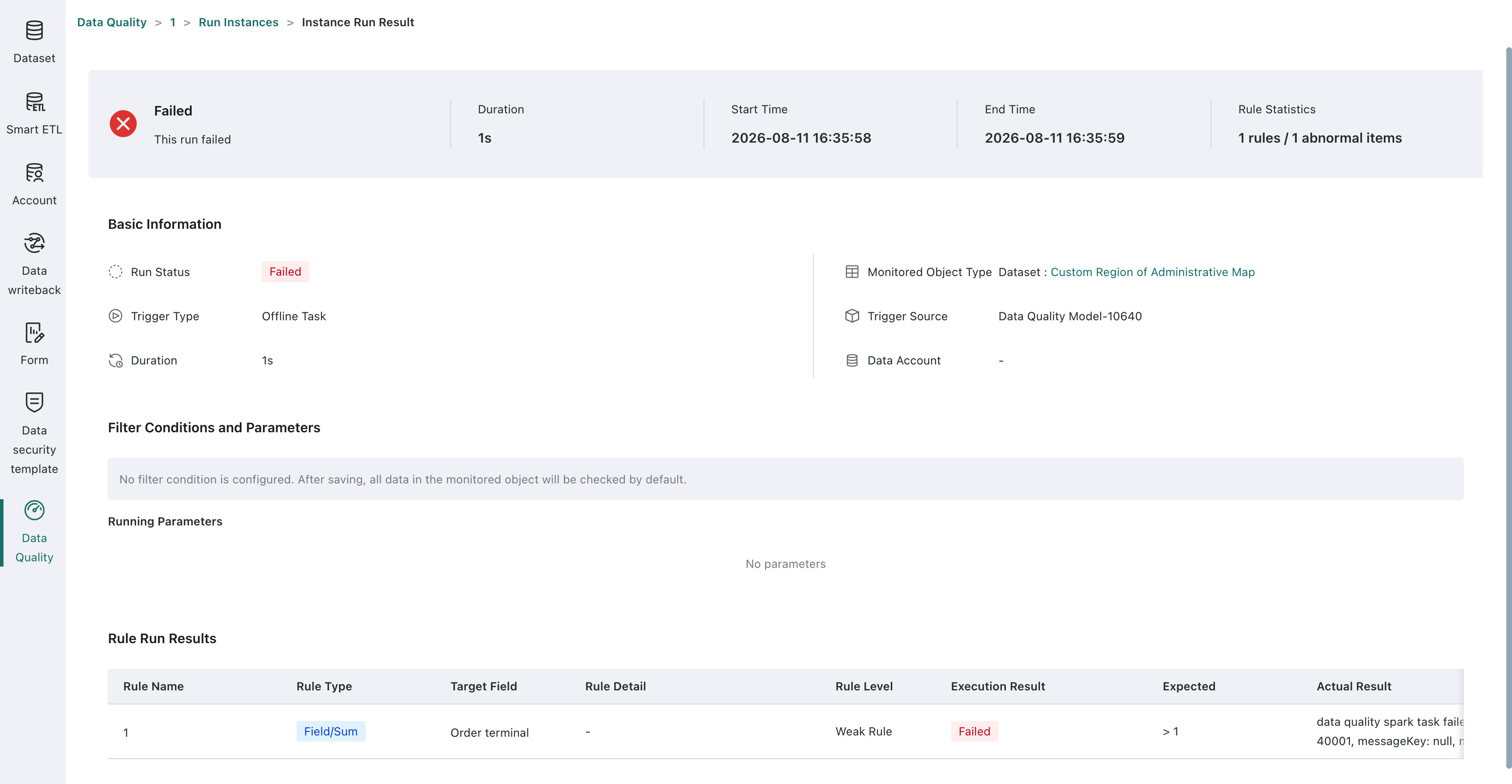
Open the node configuration and click the quality model to open the results page for that model run.