Task Monitor
Overview
Task Monitor provides a comprehensive view of overall system status and task instance status. A task instance is a specific instantiated object generated when a Workflow runs. Each time a workflow is executed, the system records the configuration used for that run and creates a corresponding workflow instance.
Through a workflow instance, you can view basic information about that execution, including start time, end time, run status, and the execution status and results of each task. You can also perform operations management actions on the instance, such as rerunning it, recovering failed tasks, stopping it, or deleting it, to achieve centralized monitoring and unified management of task execution.
Monitoring Dashboard
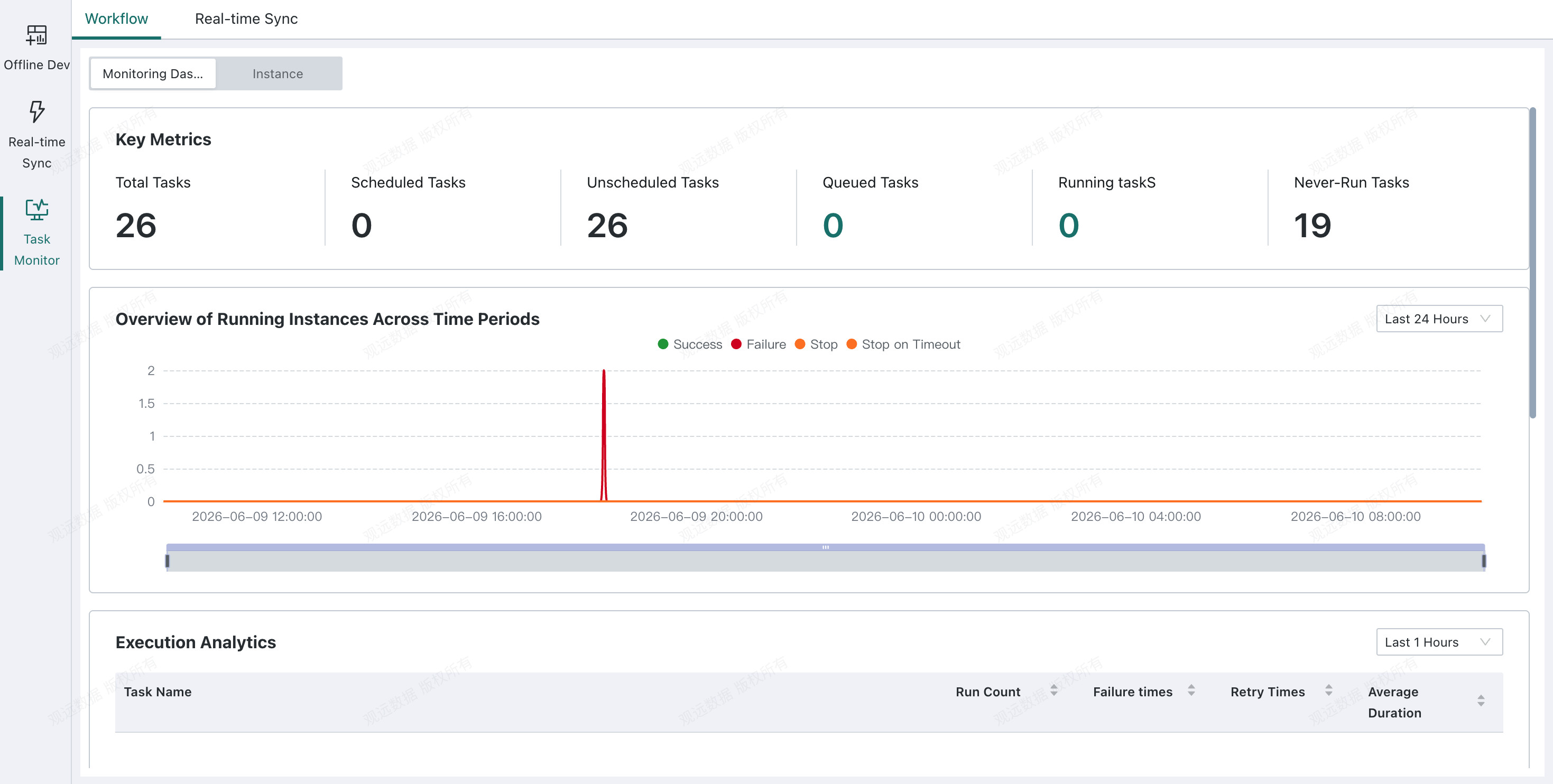
This dashboard is used to display metrics such as the number of Offline Dev tasks, task-count trends by status, and task execution statistics.
Key Metrics
It counts task volume metrics such as total tasks, tasks with scheduling enabled, tasks with scheduling disabled, queued tasks, and running tasks. Queued and running task metrics support jumping to the task instance page with the corresponding filter applied.
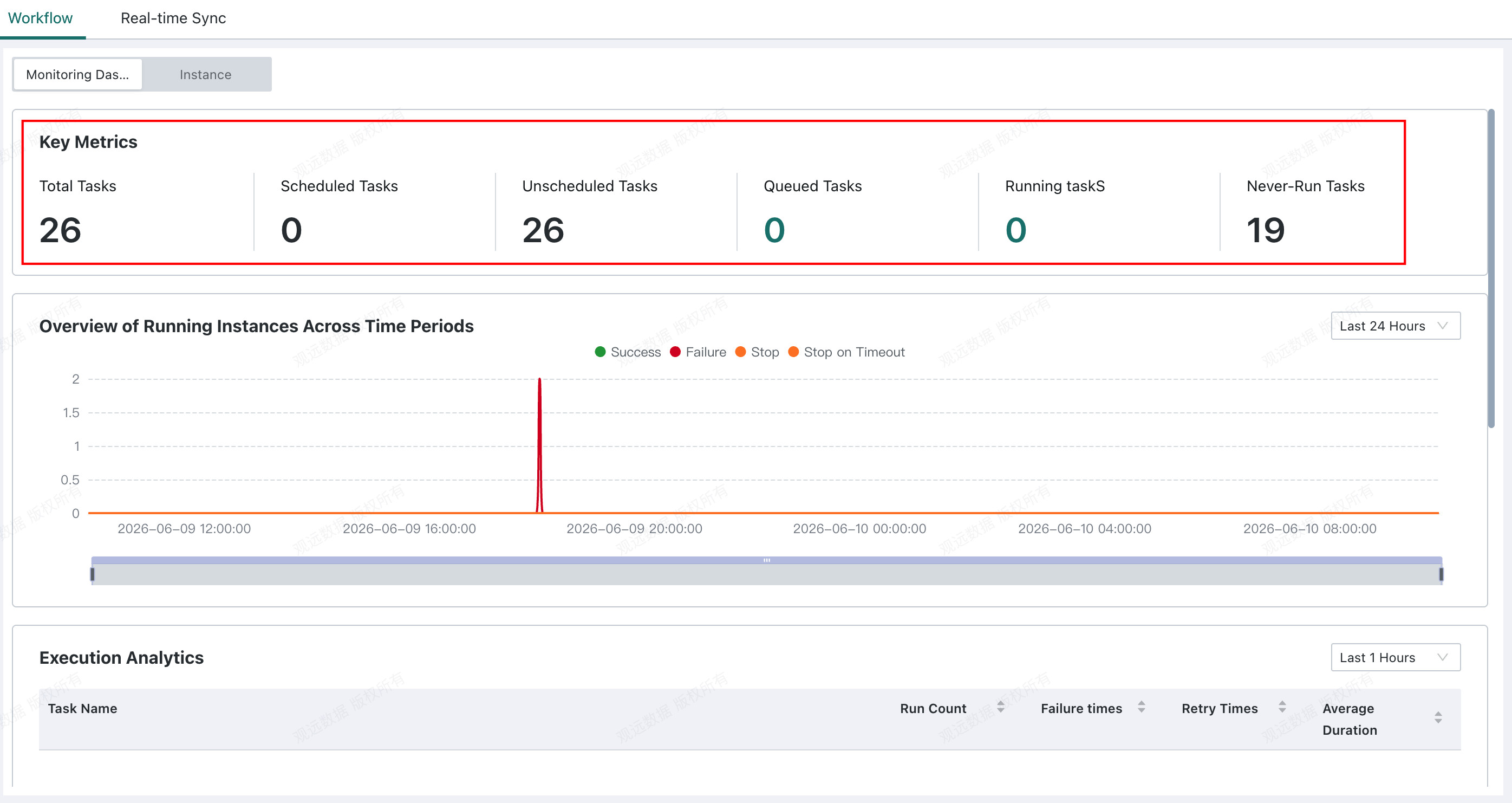
Runtime Instance Overview by Time Period
This section counts the number of tasks whose status is completed, failed, manually stopped, or stopped due to timeout in each time period.
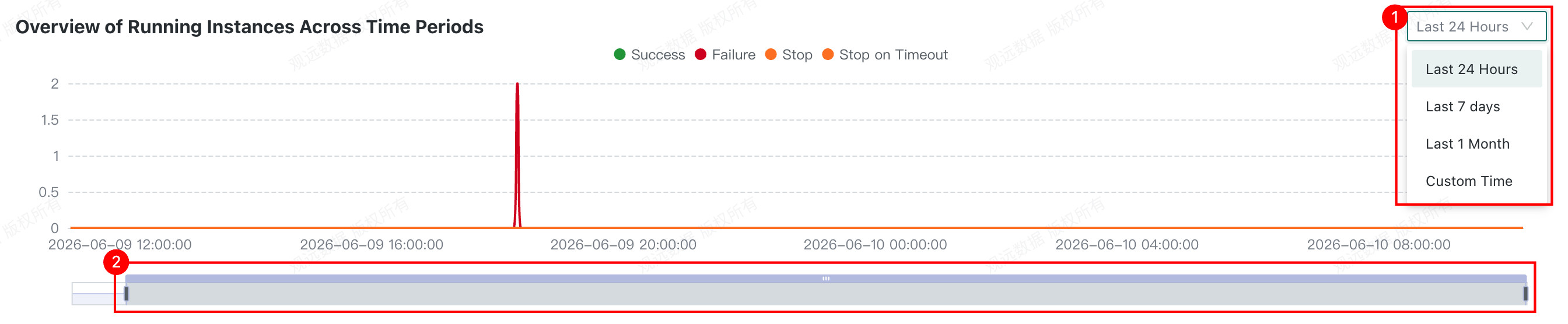
- Switch the time range used for filtering.
- Use the mini-axis to view detailed values at a specific point in time.
Task Execution Statistics
This section counts execution runs, failures, reruns, and average runtime for Offline Dev tasks, and supports switching the time range.

When All Periods is selected, the data is aggregated once per hour, so the statistics may be delayed.
View Instance Status
Task Concurrency
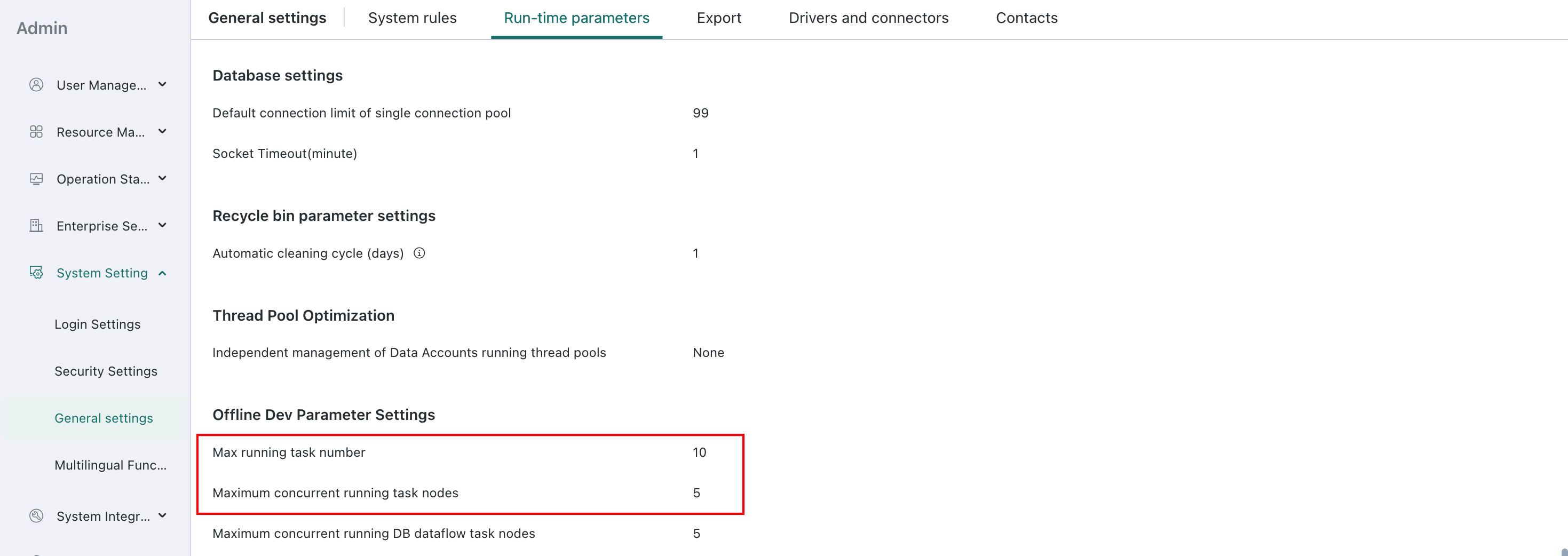
Default concurrency: 10. At most 10 instances of different tasks can run at the same time. Instances of the same task can only run serially, in sequence.
You can modify this setting in Management Center > General settings > Run-time parameters.
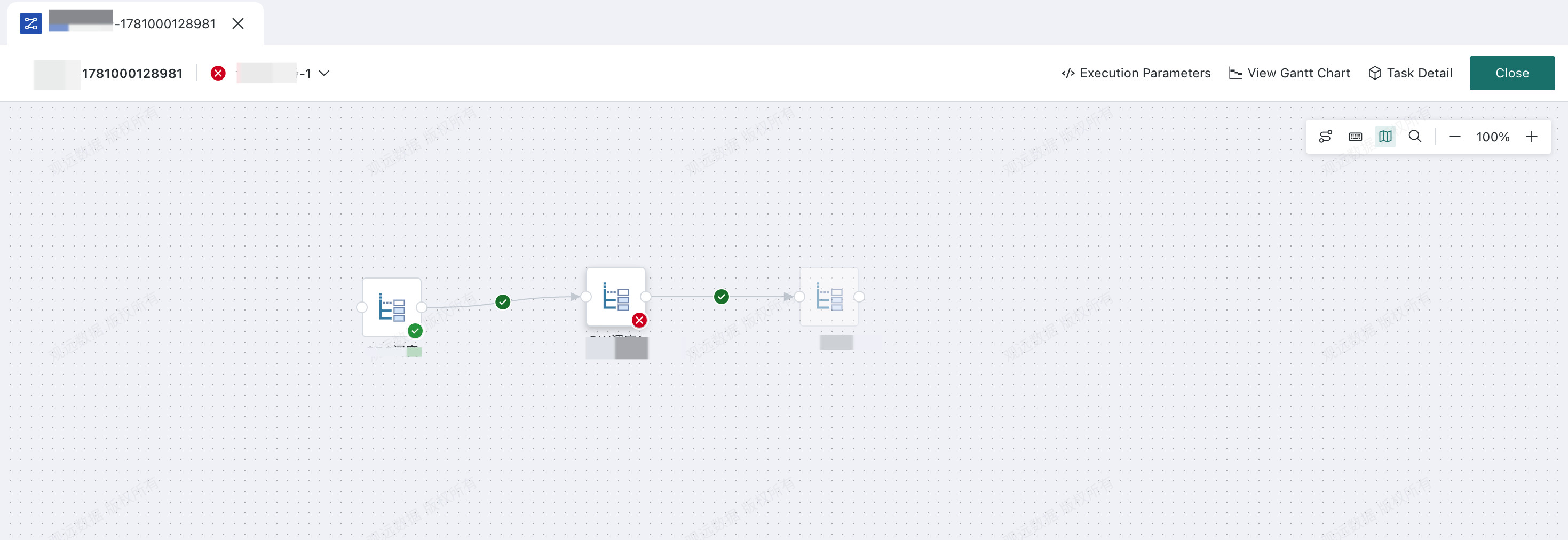
View Instance Details
Click an item in the list to enter the instance details page. There you can view the parameter values for the current run, the runtime status of each task, Node Logs, and upstream/downstream execution relationships.
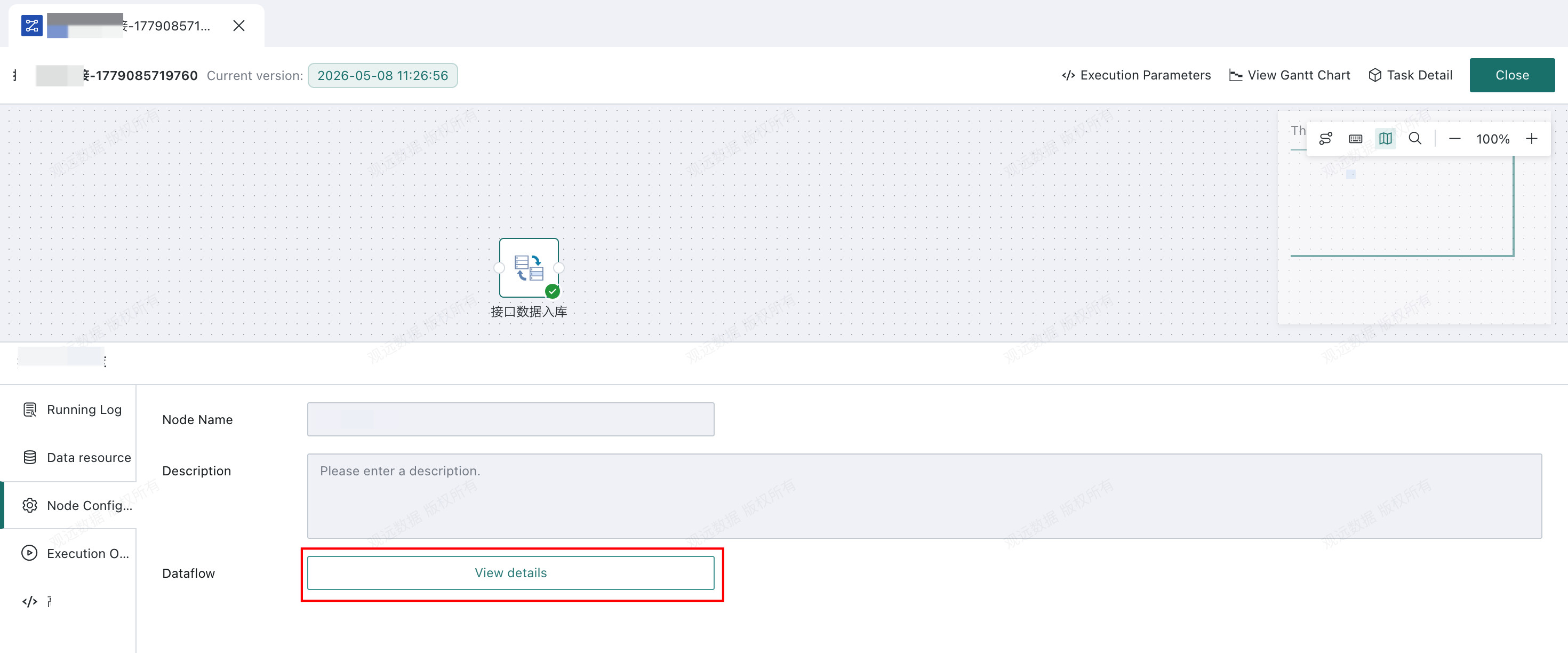
For a Dataflow Node, open the node configuration panel and click View details to view the dataflow configuration of the current instance.
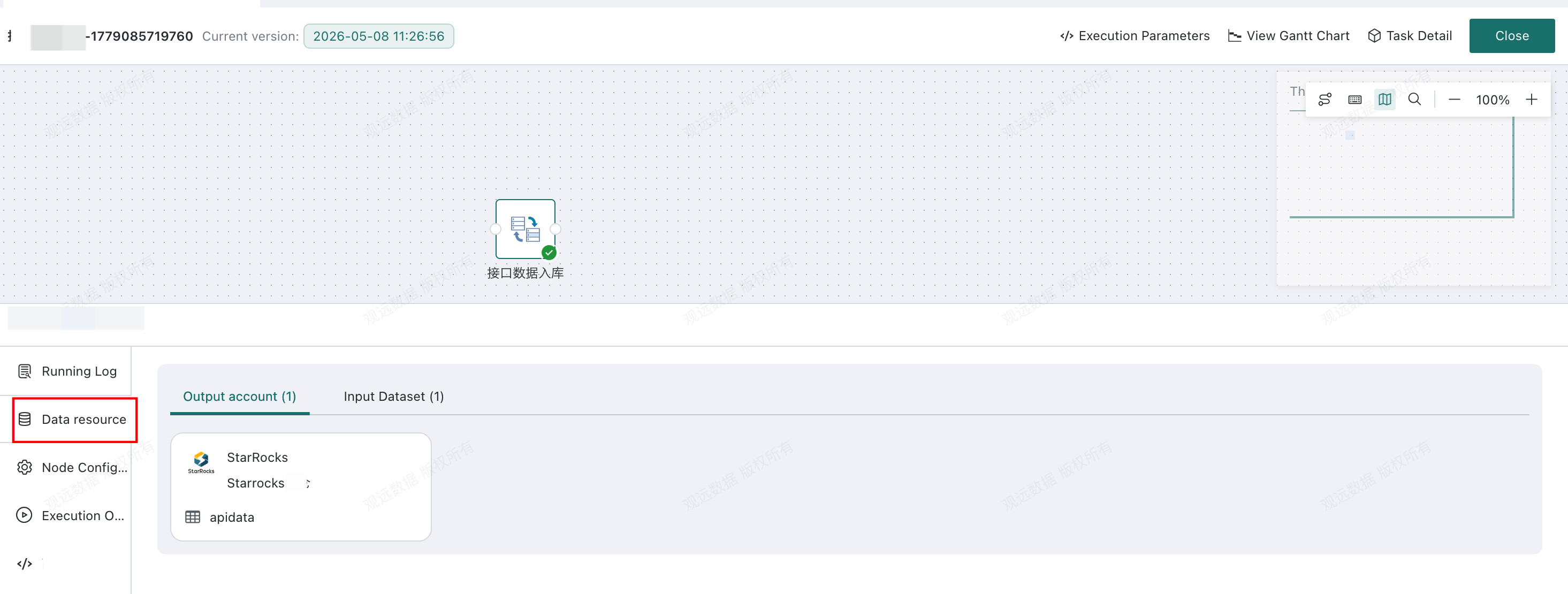
The instance details page also shows the node's input and output resources together with their data information. Clicking an input or output resource opens the corresponding resource details page.
View the Gantt Chart
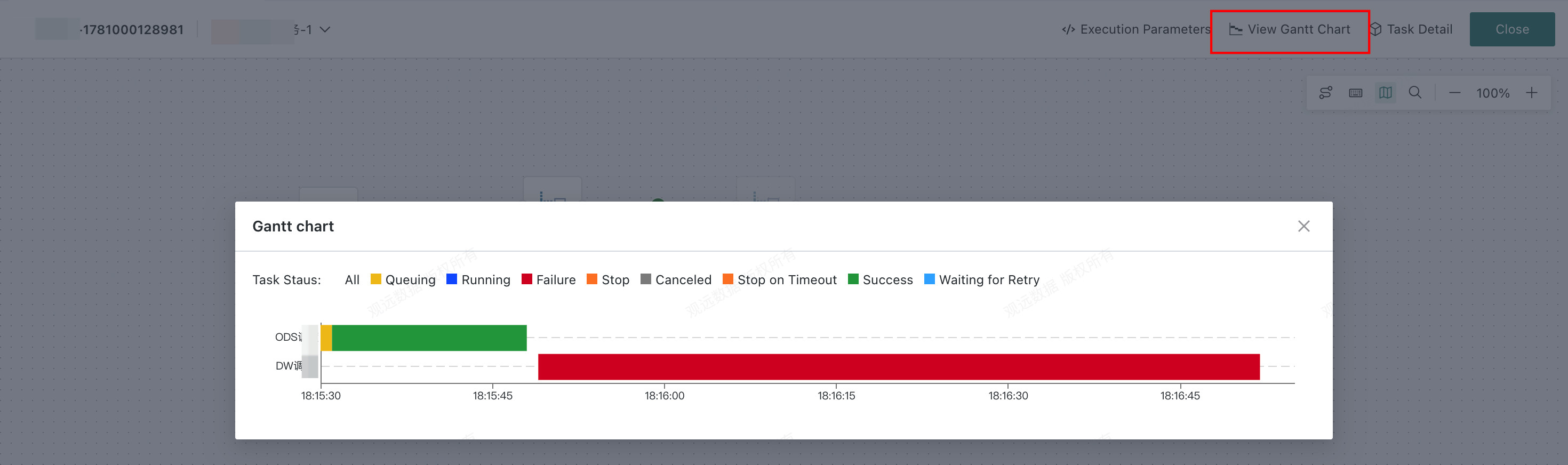
Click View Gantt Chart to open the Instance Runtime Gantt Chart page.
Through the Gantt chart, you can view the runtime duration, runtime status, and queue time of each task in the Workflow instance, helping troubleshoot abnormal execution.
Periodically Clean Up Instances
To prevent historical instances from occupying disk space, the system supports periodic cleanup of instance records.
Configure Offline Dev Instance Auto Clean Days in Management Center > General settings > System rules.
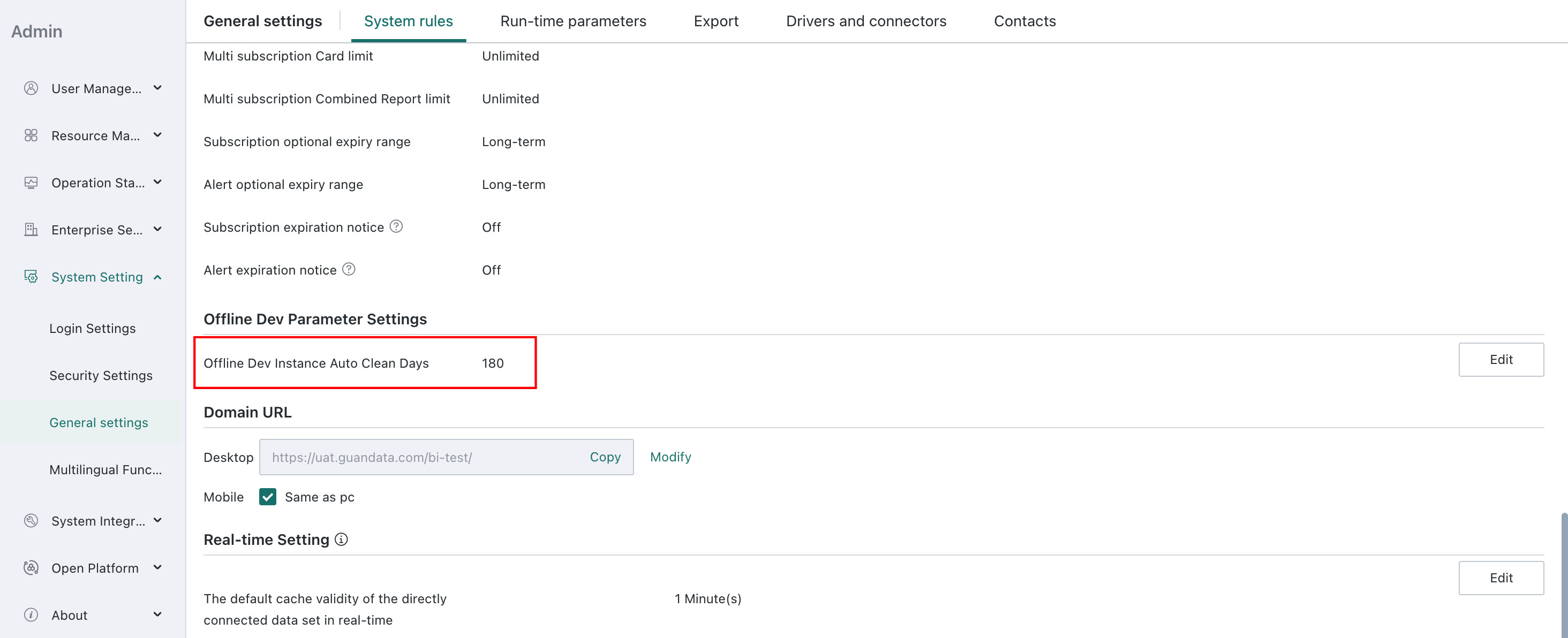
Instances older than the configured retention period are deleted and cannot be traced afterward.
Manage Instances
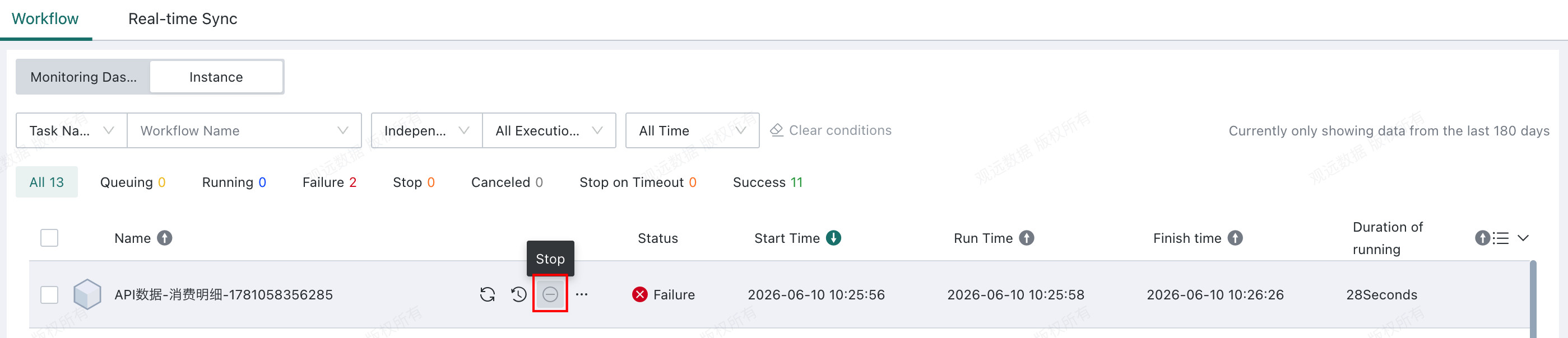
The system currently supports operations management for workflow instances, including Rerun, Recover Failed Tasks, and Stop.
Rerun
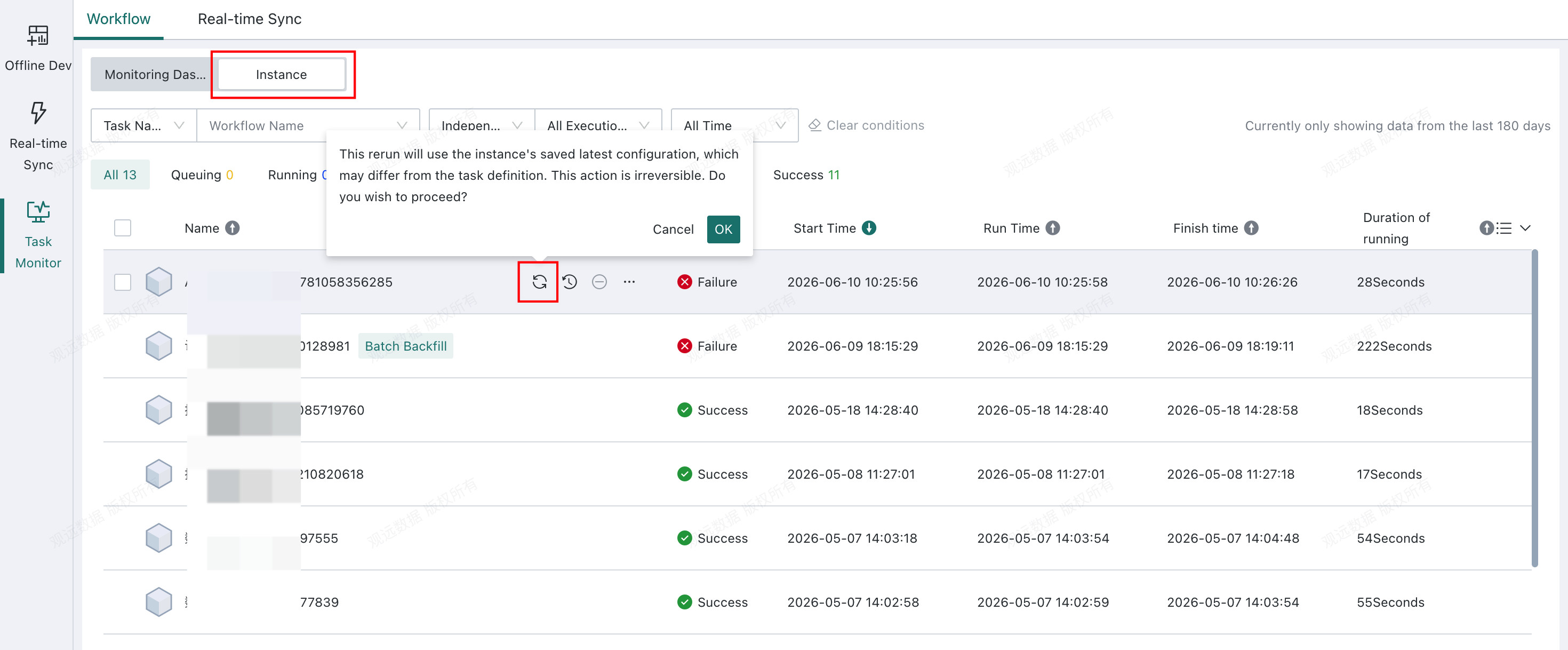
Reruns the instance using the configuration recorded in the generated Workflow instance.
Recover Failed Tasks
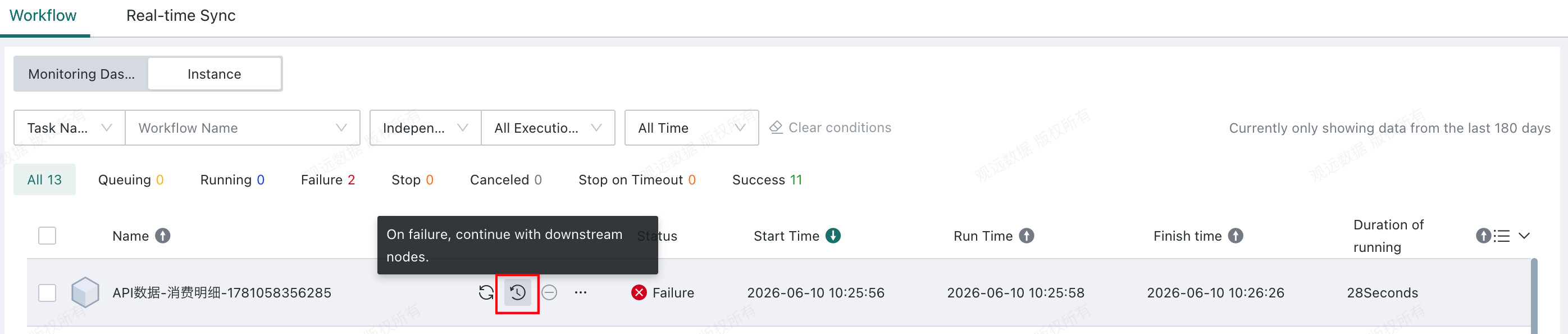
Reruns failed tasks and their downstream tasks without rerunning the entire Workflow. This is typically used to resolve issues such as response timeouts or connection failures caused by network problems during execution, improving troubleshooting efficiency.
Stop
Stops the Workflow that is currently running.
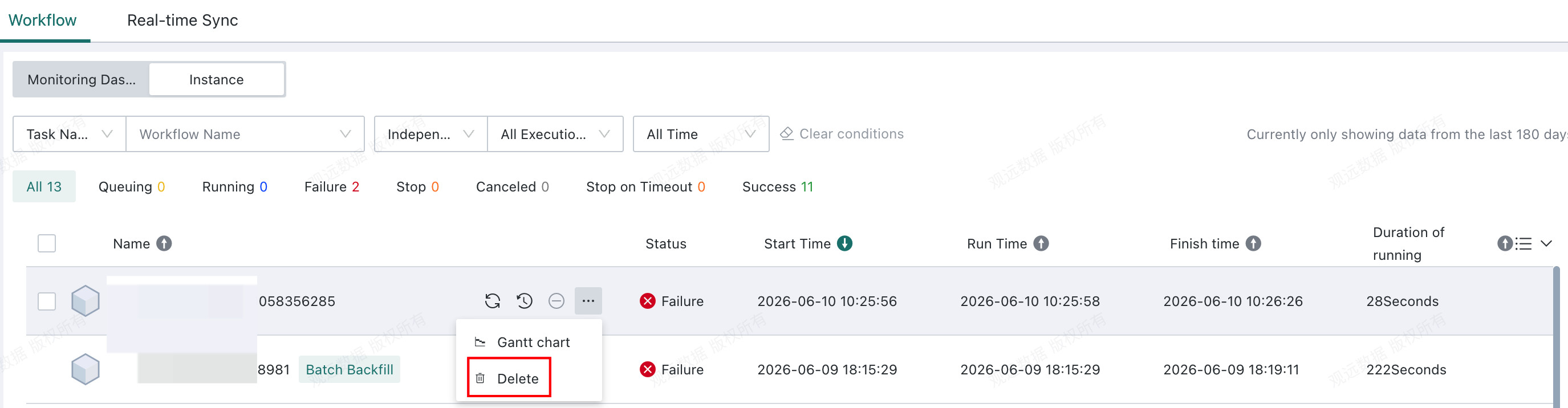
Delete
Deletes a generated Workflow instance. This action cannot be undone.