Dataflow Supports Smart ETL Import
Overview
To support a smooth transition from Smart ETL to data development, DataFlow provides one-click Smart ETL import. This feature can migrate the ETL tasks you created, including task configuration, operator dependencies, and referenced datasets, quickly and completely into the new platform.
Procedure
-
Open the data development module, select the folder where the
Offline Devtask should be created, and create a newOffline Devtask.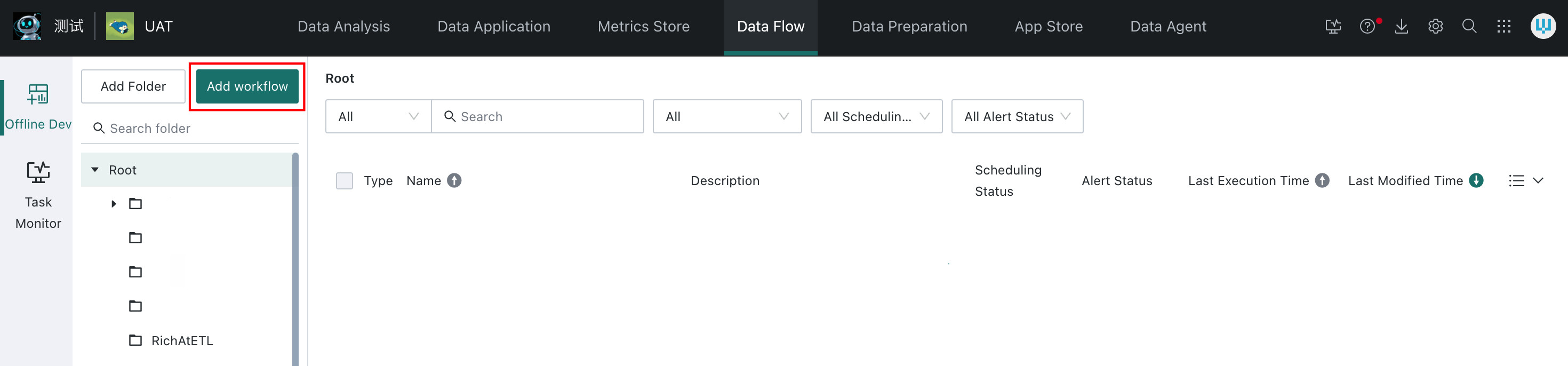
-
Drag in a
Dataflow Node, then double-click it or clickEditto enter the dataflow development page.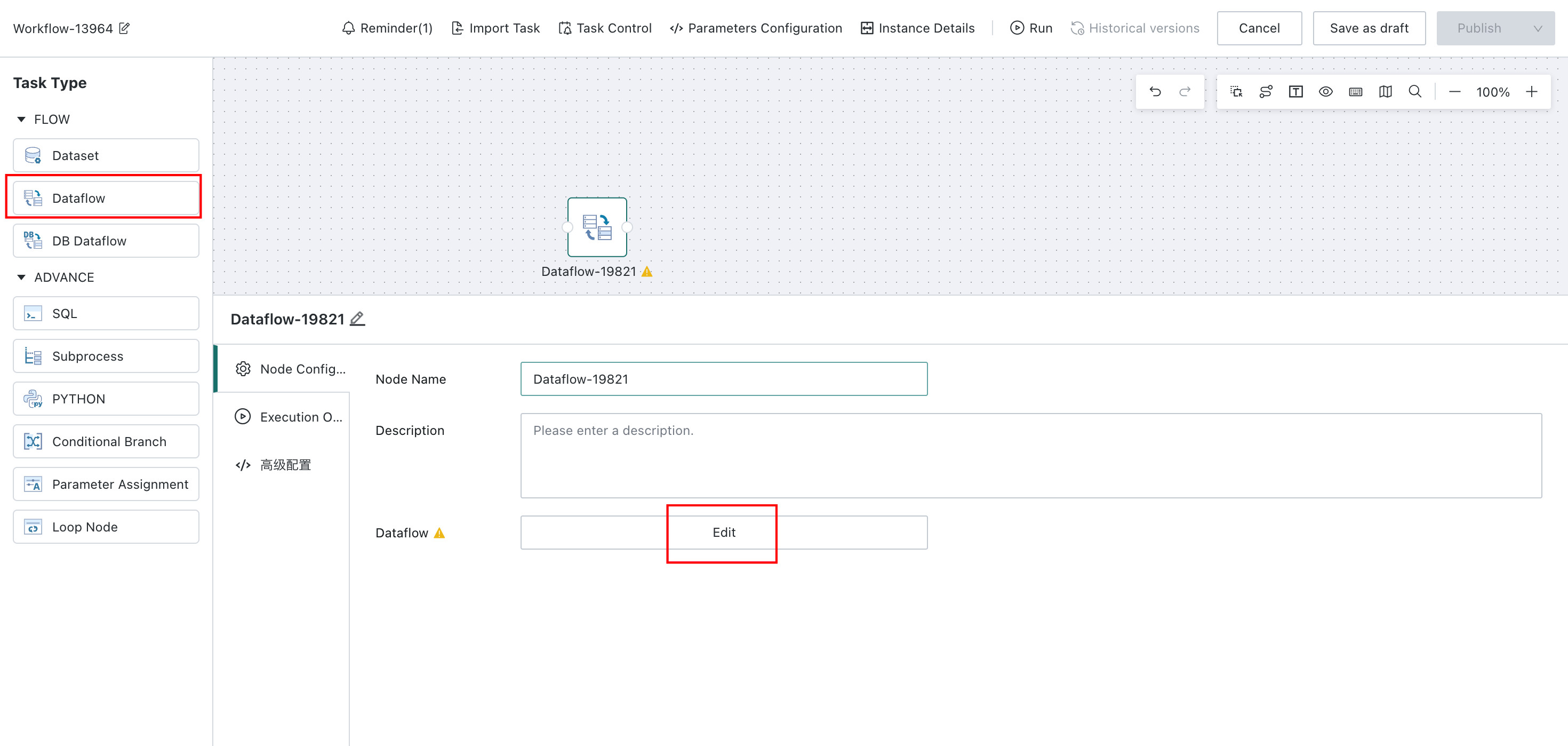
-
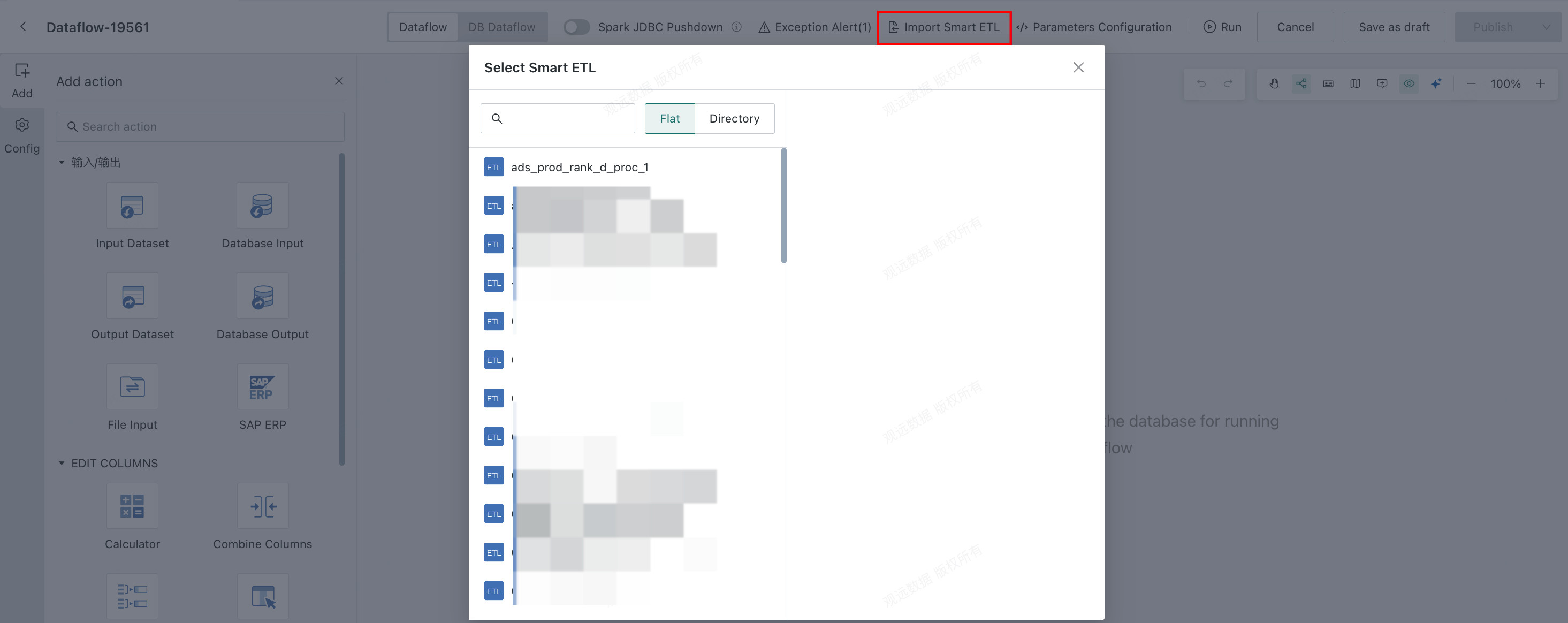
Click
... > Smart ETL Importin the upper-right corner. The dialog displays ETLs for which the task owner has at least user permission. Select the ETL to migrate.NoteAfter ETL migration, all current nodes and configurations in the dataflow will be overwritten.
-
After import is completed, all nodes in the dataflow are migrated, including operator configuration, operator dependencies, and input datasets. Output datasets must be created again or selected from existing datasets. Only
Offline Devdatasets are supported.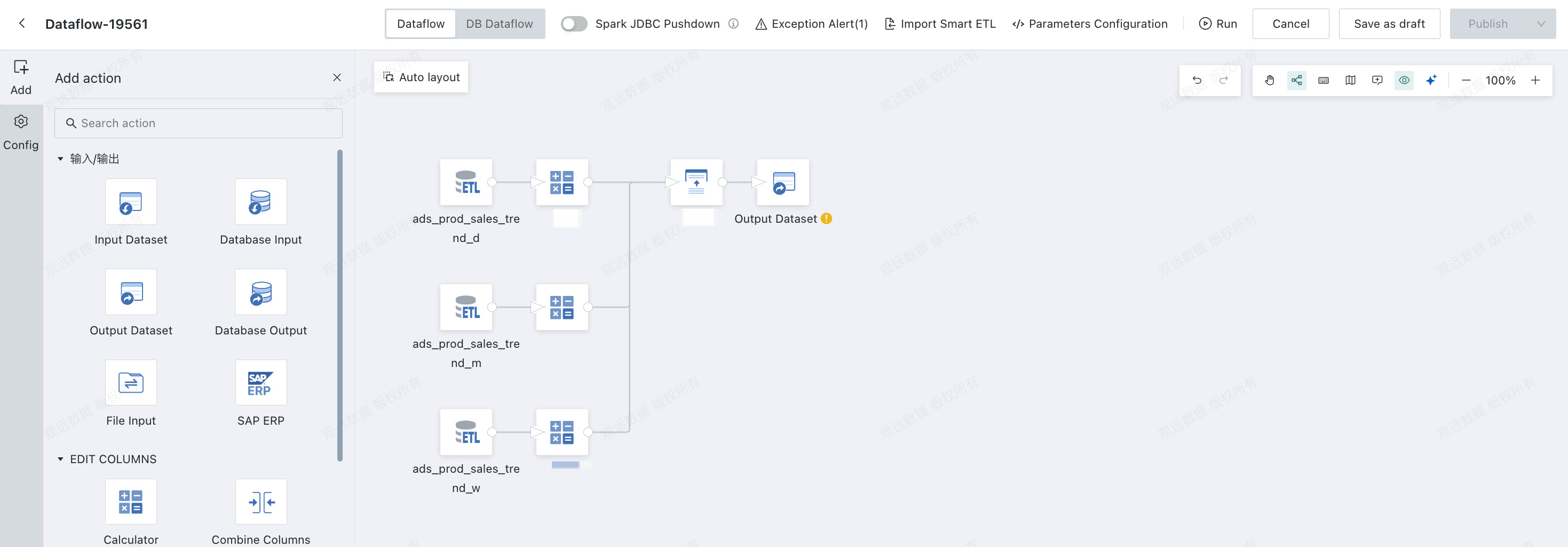
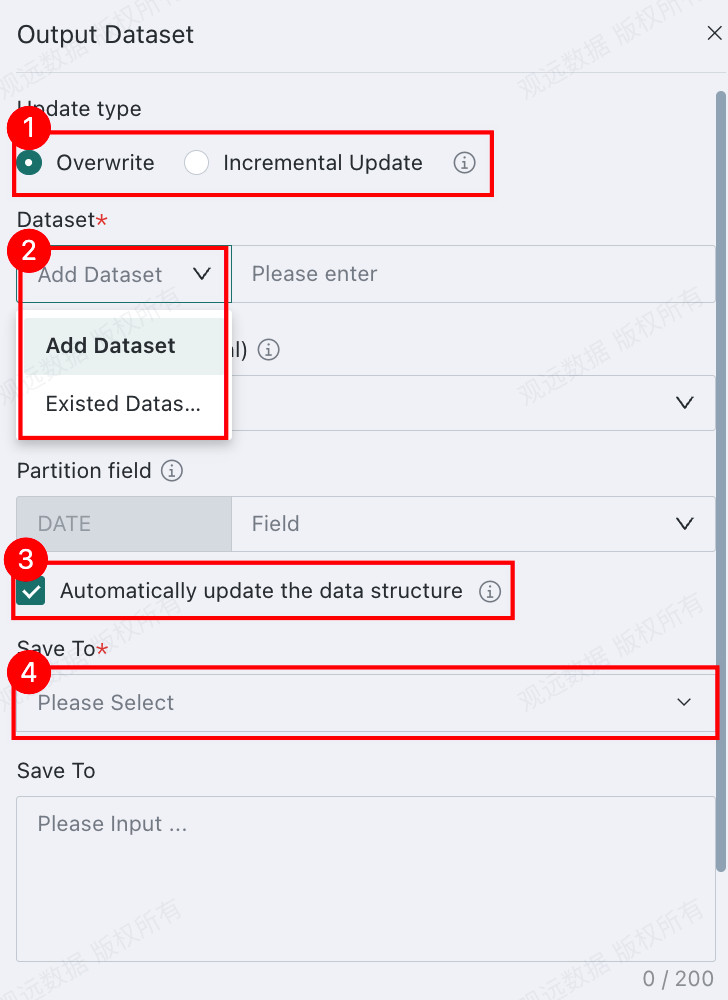
Output datasets support both full and incremental updates. When the data structure of upstream nodes changes, automatic schema updates are supported and missing fields can be added to existing tables automatically.
-
Before migration, ETL output dataset
Amay be used as the input dataset of laterSmart ETLtasks. After migration, data is written intoOffline DevdatasetB, and ETL datasetAno longer receives data. One-click switching is supported to replace downstream ETL input datasetAwithB.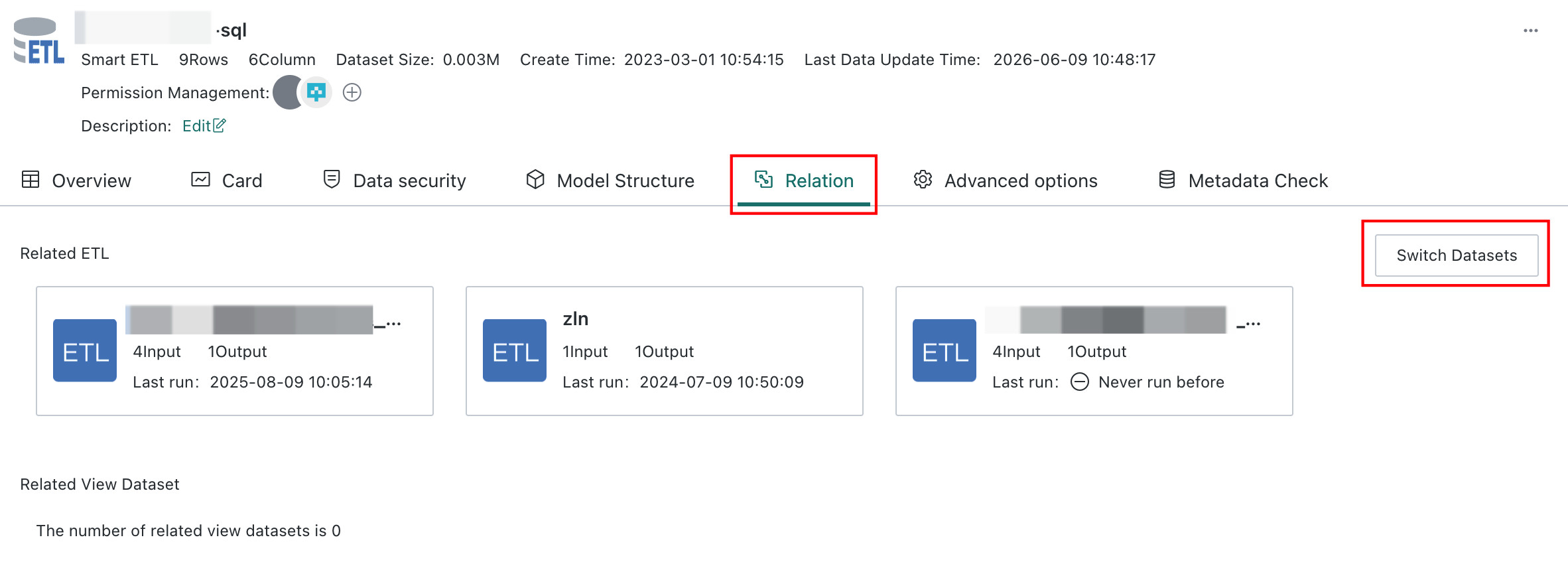
Select the target
Offline Devdataset.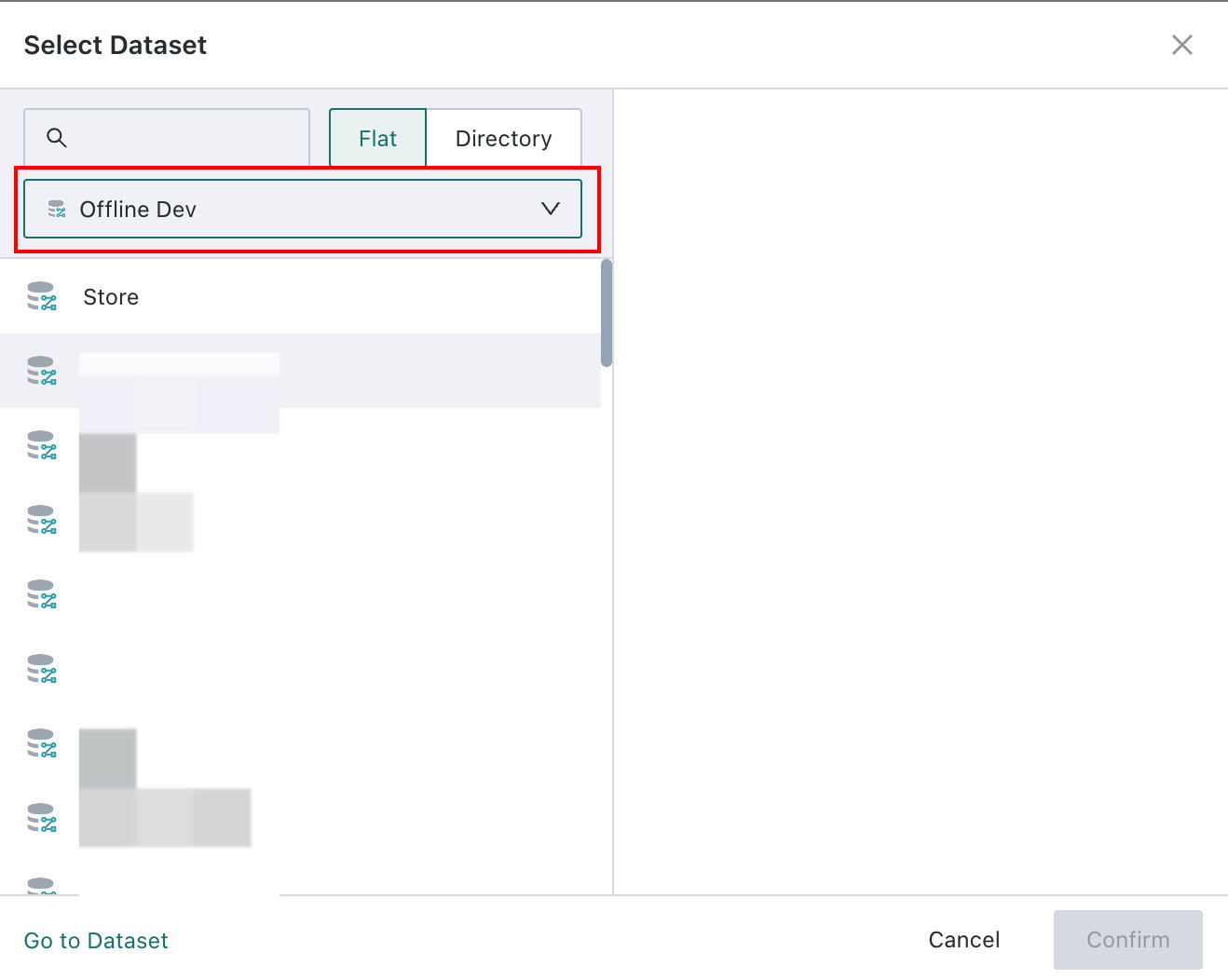
Check whether any fields are missing. If everything is correct, click
Confirmto complete the migration.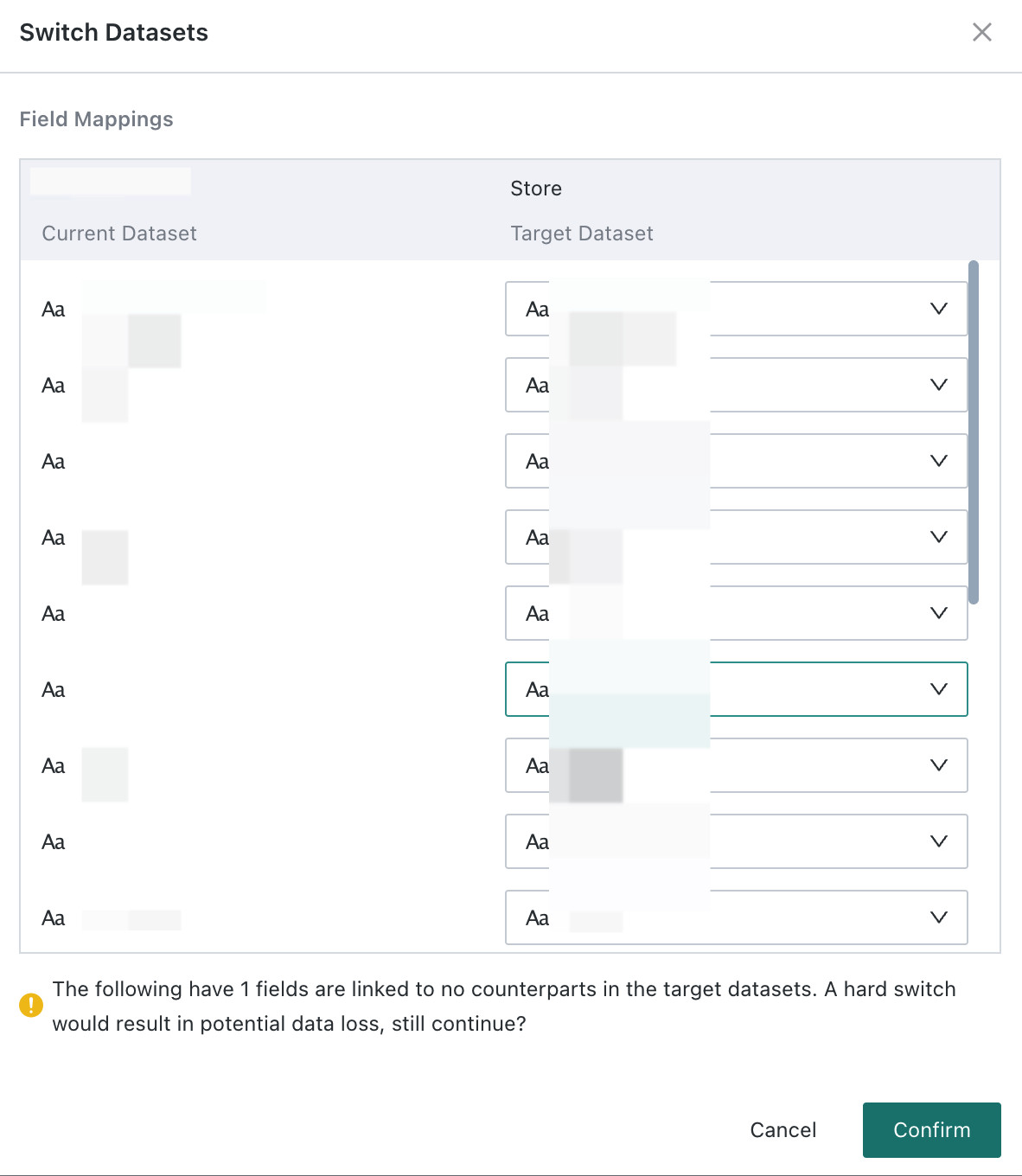
It is recommended to switch datasets for downstream ETL tasks before migrating them, so that manual steps can be reduced.
-
Cards may originally use ETL output dataset
A. After migration, the dataset can be replaced withOffline DevdatasetB. One-click switching is supported for card datasets as well.Batch creation or one-click switching for all cards is supported.
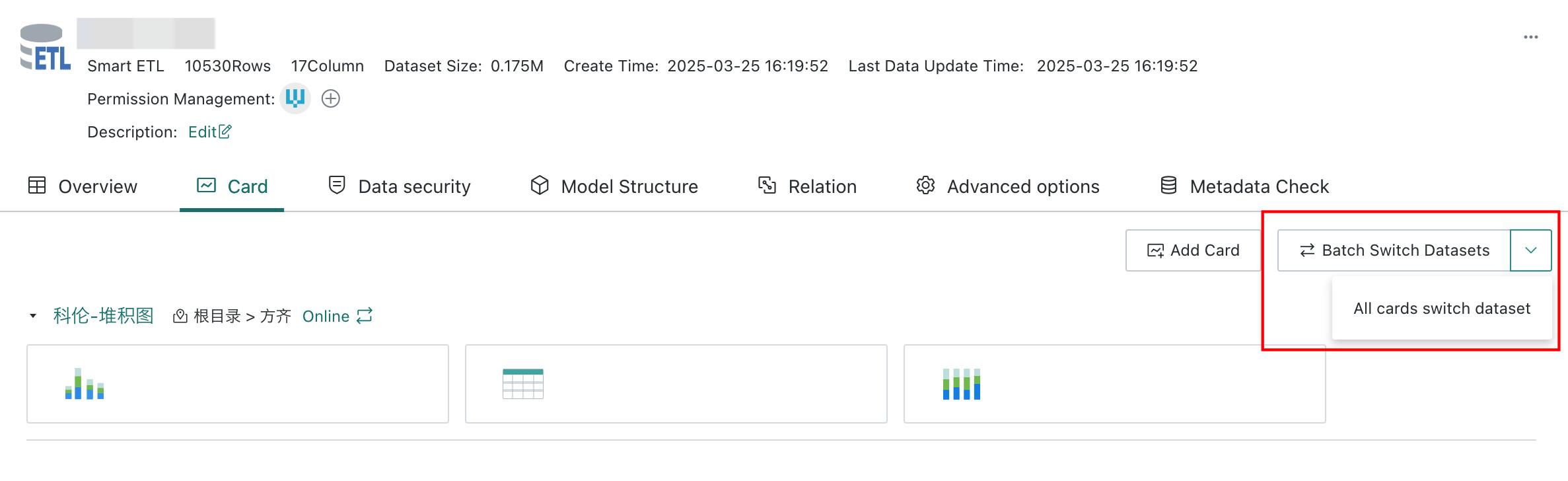
Select the target
Offline Devdataset.Check whether any fields are missing. If everything is correct, click
Confirmto complete the migration. -
Scheduling configuration: After all ETLs are migrated, reconfigure scheduling. In
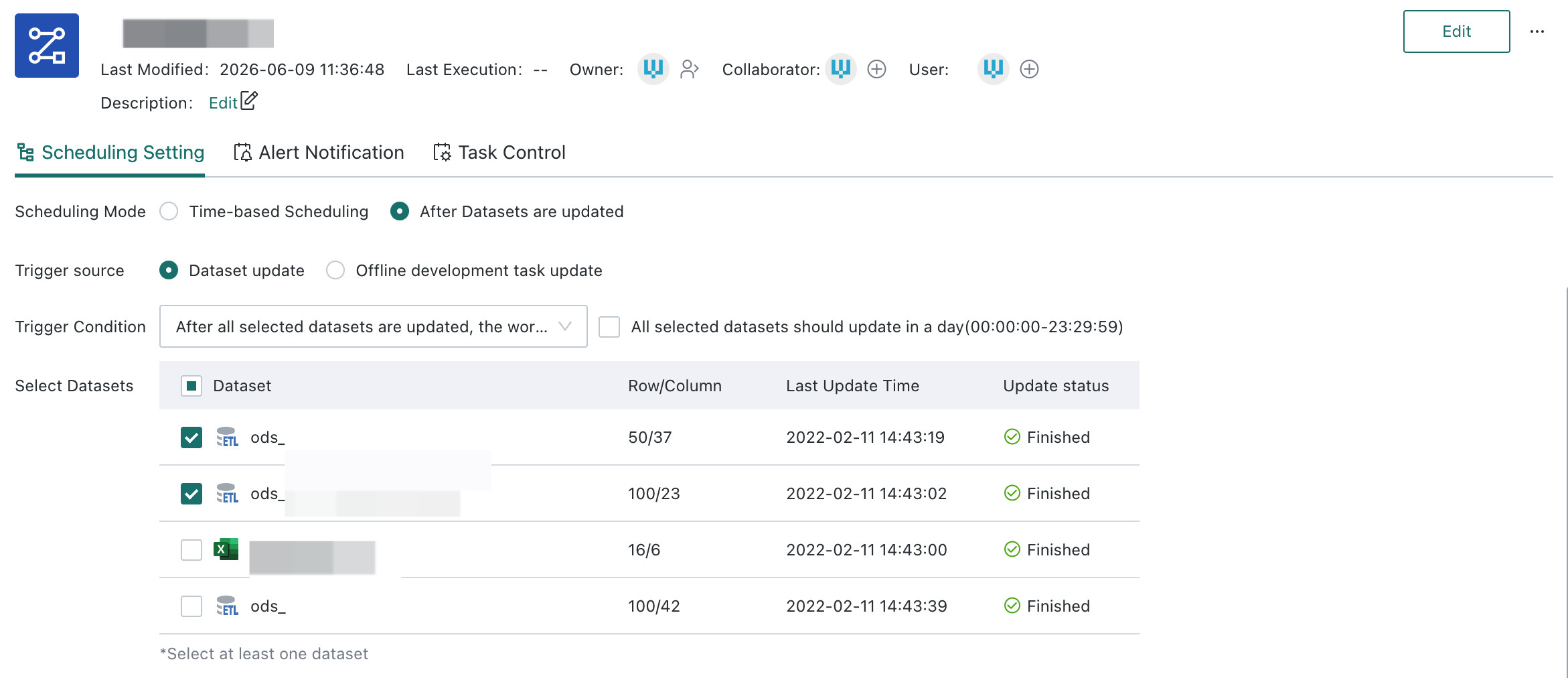
Offline Dev, configure event scheduling for all input datasets of the original dataflows.