Relationship Model
Overview
How a relationship model works
A relationship model stores rules for matching records across datasets. When you build a card, BI queries the datasets needed for the fields in that card. The model does not materialize a joined table. You can reuse stable relationships without building a wide table for every combination of fields.
For example, store sales amounts in an orders dataset, product categories in a products dataset, and store regions in a stores dataset. Define the relationships once, then analyze sales by product category in one card and by store region in another.
When to use a relationship model
| Need | Use |
|---|---|
| Reuse equality joins across datasets in several cards | A relationship model |
| Clean or transform data, add fields, pre-aggregate data, or save transformed results | ETL |
| Run complex SQL, join on conditions other than equality, or produce a fixed query result | A view dataset or another data preparation tool |
Prerequisites
- You need at least two datasets and permission to use each one.
- Direct connection datasets must share a data account. For non-direct connections, select datasets extracted into the platform. Do not mix direct and non-direct connections.
- Relationship models, Web Service datasets, and view datasets cannot serve as sources.
- Identify the business keys to match (for example, product ID in orders and products). Their data types must be compatible. Check whether the keys are unique on each side and whether any records have no match. You will need this information to set cardinality and referential integrity.
Create a relationship model
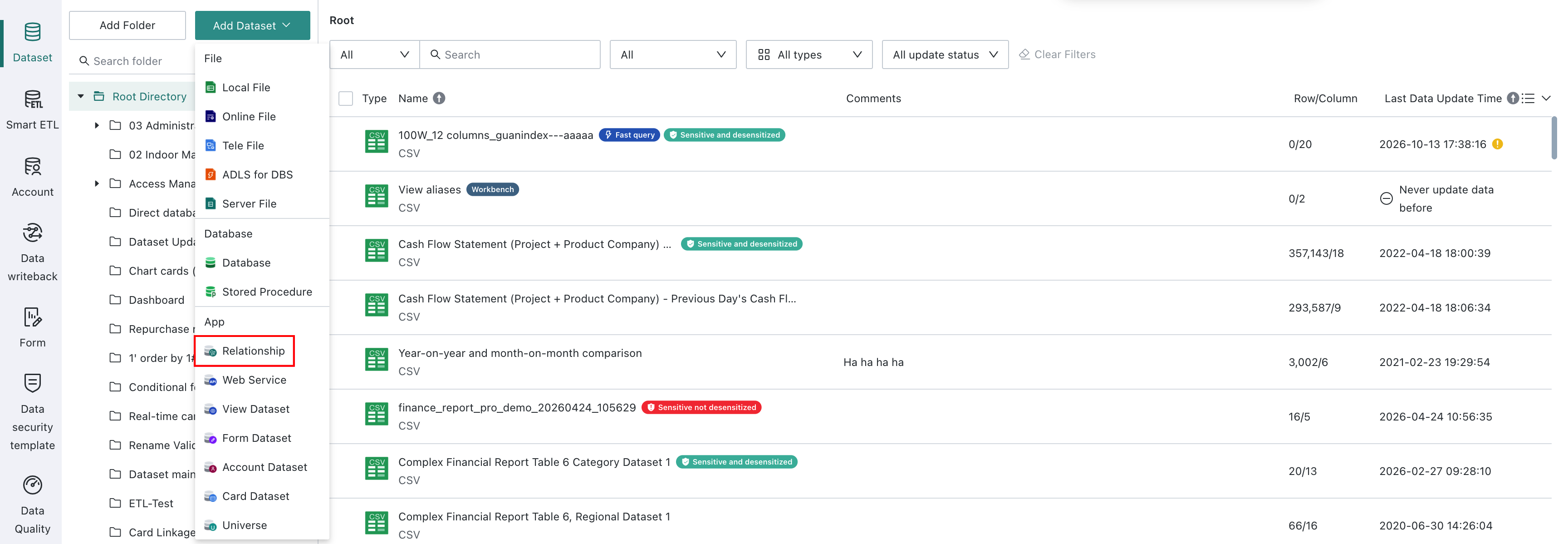
- In Data Preparation, open the dataset list. Start creating a dataset and select the relationship model option under applications.
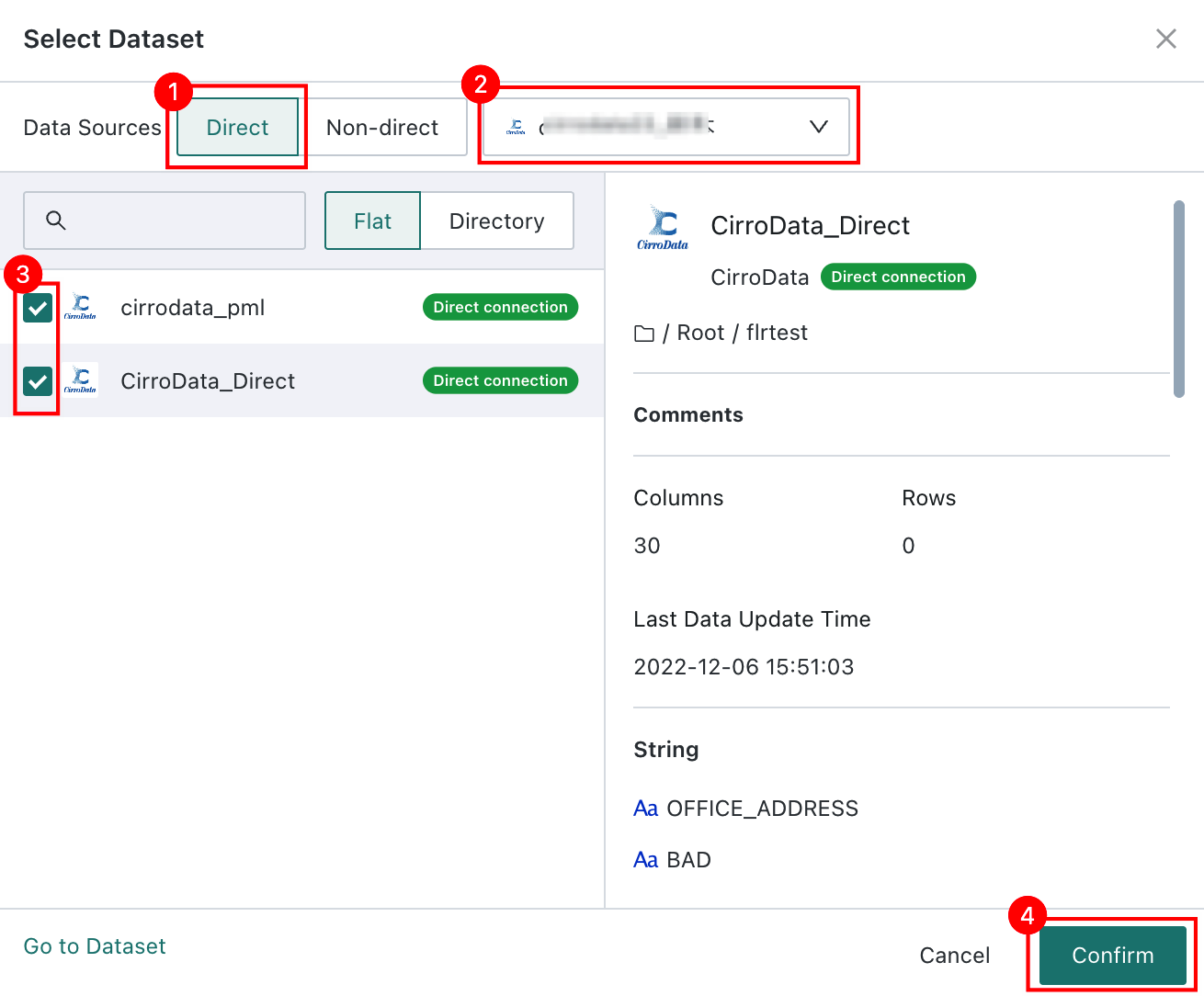
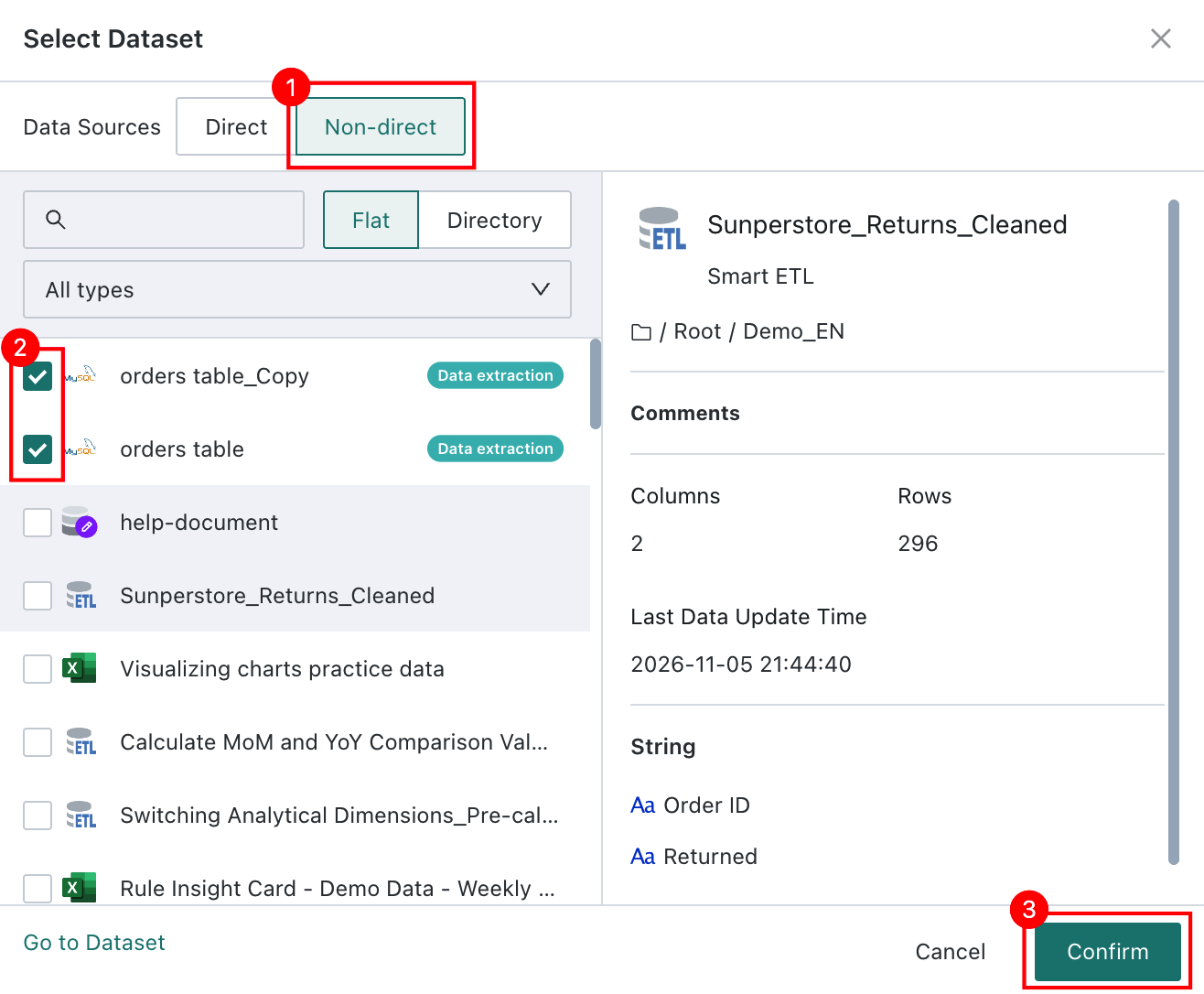
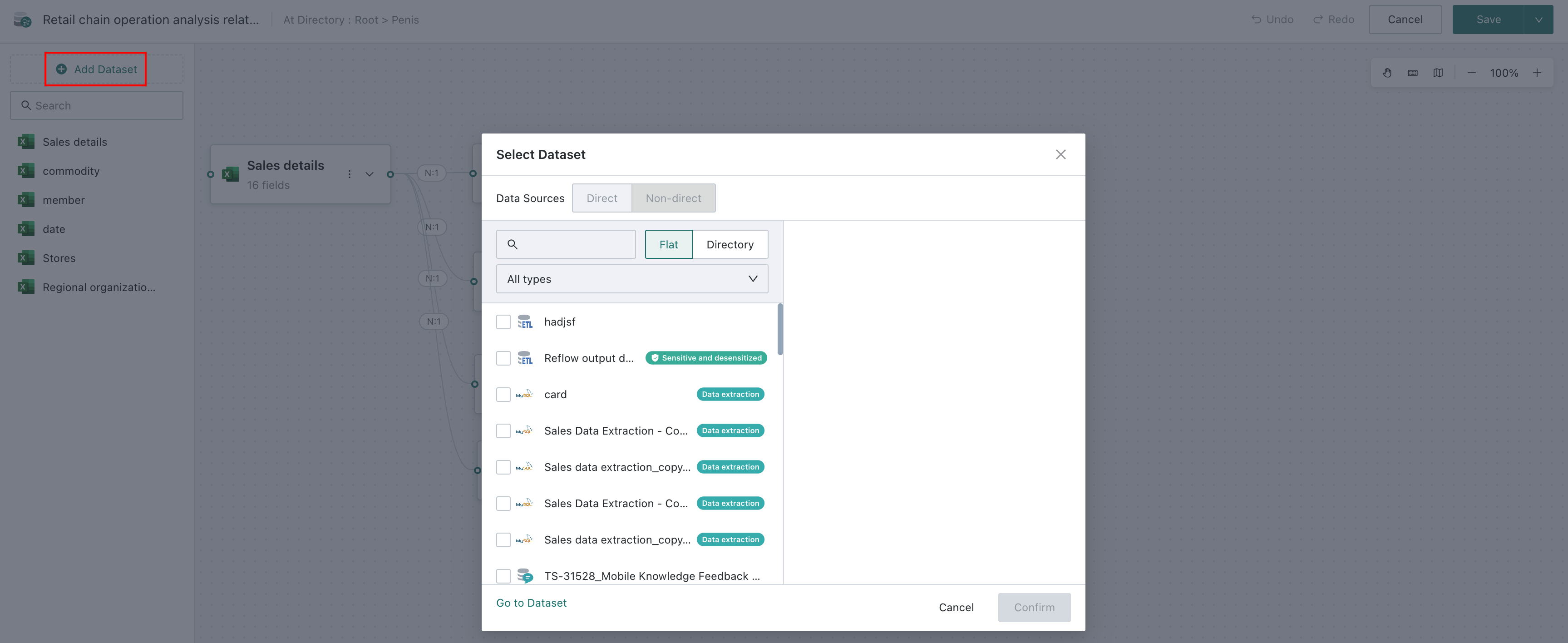
- Choose the source type. For a direct connection, select a data account, then select datasets in that account. For a non-direct connection, select datasets you have permission to use.
-
Confirm the selection. The datasets appear on the left of the design page.
-
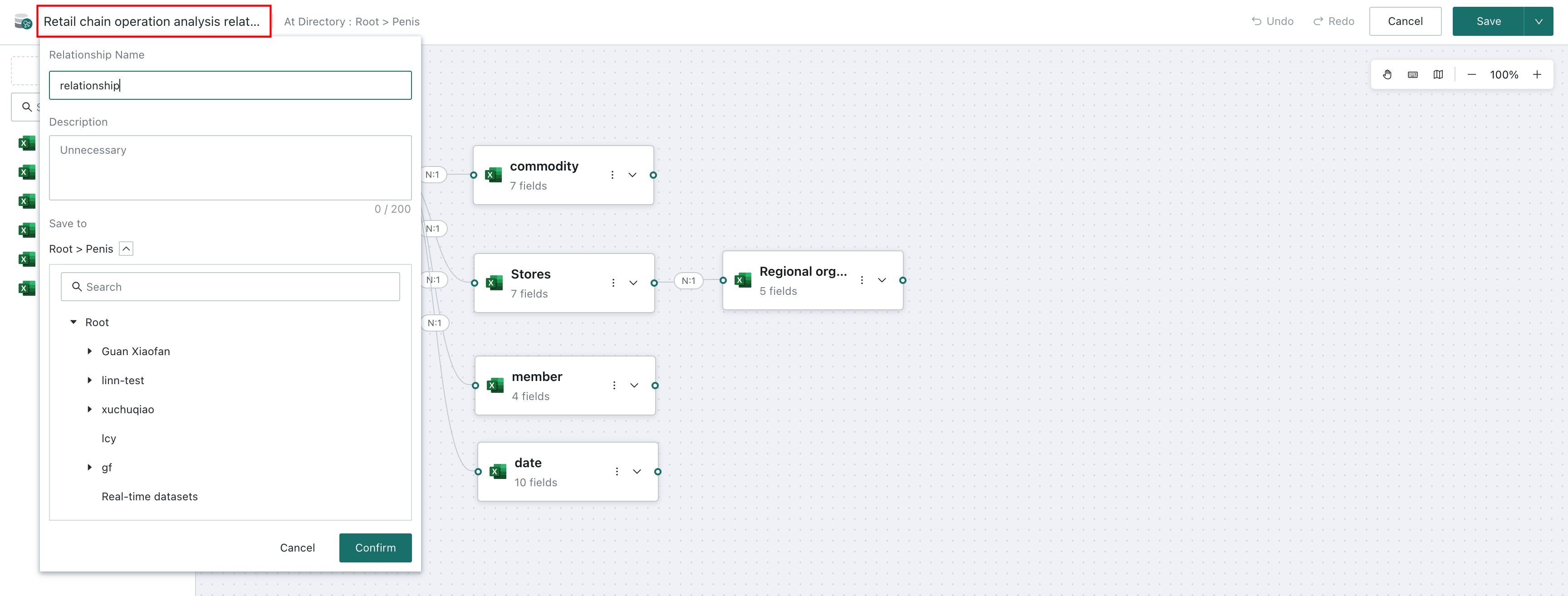
Click the default model name at the top to set its name, description, and folder. To add another dataset, use the control above the dataset list. A source dataset can appear only once in a model.
Configure a relationship model
Add dataset nodes
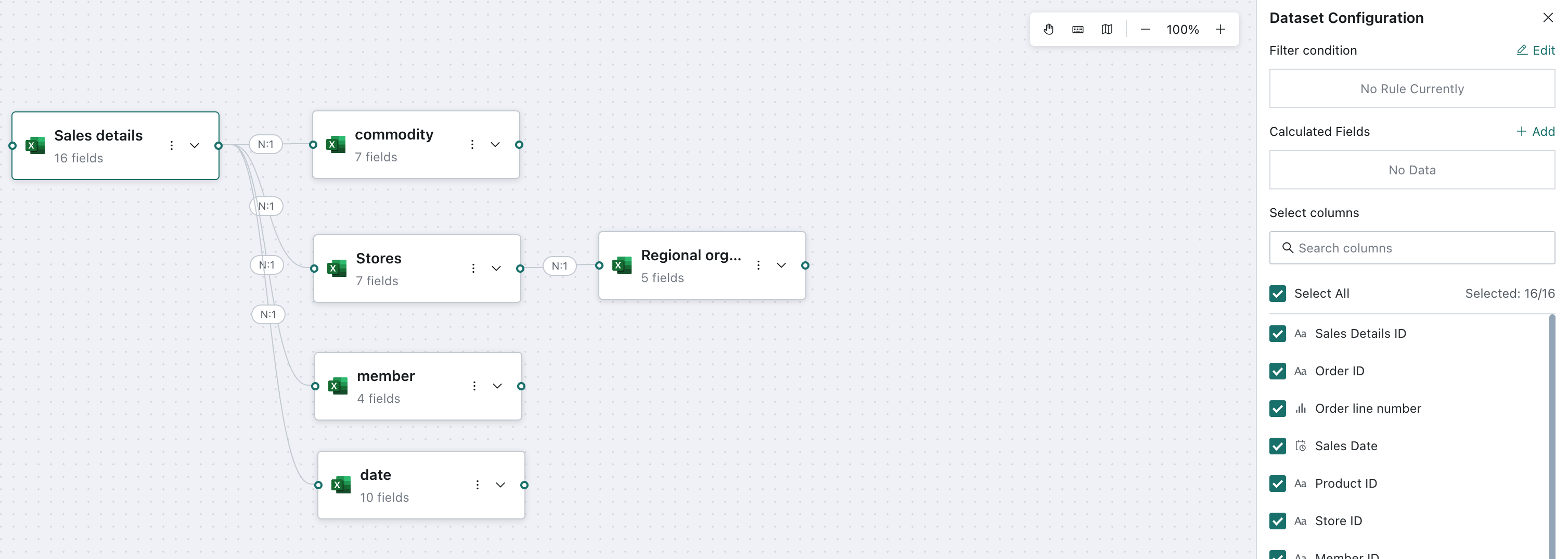
Drag datasets from the list to the canvas. Start with the primary analysis dataset, then add datasets that supply dimensions or other information. Select a node or a line to configure the dataset or its relationship in the right panel. Node positions do not affect query results.
Deleting a node removes its connected lines. Removing a dataset from the list also removes it as a model source.
Configure dataset nodes
| Setting | Purpose |
|---|---|
| Filters | Limit the records the node contributes. Recheck referential integrity after changing a filter because matches may change. |
| Calculated fields | Create or manage fields for the current node. Formulas must pass validation. |
| Columns | Select fields for the model and set their display names. Keep relationship keys and fields used by downstream cards. |
Define relationships
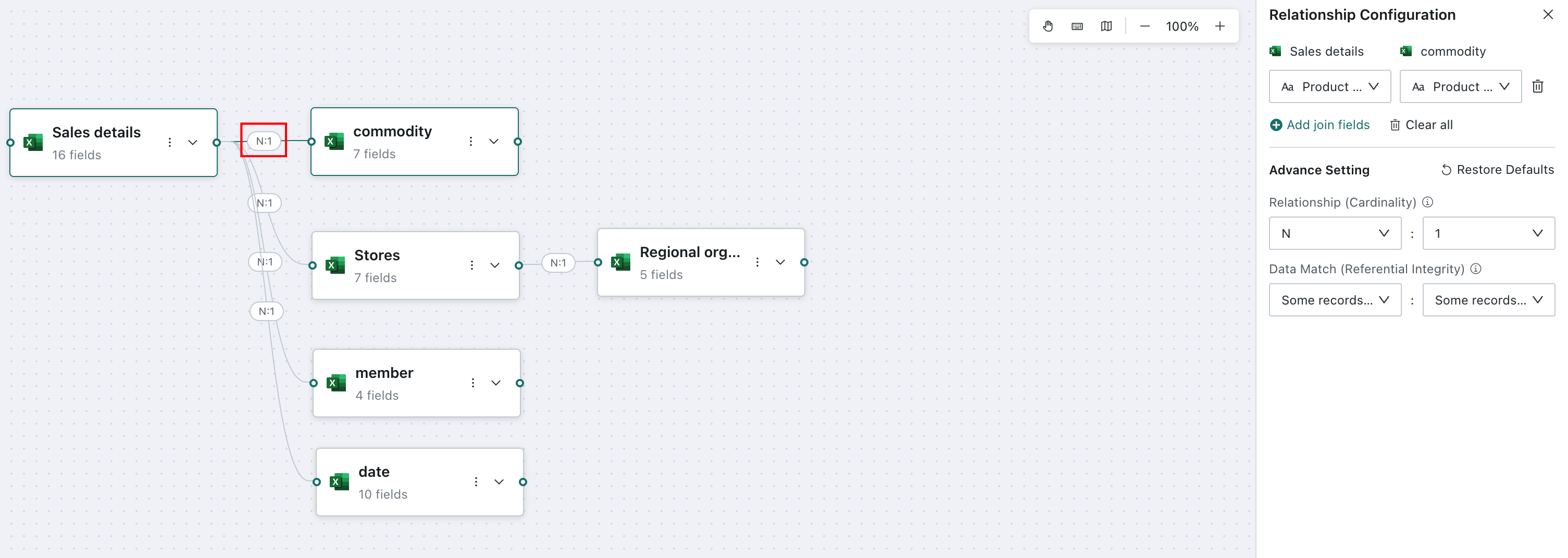
- Drag from the connection point on one node to the other node to draw a line.
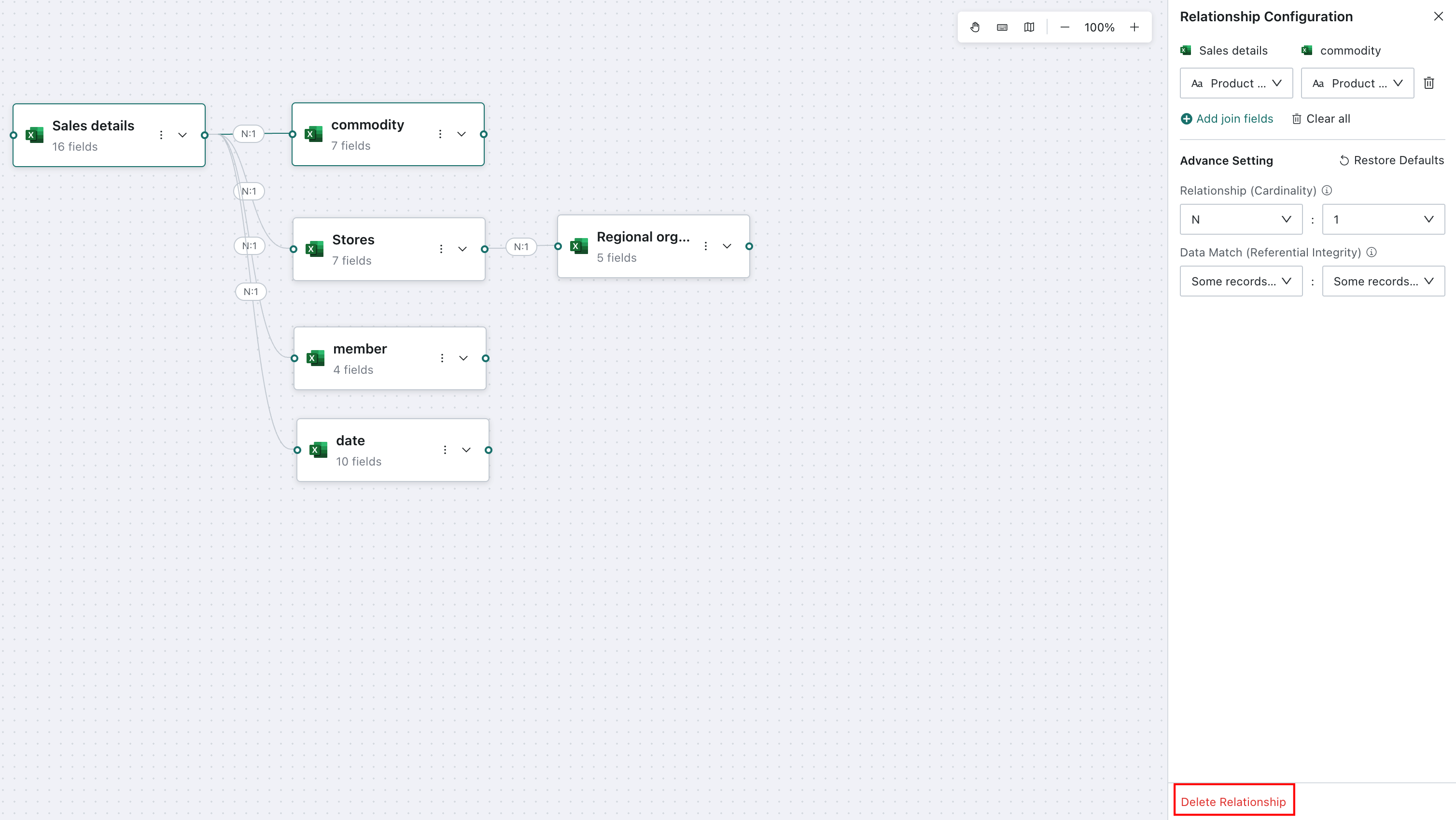
- Select the line and choose the matching fields for each dataset in the right panel.
- For a composite key, add another field pair. Every pair must match. For example, a relationship on store ID and business date matches only when both values are equal.
Only one relationship is allowed per dataset pair. It needs at least one complete pair of fields with compatible types. BI tries to match a field on the other side by name and type. Verify that the suggested field is the correct business key.
Set advanced options
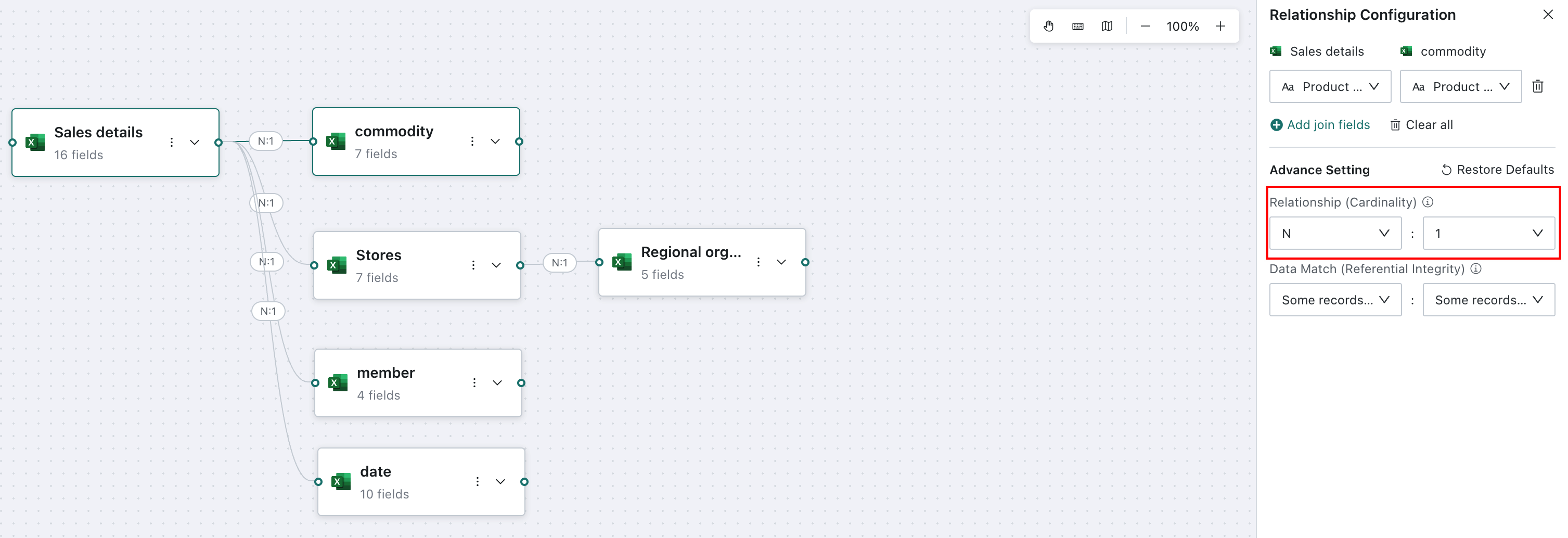
Cardinality and referential integrity describe the source data; they do not alter or clean it.
Cardinality
Use 1 for a unique key and N for a key that may repeat. For composite keys, check uniqueness across the combination.
| Cardinality | Meaning | Example |
|---|---|---|
1 : 1 | Both sides are unique | One order matches one order extension record. |
N : 1 | Only the right side is unique | Several order lines match one product. |
1 : N | Only the left side is unique | One product matches several order lines. |
N : N | Both sides may repeat | Both datasets contain multiple records per store. |
The default is N : N. Choose 1 only after confirming that the key on that side is unique.
Referential integrity
Set this separately for each side. Choose a complete match only when every record on that side has at least one match on the other side. Otherwise keep the default, which allows unmatched records.
For example, if every order matches a product but some products have never been ordered, use a complete match on the orders side only. If some orders lack matching products, allow unmatched records on both sides.
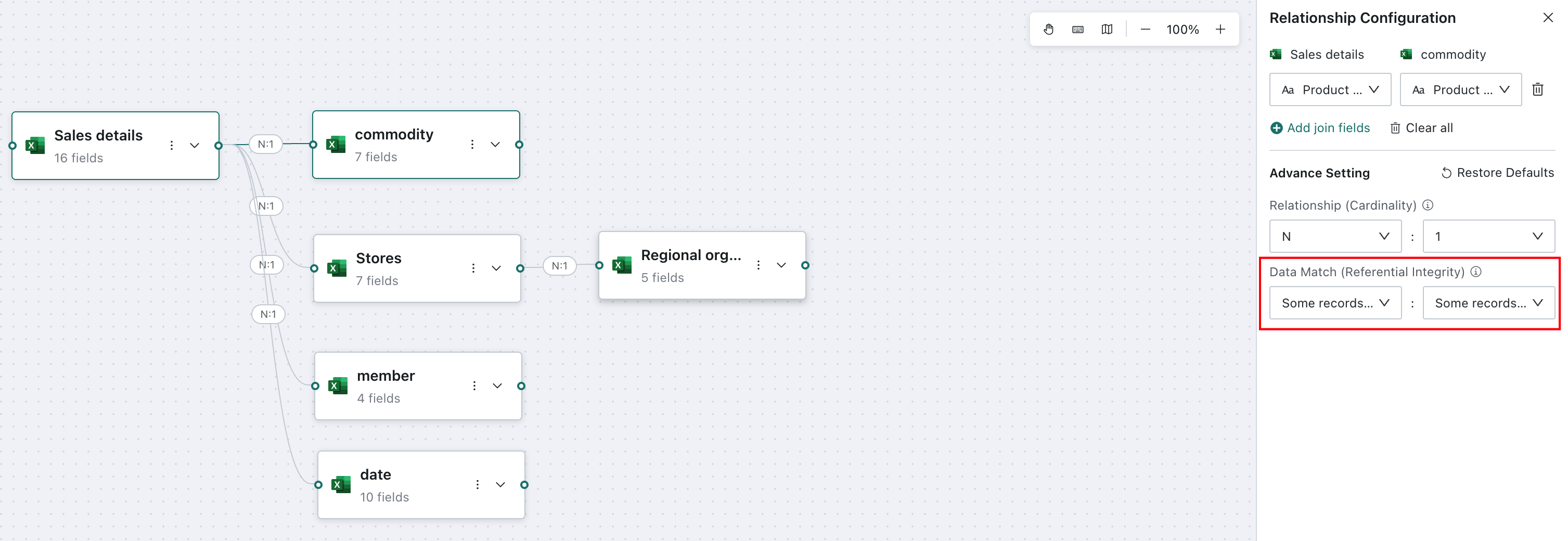
Incorrect settings can change query results. If unsure, keep the defaults and check for duplicate keys and unmatched records.
Preview data
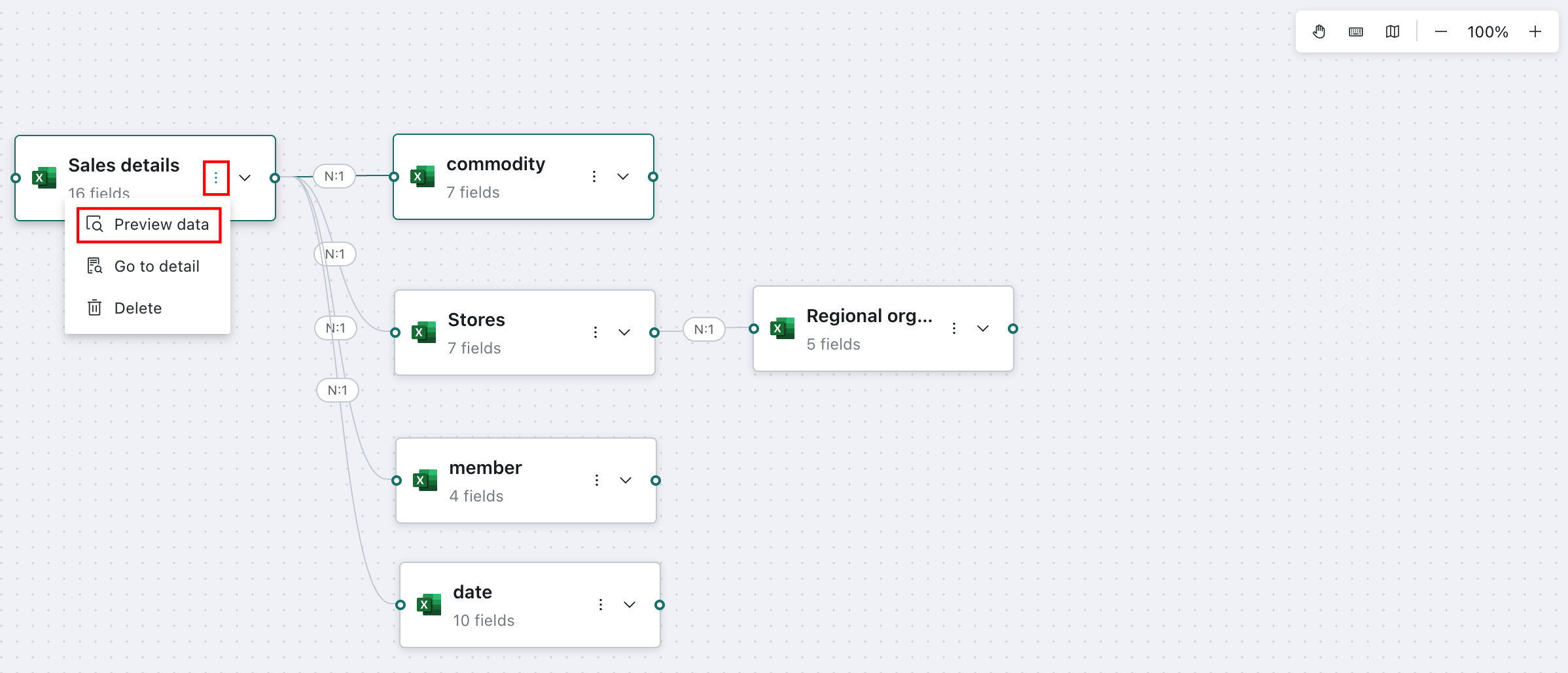
Use the node's menu to preview its source fields and records. Check the types and values of your keys here. The preview shows one source dataset, not the joined result. Calculated fields containing aggregation functions are not included in the source preview; use them when editing a card.
Save a relationship model
Save the model, or choose the option to save and leave the editor. Before saving, confirm that:
- You have selected a folder.
- The model contains at least two datasets and one valid relationship.
- Each relationship has paired keys with compatible types.
- No source has been deleted or become inaccessible to you.
When you remove source fields or datasets, saving also removes calculated fields that depend on them. Review the impact before confirming.
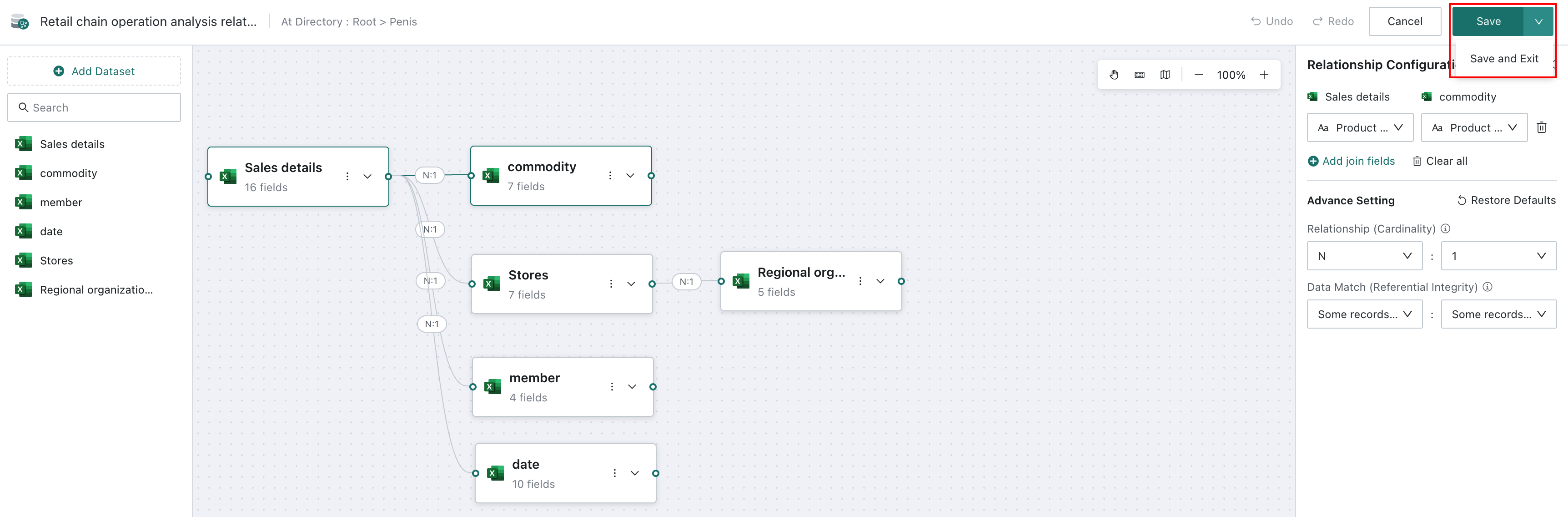
Find the saved model by name or filter the dataset list by type. The details page shows the model structure and lets you preview individual sources you can access. It does not show a joined detail table.
Create a card from a relationship model
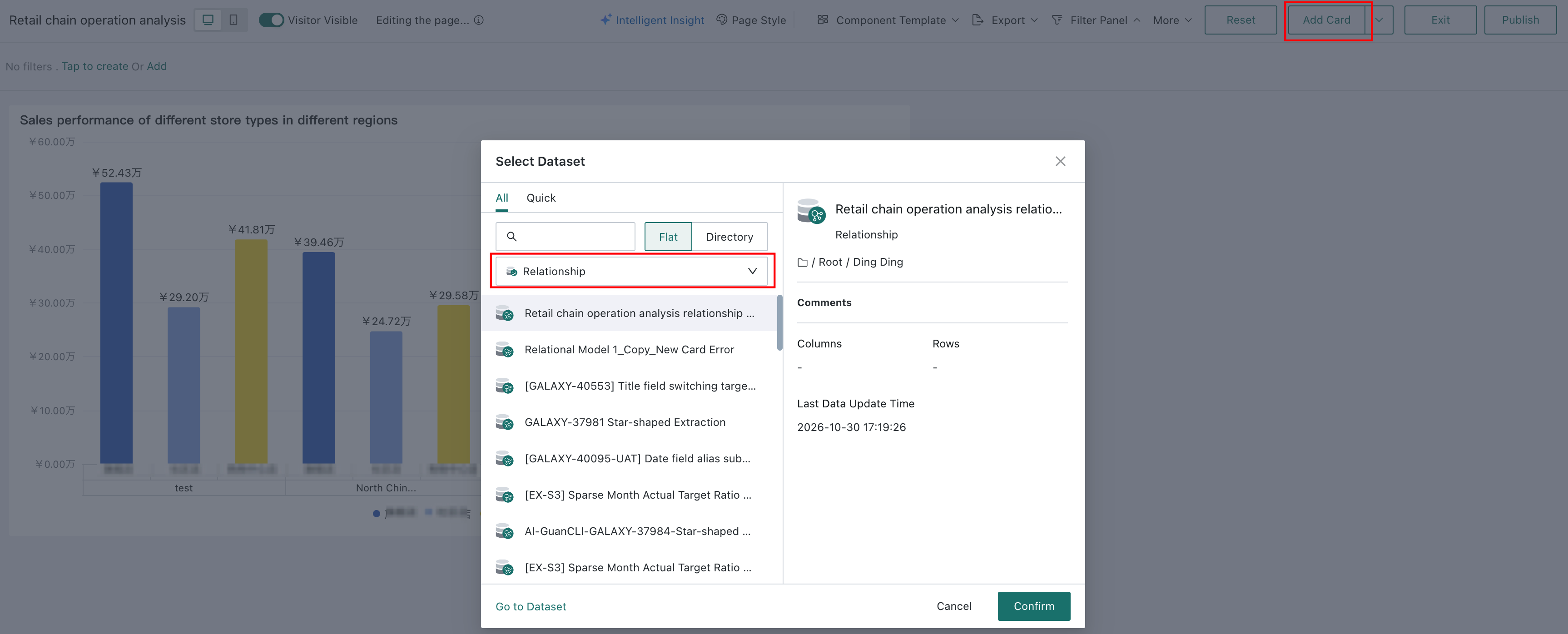
Relationship models support standard visualization cards and drill-down cards. To create a visualization card:
- Create a visualization card and select the saved model as its data source.
- Select fields by source. For example, use category from the products dataset as a dimension and sales amount from orders as a measure.
- Configure filters, sorting, and chart styling, then preview the results.
- Compare the results with known totals or groups in the source data.
Each card queries only the datasets needed for its selected fields. When sources share a field name, check which dataset owns the field.
Maintain a relationship model
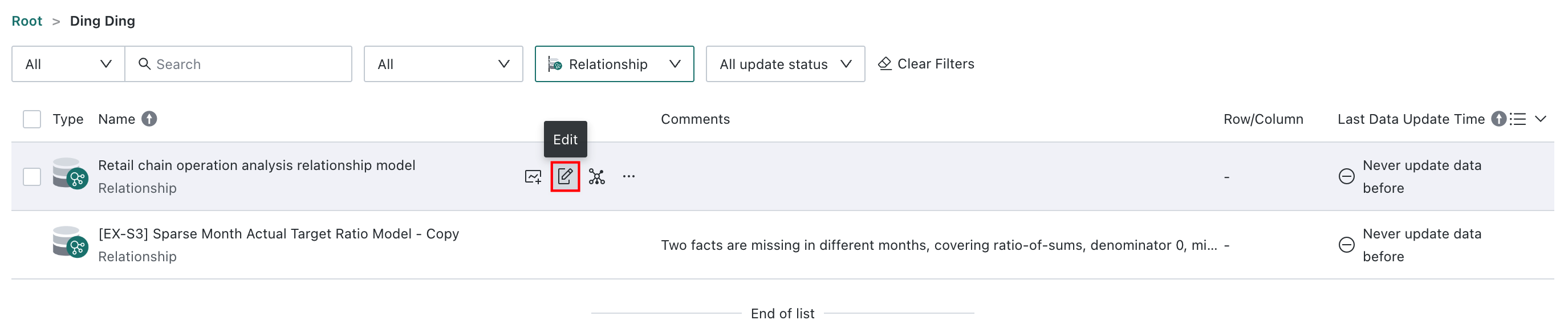
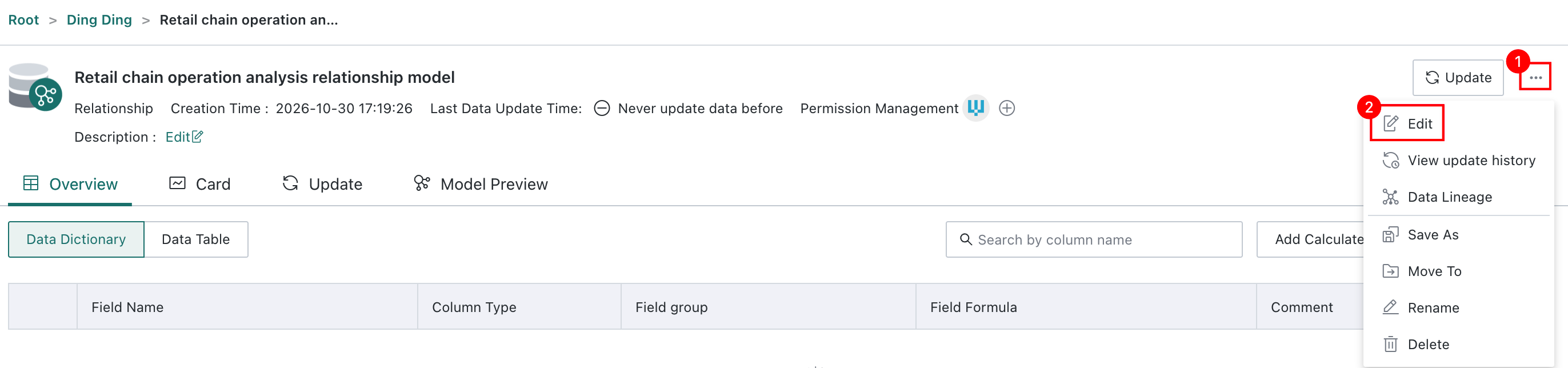
Edit a model using its edit icon in the dataset list or the menu in the upper-right corner of its details page. You can change source datasets, node settings, and relationships. To delete a relationship, select the line and remove it in the right panel.
Before changing fields, filters, or relationships, check dependent cards. Then recheck the completeness, types, uniqueness, and matches of the keys before saving.
Models use dataset folders and permissions. A user needs permission to use the model to create a card. This does not grant direct access to its source datasets.
Troubleshooting
| Problem | What to check |
|---|---|
| Relationship model option is missing | Ask an administrator to check feature availability and your access to Data Preparation and dataset creation. |
| A source cannot be selected | Check its status, use permission, and compatibility with the other selected datasets. |
| Save reports an invalid relationship | Verify that there are at least two datasets, one valid relationship, and complete key pairs with compatible types. |
| A dimension contains unexpected nulls | Check for unmatched keys, node filters, and referential integrity. |
| Totals differ from the source | Check business keys, composite key completeness, and uniqueness on each side declared as 1. |
| Queries are slow | Check whether many-to-many relationships are necessary, inspect keys and node filters, and review the fields used in the card. Verify data characteristics before changing settings. |
| A source field was removed | Repair the relationship lines and downstream card references before saving. |
Limitations
Models support equality joins only. All sources must be compatible as described in Prerequisites. A model cannot serve as the source of another model or directly as a filter's data source. The dataset list does not support previewing or exporting a model-wide joined result. The editor and details page preview one source at a time.