OIDC Management
Overview
OIDC (OpenID Connect) is a standard identity protocol. An external application can redirect users to Guandata BI for login and use tokens issued by Guandata BI to access APIs without obtaining or storing BI passwords.
For an initial integration:
- An enterprise administrator creates an OIDC application in the administration console and registers the callback URL supplied by the integrating application.
- The administrator securely provides the Client ID, Client Secret when applicable, and callback URL to the integrator.
- The integrator configures the external application, and the user signs in to Guandata BI in a browser.
- When restrictions are required, the administrator configures them under Management Center > Open Platform > OIDC Management.
OIDC authenticates identity but does not grant permissions. After OIDC login, accessible resources and operations follow the user's existing Guandata BI permissions.
Create an OIDC application
An enterprise administrator creates the application in the administration console. See Admin Backend Authorization , open OIDC Application Management, and click New application.
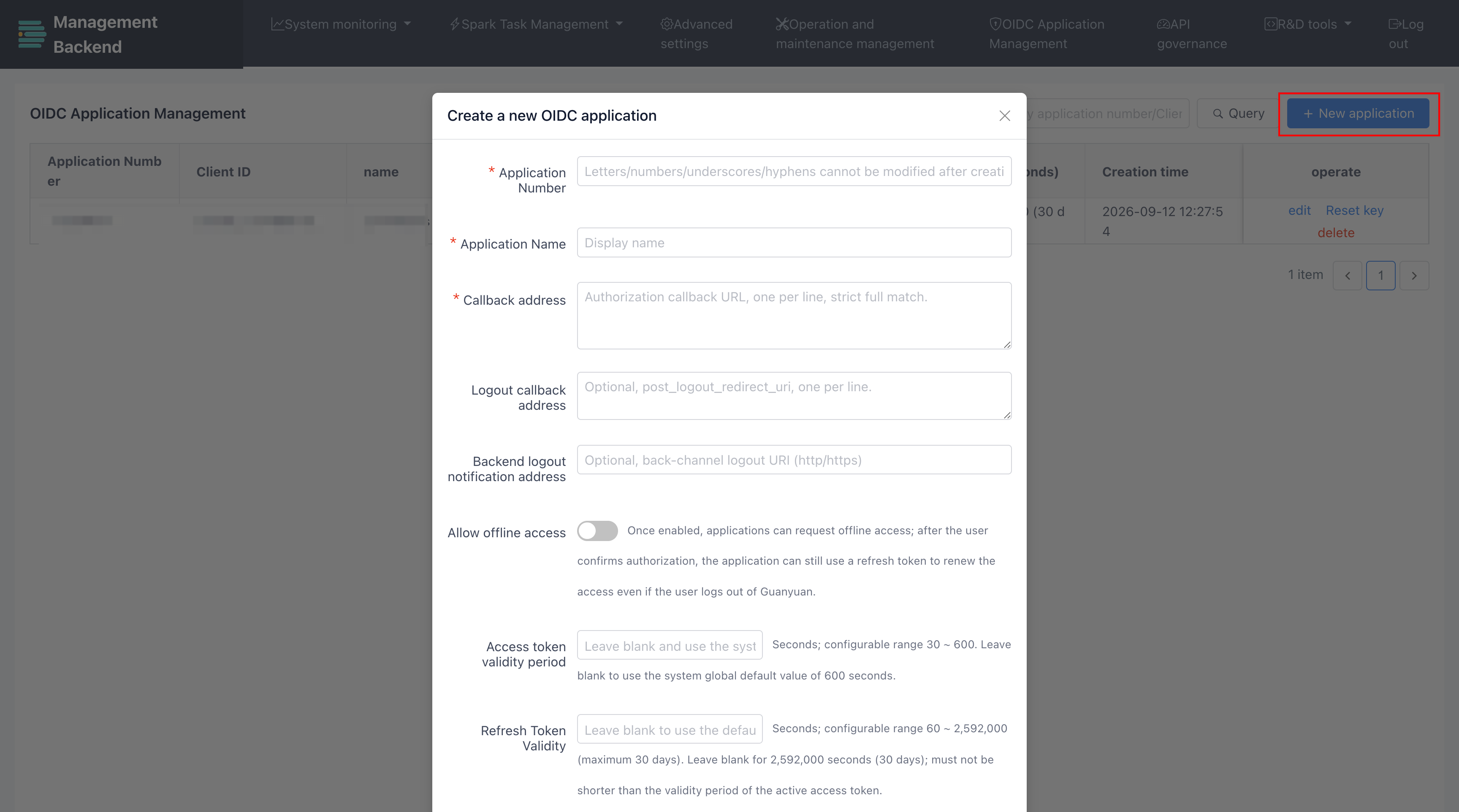
| Setting | Description |
|---|---|
| Application Number | Unique application identifier. Supports letters, digits, underscores, and hyphens and cannot be changed after creation. |
| Application Name | Display name used to identify the application. |
| Client Type | A Confidential client receives a Client Secret; a Public client does not and must use PKCE. GuanCLI currently uses a Client ID and Client Secret, so select Confidential. |
| Callback address | Address to return to after login, one per line. For GuanCLI, use http://127.0.0.1/auth/oidc/callback. |
| Logout callback address | Optional address allowed after logout, one per line. |
| Scopes | OIDC information scopes such as openid, profile, and email. |
| Enforce PKCE | Requires PKCE during login. Enable it for GuanCLI. |
| Backend logout notification address | Optional HTTP or HTTPS endpoint for back-channel logout notifications. |
Click OK. For a confidential client, the system displays the Client ID and Client Secret. Store them securely and provide them to the integrator through a secure channel.
The Client Secret is displayed only once. Disclosure can allow another party to impersonate the application. Never place it in public documentation, repositories, tickets, or chat messages.
Sign in to GuanCLI with OIDC
In GuanCLI, select Browser OIDC Login (Recommended). See Login Method 4: Login with OIDC.
Restrict an existing OIDC application
Use Management Center > Open Platform > OIDC Management to restrict an application in the current domain. This page does not create applications; applications created in the administration console appear in the Application (RP) list.
Configure OIDC access for the current domain
When OIDC access for this domain is enabled, users can sign in through OIDC and applications can use issued Access Tokens to call APIs.

Disabling this setting prevents OIDC login and invalidates issued Access Tokens. Applications and automation depending on OIDC may stop. Confirm they no longer use OIDC before disabling it.
If no additional restrictions are needed, do not add relying-party settings. The application can continue to use its existing configuration.
Add Application (RP) settings
-
Click Add RP Setting.
-
Select an application under Application (RP).
-
Configure:
Setting Description Disable this app for the domain Prevents users from signing in through the application and makes issued Access Tokens unusable for API access. Access token cap (s) Upper limit for newly issued Access Token lifetime. Blank uses the application setting. Refresh token cap (s) Upper limit for newly issued Refresh Token lifetime. Blank uses the application setting. -
Click Confirm.
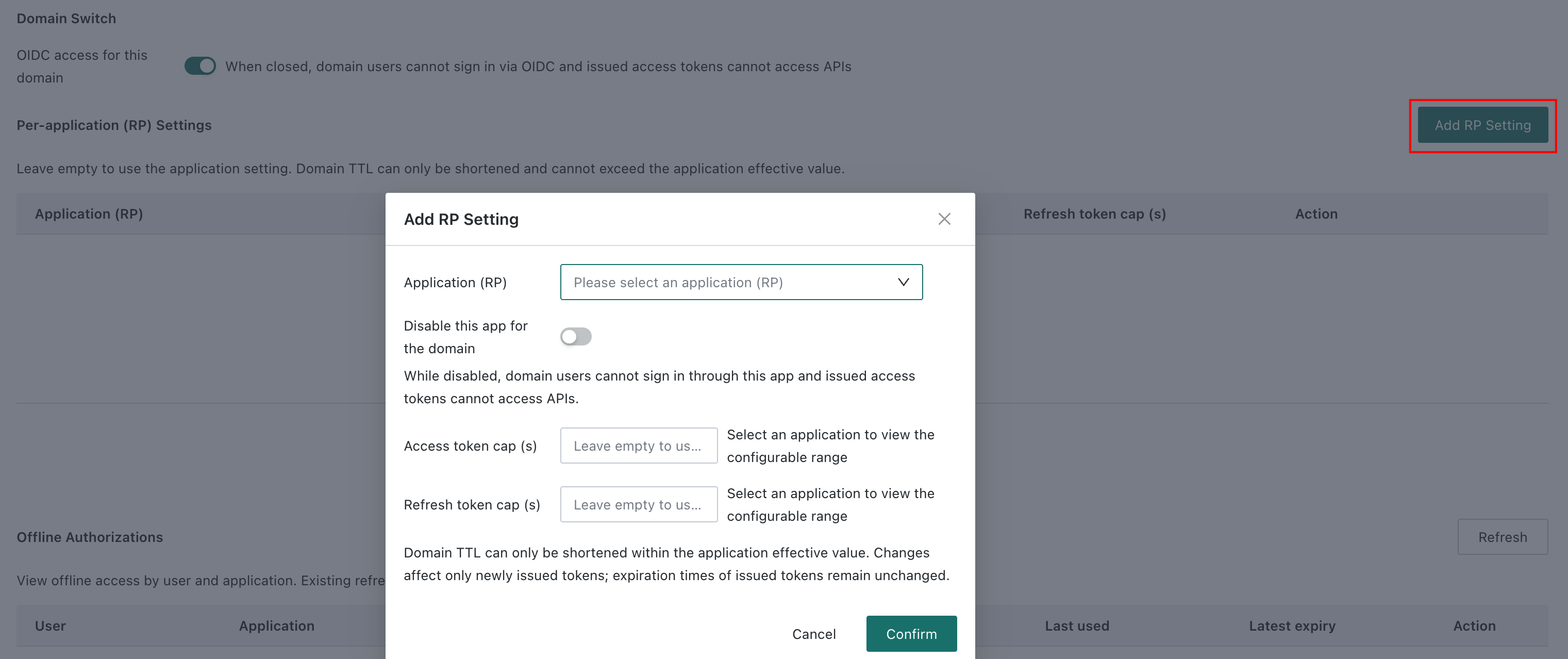
- The configurable lifetime range appears after an application is selected.
- A lifetime can only be shortened within the currently effective value.
- Changes affect subsequently issued tokens; existing token expiration times do not change.
View Application (RP) settings
The list shows the application name, domain-access status, Access Token limit, and Refresh Token limit. Use Edit or Delete in the Action column.
