CLI/MCP Logs
Overview
The CLI/MCP Logs page in Admin shows remaining calls and call records. You can filter and export records and adjust the log retention period.

Activate the call quota
New users must activate the call quota before using CLI/MCP. Existing users must also activate it after their first upgrade to V8.2 or later.
- Open CLI/MCP Logs in Admin.
- Activate your organization's AI usage benefits on the activation page to receive AI credits and 50,000 free CLI/MCP calls.
If no valid paid CLI/MCP license is available and the remaining calls are exhausted, further CLI/MCP calls are unavailable. Contact Guandata sales or your customer success manager to increase the quota.
Calls made before an existing user's upgrade do not count toward the 50,000 free calls received after activation.
View the remaining call quota
After activation, Overview Statistics shows Remaining Calls and the paid license validity period. Click Billing Details to review quota recharges.
- While a paid license is valid: CLI/MCP calls are unlimited and do not deduct from the remaining quota.
- After the paid license expires: If it is not renewed, subsequent calls deduct from the remaining quota according to actual usage.
- After purchasing another paid license: The remaining quota is retained and is not deducted during the new license's validity period.
Recharge the quota
Contact Guandata sales or your customer success manager to obtain a recharge code.
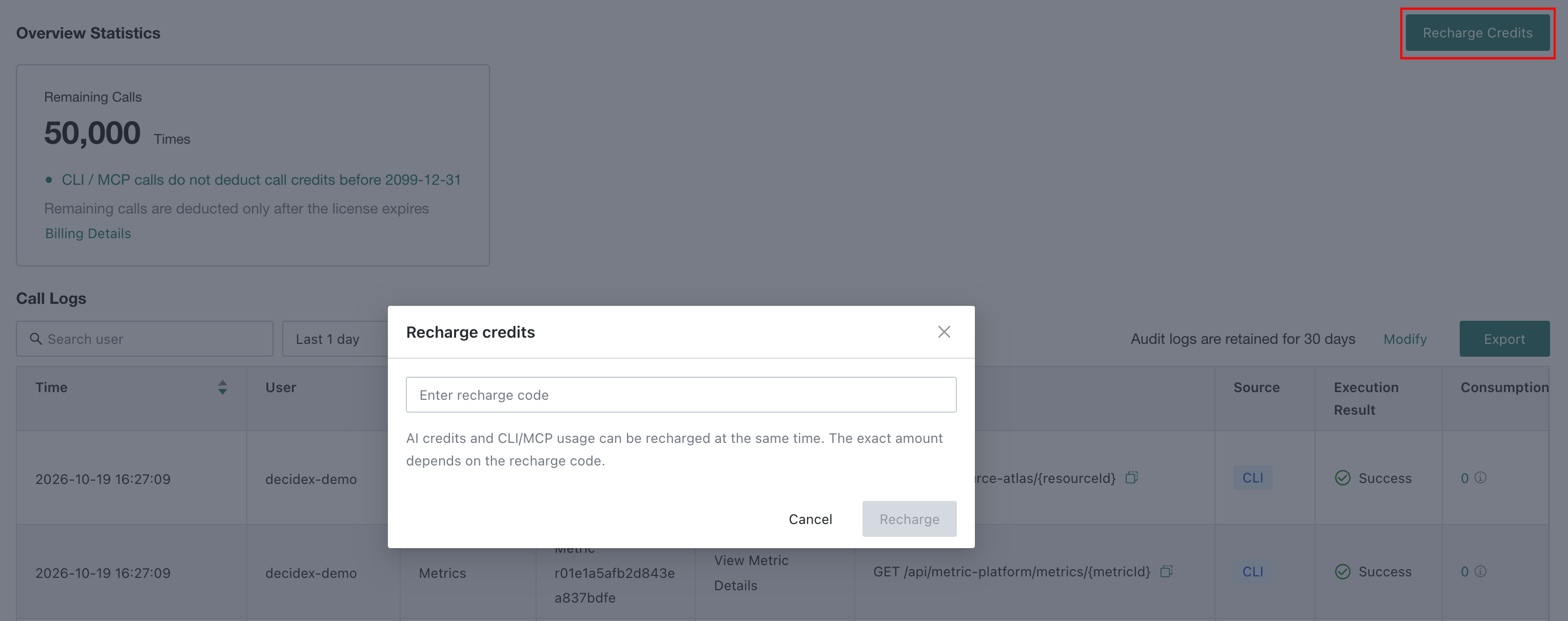
- Click Recharge Credits in the upper-right corner of CLI/MCP Logs.
- Enter the recharge code in Enter recharge code, then click Recharge.
Query call logs
In Call Logs, filter records by user, time range, source, and execution result. The columns are Time, User, Feature, Resource Name, Action, Request Path, Source, Execution Result, and Consumption.
- Source indicates whether the call came from CLI or MCP.
- Consumption indicates how many calls were deducted from the quota. During a valid paid license period, calls do not deduct from the quota, so consumption is 0.

Set the log retention period
The page displays the current retention period in days. Click Modify to open Audit log retention period. Enter the number of days in Retention period or select One month, Three months, Half a year, or One year, then click Confirm.
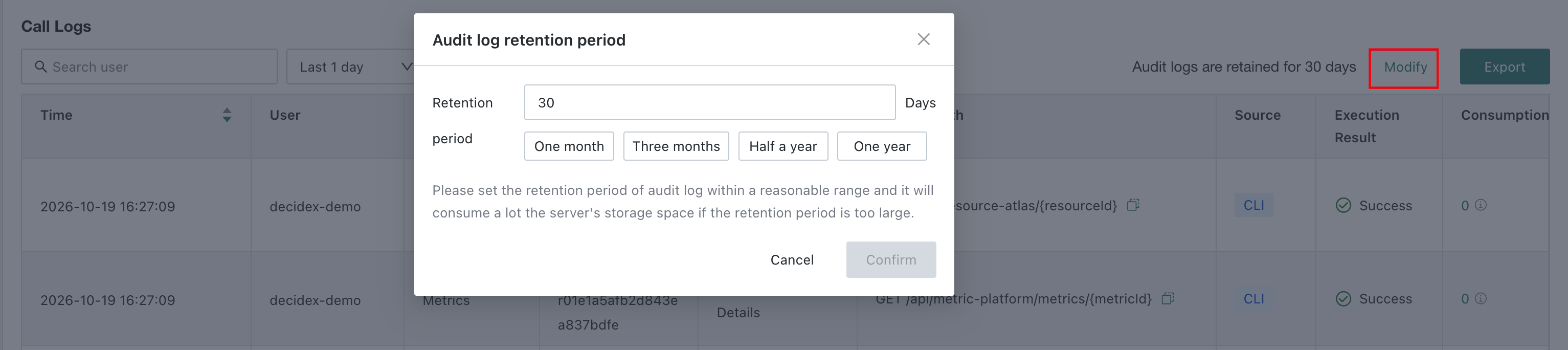
Choose a retention period that meets your query needs. Longer retention consumes more server storage.
Export call logs
Click Export to export CLI/MCP call logs for further analysis or troubleshooting.
