Calendar Management
Overview
Calendar templates control whether subscriptions and alerts are sent on specified dates. A business-day calendar can skip holidays, while a trading calendar can limit delivery to trading days. The system can obtain business-day and trading-day calendars online or import dates on which no subscription or alert should be sent from a CSV or Excel file.
Create a calendar template
-
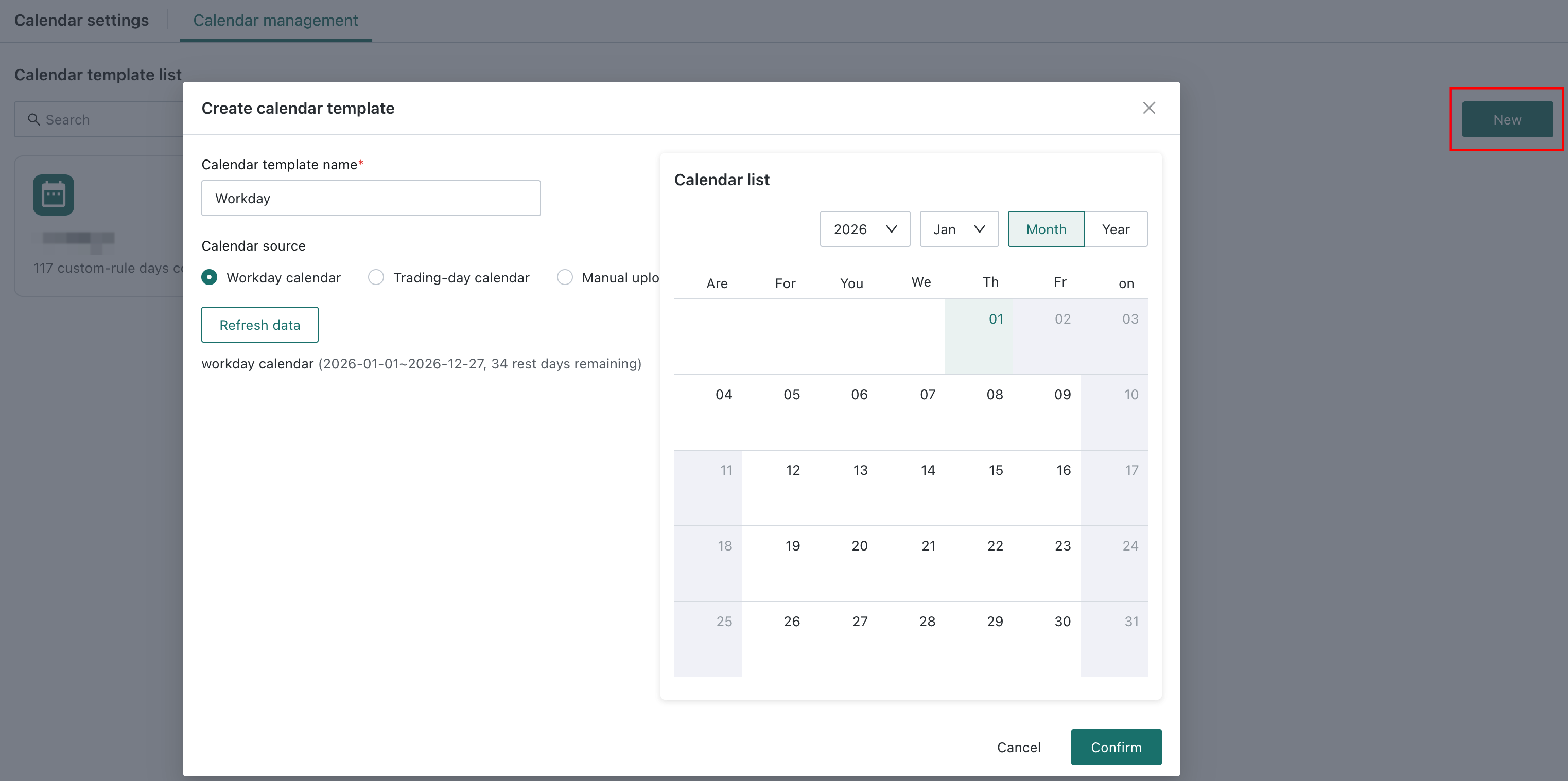
Go to Management Center > System Settings > Calendar management and click New.
-
Enter a Calendar template name and select a Calendar source:
- Workday calendar/Trading-day calendar: The system obtains the selected calendar online and shows the number of dates, affected range, and calendar result.
- Manual upload: Download the template and enter non-delivery dates in the first column starting from row 2, then upload the file. CSV and Excel files are supported, with dates in
YYYYMMDD,YYYY/MM/DD, orYYYY-MM-DDformat.
NoteUp to 1,000 dates can be parsed. If the limit is exceeded, the system retains the latest 1,000 dates. If online retrieval fails, use manual upload.
-
Review the calendar result and click Confirm.
Manage calendar templates
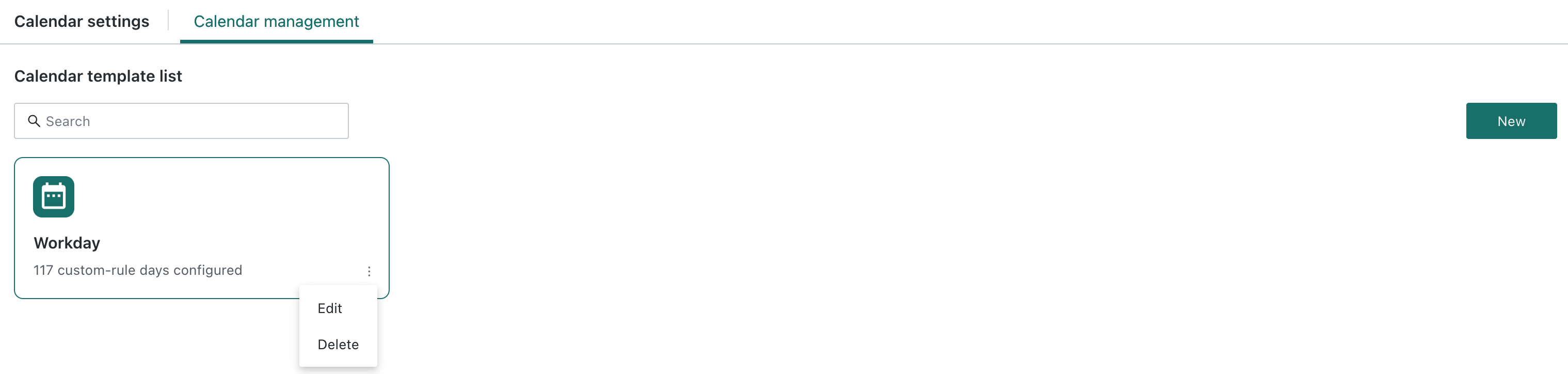
On Management Center > System Settings > Calendar management, you can edit, delete, or update expired templates.
Edit a template
Click … > Edit, change the template name or calendar content, and click Confirm.
Delete a template
Click … > Delete. The system checks whether subscriptions or alerts reference the template. A referenced template cannot be deleted until those references are removed.
Manage expired templates
When the latest date in a template is earlier than the current date, the template is marked as expired. Update its online calendar or upload a new offline file.
An expired template no longer affects associated subscriptions or alerts. They continue to run according to their original trigger settings.
Use a calendar template
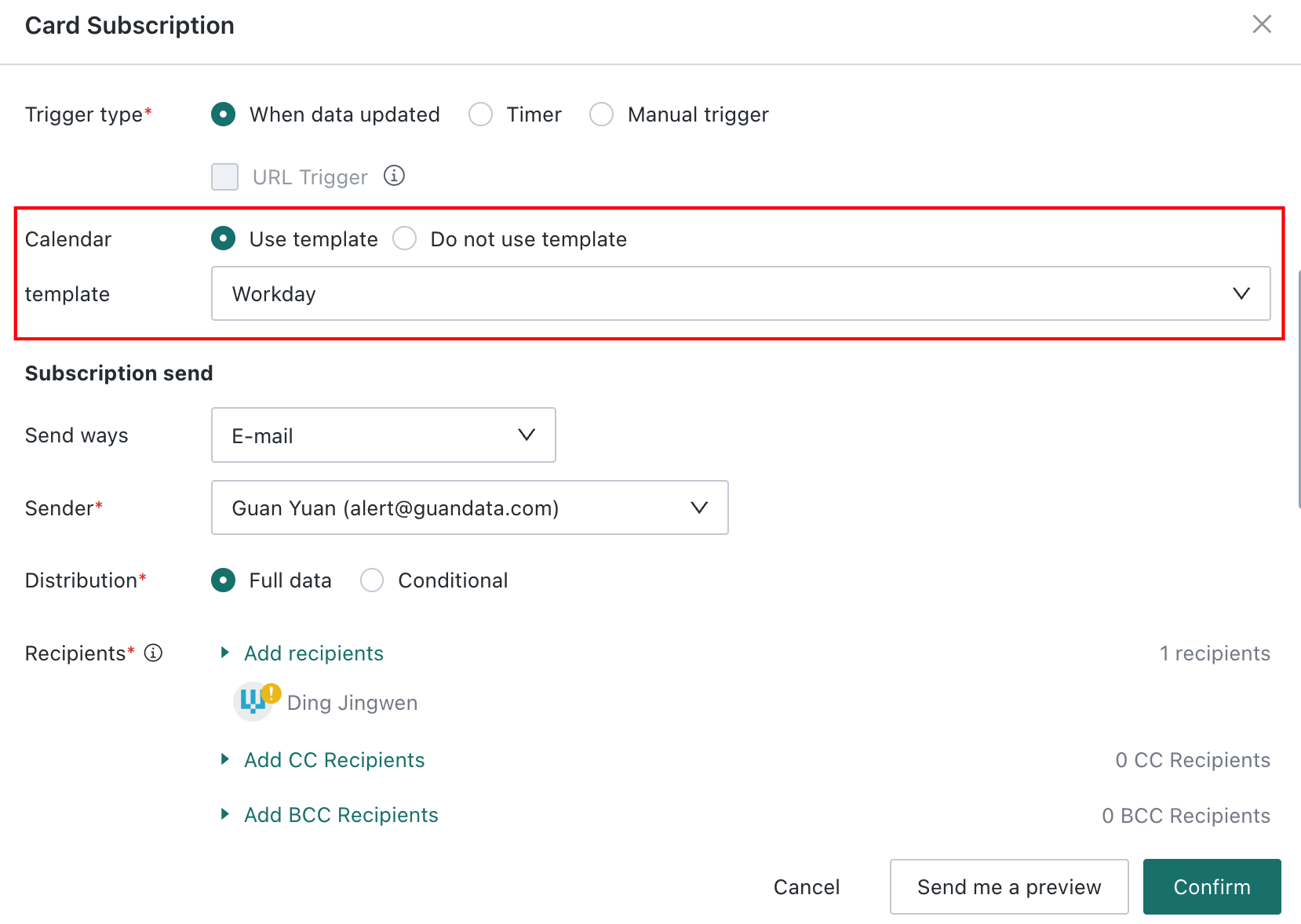
When creating or editing a subscription or alert, choose Use template under Calendar template, then select a template. The item is not sent on dates marked by the template and otherwise follows its original trigger. No template is used by default.
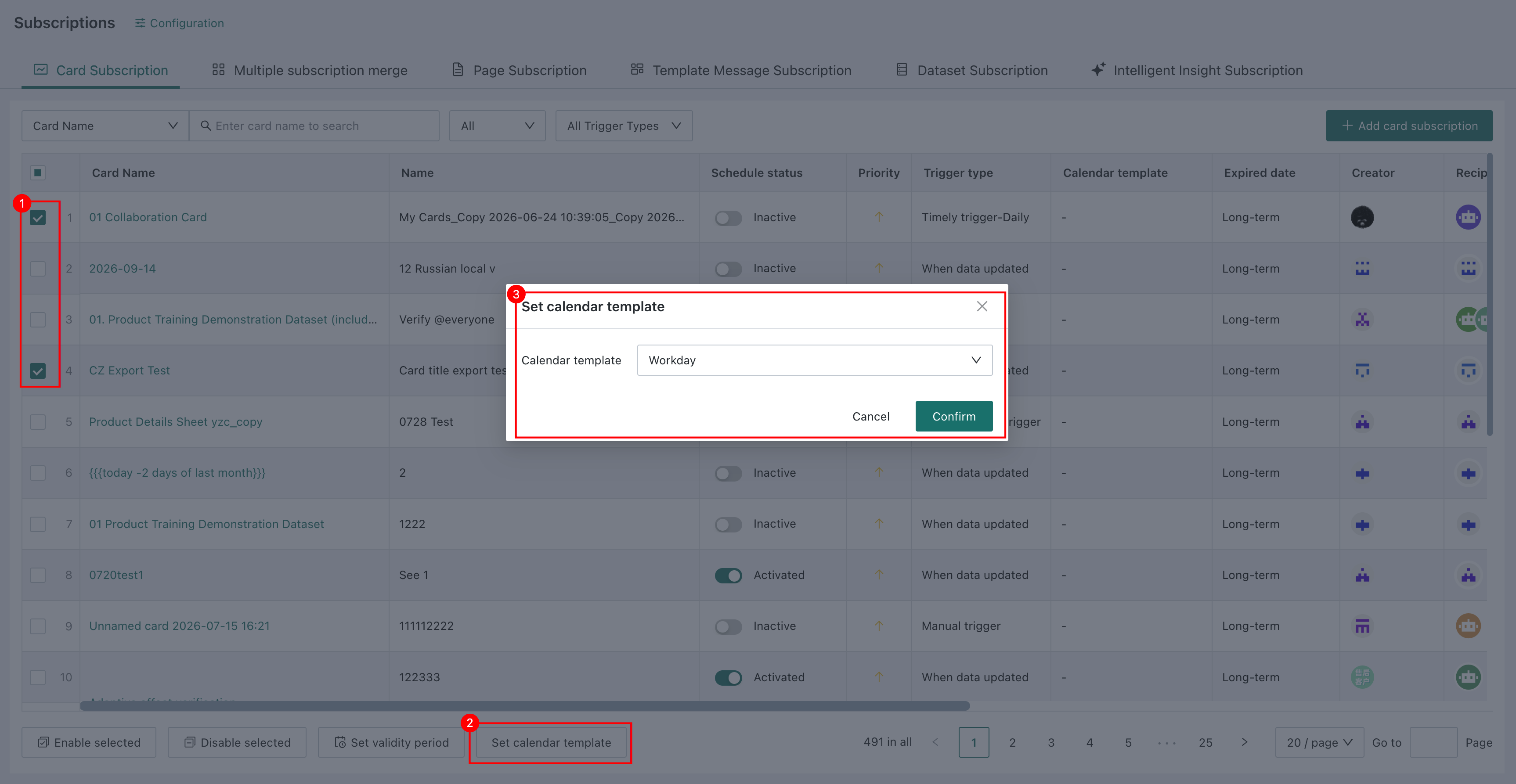
On a subscription or alert management page, you can also select multiple records and click Set calendar template. The list then shows the template used by each subscription or alert.