LLM Service
Overview
The Guandata BI platform provides intelligent services powered by large language models. Features such as Dashboard Insights and Card Insights use LLMs to deliver deep analysis and visual interpretation of data, bringing users more efficient and accurate analysis and intelligent Q&A experiences.
Before enabling these intelligent services, you must configure an LLM connection to ensure stable availability. The platform supports multiple LLM configurations at the same time to meet the needs of different use cases.
Only users with administrator permissions can configure LLM services.
Steps
- On the
Admin Center > System Integration > LLM Servicepage, clickAdd Modelin the upper-right corner and fill in the model configuration. - Test the LLM service connection and save the configuration after the test succeeds.
- Choose the system default model. Subsequent intelligent operations automatically use the default model.
- Optional: edit, view lineage, or delete configured models.
Add a New LLM Configuration
On the Admin Center > System Integration > LLM Service page, click Add Model in the upper-right corner to open the model configuration dialog.
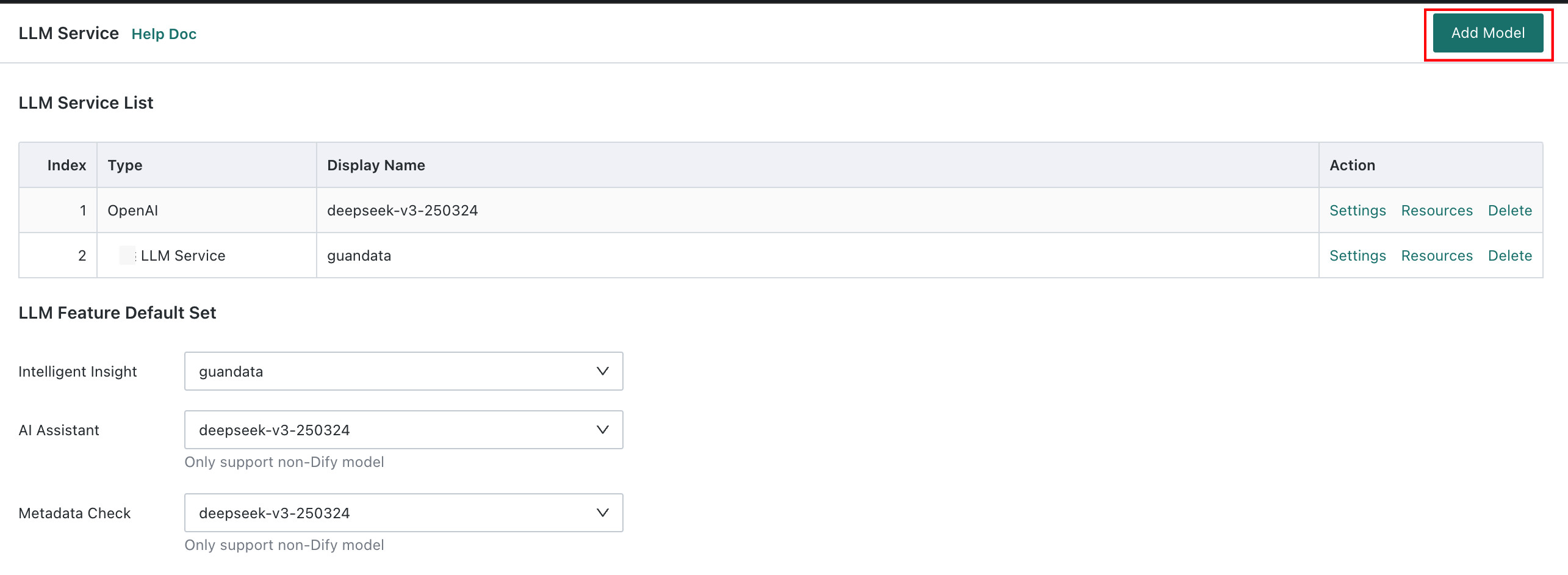
The LLM service configuration currently supports four interface types: OpenAI, Azure OpenAI, Dify, and Guandata LLM Service.
OpenAI
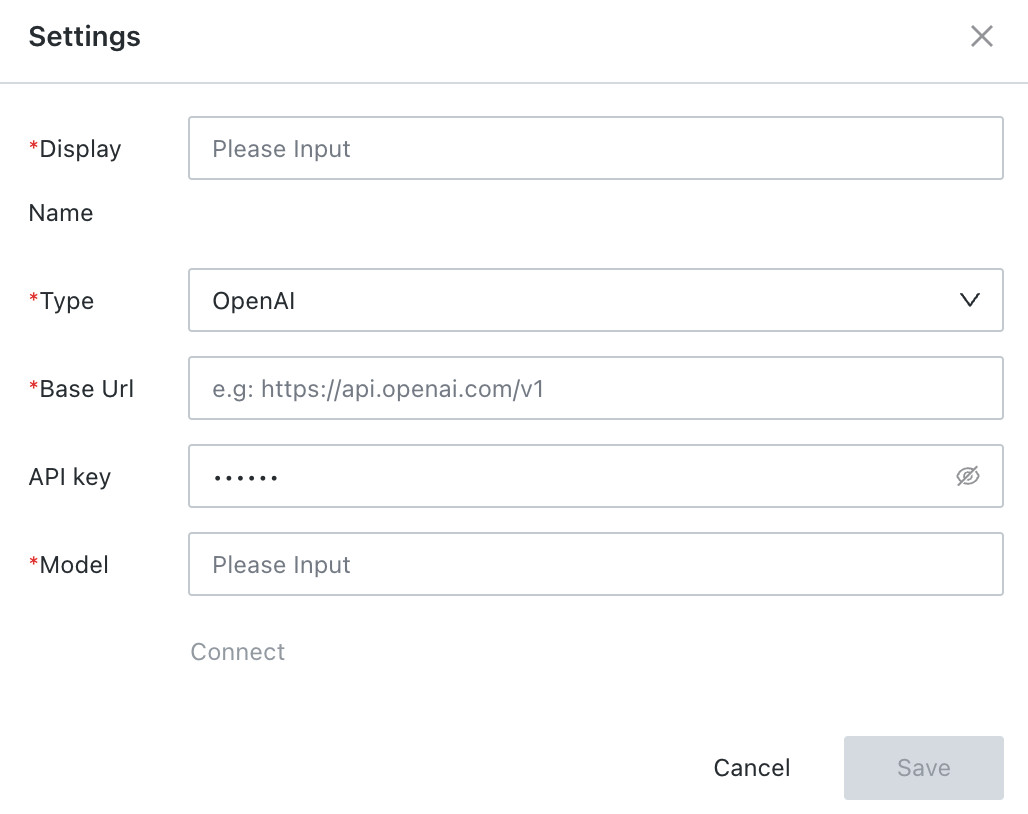
| Configuration Item | Description |
|---|---|
| Display Name | Custom display name for the model configuration, used to distinguish different interface configurations |
| Interface Type | OpenAI |
| Endpoint URL | Fill in the endpoint URL, for example: https://api.deepseek.com/v3 |
| API Key | The key used for authentication and authorization. A valid token is required |
| Model | The model used by the system for default calls. It must match a model supported by the configured endpoint. Different vendors may require different values. For example, Volcengine requires a Model ID, while Alibaba Cloud requires a Model Name. See Additional Notes on the OpenAI Model Field |
Azure OpenAI
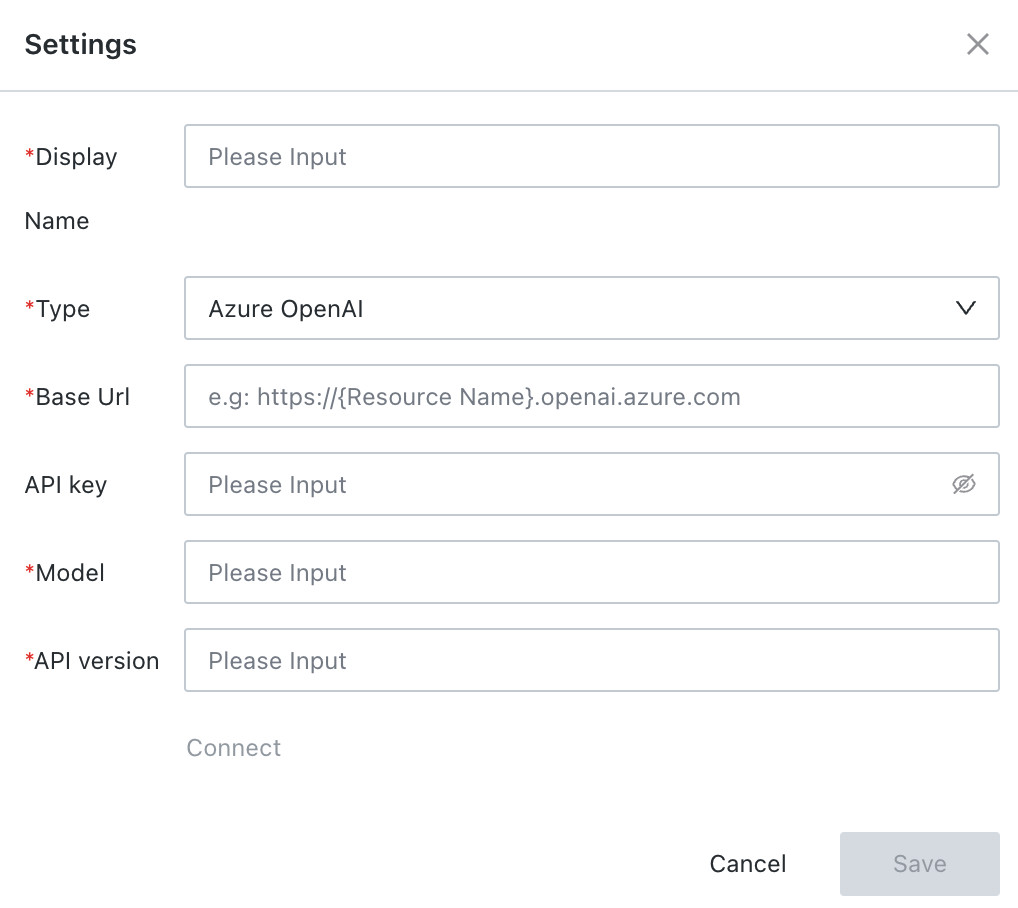
| Configuration Item | Description |
|---|---|
| Display Name | Custom display name for the model configuration, used to distinguish different interface configurations |
| Interface Type | Azure OpenAI |
| Endpoint URL | The endpoint URL of the Azure OpenAI resource, in the format https://{resource-name}.openai.azure.com |
| API Key | The key used for authentication and authorization. A valid token is required |
| Model | The deployed model name in Azure OpenAI. It must match the identifier configured in the Azure resource |
| API Version | The Azure OpenAI API version, for example 2025-01-01-preview. It must match a version currently supported by Azure |
Dify
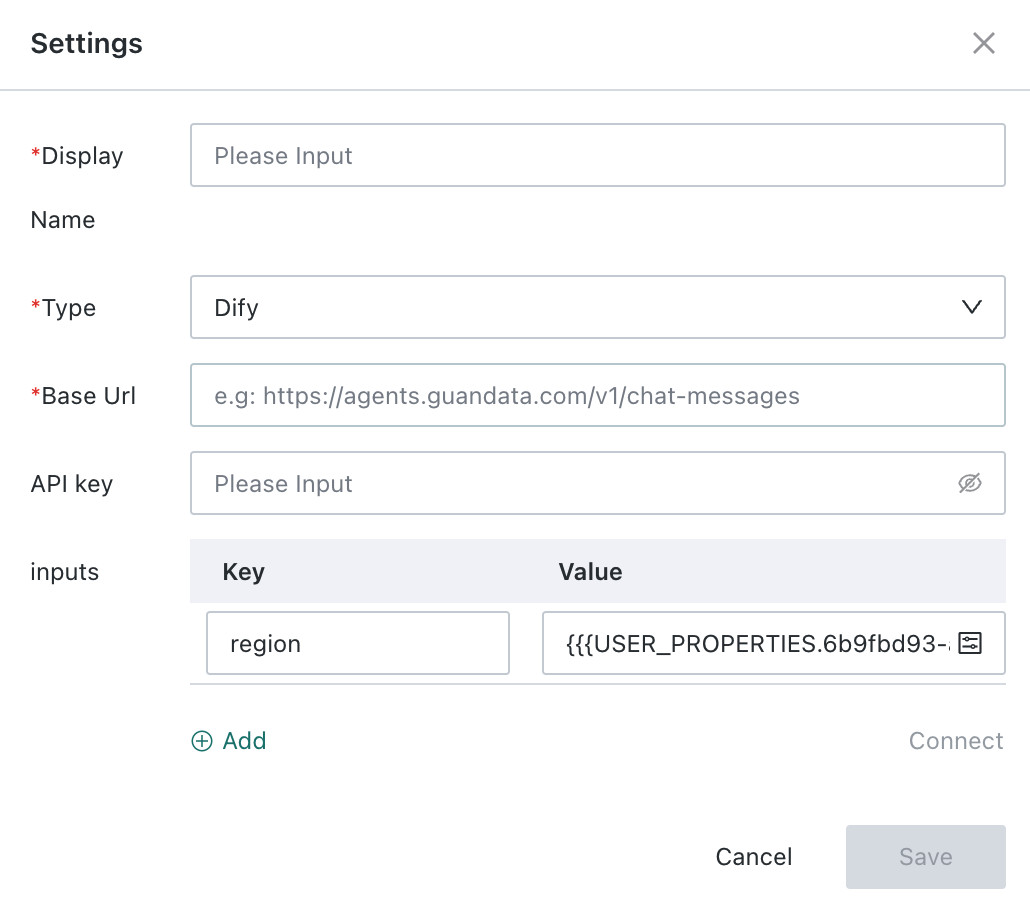
| Configuration Item | Description |
|---|---|
| Display Name | Custom display name for the model configuration, used to distinguish different interface configurations |
| Interface Type | Dify |
| Endpoint URL | API endpoint URL of the Dify application |
| API Key | The key used for authentication and authorization. A valid token is required |
| inputs | Optional. Click Add to append key-value pairs used to pass dynamic parameters required by the Dify application, such as user attributes or dashboard attributes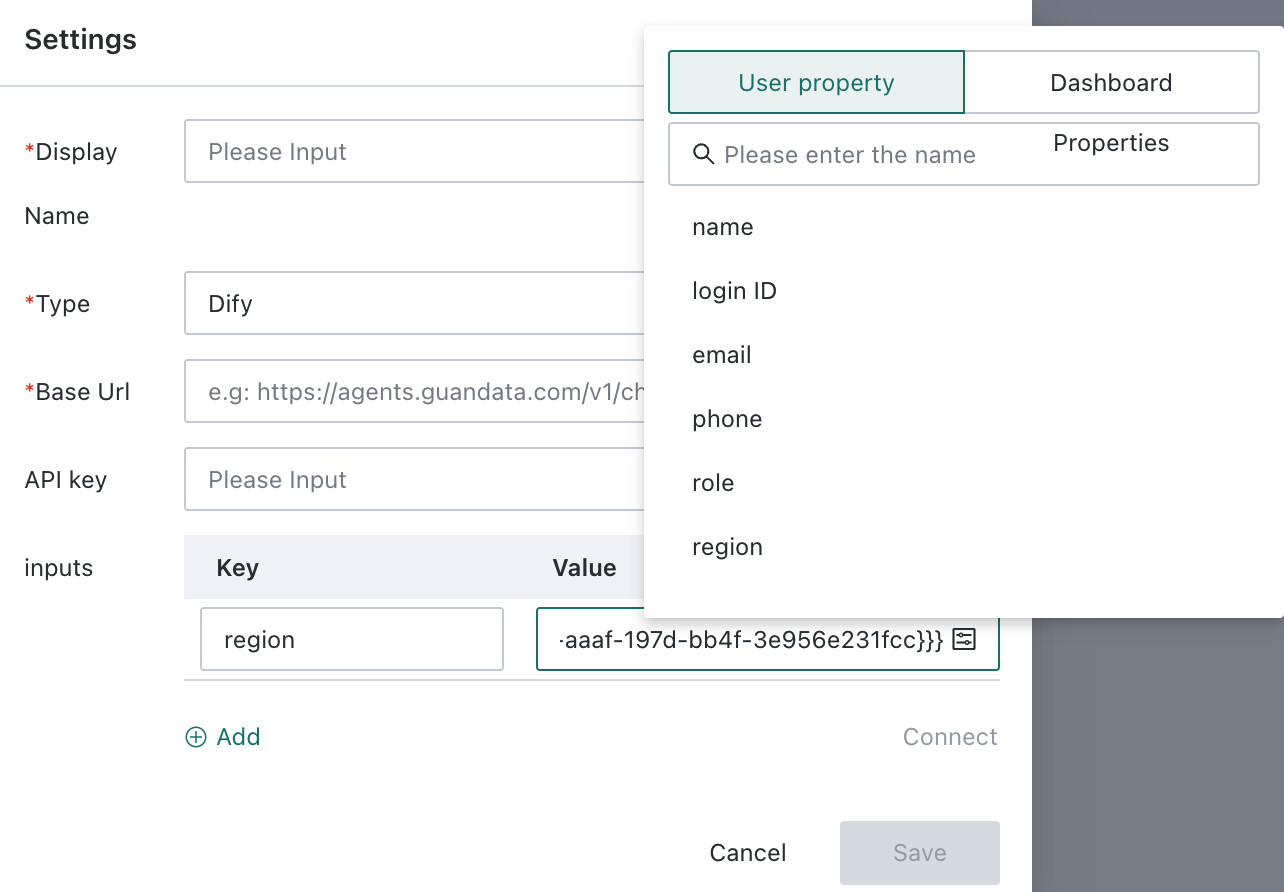 |
Guandata LLM Service
Guandata LLM Service is supported in version 7.4 and later.
- Enter a display name for the model to distinguish it from other configurations.
- Click
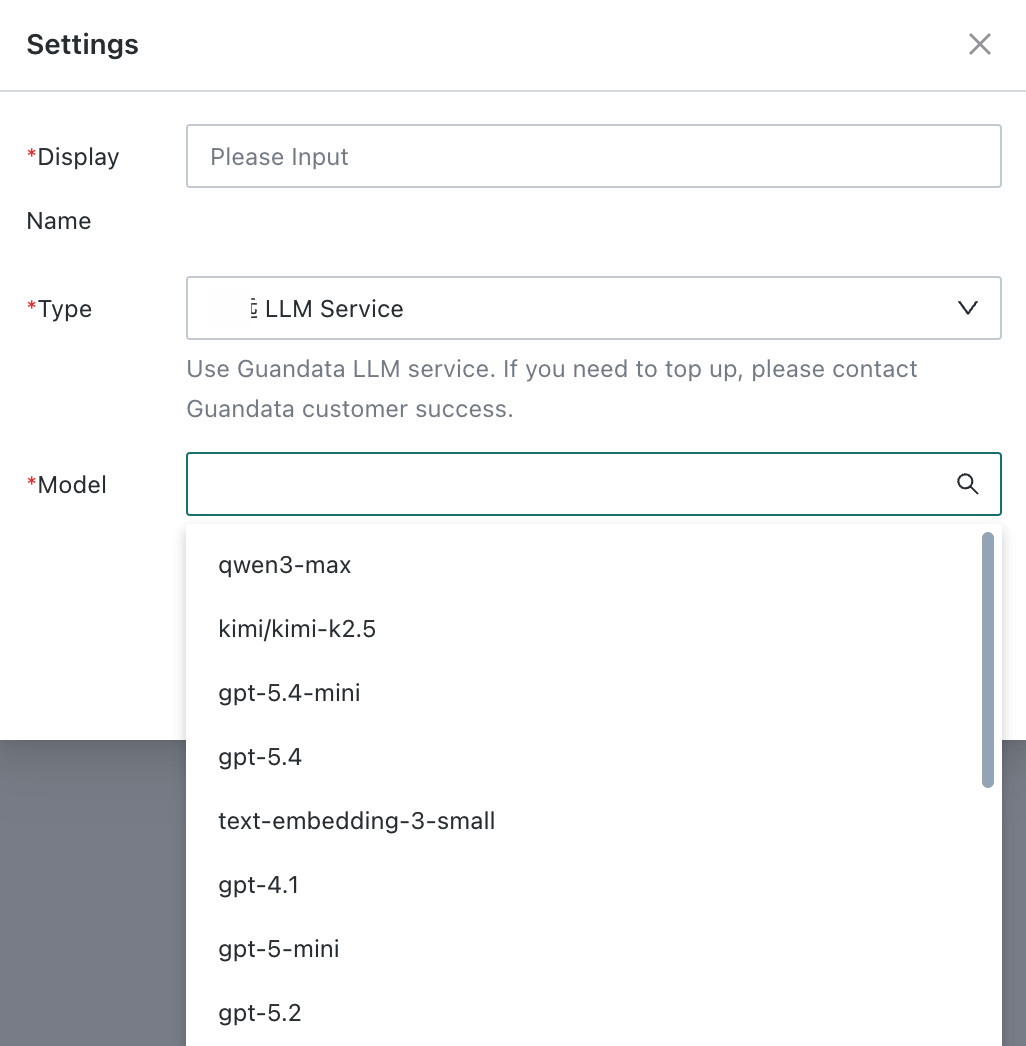
Interface Type, then clickEnablebesideGuandata LLM Servicein the dropdown list. The system automatically completes activation and grants a CNY 100 trial credit. - Select the LLM you want to use. Search is supported.
Test the Connection and Save
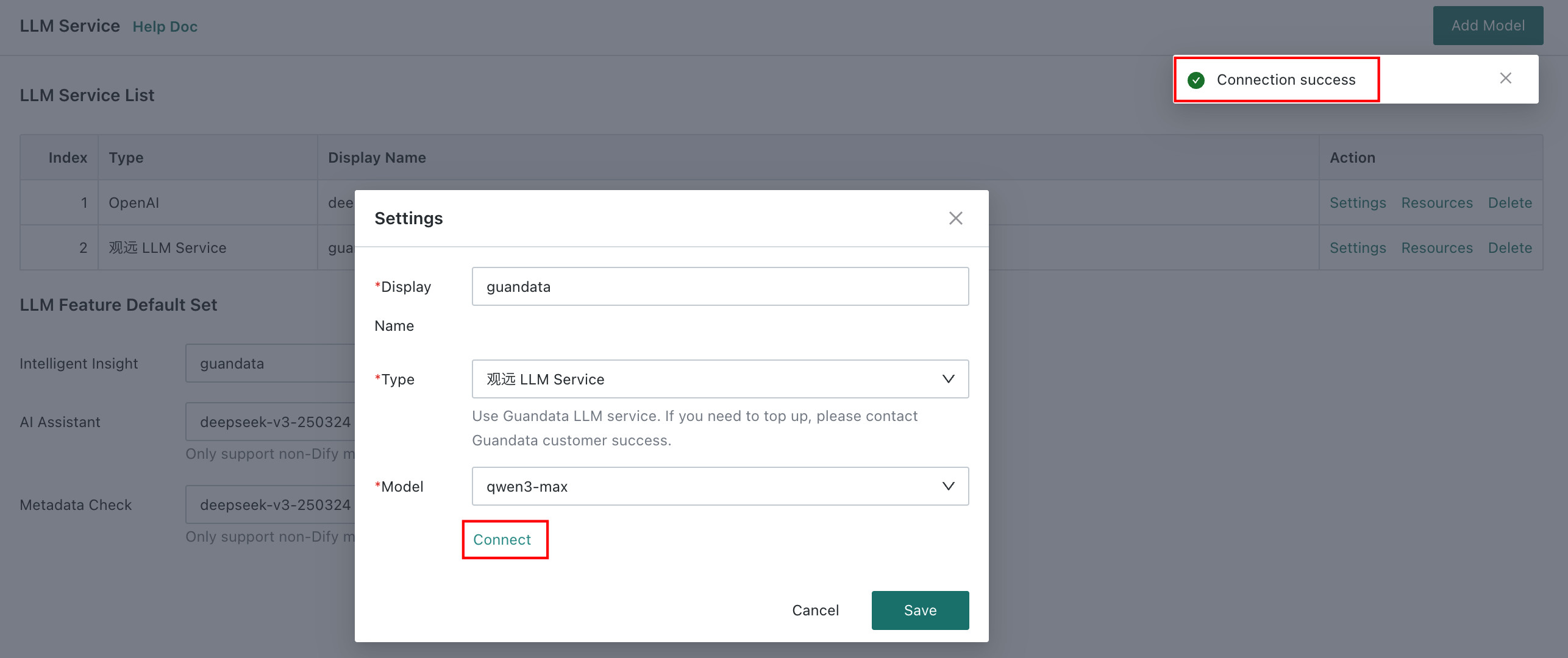
After the configuration is complete, click Test Connection to verify that the LLM service can respond normally. Only after the connection test succeeds can you click Save to complete the configuration and use the intelligent services.
Set the System Default LLM
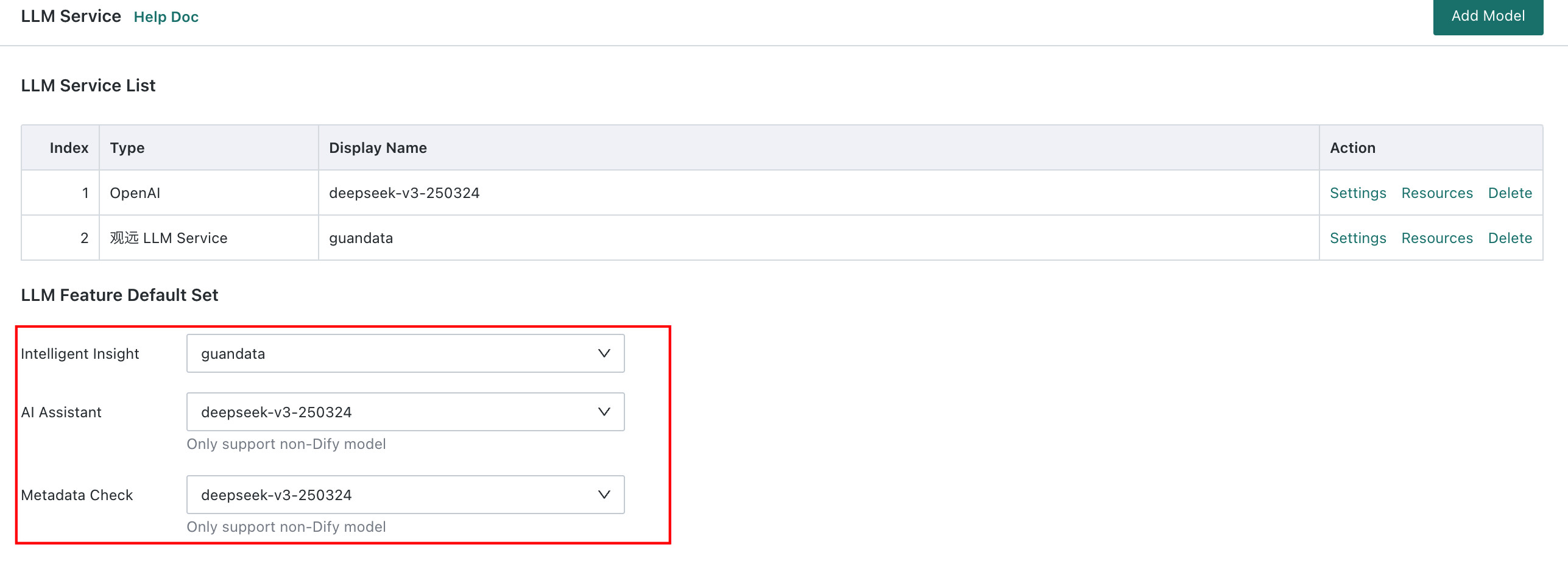
In the Default Model Settings by Feature section below the model list, choose the default models used by Smart Insights and AI Assistant.
AI Assistant does not support Dify-type LLMs.
Other Operations
Settings
Click Settings in the corresponding model's operation column to edit its configuration.
If intelligent services behave abnormally later, go to Admin Center > System Integration > LLM Service, click Settings for the relevant model, and run Test Connection again to confirm whether the connection is still valid. If the test fails, update the configuration and retest.
Lineage
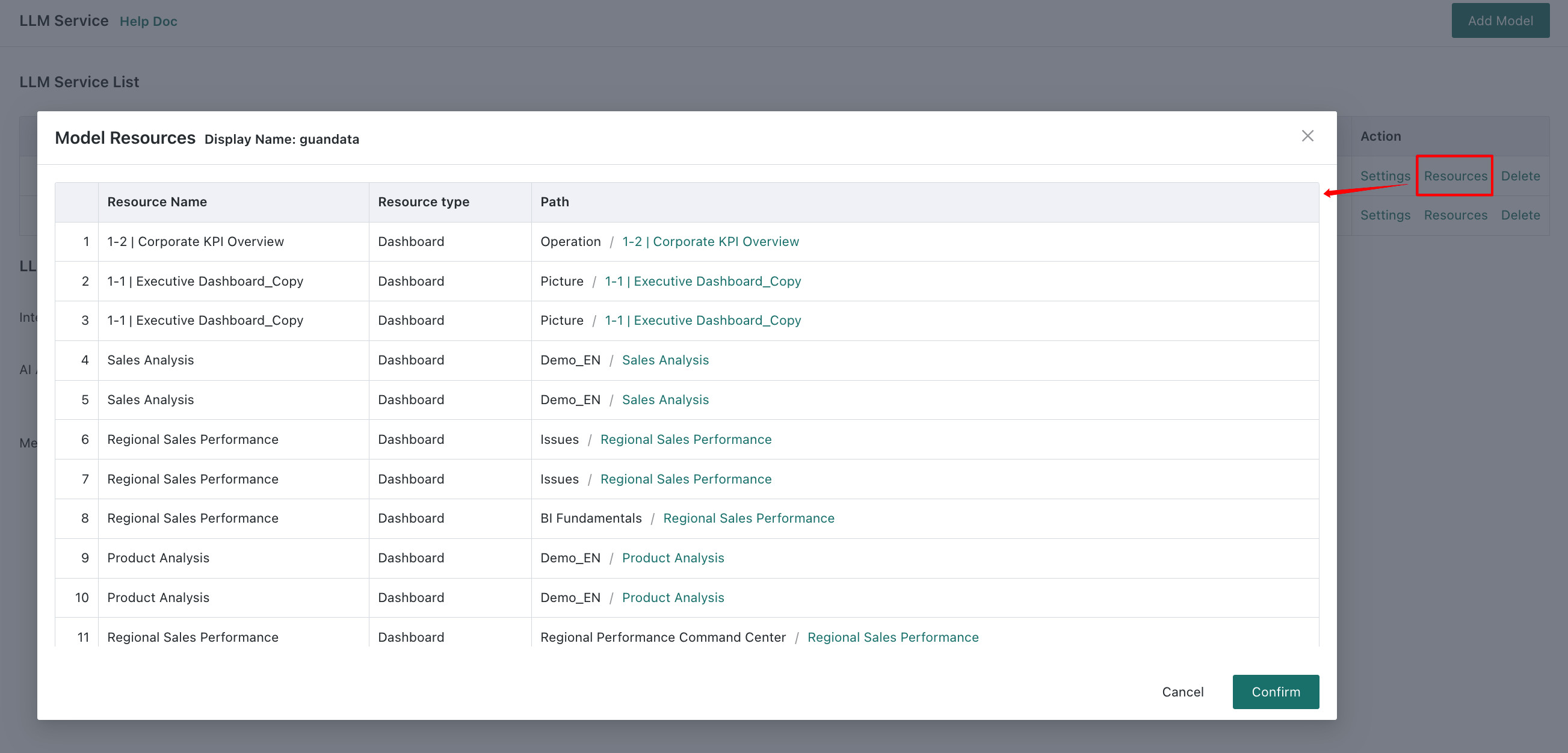
Click Lineage to view the resources associated with the model and their paths, such as dashboards and Smart Insight cards.
Delete
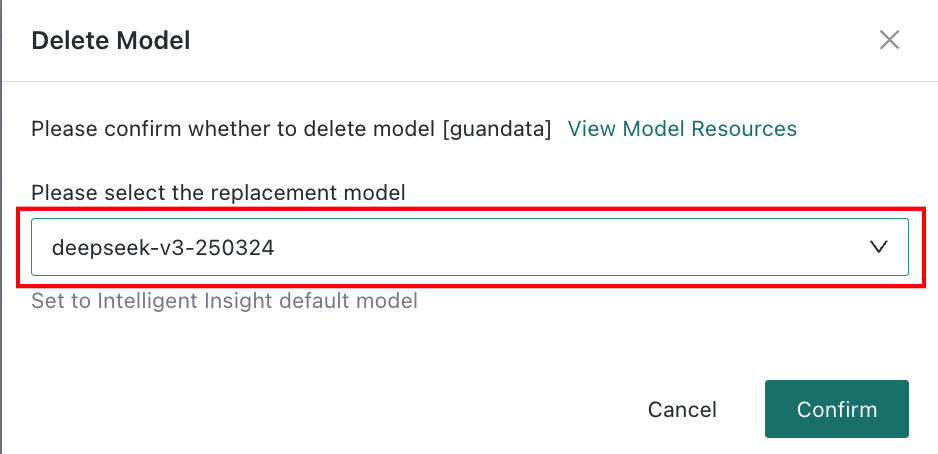
Click Delete. The system prompts you to choose a replacement model. After selecting the replacement and clicking Confirm, the model configuration is deleted.
Additional Notes on the OpenAI Model Field
| Model Provider | Model / Model ID |
|---|---|
| OpenAI | For example, GPT-5.1 may support values such as gpt-5.1 and gpt-5.1-2025-11-13. Check the OpenAI official documentation for the latest supported names |
| DeepSeek | Supports only values such as deepseek-chat and deepseek-reasoner. deepseek-chat corresponds to the non-thinking mode of DeepSeek-V3.2, and deepseek-reasoner corresponds to the reasoning mode. Older versions may use values such as deepseek-v3, deepseek-r1, or deepseek-v3.1 |
| Volcengine | For example, deepseek-v3-2-251201. See the Model List for Model ID values |
| Alibaba Cloud Bailian | For example, qwen3-max or qwen3-max-2025-09-23. See the Model List for Model Name values |
| Gemini (OpenAI-Compatible Interface) | For example, Gemini 3 Pro may use gemini-3-pro-preview |
| SiliconFlow | For example, deepseek-ai/DeepSeek-V3.2. See the Model Plaza for available values |
| Zhipu (GLM) | Supports only the GLM series, such as glm-4.6 or glm-4-FlashX-250414. Note that glm must be lowercase. See the Model Overview |
| Moonshot (Kimi) | Supports the K2 series only, such as kimi-k2-0905-preview. See kimi-k2 |