ETL Version Management
Overview
The Smart ETL canvas allows you to save drafts, which helps with data validation and issue troubleshooting without affecting production business operations.
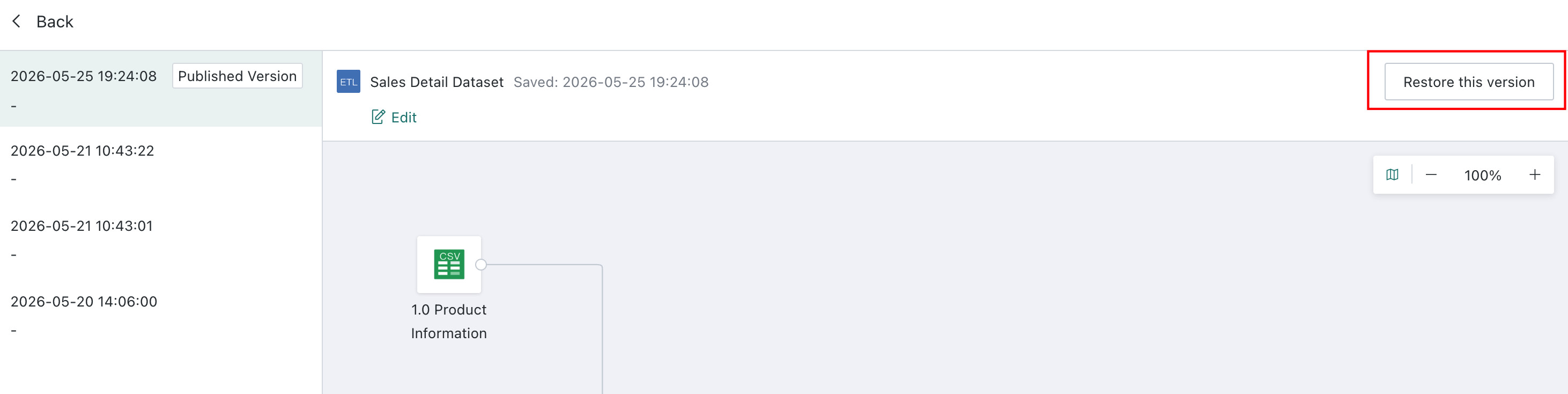
Each formally published ETL is stored as a historical version, ensuring important data is not lost and allowing one-click restoration to a historical version.
Instructions
-
Create a new ETL and edit it based on actual requirements. After editing, choose either
Save as DraftorPublishas needed.- Save as Draft: Saves the current canvas as a draft to the configured path. For ETLs that have never been published,
Draft Onlyis shown in the list and details, and only the owner can view these ETLs. Historical versions record the latest draft state. - Publish / Publish and Exit / Publish, Run, and Exit: Saves the ETL in published status to the configured path. Each publish action is recorded as a historical version.
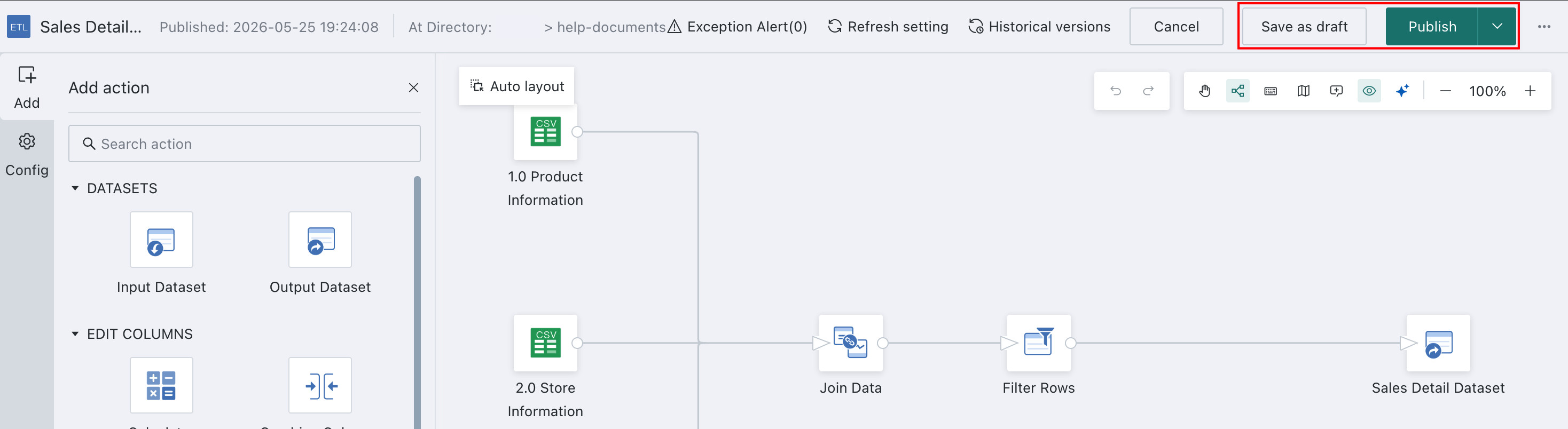
- Save as Draft: Saves the current canvas as a draft to the configured path. For ETLs that have never been published,
-
To restore an ETL to a historical version, click the edit button for the target ETL in the list. On the ETL editing page, click
Historical Versions, select a version from the list, and then clickRestore This Version.