Product Behavior Changes
Chart configuration panels
Previously, some charts used the 2.0 configuration panel and others used the older panel, even when Chart Engine 2.0 was enabled. The remaining charts now use the 2.0 panel, including on mobile and data screens. Use the new panel when editing these charts.
Manual refreshes of built-in datasets
A manual refresh previously replaced the whole dataset with the cached records. If the cache held only recent records, older activity could disappear. A refresh now writes recent in-memory events to storage before merging the records for the cached time window. Older history stays intact. After refreshing a built-in dataset such as user activity, check both the latest events and the historical records.
Separate security rules for dataset owners and administrators
Previously, a single switch controlled whether row and column permissions applied to both roles. The two roles now have separate switches. Each takes effect only for users included in the rule’s scope. For someone who is both a dataset owner and an administrator, both switches must be on for the restrictions to apply.
Both switches are off in a new template. After an upgrade, both inherit the old setting: both on if it was on, both off if it was off. Edit a linked template to change these settings; they are read-only on datasets that use it. For custom permissions, edit the dataset directly. See Row and Column Permissions.

Changing a data account’s driver
Editing a driver used to require re-entering the password. The data account now keeps its saved password when you change its name, driver or connection pool size. Enter a password only when you want to replace it.
Which dimensions a metric can use
Previously, any eligible dataset field could be selected as a metric dimension. A new server setting controls whether a field must first be registered in dimension management:
- Off: In addition to managed dimensions, eligible ordinary fields can still be used as local dimensions.
- On: Only saved dimensions with a field binding that meets the query requirements are available. Unregistered fields do not appear.
The setting defaults to off for upgrades and preserves any explicit setting. It defaults to on for new Metric Center deployments. Before enabling it, save and bind the dimensions your users need. Only a system administrator can change this setting in the backend; Metric Center has no switch in its interface. See Calculation Attributes.
CLI/MCP call quotas
The CLI/MCP trial ended on September 1, 2026. Calls are now billed by usage and require an activated quota. Activation grants 50,000 free calls; earlier calls do not count against them. After those calls are used, purchase additional calls to continue. Administrators can activate the quota from the AI credits or CLI/MCP logs page in Management Center. See CLI/MCP Call Quotas.
Guandata LLM service credits
The service now shows AI credits rather than a monetary balance. CNY 1 equals 20 credits. Dashboard Insights, Insight Agent and ChatBI consume credits when they use the Guandata LLM service.
Existing customers must activate their balance; they keep the remaining amount and do not receive a second trial grant. New customers receive 2,000 credits upon activation. At zero credits, calls stop. Contact your sales or customer success representative to purchase more. See LLM Service Activation and Credit Display.
Business administrators as group administrators
You can now assign a business administrator as a group administrator. Business administrators and administrators keep their account roles and permissions while managing the user groups assigned to them.
Super App navigation and live configuration
Previously, Super Apps and request forwarding were managed under Management Center, and an update could overwrite the live app configuration. Both features now appear under Data Application. Open the Super App list to find and manage apps. The corresponding permissions for roles, CLI users and personal access tokens have moved with the feature.
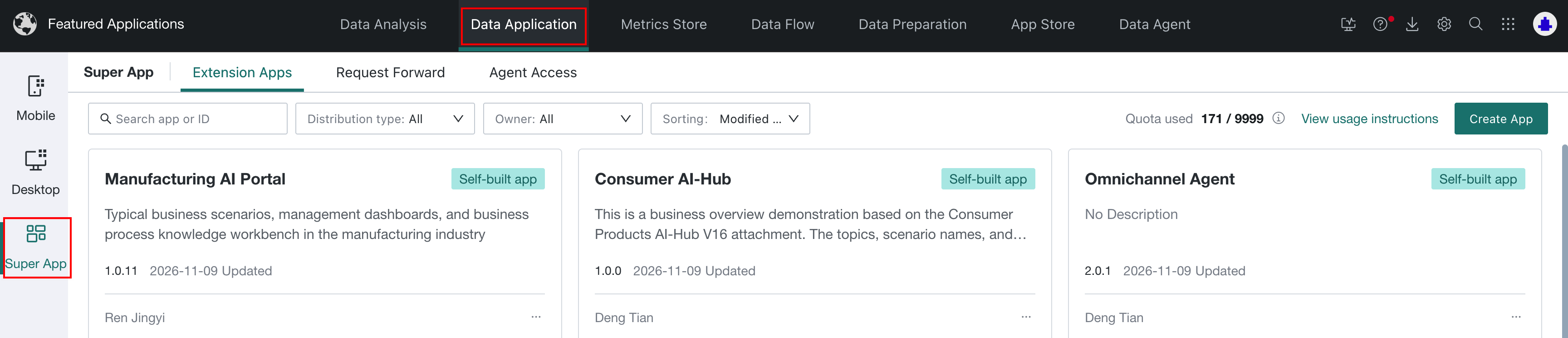
When updating a linked app, review the live configuration and choose whether to overwrite it. New apps that are not yet linked do not show this prompt. See Super App Quick Start and Super App Permission Management.
Automatic refresh while typing on data screens
A scheduled refresh previously could interrupt typing in a filter or reset the input. The screen now skips that refresh while someone is typing, retains their input and resumes on a later refresh cycle. Check the displayed update time when reading the data.
Super App distribution and license limits
The app list now shows and filters by distribution method: official, custom-delivered or self-built. An existing app without a distribution method is treated as self-built. Limits apply when you create an app or update its package:
- Official and self-built apps count toward the licensed total; custom-delivered apps do not.
- At or above the limit, you cannot create official or self-built apps. You can still create custom-delivered apps.
- At exactly the limit, you can update existing counted apps. Above the limit, remove excess apps or expand the license before updating them.
- An official app requires an official update package; a custom-delivered app requires a custom-delivered package. A valid package can change the distribution method of a self-built or legacy app.
- Without a commercial license, you cannot create apps, update packages, or create or edit request forwarding. Existing apps remain accessible and existing forwarding rules continue to run.
See Super App Distribution and Licensing.
Editing a dataflow within a workflow
Dataflows and database dataflows now open as tabs inside the workflow, instead of replacing the workflow canvas. The toolbar shows actions for the active tab and identifies shared parameters as workflow parameters. Publishing actions remain on the workflow tab.
Saving a draft from a dataflow saves the entire workflow draft, including unsaved changes in its other dataflows. Switch to the workflow tab to publish.
Advanced SQL queries enabled by default
Advanced SQL queries are now enabled by default unless an administrator explicitly disabled them. Existing opt-outs remain in effect. Check this setting after deployment or upgrade if your organization restricts SQL queries or uses CLI/MCP features that depend on them.