Feature Permissions
Feature permissions overview
Feature permissions control access to and operations in platform modules such as Dashboards, Data Screens, and Mobile Apps. Permission types include View, Edit, Authorize, and Export.
In Guandata BI, check Account Type and Custom Roles to determine available functions. For business administrators, also check Business Administrator Settings. An operation granted by a role is available only within the member's account-type limits.
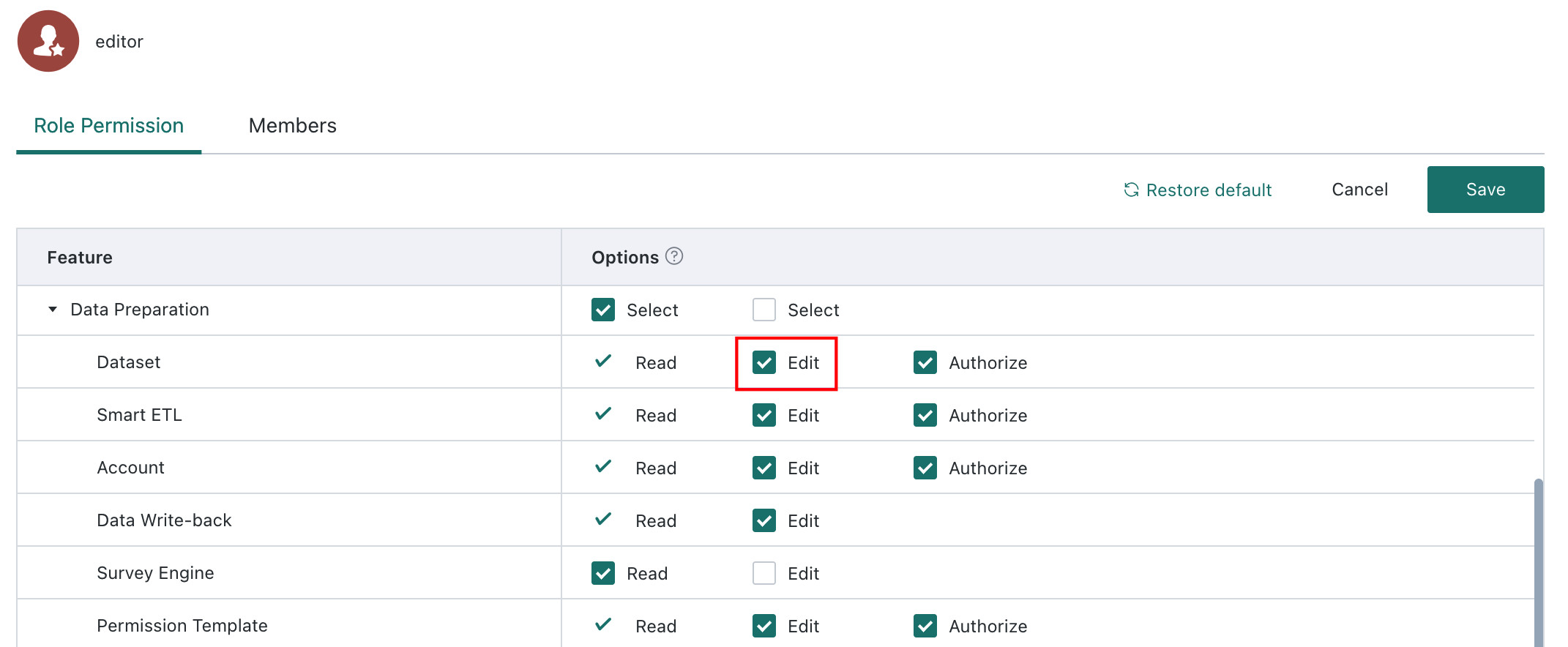
Administrators configure role permissions in Admin Center > User Management > Roles. These are platform function roles, such as data preparers and screen designers, rather than job roles such as HR or Finance. Create a dedicated user group for a particular role when managing its permissions in bulk.
Role classification
Account types
Account type is required for every user. The three account types each have default permissions and a permission ceiling, which is the maximum scope of permissions the user can receive.
Administrator
System administrators have the highest permissions. They can create users and user groups, have Owner-equivalent permissions on all pages, cards, datasets, and other resources in the enterprise environment, and can perform any operation.
Standard User
Standard Users can create pages, cards, and datasets. They have all permissions, including Edit and Delete, on pages, cards, and datasets they own.
- For pages and cards they do not own but can access, Standard Users have the same permissions as Read-Only Users.
- For datasets they do not own but are allowed to use, Standard Users can create cards from the dataset but cannot modify its information.
Business Administrator
Business administrators handle routine user and resource management. System administrators configure their available functions centrally, and assigned custom roles must also be checked. An Administrator account type does not mean the member has every system administrator feature permission. See Set up business administrators.
Read-Only User
Read-Only Users can browse authorized pages and cards but cannot edit or delete them. They also have no dataset-related operation entries.
Custom roles
System administrators can create custom roles, such as Report Designer or Page Designer, and assign feature permissions according to the enterprise's needs.
Custom roles can grant the following permissions for each module:
- View: see the feature entry and resources for which the user has Visitor/User access.
- Edit: in addition to View, create resources and edit resources for which the user has Owner permission.
- Authorize: in addition to View, manage permissions on owned resources and share them with others.
- Export: in addition to View, export authorized resources.
Custom roles can be configured with permissions beyond some account types' ceilings, but whether those permissions take effect depends on the account-type limit.
Group Administrator
Group Administrators manage user groups under a different control mechanism from feature permissions. When Group Administrator is enabled, Members shows the group administrator list and the groups managed by each administrator. See Group Administrator Settings.
Permission effectiveness
Effective permission rules
Check the following settings to determine which functions a user can use:
- Standard Users and Read-Only Users: first check the account type's default feature permissions, then the operations granted by custom roles.
- Business administrators: check both the shared feature configuration in Business Administrator Settings and the member's custom roles. Check the applicable version's features and actual roles for business-function access; do not infer it from the Administrator account type alone.
- Role sources: check roles assigned directly to the user, roles configured on the user's groups and parent groups, and actual inheritance to identify the permission source.
- Limits: granted permissions must remain within the account type's limits, and the enterprise must have the feature enabled. For example, a custom role's Edit permission cannot let a Read-Only User edit dashboards.
- Adjustments: after removing a role or leaving a group, check other roles and Business Administrator Settings to determine whether the permission still exists.
If a business administrator cannot see a menu, check these permission sources and the corresponding feature's View permission.
Configuration entry points
- View account-type permissions: open Admin Center > User Management > Roles, select the account type, and view Role Permissions. Standard User and Read-Only User permissions can be edited as needed.
- View or modify custom roles: open Admin Center > User Management > Roles, select a custom role, and view or edit Role Permissions.
- Assign a role to a user: open Admin Center > User Management > Users, select the user, and set Account Type or add Custom Roles in Permission Information.
- Configure business administrator feature permissions: open Admin Center > User Management > Permission Rules and configure Business Administrator Settings. See Set up business administrators.
Example
Zhang San is a Read-Only User with default View permission for Dashboards, Data Screens, Slides, and Composite Reports. A custom role grants View for Mobile Apps and Custom Maps, plus Edit for Dashboards.
The Read-Only User ceiling permits only viewing modules outside Admin Center, so the dashboard Edit permission granted by the role does not take effect. Zhang San can only view Dashboards, Data Screens, Slides, Composite Reports, Mobile Apps, and Custom Maps.
Permission effectiveness checklist
| Check | Where to check | Expected result |
|---|---|---|
| Account type and management identity | User details | Confirm the account type. If it is Administrator, check whether the member is a business administrator. |
| Business Administrator Settings | Permission Rules > Business Administrator Settings | Check whether the shared configuration enables the required functions; use the current version's page as the reference. |
| Account-type permission ceiling | Roles > account type | Check the maximum permission range for that account type. |
| Roles assigned to the user | User details | Confirm the custom roles assigned directly to the user. |
| Roles inherited through user groups | User details, user groups, and parent user groups | Check group roles and their actual inheritance to identify the permission source. |
| Custom role permissions | Roles > custom role | Check whether the role grants View, Edit, or another required operation. |
| Feature availability | Features enabled for the enterprise | Confirm that the target feature is enabled. |
| Final effective permissions | Actual usage verification | Check the version's features and actual roles, then test whether the user can see the entry and perform the operation. |
Example: configure feature permissions for a retail enterprise
Background
A retail chain has headquarters teams such as operations analysis and digitalization, regional managers, and store managers. It also designates business administrators to handle routine user and resource management.
The enterprise wants:
- Headquarters administrators to have read/write access to all modules and manage global configuration and operations.
- Headquarters data analysts to design reports and data screens.
- Business administrators to handle routine tasks such as adding users and assigning resource permissions. Members who process data receive the required feature permissions through a Data Preparation Operator custom role. Enterprise Configuration and O&M Management are not enabled for them in this example.
- Regional managers to view and export their region's business data.
- Store managers to view only their store's operations while limiting accidental operations.
Permission design
| Role | Account type | Business administrator | Custom role | Intended permissions |
|---|---|---|---|---|
| Headquarters administrator | Administrator | No (system administrator) | None | Read/write access to all modules; manage all users and resources. |
| Business administrator | Administrator | Yes | Data Preparation Operator | Manage users and resources and use enabled data-preparation features. |
| Headquarters data analyst | Standard User | Not applicable | Report Designer | Create and edit dashboards and data screens. |
| Regional manager | Read-Only User | Not applicable | Regional Export | View and export dashboards. |
| Store manager | Read-Only User | Not applicable | Store Viewer | View relevant pages only. |
The business administrator identity does not itself restrict user or resource management to a region. To administer users only within a region, see Group Administrator. Regional managers' and store managers' visible business data must also be controlled through resource permissions and row- and column-level permissions.
Procedure
Set up business administrators
Have a headquarters system administrator configure the business administrator's routine management functions. Assign Data Preparation Operator to members who process data, enabling dataset View, Edit, and other required permissions according to the features supported in that version.
For complete steps, see the business administrator example.
Configure headquarters data analysts, regional managers, and store managers
For example, a regional manager's Read-Only User account has only dashboard View permission. Grant Export through a custom role.
Create a Regional Export role
-
In Admin Center > User Management > Roles, click Create Role, enter Regional Export, and click Confirm.
-
Open the new role, click Edit in the upper-right corner, and select dashboard Edit and Export permissions.
Assign permissions to users
Configure one user
Open the user details, set Account Type to Read-Only User, and add Regional Export.
Configure a user group in bulk
Individual configuration suits new users. For many existing users, assign permissions through a user group.
Before configuring the group, ensure all regional managers have Read-Only User permissions.
-
Create a Regional Managers user group.
-
Add the Regional Export role to the group.
-
Add all regional manager users to the group.
FAQ
Why does a Standard User lack Edit permission even though they own the dataset?
Open Admin Center > User Management > Roles > Standard User > Role Permissions, and check whether dataset Edit permission is enabled for Standard Users.