Using Self-service Data Retrieval
Overview
Self-service Data Retrieval provides flexible ad-hoc querying and report generation capabilities for business users, including those without a technical background. On the preview page, users can build the report they need by selecting fields and applying filters directly.
User Guide
Generating Reports
End users can retrieve the required data immediately by selecting the fields they need.
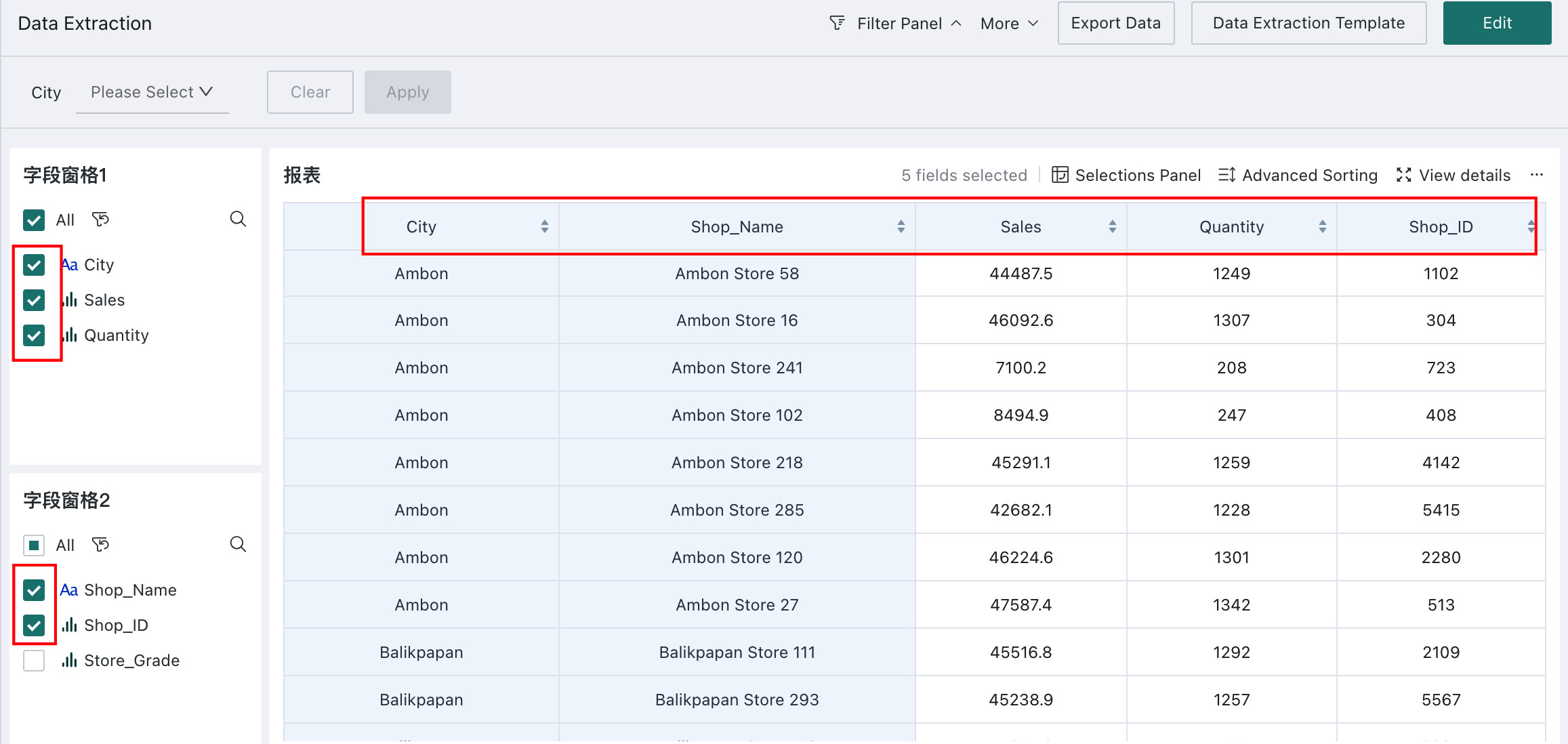
In the field pane, users can search for selected fields and also use Select All, Invert Selection, or one-click deletion.
The current number of selected fields is displayed in the upper-right corner of the table. Users can also use Field Configuration to set row and column dimensions and adjust field order. For related operations, see Field Configuration.
Data Filtering
On the preview page, two filtering methods are supported:
- Filter: Filters in the filter bar;
- Header Filter: Table header filtering.
For details, see Data Filtering.
In addition to these two methods, users can also rely on pre-filters configured in the editor. See the Default Filter (Pre-filter) section in Creating Self-service Data Retrieval for details.
Advanced Sort
Besides filtering, users can also sort report data on the preview page. The configuration logic is the same as Advanced Sort in the editor. For details, see Advanced Sort.
Exporting Reports
If users need to save data from Self-service Data Retrieval, they can export the result set. Guandata BI also supports applying filters during export and saving the filter conditions into the exported worksheet.
For example, in the case below, select Save card filter conditions to worksheet body in the "Export Options," turn on the Batch Export switch, add a filter, and filter data for "Yunnan Province."

Data Retrieval Template
When using Self-service Data Retrieval, you can save the current query result as a Data Retrieval Template. The system stores the current field selection, filter conditions, sorting, styles, and related settings in that template.

Click Data Retrieval Template in the upper-right corner of the page, then click Save Current Result as Data Retrieval Template. You can also select Set as Default and Set as Public as needed.
- Set as Default: If multiple templates exist, the default template is displayed first.
- Set as Public: Administrators and page owners can mark their templates as public. After that, all users with permission to access the page can use the public template directly.

Later, users can directly reuse previously saved query results by selecting the corresponding template.
View Details
If users want a more focused view of the report, they can click View Details to enlarge it.

More Features of Self-service Data Retrieval
Report Display and Refresh
On the preview page, you can configure auto-refresh, merged cells, column grand totals, and other display options. Some settings are the same as the editor's report-control properties; see Creating Self-service Data Retrieval.
Intelligent Insight
When Intelligent Insight is enabled for the page and you have permission to view Dashboard Insights, you can use the following features. Enabling and configuring insights requires the corresponding editing permissions; see Dashboard Insights.
- View a report: Click Intelligent Insight in the upper-right corner of the page to view the report, ask follow-up questions, or switch insight approaches.
- Update a report: After changing fields, filters, sorting, or the data retrieval template, refresh the report first, then click Regenerate. Without a refresh, insights continue to use the query configuration from before the changes.
Insights independently retrieve up to 500 report rows using the query configuration currently in effect. Table pagination and Load More do not affect this data scope.
Self-service Data Retrieval insights currently do not support mobile use, insight subscriptions, or insight alerts. A Self-service Data Retrieval page also cannot be used as the data scope of a Dashboard Agent.
Query Statements and Resource Lineage
- To view a query statement, follow the same procedure as for a dashboard card; see Query Script in Card Management.
- To understand upstream and downstream resource dependencies, see Resource Lineage.

Other
For more content about Self-service Data Retrieval creation, please visit the Guandata Video Tutorial Website.