Privilege Rule
Overview
Permission Rules in Permission Management include five modules: Export Permission Control, Group Permission Control, Group Administrator Settings, Resource Authorization Scope Control, and Business Administrator Settings. Users can choose whether to enable or modify these settings in Permission Rules.
Scope of Authorization Targets for Resource Permissions
In Permission Rules, you can configure the scope of authorization targets for Resource Permissions.

Three options are available:
- Allow authorization for all users and user groups.
- Allow authorization only for the current user's own user group, users in that group, and child user groups, including users in child user groups. This applies when the current user is a regular member or a group administrator.
Visible range in the Permission Management list: the current user's own group, its users, and child user groups. - Allow authorization only for the user groups managed by the current user, along with users in those groups and their child user groups, including users in child user groups. This applies when the current user is a group administrator.
Visible range in the Permission Management list: the user groups managed by the current user and their users and child user groups.
Administrators can always authorize all users and user groups.
Target Types for Resource Permission Authorization
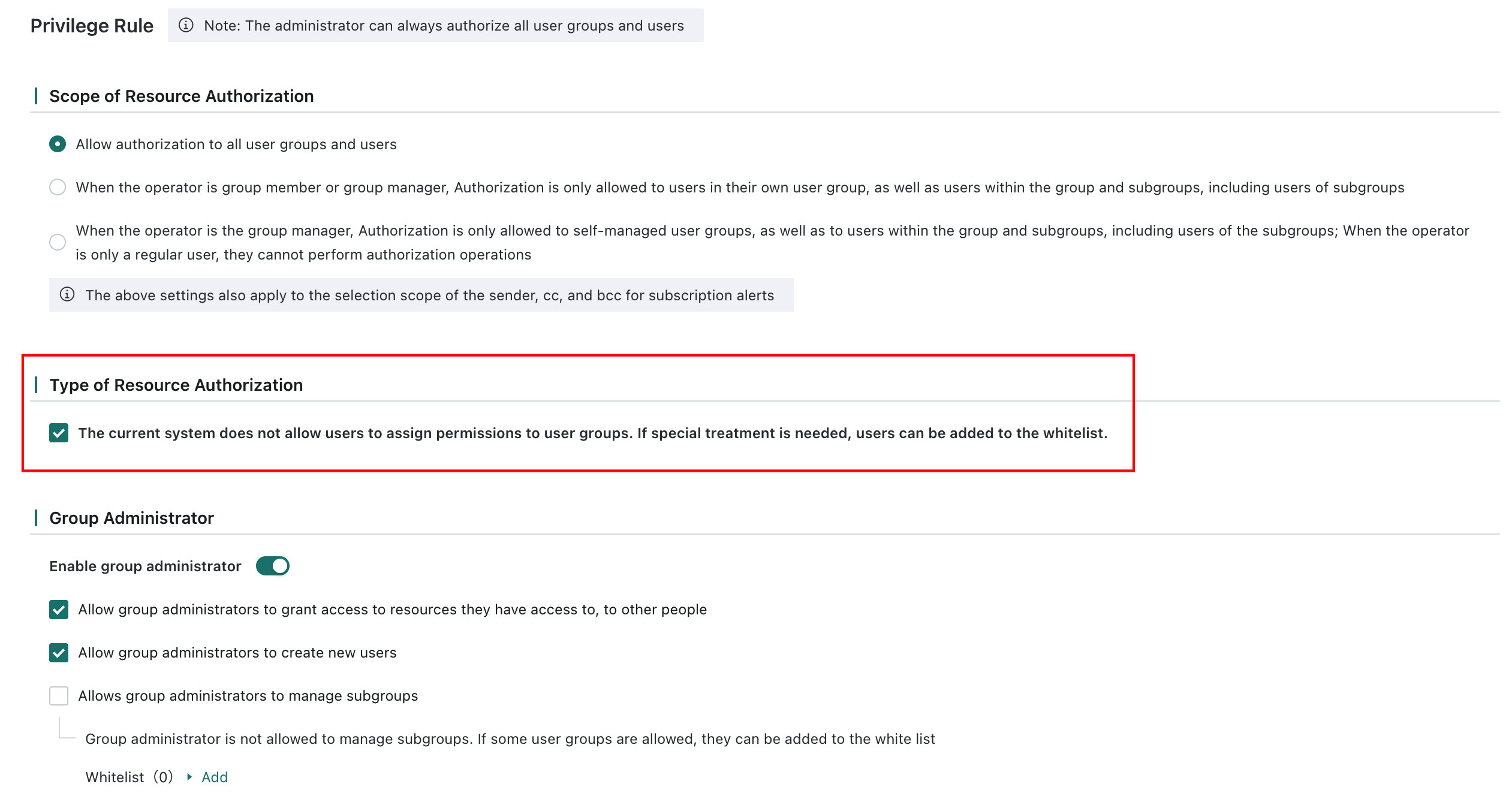
In Permission Rules > Target Types for Resource Permission Authorization, you can choose whether users are allowed to assign permissions to user groups. If this is not allowed, you can add specific users to a whitelist. Users in the whitelist are allowed to assign permissions to user groups.
Resource Batch Authorization
In Permission Rules, you can configure whether to enable the Folder batch authorization inherits parent switch to uniformly control the batch authorization inheritance behavior of folders. For specific inheritance rules, see Batch Authorization Based on Folders.
When the switch is enabled for the first time, all folders previously set to Inherit parent will be uniformly changed to Follow global (inherit parent), and the differentiated permissions previously set through Batch Authorization will be merged as a union.
This feature is supported in version 8.3 and later.

Group Administrator Settings
In Permission Rules, administrators can choose whether to enable the group administrator feature. If enabled, the following settings are available:
- Allow Group Administrators to Create New Users: enabled by default. If you want to disable it, go to Admin Center > Permission Management > Permission Rules > Group Administrator Settings. When enabled, group administrators can create new users and bulk-create users in the user management interface.
- Allow Group Administrators to Manage Child User Groups: if group administrators are not allowed to manage child user groups, you can add user groups to the whitelist for special handling. You can add or remove whitelisted user groups here. For details, see Group Administrator.

Business Administrator Settings
Business administrators handle routine user and resource management. System administrators configure which functions they can use.
Enable Business Administrator in the administration backend before Business Administrator Settings appears in Admin Center > User Management > Permission Rules. See Admin Backend Authorization for access instructions.
System administrators can enable the feature, add members, and configure permissions in Admin Center > User Management > Permission Rules > Business Administrator Settings. Bulk selection is limited to the administrator member list. For a Standard User or Read-Only User, open Permission Information on the Users page, set Account Type to Administrator, and select Business Administrator. For complete procedures, configurable scope, and identity changes, see Business Administrator.