Card Settings
Overview
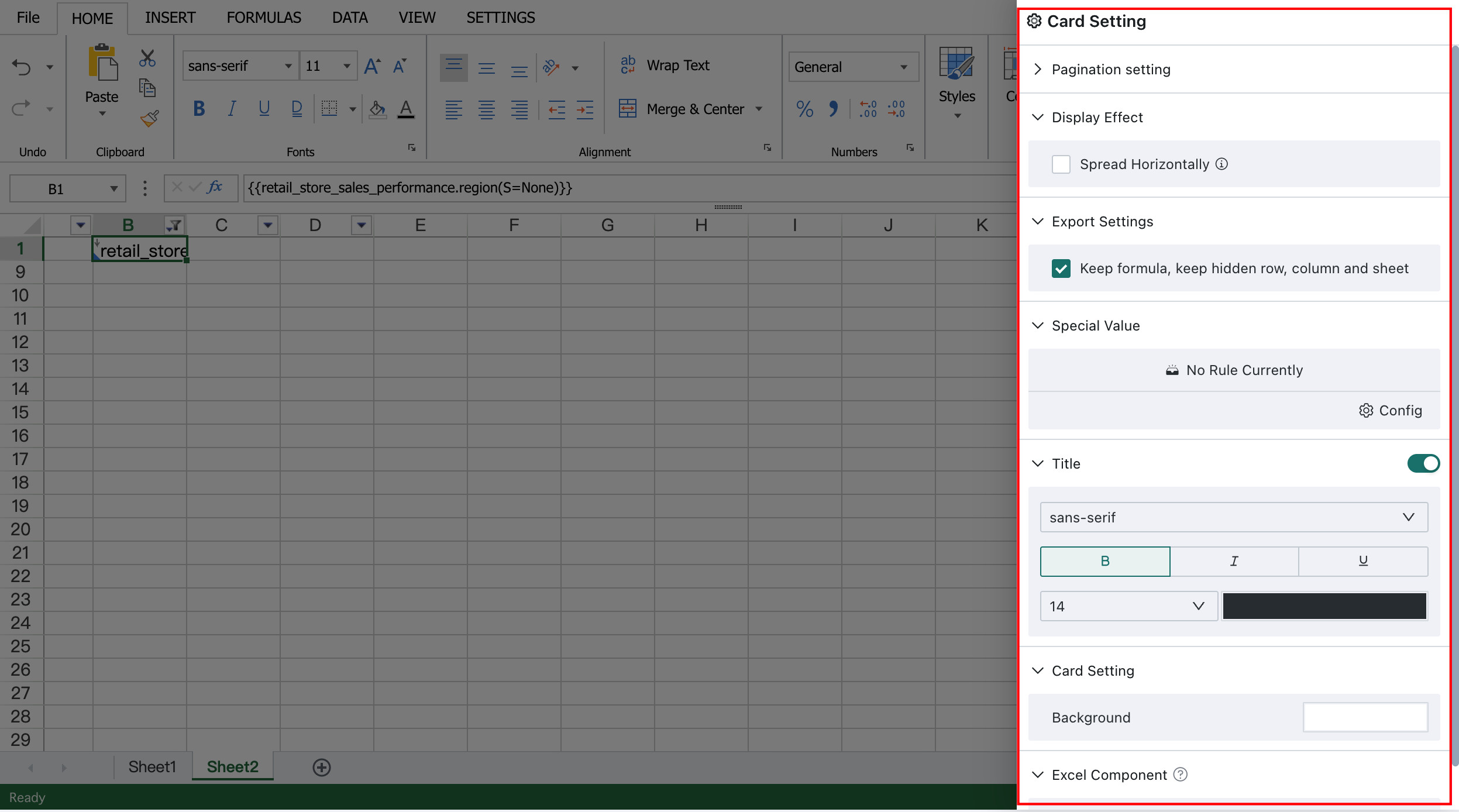
Chinese-style Reporting Pro supports card-level settings, including table pagination, display behavior, special values, titles, card backgrounds, and export settings.
On the template editing page, click the settings button to open the Card Settings dialog box and configure these options.
User Guide
Pagination Settings (CP Property)
If you want to display data by a specified number of rows per page, configure pagination. When pagination is disabled, pages are split by default based on A3 paper size. Pagination is also a type of dynamic template cell attribute, namely the CP property.
Note: Pagination is supported only for single-sheet templates. Multi-sheet templates do not support pagination settings.
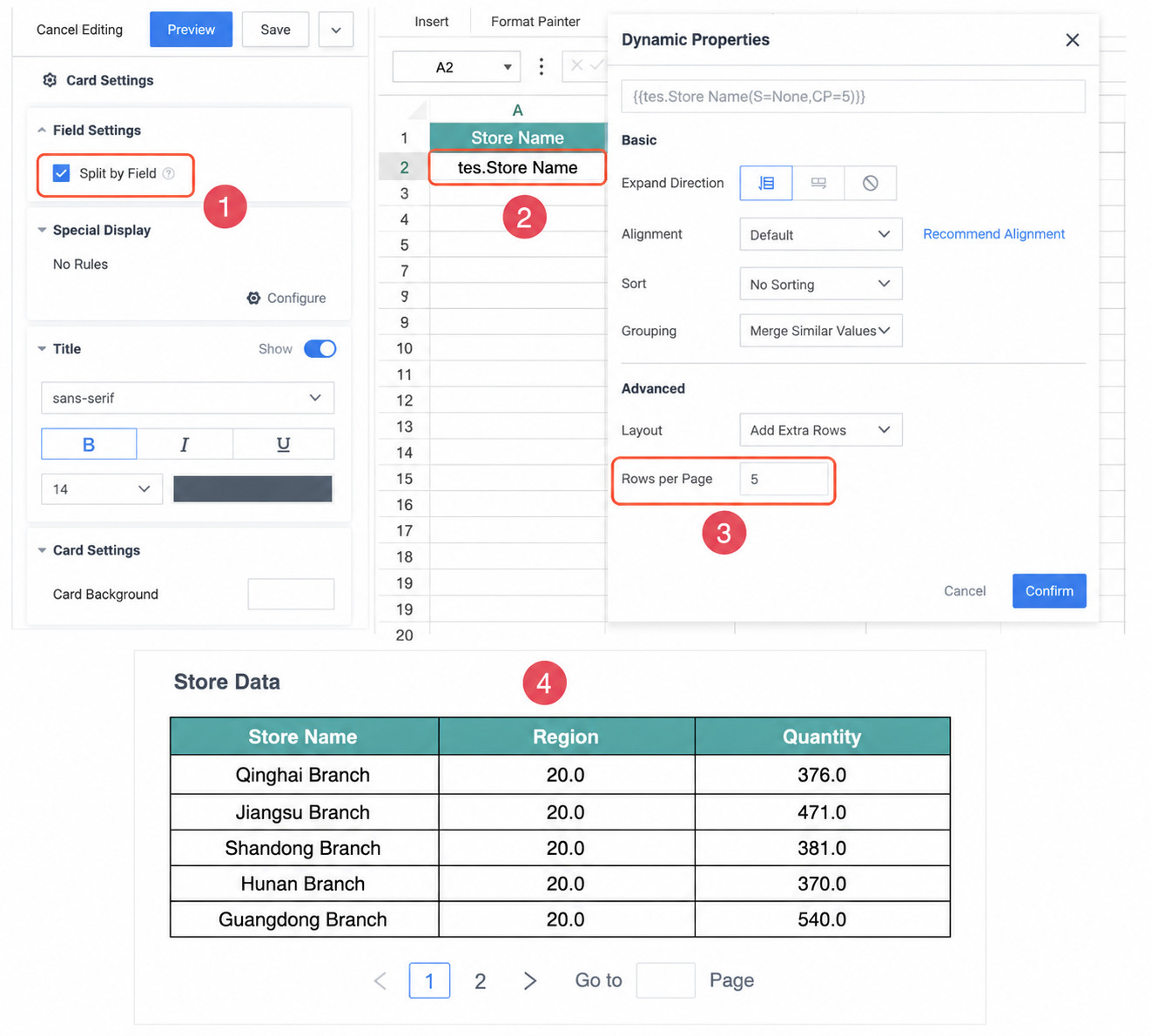
- In card settings, select Table Pagination to enable pagination, then click Save in the upper-right corner.
- In the template editing area, select the template cell that should control pagination and double-click it to configure the pagination property.
For example, if you set the number of rows per page to
5(CP=5), the data expanded from that cell is paginated every five rows.
Display Effects
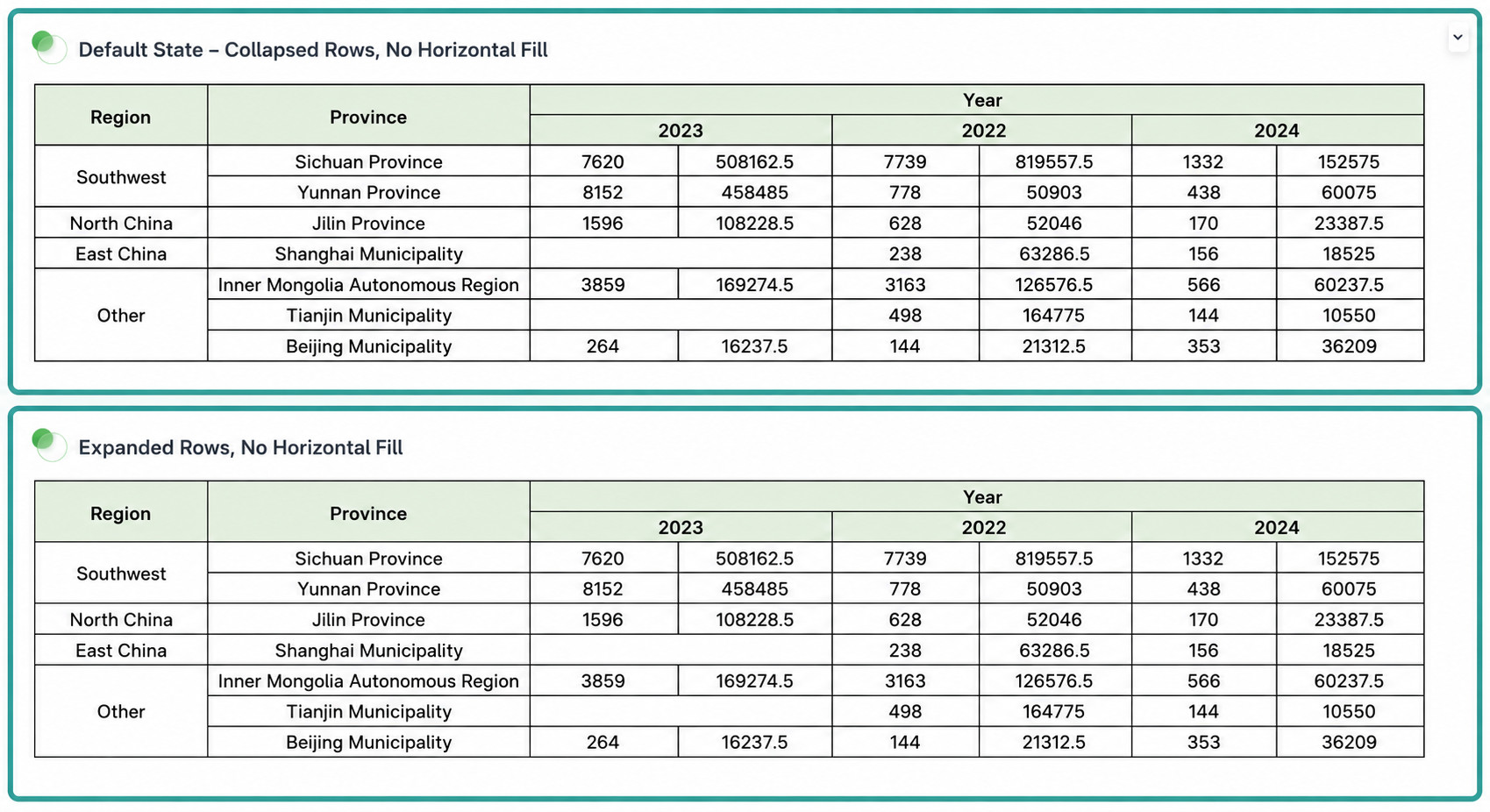
When Auto Fill Width is selected, if the display area is narrower than the card width, column widths are automatically adjusted to fill the card horizontally.
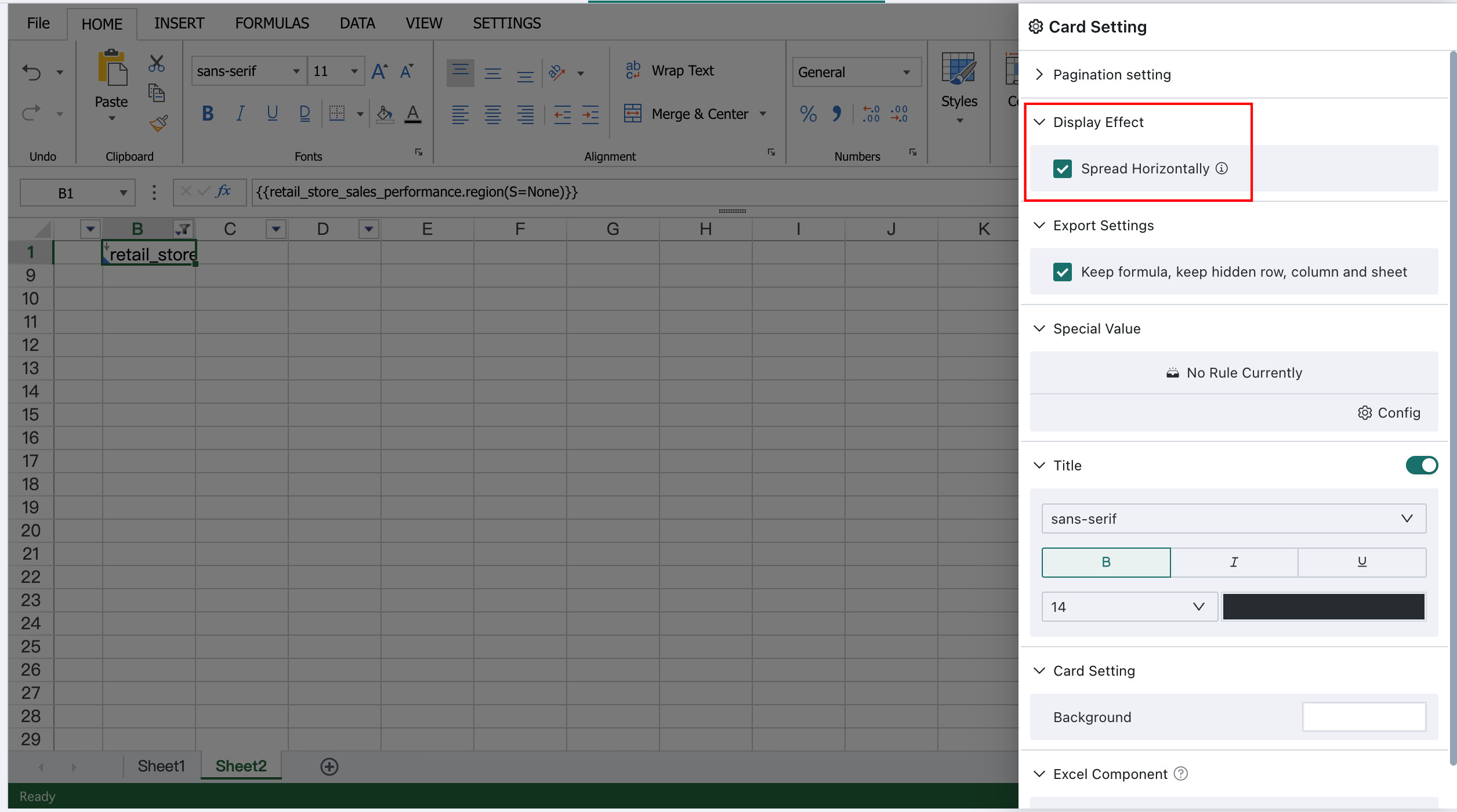
The effects with and without Auto Fill Width are shown below:
Export Settings
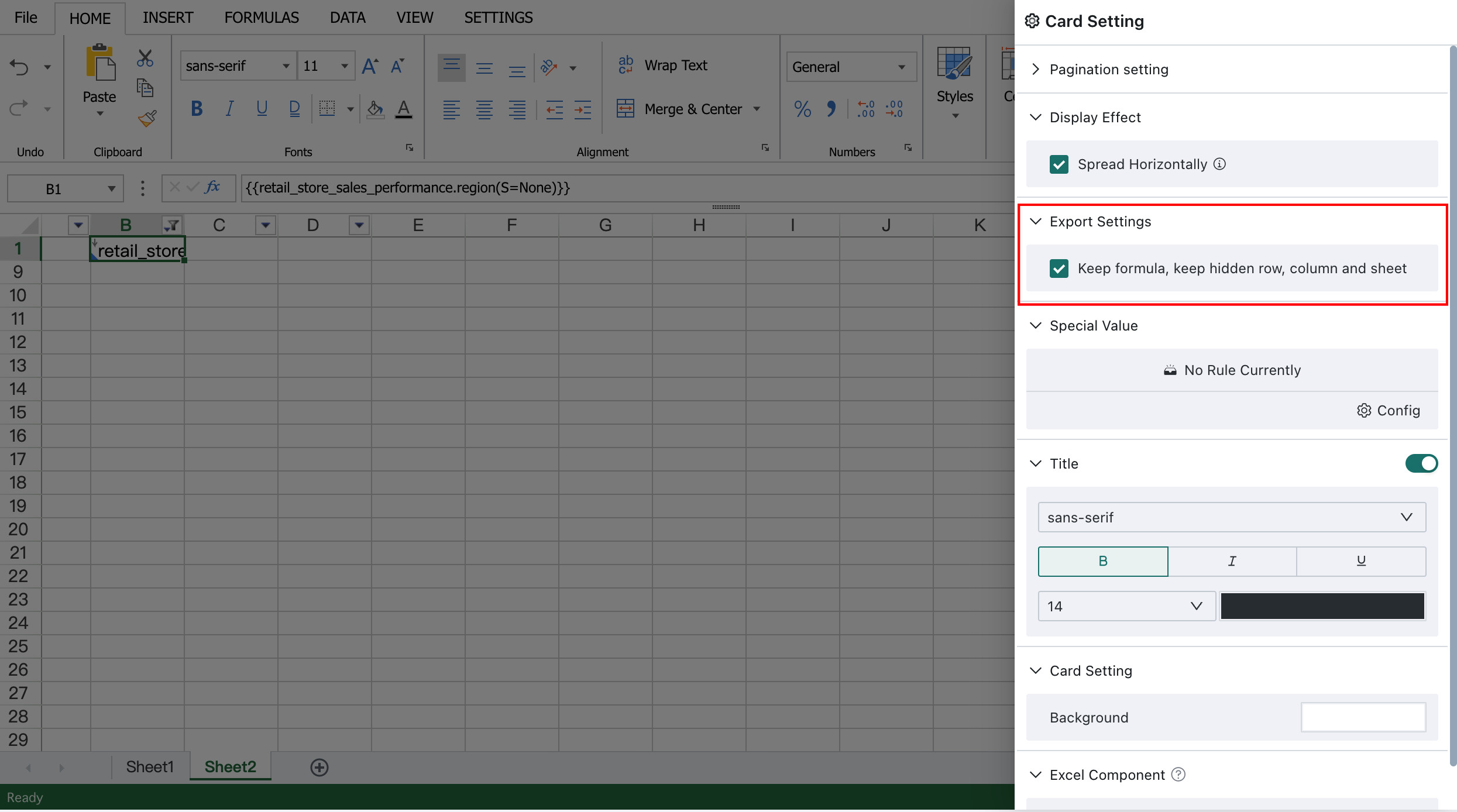
Export Settings control whether formulas and hidden rows, columns, and sheets are preserved when exporting to Excel. The formulas referred to here are standard Excel formulas only.
Once a producer configures this option for Card A, it applies to every export scenario for Card A used by all consumers.
- Enabled by default. Hidden columns, hidden sheets, and formulas are all included in the export.
- If disabled, the exported Excel file follows a what-you-see-is-what-you-get approach and exports only data values.
Special Value Settings
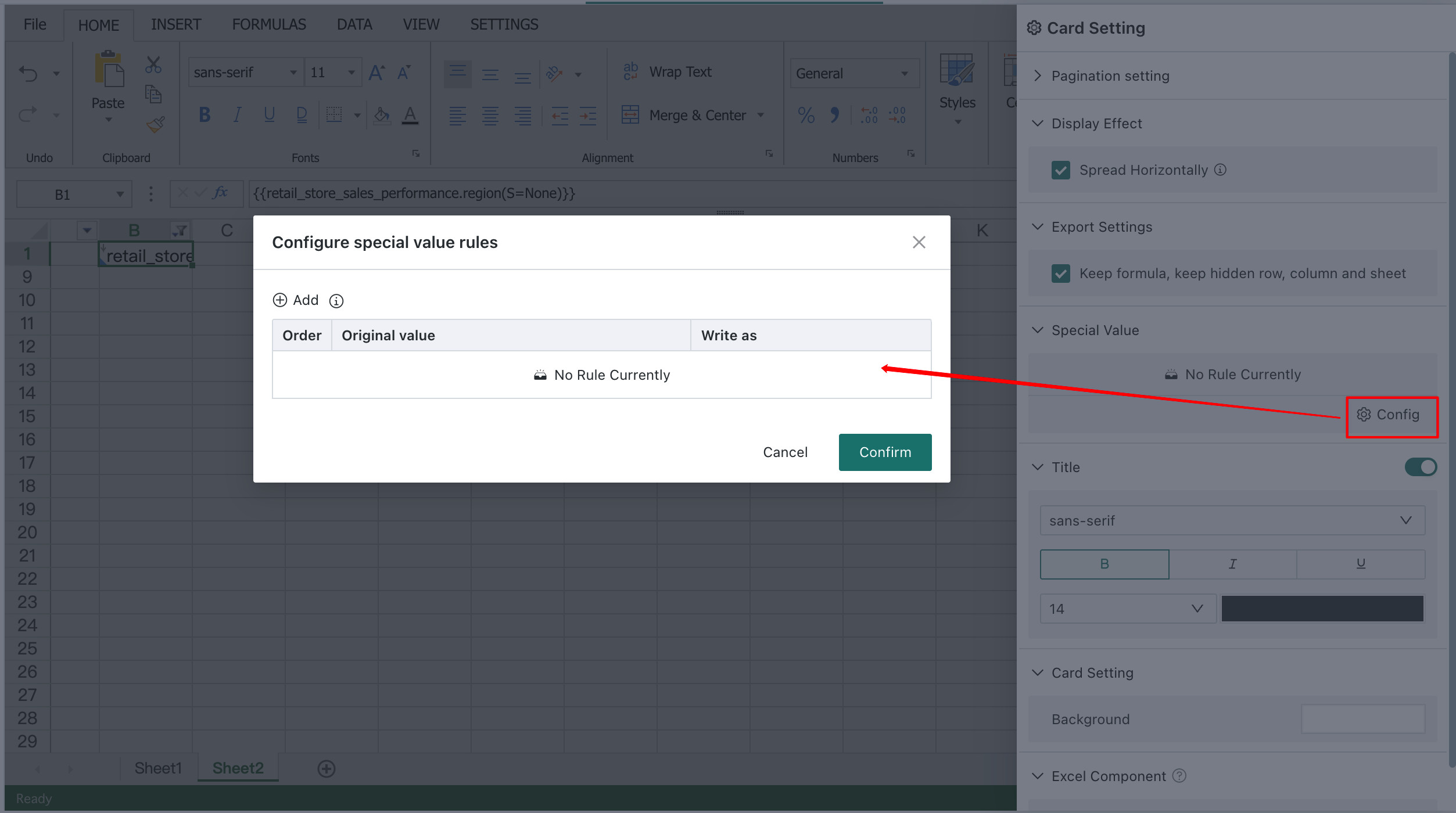
You can define one-click replacements for special values such as Null, empty strings, and 0 to improve report editing efficiency.
Notes:
- When multiple rules conflict, only the topmost rule takes effect. For example, if the first rule replaces
Nullwith0and the second rule replacesNullwith-, only the first rule is applied. - Both the original value and the replacement value must be entered. Otherwise, the rule is invalid and is automatically deleted when you save.
Title
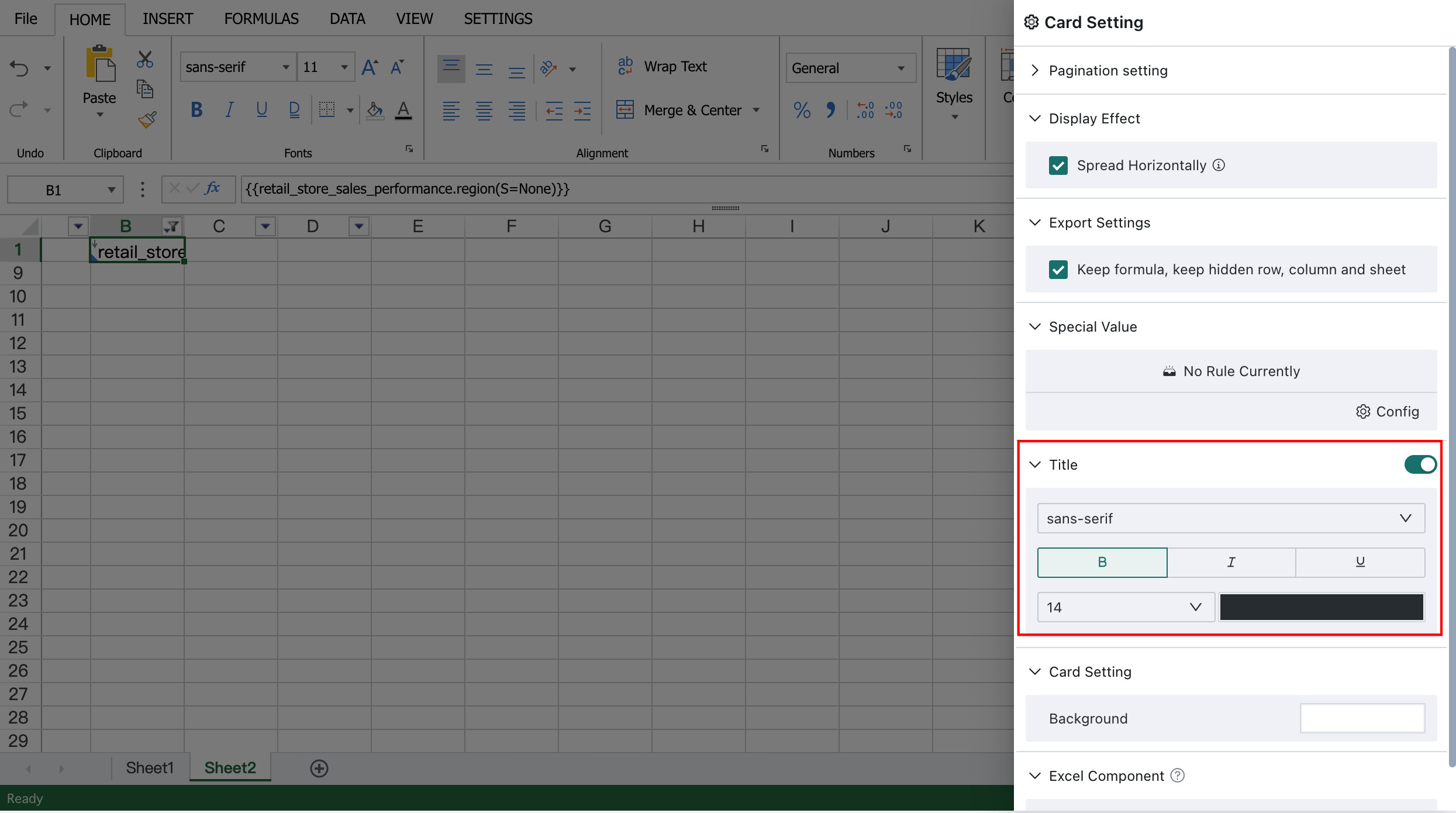
You can control whether the card title is displayed. Titles are shown by default. You can also configure text styles, title background, height, border, and colors.
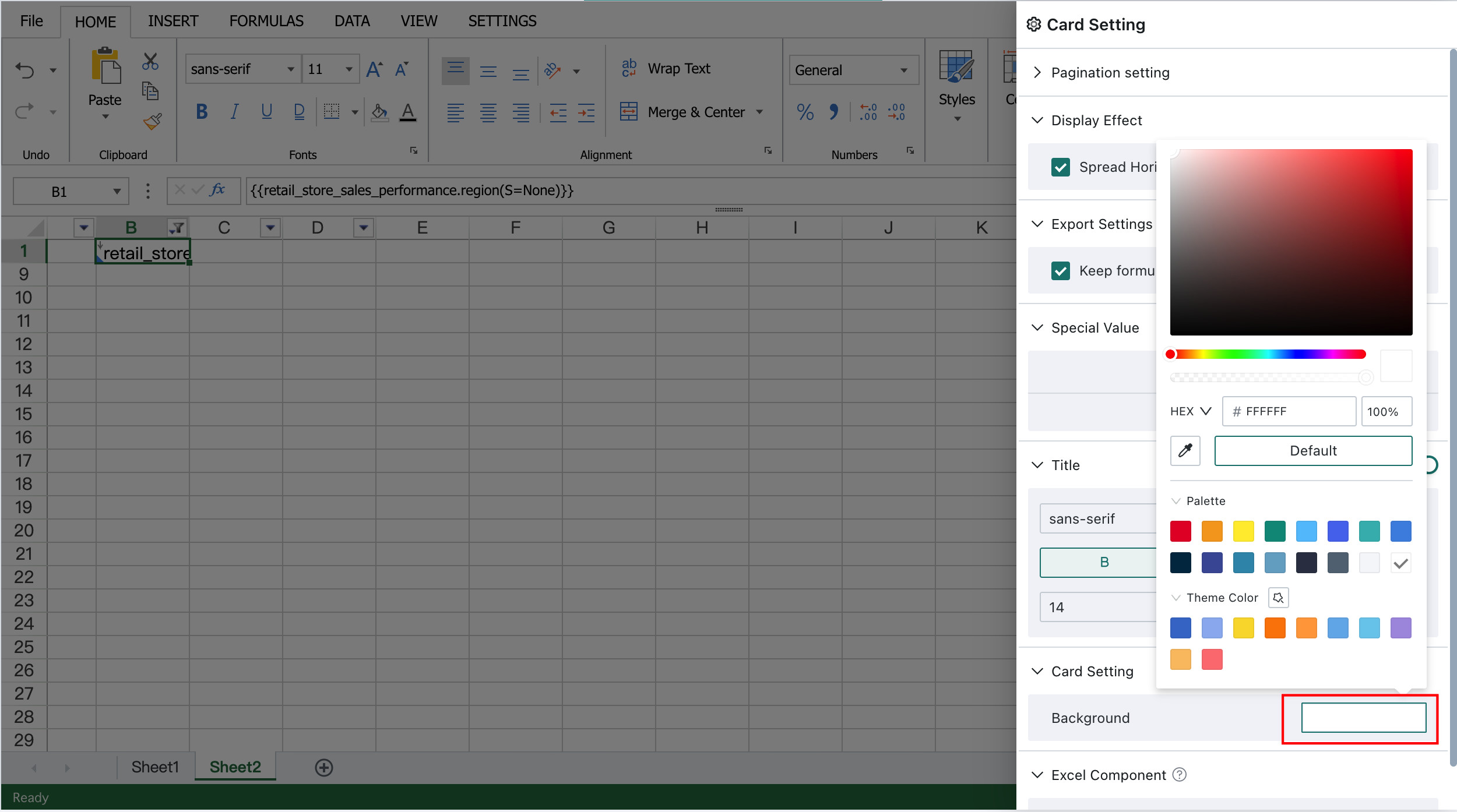
Card Background
You can configure the background color of the card. The default color is white.
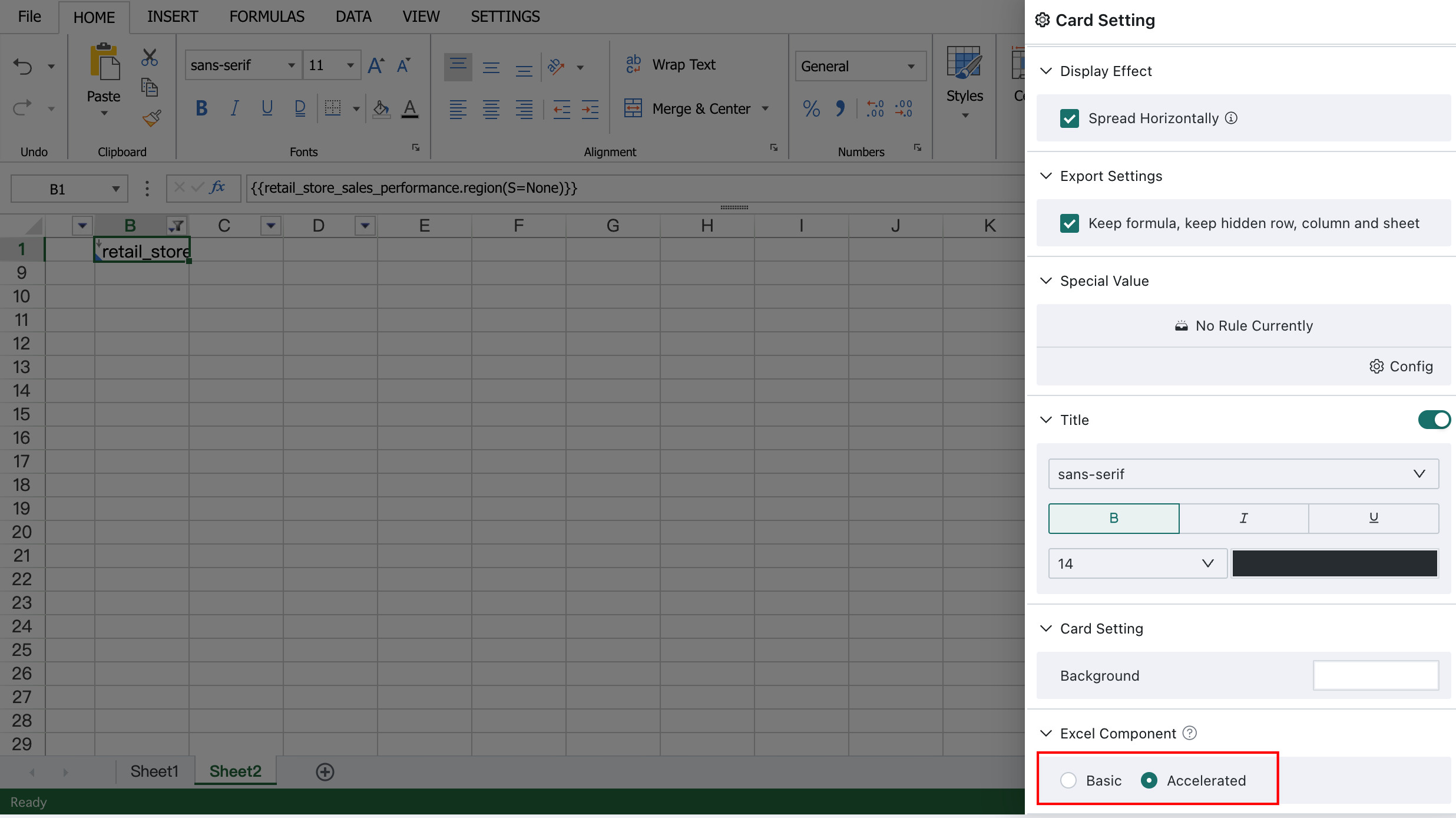
Excel Component Version
Version 7.0.0 and later use the accelerated Excel component by default. If the upgraded accelerated component affects existing reports, you can switch back to the basic Excel component. Both global switching and card-level switching are supported.
Global Switch
Disable the accelerated component toggle in the admin backend. This toggle takes effect per domain. If you use multiple domains, you must configure it separately in each domain.
For how to access the admin backend, see Admin Backend Authorization.
Card-Level Switch
On the Card Settings page, set Excel Component Version to Basic Version.
- Card-level switching takes precedence over global switching. Once a card is switched, it no longer follows the global setting.
- If you are unsure about the effects of the basic and accelerated versions, it is recommended that you first use Save As to create a copy of the current report and switch the copied report instead.