Examine Settings
Overview
Guandata BI Form Entry supports single-level approval and can be used to strictly control manual data entry behavior. If users want submitted data to be reviewed and approved before it is written to storage or used in production, they can enable the Approval capability in Form Entry. This feature supports both simple approval and third-party approval integration.
User Guide
Configure Simple Approval
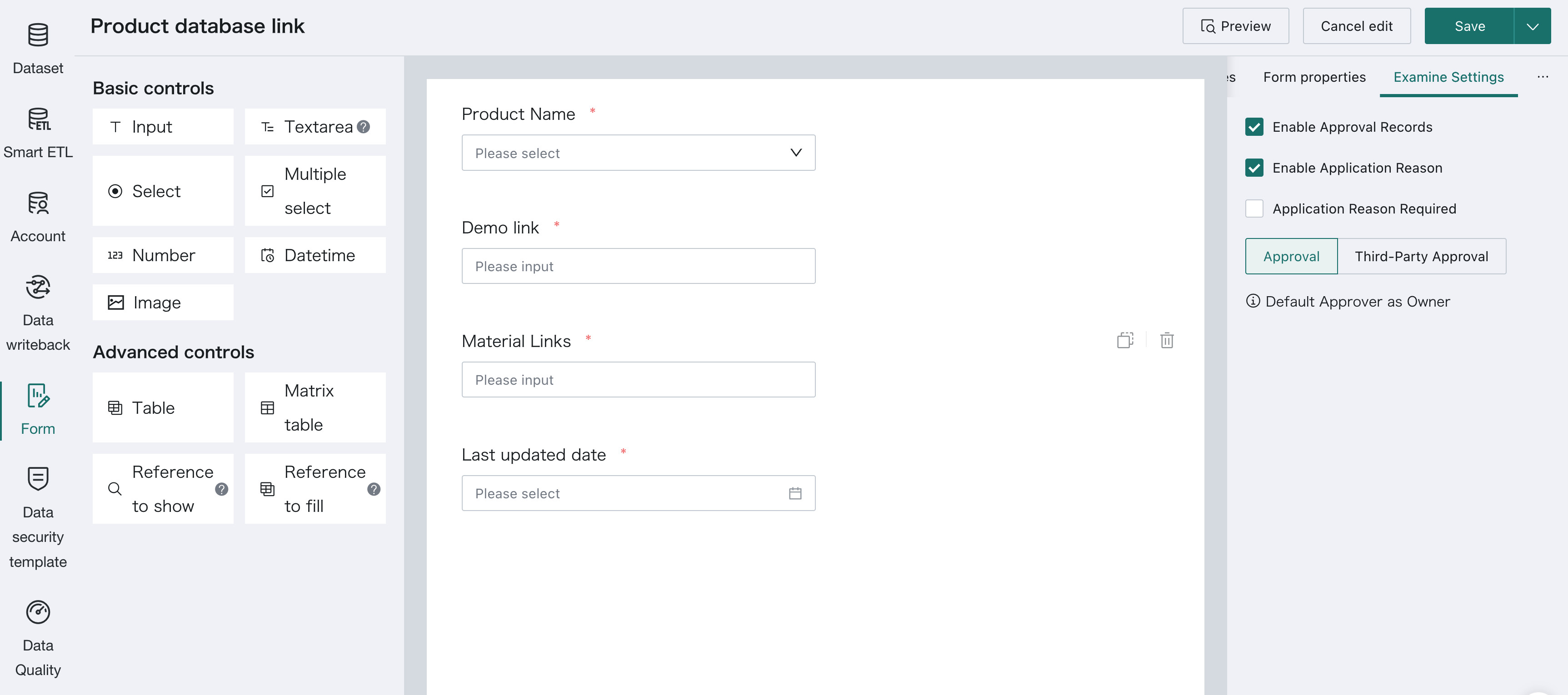
In the Form Designer, switch to the Examine Settings tab, select Enable Approval Records, and choose Approval. After enabling, when users add, modify, or delete (including batch operations) the current form data, the approval workflow is triggered. The default approver is the form owner, and the data is stored in the database only after the approval is passed.
If you need the submitter to explain the reason for this application, you can select Enable Application Reason. After selection, an application reason input field is displayed when submitting data; if Application Reason Required is also selected, the submitter must fill in the application reason before submitting for approval.
After configuration is complete, click the Save button in the upper-right corner to save the examine settings.
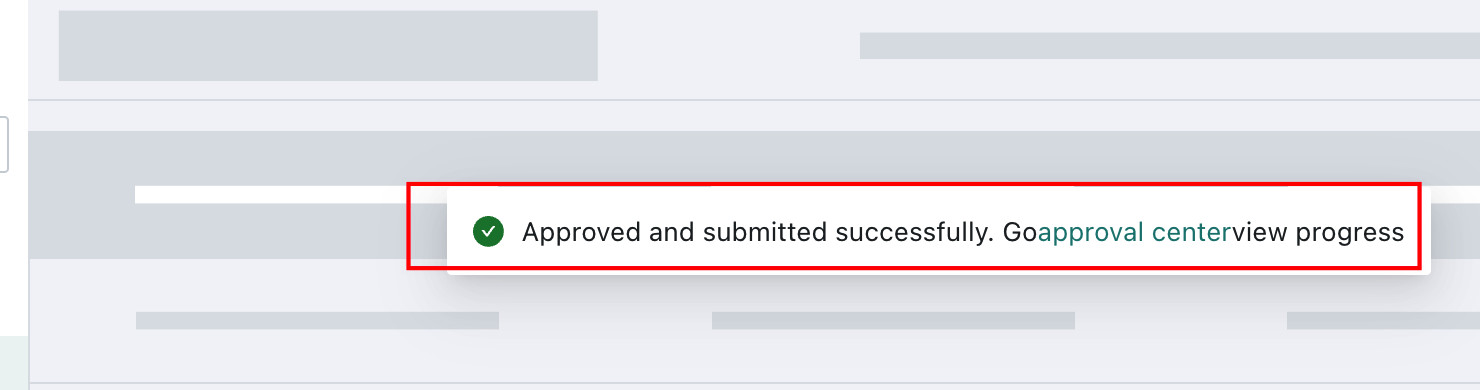
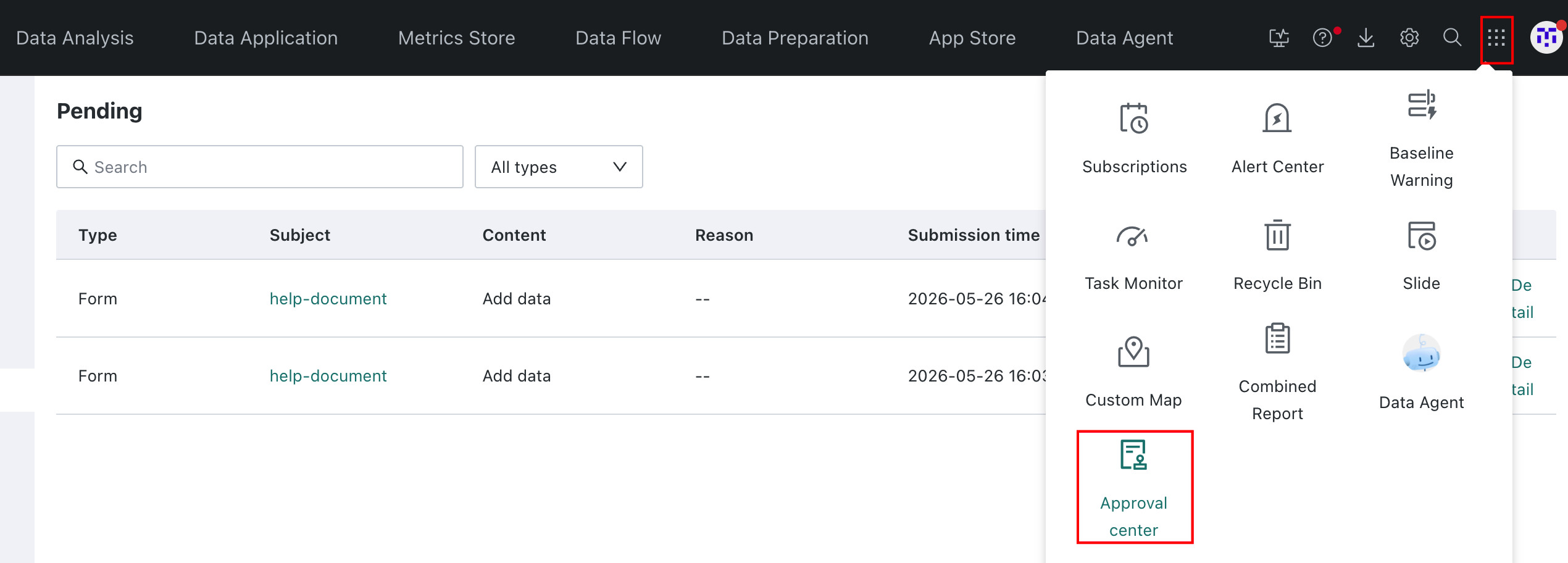
When a user submits data, the submitter receives a message and can go to App Launcher > Approval Center to view the current approval progress.
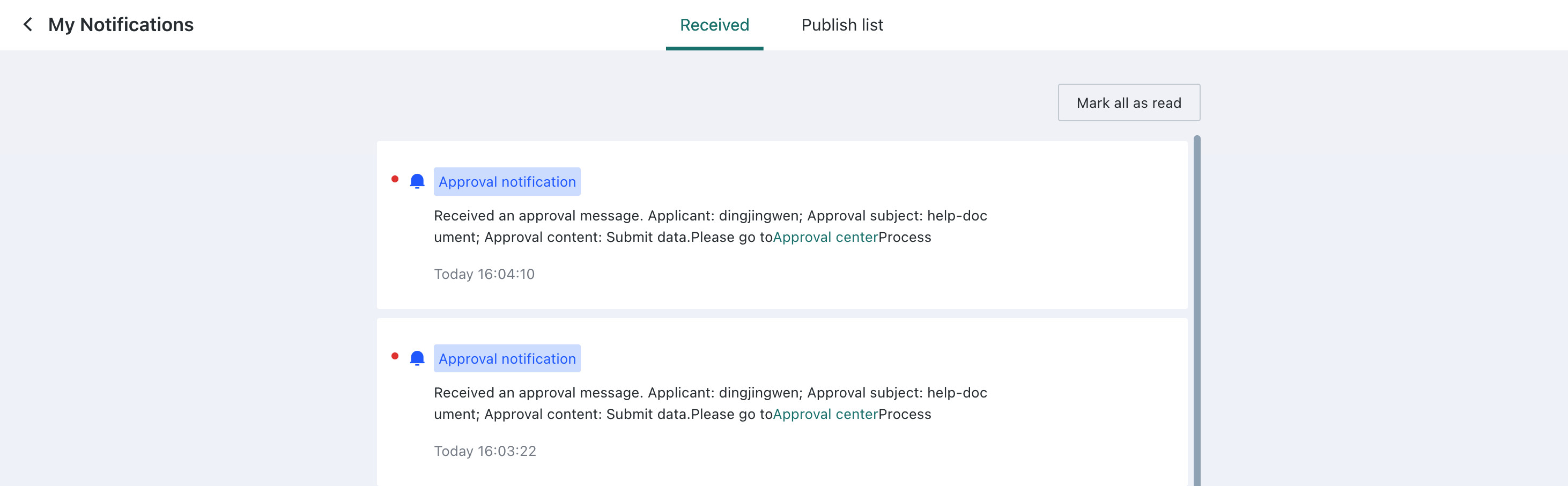
The form owner receives an approval notification and can process the item from the Approval Center.
Configure Third-Party Approval
The interaction flow for third-party approval is shown below:
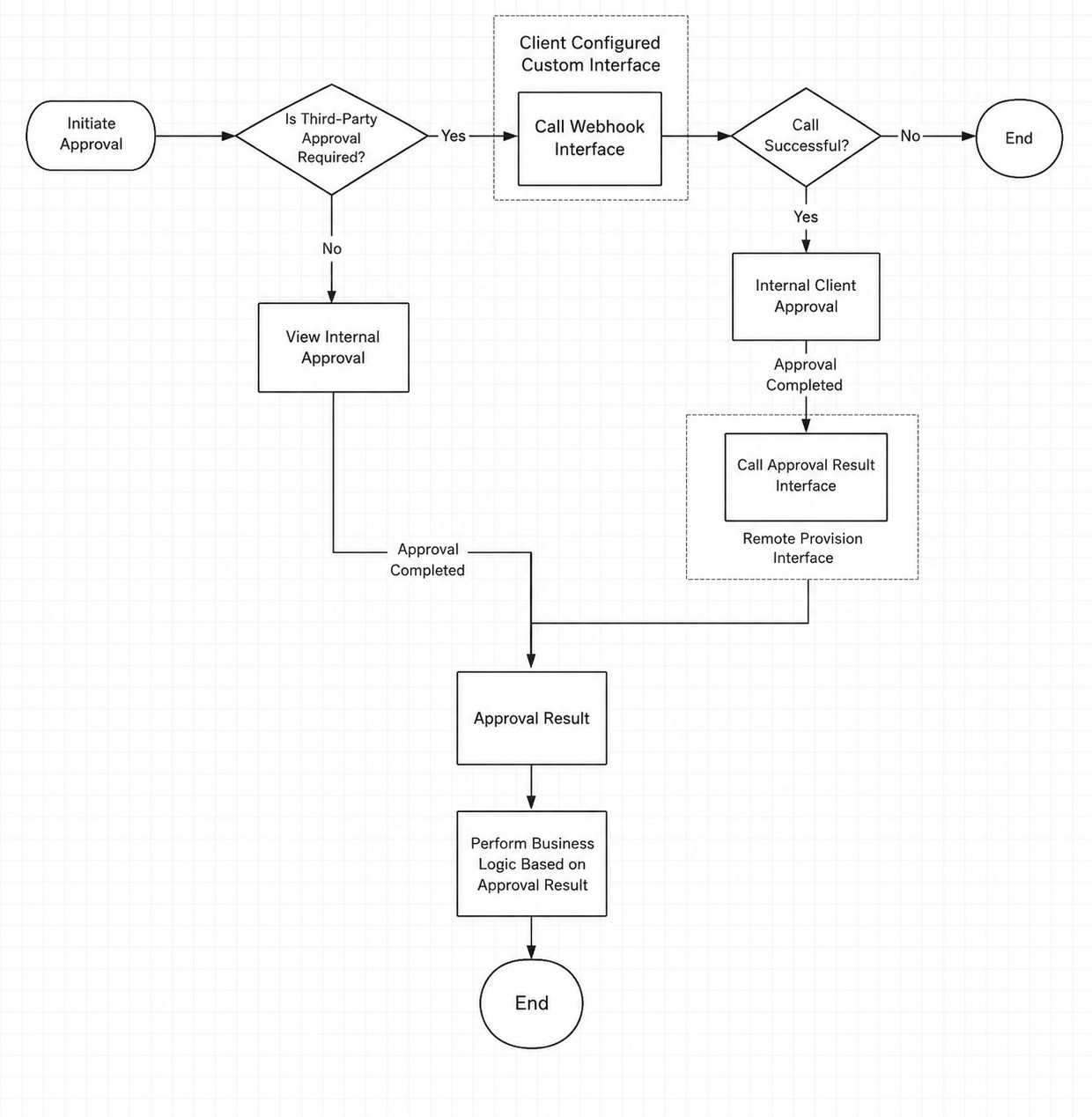
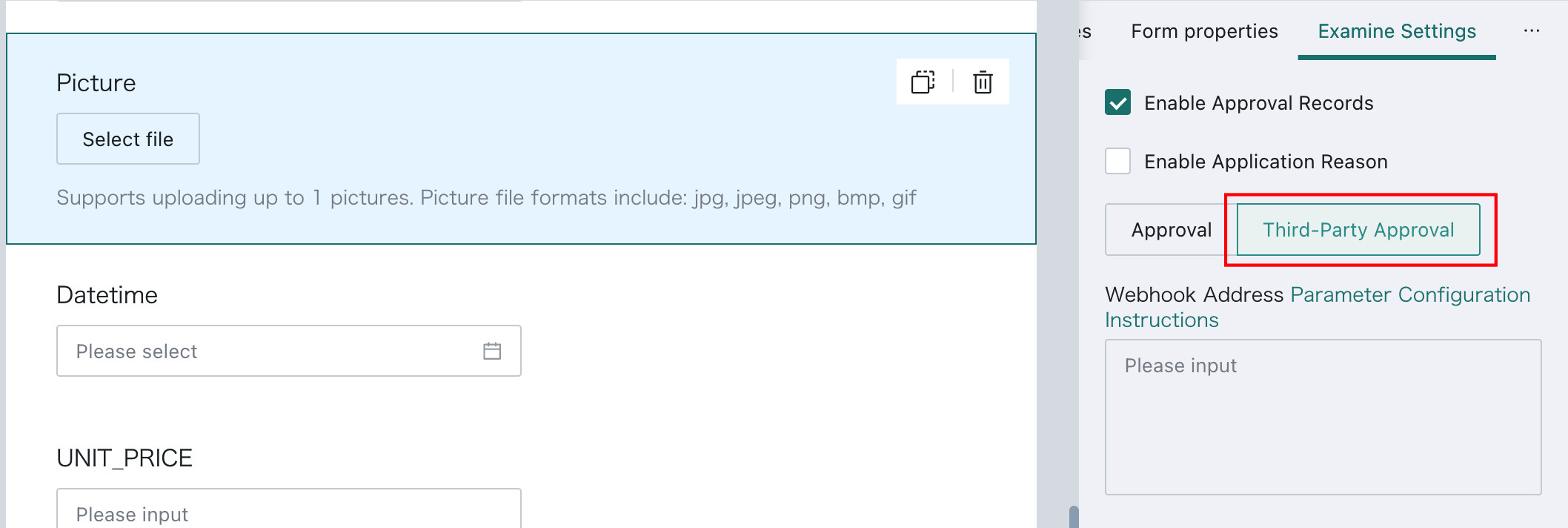
In Form Design, switch to Examine Settings, select Enable Approval Records, and change the mode to Third-Party Approval.
Guandata BI pushes the approval ID to the customer-defined webhook endpoint.
Customers need to define and develop their own interface to receive webhook messages and create approval requests. If the target approval system is DingTalk, WeCom, Feishu, or another system, a middleware conversion interface is usually required to convert the format and push it into the third-party approval workflow.
Submit Approval and Revoke Interface, Webhook
Request Method: POST
Request URL: customer-defined, for example http://127.0.0.1/approve/submitApproval/:approvalCode
Note:
approvalCodeis the approval flow code for the third-party approval submission and is required.
Parameter Description
| Parameter | Meaning | Location | Type | Required | Notes |
|---|---|---|---|---|---|
| token | token | header | String | Yes | Base64 of application_token_approvalId_timestamp |
Request and Response Example
Request
{
  "approvalId": "aaa",
  "approvalStatus": "PENDING",
  "approvalReason": "Reason for request"
}
Response
{
  "result": "ok",
  "response": "third-party approval id"
}
Approval Result Callback Interface, Provided for Third-Party Callback
Request Method: POST
Request URL: /public-api/approval/callback
Note: the callback should pass back the token used in the submission request.
Request and Response Example
Request
{
  "token": "kaeba59789ad9480abbdebc3",
  "approvalId": "id82415dd966244e1b354632",
  "approvalUserId": "wjl",
  "approvalUserName": "wangjialin",
  "approvalComment": "approved via webhook",
  "approvalStatus": "AGREE"
}
Response
{
  "result": "ok"
}
Failure Example
{
  "result": "fail",
  "response": null,
  "error": {
    "status": 1012,
    "message": "Failure reason",
    "detail": {
      "notifyType": 1
    }
  }
}
Approval Details, for Add, Delete, and Update in Form Entry
Request Method: GET
Request URL: /public-api/approval/:approvalId/detail
Parameter Description
| Parameter | Meaning | Location | Type | Required | Notes |
|---|---|---|---|---|---|
| token | token | header | String | Yes | application token |
Request and Response Example
Response
{
  "result": "ok",
  "response": {
    "data": [
      [
        {
          "fdId": "9c788570-8840-4464-b346-36a4dcbaa932",
          "value": [
            "2014-09-18 02:46:29"
          ]
        }
      ]
    ],
    "columns": [
      {
        "fdId": "9c788570-8840-4464-b346-36a4dcbaa932",
        "name": "Time",
        "type": "STRING",
        "build-in": false
      }
    ]
  }
}
Approval Detail Download, for Import Scenarios
Request Method: GET
Request URL: /public-api/approval/:approvalId/downloadImportFile
Parameter Description
| Parameter | Meaning | Location | Type | Required | Notes |
|---|---|---|---|---|---|
| token | token | header | String | Yes | application token |
Response
Returns a file stream that downloads as an Excel file.
After the customer-side approval is completed, the approval result is returned to Guandata BI and BI completes the actual write operation.
Third-party approval messages are not shown inside BI. Users need to check approval progress in the third-party approval system.
View Pending Approval Information
After submitting data, form submitters can go to App Launcher > Approval Center to view the approval status of submitted items.
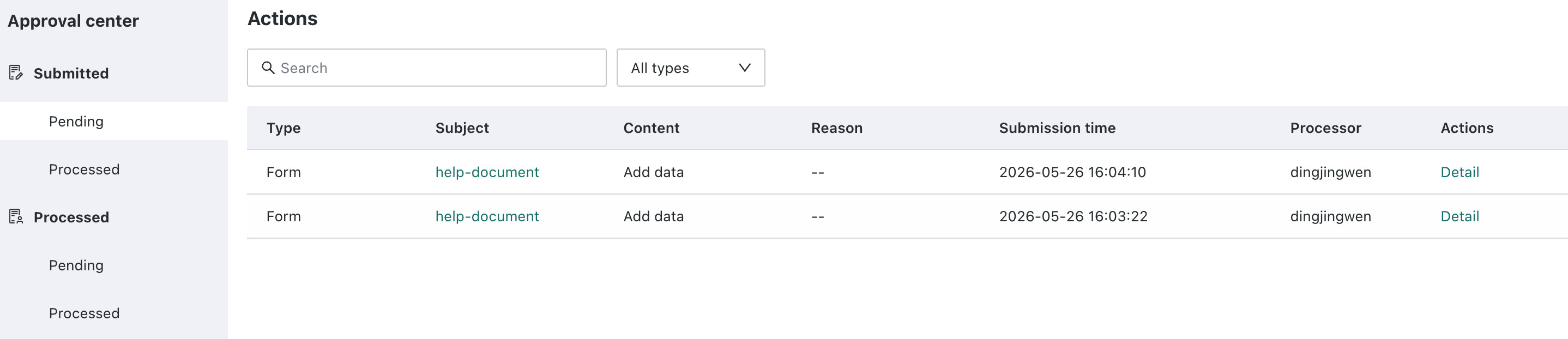
Under Submitted by Me > Pending Approval, the current user can view all submitted approval items and the current processor. Clicking Details shows the submitted data.
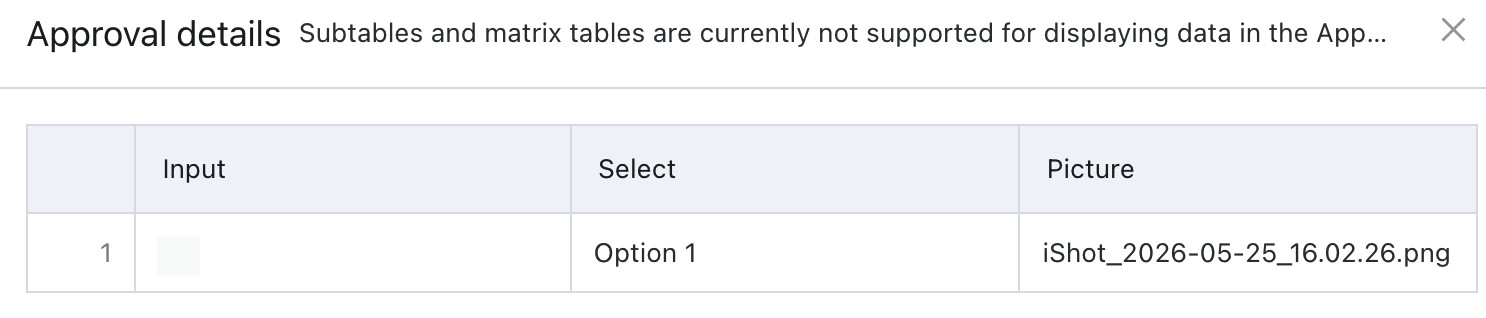
Data submitted in Subtable and Matrix Table controls cannot be viewed in the Approval Center.
View Approval Results
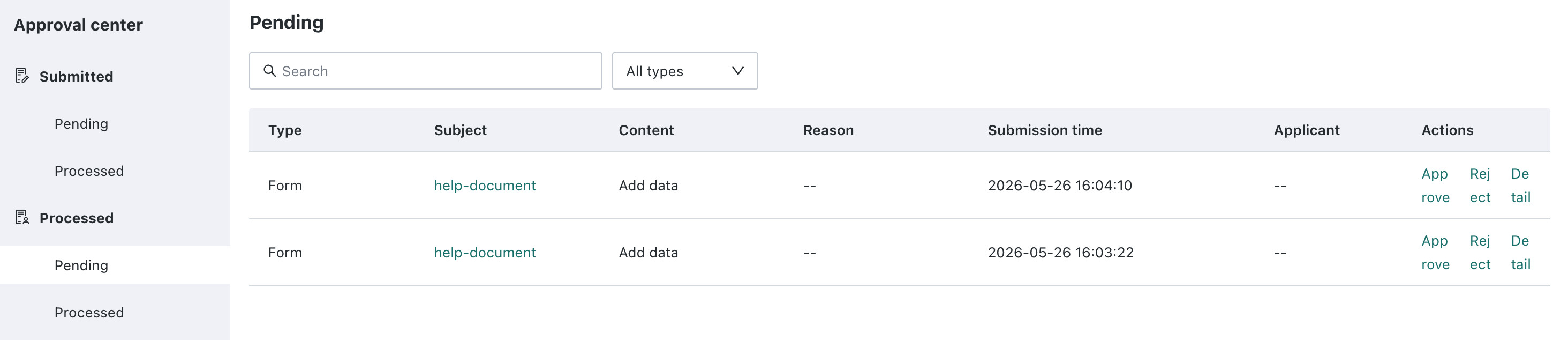
After a form submitter submits data, the form owner can go to App Launcher > Approval Center > Assigned to Me > Pending to review all unprocessed approval items. Approvers can perform the following operations:
- Approve: the create, update, or delete operation takes effect immediately.
- Reject: the approver must enter a rejection reason. After submission, the data is retained for 30 days by default. The submitter can view the rejection reason and rejected data under
Submitted by Me > Processed. - Other operations:
- For single-item approvals, clicking
Detailsshows the approval details and supports viewing image content. - For imported data, clicking
Downloaddownloads the batch import Excel file.
- For single-item approvals, clicking

After the approver finishes processing, the submitter receives a notification of the approval result.
