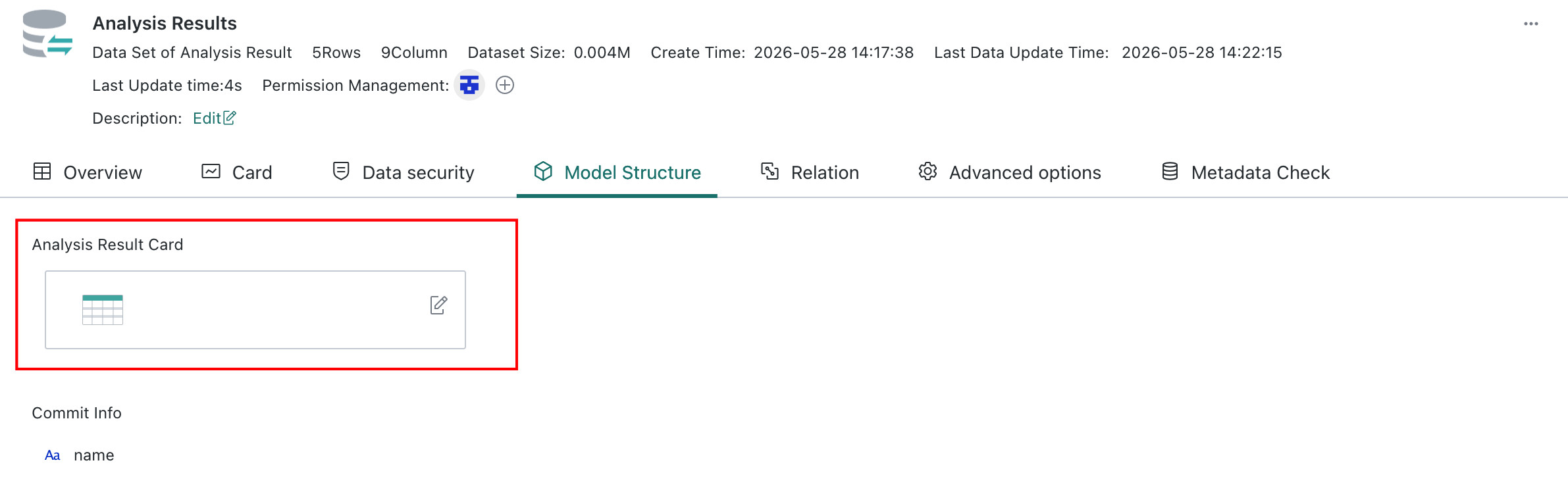
Analysis Result Storage
Overview
Feature Overview
If users want to save and export the analyzed result data of a table card, they can use Analysis Result Storage.
Use Cases
Analysis Result Storage supports scenarios where users want to analyze the current table result again. It outputs the current analyzed table result as a dataset, which can then be reused in the BI system or in external systems as a data source for secondary analysis.
For example, result data produced in a BI dashboard, such as filtered or calculation-enhanced table results, can be reused directly in business systems such as ERP, reducing the need to redevelop similar analysis logic there.
Usage Restrictions
- Supported card types: Table, Carousel List, and Detail Table - At present, Guandata BI system data can only be provided externally through Data API interfaces, file download, or FTP export through dataset subscription. Direct writing to external databases is not supported. - Role restriction: only users with page editing permission can configure this featureSteps
Since version 7.2.0 distinguishes between draft and online states for dashboards, and Analysis Result Storage can only be configured after a page is published, you must first publish the dashboard. Then configure Analysis Result Storage on the online page, and only afterward enable it in the card editing page.
- Prerequisite: make sure the dashboard has been published.
- Configure Analysis Result Storage on the online dashboard page.
- Enable Analysis Result Storage in Dashboard Edit > Card Edit > Advanced Configuration.
- Optional: customize the name shown in the card menu. The default is Save Data.
- Save analysis result data on the online dashboard page.
- View the stored analysis result dataset in the configured save directory.
Configure Analysis Result Storage
Role Permission: administrator or page owner
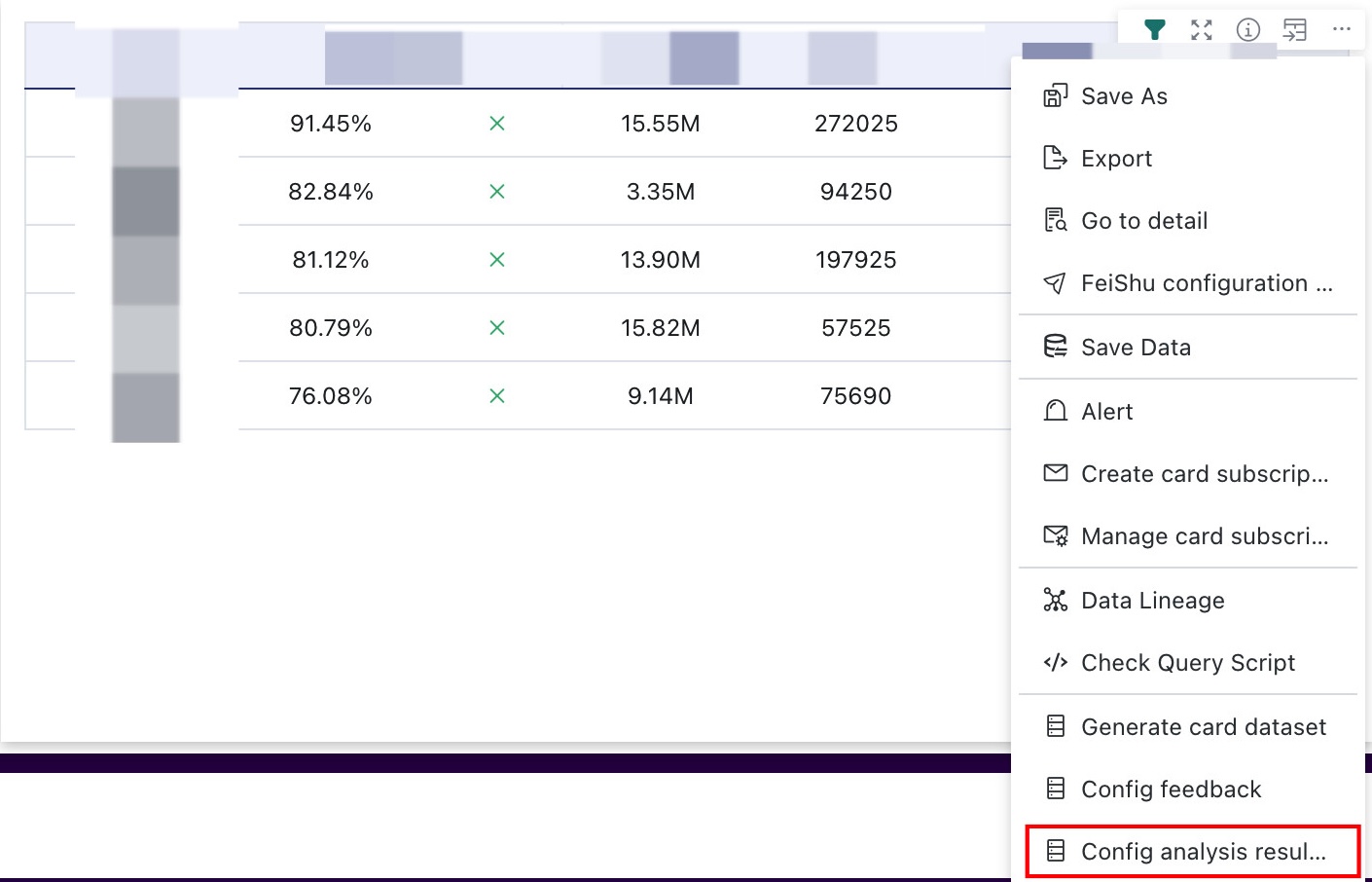
Entry: Online Dashboard > Card to Configure > ... > Configure Analysis Result Storage
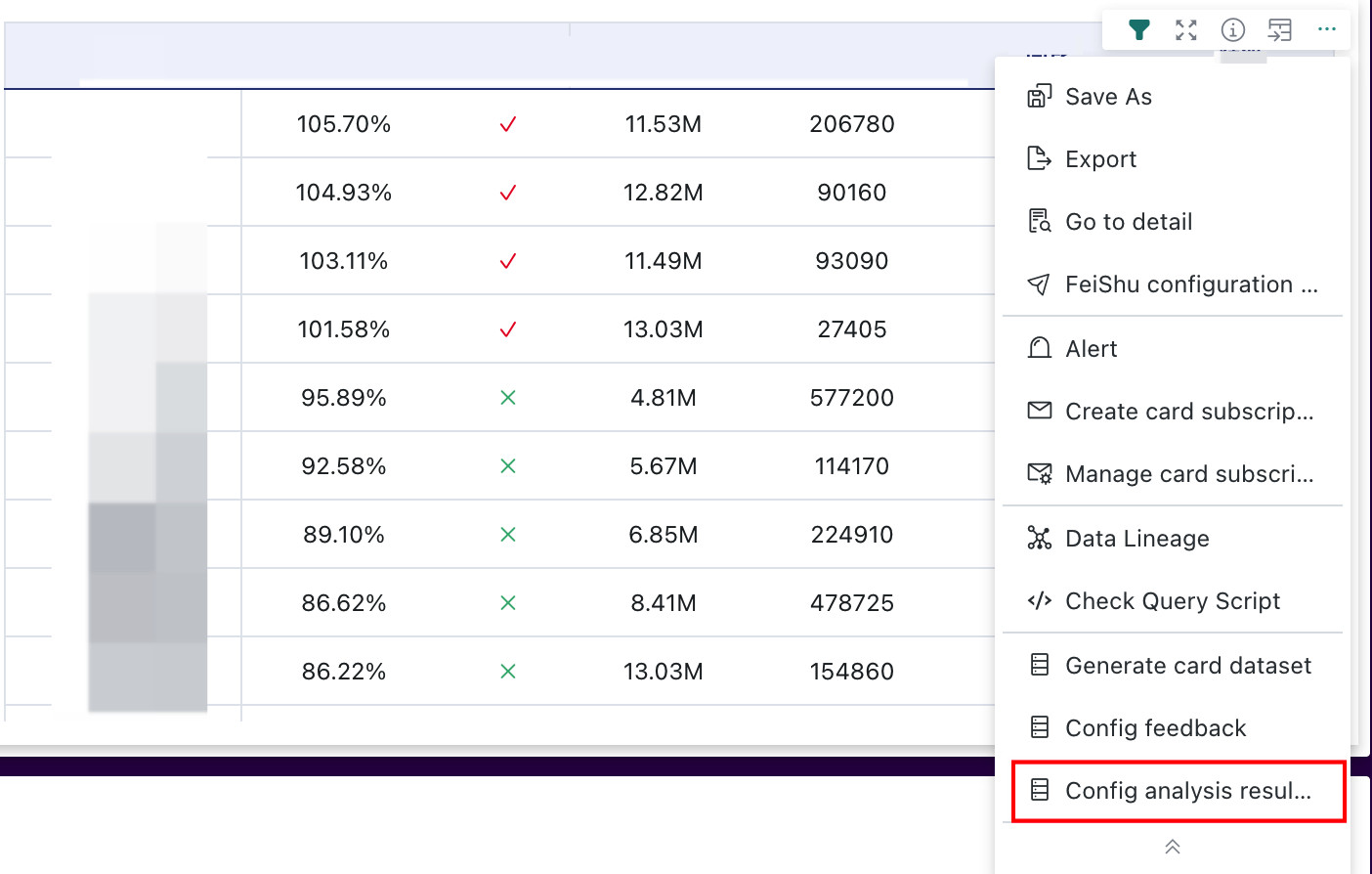
-
Select the fields to be stored. Only fields already used in the table can be selected.
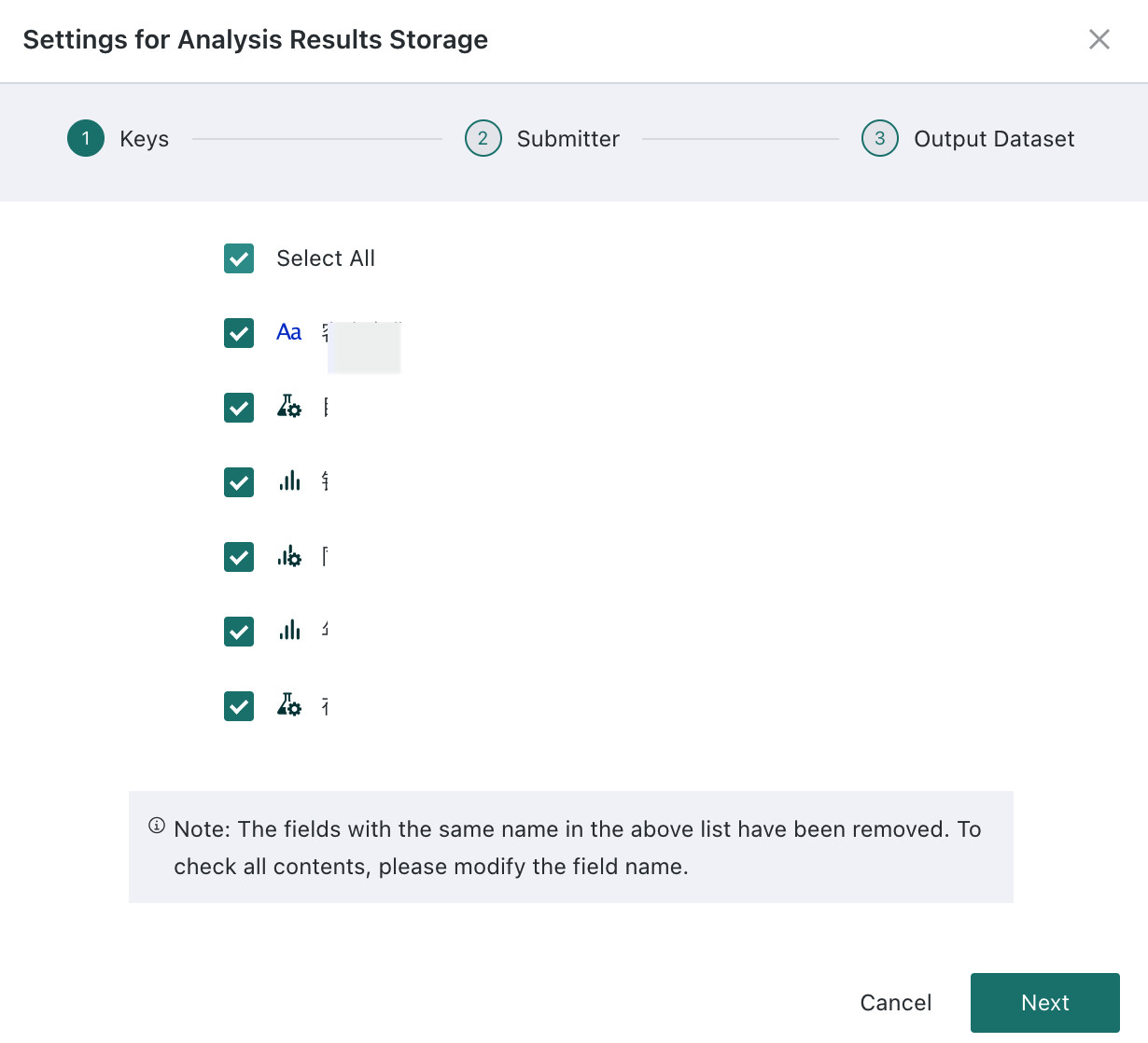
-
Configure submitter information. The final stored result includes this information to record the user who submitted the result. You can choose values from user basic attributes such as name, account, and email.
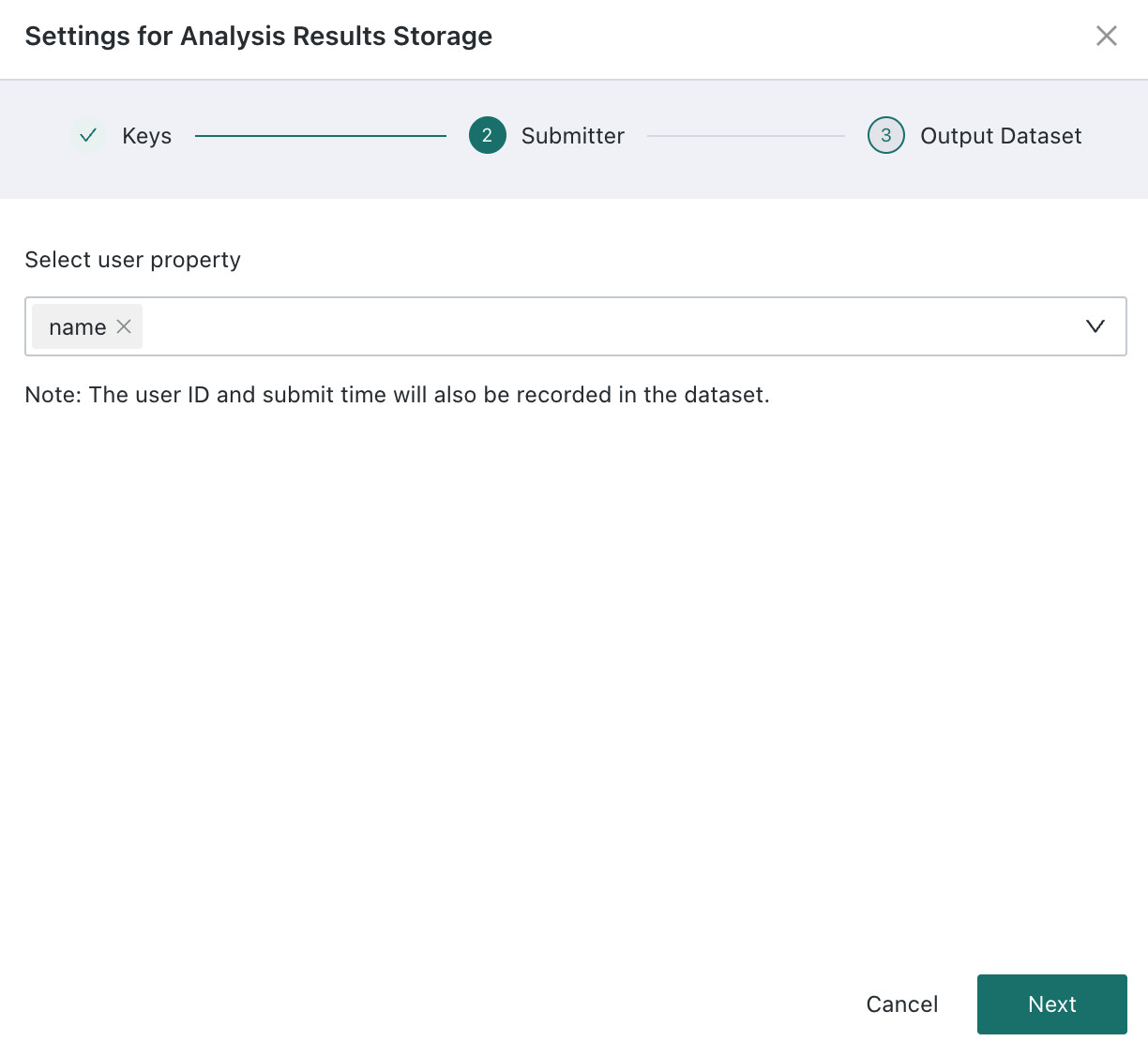
-
Configure the dataset information for analysis result storage, including dataset name (required), save directory (required), and description (optional).
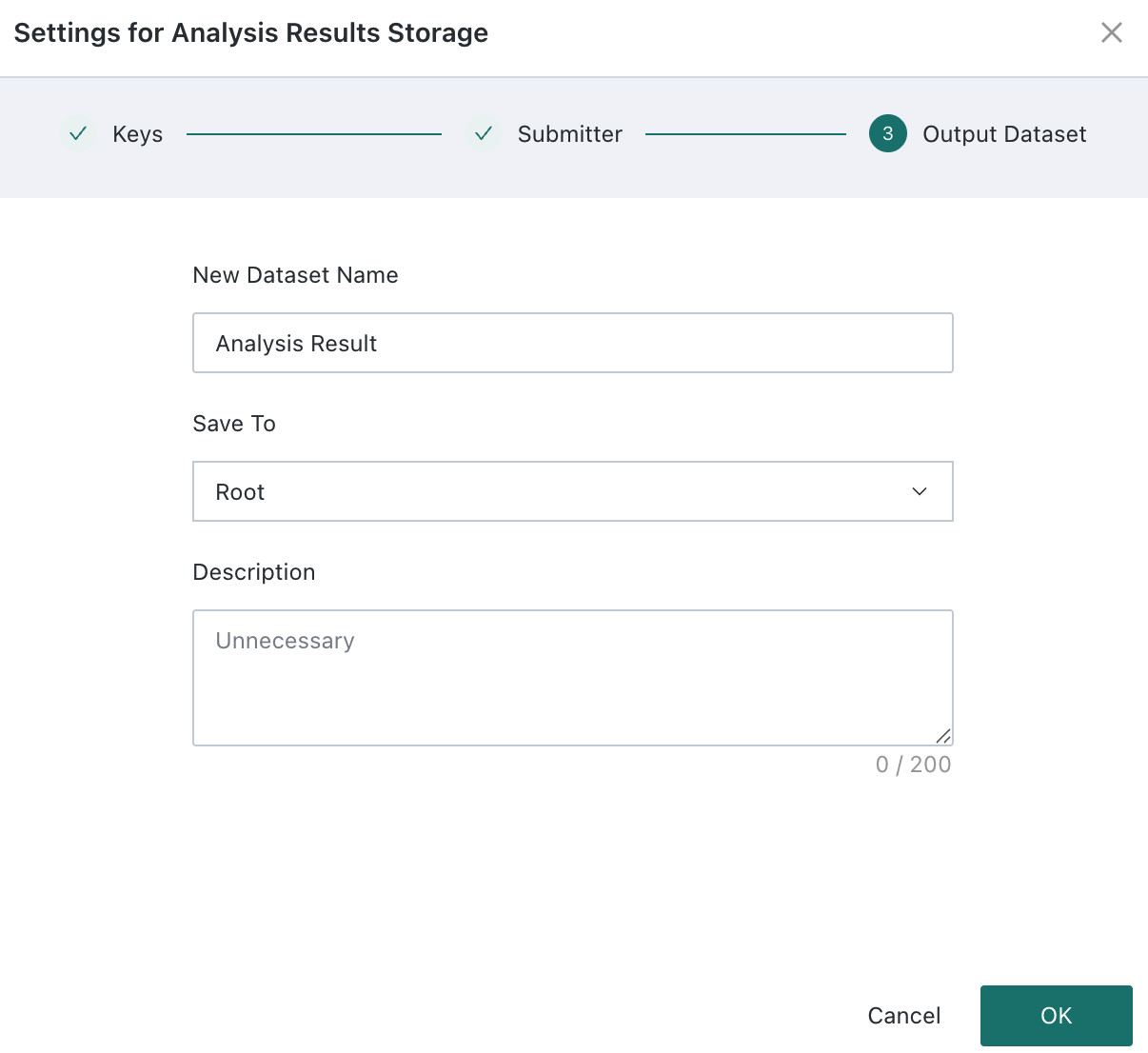
-
Click Finish to complete the configuration.
Enable Analysis Result Storage
Role Permission: administrator or page owner
Entry: Dashboard Edit Page > Card Edit Page > Advanced Configuration > Analysis Result Storage
-
Click Edit on the right side of the dashboard to enter dashboard editing mode.
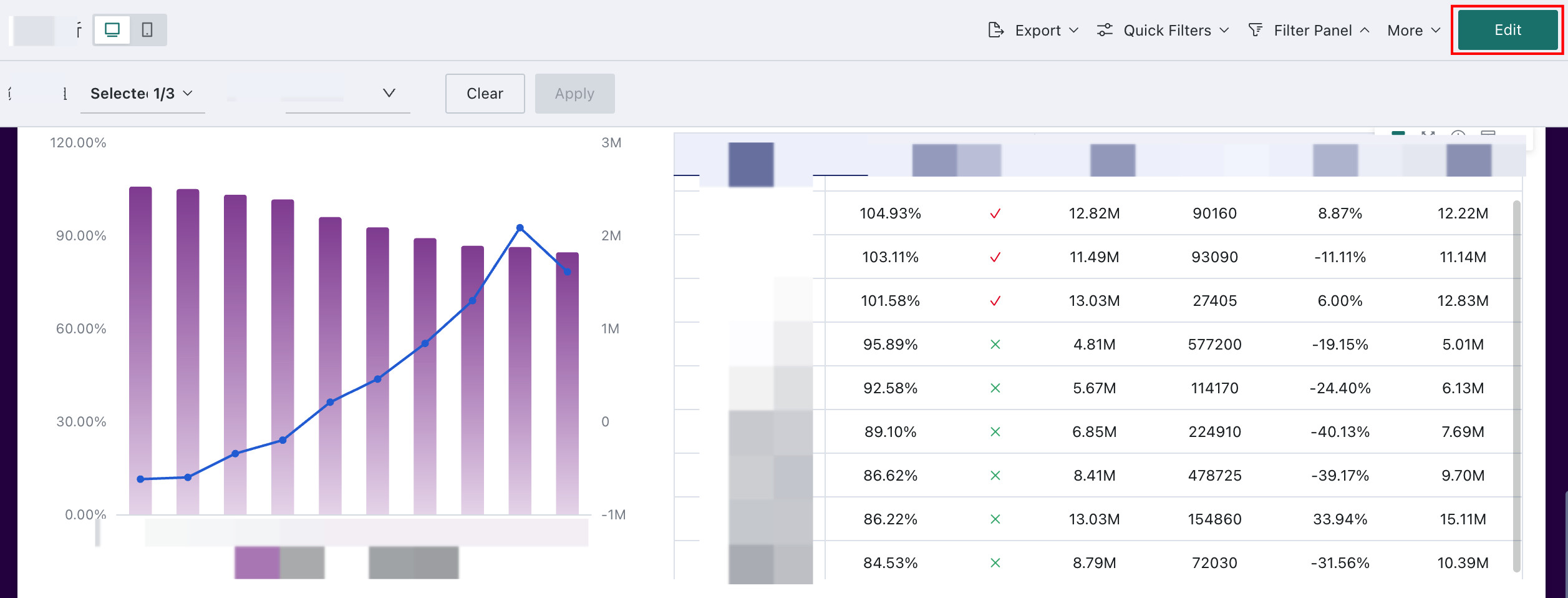
-
Click ... > Edit on the card to enter the card editing page.
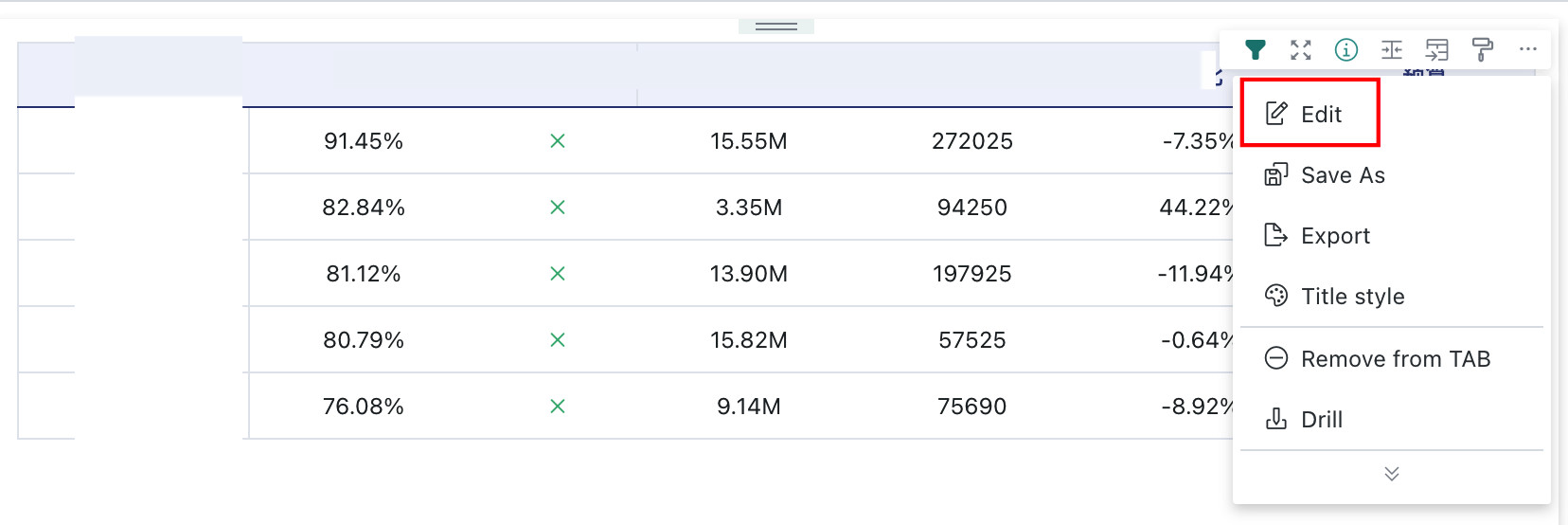
-
Turn on Analysis Result Storage and optionally customize the display name of this feature in the card menu.
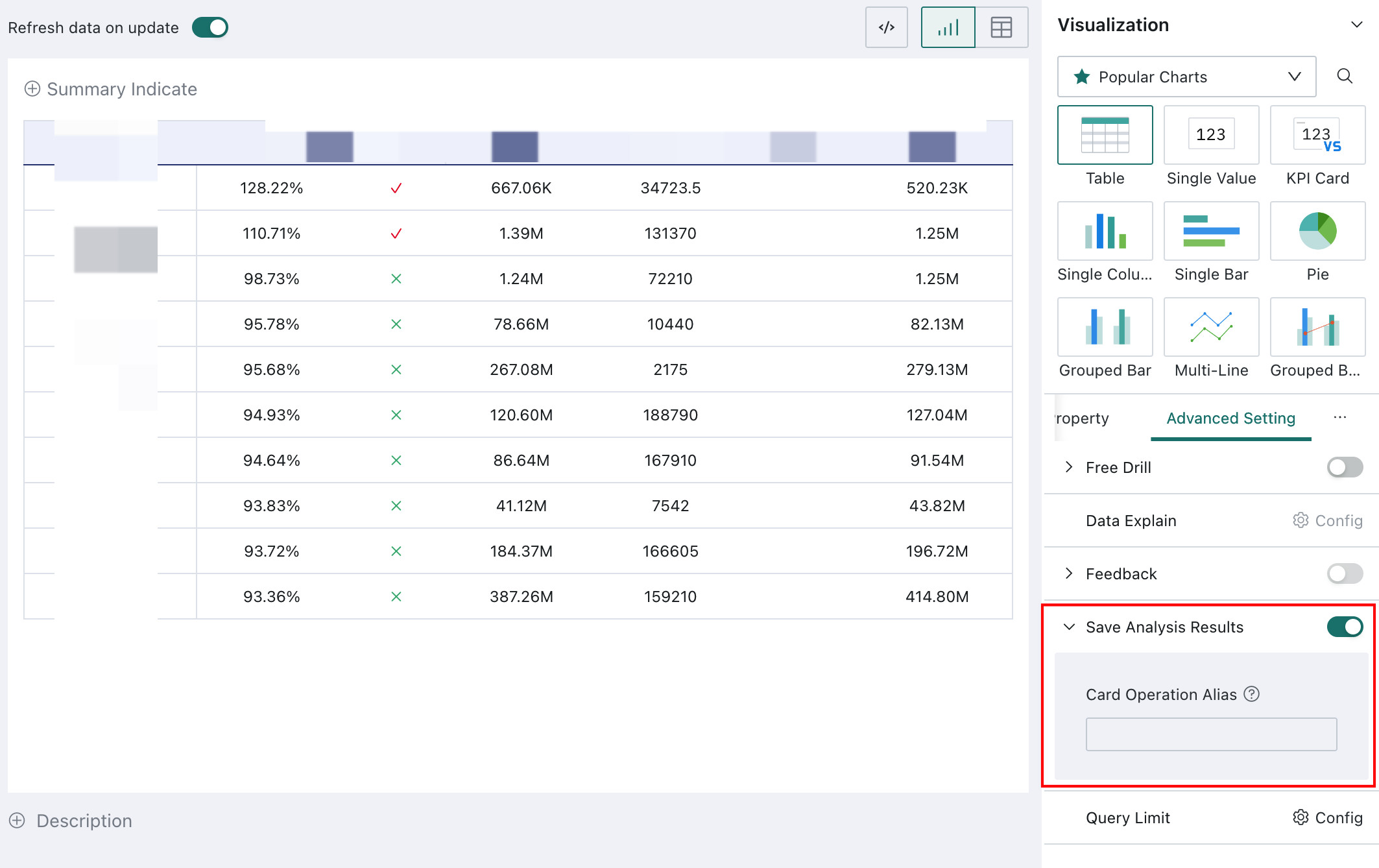
-
Save the card and publish the dashboard page.
Modify Analysis Result Storage
Role Permission: administrator or page owner
Entry: Online Dashboard > Card with Analysis Result Storage Enabled > ... > Configure Analysis Result Storage
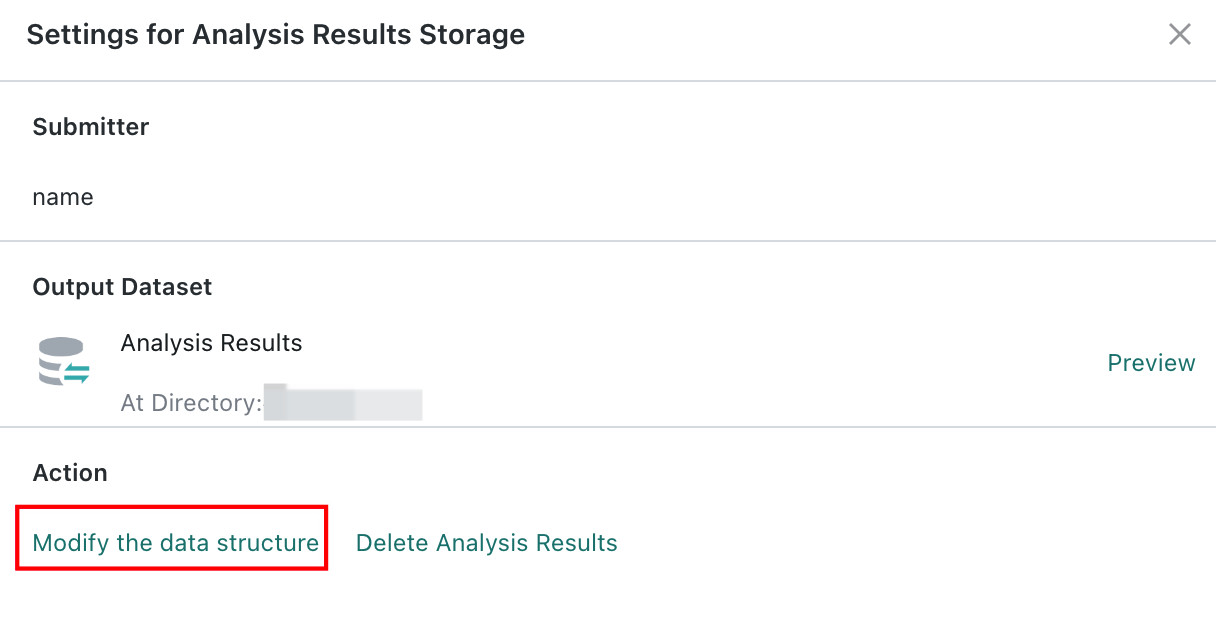
If you want to reconfigure Analysis Result Storage, click Modify Data Structure. After modification, the original dataset is no longer updated, and a new output dataset is generated. Subsequent saved information is written into the new dataset, so this action should be performed carefully.
Save Analysis Result Data
Role Permission: page viewer
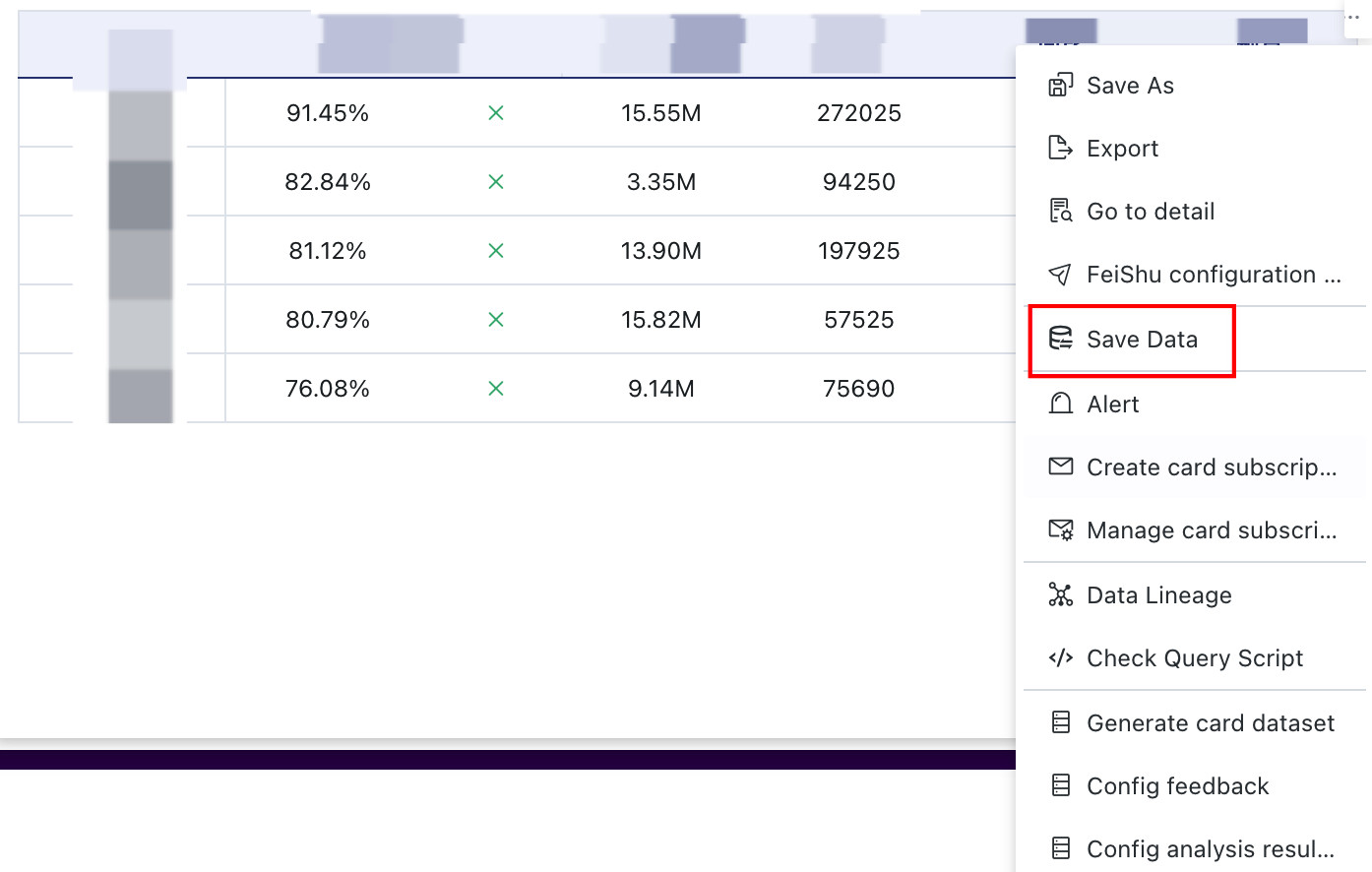
Entry: Online Dashboard > Card with Analysis Result Storage Enabled > ... > Save Data
Click Save Data to update the card's result data into the analysis result dataset.
View the Analysis Result Dataset
Role Permission: dataset user
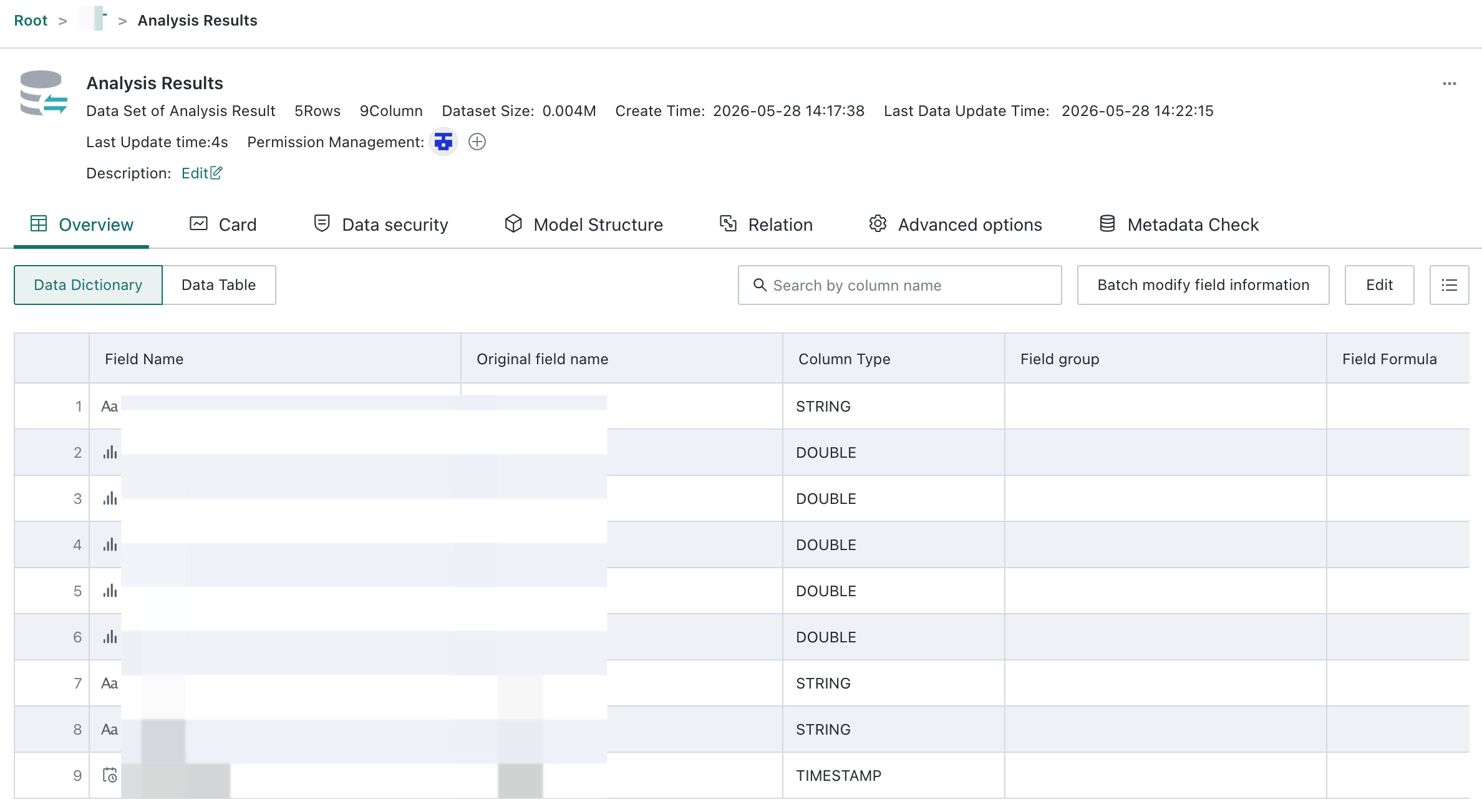
After the dataset is created and saved, users can find the analysis result dataset in the corresponding directory under Data Preparation according to the save path configured earlier.