Knowledge Feedback
Overview
Feature Overview
Knowledge Feedback, also called feedback entry, is a feature for collecting feedback based on table data. Users can submit row-level feedback for table records, and the submitted data can be output as a dataset for further analysis.
Usage Restrictions
- Supported only for standard tables, grouped tables, and detail tables
- The following three capabilities take effect only when feedback data is stored in a PostgreSQL database:
- filled rows change to a solid feedback marker
- the amount of submitted feedback data is displayed
- the system distinguishes the current user's own submitted feedback File-based storage does not support these capabilities. You can contact Guandata support to switch the storage location.
Use Cases
Knowledge Feedback is useful in scenarios where feedback information needs to be collected and analyzed. For example, in employee performance evaluation, HR can use Knowledge Feedback so managers fill in ratings and comments row by row in an evaluation table. After submission, the data is recorded in a Feedback Dataset for aggregation and analysis.
Steps
Since version 7.2.0 distinguishes between draft and online states for dashboards, and Knowledge Feedback can only be configured after a page is published, you must first publish the dashboard. Then configure Knowledge Feedback on the online page, and only afterward enable it in the card editing page.
- Prerequisite: make sure the dashboard has been published.
- Configure Knowledge Feedback on the online dashboard page.
- Enable Knowledge Feedback in Dashboard Edit > Card Edit > Advanced Settings.
- Fill in Knowledge Feedback on the online dashboard page on desktop or mobile.
Configure Knowledge Feedback
Role Permission: administrator or page owner
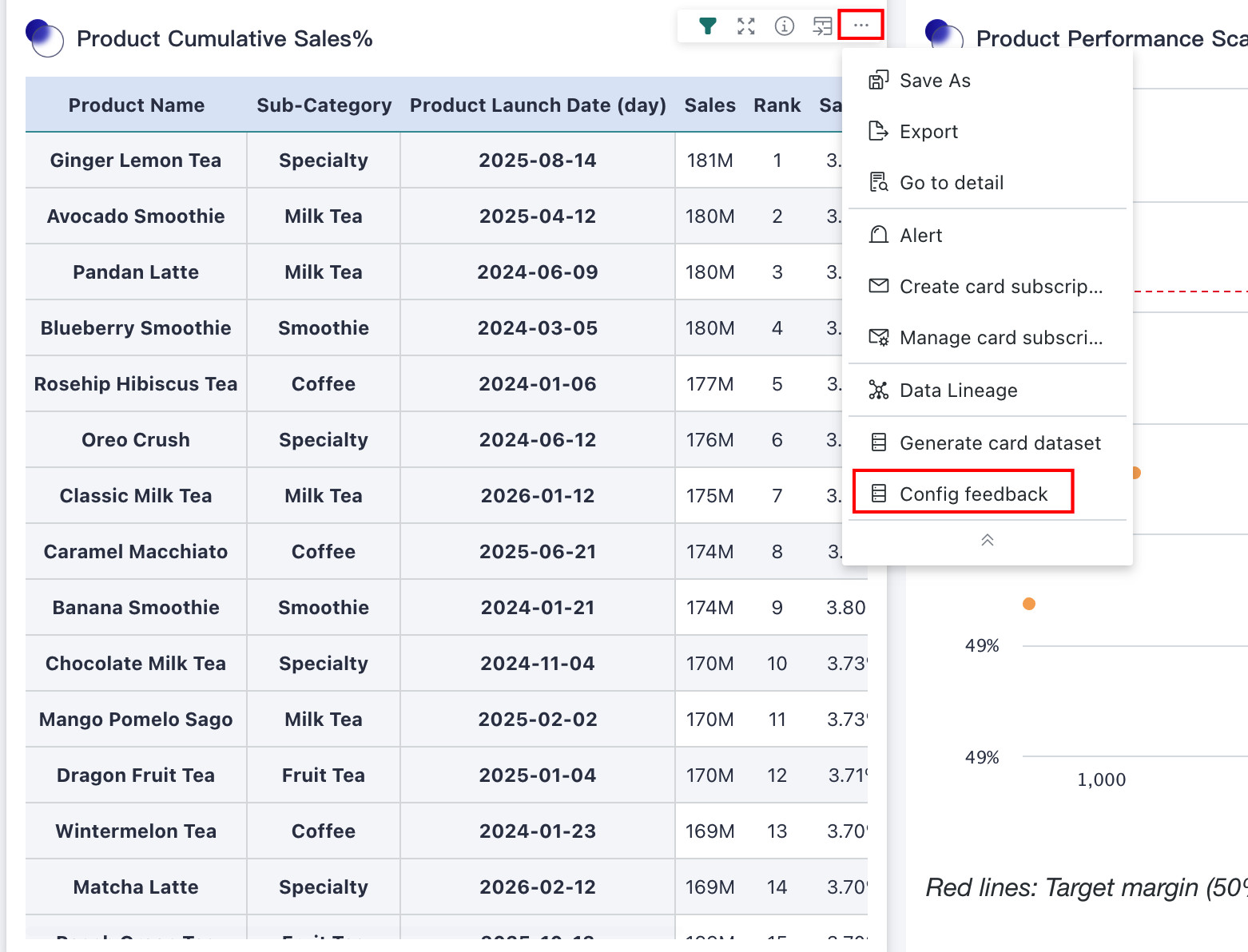
Entry: Online Dashboard > Card to Configure > ... > Configure Feedback
-
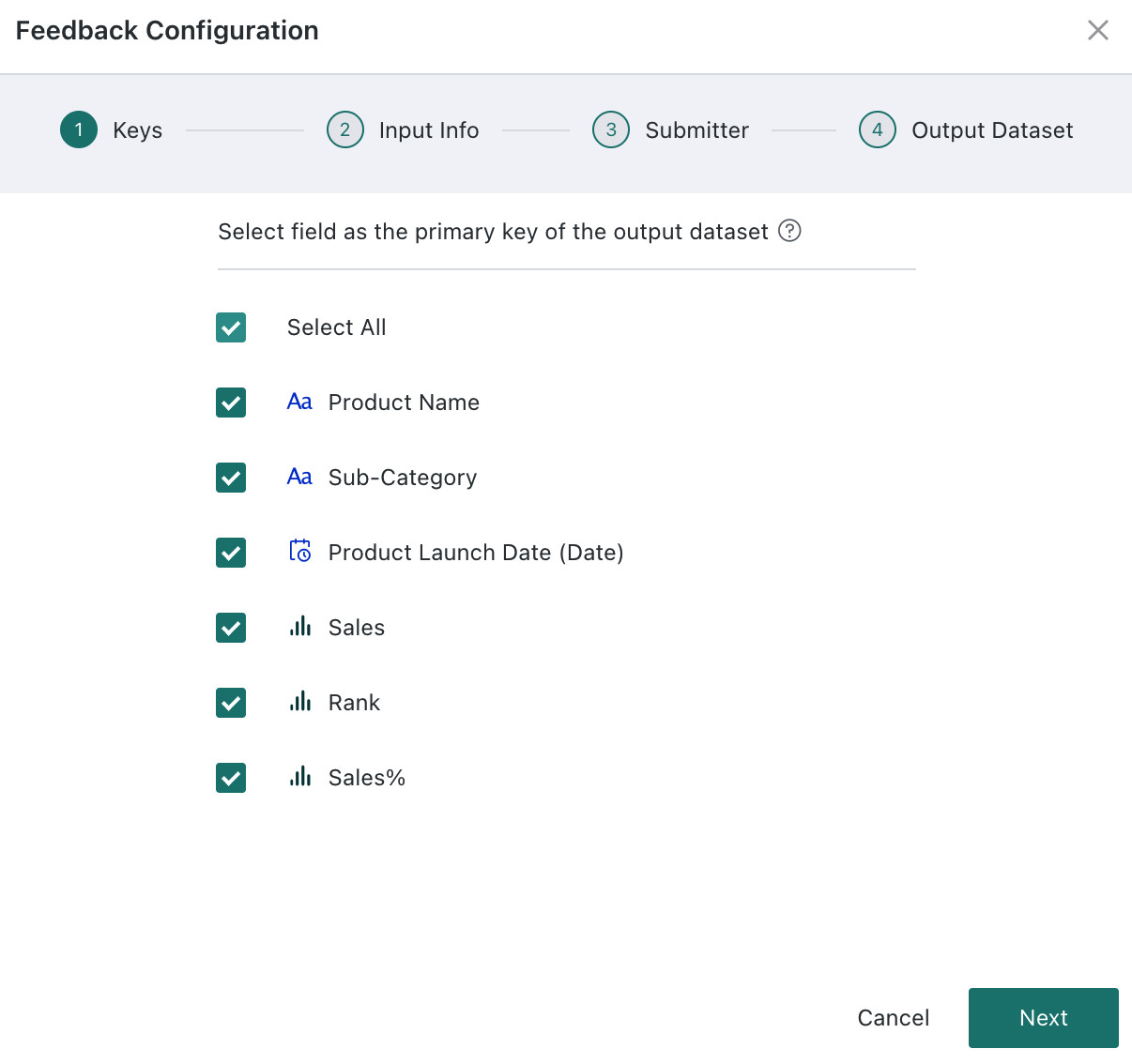
Select the feedback primary key. Only fields already used in the table can be selected.
-
Configure the fields of the feedback cell, including field name, field type, style, and whether it is required. Multiple feedback fields are supported, and you can preview the effect below the configuration area.
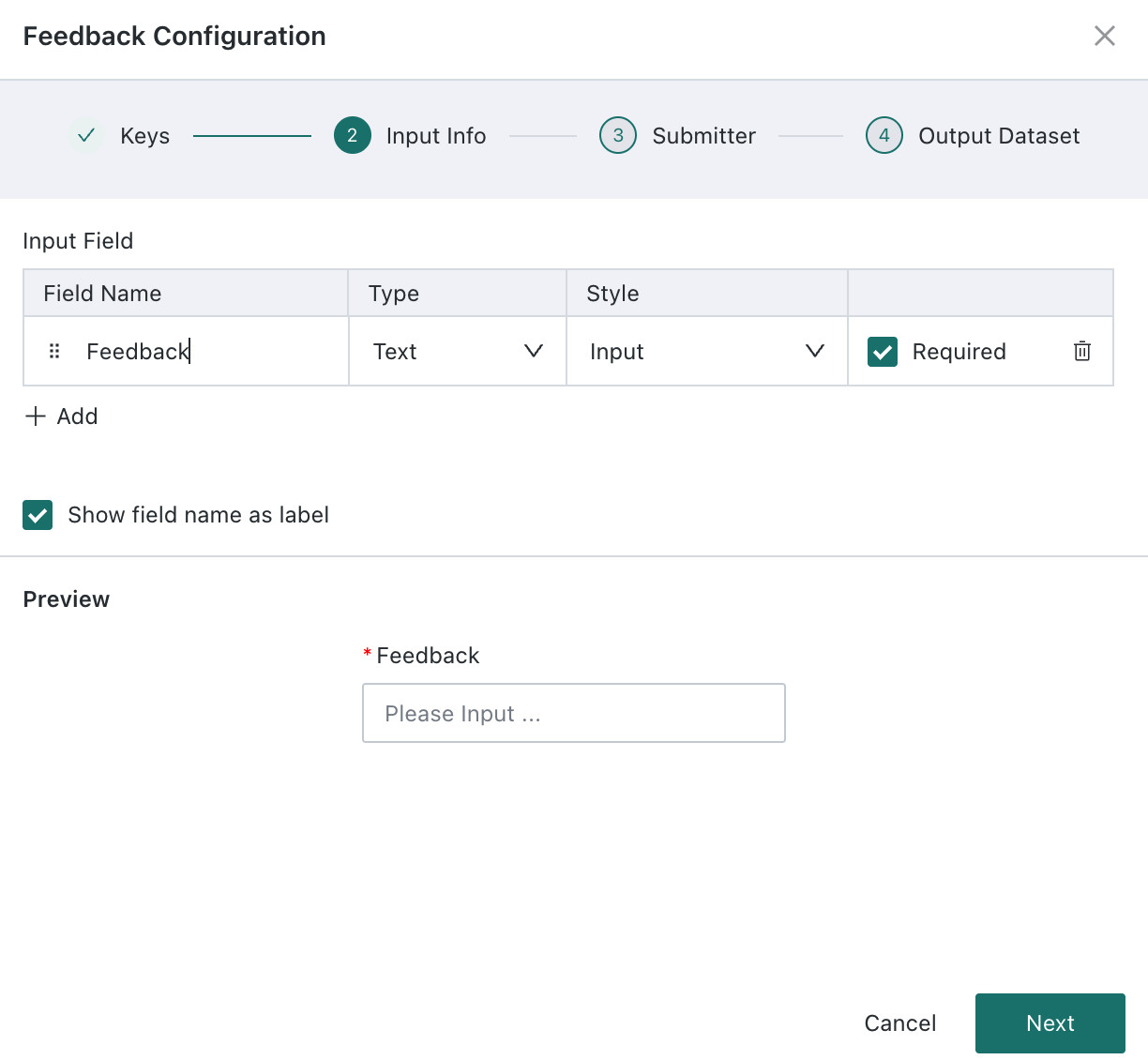
- Field Type: the type of the output field. Supported types are text, numeric, date, and time.
- Style: the input style of the feedback cell. Available options vary by field type:
- Text:
- input box (single-line text)
- text area (multi-line text)
- single-select and multi-select
- custom options: enter values manually and press Enter to add more
- options from dataset: select a dataset and field, and use field values as options. Current users can select all datasets they are allowed to use. Administrators can select all datasets.
- Numeric:
- input box
- rating
- Date:
- calendar (year-month-day)
- Time:
- calendar (year-month-day hour-minute-second)
- Text:
-
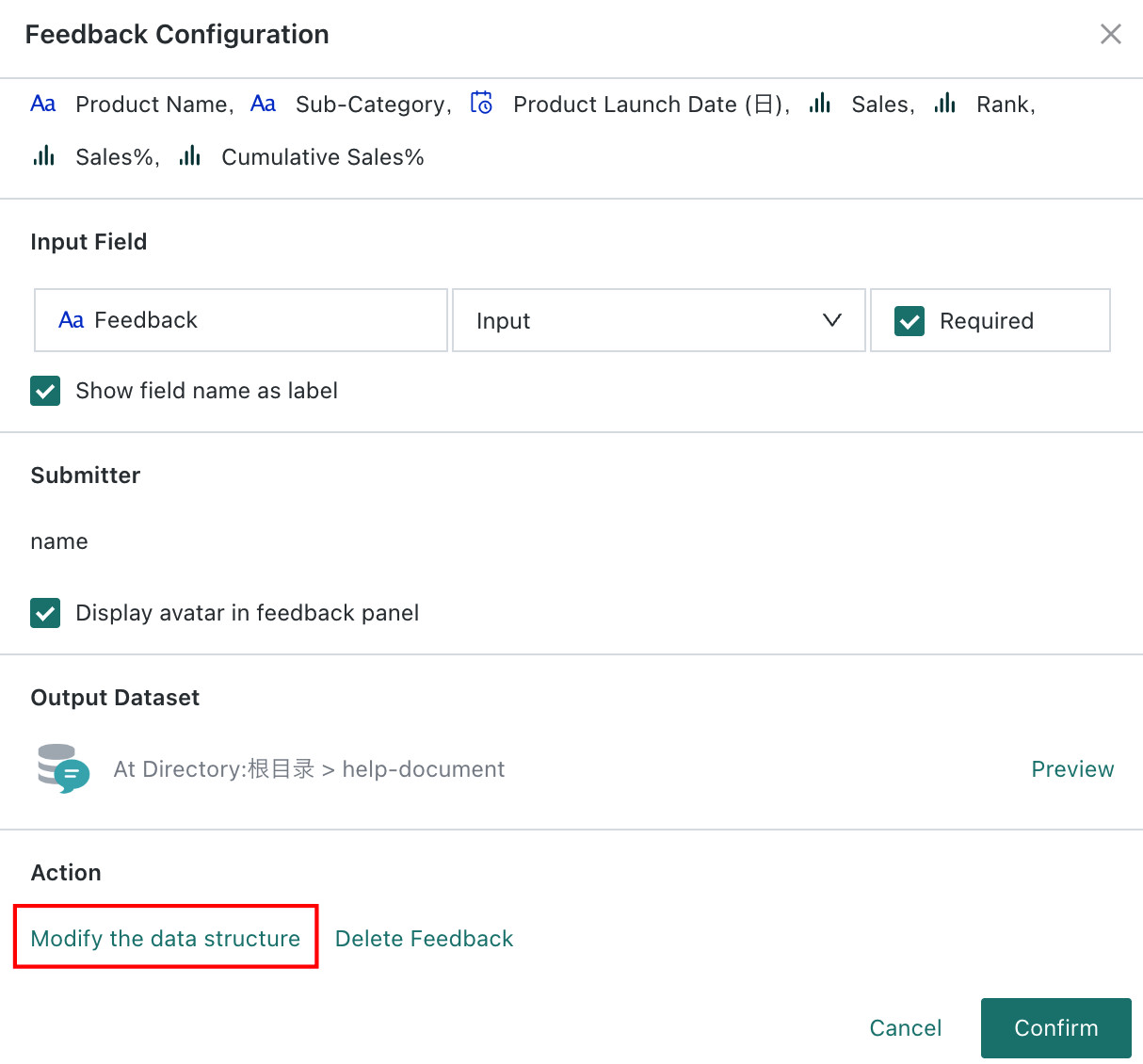
Configure submitter information. The final feedback dataset includes this information to identify the user who submitted the feedback. You can choose attributes from user basic attributes such as name, account, and email. You can also choose whether the user's avatar is shown in the feedback panel.
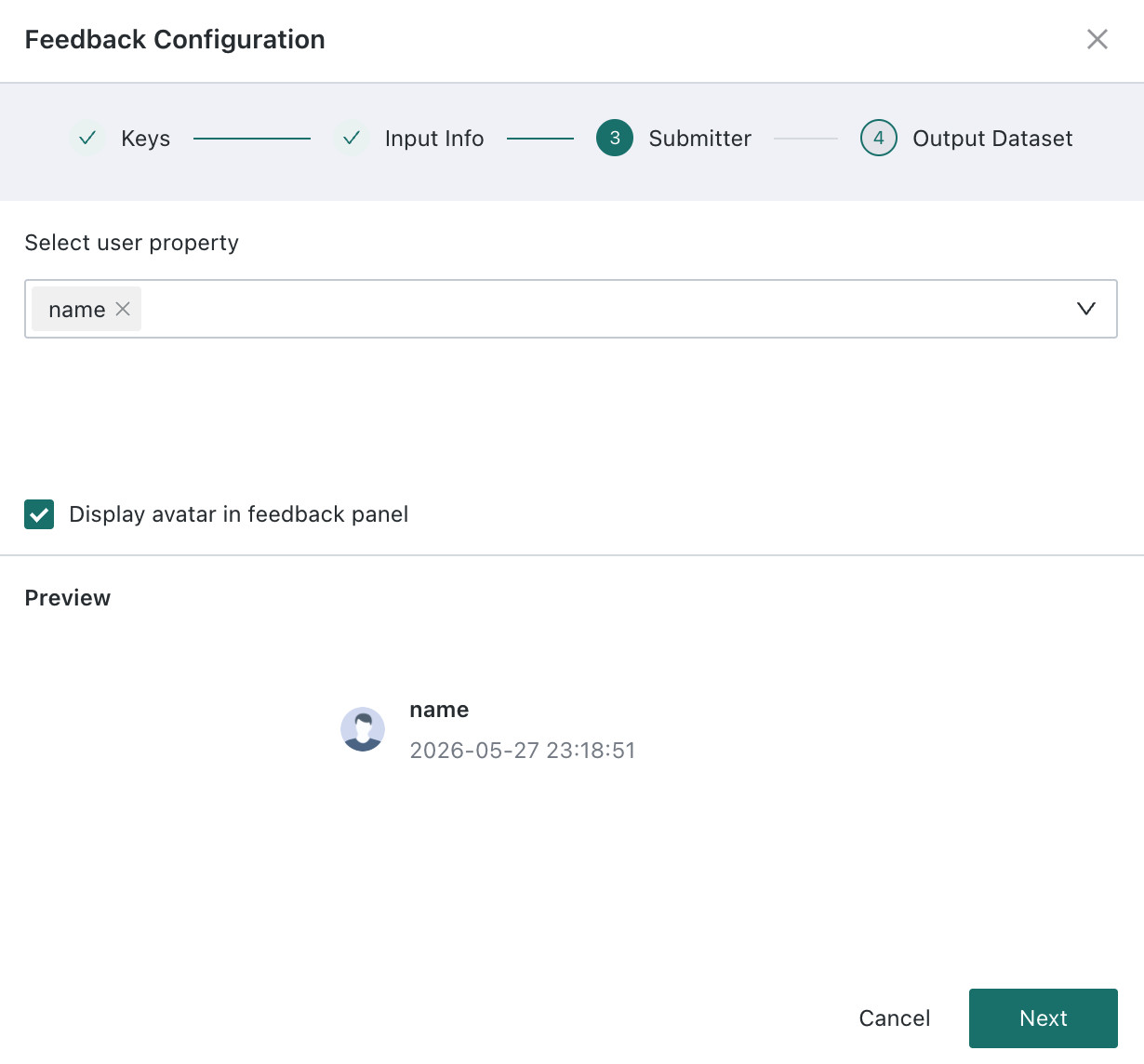
-
Configure the feedback dataset information, including dataset name (required), save directory (required), and description (optional).
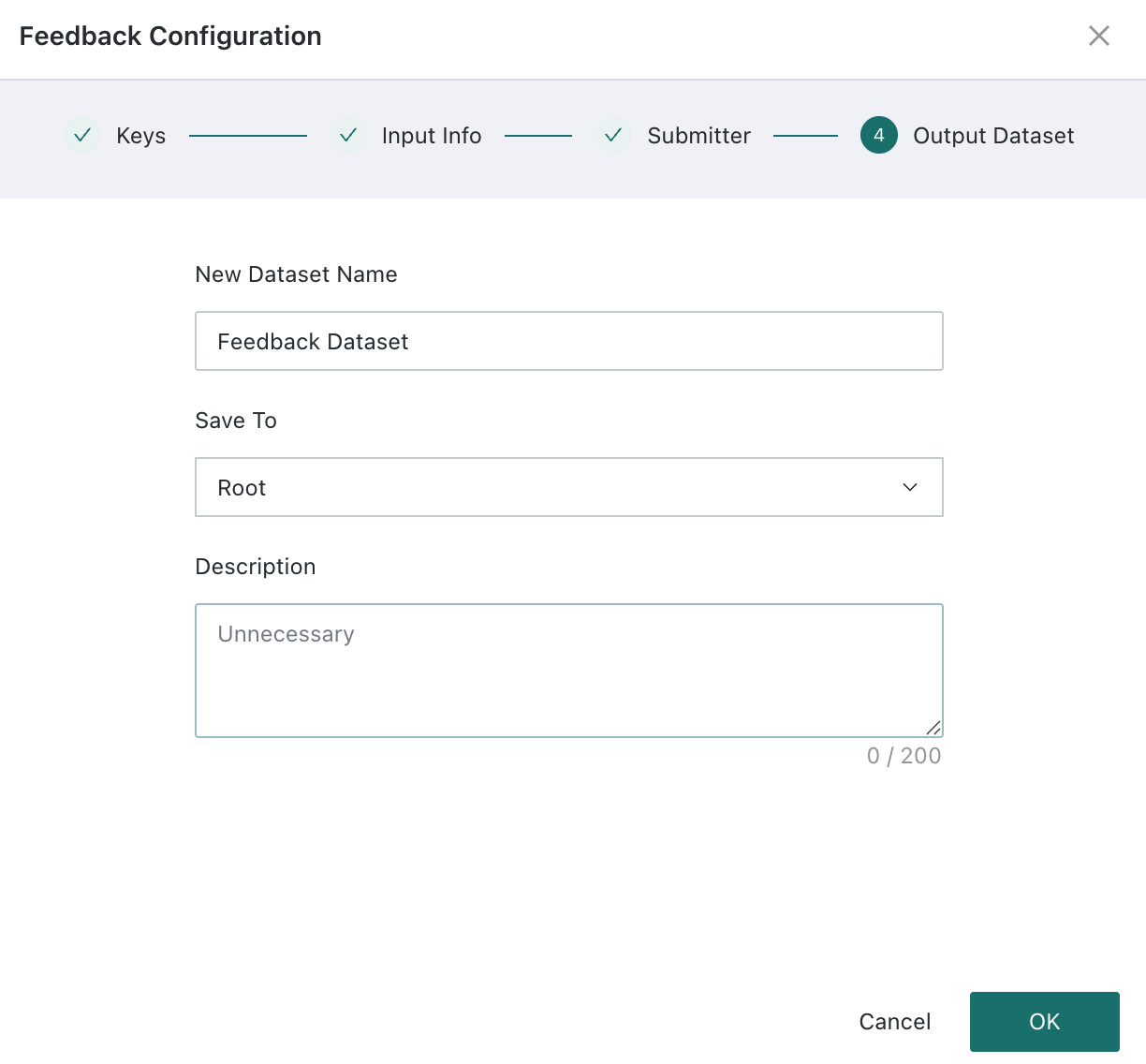
-
Click Finish to complete the configuration.
Enable Knowledge Feedback
Role Permission: administrator or page owner
Entry: Dashboard Edit Page > Card Edit Page > Advanced Settings > Knowledge Feedback
-
Click Edit on the right side of the dashboard to enter dashboard editing mode.
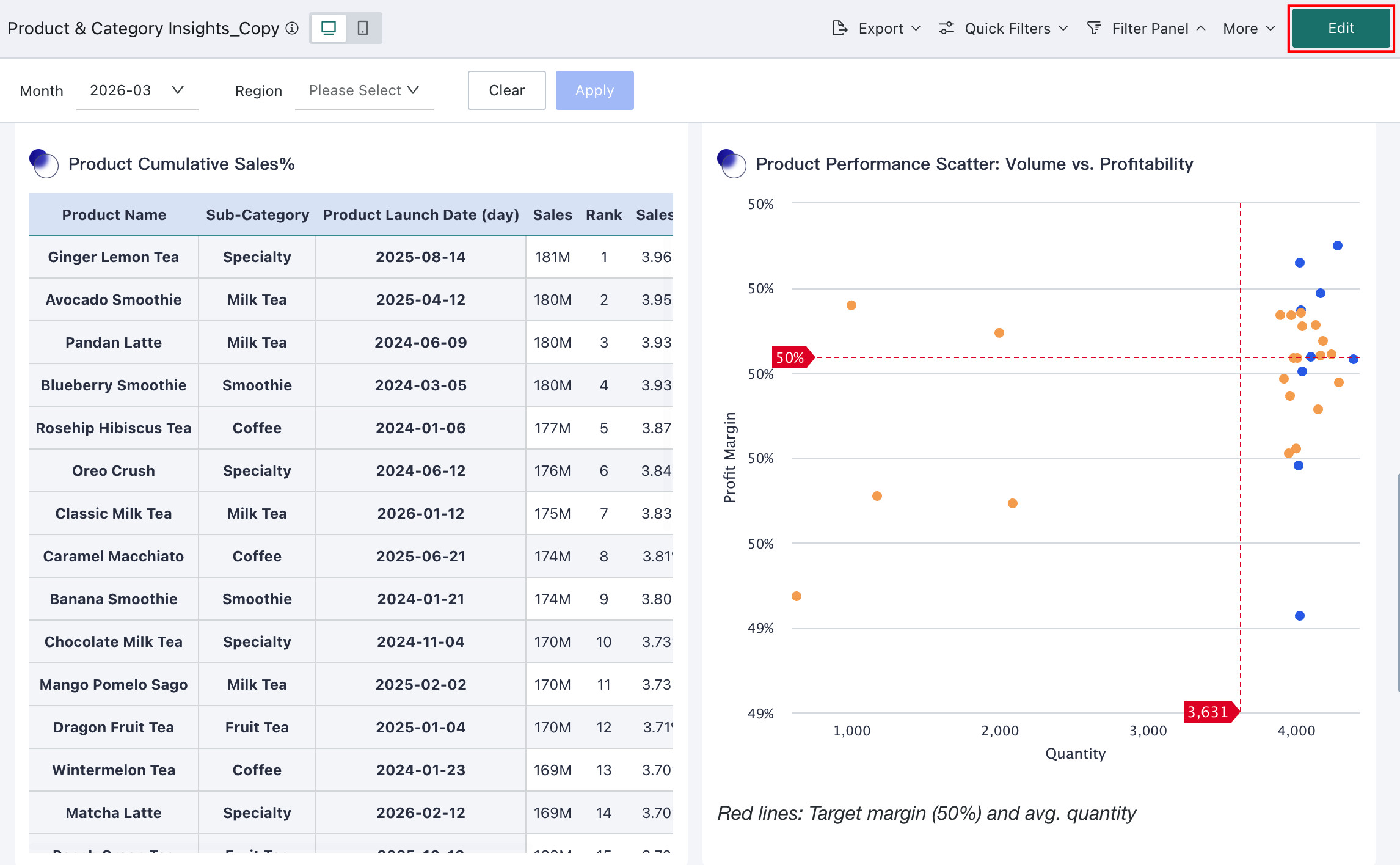
-
Click
... > Editon the card to enter the card editing page.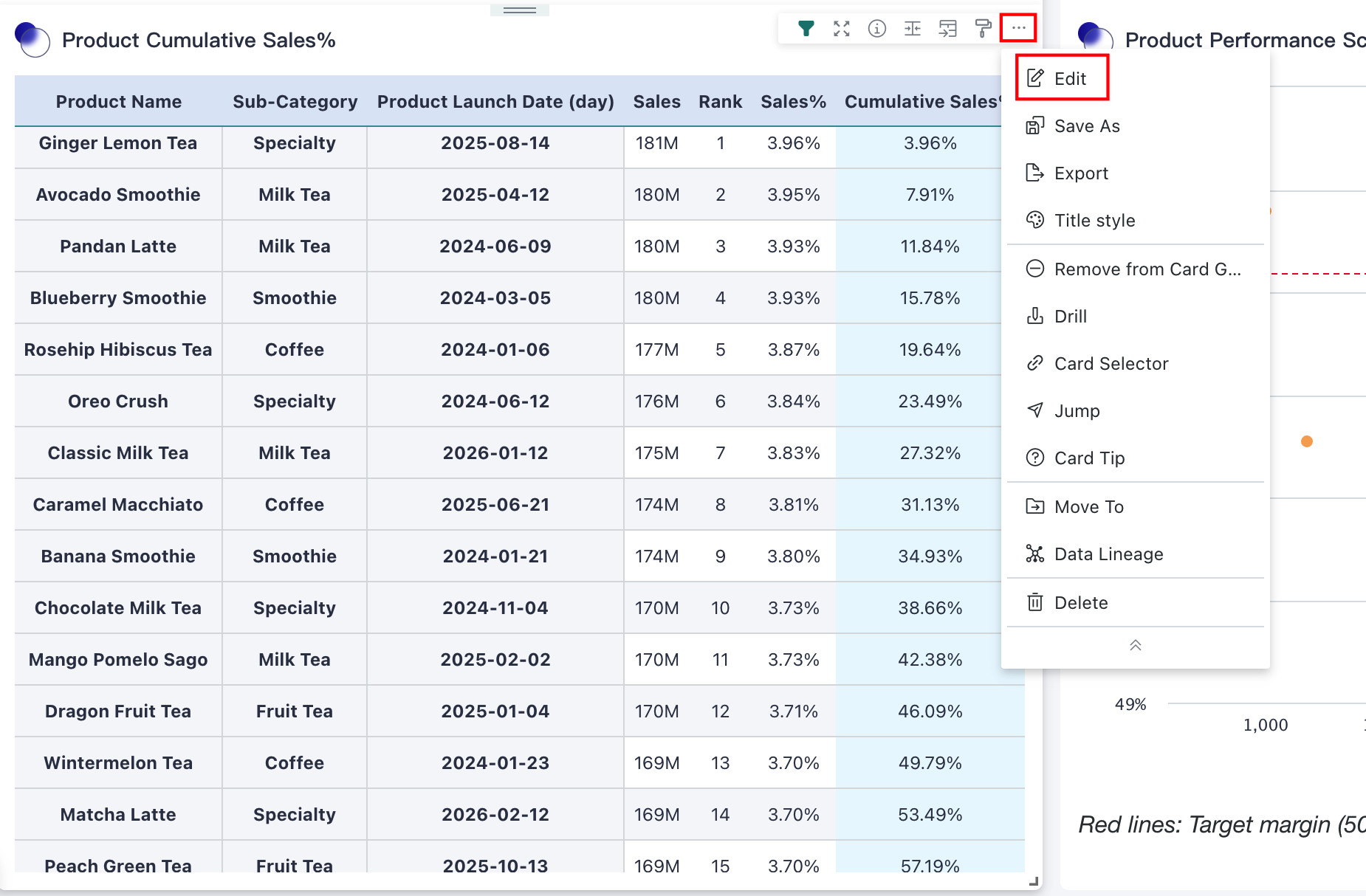
-
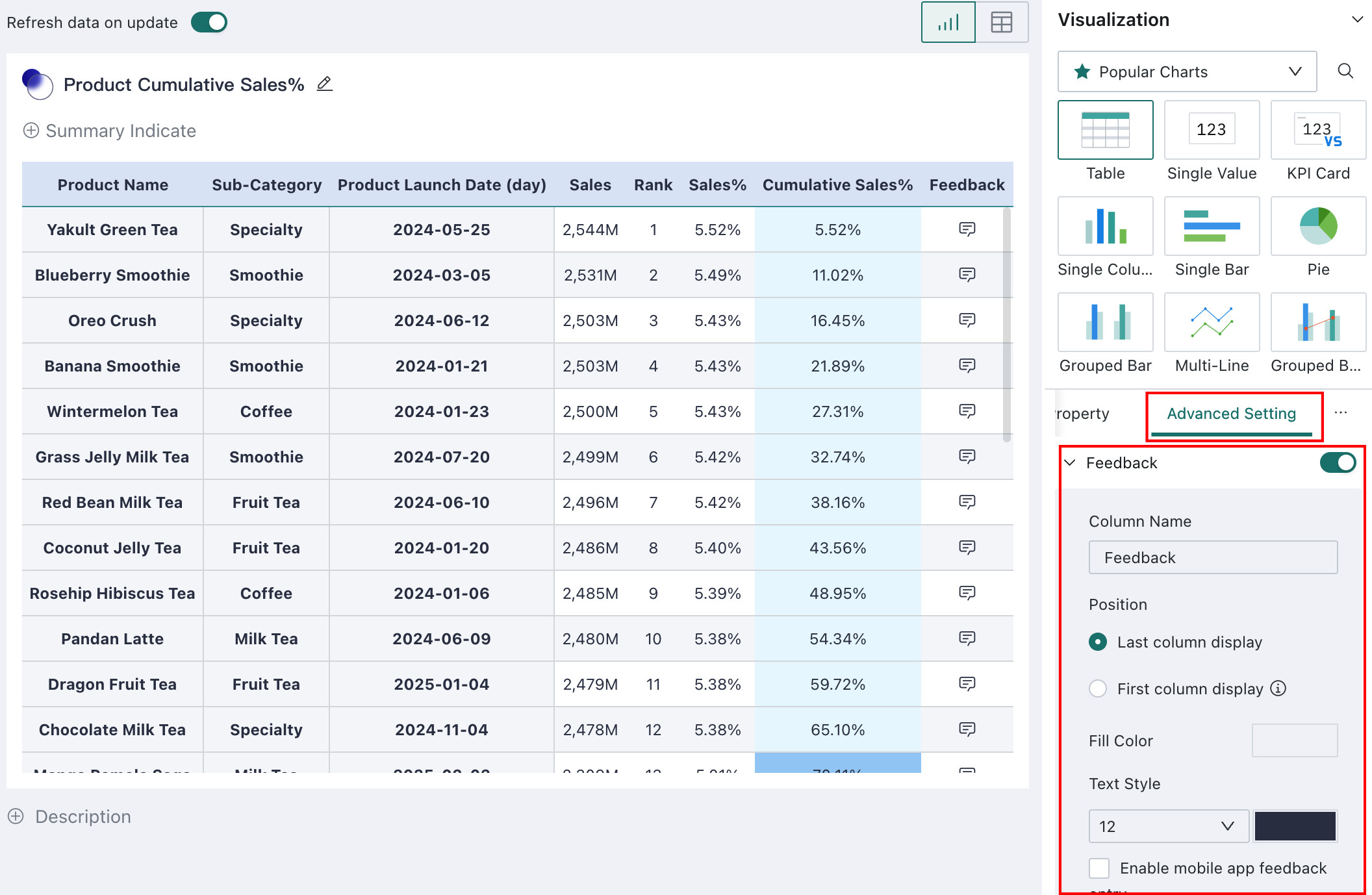
Turn on Knowledge Feedback. You can rename the feedback column and configure fill color and text styles.
 Notes
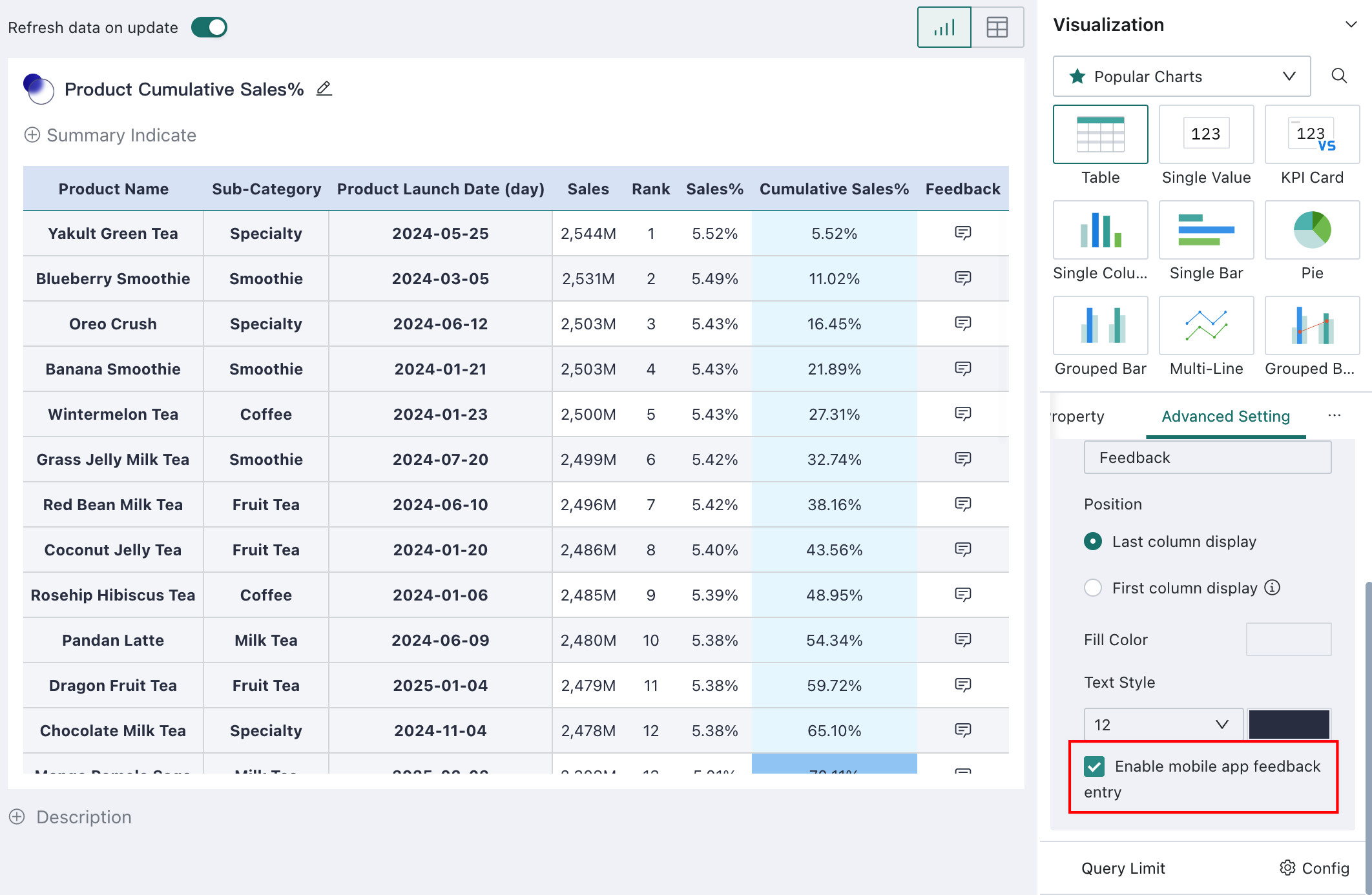
NotesIf Enable Mobile Knowledge Feedback is selected, users can also submit feedback on mobile.
-
Save the card and publish the dashboard page.
Modify Knowledge Feedback
Role Permission: administrator or page owner
Entry: Online Dashboard > Card with Knowledge Feedback Enabled > ... > Configure Knowledge Feedback
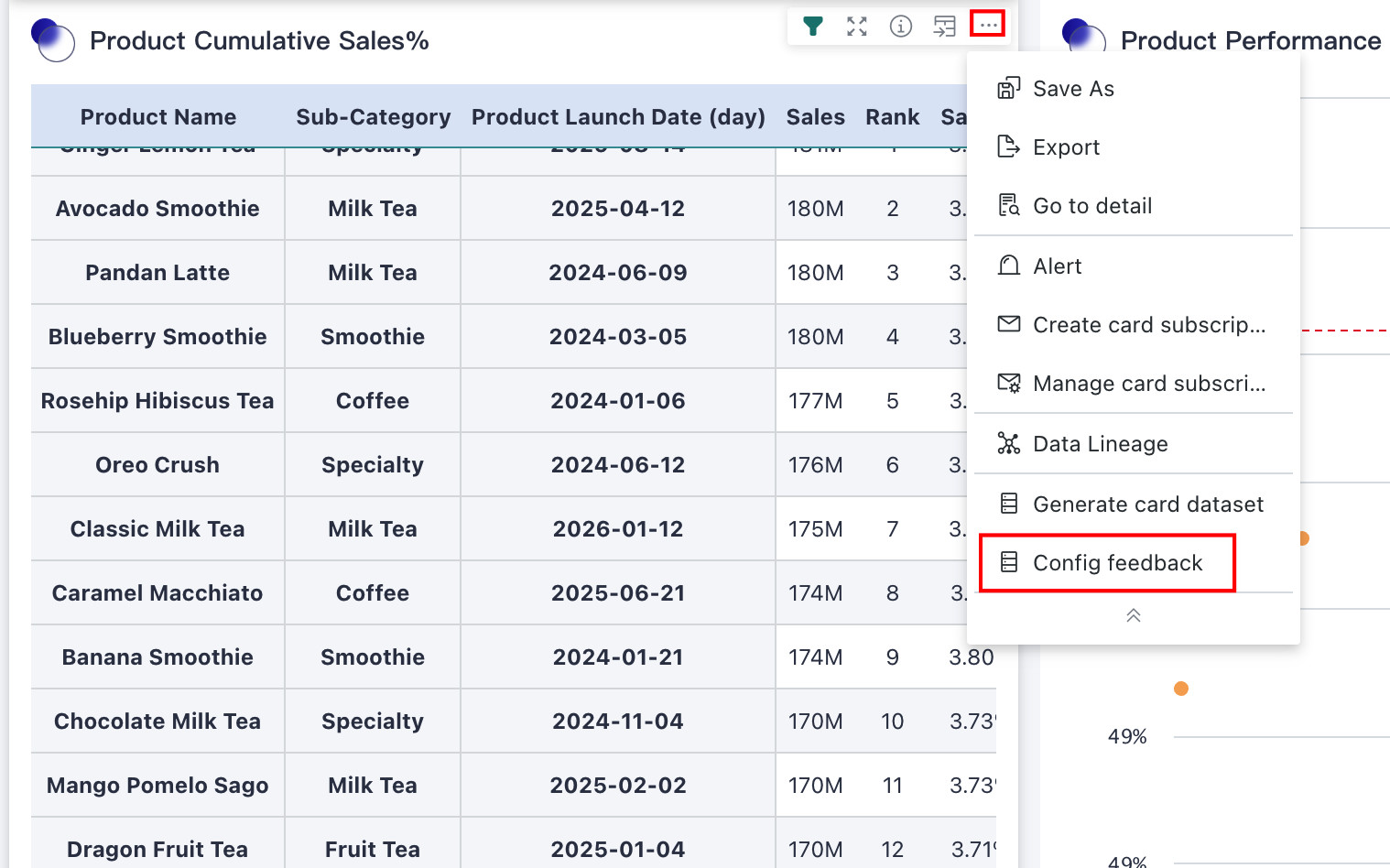
If you want to reconfigure Knowledge Feedback, click Modify Data Structure. After modification, the original feedback dataset is no longer updated, and a new output dataset is generated. Subsequent submitted feedback is written into the new dataset, so this action should be performed carefully.
Fill In Knowledge Feedback
Role Permission: page viewer
After Knowledge Feedback is configured for a table, users can submit feedback on the dashboard page. Guandata BI supports feedback entry on both desktop and mobile, and submitted information is synchronized into the configured Feedback Dataset.
Desktop
Click a cell in the feedback column to open the feedback panel. There, you can view all historical feedback already submitted for the current record.
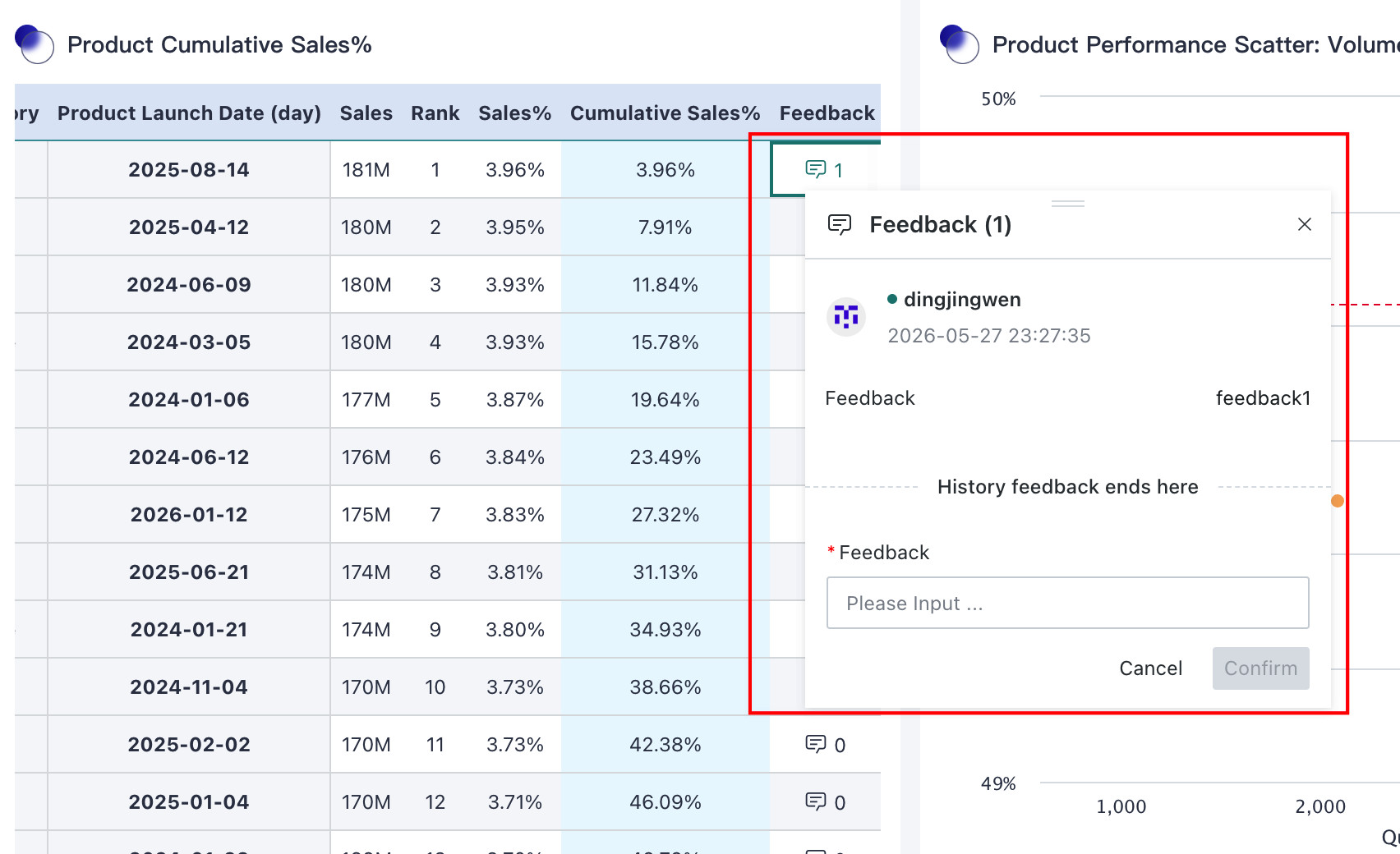
In the feedback area, enter or select your feedback information and click Confirm to submit it. After submission, all feedback can be viewed in the history panel, and users are allowed to delete their own feedback entries.
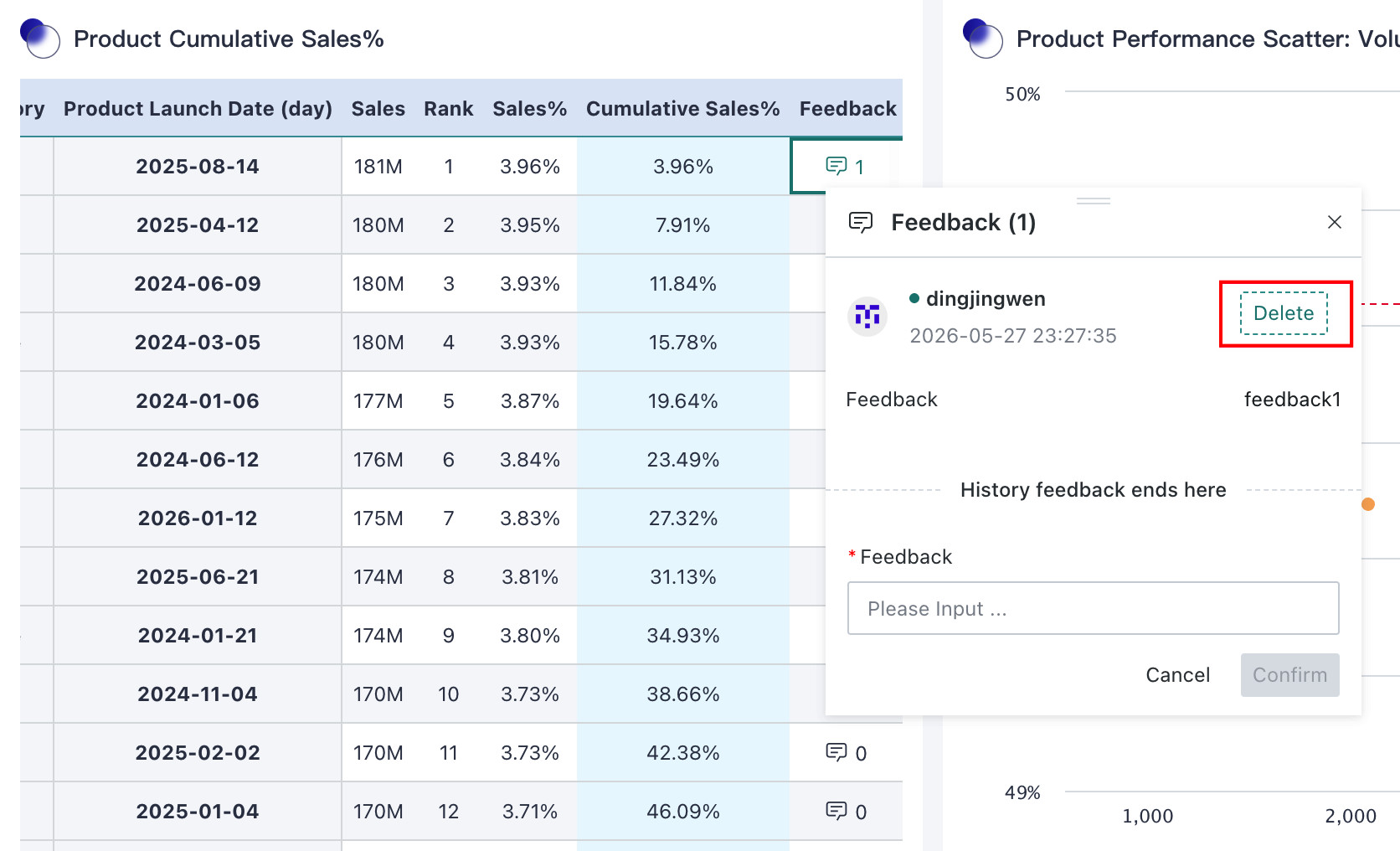
- The feedback column can display how many times each row has received feedback, helping users find rows with heavy feedback quickly
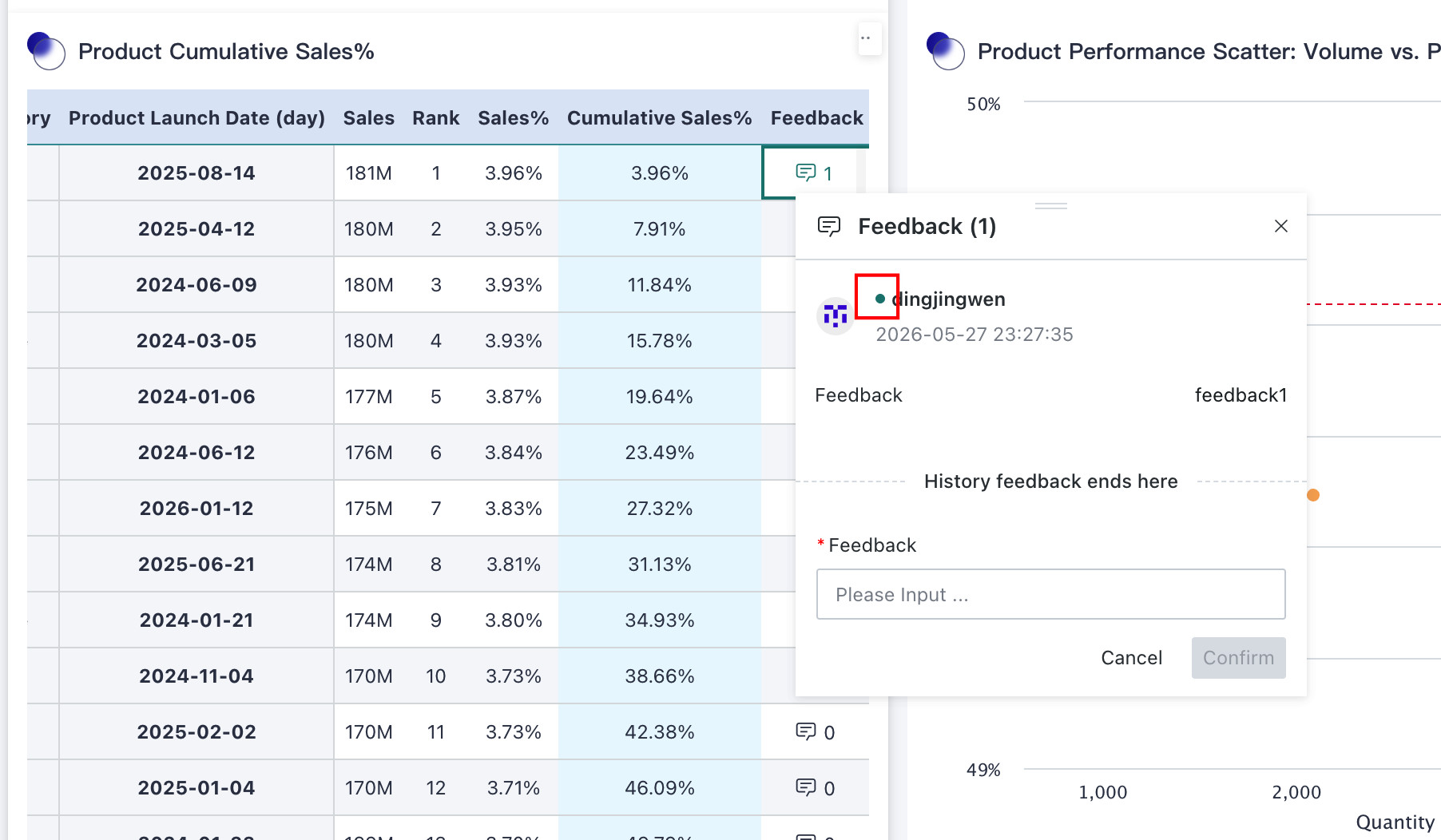
- The solid feedback marker identifies rows that the current user has already commented on. In the feedback panel, the dot in the detail list indicates records submitted by the current user
Mobile
-
On the table editing page, select Enable Mobile Knowledge Feedback to allow feedback entry on mobile.
-
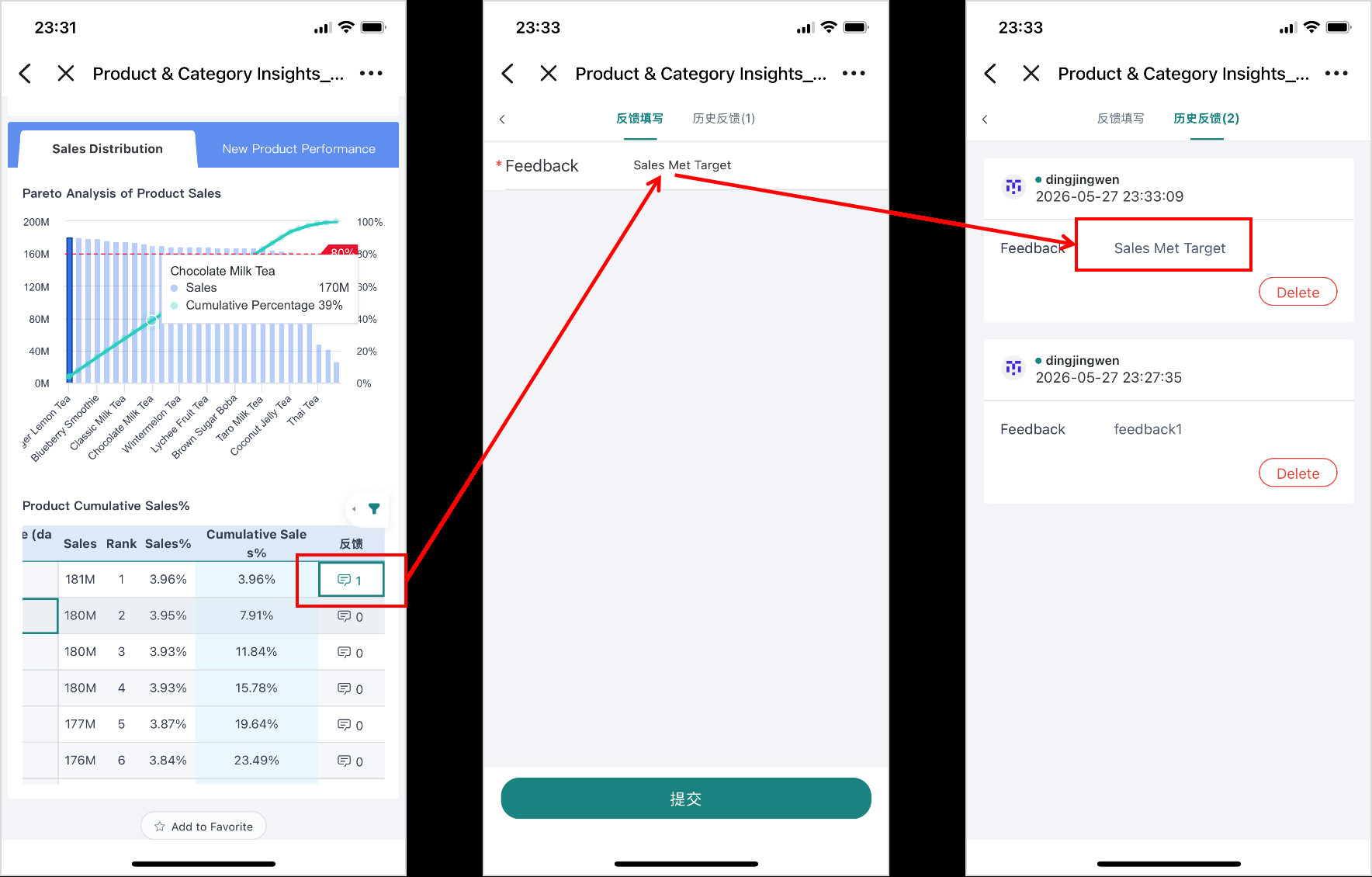
On mobile, click the feedback marker in the feedback column to open the feedback panel.
- In the feedback input page, enter the information to be submitted. Cascading selection and tree selection are not supported on mobile.
- Click Feedback History to view all historical feedback for the current record and delete your own feedback entries if needed.
- If you return or exit before submission, the entered content is not saved.