Repetition Rate
Overview
Use Cases
Repetition Rate can be used in scenarios such as repeat purchase rate and repurchase rate. For example, it can be used to calculate how many times consumers repeatedly purchase a product or service, helping analyze customer loyalty to a brand.
Feature Overview
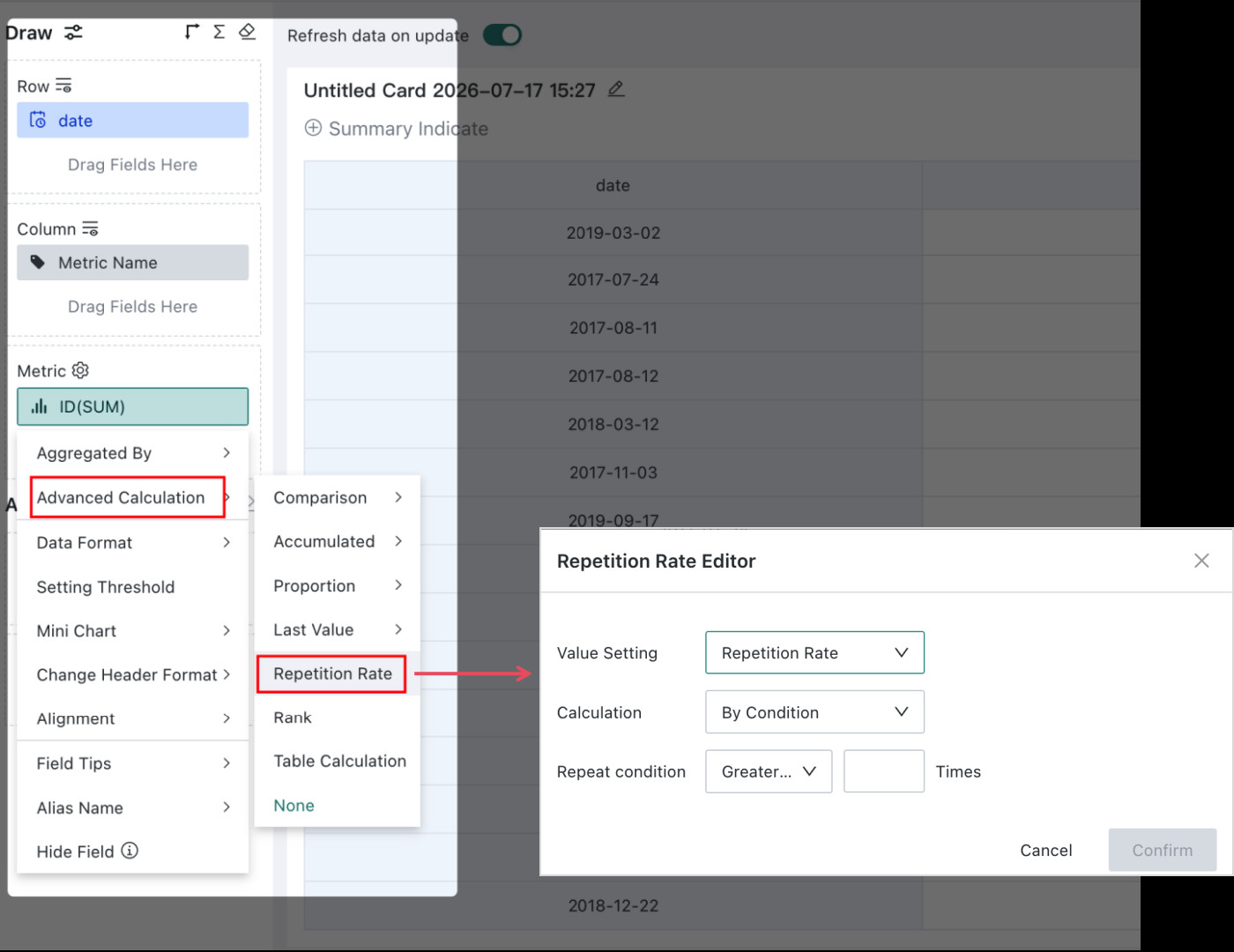
In the measures area, click the field for which you want to calculate Repetition Rate, then choose Advanced Calculation > Repetition Rate from the drop-down menu to open the settings dialog.
Repeat count represents the number of indicators or events that meet a specified repeat condition within a given time period. It helps measure the proportion of repeated occurrences so you can evaluate data characteristics and trends.
Quick Start
Repetition Rate supports two calculation methods: By Condition and By Count.
It supports calculating both Repeat Count and Repetition Rate. Repeat count represents the number of indicators or events that meet a specified repeat condition within a given time period.
Repetition Rate = Repeat Count / Total Indicator Count × 100%
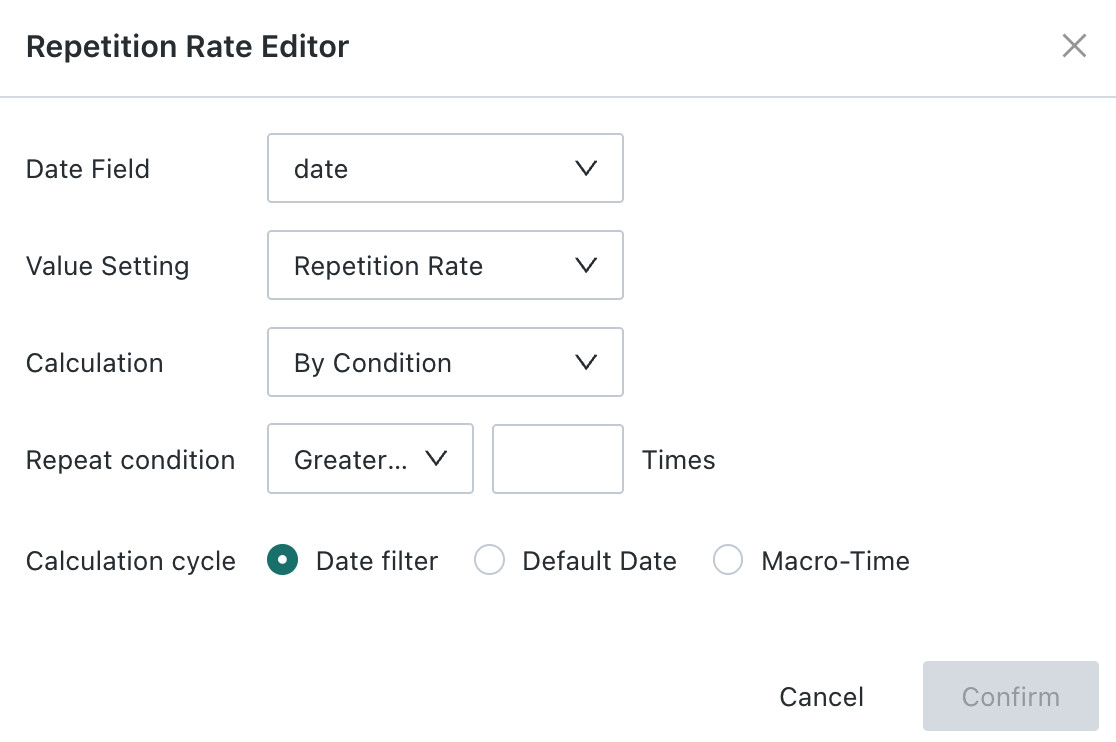
Because Repetition Rate calculation depends on a time range, the dataset must contain a date field. There are two scenarios:
- If the dimensions area contains a date field, that field is used as the analysis basis and no additional date configuration is needed.
- If the dimensions area does not contain a date field, you must configure the date field to use and define the time range through a calculation period.
-
The time range can be defined in three ways: Date Filter, Default Date, and Macro-Time.
-
Repetition Rate can be calculated by condition or by count. The two methods are described below.
By Condition
Definition: the system evaluates records based on a condition, and the number of indicator values that meet the condition is treated as the repeat count. For example, in member repurchase analysis, customers with purchase count ≥ 2 can be defined as repeat purchasers.
For example, during September 2022, suppose 10 customers made purchases, and 3 of them purchased more than twice. In this case, the total indicator count is 10, the repeat count is 3, and the Repetition Rate is calculated as repeat count / total indicator count.
- Drag the dimension you want to analyze into Dimensions, for example Purchase Time > Month.
- Drag Member ID into Measures and choose Distinct Count as the aggregation method. This calculates the number of members for each month.
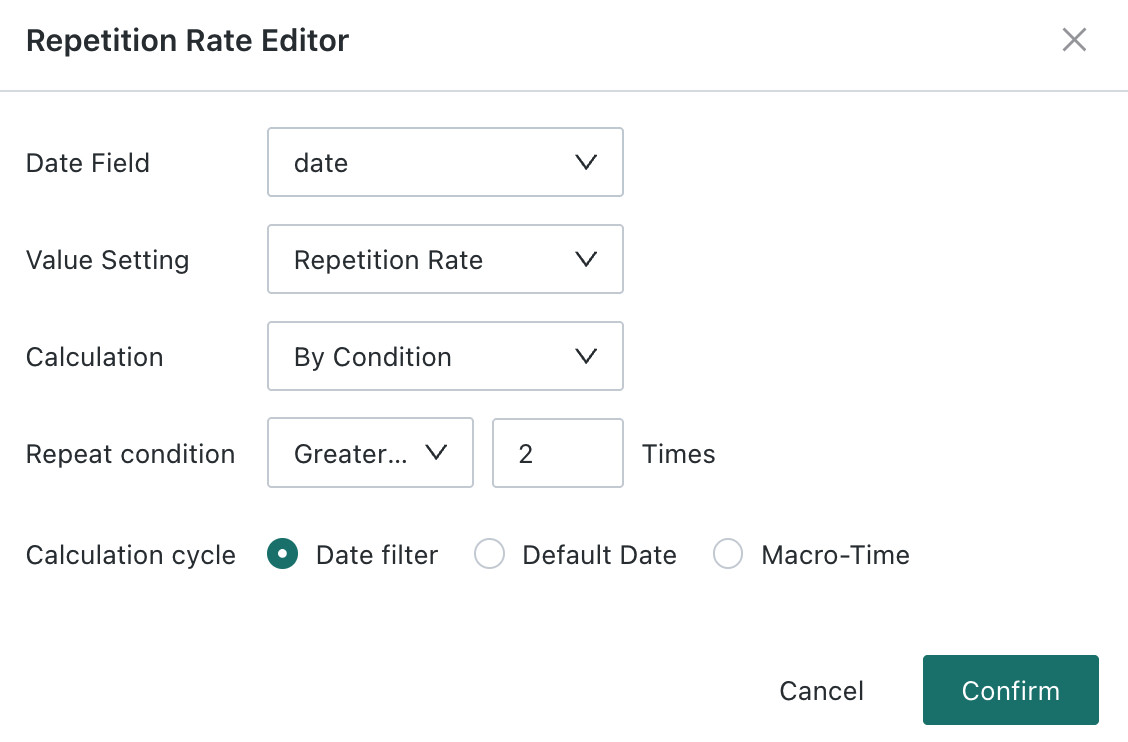
- For the field created in step 2, set Advanced Calculation > Repetition Rate. Configure the value as Repeat Count, choose By Condition as the calculation method, and define ≥ 2 times as repeat purchase. The result is the repeat customer count, that is, the number of members with purchase count ≥ 2.
The configuration supports value settings and repeat conditions.
- Value Setting: supports Repeat Count and Repetition Rate. Repurchase rate = repeat customer count / total member count.
- Repeat Condition: supports Greater Than or Equal To, Less Than or Equal To, Greater Than, Less Than, Equal To, and Range.
By Count
Definition: within a time period, Repeat Count = number of repeated occurrences of the indicator, and Repetition Rate = repeat count / total count.
Repeat Count = COUNT([Indicator]) - COUNT(DISTINCT([Indicator]))
Repetition Rate = Repeat Count / COUNT([Indicator])
For example, if 30 customers make 100 purchases during September 2022, the repeat purchase count is 70 and the Repetition Rate is 70%.
- Drag the dimension to analyze into Dimensions, for example Purchase Time > Month.
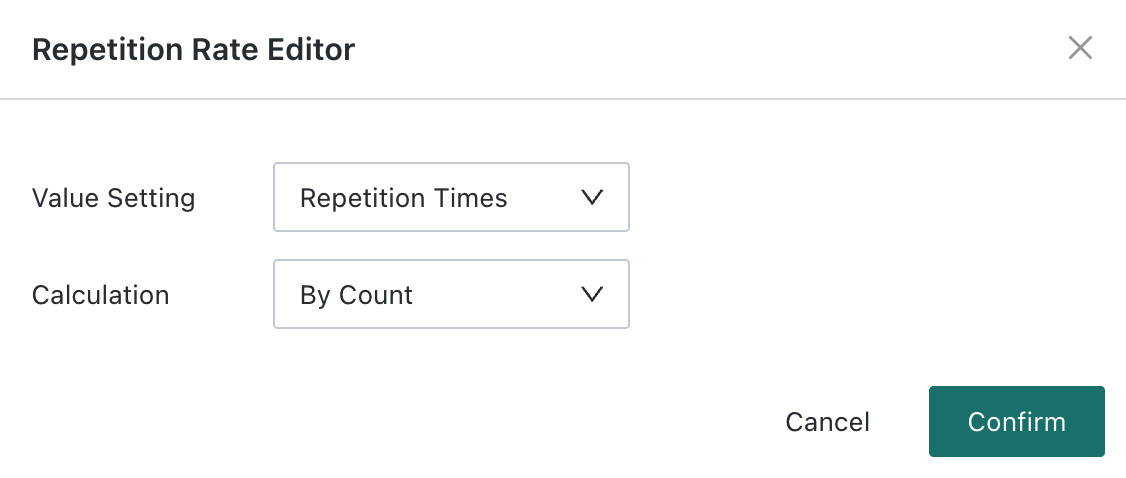
- Drag Member ID into Measures, choose Count as the aggregation method, then choose Advanced Calculation > Repetition Rate and set the value to Repeat Count and the calculation method to By Count.
The result is the repeat purchase count. You can verify this as: repeat purchase count = total purchase count - distinct customer count.
- Repeat the previous step and set the value to Repetition Rate. The result is the repurchase rate: repeat purchase count / total purchase count.
Limitations
- Detail tables do not support this feature.
- Only extracted datasets are supported; direct connection datasets are not yet supported.
- This feature is supported only when the dataset contains a date field, including newly created calculated date fields.