Set as Default Login Page
Overview
Feature Description
By setting a default login page, all users can see the same BI homepage upon login. By managing the login entry point for BI system users, data consumers can more quickly find the analysis scenarios they want.
Guandata BI supports three types of default login page settings: enterprise default login page, user group default login page, and personal default login page. In addition, administrators can set priorities for default login pages so that relevant users see a unified page when logging in.
Application Scenarios
Setting a default login page provides users with a unified, convenient, and information-rich entry point, offering precise guidance and efficient positioning of content of interest, directly guiding toward business-focused target cards or Dashboards, and improving the overall user experience and system usage efficiency. Examples include:
- Enterprise information delivery: When an enterprise needs to publish important notices and information, announcements such as system maintenance and version updates can be posted on the login page, ensuring users receive important information the moment they log in.
- User group customization: Different user groups can have different default login pages. For example, sales teams, technical teams, and management can each have customized login pages displaying important information or quick access relevant to their work, improving work efficiency.
- Personalized settings: Individual users can set their own default login pages to meet different user needs and preferences.
User Guide
Default Login Page Priority
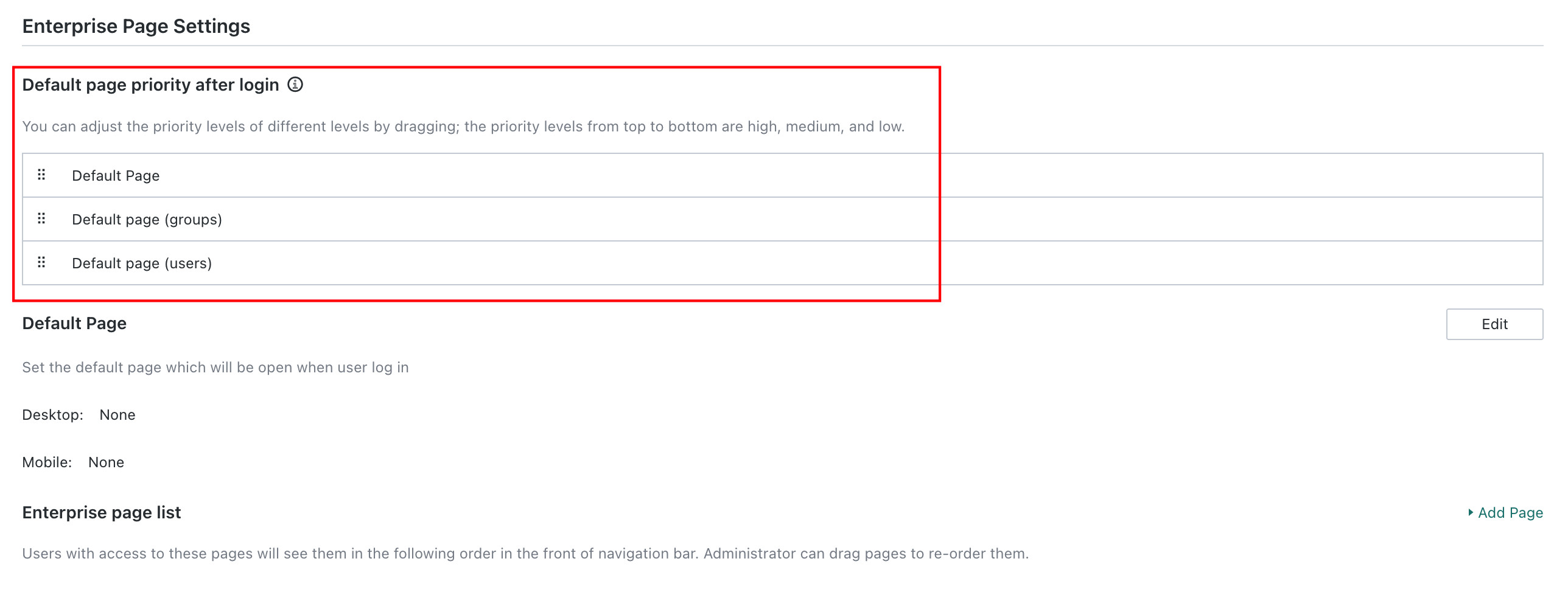
Administrators can autonomously adjust the priority of the three types of default login pages based on actual usage. Default login pages are displayed in priority order; if a higher-priority default page is empty (not set), the next priority default page is displayed.
The default login page priority logic is: (Enterprise) Default Page > User Group Default Page > Personal Default Page.
In the (Enterprise) default page settings, priority adjustments can be made by dragging and dropping.
Enterprise Default Login Page Settings
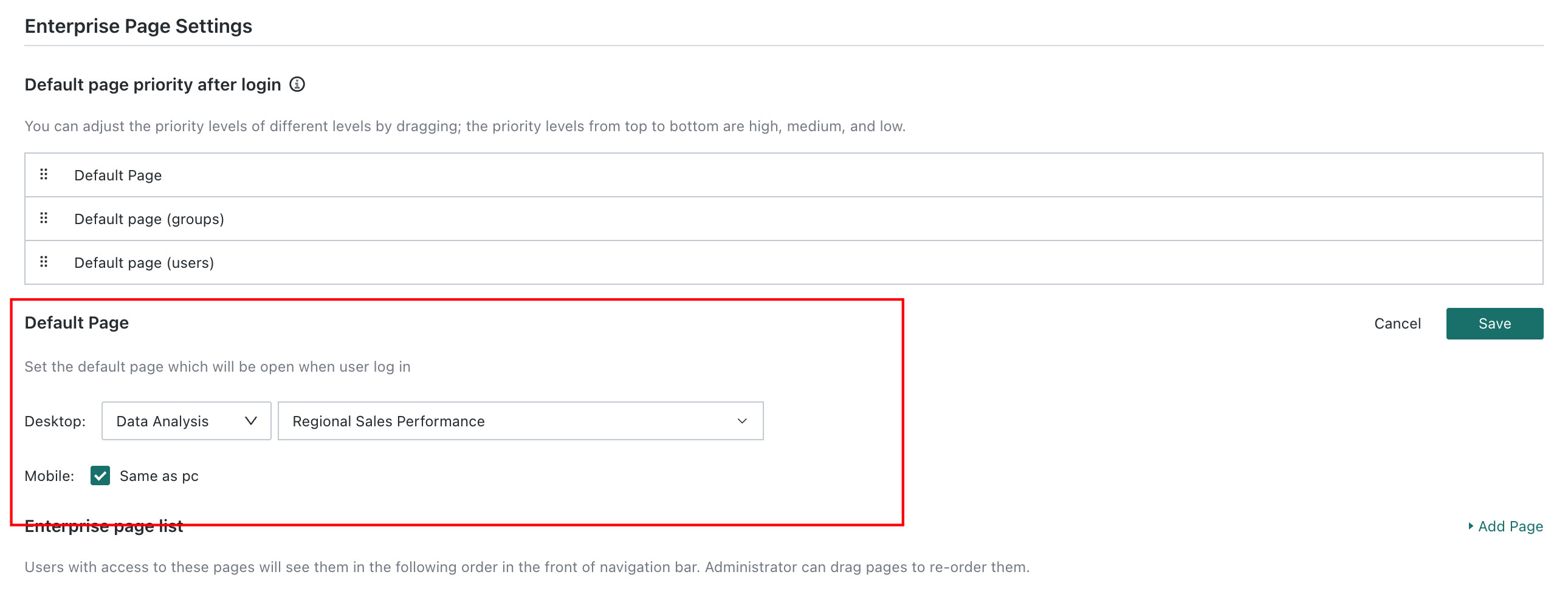
The enterprise default login page is an important information display platform. Enterprise administrators can set a specific page or portal as the enterprise default login page. All enterprise members will access a fixed analysis Dashboard or data portal after logging into BI, providing enterprise members with a more personalized and efficient data access experience. This can be a Dashboard containing enterprise key metrics, a page containing enterprise announcements and important information, or a data portal containing numerous data Dashboards.
Only administrators have permission to set this. Administrators can set the enterprise default page in Admin Center > Enterprise Settings > Enterprise Page Settings. Enterprise pages are always displayed at the top of the directory and cannot be managed in the directory list.
User Group Default Login Page Settings
Although the enterprise default login page is unified, the enterprise can still configure different data Dashboard content for different user groups according to their needs, satisfying the personalized access experience of specific user groups.
For example: If the sales department wants employees to jump directly to the sales Dashboard after logging in, this can be achieved by setting a user group page.
Only administrators have permission to set user group default login pages. Administrators can add user group default login page settings in Admin Center > User Management > User Groups.
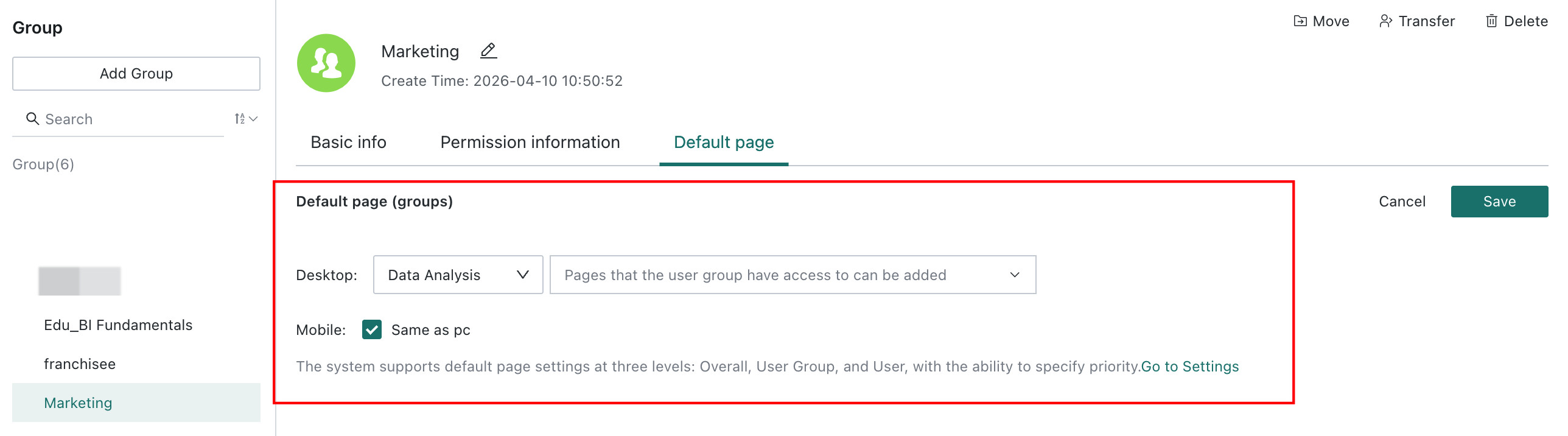
- When searching to add a page, only pages accessible to this user group can be added.
- If a user belongs to multiple user groups, and several user groups have set user group default login pages, the most recently modified user group default page is used.
Personal Default Login Page Settings
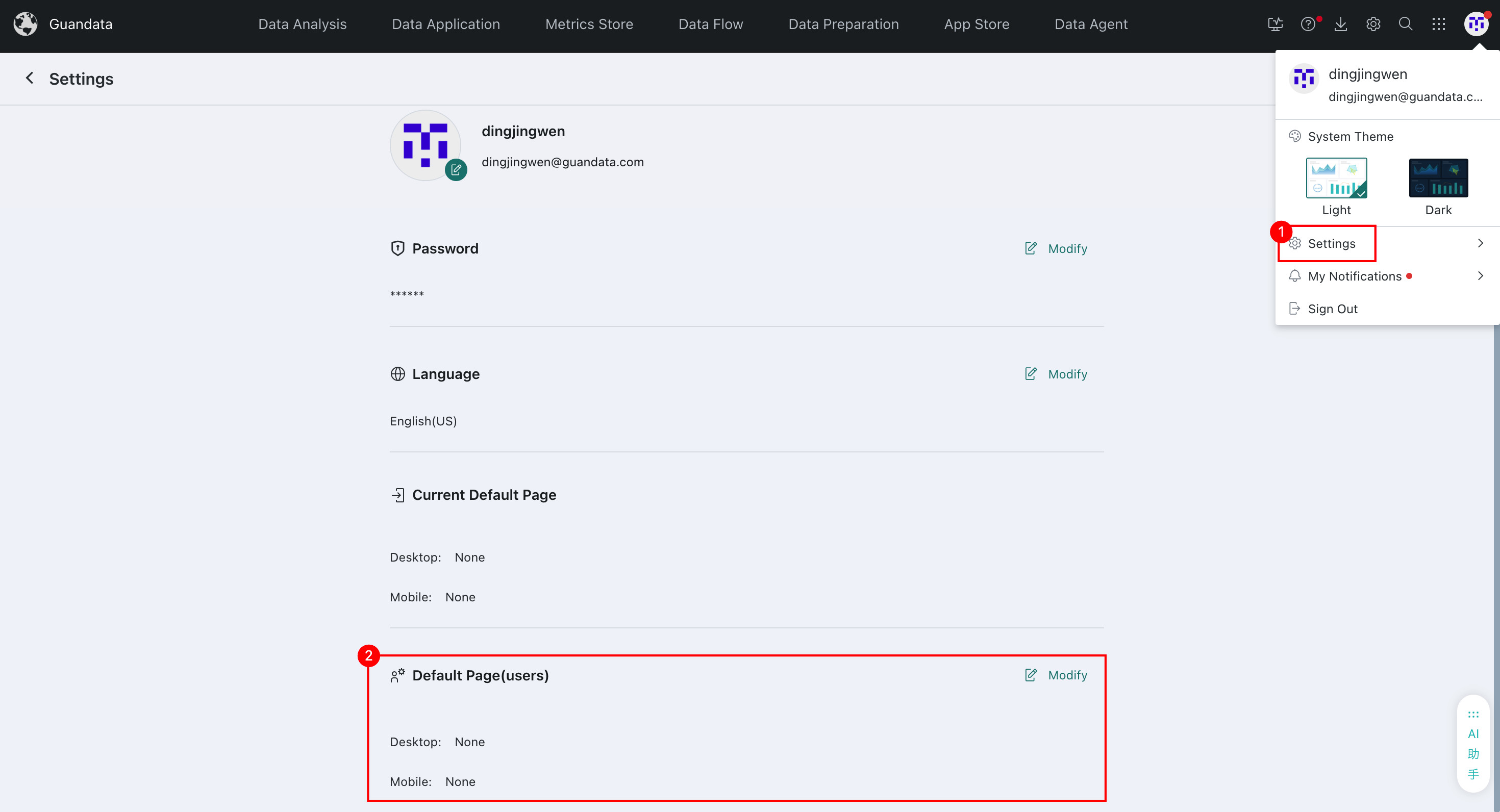
Users can set a page as the default display page upon login according to their own preferences and work needs, allowing faster access to the most frequently used content.
For example: If a user has a Dashboard of particular interest and wants to access it immediately after login, they can configure this in Personal Account Settings.
Individual users can see the personal default page setting entry when either of the following conditions is met:
- In the default page priority, the personal default page has the highest priority.
- In the default page priority, the personal default page is not the highest priority, but all higher-priority default pages are empty (not set).