LDAP Account Dataset
Overview
Guandata BI supports automatically retrieving data from LDAP and synchronizing account data seamlessly between enterprise LDAP systems and the Guandata BI analytics platform through Account Sync. This feature was introduced in version 5.4.0. Unlike the previous LDAP account binding feature, which required manual account creation and did not support automatic updates, the LDAP Account Dataset can automatically create and update accounts through Account Sync so that they remain consistent with LDAP node status.
This section uses an example to describe the full process from creating the LDAP connection to completing Account Sync with an LDAP Account Dataset.
Preparation
Configure the LDAP Connection
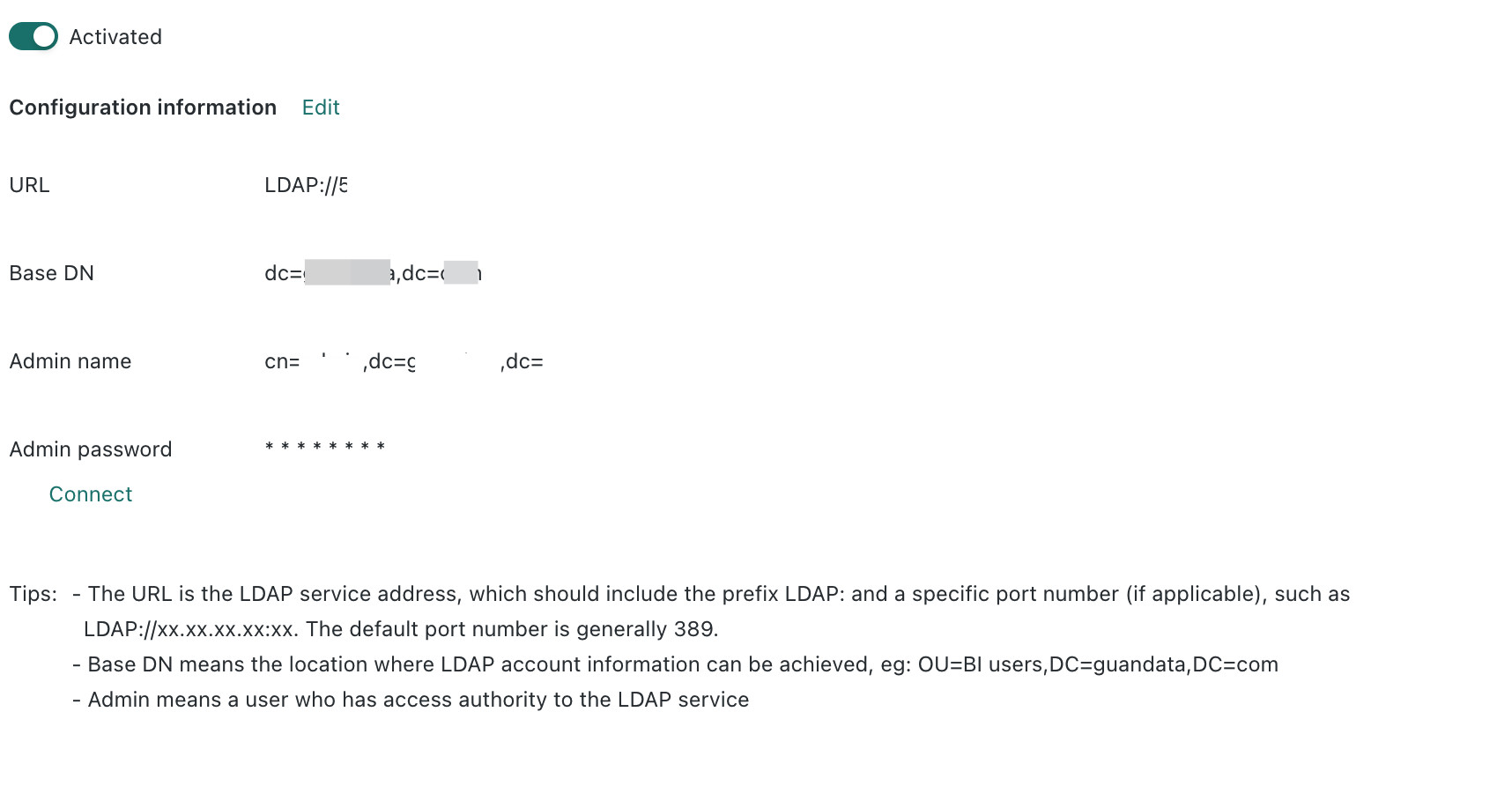
Entry point: Admin Center > System Settings > Login Settings > LDAP.
Here, URL is the LDAP server address, and Search Location determines that only node information under that directory is synchronized.
Prepare Account Sync Fields
- ObjectClass
- Fields required for Account Sync (mandatory): skip this step if the dataset will not be used for Account Sync.
Check the source and mapped fields for the Account Sync requirements below, including but not limited to the following:
Entity | Field | Meaning | Recommended Source | Source in This Example |
User | Name | User Name | LDAP Field | LDAP Field |
Account | Unique Account | Use cnname | Use cnname | |
Account Type | participant maps to read-only user admin maps to administrator editor maps to standard user | Processed by ETL | Processed by ETL | |
User Group ID | Department or User Group ID | Processed by ETL. If LDAP does not contain this field, the built-in objectGUID of the user group can be used. | Processed by ETL | |
User Group | User Group ID | Department or User Group ID | Prefer an LDAP field. If LDAP does not provide one, the built-in objectGUID of the user group can be used. | Built-in Field |
User Group Name | Department or User Group Name | LDAP Field | LDAP Field | |
Parent User Group ID | Parent Department or User Group ID | Prefer an LDAP field. If LDAP does not provide one, the built-in parentGUID of the user group can be used. | Built-in Field |
Steps
Select the Connector
Entry point: Data Preparation > Datasets > New Dataset > Application > Account Dataset > LDAP Dataset.

Select the Data Table
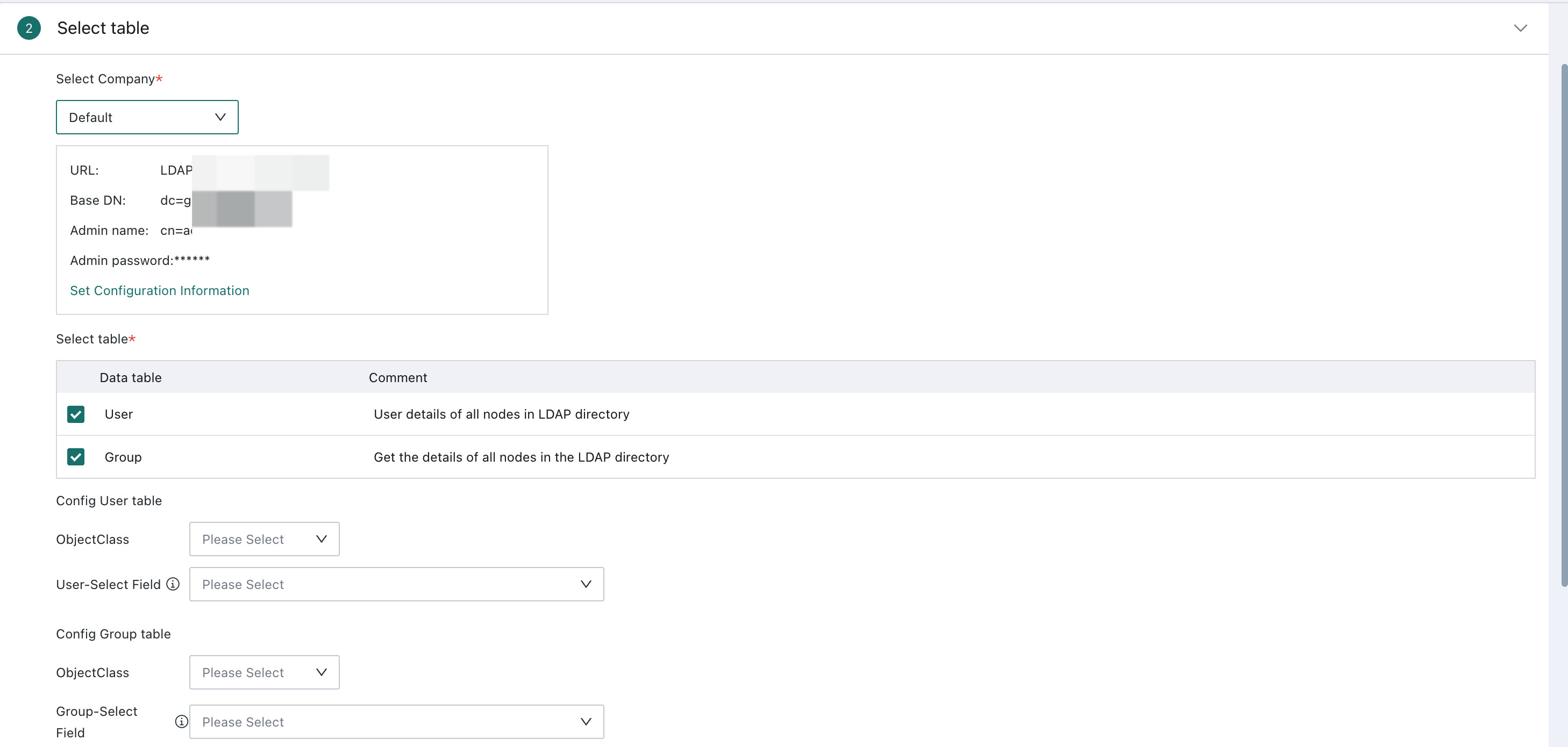
After selecting the default enterprise, the LDAP configuration information is loaded automatically. After selecting the ObjectClass used to store users and user groups in LDAP, the attributes of that class are provided as selectable fields.
If a required field is not available in the selection list, determine which class it is inherited from and select that class to view the field.
Configure Data Updates
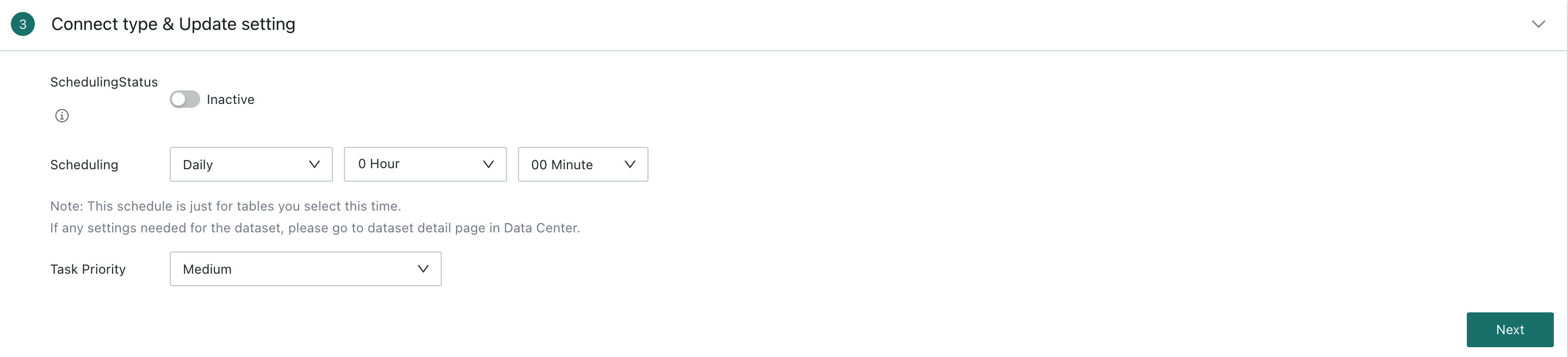
Configure the scheduling status, dataset update cycle, and task priority in this section. The detailed process is not expanded here. See Standard Database Connection Guide.
Confirm the Data Table Information
Assign a recognizable name and storage location to the Account Dataset. After clicking Confirm Creation, the dataset is created successfully and can be found in the corresponding folder in Dataset Management.
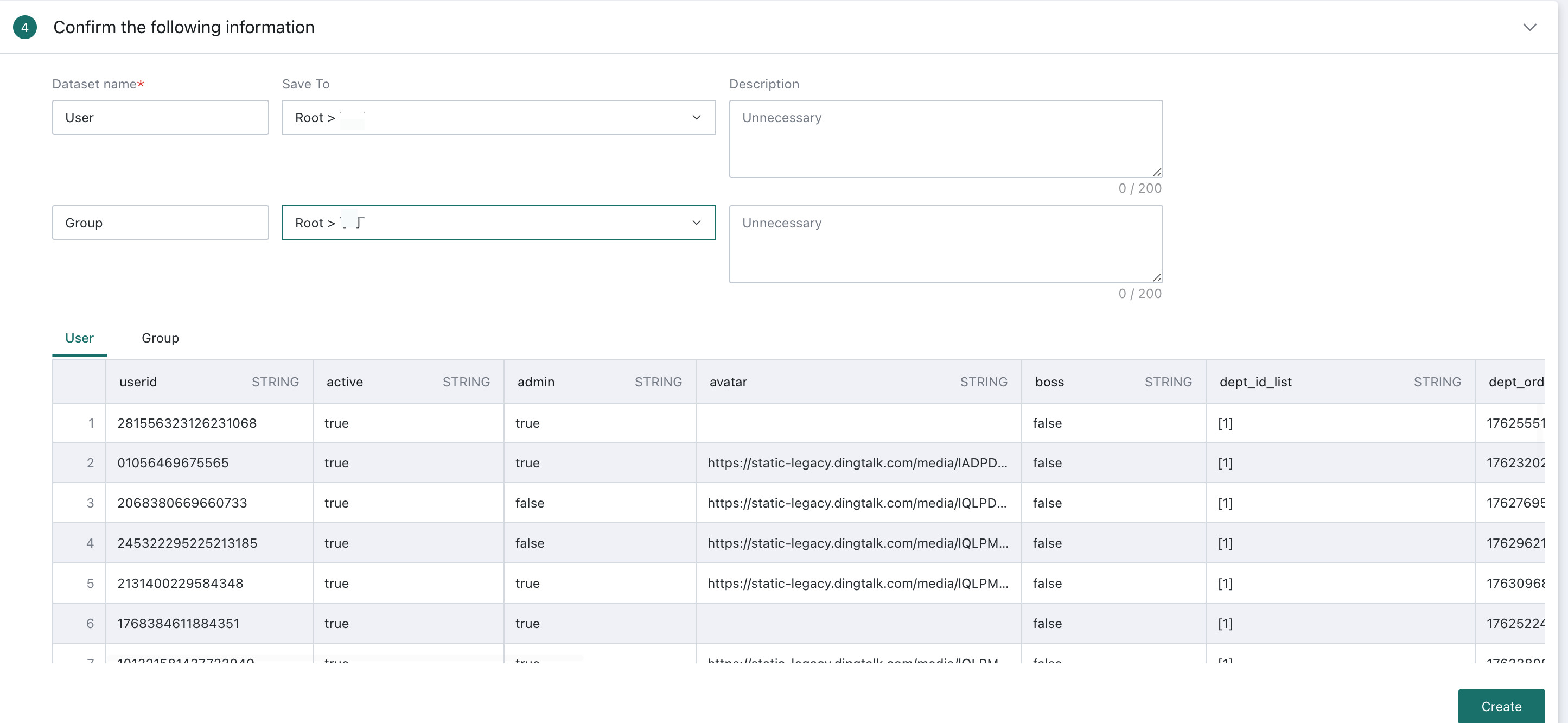
The fields in user and user group Account Datasets consist of built-in fields and selected fields. The built-in fields are listed below:
| Field Name | Mandatory | Meaning | Example |
|---|---|---|---|
| userid | No | - | - |
| rdnld | Yes | Current node name and type | |
| dn | Yes | Current node directory path | |
| cnname | Yes | The default K8S field sAMAccountName, used as the LDAP account field. Otherwise, LDAP login will not work. | - |
| parent | Yes | Parent node directory path | OU=Finance,O=Branch A,DC=guandata,DC=com |
| objectSID | No | Object security identifier. If LDAP has no native ID field, it can be used as the user or user group ID. | 69441024fffdafffd1b7e4252fffd |
| objectGUID | No | Unique object identifier. If LDAP has no native ID field, it can be used as the user or user group ID. | 4bfffdfffdfffd2436d49fffd7f4a4a831 |