Stored Procedures
Overview
Stored Procedures in Guandata BI allow datasets to be created by pulling data through parameterized execution, and allow parameterized dynamic queries to be triggered from the page side. Guandata currently supports stored procedures in MySQL, SQLServer, and Oracle.
This feature lets users reuse existing stored procedures in the database, execute complex calculation logic through parameters, and retrieve the resulting data.
Applicable Scenarios
Stored Procedures are suitable for the following scenarios:
- Complex Calculation Logic: traditional reporting systems often rely on stored procedures to implement complex business calculations
- Data Warehouse Integration: when enterprises already maintain many stored procedures in their data warehouse and need to execute them through parameterized input
- Parameterized Queries: when different results are needed based on different parameter values
- High-Performance Data Processing: for complex queries that process large volumes of data
Prerequisites
When connecting a Stored Procedure dataset, a Data Account is required.
- Users who have already created a Data Account can skip this step.
- Otherwise, see Data Account.
Steps
Open the Stored Procedure Creation Page
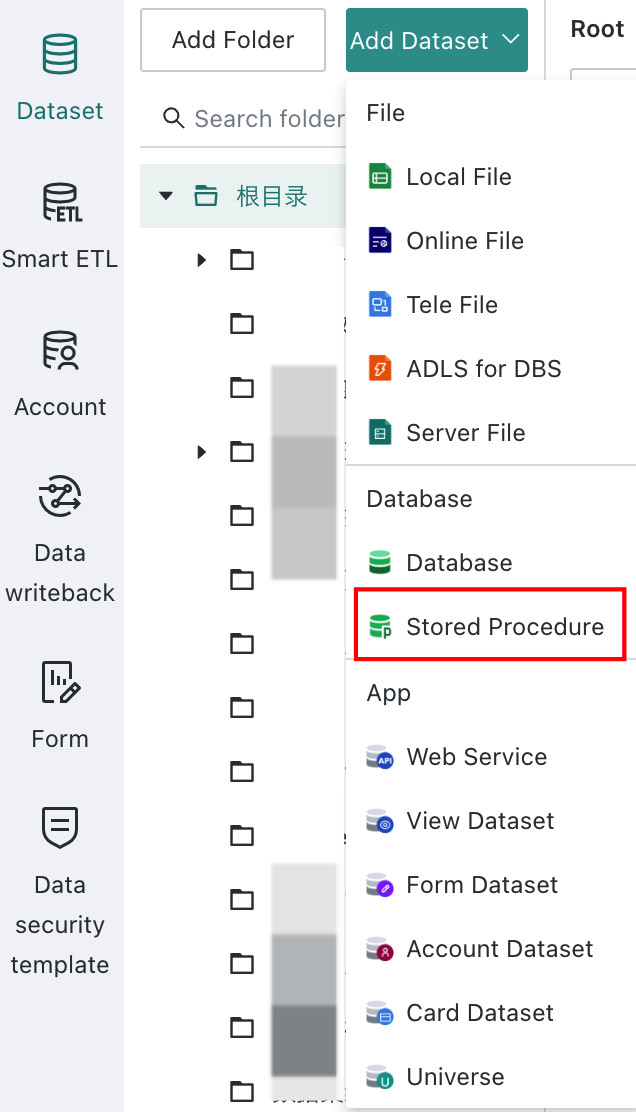
Go to Data Preparation > Datasets and click New Dataset > Stored Procedure.
Select the Connector
Open the configuration page and select the corresponding connector.

Select the Stored Procedure
-
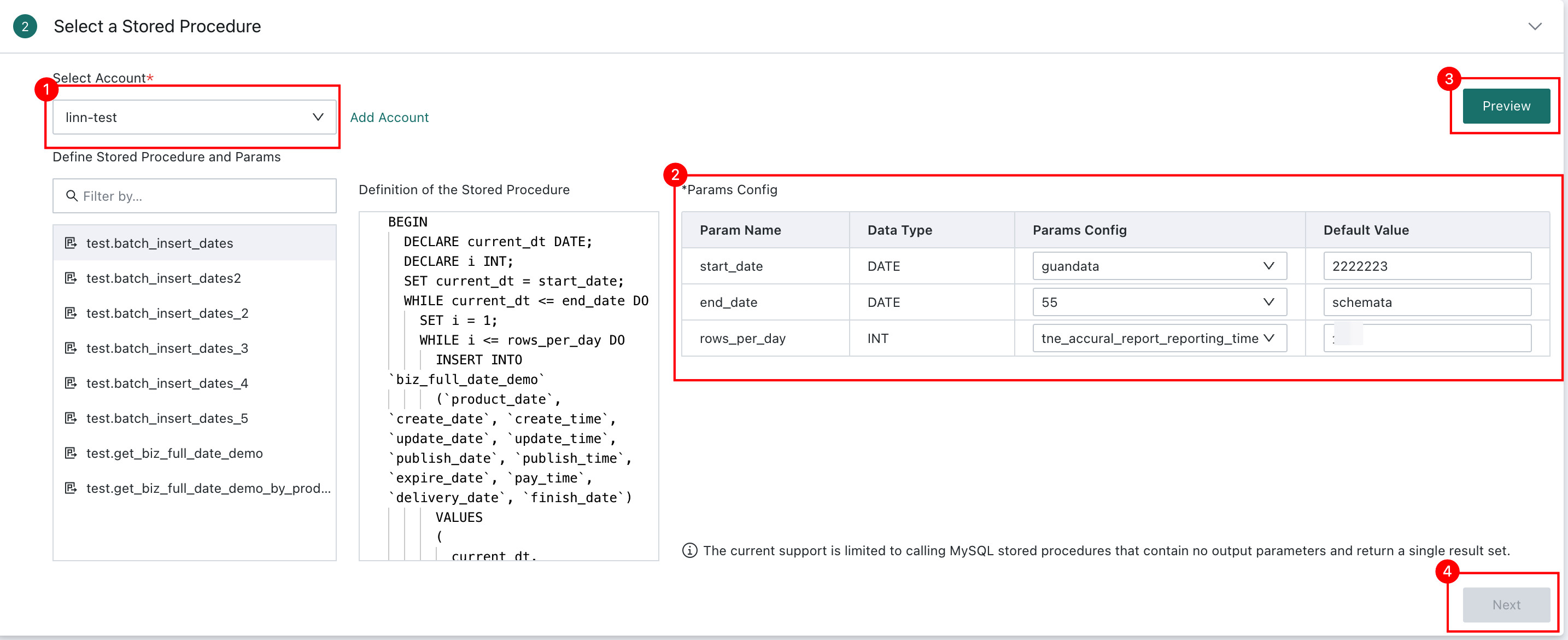
Select the Data Account.
-
Select the database connection mode.
Stored Procedure datasets support two database connection modes: Direct Connection and Extract. The default is Extract.
| Connection Mode | Description | Applicable Scenario |
| -------- | ---- | -------- |
| Extract | The data is extracted and stored on the Guandata BI server to build a dataset. Supports scheduled updates and caching. | Most business scenarios, especially larger data volumes or scheduled synchronization. |
| Direct Connection | Card data is retrieved directly from the database without local storage. Supports real-time delivery of global parameters. | Scenarios requiring real-time data access, frequently changing data, or restrictions on storing data in BI. |
NoteIf
Direct Connectionis selected, Card data is retrieved directly from the database. IfExtractis selected, Guandata BI builds the dataset on the BI server. -
Configure parameters.
-
Input Parameters: Users can map input parameters defined in the stored procedure to Guandata global parameters and can also define
Default Values. In Direct Connection mode, global parameters can be passed in real time.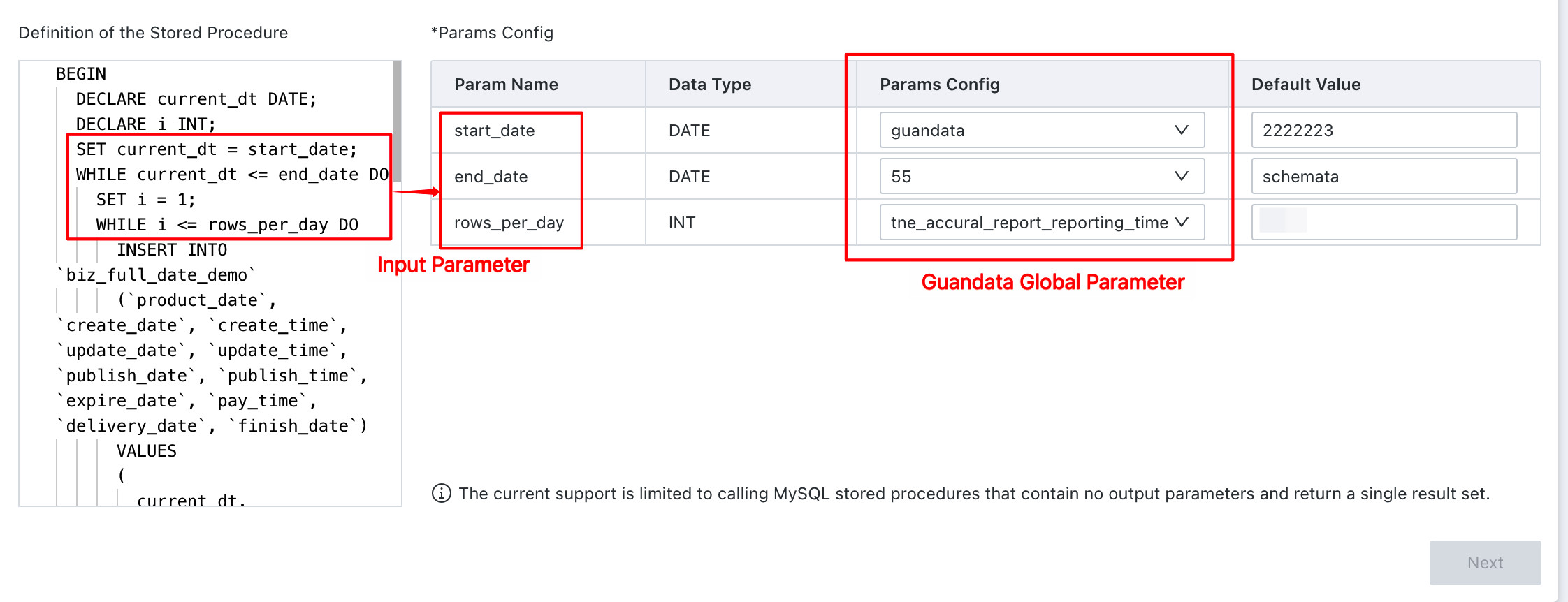
-
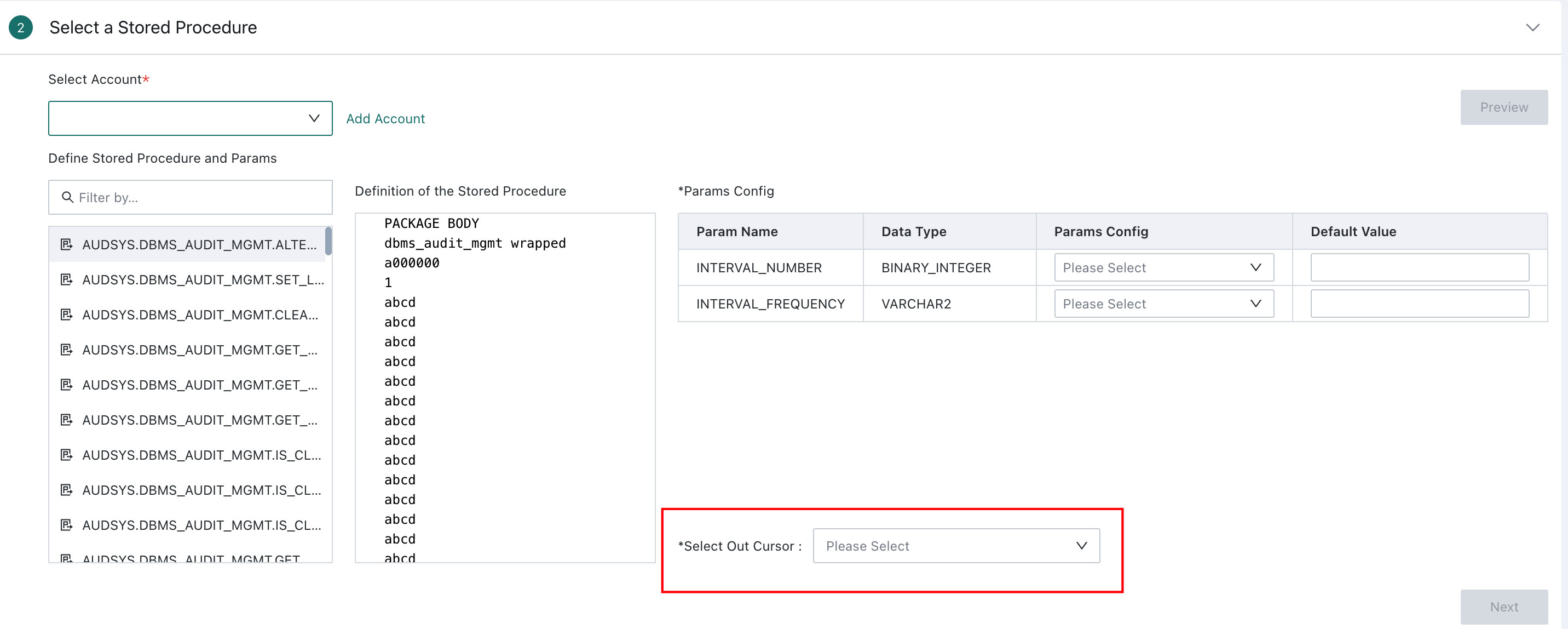
Output Parameters: For Oracle stored procedures, if output parameters are defined in the procedure, the output parameter must be selected. If multiple output parameters exist, only one cursor-type output parameter can be selected.
-
| Database Type | Description |
|---|---|
| MySQL, SQLServer | Supports only stored procedures that return a single result set and do not define output parameters |
| Oracle | Supports stored procedures that return multiple result sets and include output parameters |
- Preview the data. Click
Preview, verify the data, and then clickNext.
Configure Data Updates
The update configuration differs depending on the selected database connection mode.
Extract Mode
In Extract mode, users can configure parameters such as Scheduling Status, Dataset Update Cycle, and Task Priority.
See Standard Database Connection Guide - Data Connection and Update Configuration.
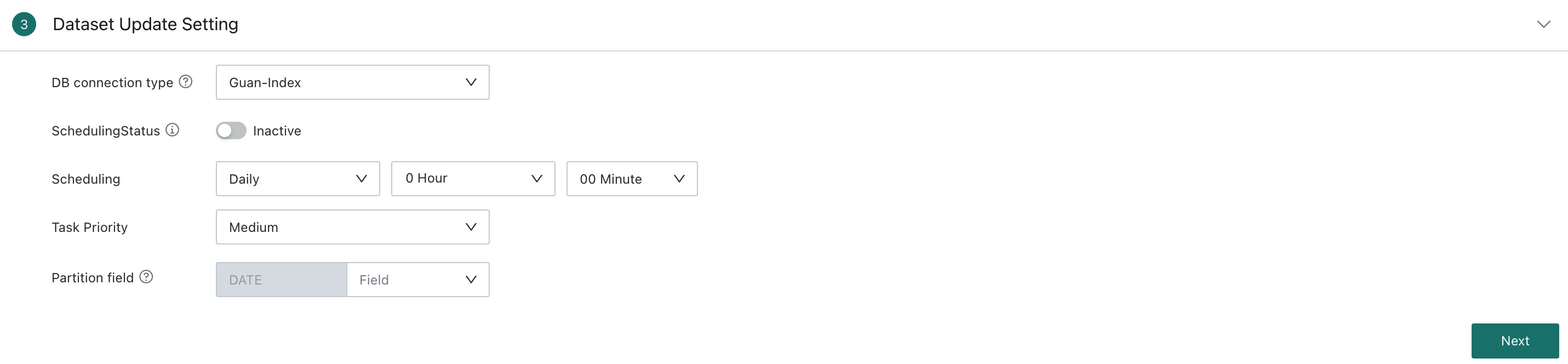
Direct Connection Mode
In Direct Connection mode, users can configure Scheduling Status, Cache Validity Period, Task Priority, and Support Real-Time Card Data.
See Standard Database Connection Guide - Data Connection and Update Configuration.
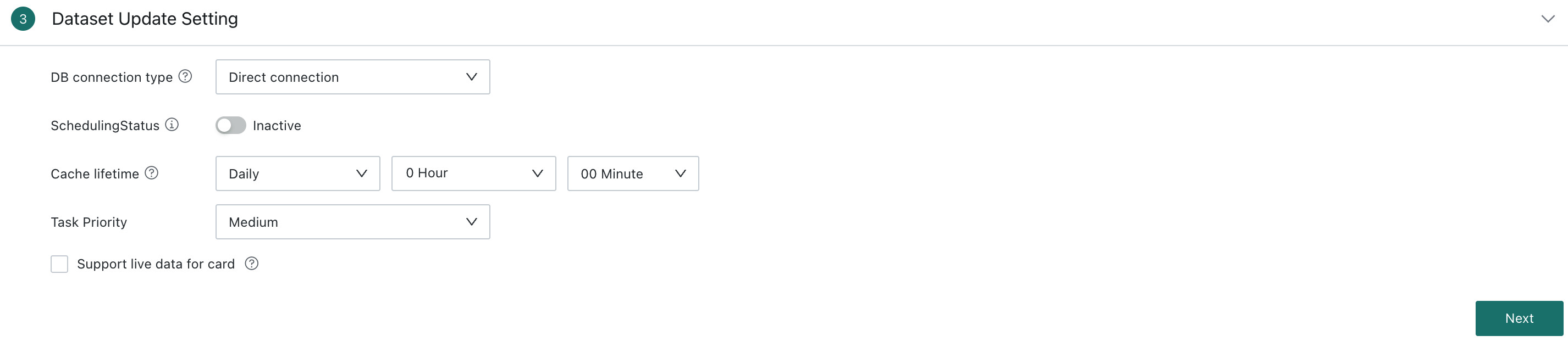
- To achieve real-time refresh on dashboards or large-screen pages, you must not only enable
Support Real-Time Card Data, but also enableAuto Refreshon the related dashboard or large-screen page. - In Direct Connection mode, to reduce database pressure, identical query SQL preferentially uses cache. The cache validity period can be configured, and once the cache expires, the system queries the database again and refreshes the cache.
Confirm the Data Table Information
-
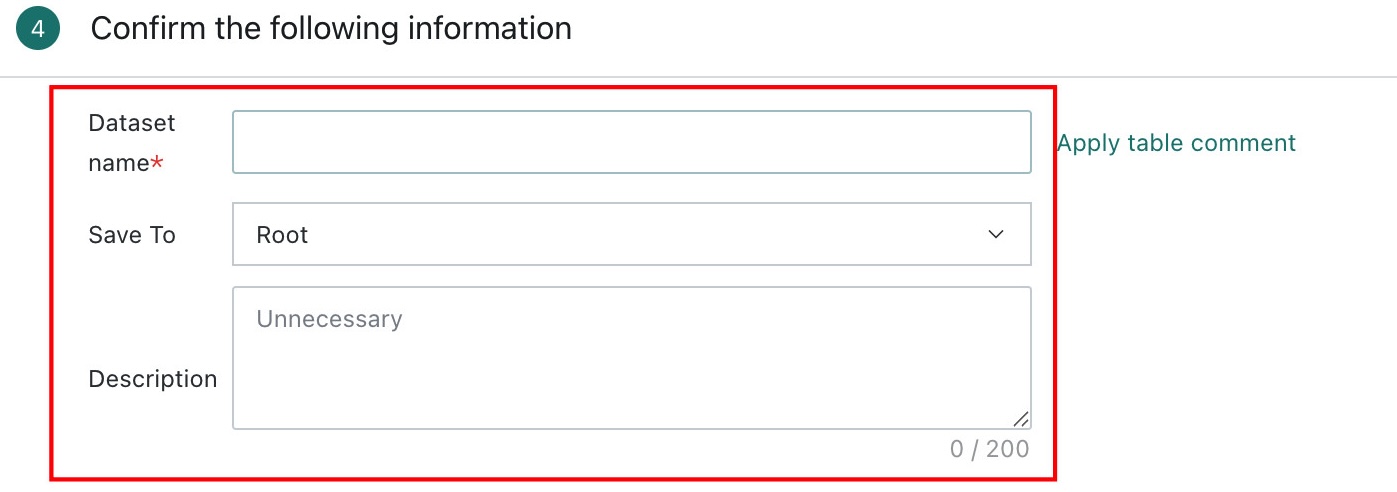
Enter the basic information.
Enter the dataset name, storage path, and description, then confirm. The default storage path is the system root directory.
-
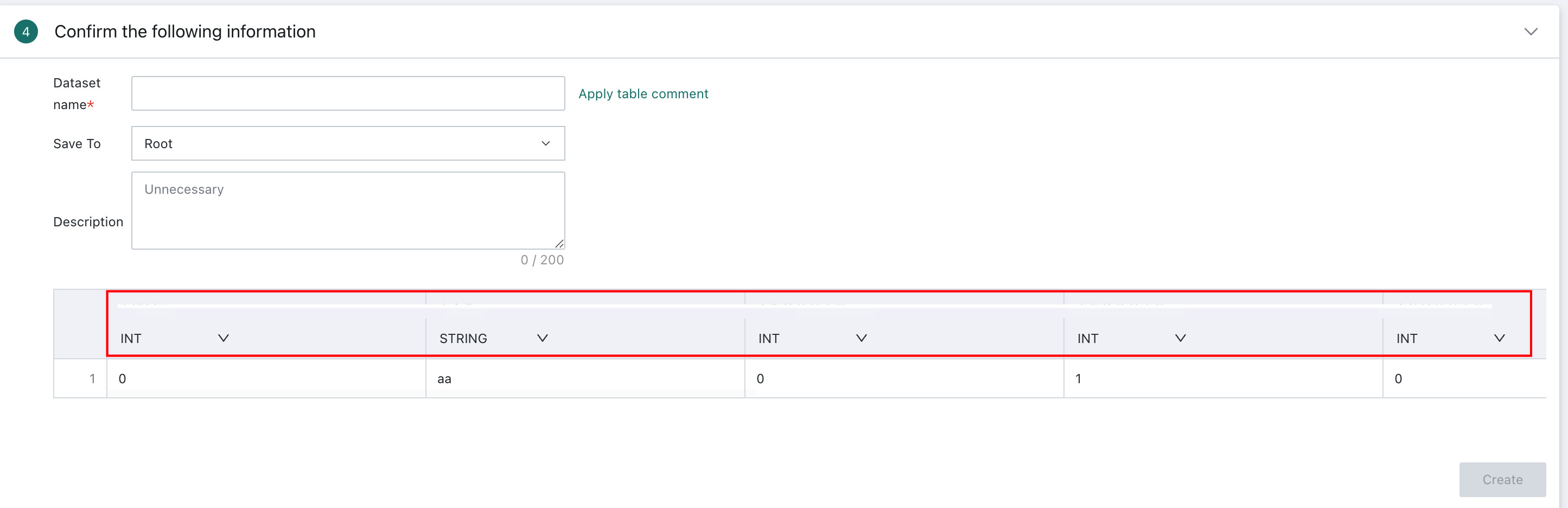
Modify field information.
Confirm whether field names or field types need to be modified. See Standard Database Connection Guide - Confirm the Data Table Information.
Finish Creation
Finally, click Confirm Creation to create the dataset.
Notes
- Database Support: Stored procedure support differs by database. MySQL and SQLServer support only stored procedures that return a single result set without output parameters, while Oracle supports multiple result sets and output parameters.
- Database Connection Modes:
- Extract mode, which is the default, stores extracted data on the Guandata BI server and supports scheduling and caching.
- Direct Connection mode retrieves Card data directly from the database without local storage and supports real-time global parameter delivery.
- Parameter Configuration: Make sure input and output parameters are configured correctly. For Oracle stored procedures, only one cursor-type output parameter can be selected.
- Permissions: Make sure the Data Account has permission to execute the stored procedure, otherwise the connection may fail.
- Performance: Complex stored procedures may affect query performance. It is recommended to design stored procedure logic carefully and set cache validity periods reasonably in Direct Connection mode.
- Data Updates: Configure the update mode and frequency according to business needs to ensure data timeliness and accuracy.