Standard Database Connection Guide
Overview
Guandata provides data integration services for a wide range of databases and supports more than 40 standard databases, including but not limited to MySQL, PostgreSQL, Greenplum, SQL Server, Oracle, Presto, Amazon Redshift, MaxCompute, SAP HANA, Teradata, BW, TiDB, Doris, Vertica, Netsuite, ClickHouse, Hive, IBM DB2, HAWQ, AnalyticDB, Gbase 8t, Informix, Kylin, Impala, Sybase, MangoDB, Druid, Trino, DAMENG, Snowflake, StarRocks, CirroData, Access and Hologres.
This article explains how to connect a standard database to BI.
- Before you start, confirm that the database version is supported. If the version is not supported, connect it by following Self-Service Integration for External Databases.
- For supported versions of standard databases, see Recommended Database Versions.
Overall Process
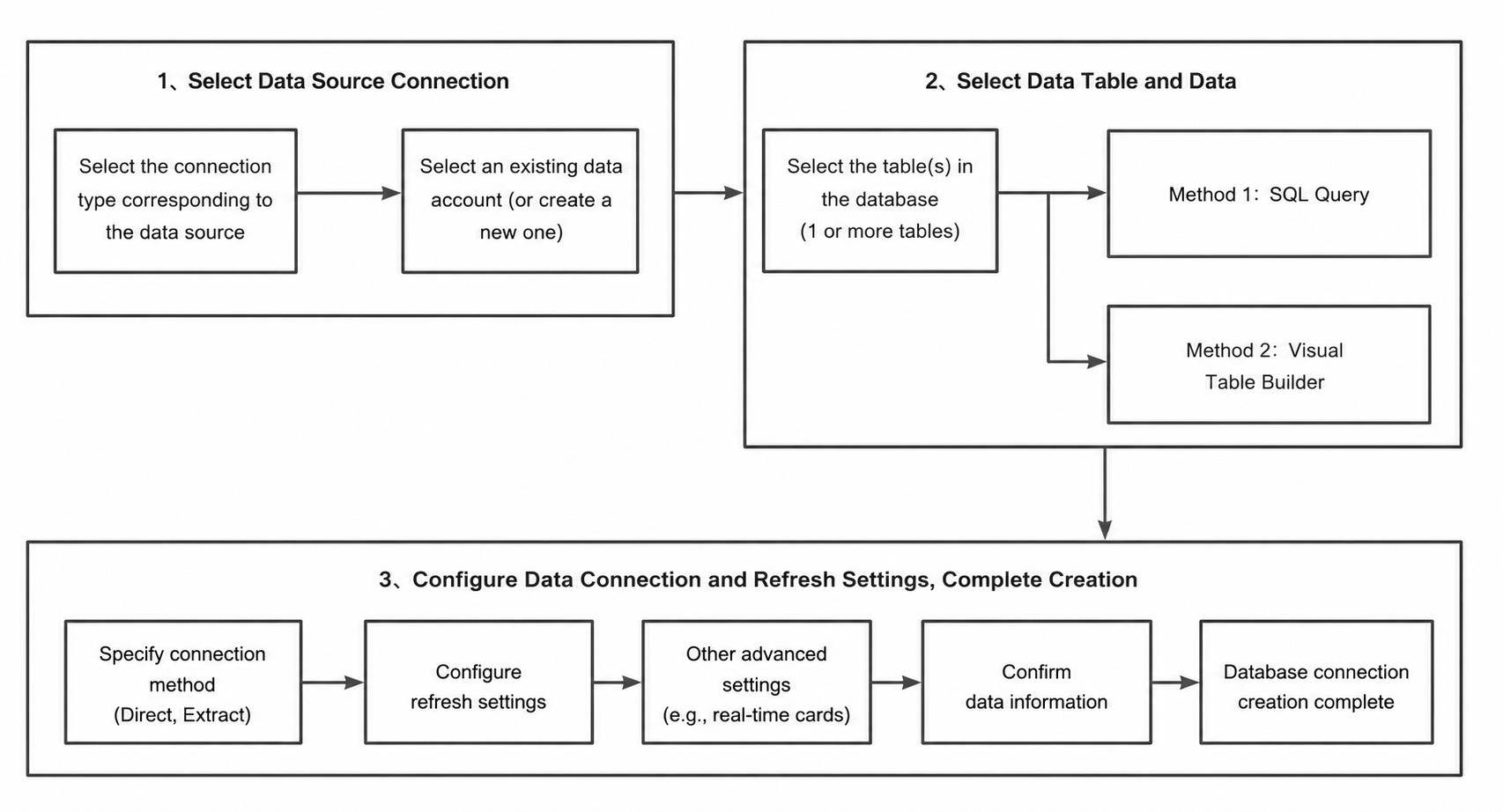
Steps
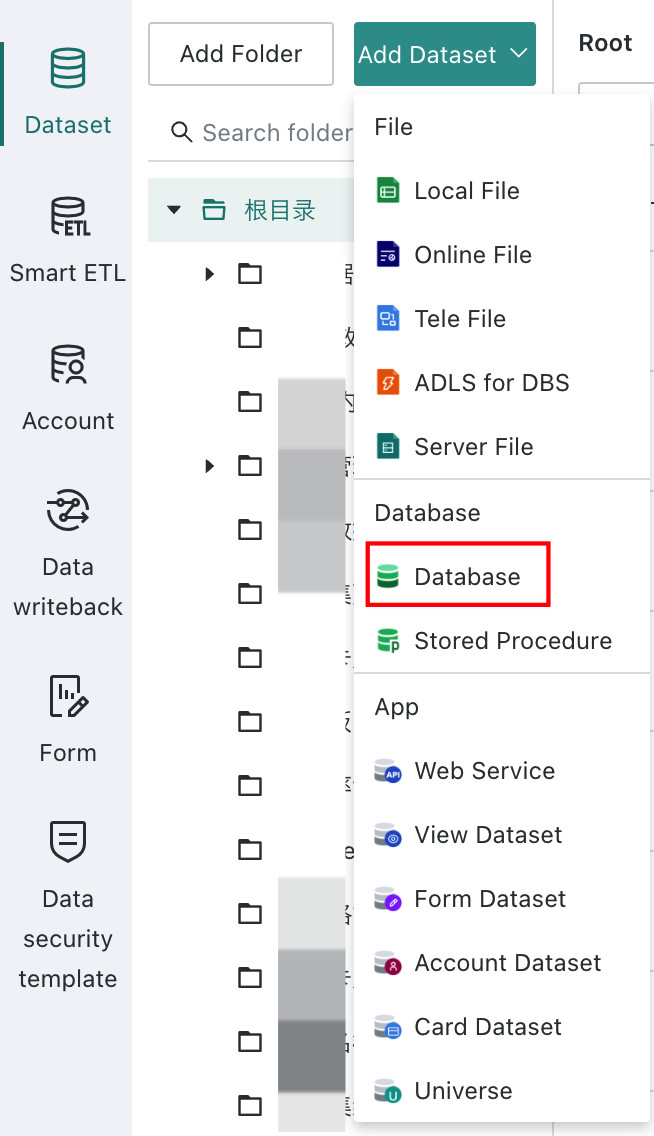
Entry point: Data Preparation > Dataset > Add Dataset > Database
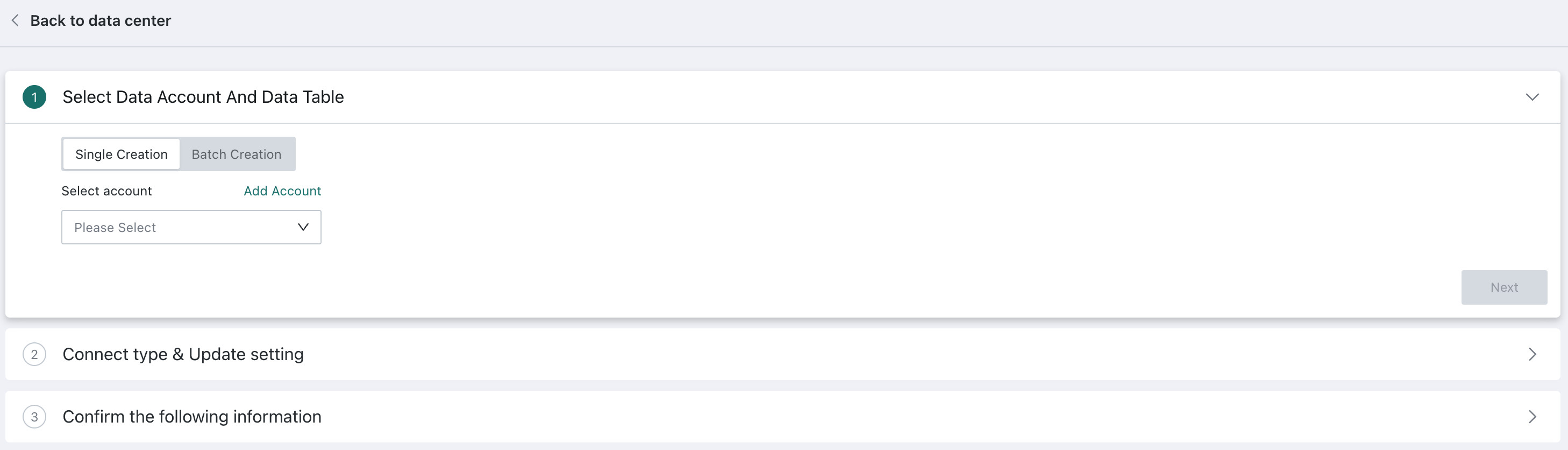
Select the Data Account and Data Table
Choose Create Individually, then select or create a database account. For details, see Data Account.
During data connection setup, Guandata BI supports two operating modes for one or more database tables: SQL Query and Visual Modeling.
- SQL Query: a traditional query mode intended for IT or technical users, allowing complex SQL queries against one or more database tables.
- Visual Modeling: a UI-based mode intended for business users. It allows users to work with relationships between tables through a graphical interface, reducing the complexity and technical barrier of data integration.
- At present, only MySQL and Impala support Visual Modeling.
- MongoDB and SAP BW differ in data structure and query behavior, so their table-selection process differs from the standard flow. See MongoDB and SAP BW Connection Guide.
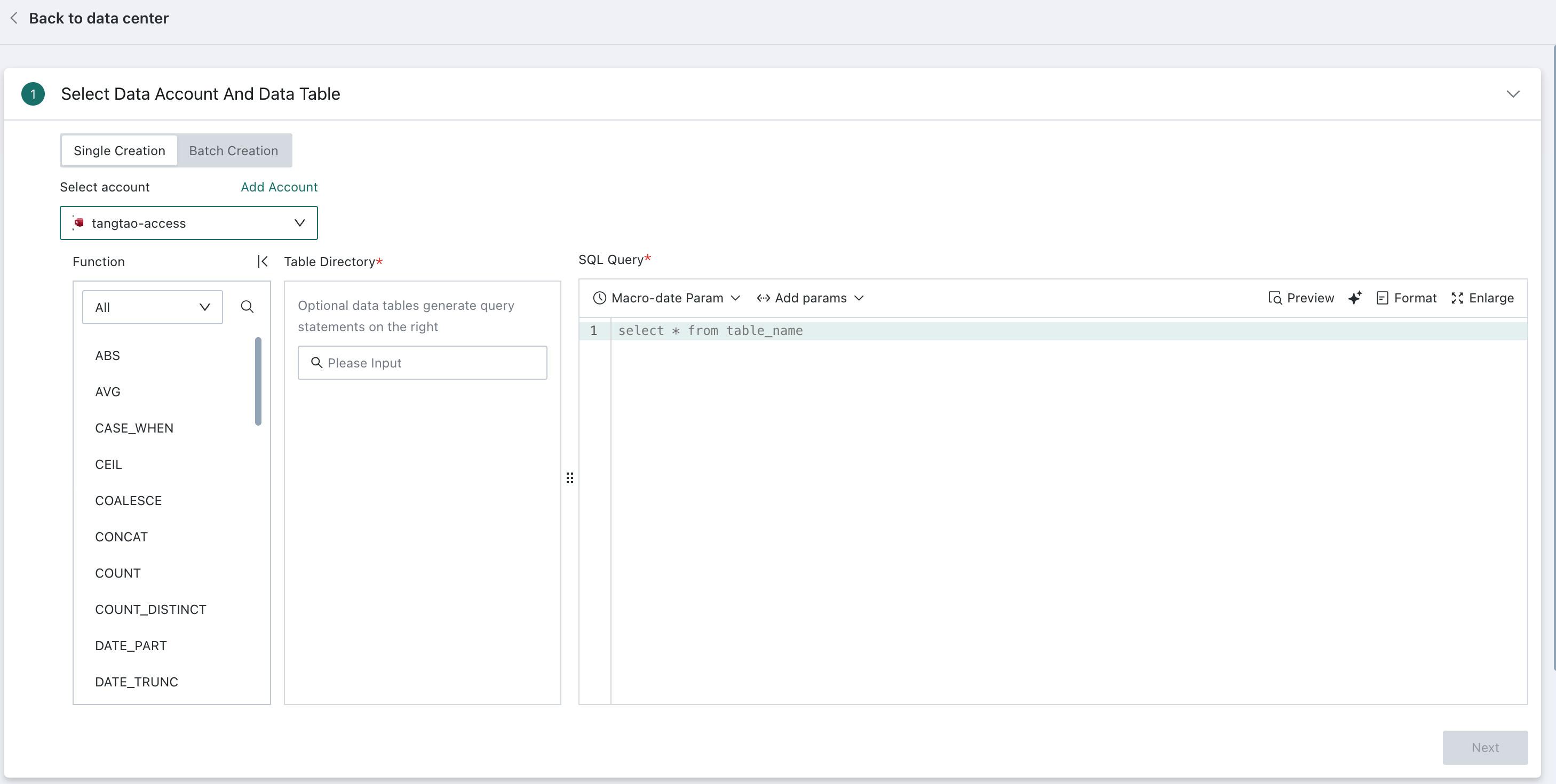
SQL Query
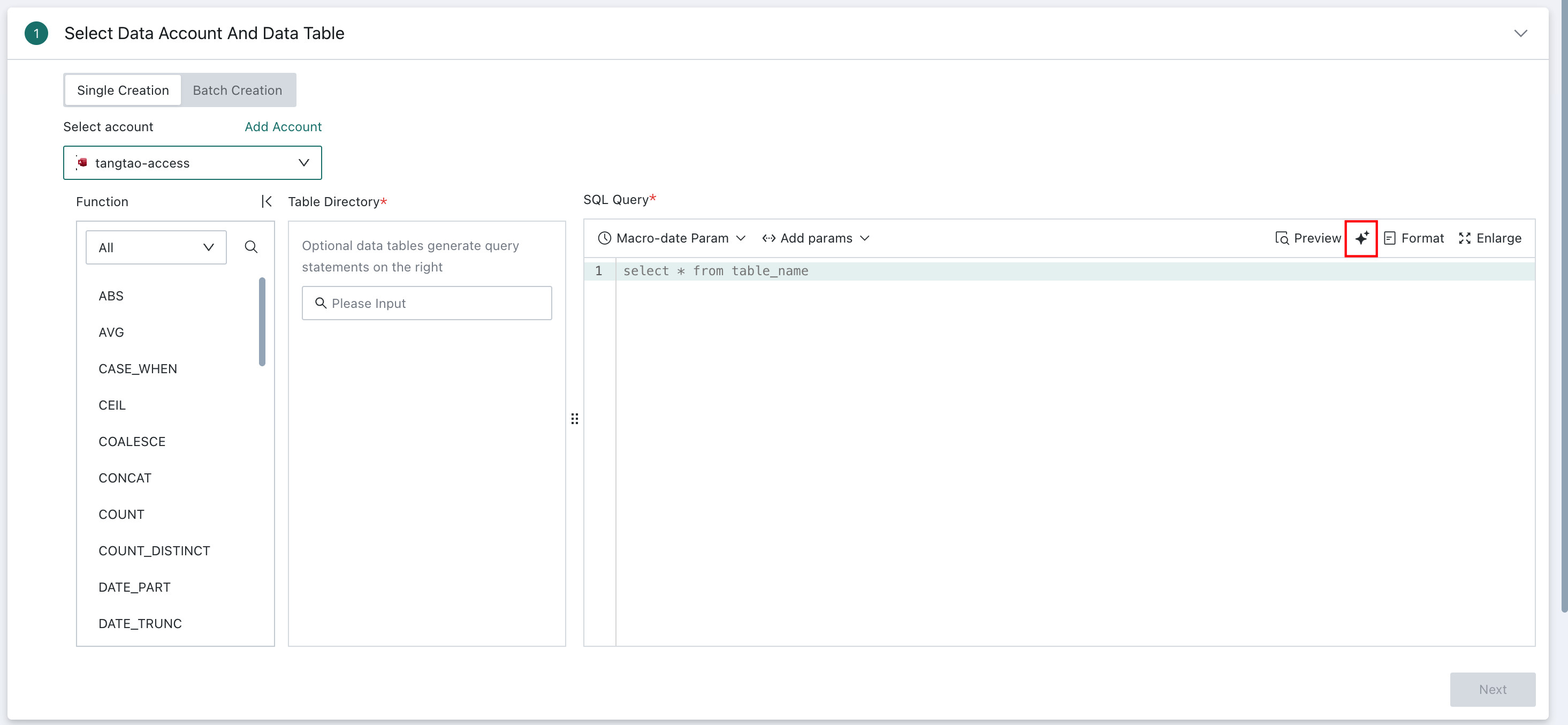
Select one or more tables from the database table directory on the left, then enter SQL in the editor on the right to specify how the data should be retrieved.
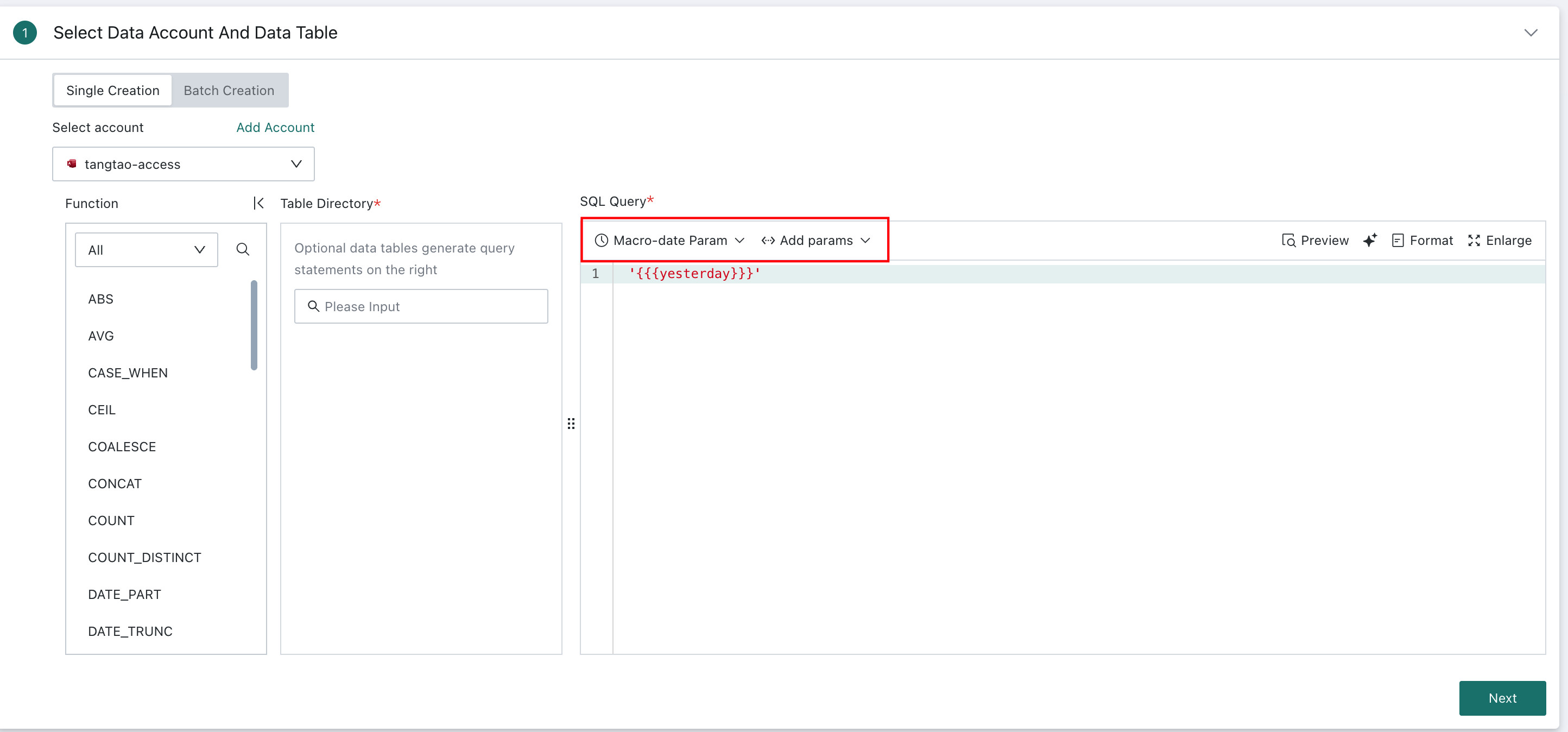
During table configuration, dynamic values such as time macros, global parameters, and user attributes are also supported. At query time, the current values of those parameters are injected into the SQL statement, allowing flexible dimension switching and dynamic queries without manually editing SQL each time.
User Attributes are supported only for Direct Connection datasets. If they are used in Guan-Index datasets, an error occurs.
When a Direct Connection dataset created with user attributes is used in a Card query, the current viewer's user attributes are used in the calculation.
For example, time macros can be used to generate dynamic SQL based on the current date, which helps define time ranges for scheduled refresh and incremental updates:
select date, cost, revenue from table_name where date >='{{{yesterday}}}'
You can click the AI Coding icon on the right to have AI generate SQL automatically. For usage details, see AI Assistant.
For more details, see Dynamic Time Macros and Global Parameters.
Visual Modeling
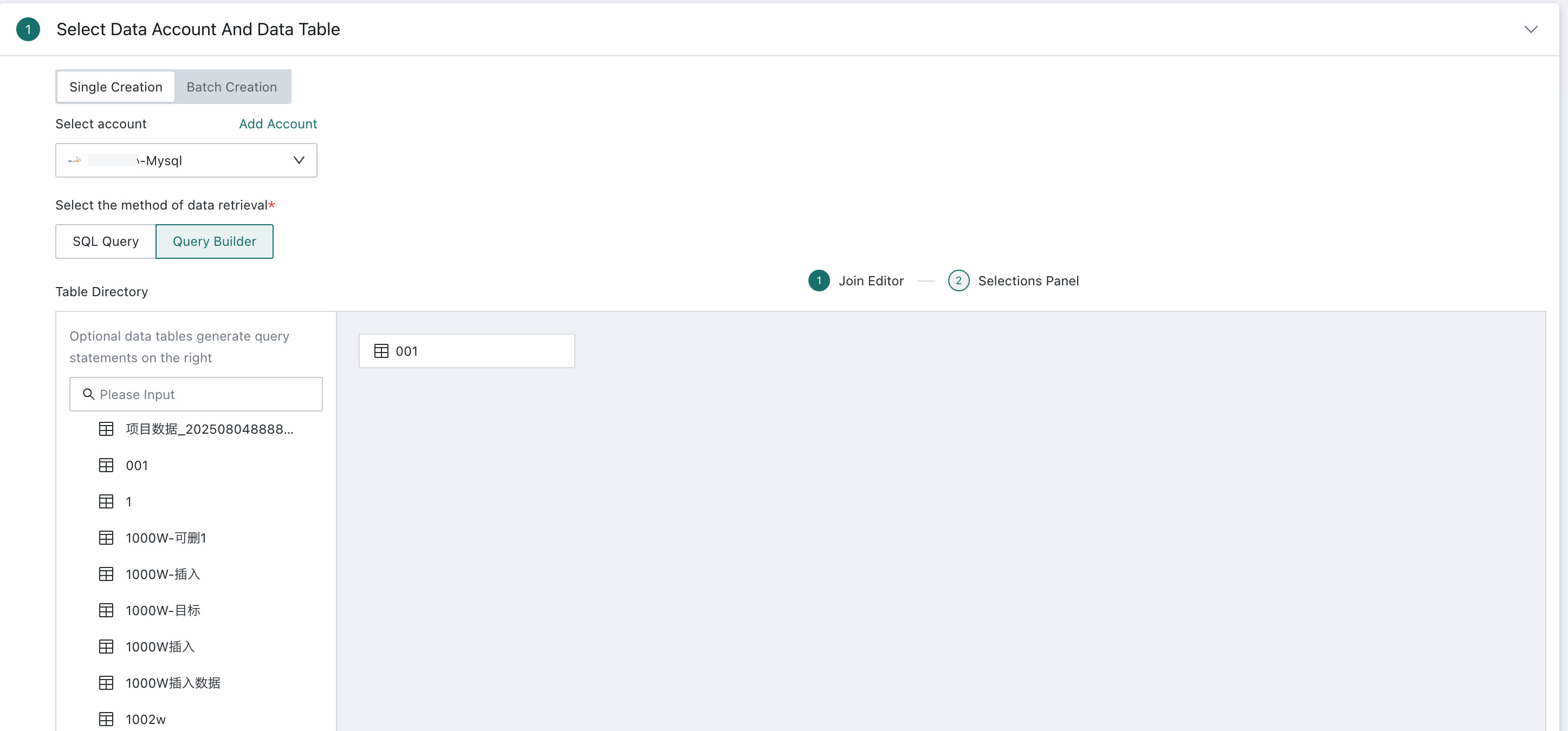
Visual Modeling is a feature provided by Guandata to reduce the technical barrier of data integration and allow non-technical users to create relationships between tables more easily. After selecting MySQL or Impala when creating a dataset, you can choose Visual Modeling during the database query step.
Currently, only MySQL and Impala support Visual Modeling.
Create Relationships
For already created datasets, Visual Modeling is also supported when updating the model structure.
-
Drag one or more tables from the database table directory on the left into the relationship canvas.
- If you select only one table, you can go directly to field configuration and preview the result after selecting one or more fields.
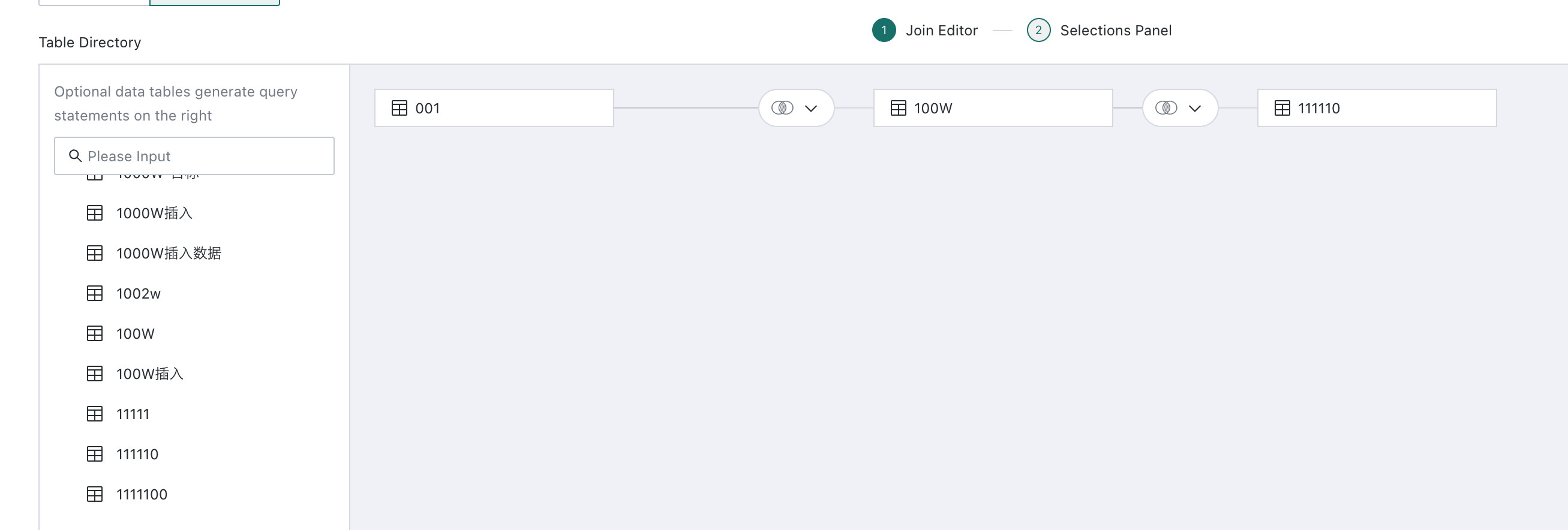
- If you select multiple tables, drag each subsequent table to the end of the previous one and combine them through table joins or row union into a wide table.
-
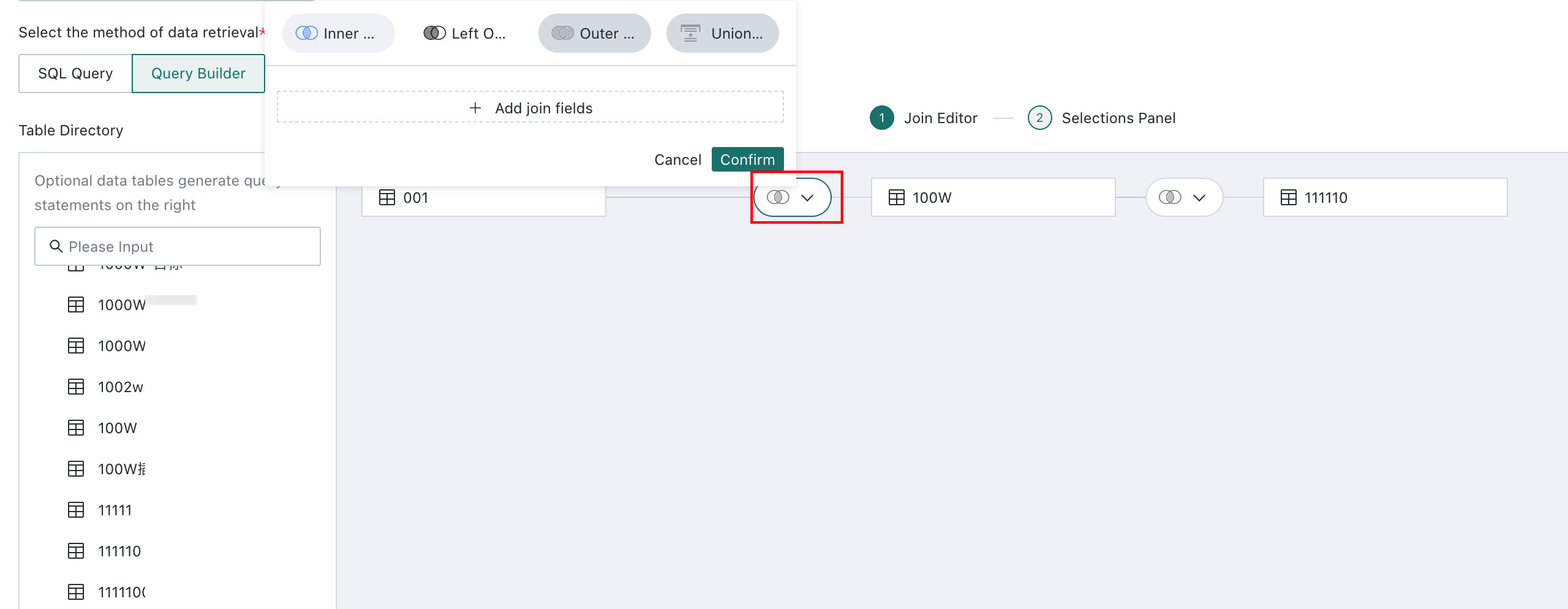
When multiple tables are added, the system supports inner join, left outer join, full join, and row union, and lets users define the join fields as needed.
Note- Supported operations follow the capabilities of the database itself. For example, if MySQL does not support full join, Visual Modeling does not support it either.
- If two tables contain fields with the same name, the system preferentially uses those fields as join keys automatically.
- Users can also add, remove, and edit join conditions manually.
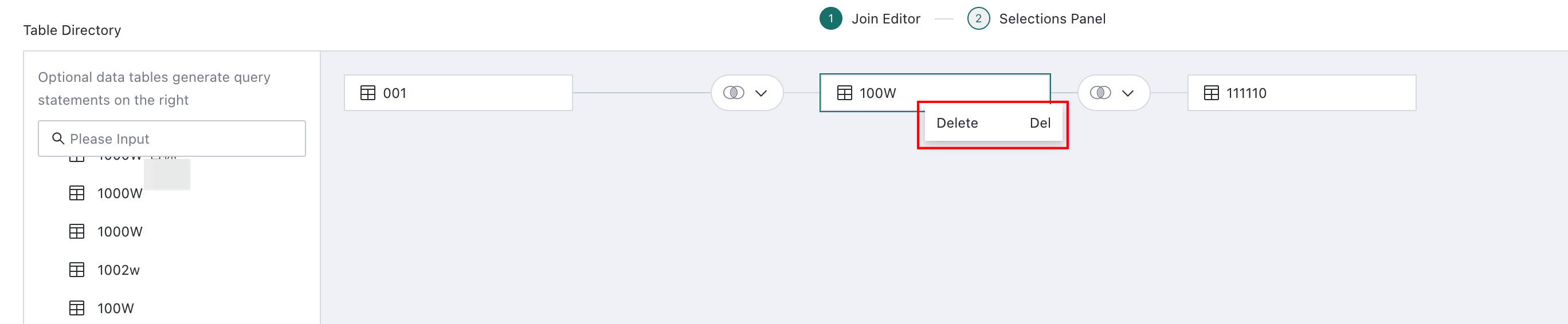
If a table is no longer needed, right-click the current node and choose
Delete.NoteThis action also removes all child nodes. Proceed carefully.
-
All relationships must be configured before you can proceed to
Field Configuration.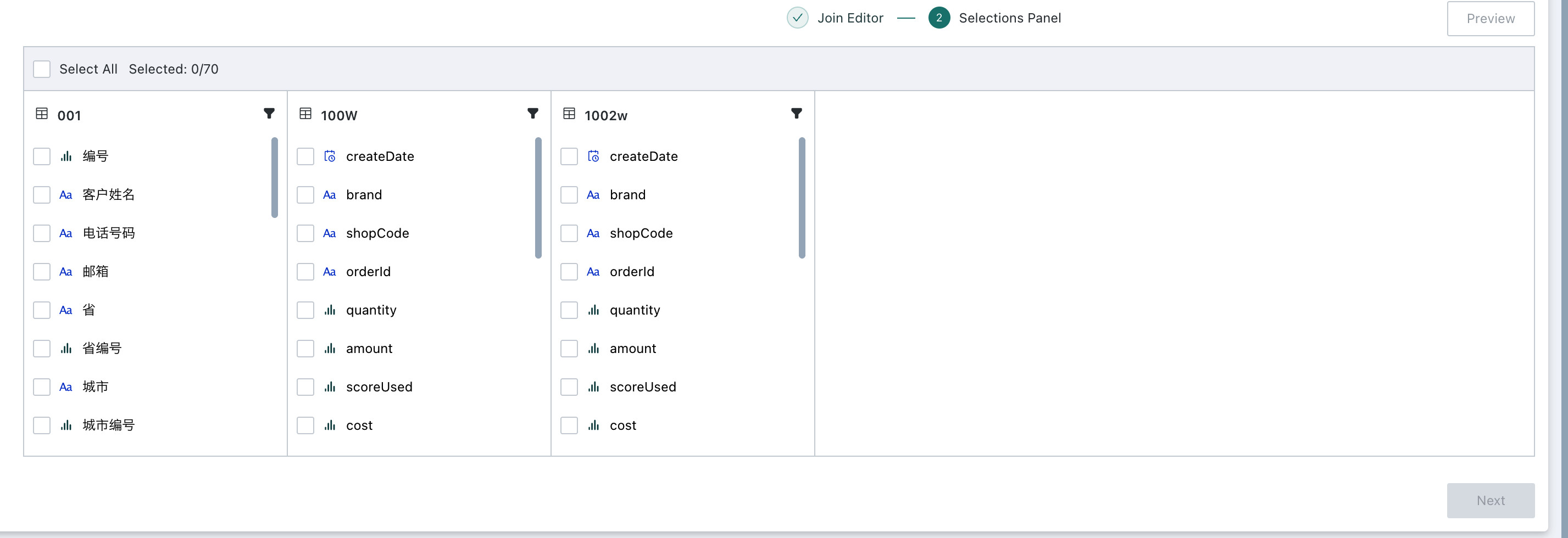
Field Configuration
-
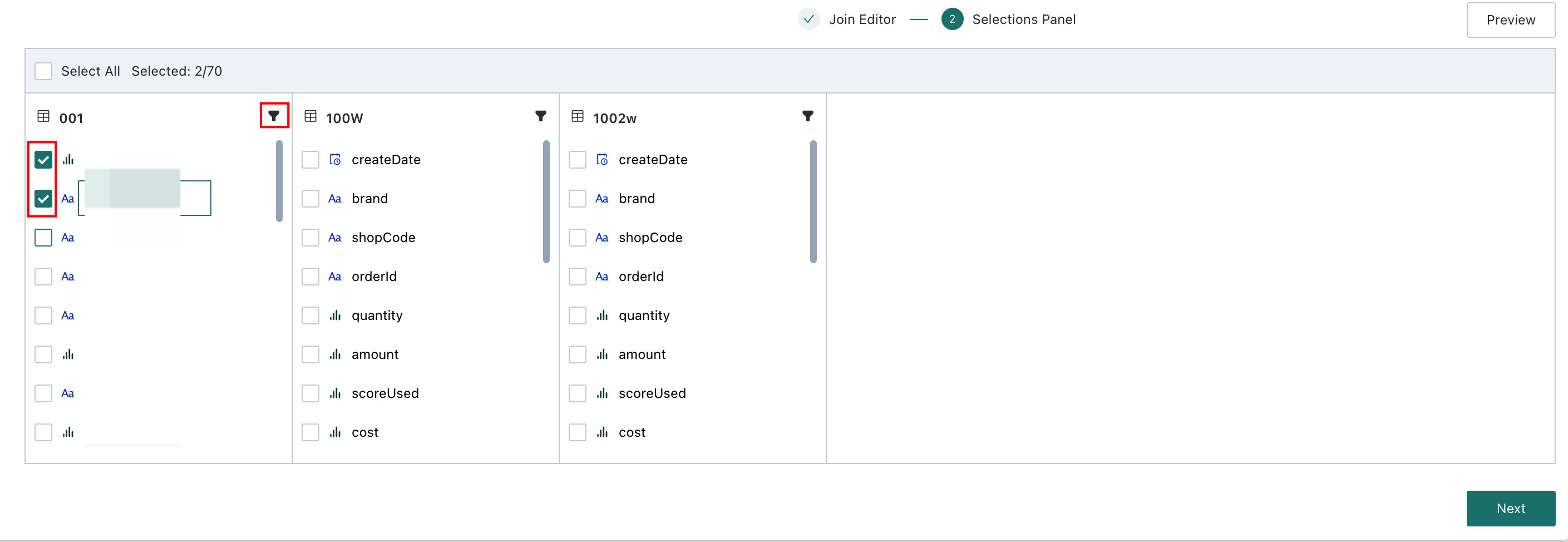
After relationship creation is complete, proceed to field configuration to select columns and define filter conditions.
-
After previewing the dataset and confirming there are no issues, continue to the next step.
Data Connection and Update Configuration
Common Configuration
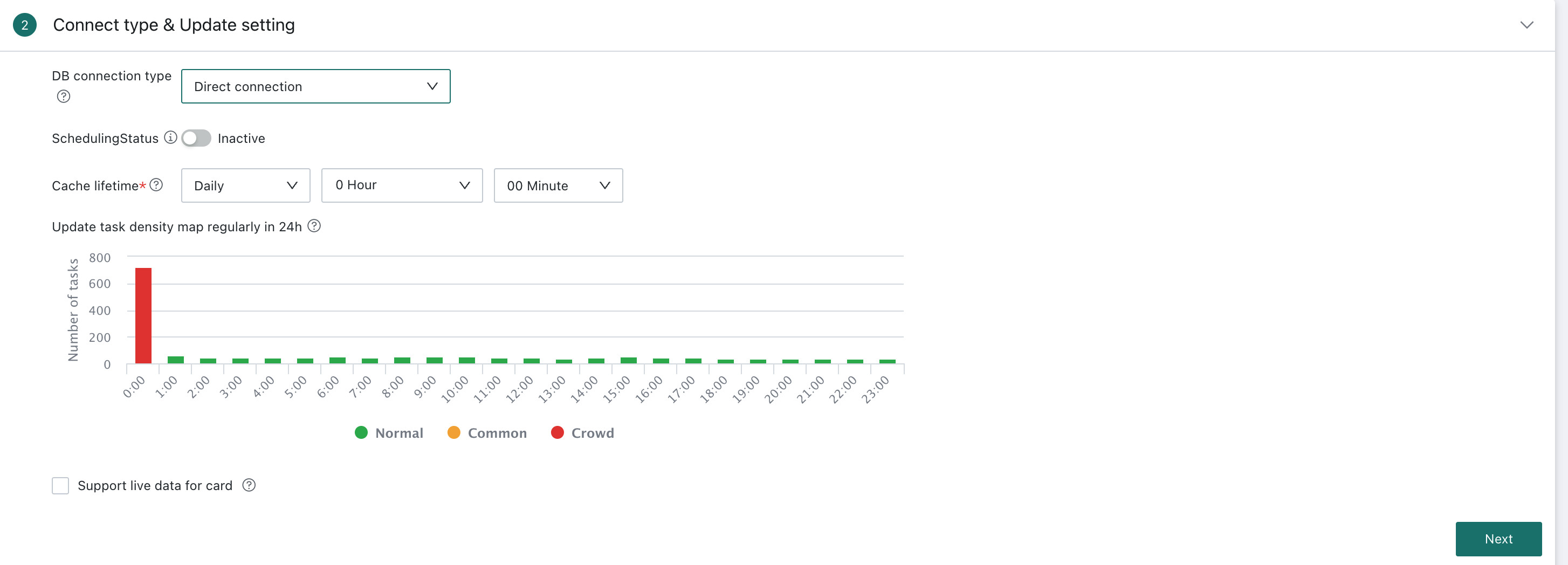
Database Connection Mode
| Connection Mode | Description | Applicable Scenario |
|---|---|---|
| Direct Connection | Connects directly to the user database for query and computation, and BI visualizes the query results returned from the database. | Suitable when enterprise security policies do not allow data to land in other systems, when business data changes frequently and users need near real-time data, or when the data volume is large and the customer database itself has strong query performance. |
| Guan-Index | Data is Guan-Indexed into Guandata BI for computation. Guan-Index supports both full refresh and incremental update. | Suitable when the customer does not have a dedicated data platform or warehouse and wants to build a lightweight data warehouse on top of Guandata BI. |
Scheduling Status
Scheduling Status controls whether the dataset updates automatically according to the configured update strategy. When scheduling is enabled, the system triggers dataset updates automatically based on the configuration. When it is disabled, automatic updates stop, but users can still update the dataset through other methods such as manual update or URL-triggered update.
Direct Connection Configuration
Cache Validity Period
In Direct Connection mode, setting a cache validity period helps optimize query performance, reduce database pressure, and still ensure that users retrieve relatively fresh data.
- To reduce database pressure, identical query SQL uses cache preferentially, and the cache validity period can be configured.
- When the cache expires, the system queries the database again and refreshes the cache.
For example, if the cache validity period is set to 10:00 every day, the first query cache generated after 10:00 yesterday remains valid until 10:00 today. Identical queries to the same Card during that period reuse the same cache. After 10:00 today, the next access to the Card triggers a new database query and generates a new cache valid until 10:00 tomorrow.
Real-Time Card Data and Cache Validity Duration
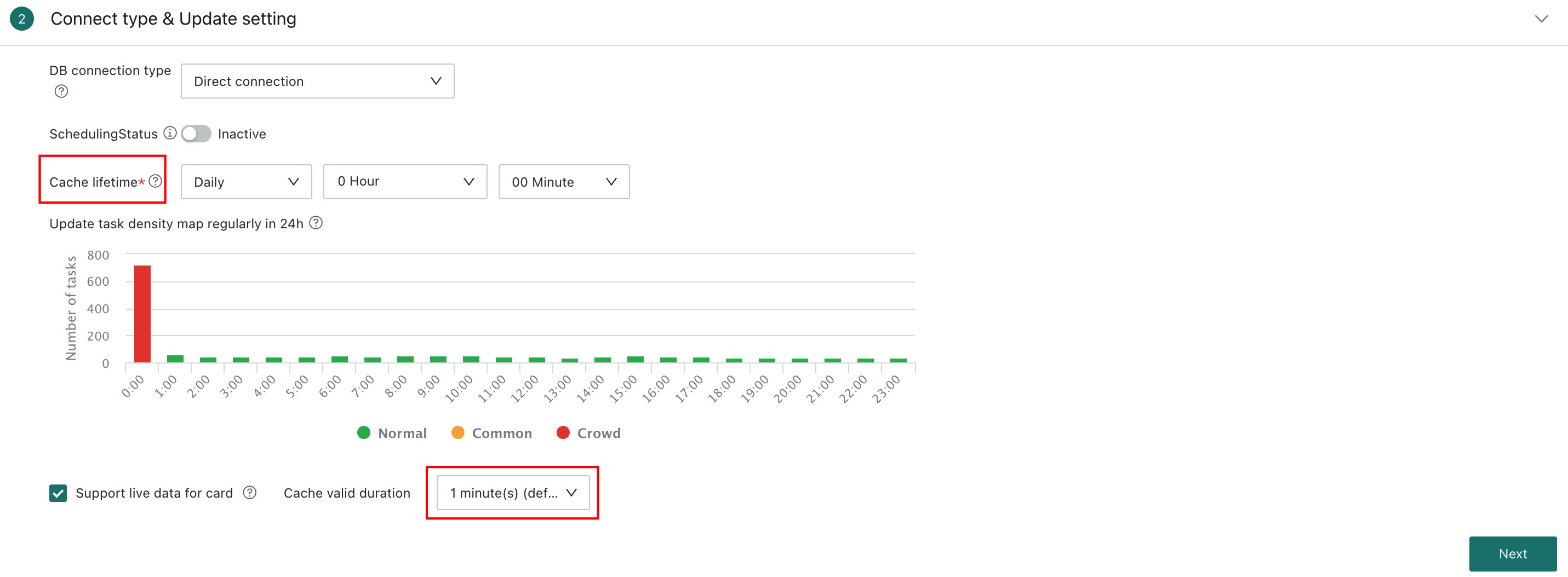
To support real-time analysis, Guandata BI allows Cards and dashboards built from datasets to refresh in near real time through the Real-Time Card Data / Cache Validity Duration setting. By default, the refresh cycle can be configured between 1 minute and 30 minutes, or set to no-cache mode.
For example, if it is set to 1 minute, the related Card automatically fetches and displays the latest data every minute.
- Dependency: To achieve real-time refresh on dashboards or large-screen pages, this option must be enabled and the
Auto Refreshswitch must also be enabled on the related dashboard or large-screen page. Both conditions are required. - Priority: After
Cache Validity Durationis configured under Real-Time Card Data, it takes priority over the general Cache Validity Period above.
Guan-Index Configuration
Dataset Update Cycle
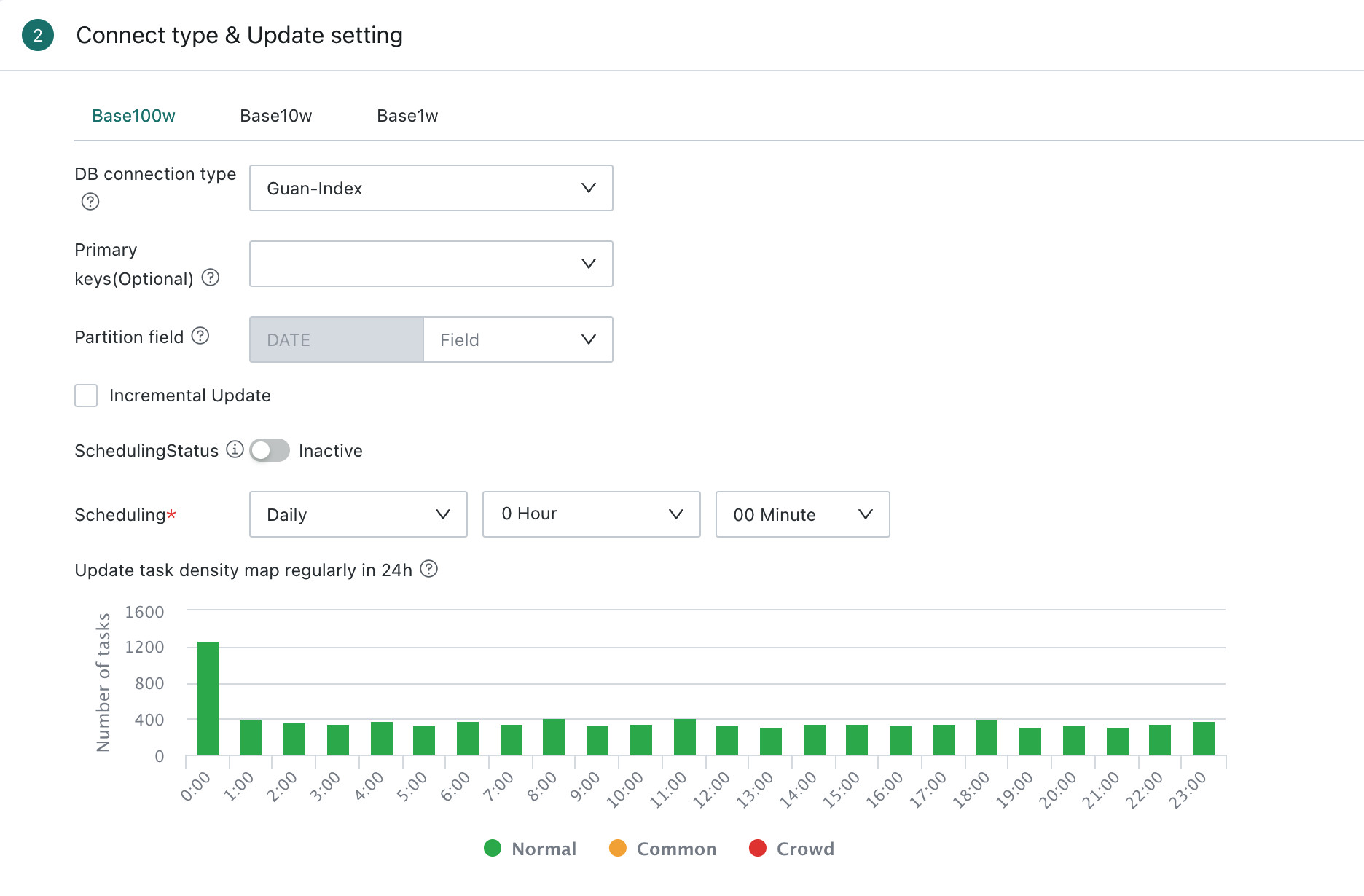
In Guan-Index mode, the dataset update cycle is directly tied to the trigger time of the scheduled Guan-Index task. Users can define tasks to run at specific times, such as nightly or every Monday. Guan-Indexion can be full or incremental depending on data changes and business needs.
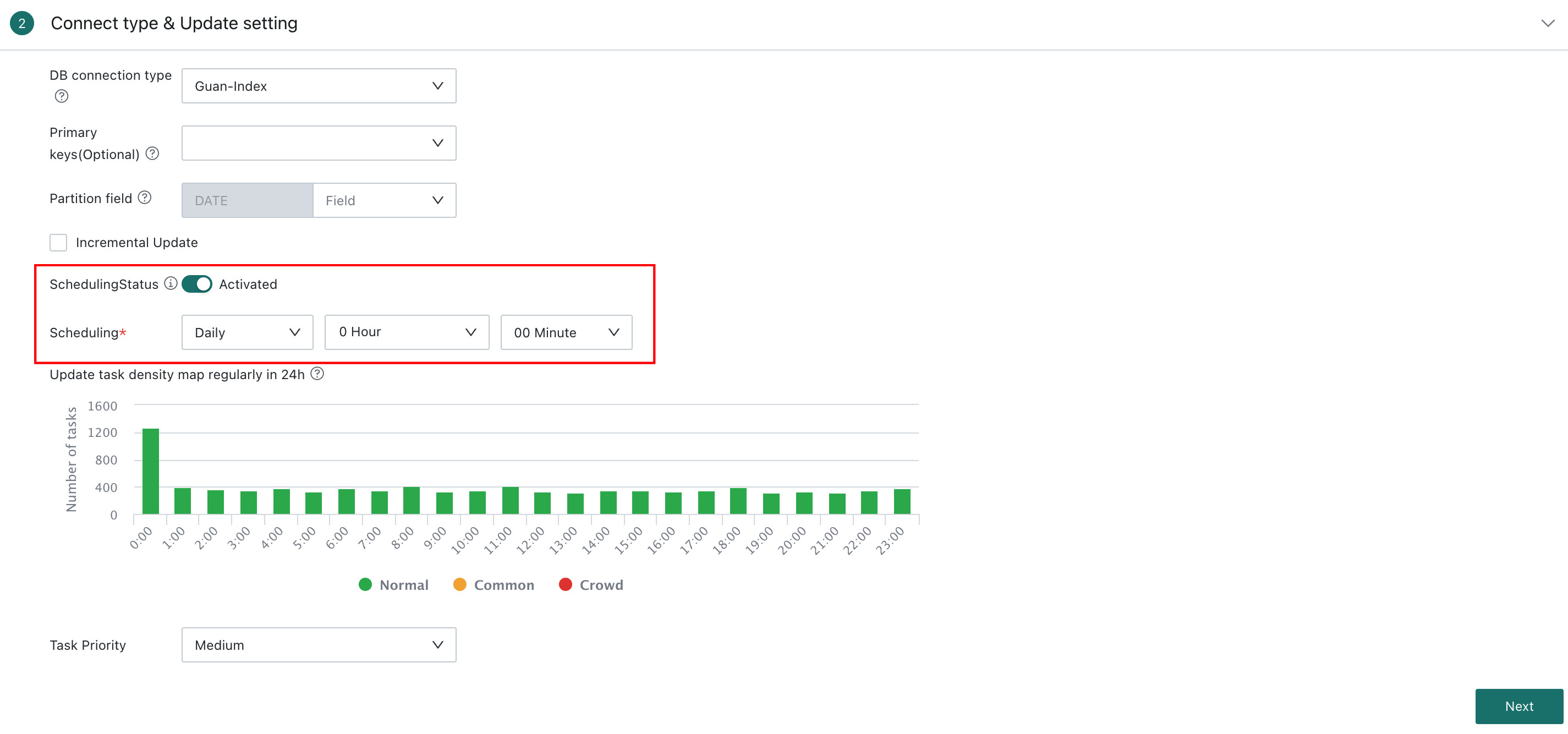
A single dataset cannot be updated more than four times per day.
Deduplication Primary Key
The Deduplication Primary Key uses one or more key fields to prevent or remove duplicate data and ensure row uniqueness. This helps avoid duplicate records that could lead to incorrect analysis results.
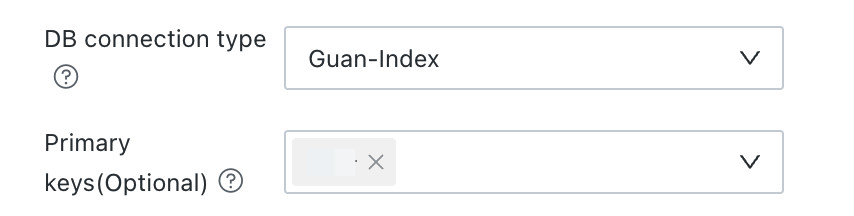
- A similar concept also appears in the Smart ETL
Data Deduplicationoperator. See Data Deduplication. - Choose deduplication fields carefully to avoid removing important data incorrectly.
- For large datasets, deduplication may consume considerable compute resources and time.
Partition Field
In Guan-Index datasets, you can pre-specify one or more Partition Fields to shard (partition) data by fixed business dimensions for storage and management. The system splits the complete dataset into multiple independent data partitions based on the field's values, enabling block-based data organization, incremental updates, and partition-level queries, thereby improving query and update efficiency in large-data-volume scenarios. Only date-type fields can be selected as partition fields.

Setting an appropriate partition field for the dataset based on the specific usage scenario can further optimize query efficiency. However, to avoid reduced query efficiency caused by too many partitions, it is generally not recommended to set a DATETIME type field as the partition field. Proceed with caution.
Full Refresh and Incremental Update
Guandata BI supports both Full Refresh and Incremental Update during Guan-Indexion and updates.
If Incremental Update is not selected, the system performs Full Refresh by default.
| Type | Description | Applicable Scenario |
|---|---|---|
| Full Refresh | Fully re-imports all source data into Guandata BI and replaces the dataset content. | Suitable when the table structure changes, data needs to be reset, or large-scale migration is required. |
| Incremental Update | Updates or inserts only incremental data into the dataset according to the configured primary key. | Suitable for frequently updated or large tables such as transaction logs or user behavior logs. |
24h Scheduled Update Density Map
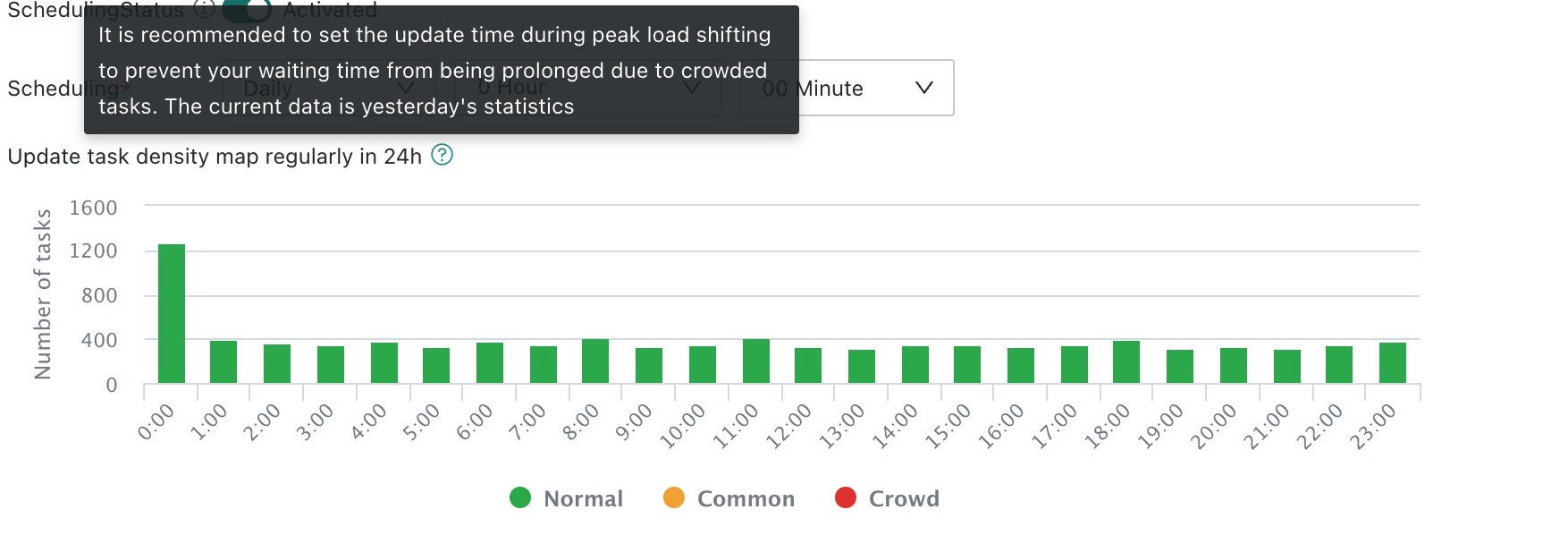
The 24-hour scheduled update density map shows the number and density of scheduled dataset update tasks during a time window. Users can choose relatively idle time slots to avoid task queueing and reduce system pressure. This data is provided for scheduling reference only.
Task Priority
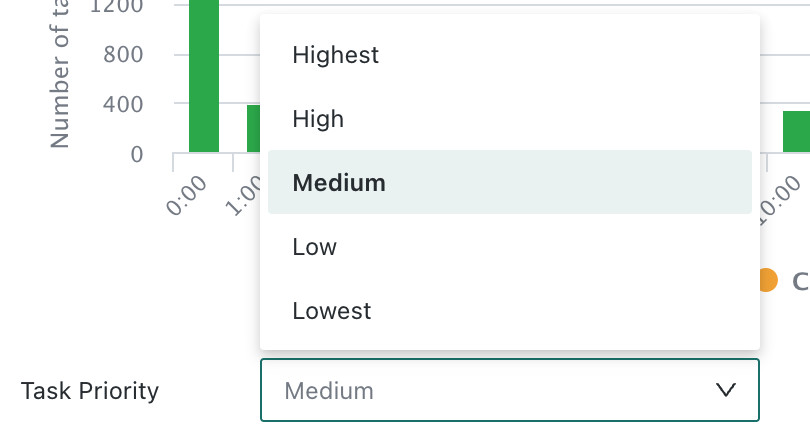
Task priority can be configured to ensure that more important dataset Guan-Index tasks are executed first when multiple tasks are scheduled at the same time. The available priorities are Highest, High, Medium, Low, and Lowest, with Medium as the default.
Confirm the Data Table Information
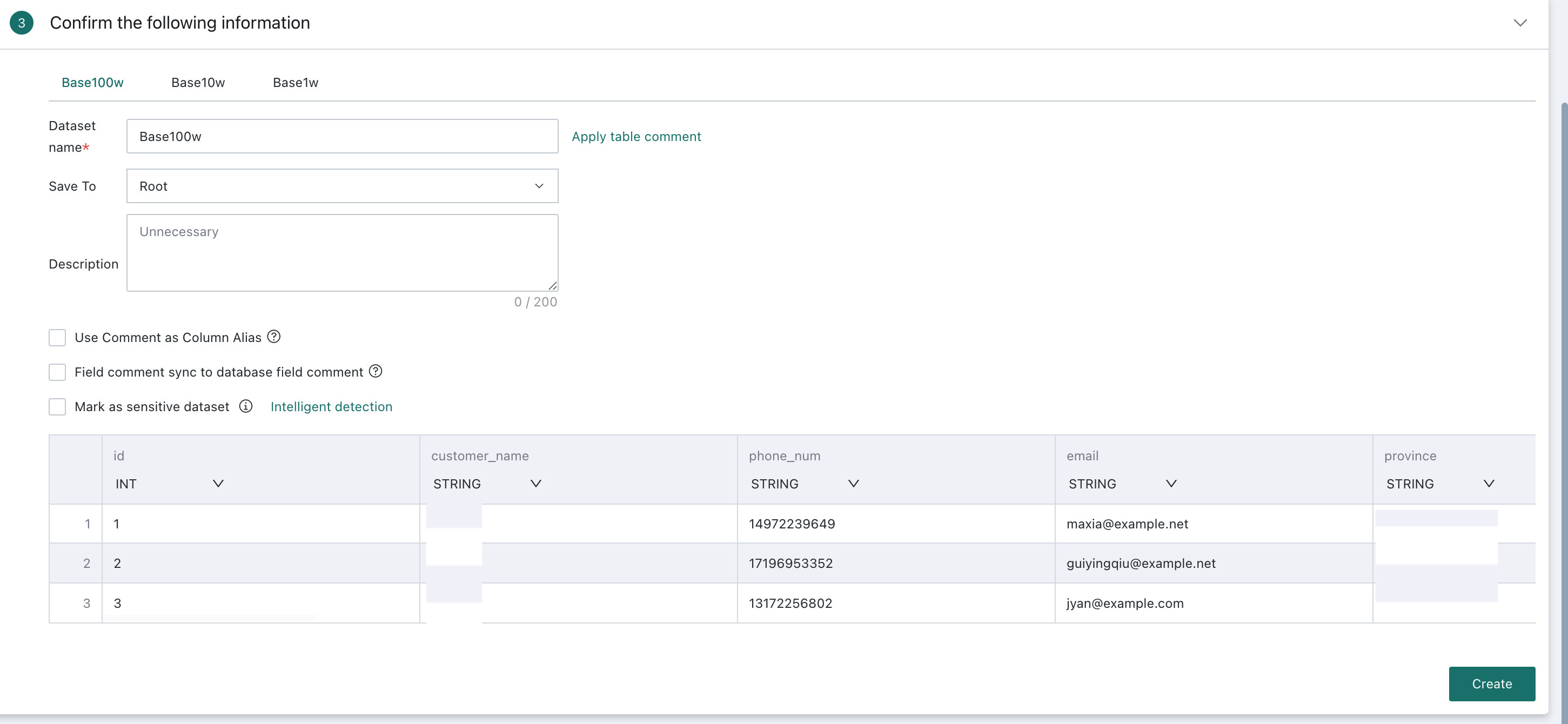
This step covers dataset storage, flexible handling of field comments, sensitive dataset marking, dataset preview, and field attribute adjustment so that data remains consistent and accurate during later analysis, processing, and visualization.
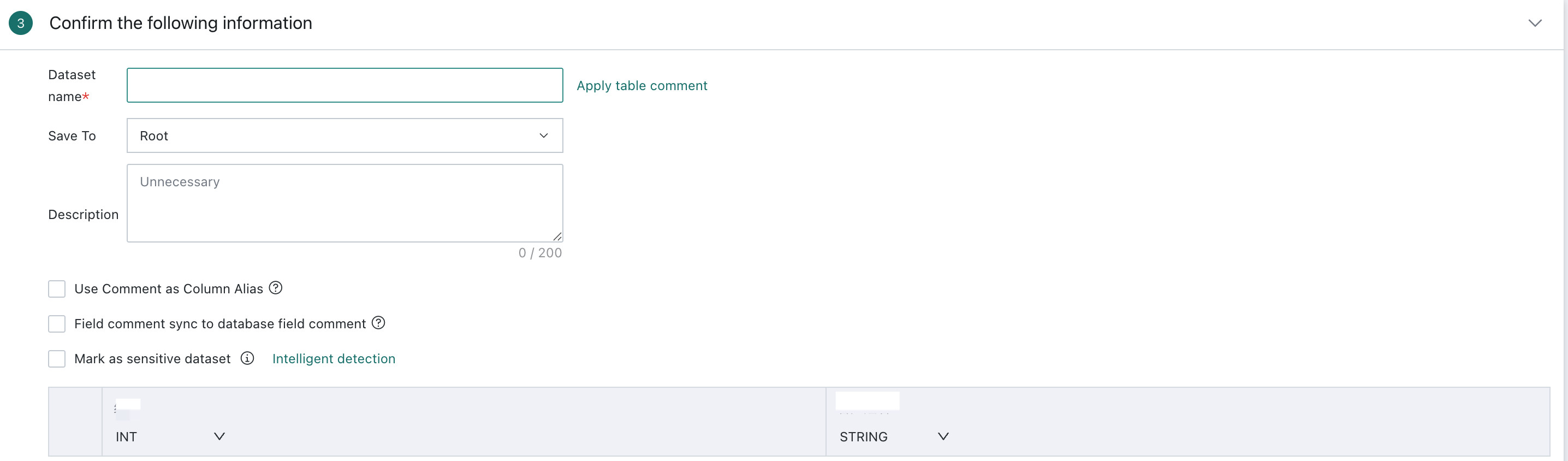
- Field type switching is supported only in Guan-Index mode.
- If a column contains inconsistent types during Guan-Indexion, the task does not fail.
Batch Create Databases
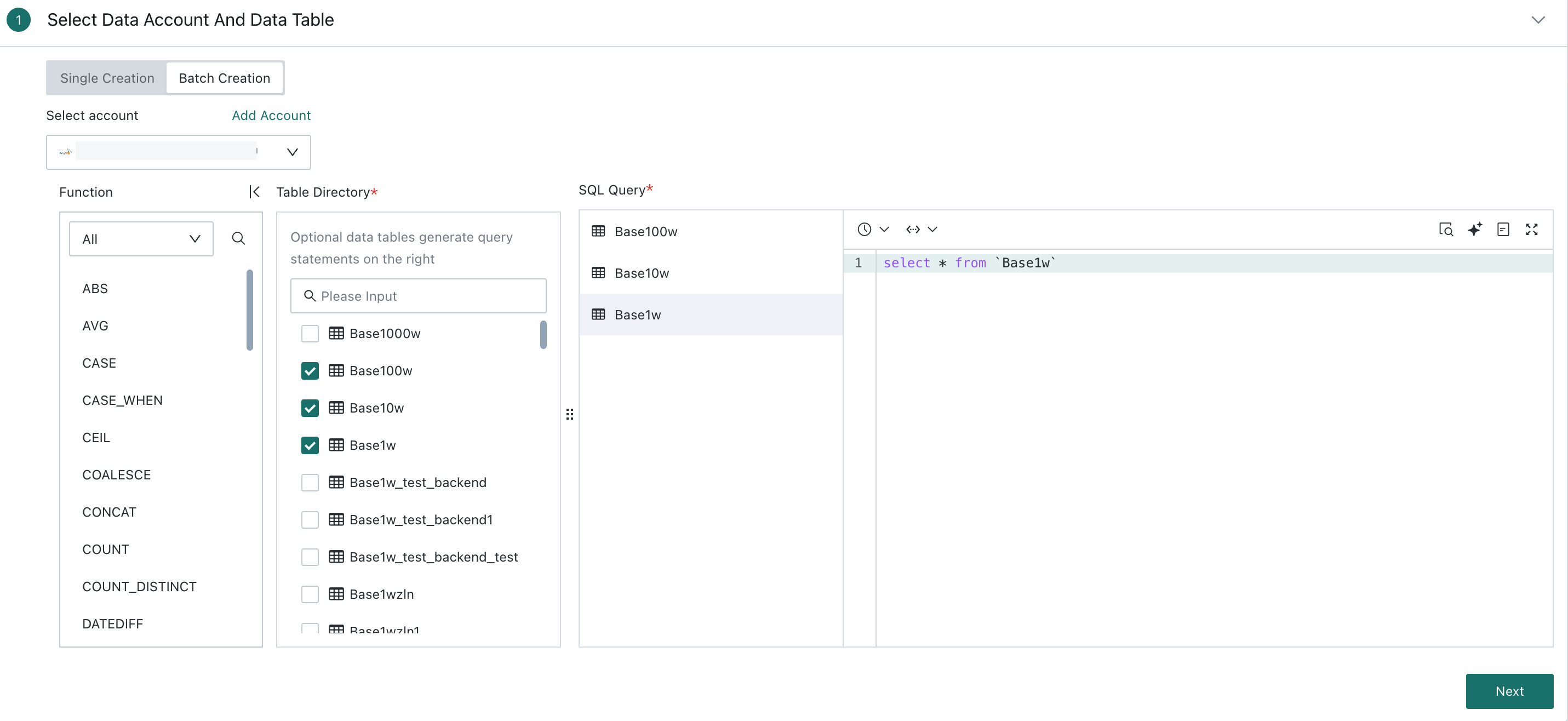
Supports bulk creation of tables from the same data account database. This feature allows users to Guan-Index all tables from a single database in bulk into the BI platform.-
When selecting bulk creation for database connection creation, you can check multiple database tables and edit SQL statements for different tables below the SQL query area. Click Next after finishing all SQL edits.
-
Configure the connection mode and update frequency for each dataset in the data connection and update settings.
-
Finally, verify the table information of each dataset one by one and click Confirm to create datasets.
Bulk creation is not supported for MongoDB and SAP BW databases.