Online Documents
Overview
Guandata BI supports deep integration with Feishu Spreadsheets, Feishu Bitable, and DingTalk AI Spreadsheets, allowing users to import and synchronize data from these tools seamlessly and quickly build Online Document datasets. Guandata BI also supports full ETL processing, multidimensional visualization analysis, and Smart Insights on top of this data, connecting the entire chain from data storage to synchronization, analysis, and decision-making.
For the detailed features and differences between Feishu and DingTalk spreadsheet tools, see the official documentation: Feishu Spreadsheet Documentation and DingTalk Spreadsheet Documentation.
Use Cases
After Feishu or DingTalk spreadsheets are connected, Guandata BI can make full use of tools already widely used inside the enterprise and support low-cost integration, management, and analysis of data across multiple business scenarios. This helps enterprises make more efficient decisions in areas such as sales and finance and brings more business data into BI for broader usage.
- Feishu Spreadsheet: Many business teams use Feishu Spreadsheets to collaborate on manual data entry and collection. These spreadsheets often involve many fields, many participants, and frequent cell updates, for example sales requirements, supply chain inventory, and sales targets. This data also needs to be brought into BI for analysis and consumption.
- Feishu Bitable: Some business teams use Feishu Bitable for data entry and backfill scenarios and want to connect that data into BI for joint analysis with other business data.
- DingTalk AI Spreadsheet: This tool is used across industries such as e-commerce, manufacturing, food service, and logistics. It uses AI to improve efficiency by processing data such as reviews and inspections automatically. After being connected to Guandata BI, it can be analyzed together with orders, device failures, and other datasets, while also supporting generic data collection and cross-system integration.
Feishu Spreadsheet and Bitable
Prerequisites
Make sure Feishu and BI integration has been completed and the relevant spreadsheet permissions are enabled.
-
Authentication Integration Between Feishu and the BI Platform
Before connecting Feishu Bitable or Spreadsheet, establish the authentication relationship between Guandata BI and the Feishu platform and obtain the required permissions. For details, see Complete Feishu Integration Guide.
NoteA custom Feishu application must be created and configured, and the required Online Documents permissions must be enabled as needed.
-
Grant Permissions to the Feishu Application
Log in to the Feishu Developer Console, go to
Development Configuration > Permission Management, and enable the required cloud document permissions.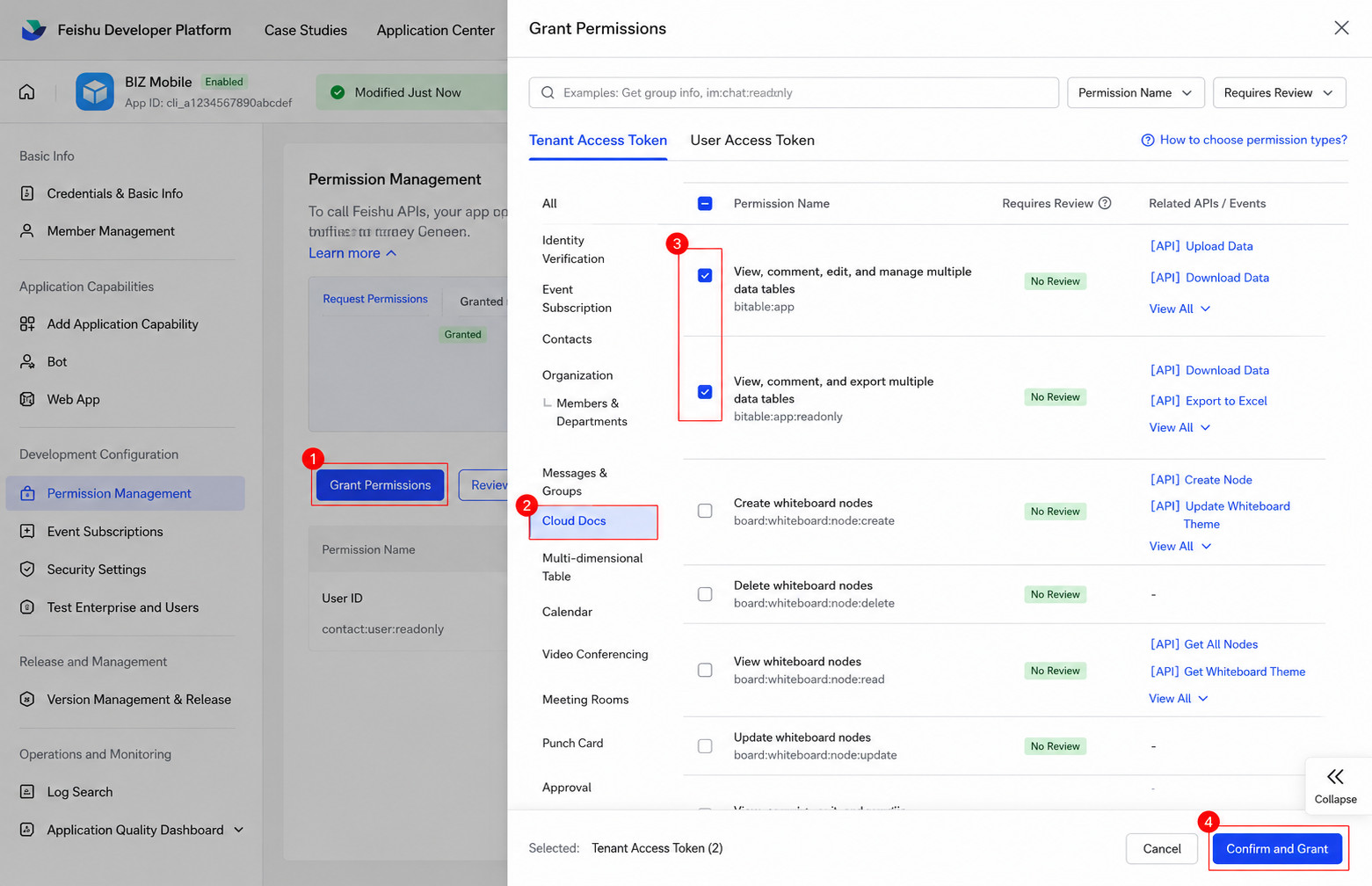
If the permission level shown in the screenshot is
Approval Required, the application version must pass review before the permission configuration takes effect.-
Feishu Bitable
At minimum, enable the permission to
View, Comment, Edit, and Manage Bitable. Other online spreadsheet permissions can be enabled based on actual needs. -
Feishu Spreadsheet
At minimum, enable the permission to
View, Comment, and Export Spreadsheet. Other online spreadsheet permissions can be enabled based on actual needs.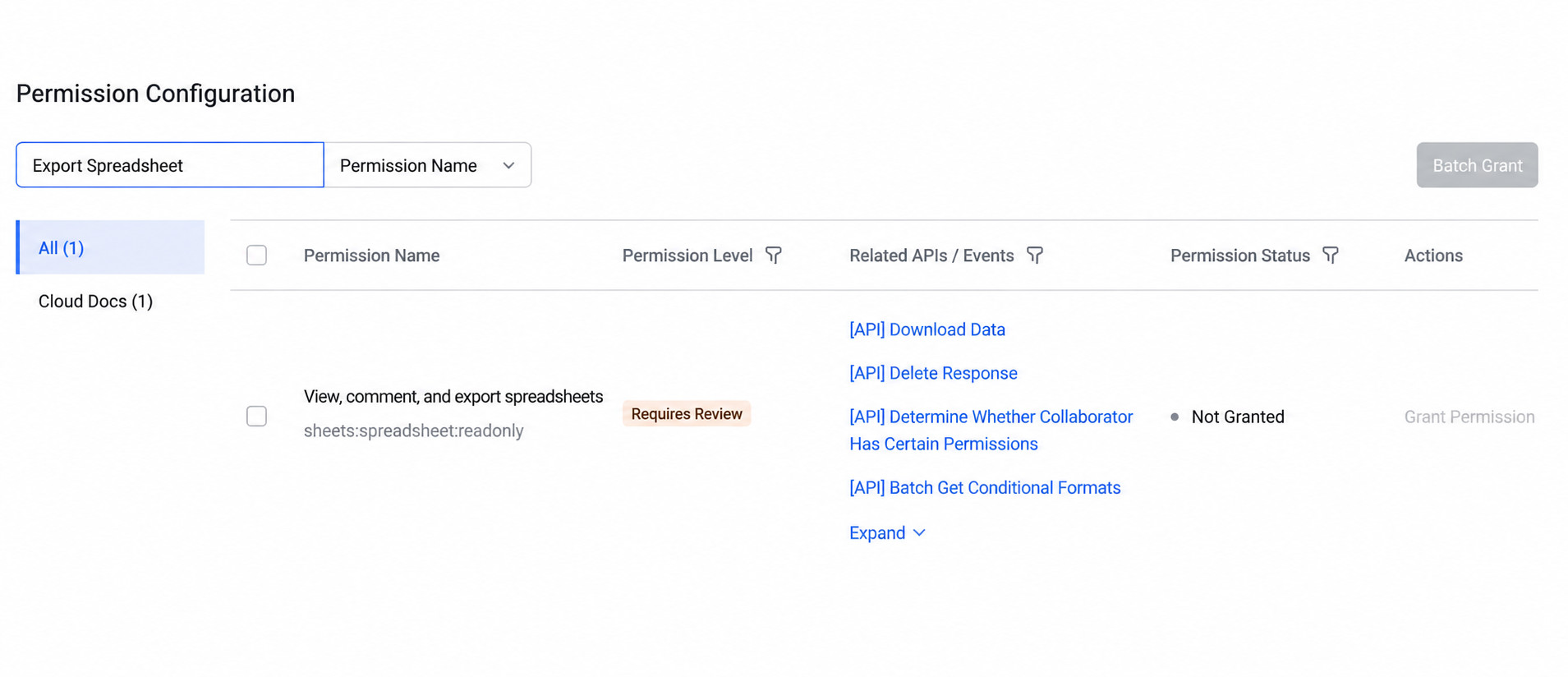
If the document is stored under a knowledge base, where the link format is
domain/wiki/..., the wiki permission must also be enabled.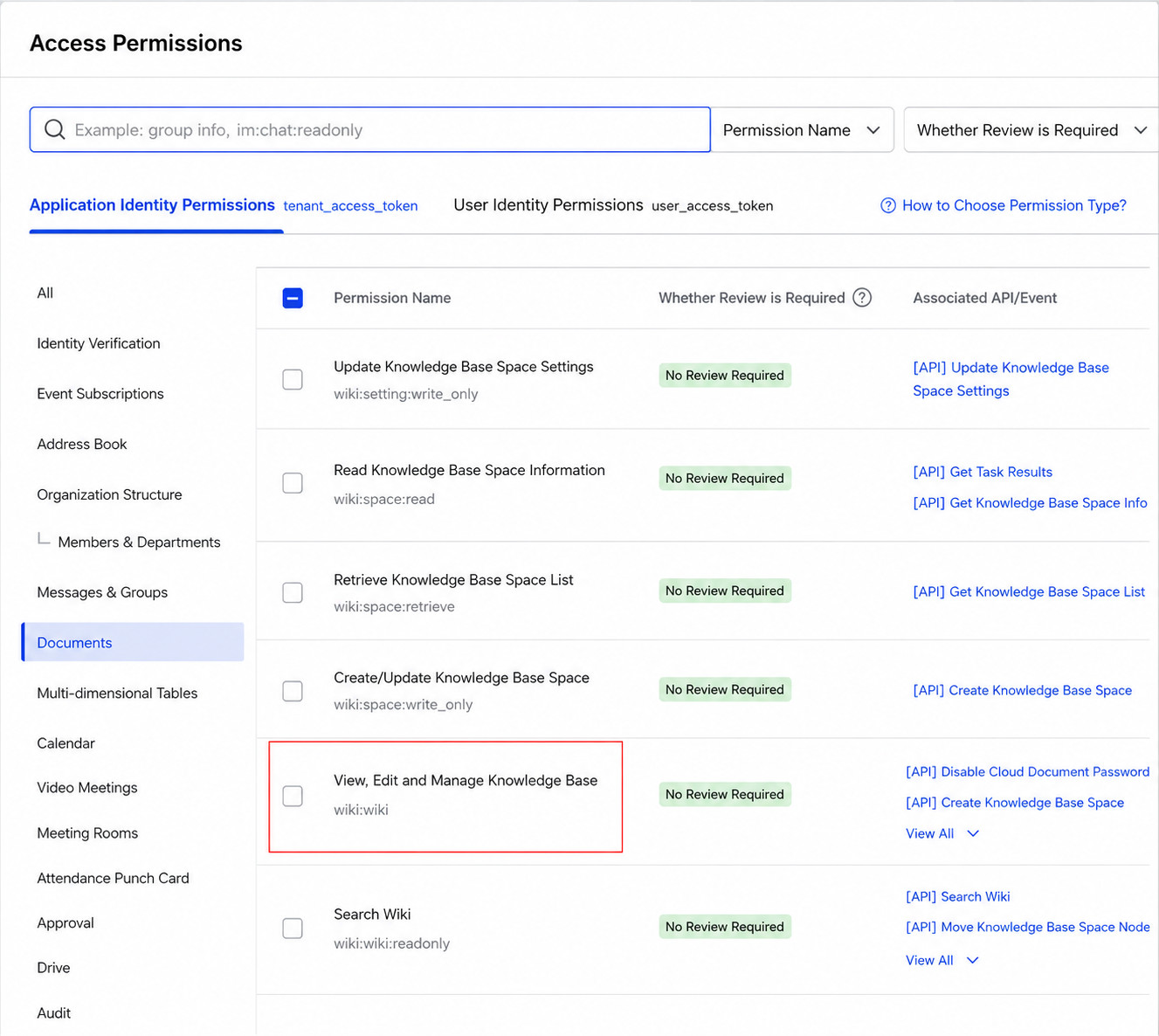
For more details, see the official guide: Integrating a Feishu Application.
-
-
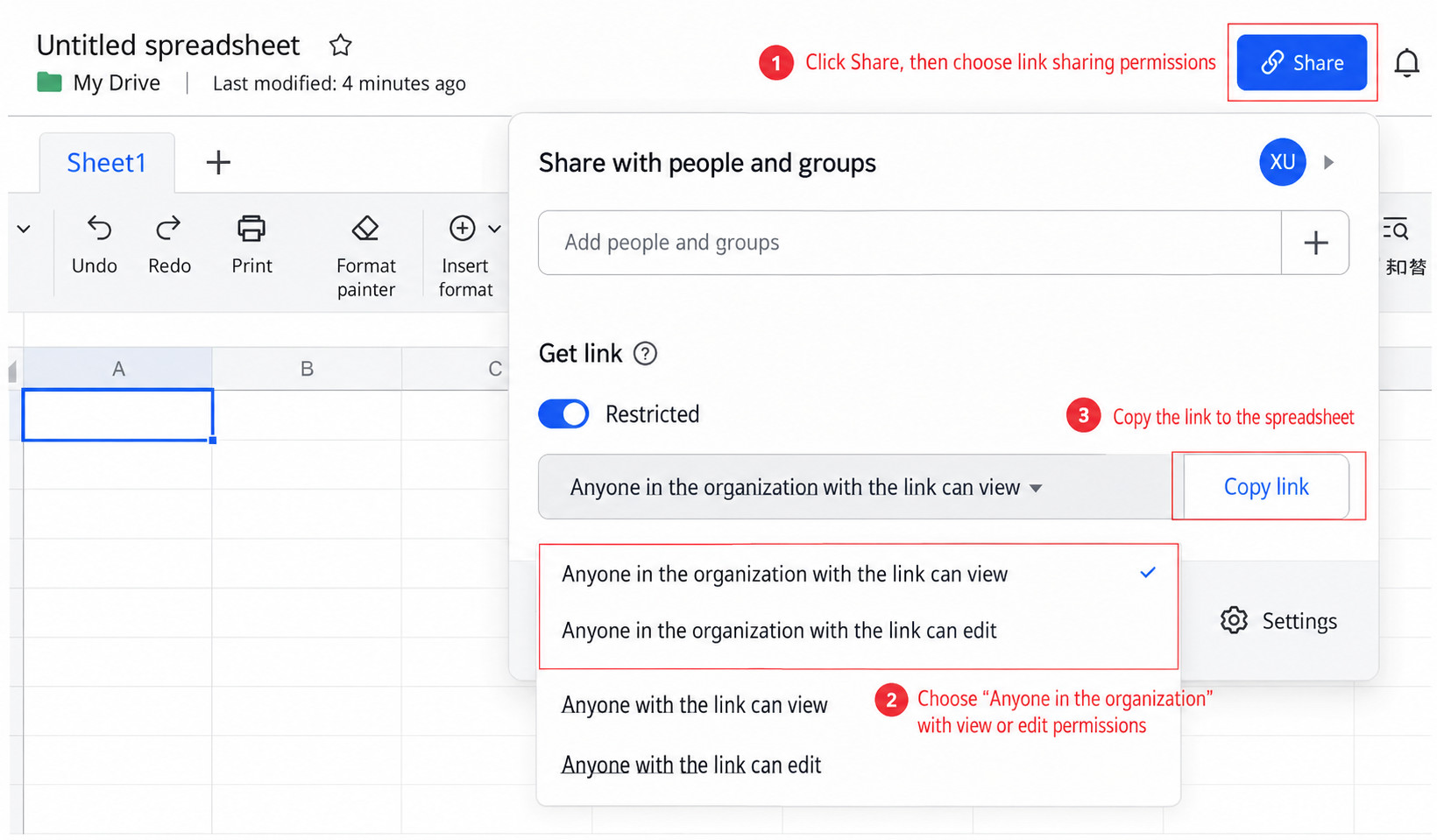
Configure Link Permissions for Feishu Spreadsheets
To connect a Feishu spreadsheet, the BI platform must first be given the spreadsheet link so it can read or write data.
At this stage, you configure sharing permissions for the spreadsheet link. Four options are available:
- Anyone in the organization with the link can view, recommended
- Anyone in the organization with the link can edit, recommended
- Anyone on the internet with the link can view, public and potentially risky
- Anyone on the internet with the link can edit, public and potentially risky
NoteAt minimum, the spreadsheet must allow users inside the organization with the link to view it.
-
Get the Spreadsheet Link
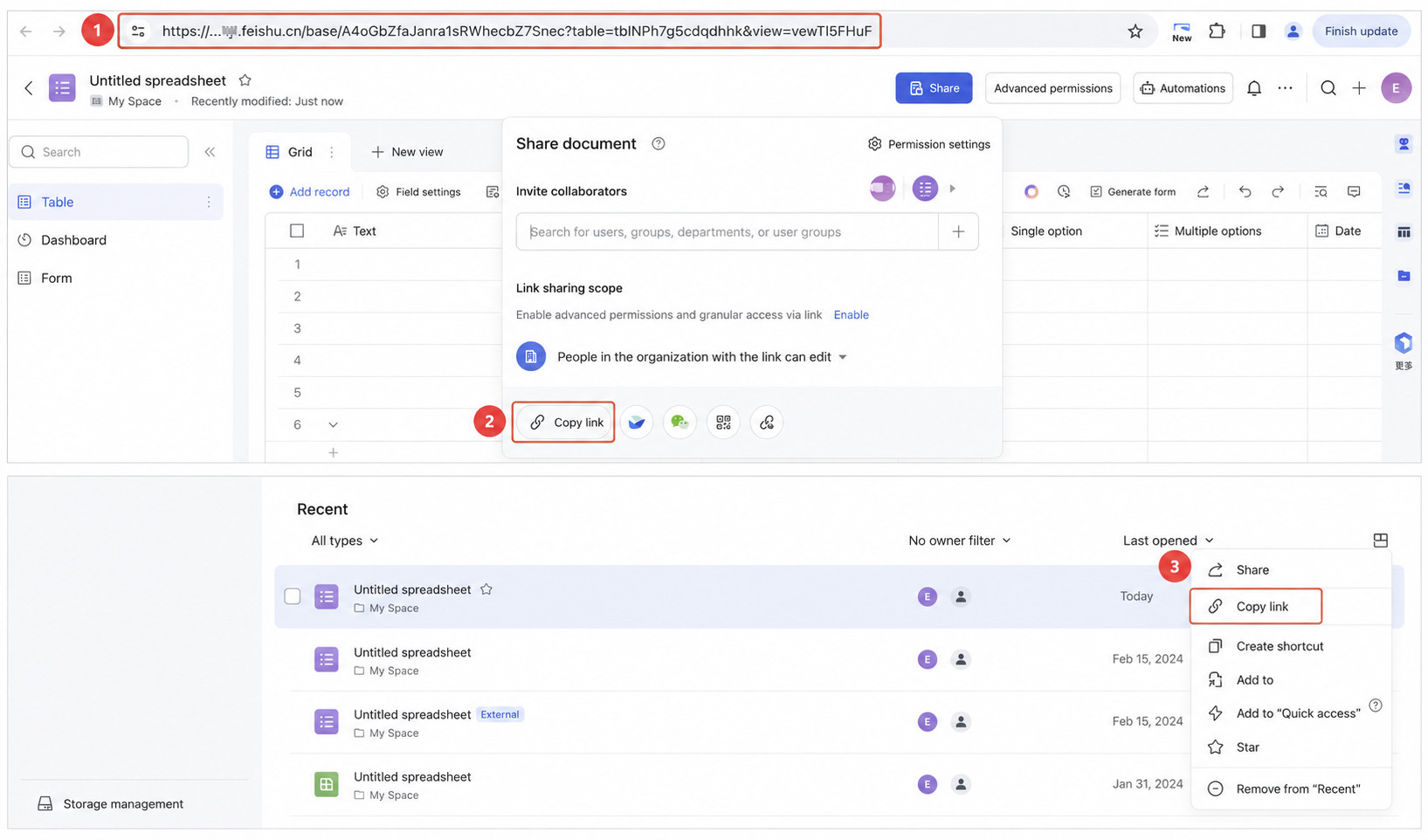
You can copy the Feishu spreadsheet link from any of the three entry points shown below.
Select the Connector
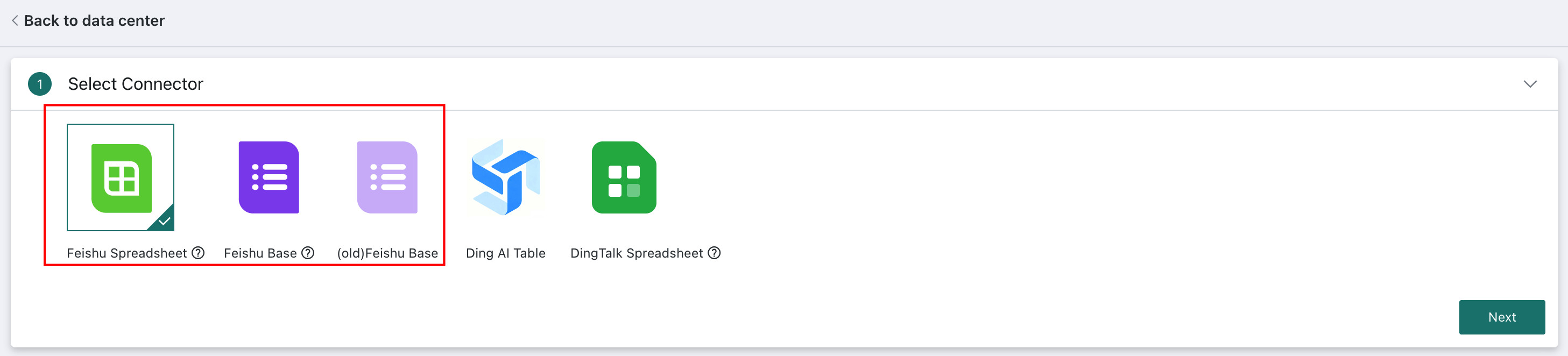
Entry point: Data Preparation > Datasets > Add Dataset > Online File > Feishu Spreadsheet / Feishu Base.
Feishu Bitable Connector Upgrade Notes
- New API Connector, recommended: Starting from version 7.1, Guandata BI supports the new Feishu Bitable API. It currently supports only Data Tables and Collection Tables. To ensure stable query performance, this connector is recommended when creating new datasets.
- Legacy API Connector: The original
Feishu Bitableconnector has been renamed to(Legacy) Feishu Bitable. It uses the old Feishu API, which will no longer be maintained. To ensure stability, the newerFeishu Bitableconnector is recommended.
Select the Data Table
Enter the Spreadsheet Link
After entering the spreadsheet link, click Get Table.

Possible error messages include:
| Error Message | Troubleshooting |
|---|---|
| Failed to Retrieve, Invalid Address | Check whether the Feishu spreadsheet and the application belong to the same organization |
| Failed to Retrieve, Invalid Address: Feishu API request failed | Check whether spreadsheet link sharing is enabled. If the data volume is too large or a previous modification is still processing, try again later |
| Failed to Retrieve, Invalid Address: No permission to get worksheet information | Check whether the Feishu application has been granted the correct cloud document permissions and whether the required application has been added to the Bitable |
| Failed to Retrieve, Invalid Address: Feishu is not enabled | Check whether Feishu is enabled under System Integration in Guandata BI |
| Failed to Retrieve, Invalid Address: Some Feishu authorization settings are missing | Check whether the Feishu App ID and App Secret in System Integration are correct and test connectivity |
| Please provide a valid Feishu Bitable link | Check whether the link is correct |
| Please check the spreadsheet link permission settings | Adjust the link sharing scope for Spreadsheet or Bitable |
Related Links
Feishu Open Platform: https://open.feishu.cn/app/
Feishu Spreadsheet Login: https://login.feishu.cn/accounts/page/
Feishu Application Integration Guide: Integrating a Feishu Application
Select Table Information - Spreadsheet
For Feishu Spreadsheets, after the spreadsheet is retrieved, users need to specify the target worksheet and the row and column range to be imported.
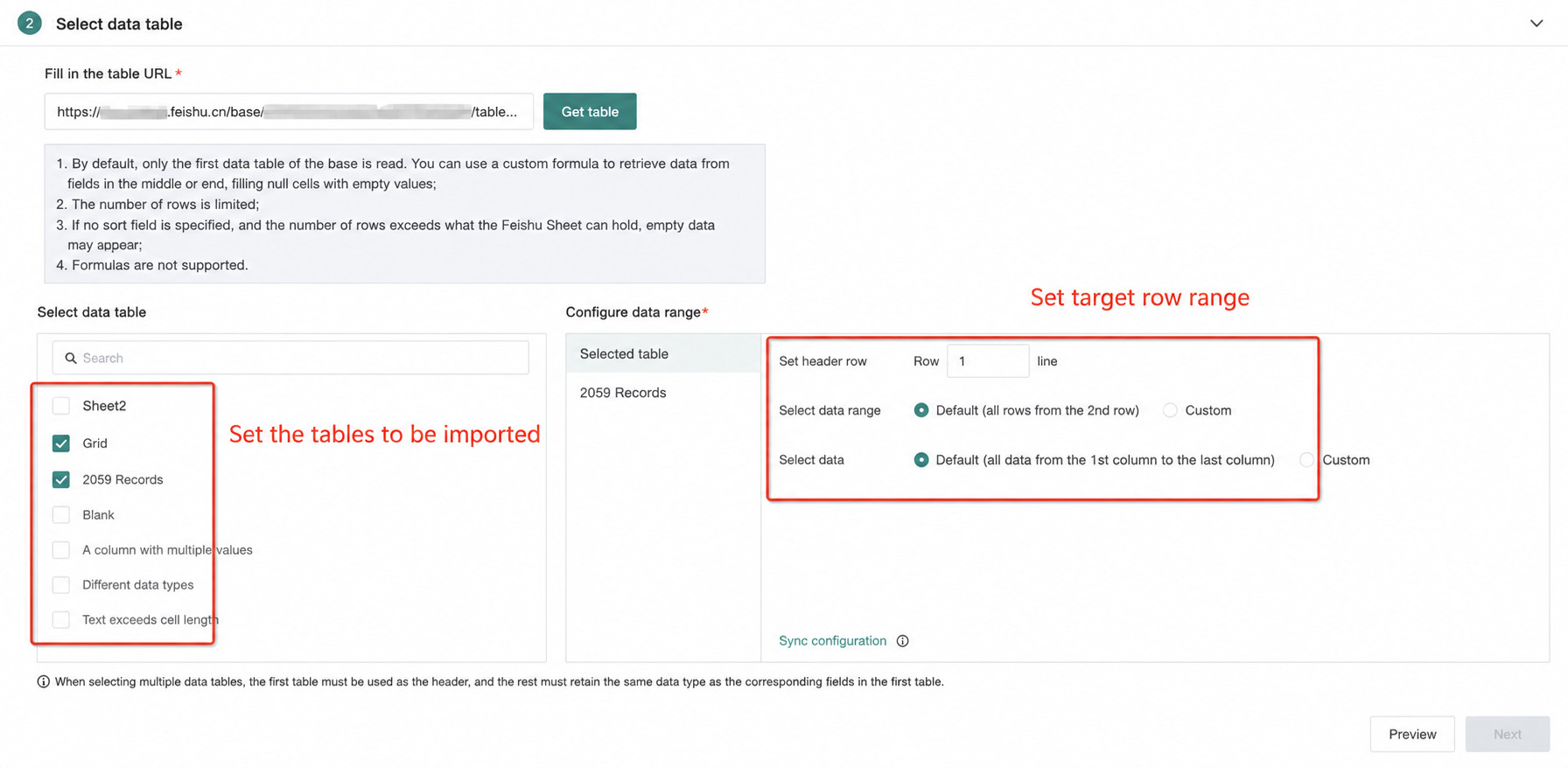
If multiple tables need to be configured and their settings are the same, configure one table first and then use Sync Configuration to apply the same range and parameters to the others.
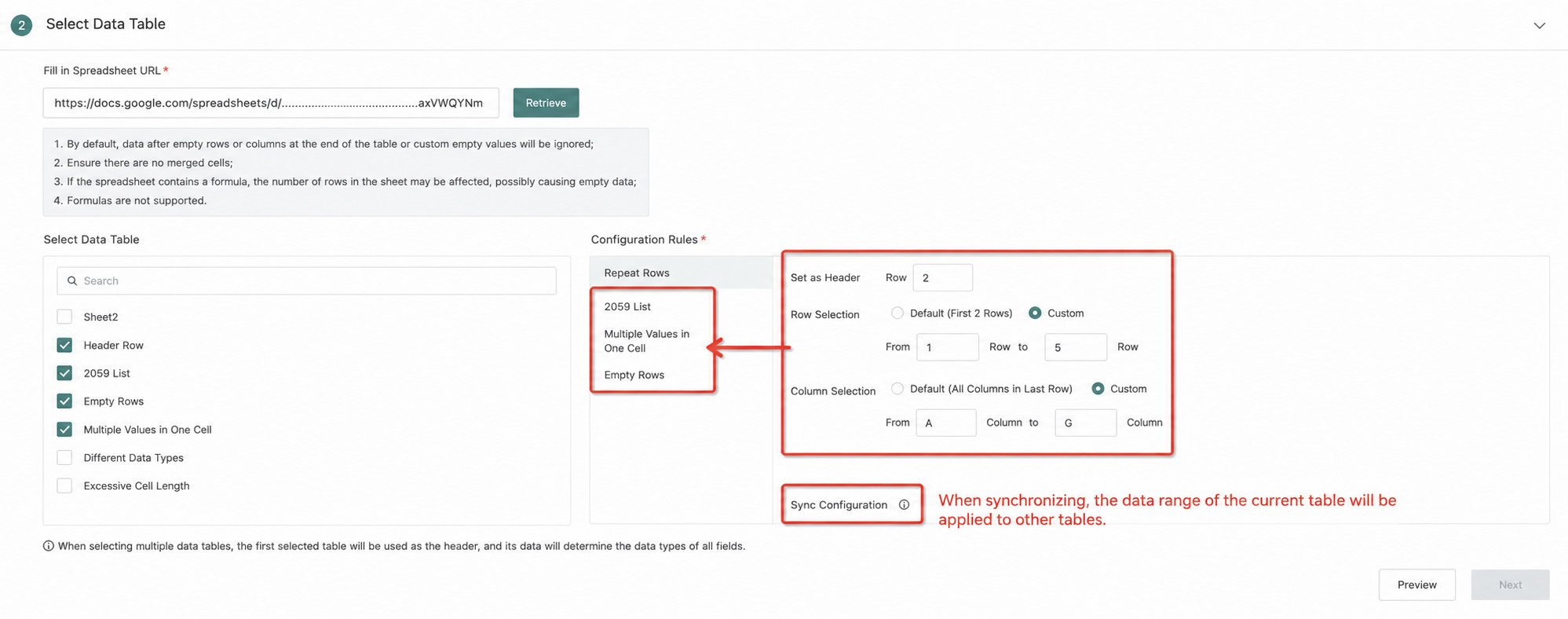
- The reading range of a Feishu Spreadsheet dataset cannot exceed the configured row and column range. If the default setting is used, data is read up to the last non-empty column in the current worksheet, and empty columns in the middle are marked as Null.
- Column names cannot be duplicated.
- It is recommended to specify the row range explicitly, otherwise empty rows counted by Feishu may be treated by BI as existing rows even though they contain no actual data.
- Data generated by formulas is imported only as its current value. Formulas themselves are not preserved.
- If multiple worksheets are selected, the first worksheet is used as the header reference and the remaining worksheets keep only the fields that also exist in the first worksheet.
Select Table Information - Bitable
For details about Feishu Bitable record structures, see Bitable Record Data Structure Overview.
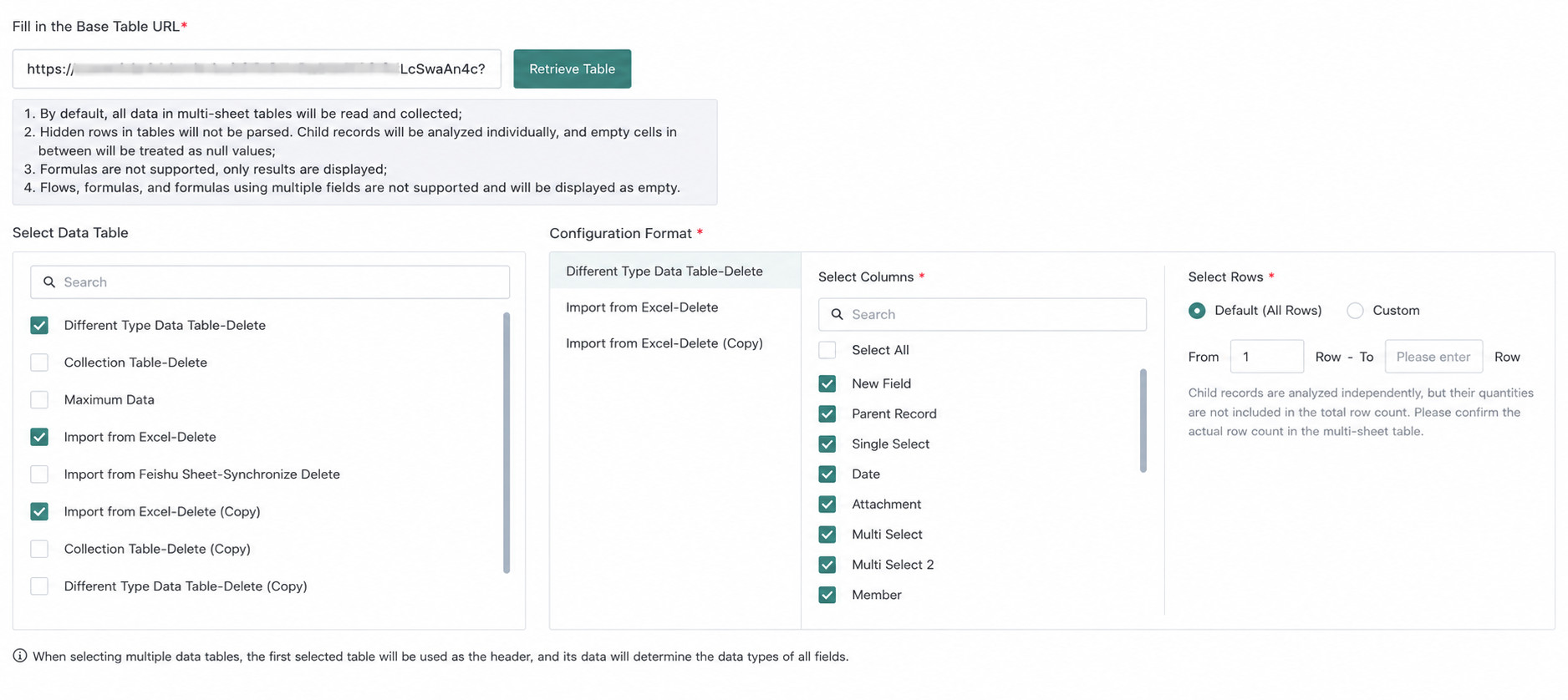
For Feishu Bitable, after the table is retrieved, complete the following steps:
-
Select Data Tables: Multiple data tables can be selected at the same time.
-
Configure Table Format: Define the row and column range.
- Column data: field names used to identify different data attributes
- Row data: the start and end positions of actual data content, ensuring that only target data is processed
-
Set Attachment Field Parsing Rules: If the Bitable contains attachment fields, configure how the attachment information should be displayed and referenced in the dataset. Supported output formats include attachment name, URL, or name plus URL.
After configuration, click
Previewin the lower-right corner to inspect the result, then clickNext.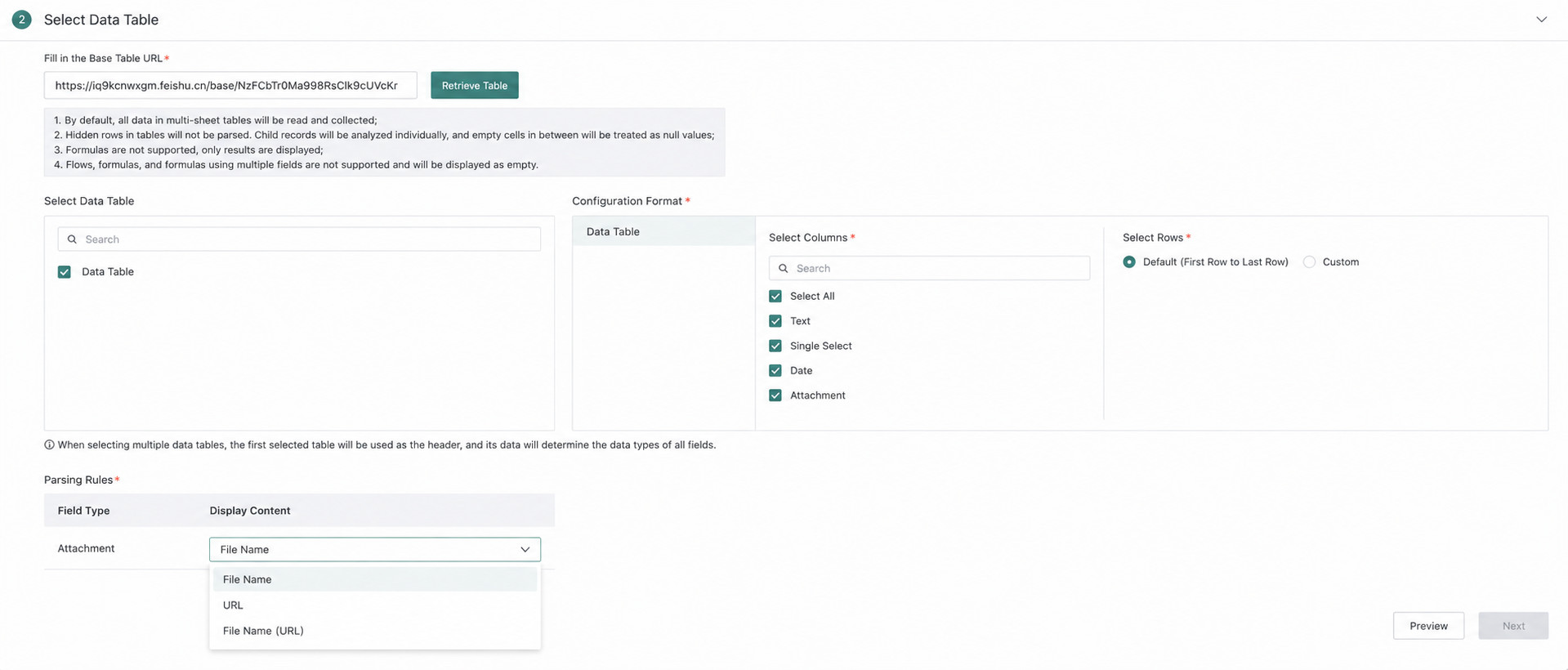
- The reading range cannot exceed the configured row and column range.
- Column names cannot be duplicated.
- It is recommended to specify the row range explicitly to avoid empty-row issues.
- Formula-generated values are imported only as their current values.
- If multiple worksheets are selected, the first worksheet is used as the header reference and the remaining worksheets keep only the fields that also exist in the first worksheet.
Configure Update Method
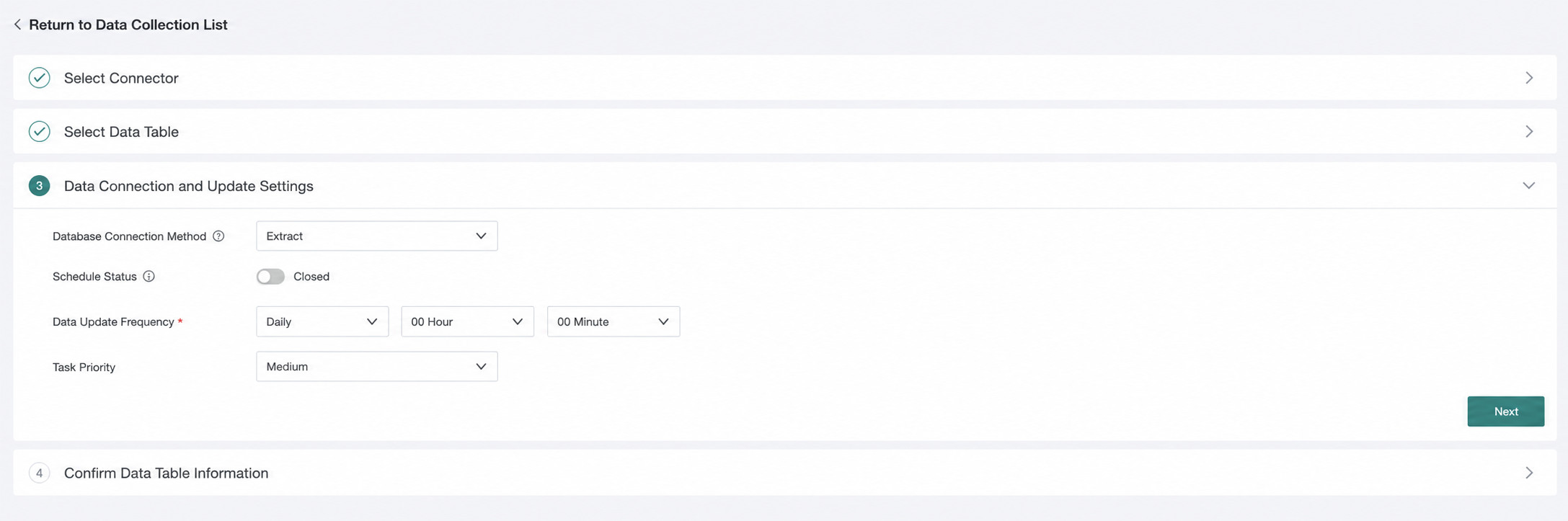
For Feishu Spreadsheet and Bitable, the update method is Extract.
-
Scheduling Status: when enabled, dataset updates are triggered automatically according to the configured update cycle. Manual updates and URL-triggered updates are not affected.
-
Dataset Update Cycle: updates can be scheduled daily, weekly, or monthly, down to the minute.
NoteA single dataset cannot be updated more than four times per day.
-
Task Priority: users can configure task priority so that more important update tasks run first. Supported priorities are Highest, High, Medium, Low, and Lowest. The default is Medium.
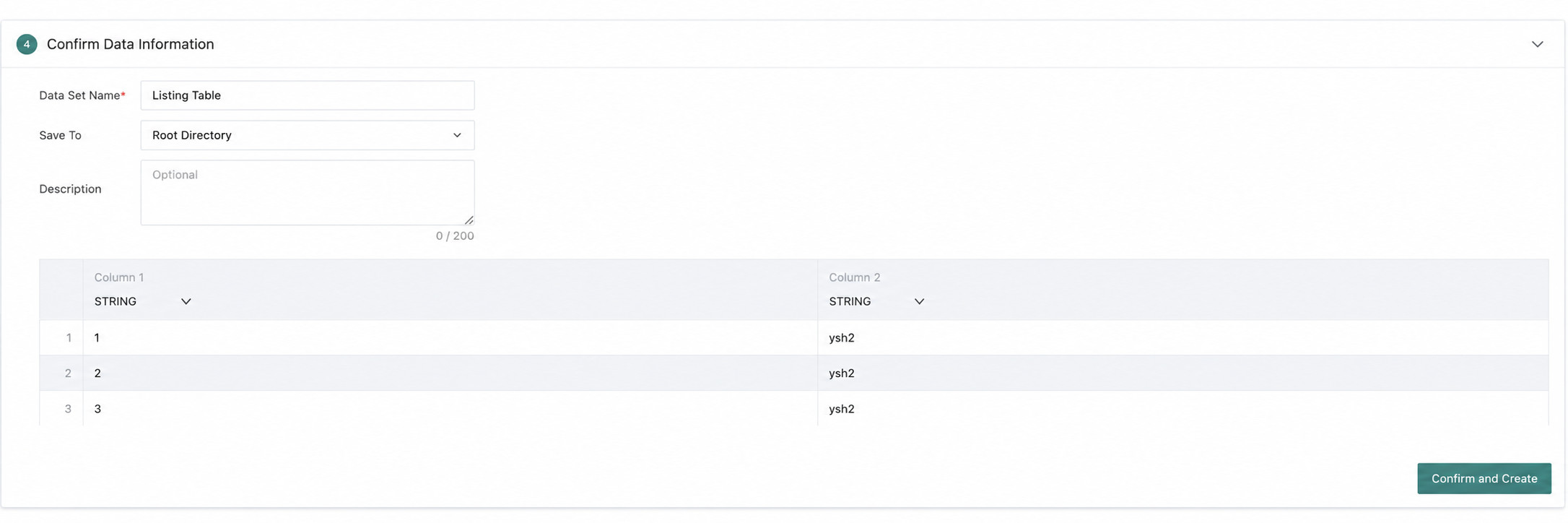
Confirm the Data Table Information
Enter the dataset name for the Feishu Spreadsheet or Bitable and choose the target save path to complete creation of the Extract dataset.
Ding AI Table / Spreadsheet
Prerequisites
Make sure DingTalk and BI integration is complete and the DingTalk account and spreadsheet permissions have been configured.
-
Authentication Integration Between DingTalk and the BI Platform
Before connecting DingTalk AI Spreadsheets, establish the authentication relationship between Guandata BI and the DingTalk platform and obtain the required permissions. For details, see Complete DingTalk Integration Guide.
-
Grant Permissions to the DingTalk Application
Log in to the DingTalk Developer Platform, go to
Development Configuration > Permission Management, and enableAI Spreadsheet Application Read Permission.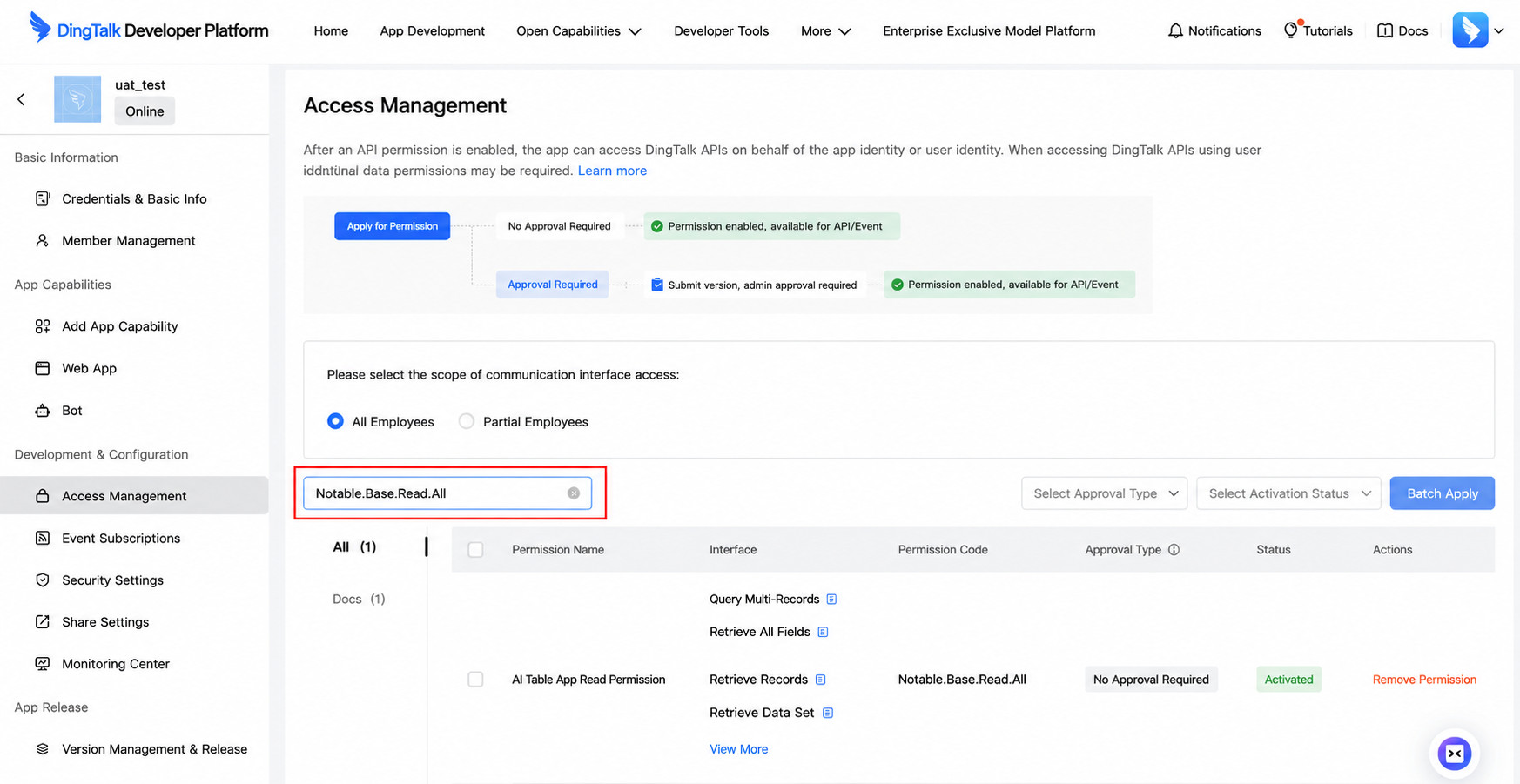
-
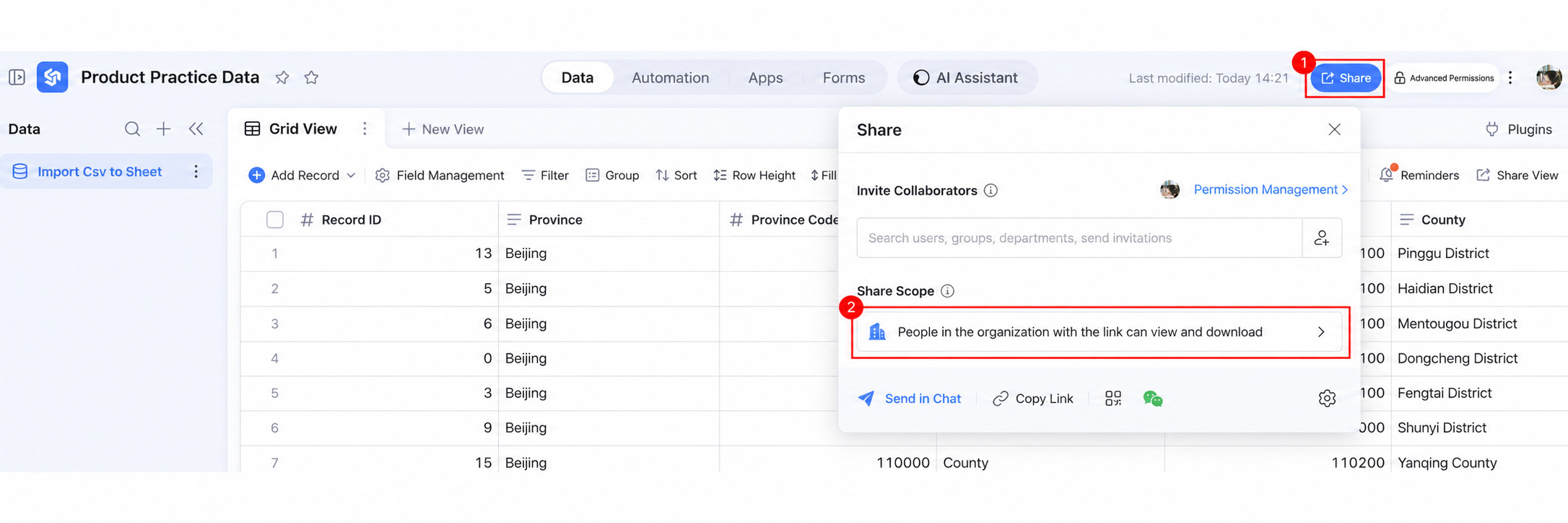
Configure Link Permissions for DingTalk Spreadsheets
To connect a DingTalk Spreadsheet, BI must first be given the spreadsheet link so it can read or write data.
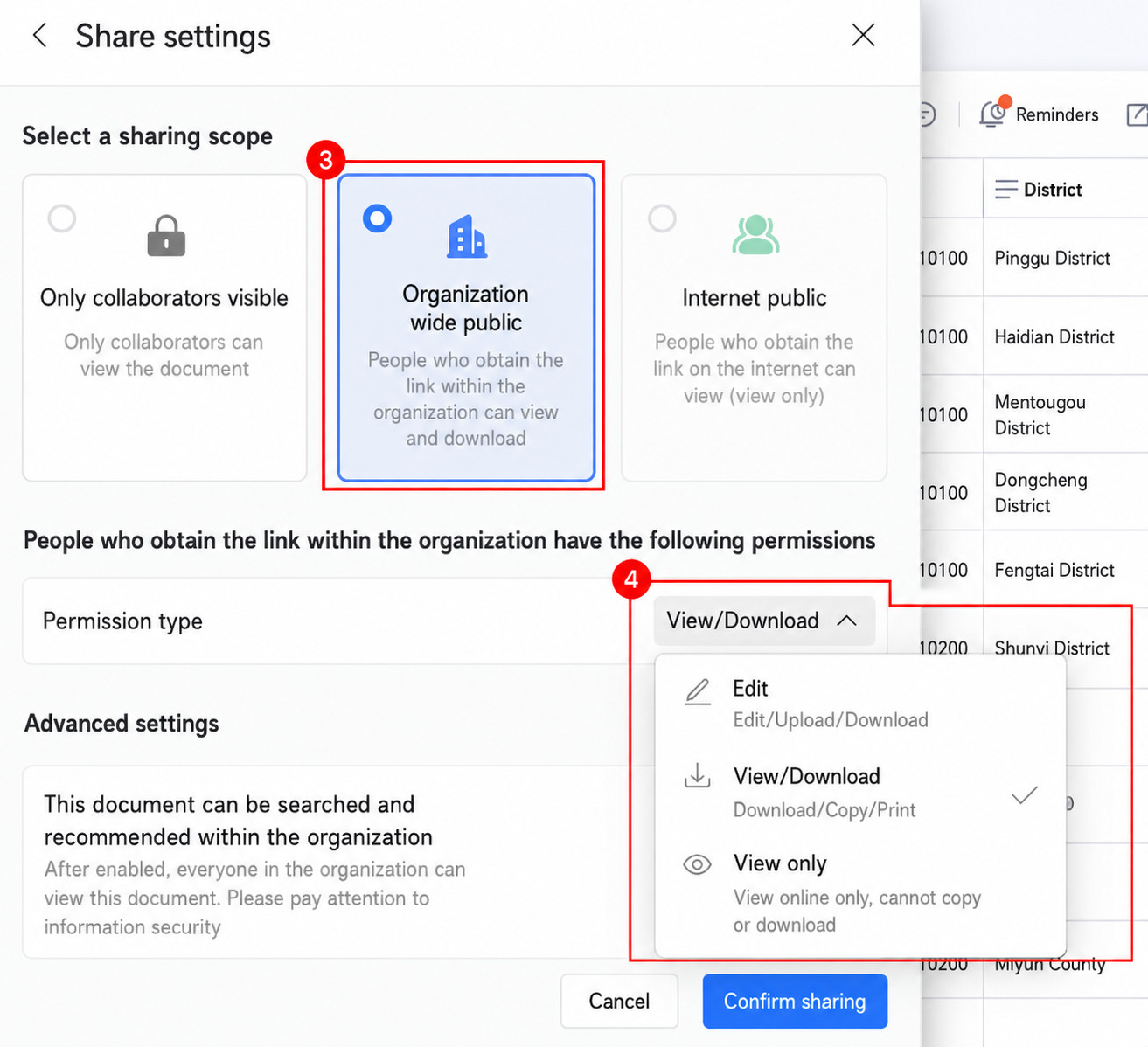
At this stage, configure one of the following link sharing modes:
- Visible Only to Collaborators
- Visible Within the Enterprise, recommended
- Public on the Internet, use with caution
At minimum, the spreadsheet must allow users in the enterprise with the link to view it.
-
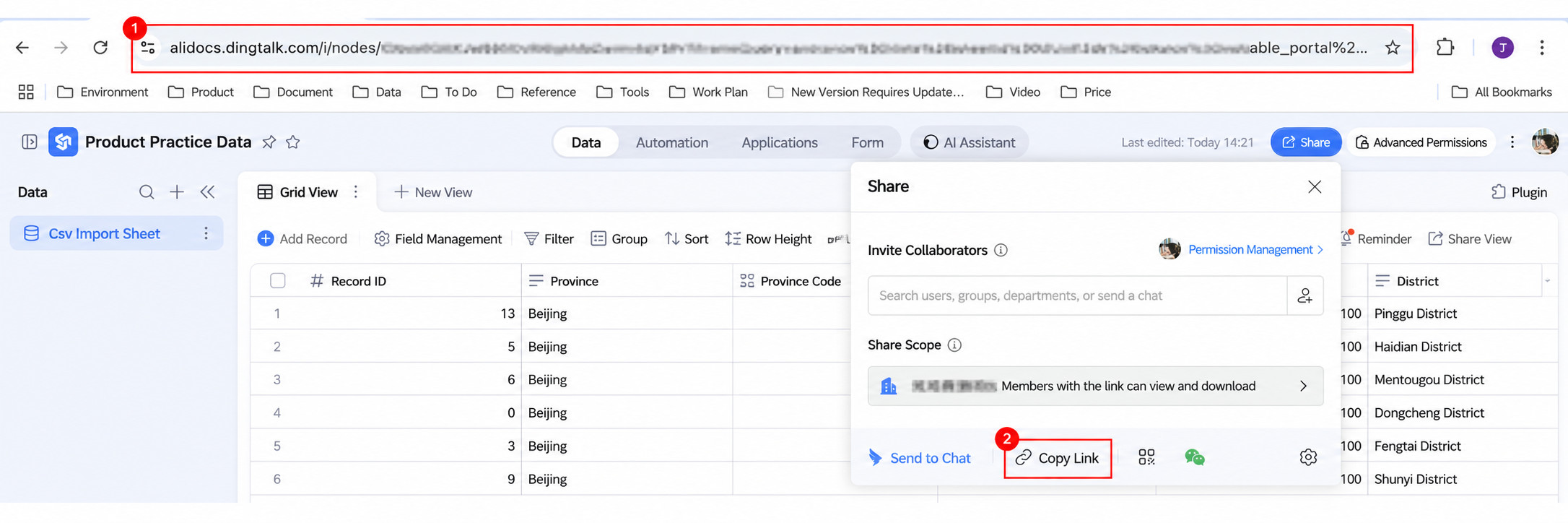
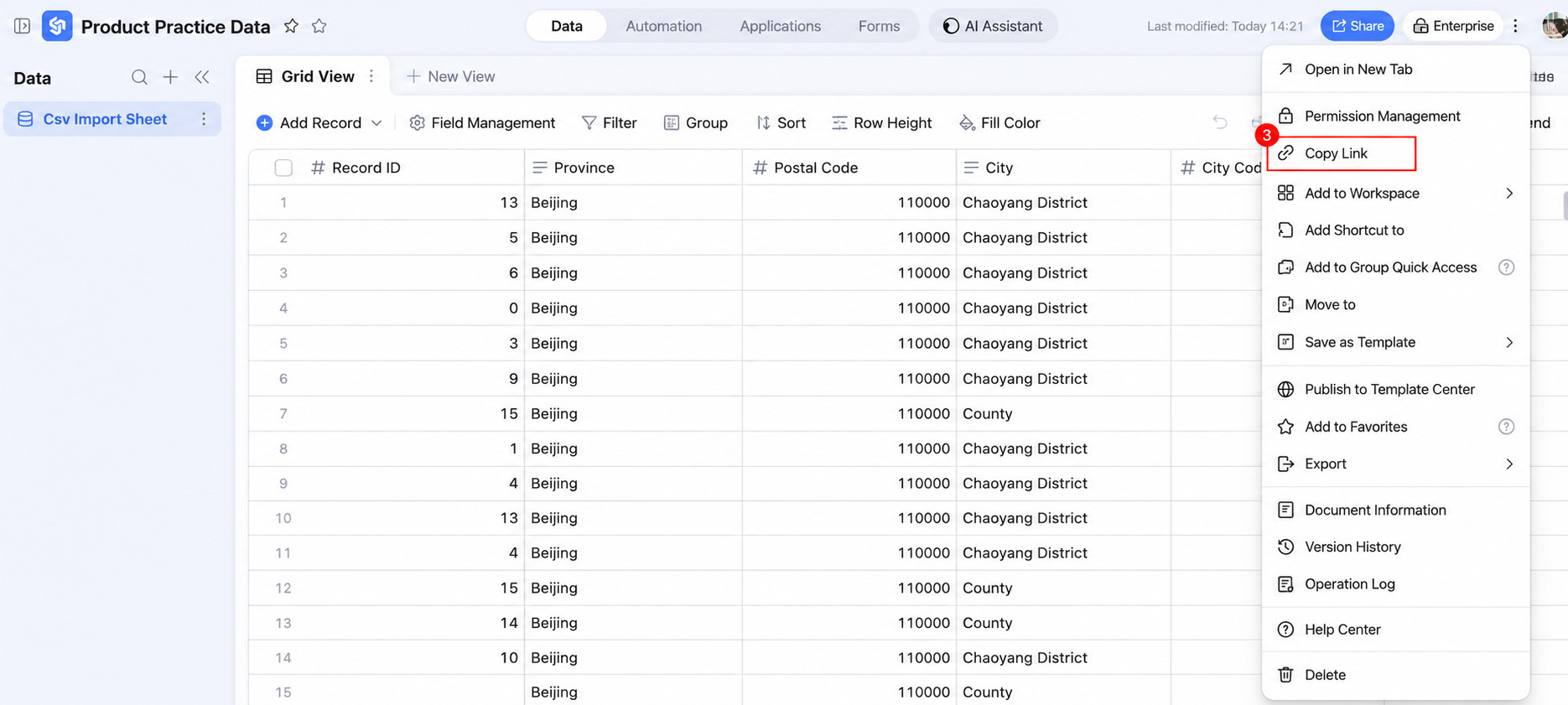
Get the Spreadsheet Link
You can copy the DingTalk spreadsheet link from the three entry points shown below.
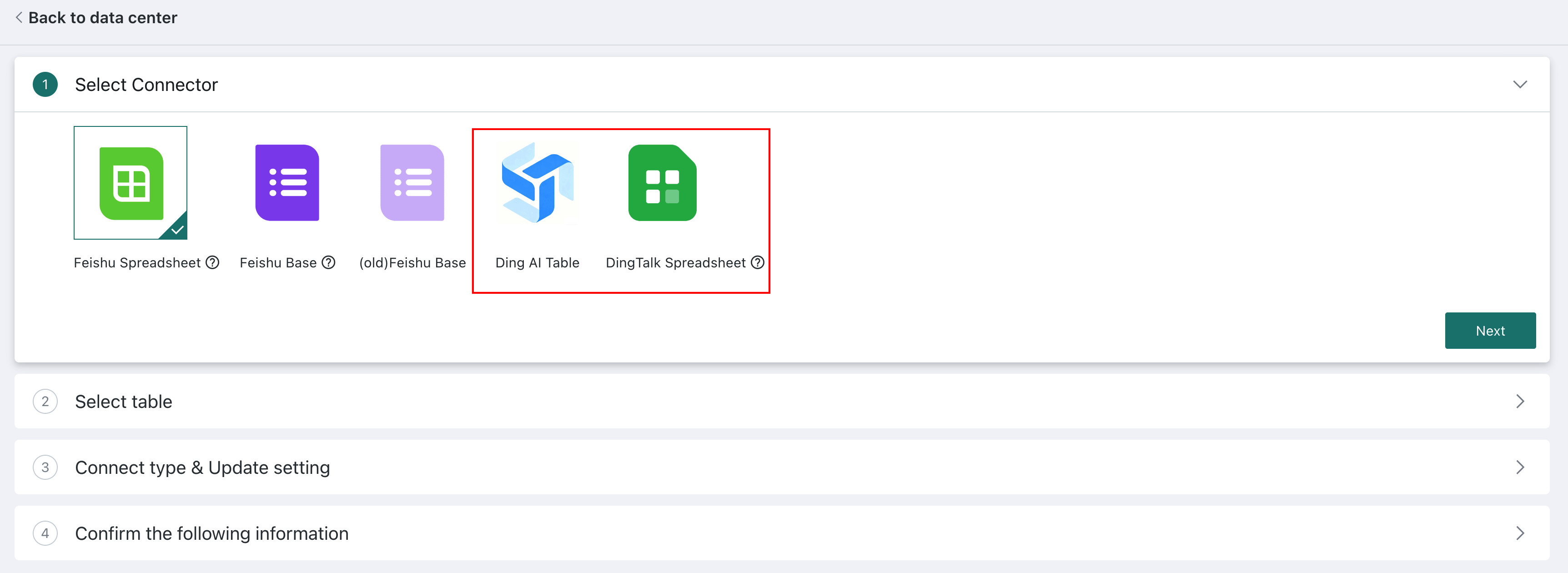
Select the Connector
Entry point: Data Preparation > Datasets > New Dataset > Online Documents > DingTalk AI Spreadsheet
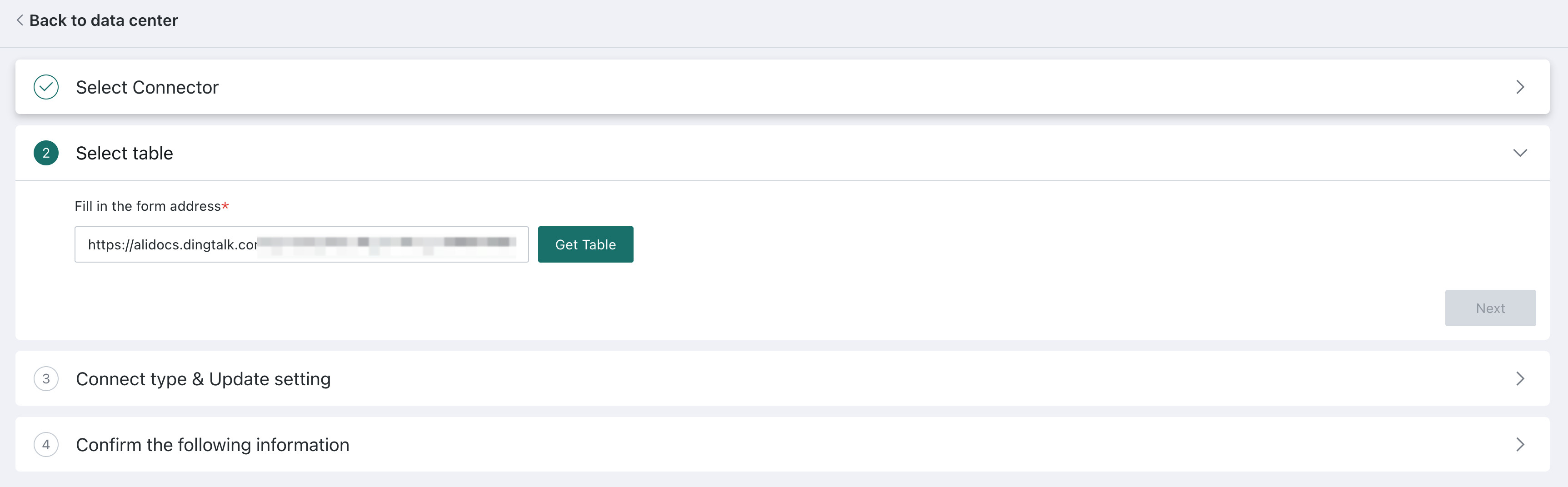
Select the Data Table
Enter the Spreadsheet Address
Enter the spreadsheet address and click Get Spreadsheet.
Select Table Data
The operation is the same as Select Table Information - Bitable.
Configure Update Method
The operation is the same as Configure Update Method.
Confirm the Data Table Information
The operation is the same as Confirm the Data Table Information.