Best Practices
Best Practices
Free Entry - Quickly Create Forms Based on Existing Excel Tables
Taking building an "Employee Profile Information Table" as an example.
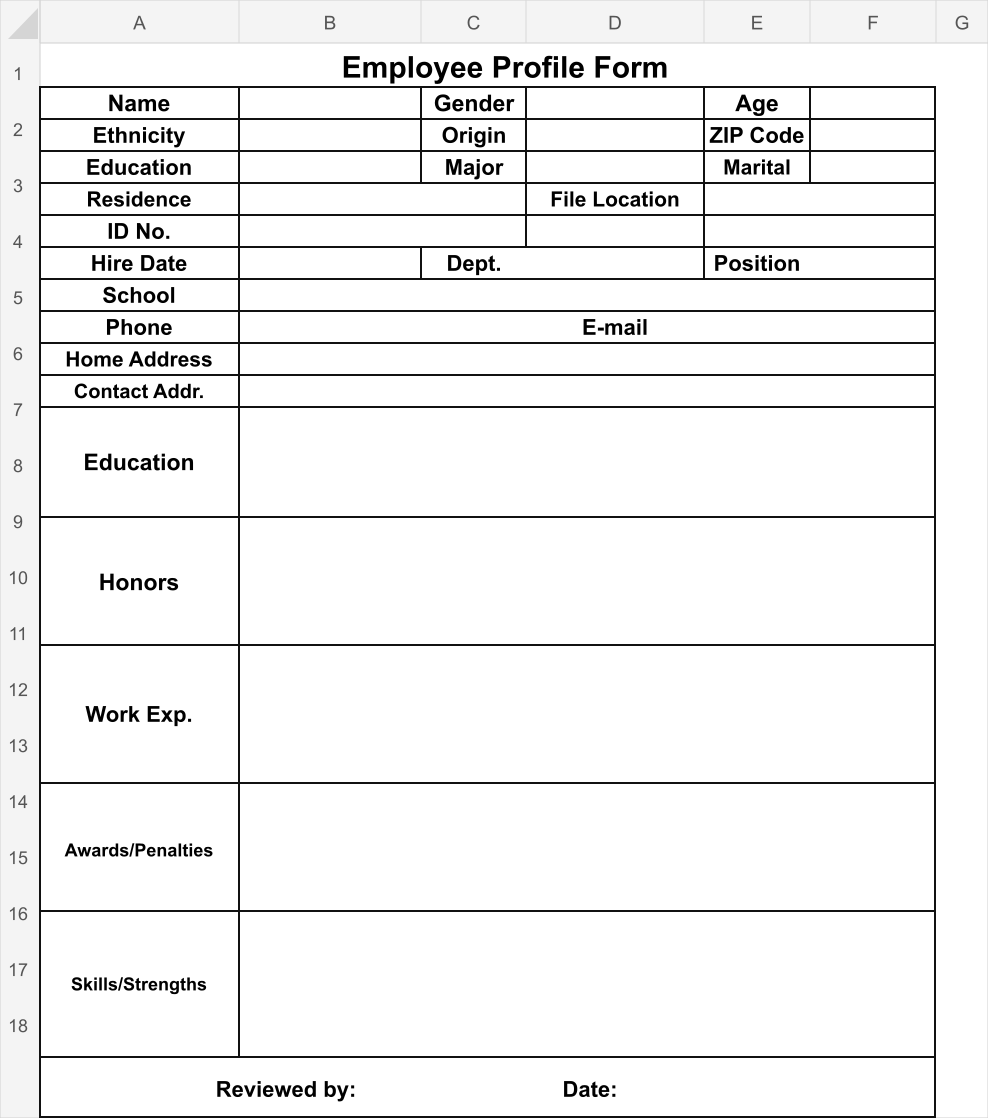
-
We create a Table Data Entry card, and skip the dataset selection step, directly importing the Excel template.
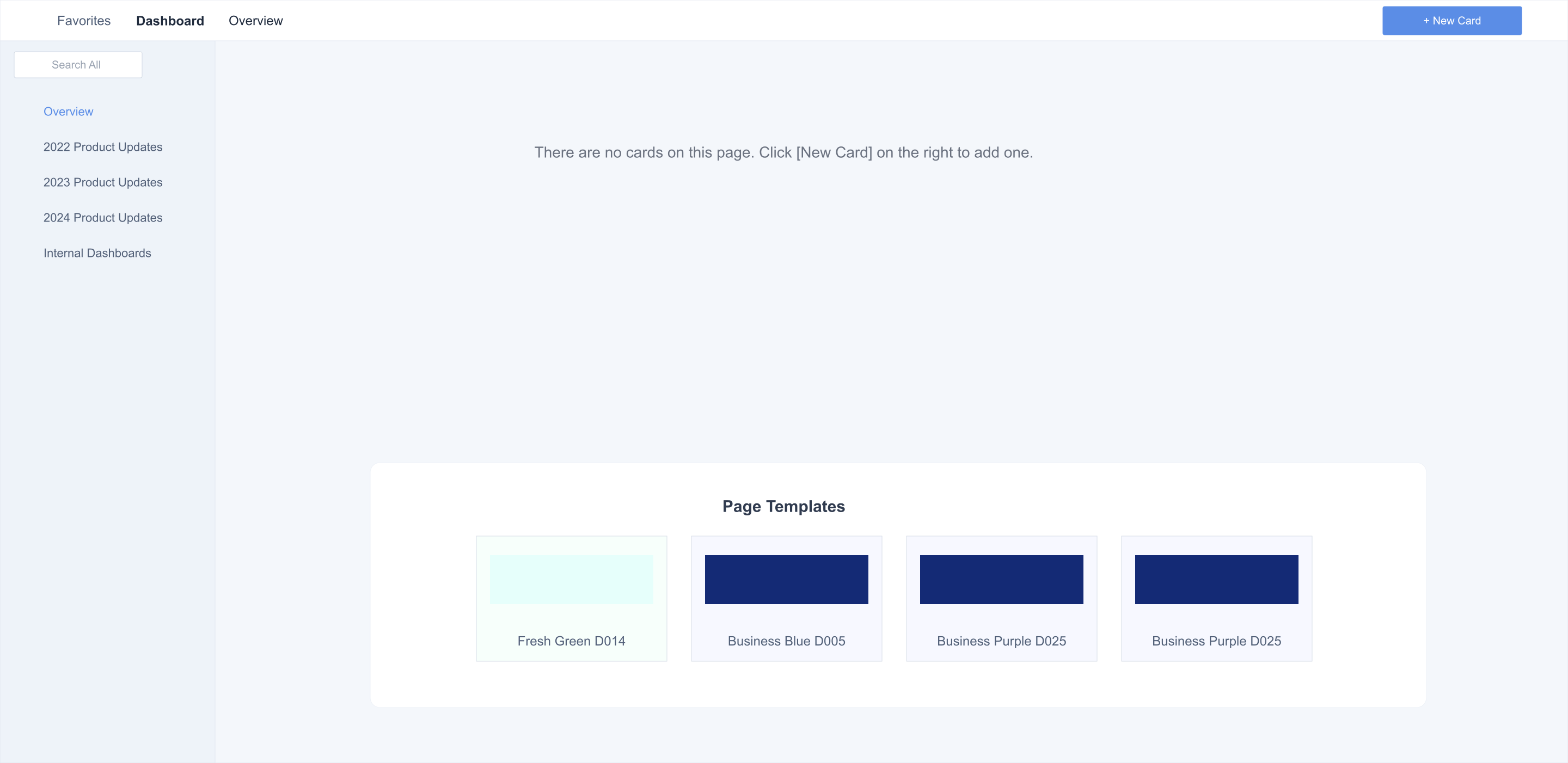
-
For cells that need to be entered and written back, set entry controls: Insert tab > Entry Controls > Specific Control Type. The demo example configuration is as follows:
B2 > Text D2 > Single Select F2 > Number
B3 > Text D3 > Text F3 > Text
B4 > Single Select D4 > Text F4 > Single Select
B5 > Text E5 > Text
B6 > Text
B7 > Date D7 > Department F7 > Position
B8 > Text
B9 - Text E9 - Text
B10 - Text
B11 - Text
B12 - Text
B13 - Text
B14 - Text
B15 - Text
B16 - Text
C17 - Text E17 - Date
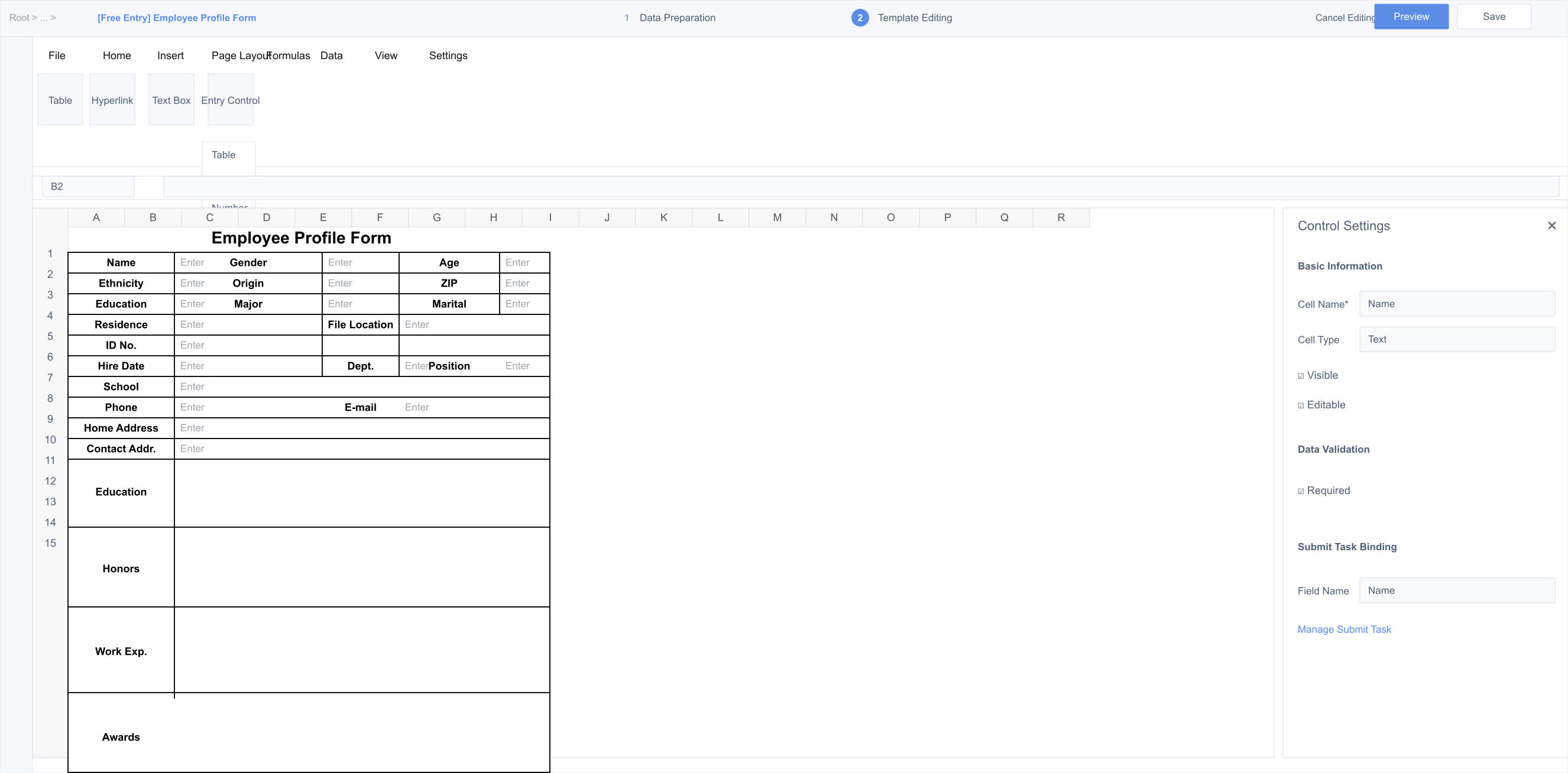
-
After the entry cell configuration is complete, perform data submission settings: "Data tab - Data Submission Settings", select the submission method as Direct Write. Finally, perform beautification settings on the table and modify the card name. After completion, save the card.
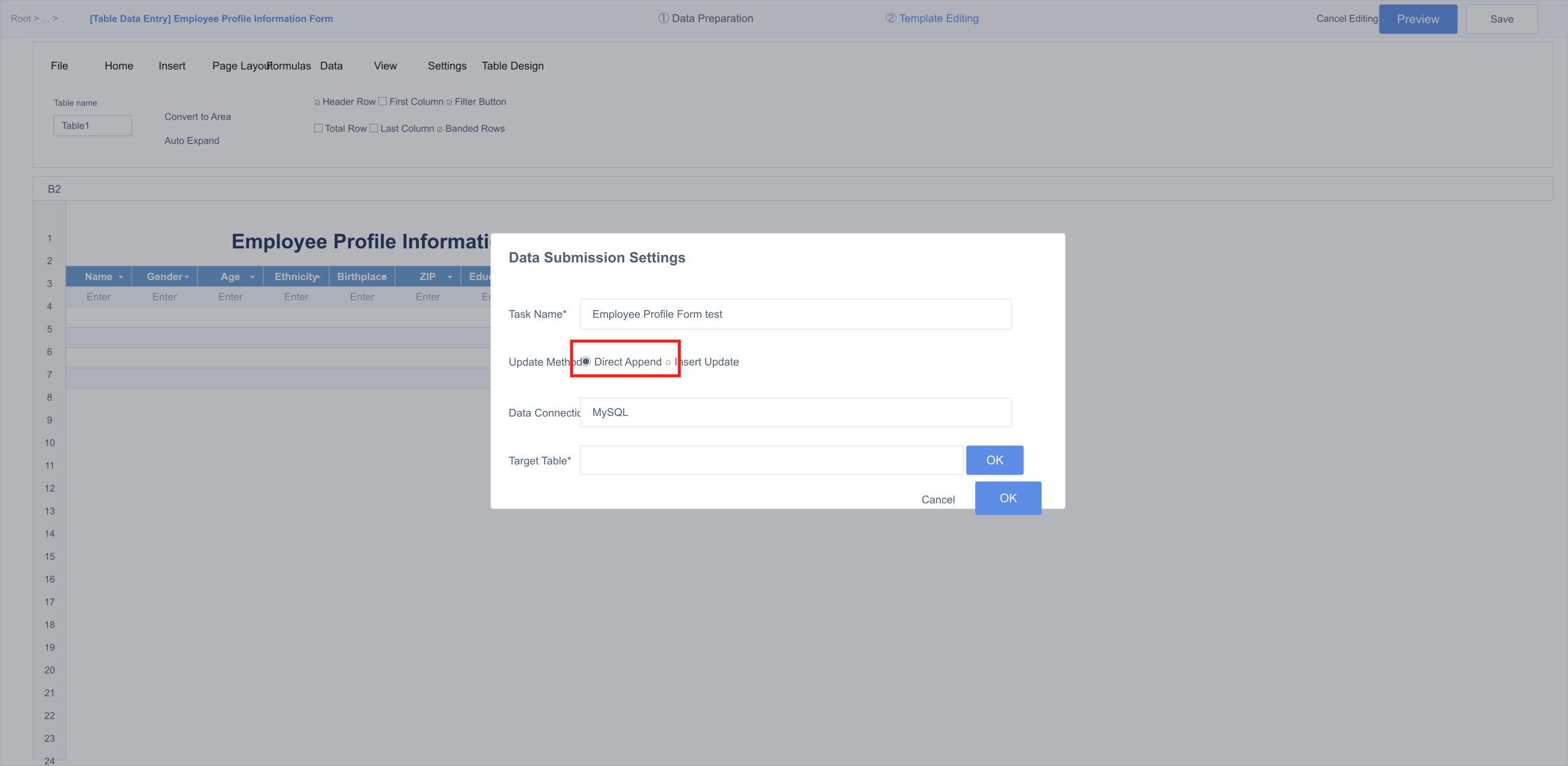
Before configuring write-back, please first configure the data connection account in BI, and ensure that the account has database write permissions.
Table Data Entry - Building Entry Tables from 0 to 1
In the invoice management scenario, we can build an entry scenario like this.
-
Create a new page for new invoice entry. In this page, select New Card > Create Entry Card, and skip the dataset association step (similar to free entry, no further elaboration).
-
Draw the header information, and set entry cell controls: Insert tab > Entry Controls > Specific Control Type. The header cell configuration here is as follows:
B2 > Text G2 > Date
-
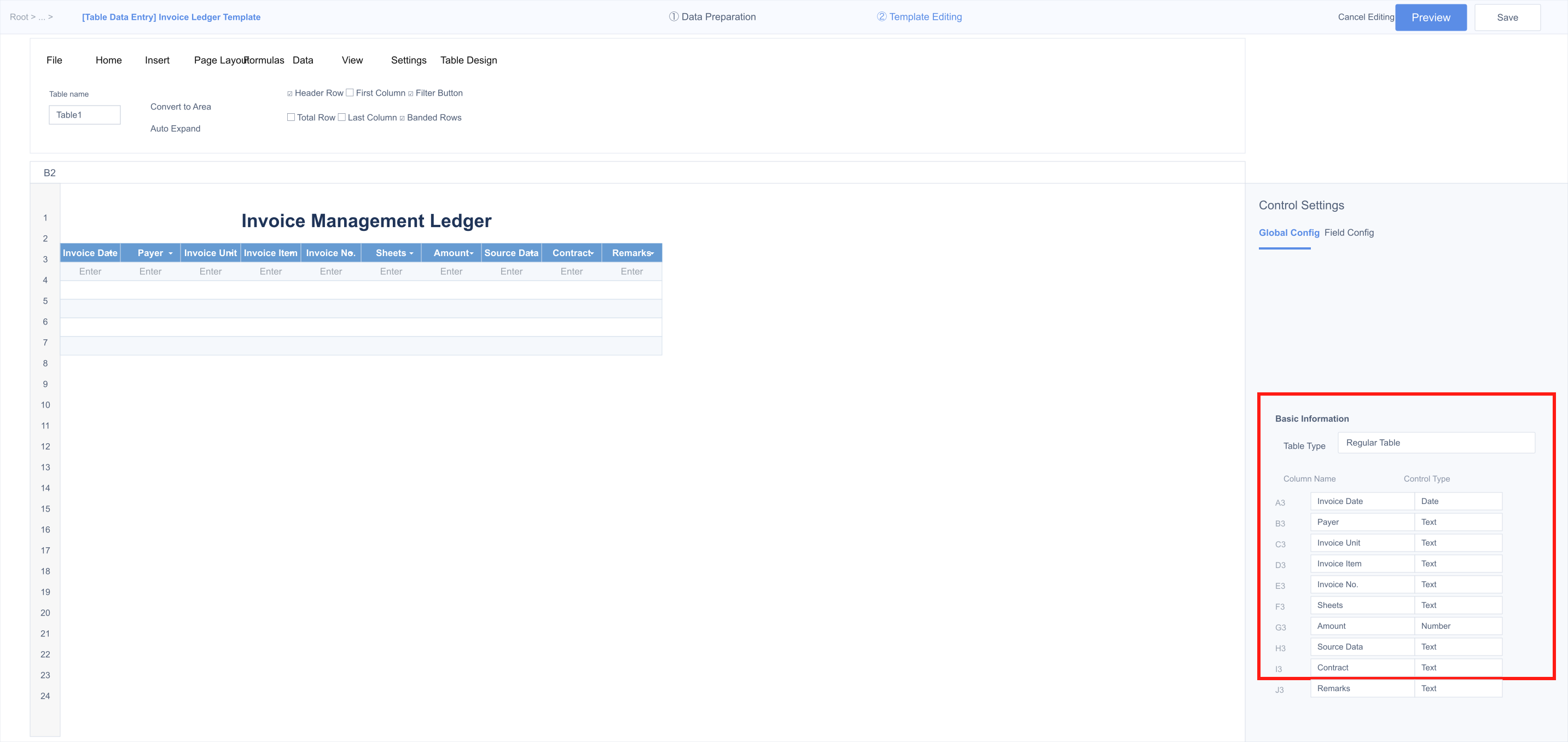
Set table controls: "Insert tab - Entry Controls - Table Controls", and select Regular Table. Reserve a certain number of rows according to the required number of rows to be filled. The table control configuration is as follows:
A3 - Date B3 - Text C3 - Text D3 - Text E3 - Text F3 - Number G3 - Number H3 - Text I3 - Text J3 - Single Select K3 - Text
-
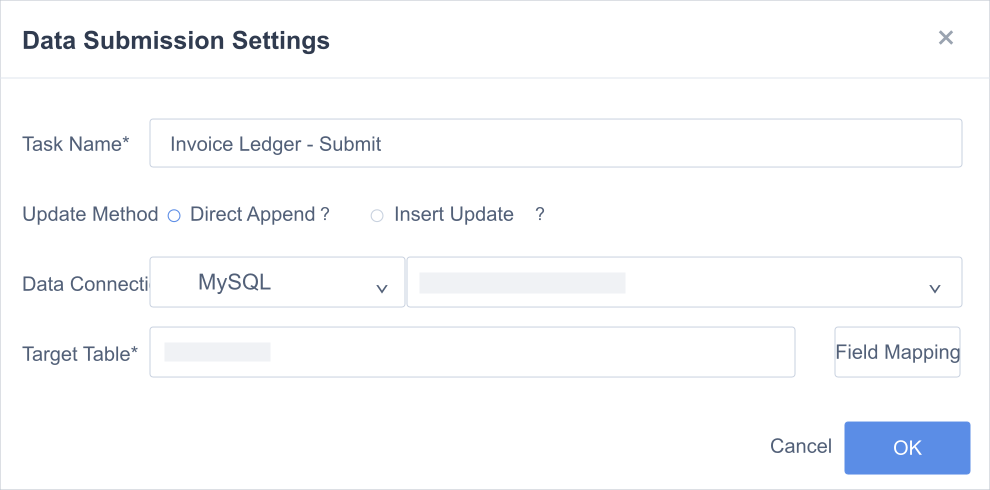
After the table configuration is complete, perform data submission settings: Data tab > Data Submission Settings, select the submission method as Direct Write.
 Note
NoteBefore configuring write-back, please first configure the data connection account in BI, and ensure that the account has database write permissions.
-
Perform beautification settings on the table and modify the card name. After completion, save the card.
At this time, for invoice entry personnel, the data after submission will directly enter the database.
-
Create a new page for invoice information modification. Save the previously created card as a new card, and store it in this page, then enter the card editing.
-
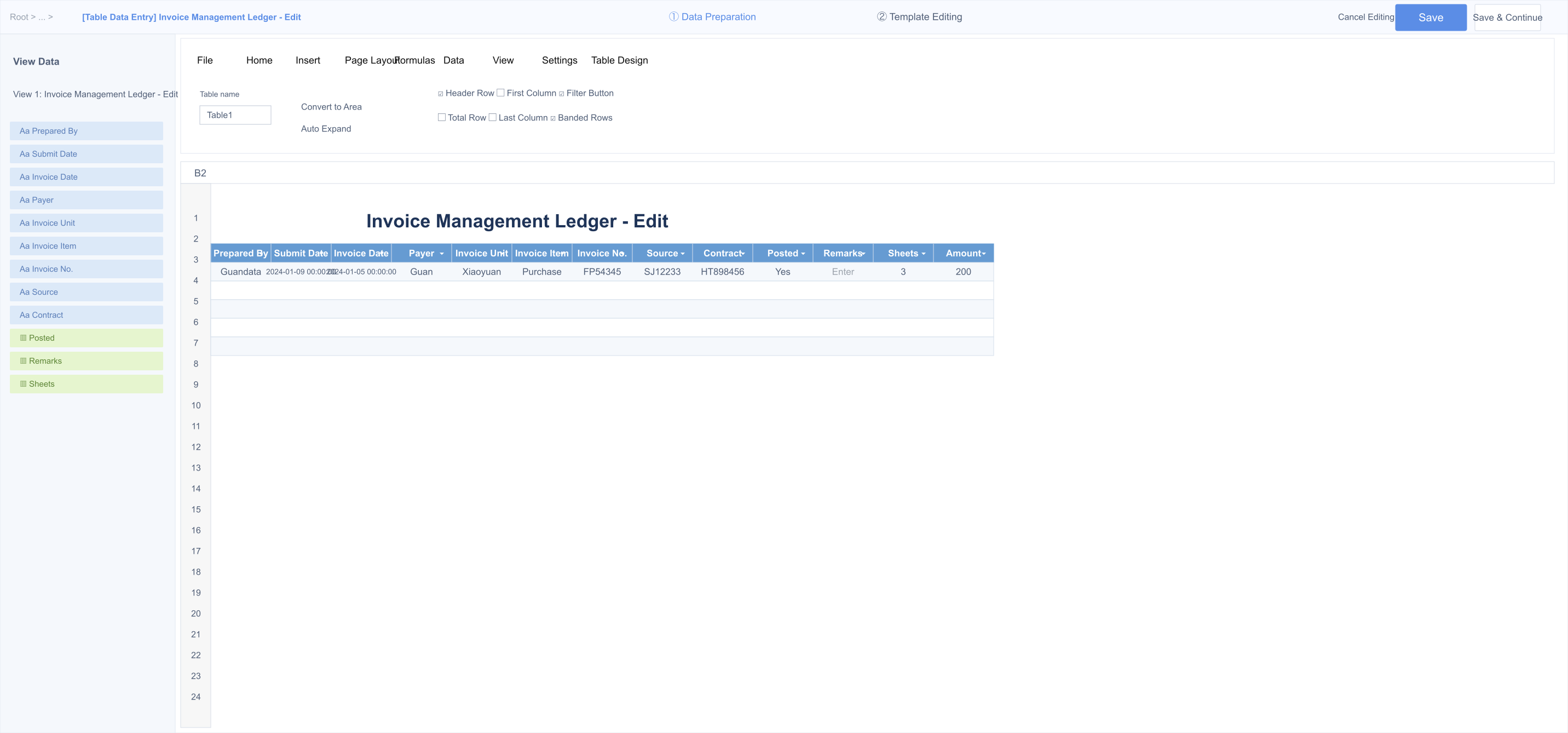
On the data preparation interface, perform view dataset construction. The constructed table structure is the fill-in table structure.
NotePlease confirm that when performing this step, the table previously used for write-back has already established a data connection with BI.
-
Save and enter the template editing interface, convert the "Regular Table" control to the "Dynamic Table" control, and add "Preparation Unit" and "Entry Date" as table columns. Drag the view dataset fields to the corresponding positions in the table, and uncheck Editable for fields that cannot be modified.
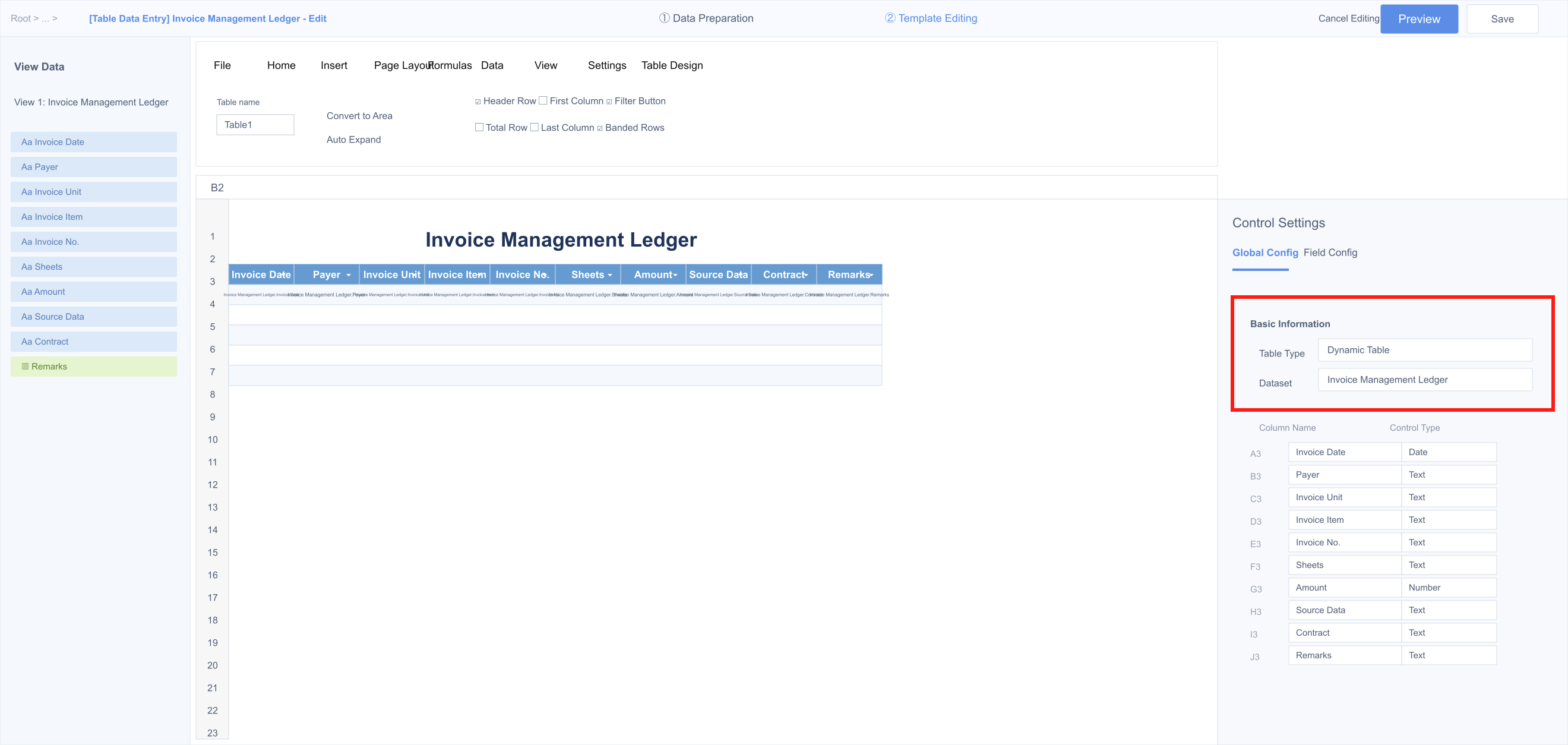
-
After the table configuration is complete, perform data submission settings: "Data tab - Data Submission Settings", select the submission method as Insert Update, and set the comparison fields as "Submission Date", "Preparation Unit", "Invoice Date", and "Invoice Number".
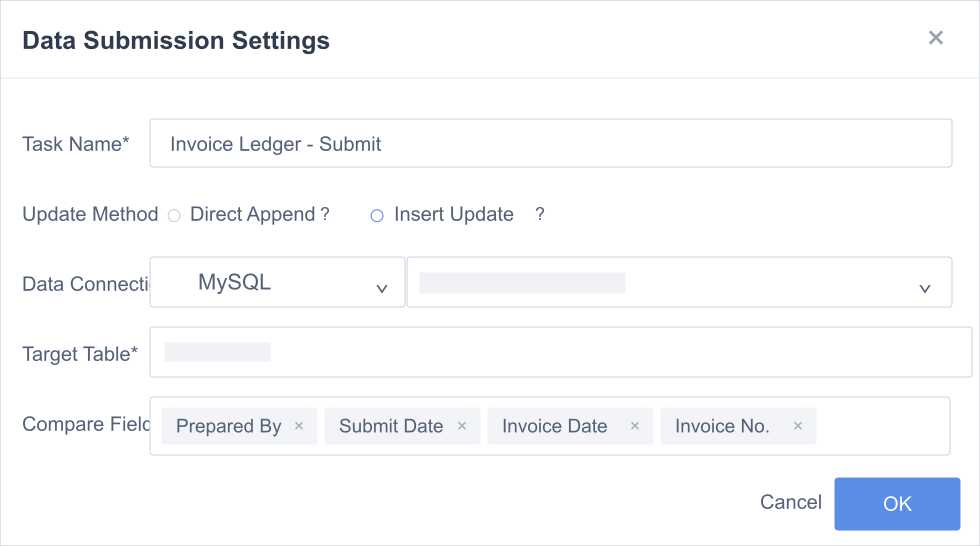
-
Perform beautification settings on the table and modify the card name. After completion, save the card.
At this time, for personnel with permission to modify entry content, the modified data will overwrite the originally filled content (note not to change the comparison fields).
Dynamic Table Practice - Modifying Existing Data Table Content
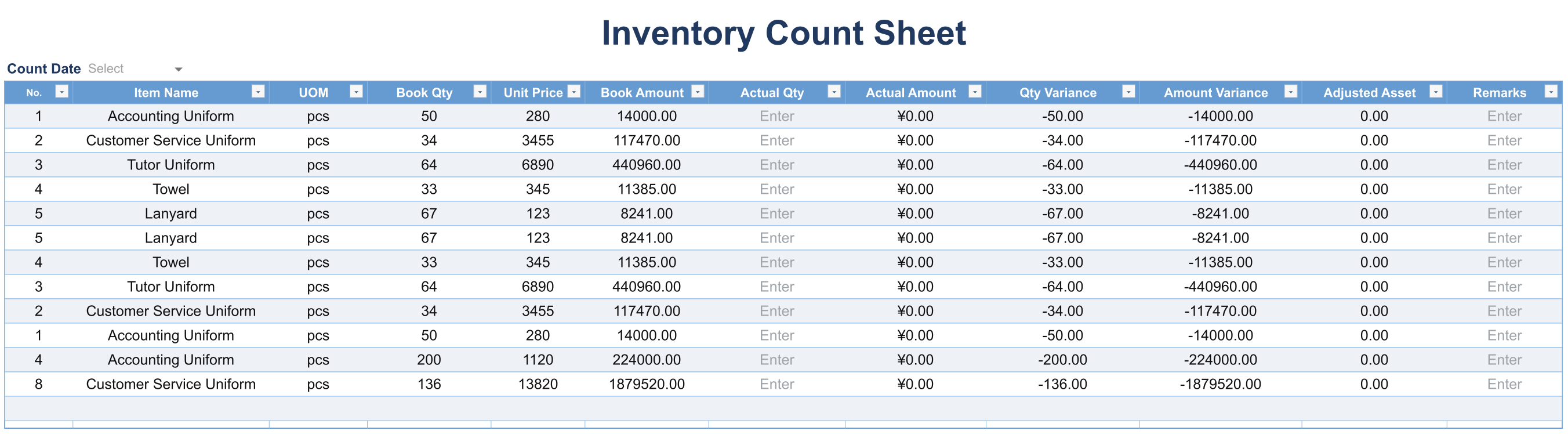
In the inventory scenario, we can build an entry scenario like this.
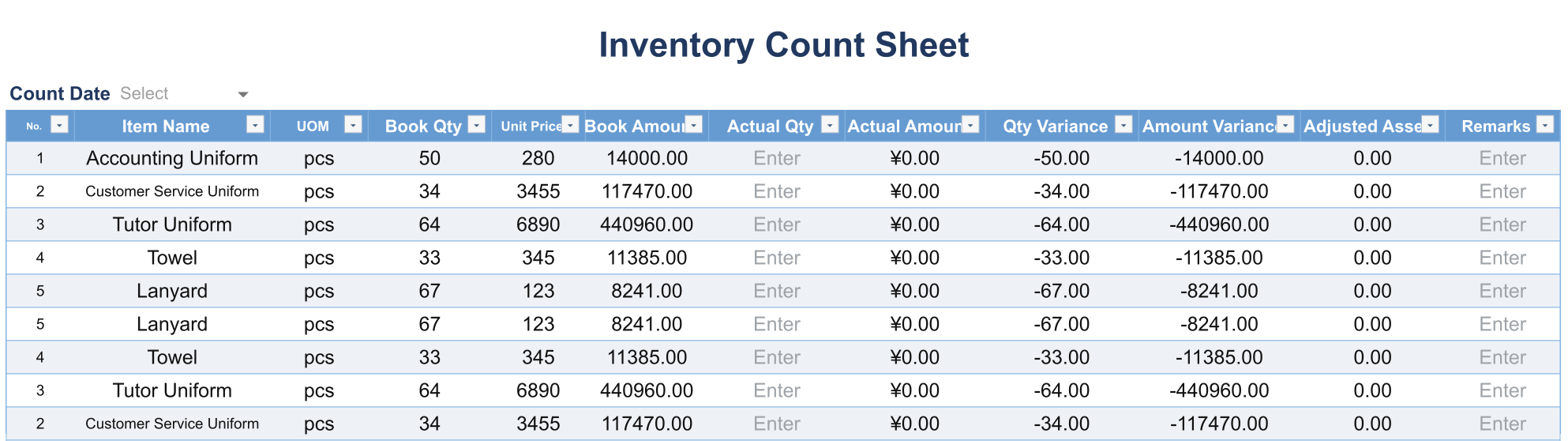
-
Create a new page, select New Card > Create Entry Card, and select the dataset as the book data from the business system.
NoteHere, you need to first summarize and integrate the business system's book data, and then use it for entry reference.
-
On the data preparation interface, perform view dataset construction. The constructed table structure is the reference data needed when filling in the table.
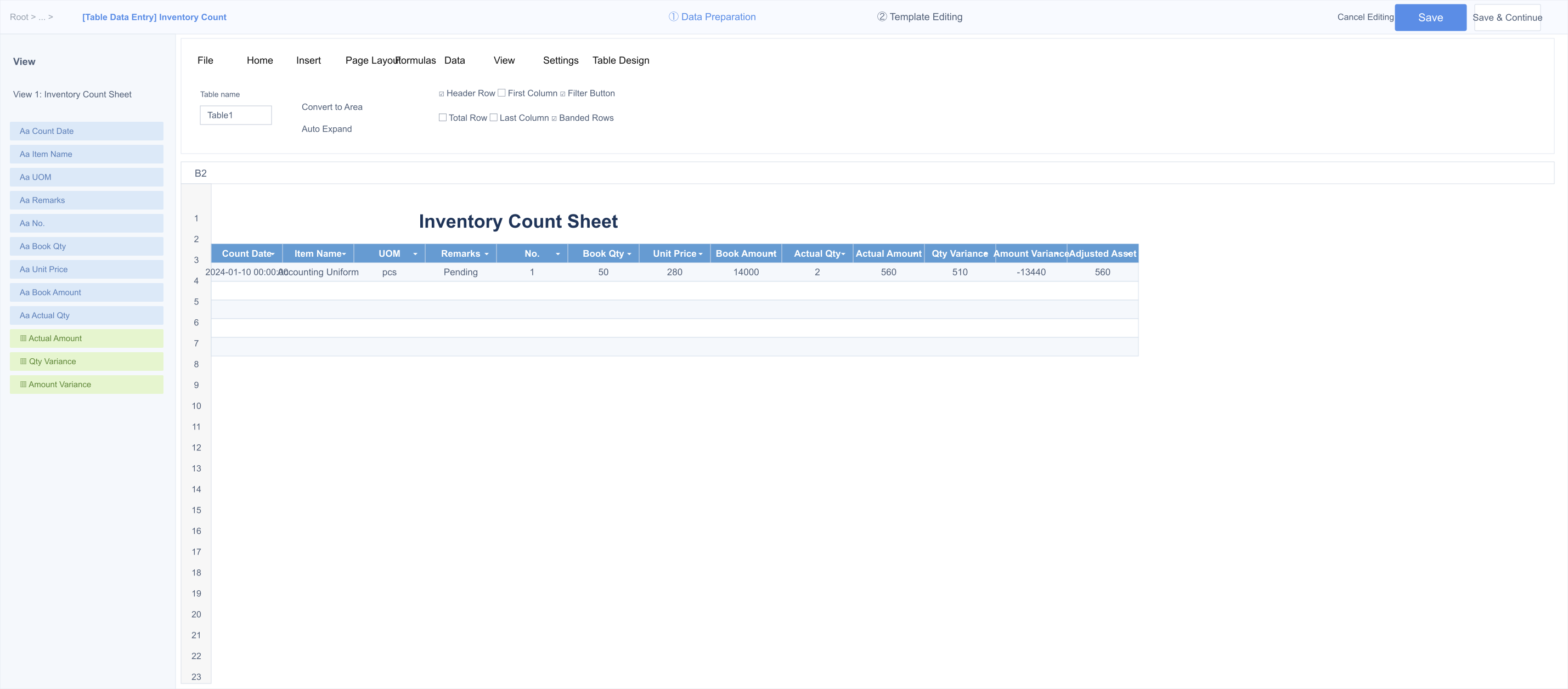
-
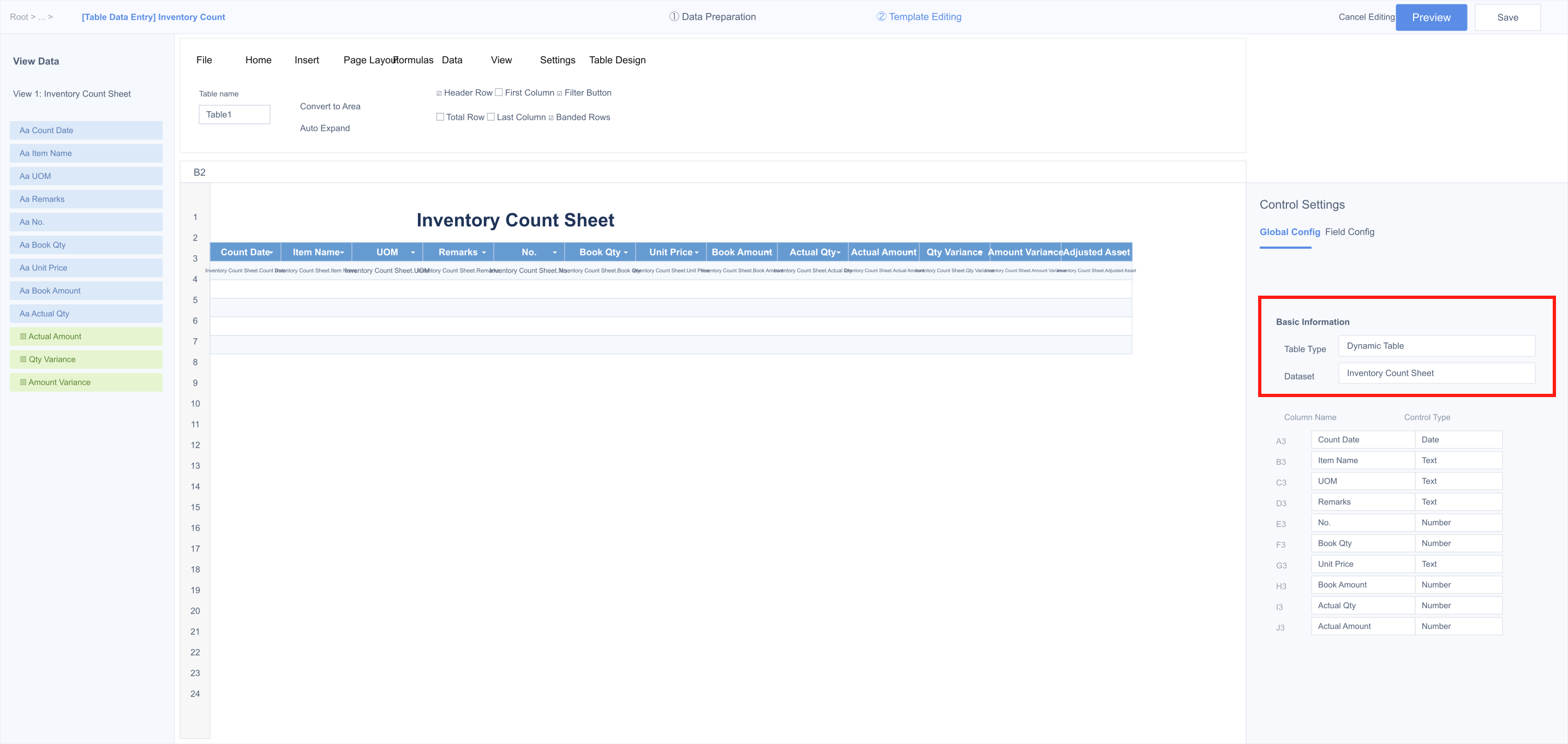
Save and enter the template editing interface, edit the header and entry cells, and perform table control settings: Insert tab > Insert Entry Controls > Table Controls, select Dynamic Table. The dynamic table cell configuration is as follows:
A3 > Text, data source is "Serial Number", not editable
B3 - Text, data source is "Inventory Name", not editable
C3 - Text, data source is "Unit of Measurement", not editable
D3 - Number, data source is "Book Inventory Quantity", not editable, decimal places 0
E3 - Number, data source is "Unit Price", not editable, decimal places 2
F3 - Number, cell formula =[Book Inventory Quantity]*[Unit Price], not editable, decimal places 2
G3 - Number, decimal places 0
H3 - Number, cell formula =[Actual Count Quantity]*[Unit Price], not editable, decimal places 2
I3 - Number, cell formula =[Actual Count Quantity]-[Book Inventory Quantity], not editable, decimal places 0
J3 - Number, cell formula =[Book Inventory Amount]-[Actual Count Amount], not editable, decimal places 2
K3 - Number, cell formula =[Actual Count Amount], decimal places 2
L3 - Text
-
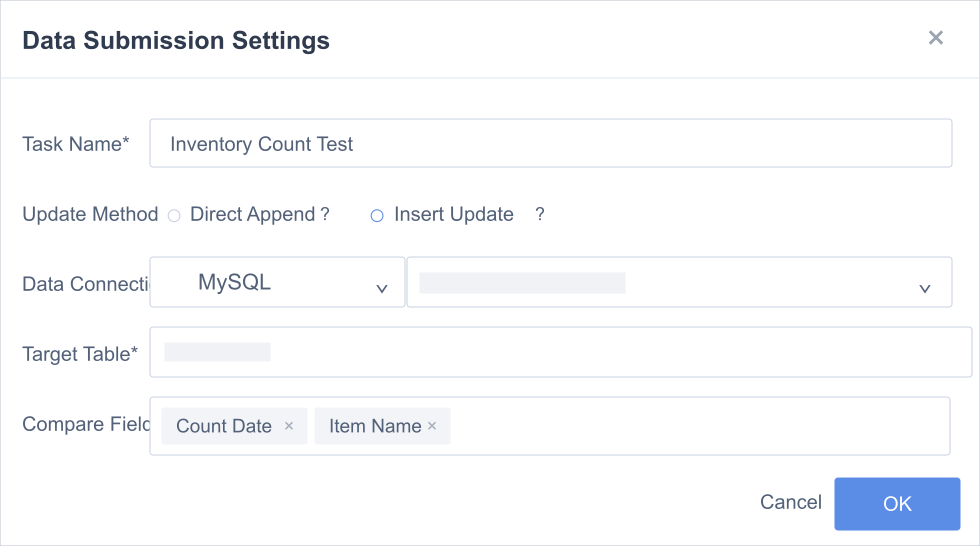
After the table configuration is complete, perform data submission settings: Data tab > Data Submission Settings, select the submission method as Insert Update, and set the comparison fields as "Count Date" and "Inventory Name".
-
Perform beautification settings on the table and modify the card name. After completion, save the card.