Dynamic Cell Attributes - Parent Context
Overview
This article explains the Parent Context capability of template cells and how to configure it. A practical example is used to demonstrate how to apply it effectively.
The example dataset used in this tutorial is: Product Training Demo Dataset.xlsx
Use Case
When data needs to be displayed according to the expanded records of the cell on the left or above, you need to use Parent Context, that is, the cell C attribute (Context). In this scenario, the parent cell acts as a one-to-one follow-along condition.
Feature Overview
When multiple fields from a data source are defined in the template layout, a parent-child relationship can be established between them. Based on this relationship, data is filtered or grouped when the final report is expanded. The C attribute (Context) is used to define the parent cell.
The parent cell constrains child cells in the following two ways:
-
Filtering: the child cell uses the parent cell's data as a filtering condition for calculation. Filtering only applies to fields from the same View as the parent cell.
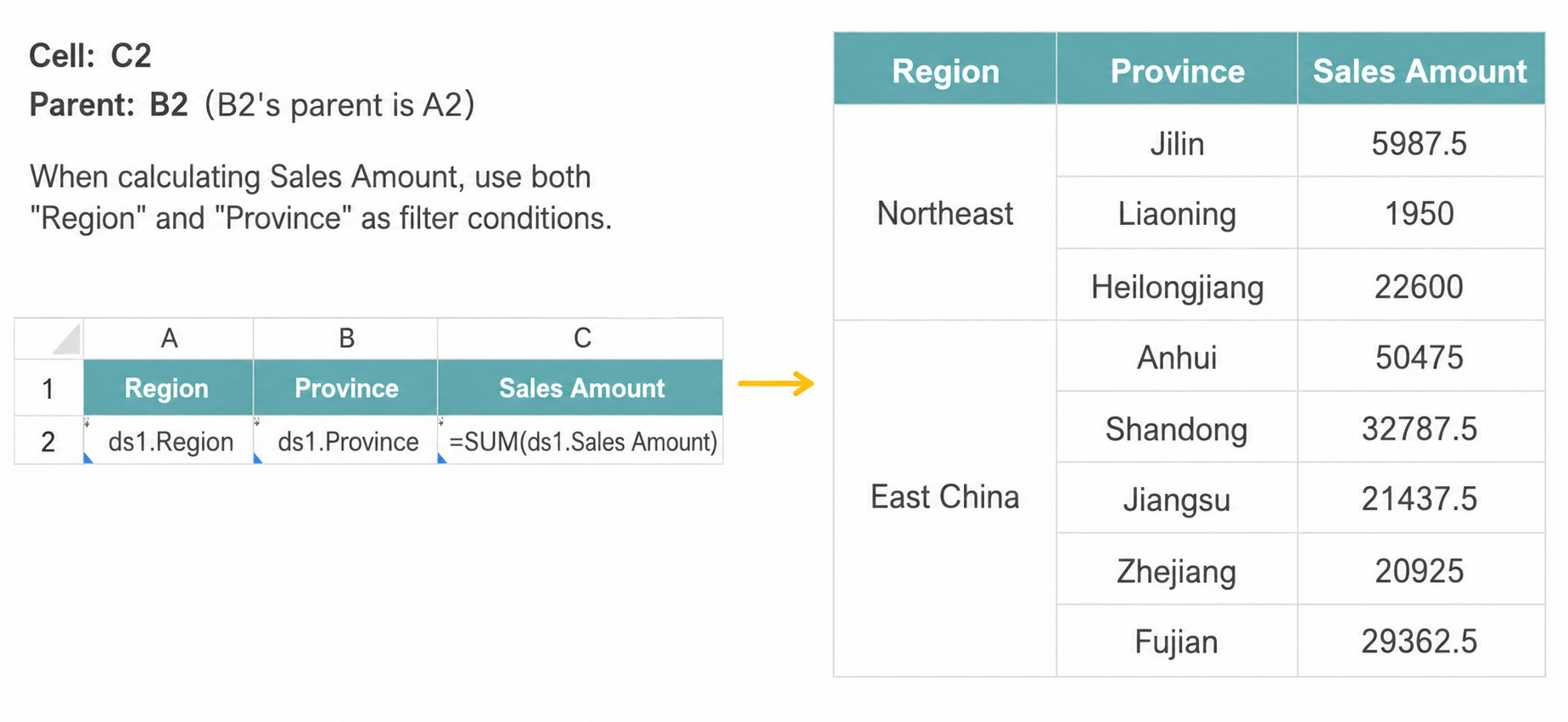
-
Following: the child cell expands in sync with the parent cell's expansion direction. The child cell can be a field from the same View as the parent cell, or a static constant value or Excel formula.
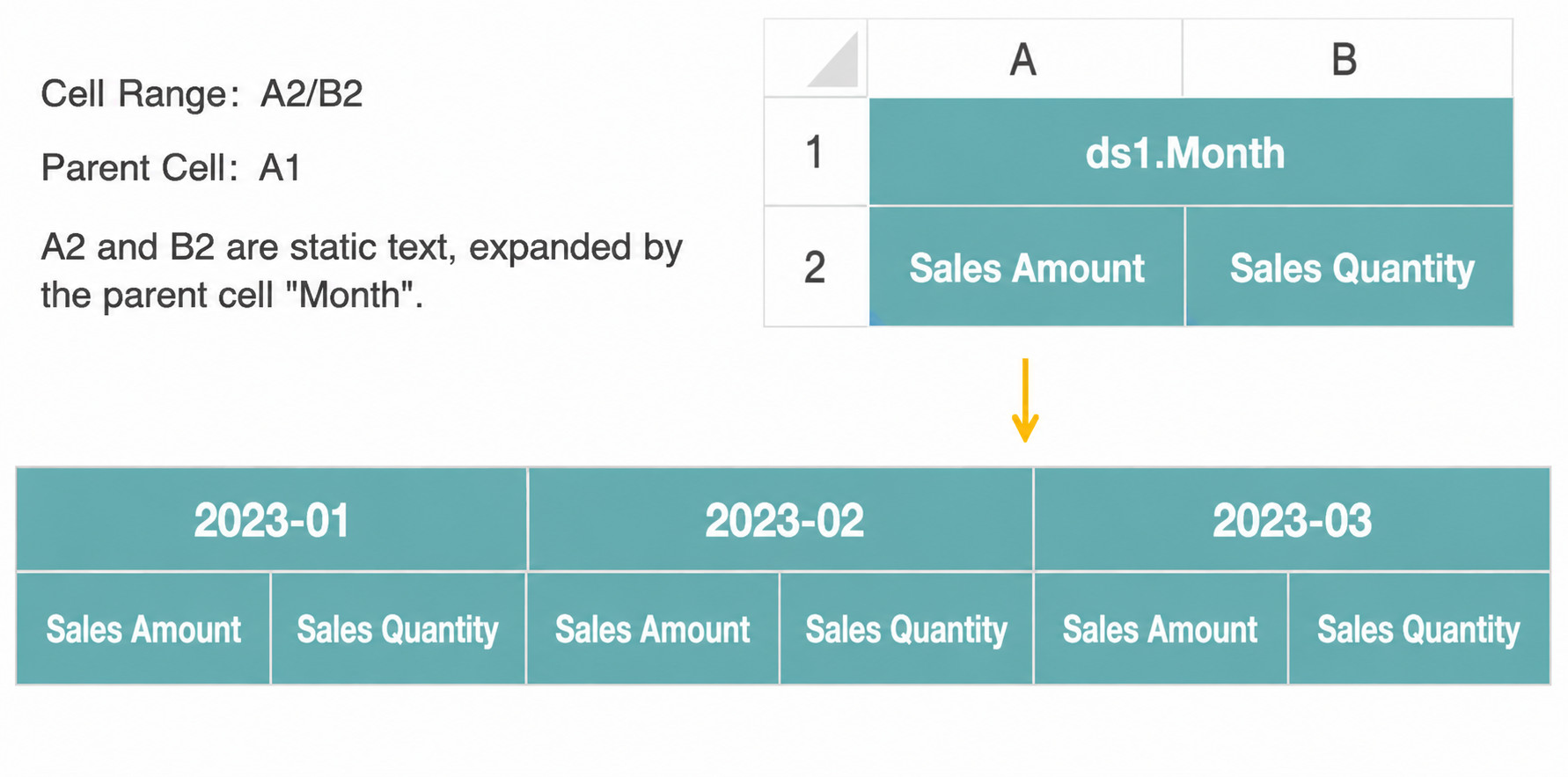
Parent Context supports the following three modes:
-
Default parent cell (no
Cattribute):- In the basic Excel engine, the nearest template cells on the left and above are used as the default left and upper parent cells of the current cell.
- In the accelerated Excel engine, there is no default parent relationship between adjacent cells.
-
No parent cell (
C=None): data is listed without any field-to-field relationship. -
Custom parent cell (
C=cell1*cell2): one or two cells can be specified as parent cells, and the expansion directions of the two parent cells cannot be the same. It is recommended to click Recommended Parent Cell first and only set it manually if needed. Only cells on the left or above the current cell can be set as parent cells.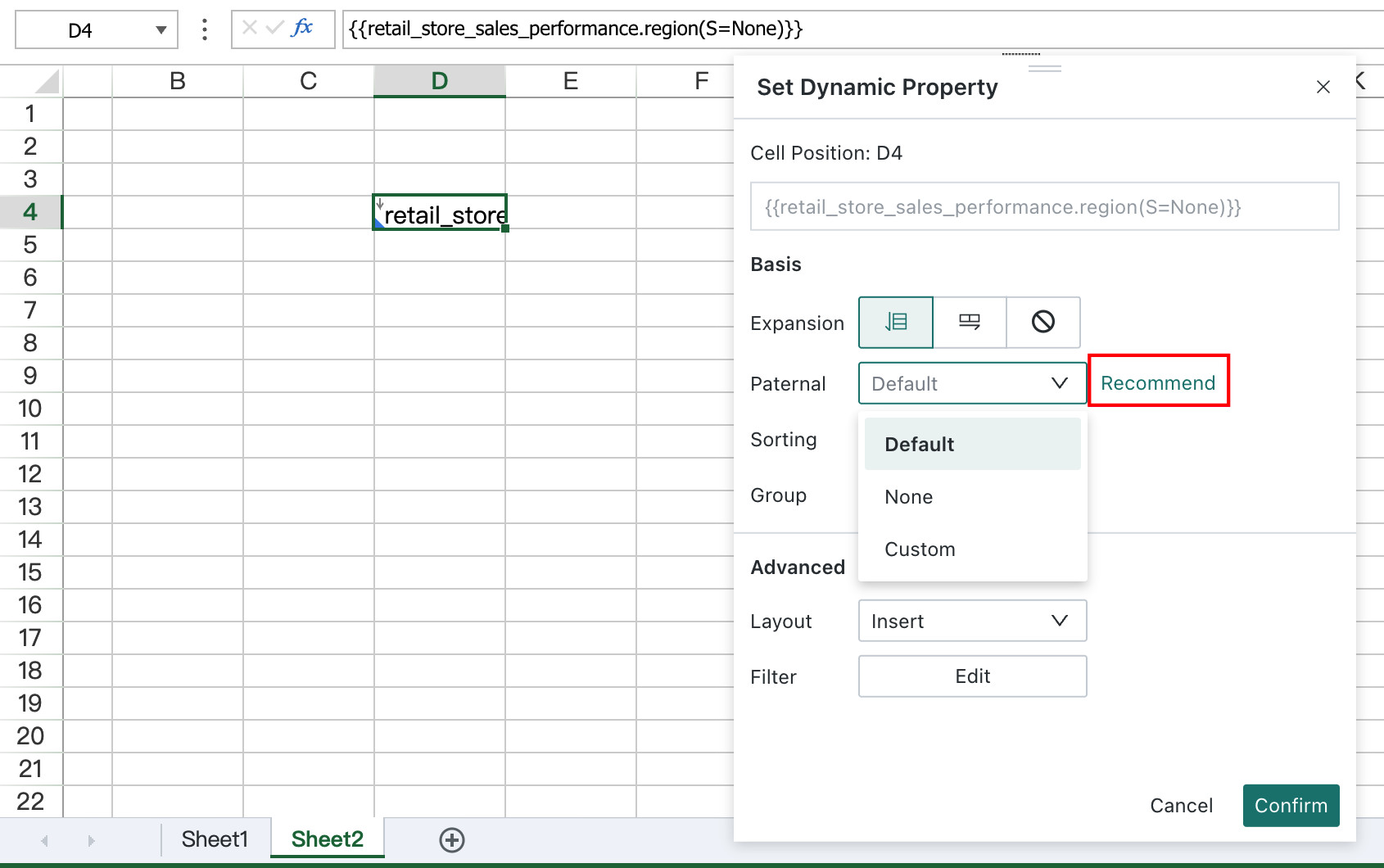
Example Result
Result with Parent Context:
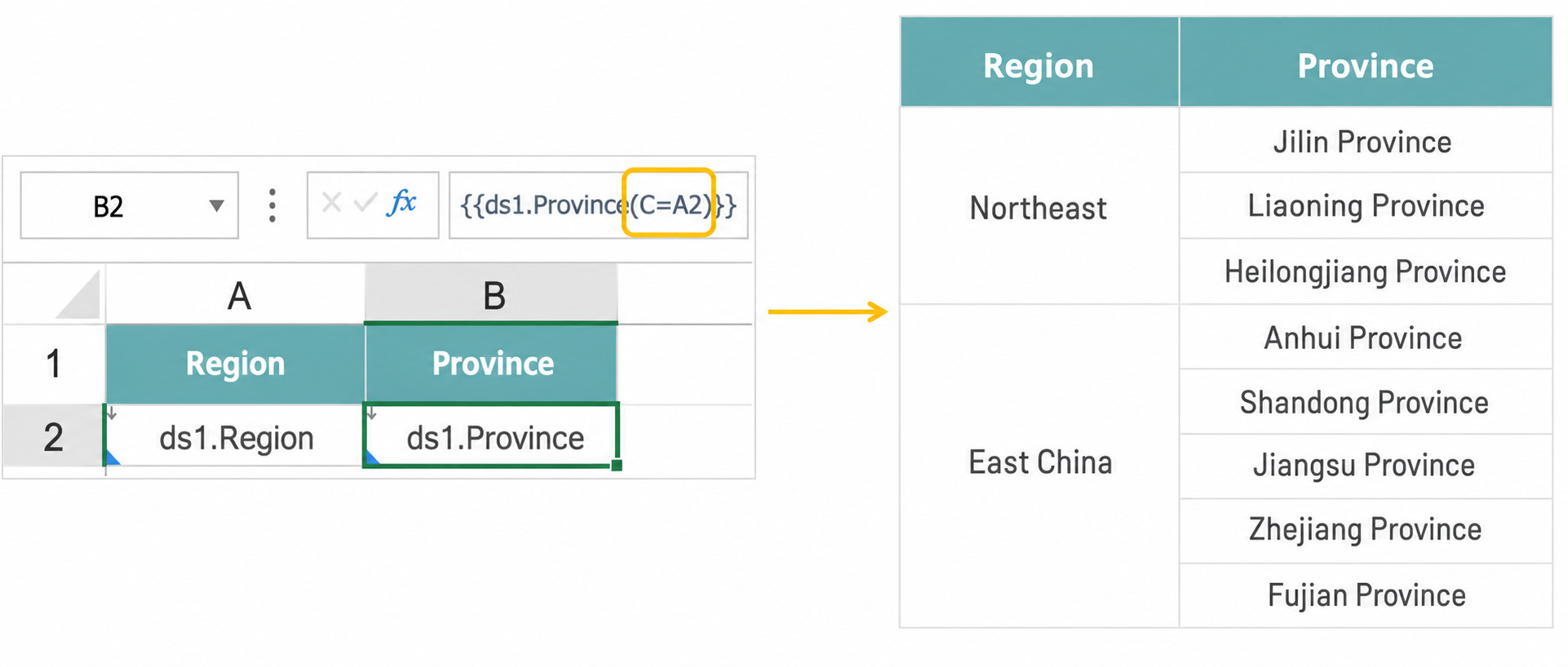
Result without Parent Context:
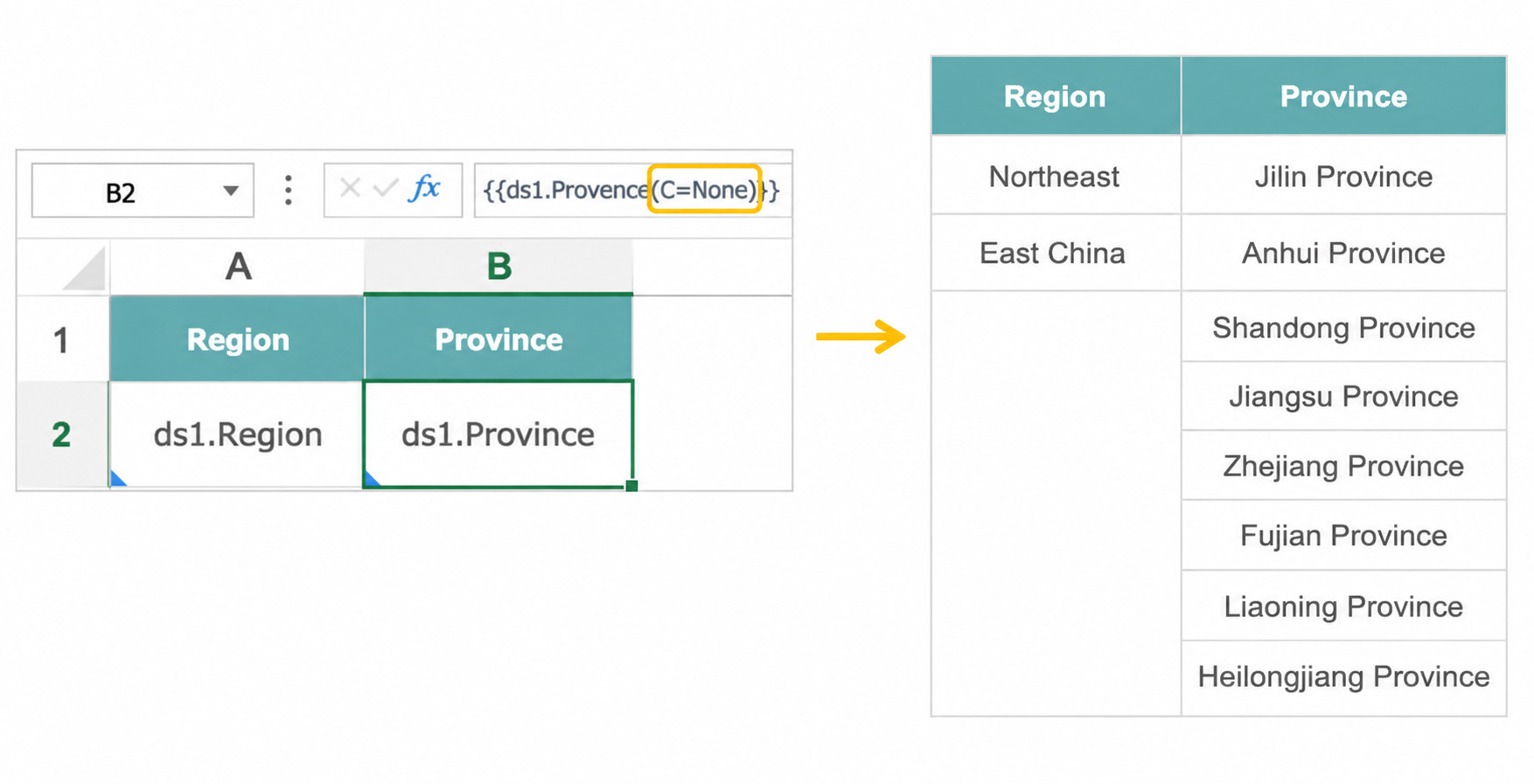
Steps
View Fields
- Drag the required View fields into the corresponding cells.
- Double-click to open Dynamic Attributes and set the parent cell as needed.
B2andC2use the default parent cell.- Set the parent cell of
D2toB2.
Regular Cells
First enter text or an Excel formula, then use the right-click menu to convert the cell into a template cell. Finally, double-click to open Dynamic Attributes and configure the parent cell.
Notes
- When multiple dimensions are adjacent, parent context is inherited layer by layer from left to right and top to bottom. For metric fields, setting the adjacent template cell as the parent cell is usually enough to achieve multi-condition filtering.
- Empty cells, constants, and formulas beginning with
=cannot expand actively by themselves, so they cannot become valid parent cells for other cells. - If the parent cell is a merged cell, choose the first cell in the merged range as the parent cell.
- Circular configurations are not allowed. For example, if
AusesBas its parent cell,BusesC, andCusesA, the configuration is considered invalid and the report cannot be previewed or saved. - The parent-child relationship only works within the same View. Cross-View parent-child relationships cannot be saved. If cross-View querying is required, first join multiple Views into one View and then configure Parent Context. Since static cells and Excel formulas do not come from a View, their parent cells can be set to fields from any View.