Dynamic Cell Attributes - Expansion
Overview
This article explains the Expansion capability of template cells and how to configure it. A practical example is used to demonstrate how to apply it effectively.
The example dataset used in this tutorial is: Product Training Demo Dataset.xlsx
Use Case
After dragging a field from a View into a cell, if you need to distribute the field values across different cells, you need to use the Expansion capability, that is, the cell E attribute (Expansion).
Feature Overview
Expansion is a basic attribute of template cells. Template cells support three expansion modes: horizontal expansion, vertical expansion, and no expansion.
By default, a cell expands vertically. If the cell contains a formula or static text, no expansion is applied by default. Note that only one expansion direction can be configured for a cell at a time.
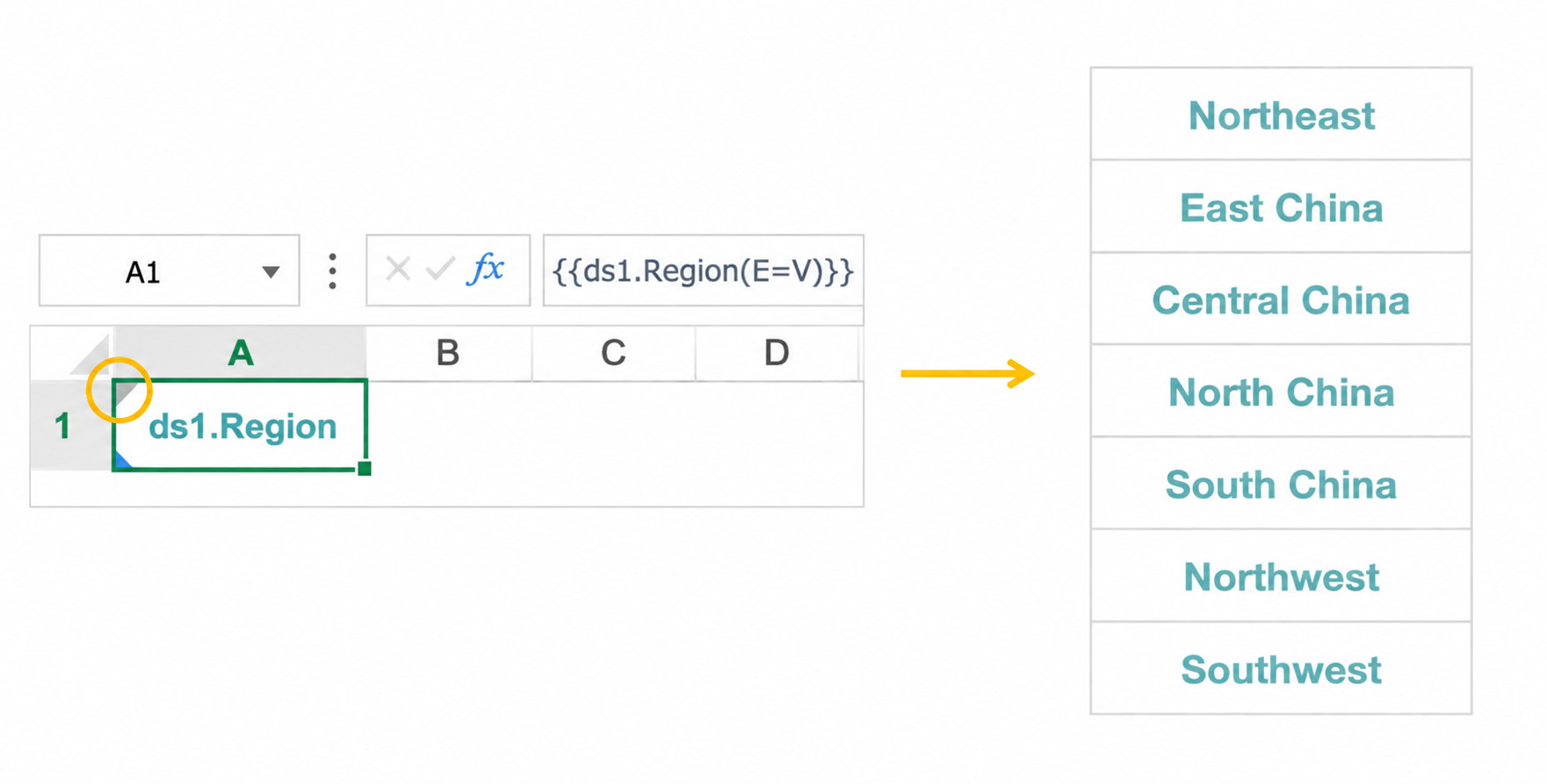
Vertical expansion (E=V): data in the cell expands vertically, and all values are displayed from top to bottom in different cells.
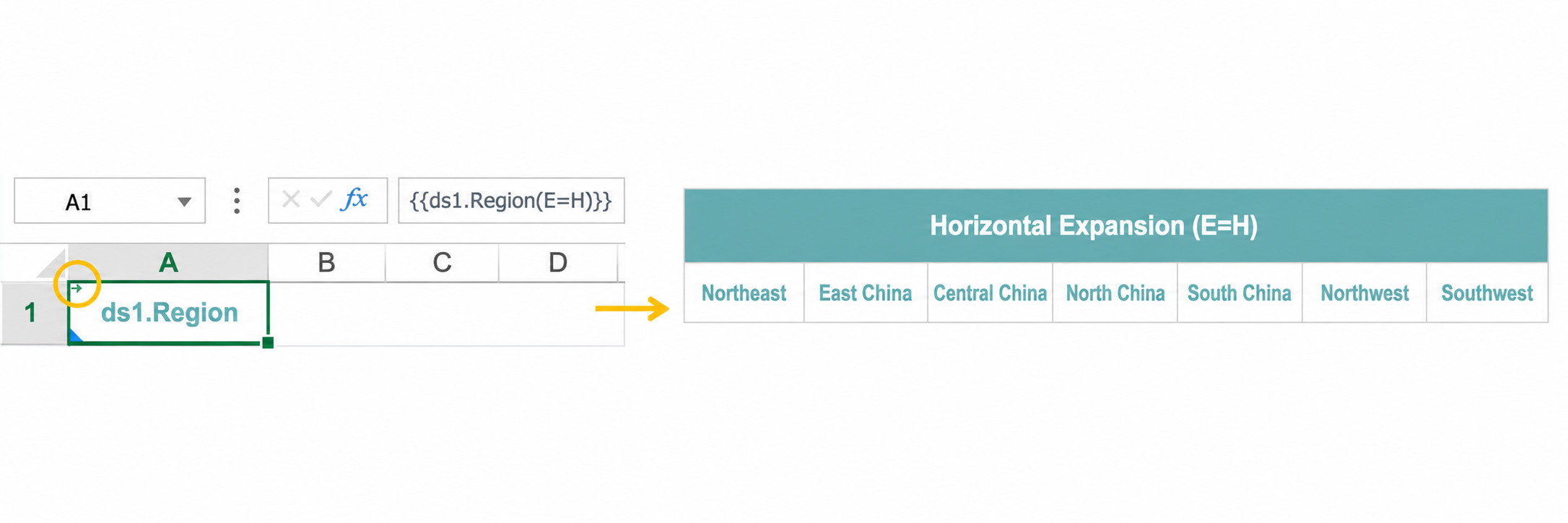
Horizontal expansion (E=H): data in the cell expands horizontally, and all values are displayed from left to right in different cells.
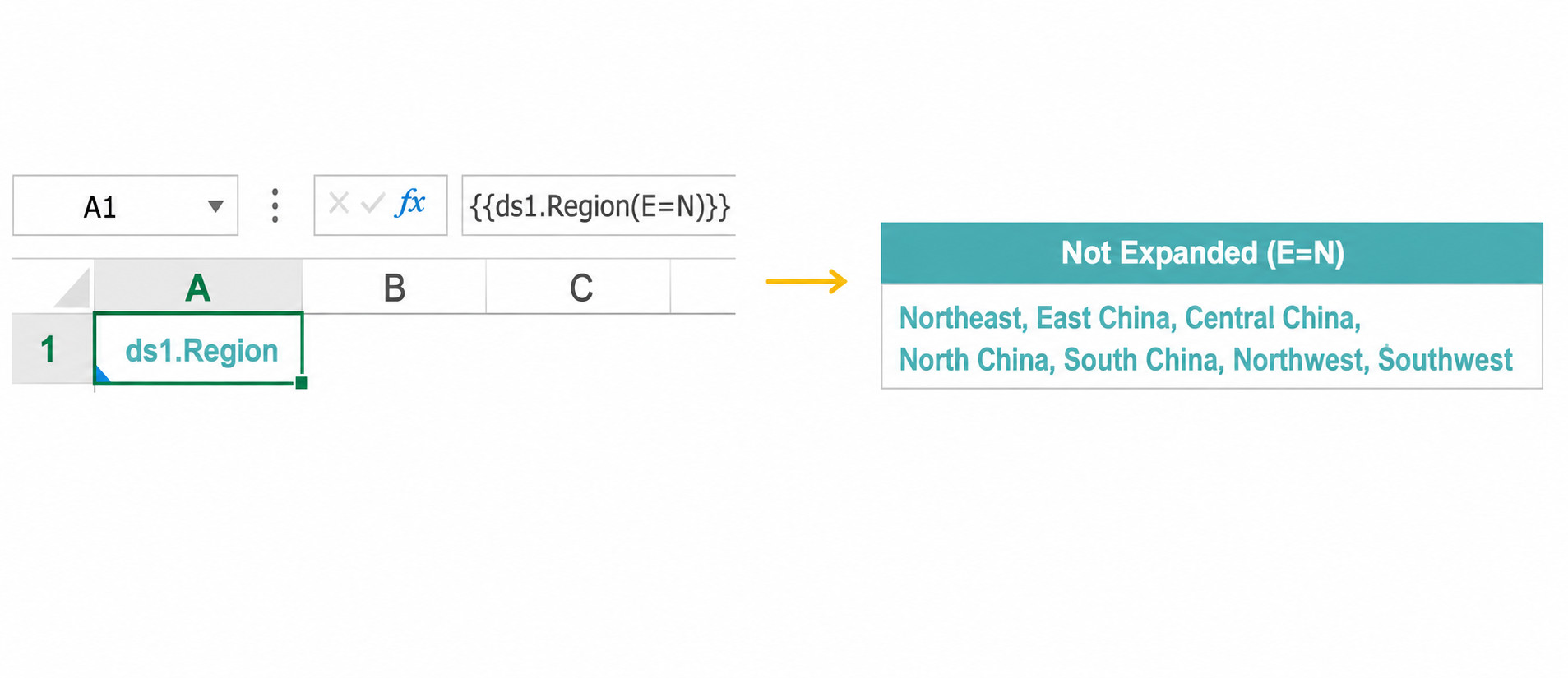
No expansion (E=N):
- In the basic Excel engine, field data in the cell does not expand and only the first value is displayed.
- In the accelerated Excel engine, all values in the cell are displayed and separated by commas.
Example Result
Vertical expansion:
Horizontal expansion:
No expansion:
Steps
-
Drag a field from the View. Vertical expansion is applied by default.
-
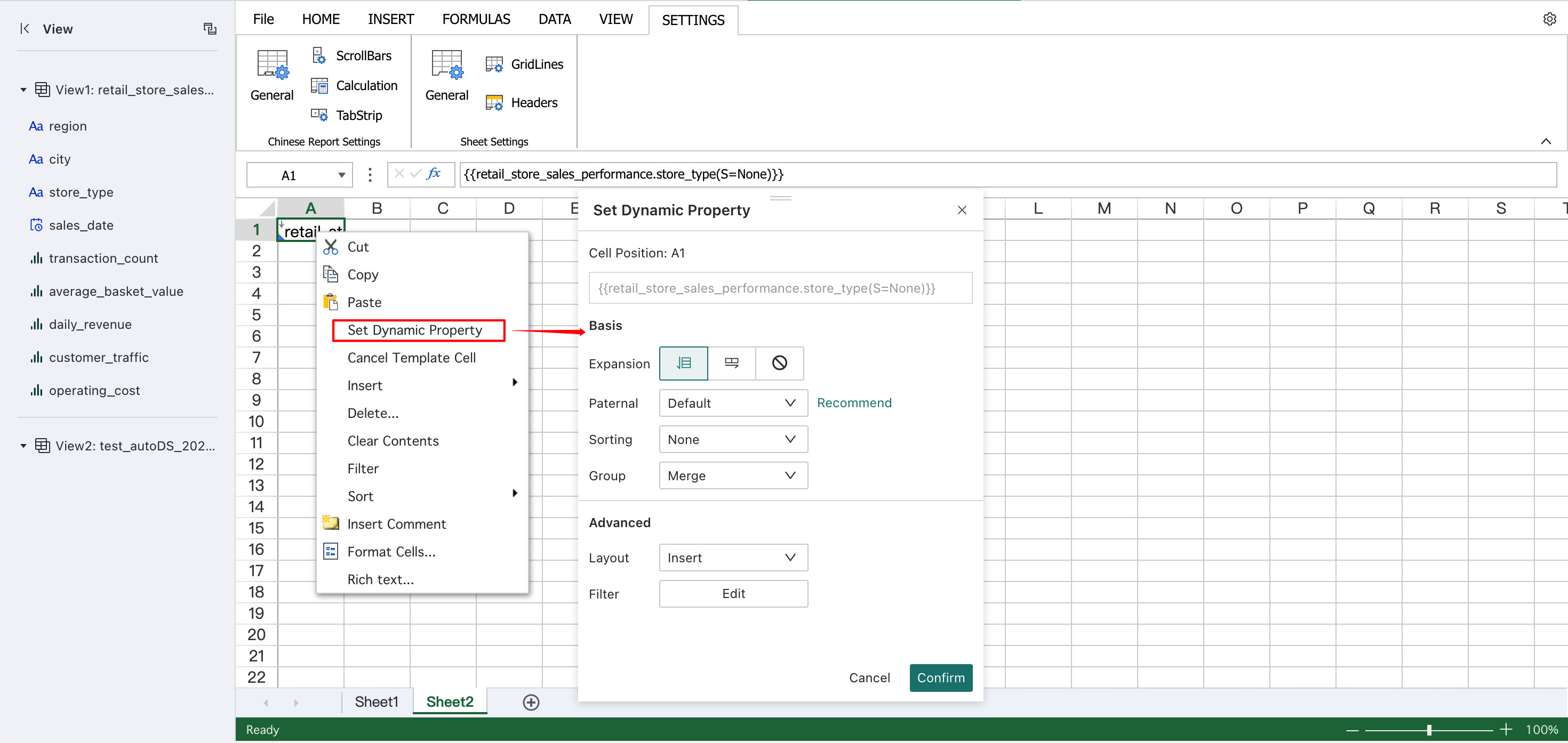
Double-click the cell or right-click to open Dynamic Attributes, choose the required expansion setting, and click Confirm to apply it.
-
Click Preview in the upper-right corner to view the expansion effect.
Notes
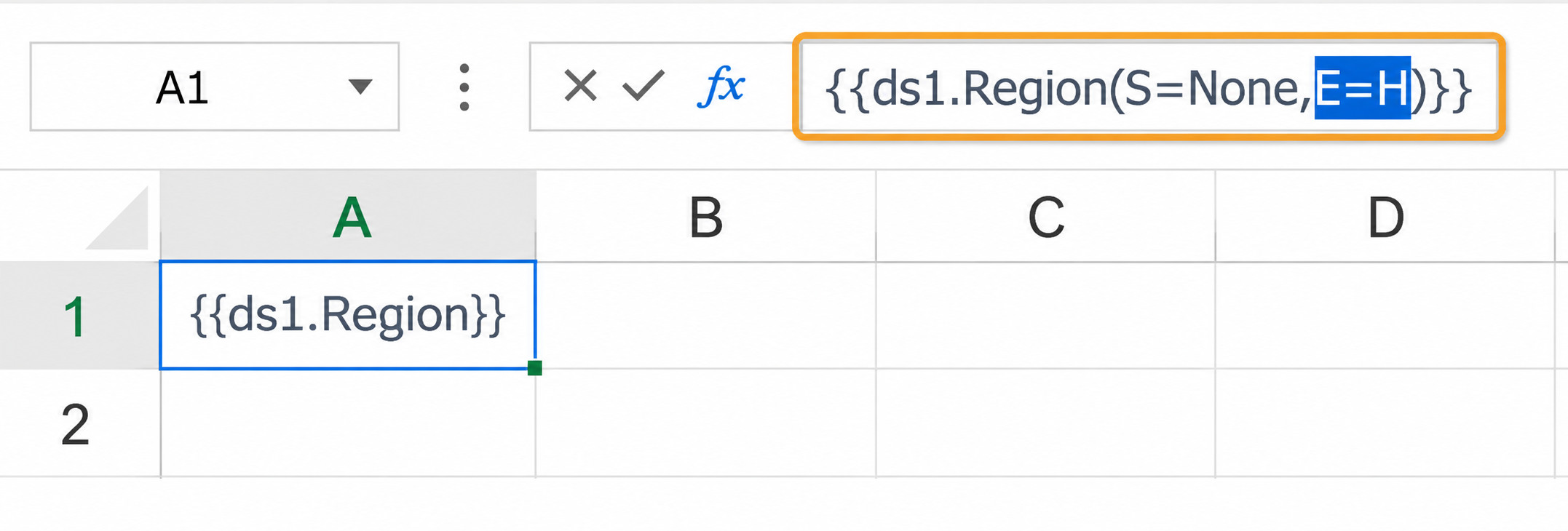
It is recommended to select dynamic attributes from the dialog box, but you can also manually enter attributes inside the cell () and separate them from other attributes with half-width commas. For vertical expansion, the E attribute can be omitted.