Platform Plugins Management
Overview
To help enterprise administrators manage custom-developed front-end plugins built on Guandata BI's open capabilities, Guandata BI has provided a visual Plugin Management feature since version 6.3. It supports enabling and disabling plugins, local debugging, code editing, and maintenance of basic plugin information. In the future, more plugin types beyond front-end plugins may also be supported.
Disclaimer
The flexibility of code also introduces potential security risks. Before saving or enabling any related code or plugin, administrators are strongly advised to invite internal technical and security experts to review the code and evaluate its risk.
Guandata does not assume liability for asset loss, data loss, information leakage, or related consequences caused by incorrect or improper use of the plugin feature by the customer.
In particular, customers should not directly copy or use code or software packages provided by external third parties, and should not use code or packages with unclear purpose or origin.
Plugin Management Features
Entry and Permissions
Entry: Admin Center > Open Platform > Plugin Management
Permissions: Accessible only to administrators and only in the primary domain environment.
Basic Information Management
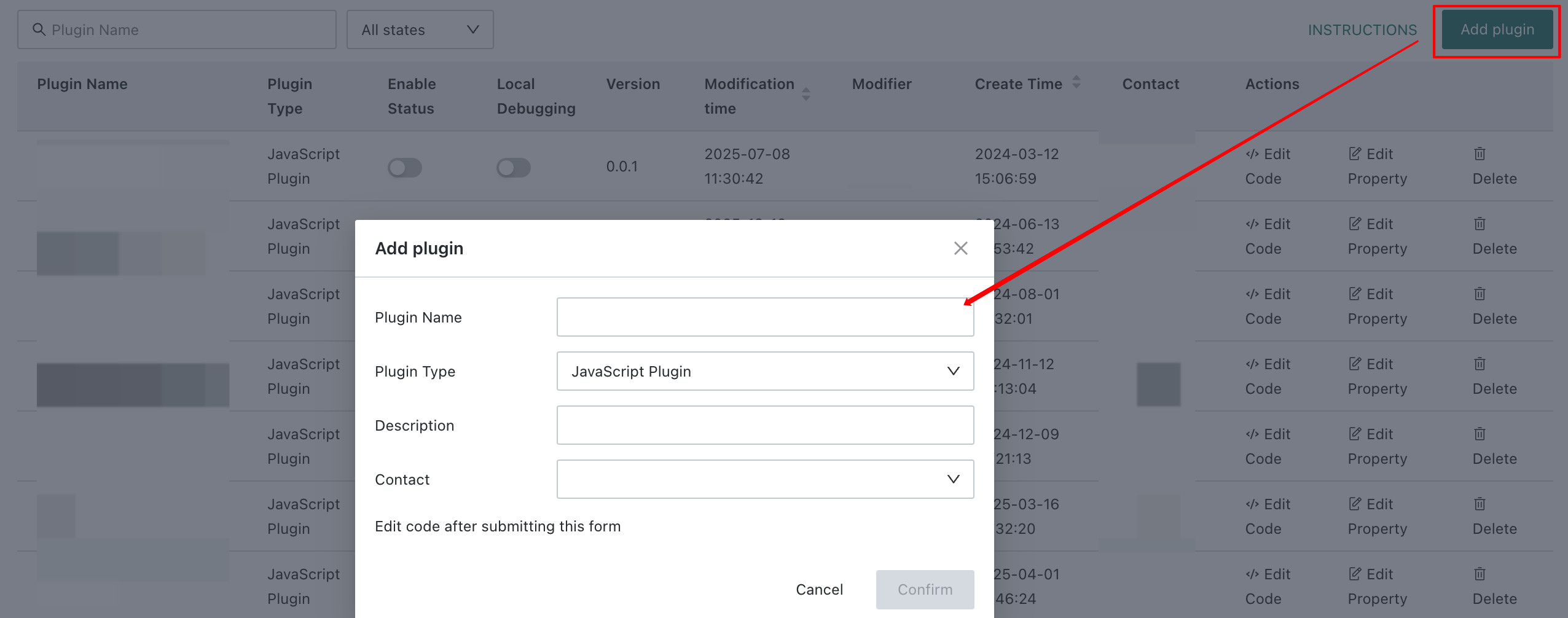
- Click Create Plugin in the upper-right corner to create a new plugin. After saving the basic information, you can edit the code.
- For an existing plugin, click Edit Properties on the right to modify the plugin name, description, and contact information. The plugin type cannot be changed.
Edit Code
For an existing plugin, click Edit Code on the right to update its code. The version number can also be modified.
Important note: Guandata BI itself does not provide code version control for plugins. Please use another source-code management tool for version management. The version field here is only used to store the version number.
Local Debugging
For certain plugins, local debugging can be enabled. Local debugging takes effect only for the current user and current browser session. After logging in again, it must be re-enabled.
Enable or Disable
After local debugging is complete and the plugin meets expectations, the plugin can be enabled. It usually takes about 5 minutes for the plugin to take effect. Enabled plugins can also be disabled, and disabling also usually takes about 5 minutes to take effect.
Both enable and disable actions are recorded in the audit log. The category is System Operation and Maintenance, and the event type is Plugin Management.
Disable All Front-End Plugins Globally
If an improperly configured plugin causes access issues in core Guandata BI functionality, you can add the _safe=true parameter to the browser URL to disable all front-end plugins temporarily.
Example: <https://app.guandata.com/page/u334ff3661f4b4a96b7f0b78?_safe=true>
Front-End Plugin Development Guide
Front-end plugins for this feature can use the Guandata BI OpenSDK to retrieve BI data flexibly or communicate and interact with specific elements and product functions.
For security reasons, these capabilities are being opened gradually. See Front-End OpenSDK Capability Overview for details.