Value Mapper
Overview
This operator can replace specific values in a dataset.
User Guide
Steps
-
Drag the
Value Mapperoperator from the ETL operator area to the canvas on the right. -
Click the
Value Mapperoperator and choose the column where values need to be replaced. -
Configure replacement rules by entering
Original Value -> Replacement Value. -
Optionally configure
How Replacement Results Are Written:- Overwrite the original value column
- Create a new column, which must be defined by the user
-
Optionally configure how to handle
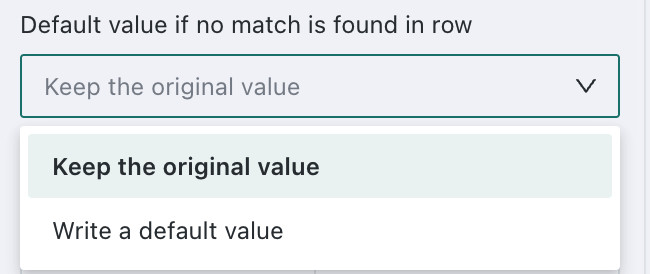
Values That Do Not Match Replacement Rules:- Use the original value
- Use a new default value, which must be defined by the user
-
After everything is configured as needed, preview the data result and publish.
Detailed Explanation
The following example uses value replacement in the Product Name column and changes Chocolate Milk Tea to Chocolate Milk.
-
Click the
Value Mapperoperator and chooseProduct Nameas the target column. -
In
Configure Replacement Rules, set the original value toComplete English Exercise Book Collectionand the target value toGrade 6 Complete English Exercise Book Collection.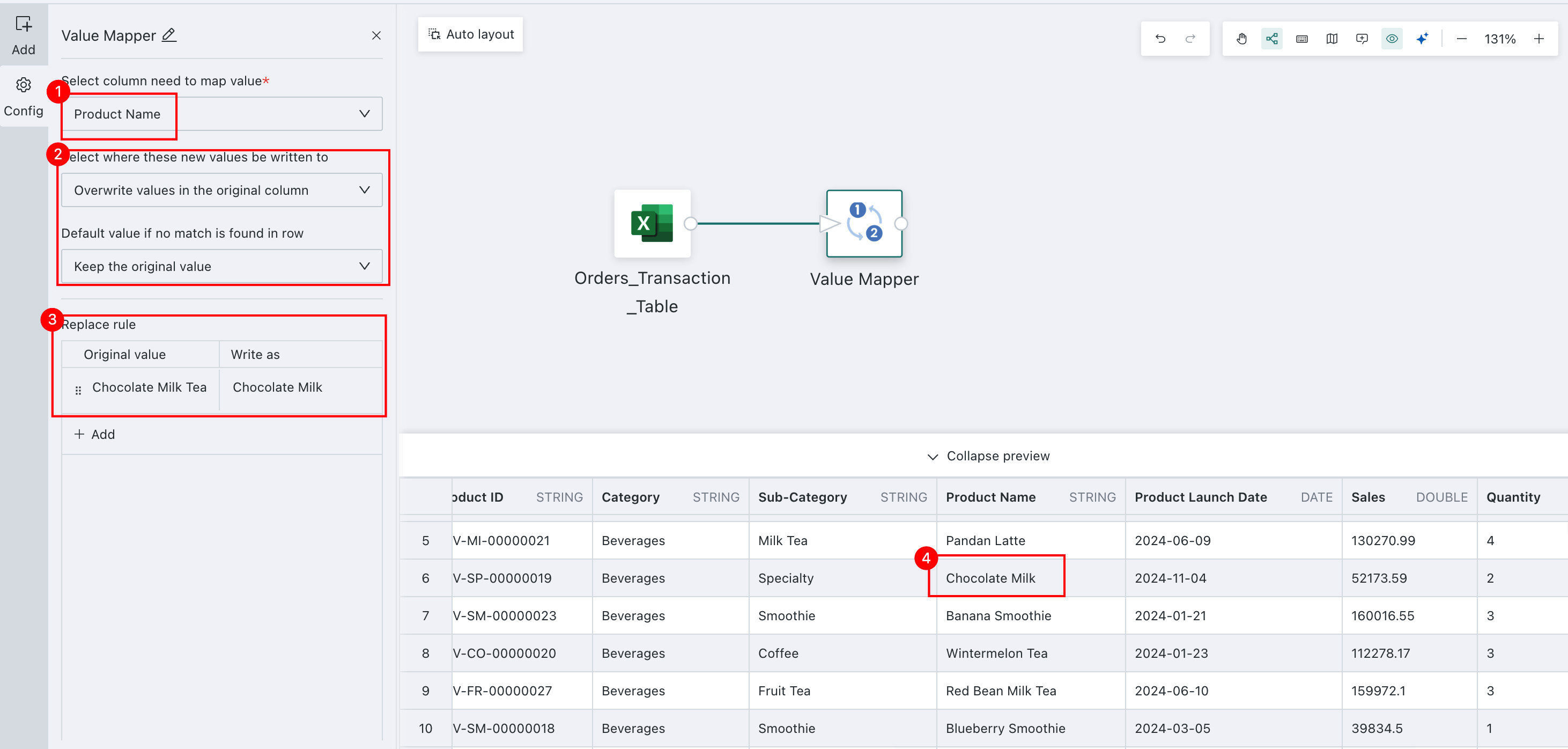
In real business scenarios, if a store name changes, the related store information table must also be updated. In this case, batch data replacement can help users complete the update efficiently.
-
Select the target column to Value Mapper in.
-
Set how the replacement results are written: overwrite the original column or create a new column.
-
Configure how values that do not match the replacement rules are handled: use the original value or use a default value.
What are the possible causes of errors when using Value Mapper in ETL?
For other data processing operators used later, see Getting Started.