Overview
Overview
Managing and maintaining Smart ETL tasks is critical to keeping data processing flows running reliably, adapting to business changes, and improving data quality and execution efficiency.
System stability issues can also be addressed by monitoring task execution and periodically adjusting scheduling strategies.
Entry Points
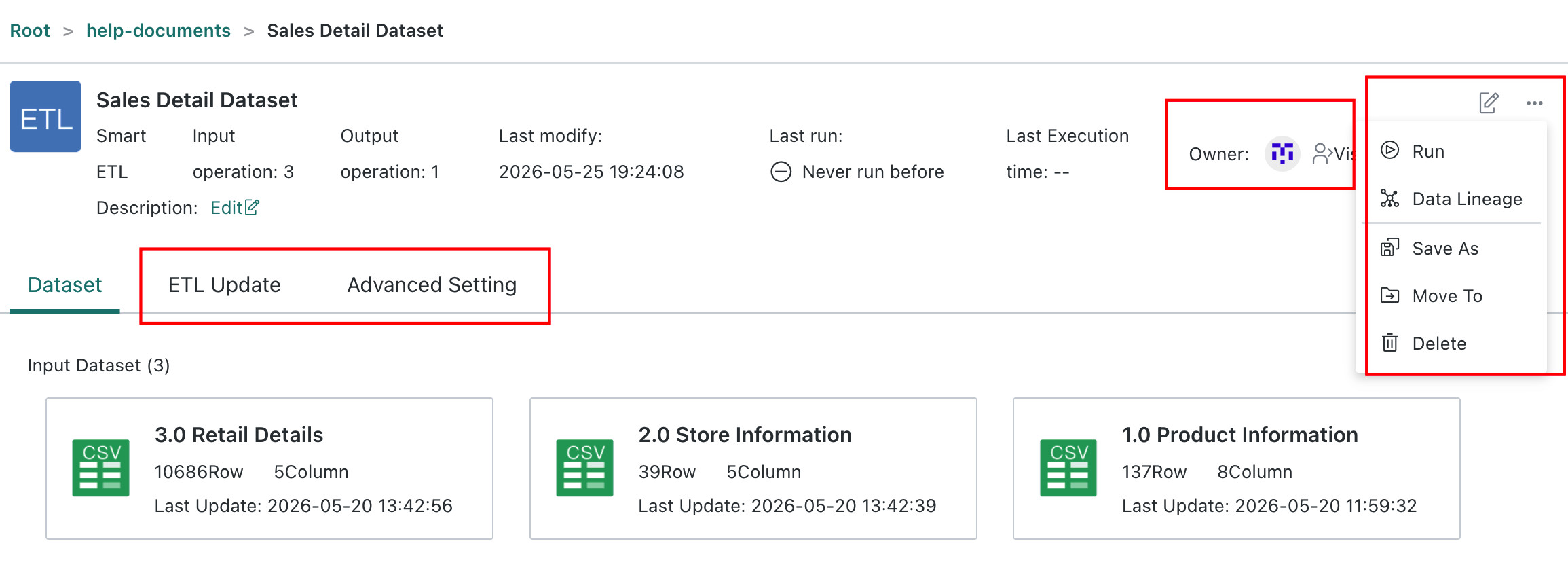
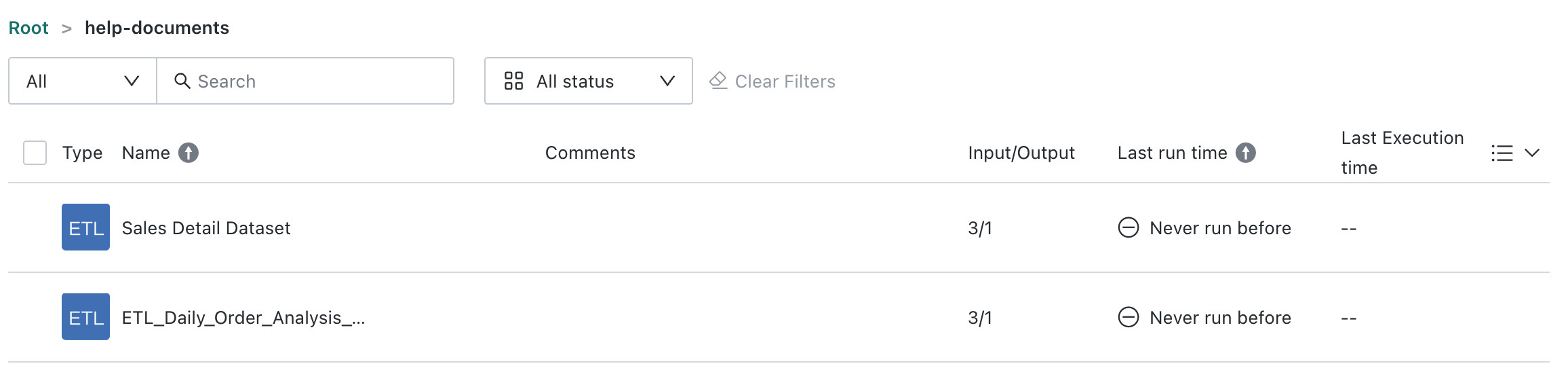
Guandata BI provides two entry points for ETL management and maintenance:
-
List Management Entry: The ETL list page supports unified management of ETL tasks. It displays the basic information of current ETL tasks in a concise way and provides common operations.
-
Task Details Entry: The ETL details page provides a more complete task view and allows users to manage all configuration items and advanced capabilities for a single task in greater depth.

Management Operations
Regular users who are not ETL owners cannot manage ETLs. Only ETL owners or users with administrator privileges can manage ETLs. Before performing ETL management and maintenance operations, make sure you have the required permissions.
| Operation | Description |
|---|---|
| Edit | Modify and adjust the configuration and parameters of an existing ETL task to match changing business needs or optimize the ETL flow. |
| Run | Manually start or trigger an existing ETL task so it executes its data processing flow. This is commonly used to validate task settings and obtain real-time results. |
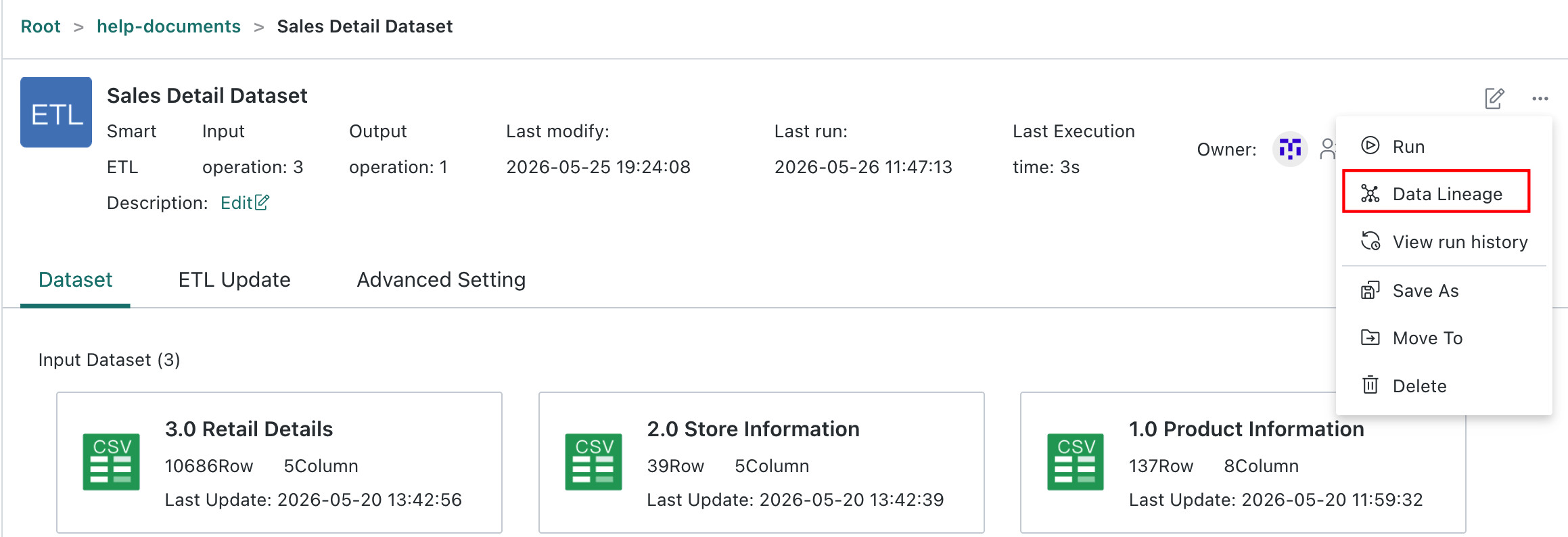
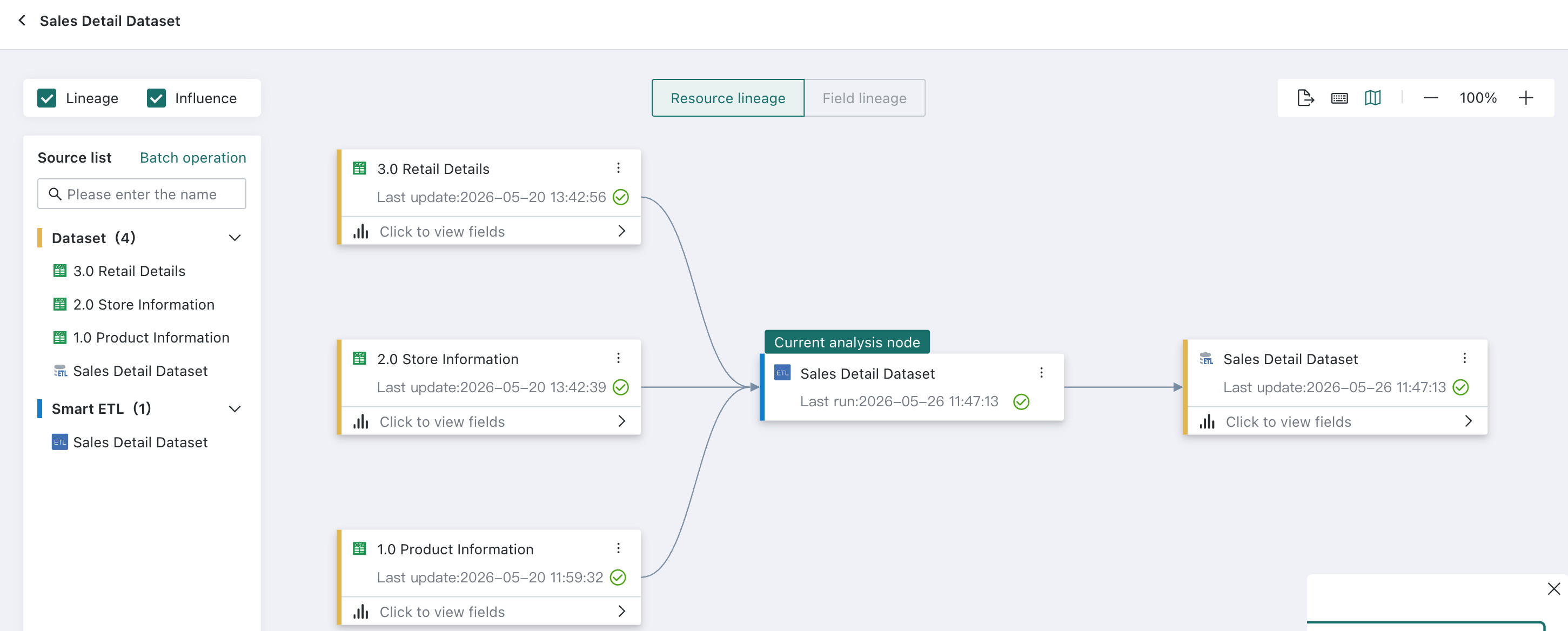
| View Resource Lineage | View the relationships between data resources involved in ETL execution. Through Resource Lineage, you can easily see how each data application, analysis Dashboard, ETL, and dataset is connected. |
| View Run History | View ETL execution history, including start time, completion time, duration, and status, to monitor task execution and troubleshoot issues. |
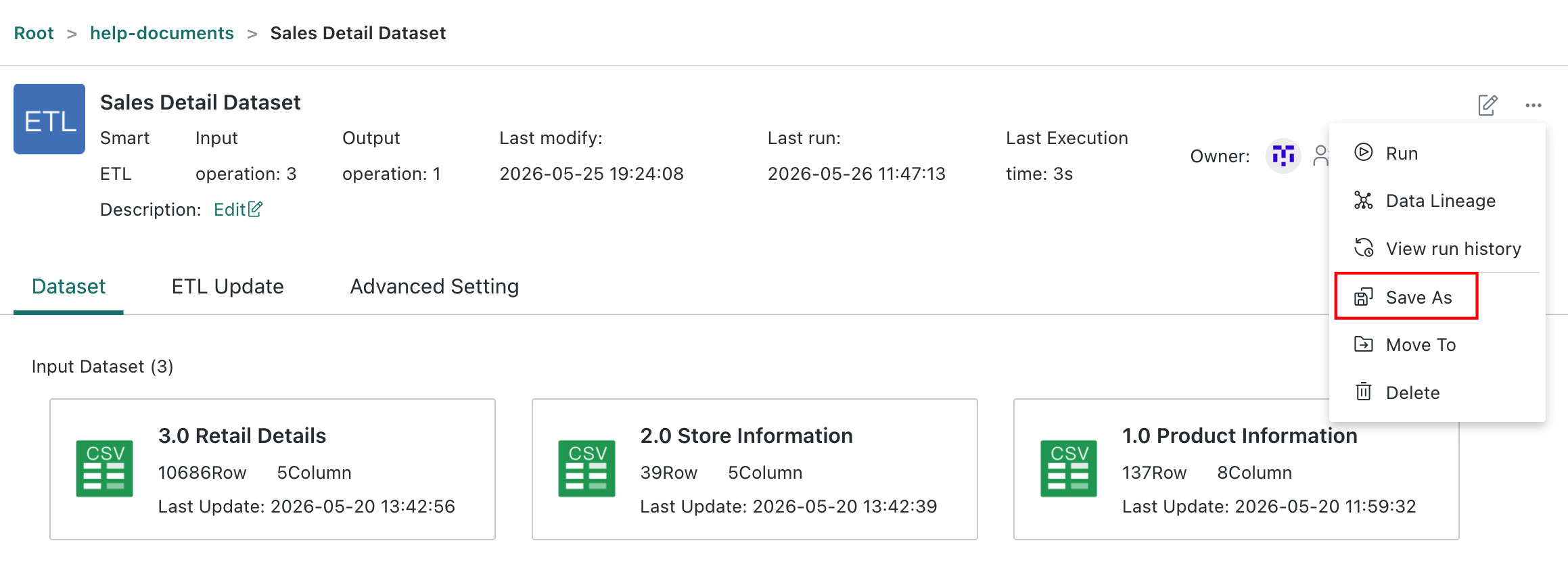
| Save As | Copy and create a new ETL task based on the configuration of an existing task, so new business needs can be met without affecting the original task. |
| Rename | Modify the ETL task name so it better reflects the task's purpose, content, or business scenario. |
| Move To | Move an ETL task from its current location to a specified folder or directory for better organization and hierarchical management. |
| Migrate | Migrate ETL resources from the current environment to another environment. |
| Delete | Delete an ETL task from the management system. Use with caution, because deletion clears the task and its related configuration and execution history. |
| Permission Configuration | Configure permissions for ETL tasks, including owner transfer and visitor assignment, to ensure data security and compliance. |
| ETL Refresh | Configure different scheduling strategies for ETL tasks and control task execution by start time, cycle, and trigger conditions. For details, see ETL Refresh Policy. |
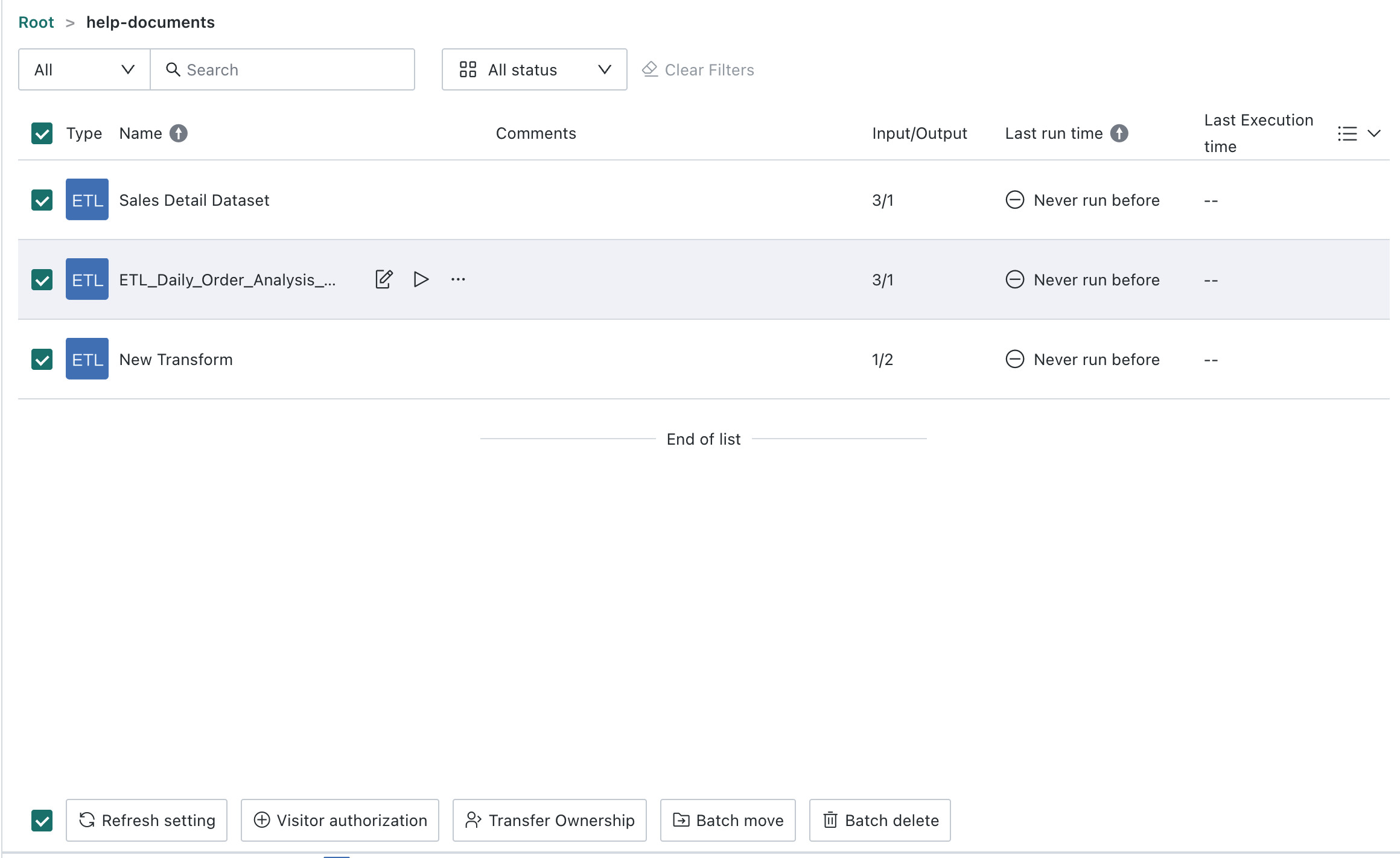
Batch operations are supported for multiple Smart ETL tasks in the ETL list, including refresh settings, permission configuration (owner transfer and visitor authorization), move, and delete. This reduces repetitive work and improves efficiency.
Instructions
Edit ETL
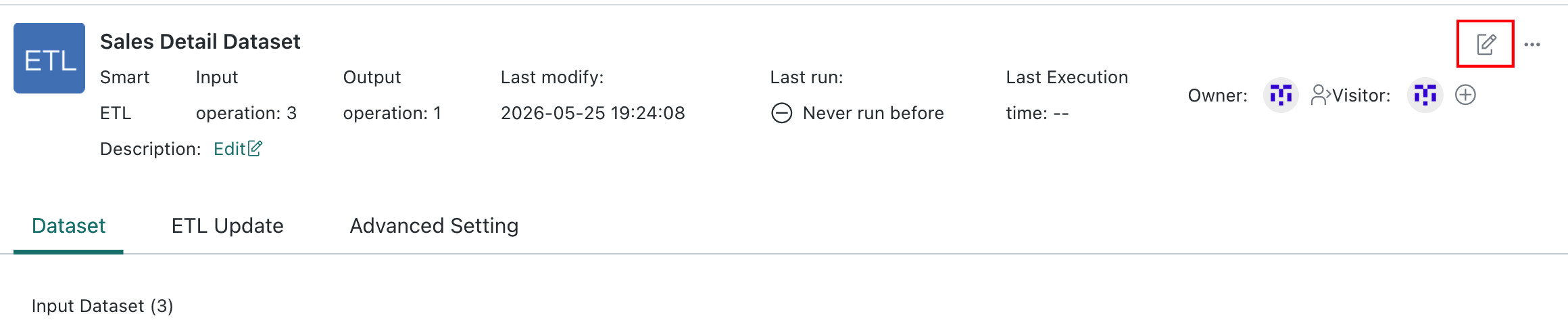
Click the Edit button in the upper-right corner to open the ETL editing page.
Run ETL
Manually start or trigger an existing ETL task to execute its data processing flow. This is commonly used to validate the task configuration and obtain real-time processing results.
After Smart ETL is saved, it must be run before it can output a dataset. The first run generates the Output Dataset, and subsequent runs update the Output Dataset based on the current logic.
Users can run the corresponding ETL flow directly from the ETL list or from the details page. After clicking Run, the ETL run time changes to Running.
For error details, see Found duplicate column(s) ....


- The Output Dataset is generated only after running the ETL.
- When necessary, you can manually update the Output Dataset.
- If a run fails, it indicates that the ETL flow has an issue and requires further troubleshooting or refinement.
- Automatic runs allow the flow from Input Dataset to Output Dataset to execute automatically.
- For ETLs with multiple input sources, if you choose
Selected Datasetsas the trigger condition, it is recommended to select the input source with the latest update time.
View Resource Lineage
View the relationships between data resources involved in ETL execution. Through Resource Lineage, you can easily understand the connections among each data application, analysis Dashboard, ETL, and dataset, follow the data analysis process flow, support fast data governance, understand upstream and downstream dependencies, and assess the risk of deleting or modifying resources. It is also useful for quickly locating issues during troubleshooting. For details, see Resource Lineage.
View Run History
This page provides the current ETL run status and historical execution records, making every run traceable. It includes task start time, completion time, duration, status, and other information, which helps monitor execution and troubleshoot issues.
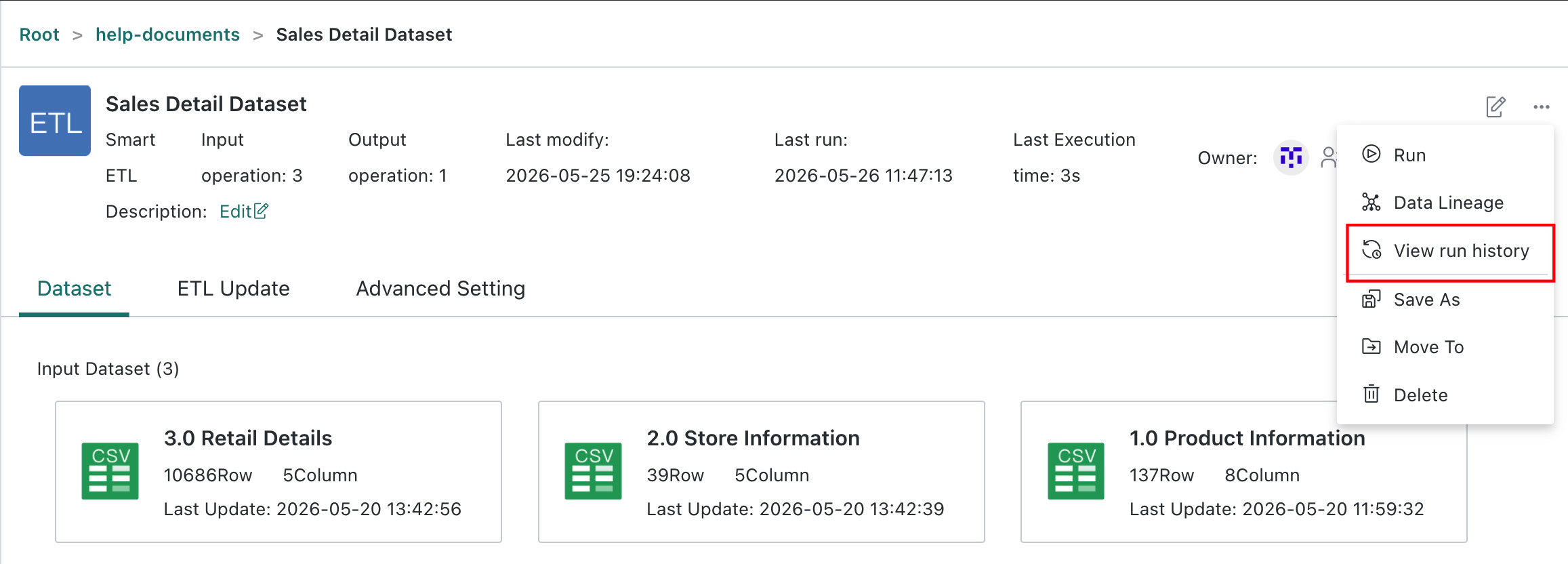
If a run fails, it indicates that the ETL flow has an issue and needs further troubleshooting or improvement.

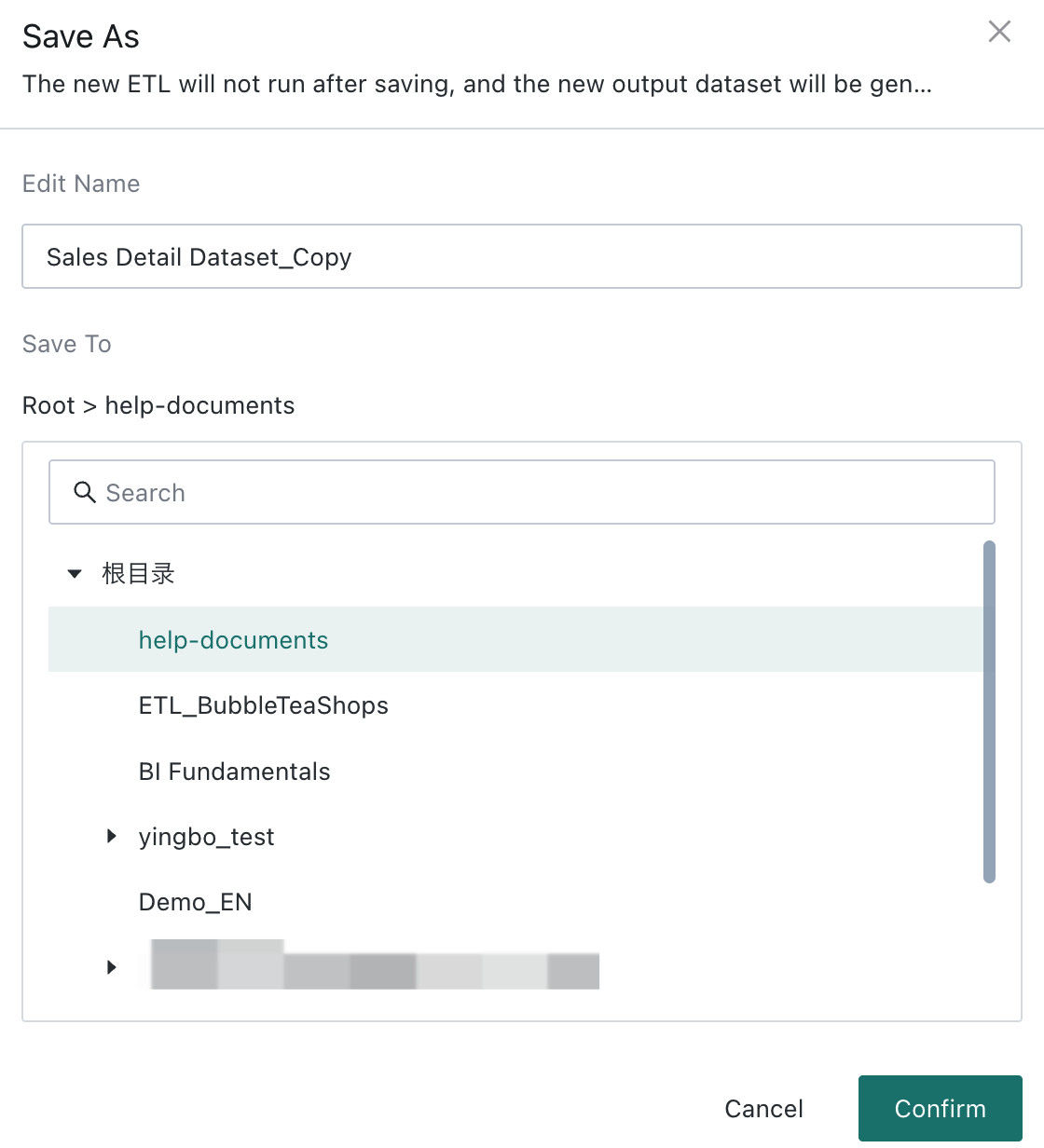
Save As
Copy and create a new ETL task. This is useful when similar tasks need to be created frequently or when new data sources must be adapted quickly, because it avoids creating tasks from scratch and saves configuration time.
After Save As succeeds, users can directly modify the copied task configuration or replace the dataset.
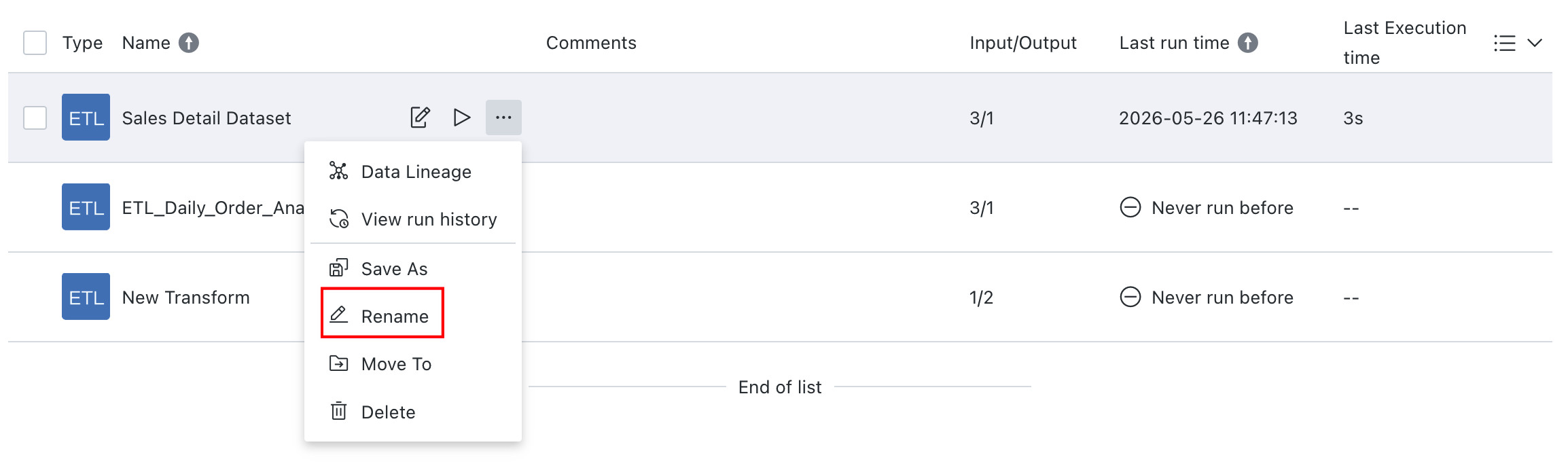
Rename
Rename an ETL task so it better reflects the task's purpose, content, or business scenario.
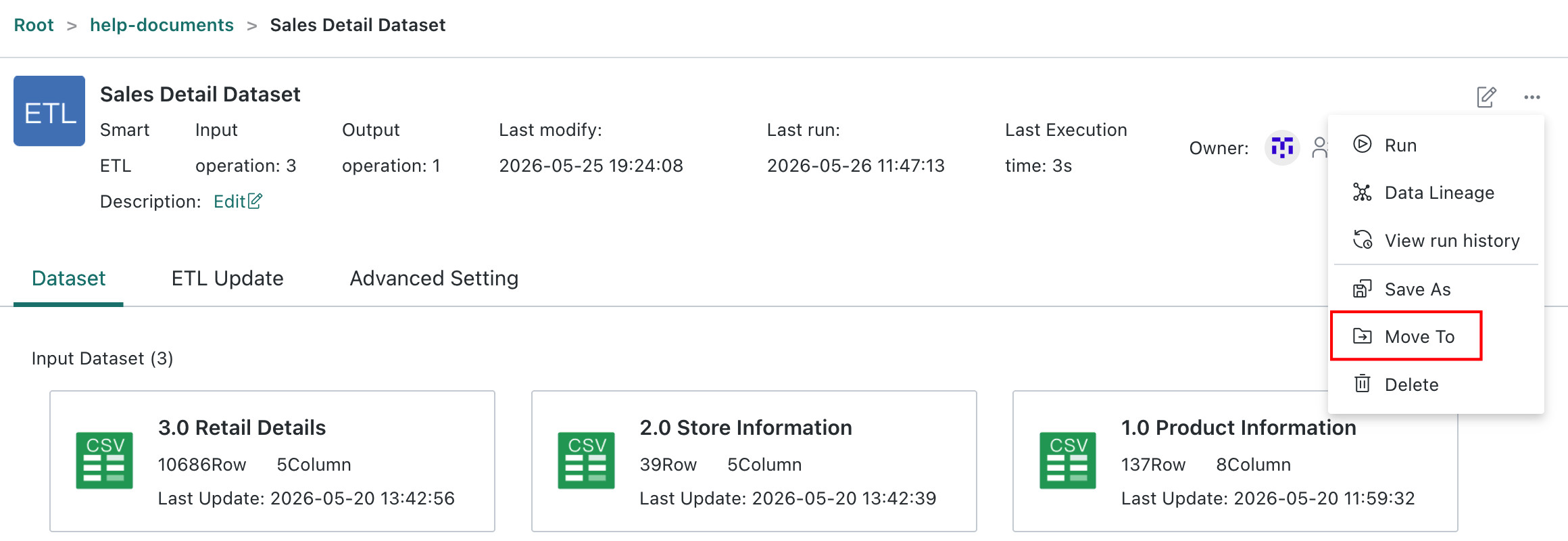
Move To
Move an ETL task from its current location to a specified folder or directory for better organization and hierarchy management.
Migrate
Migrate ETL resources from the current environment to another environment. For details, see Resource Migration.
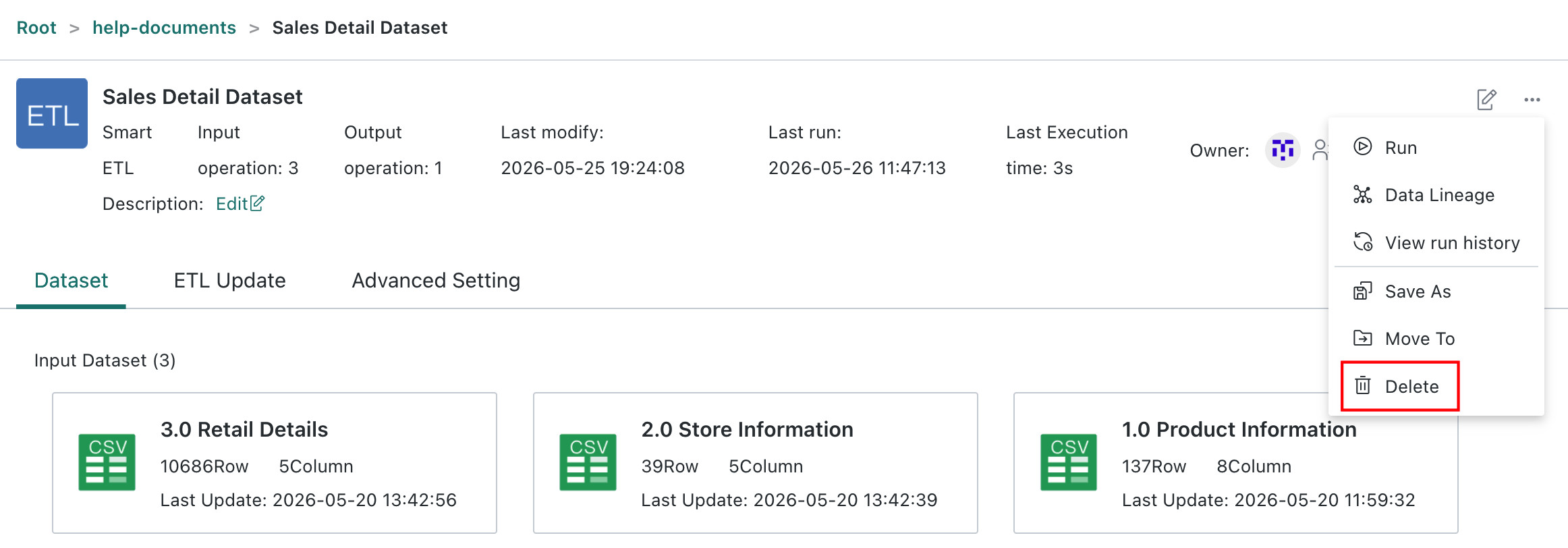
Delete
Users can clean up ETL tasks that are no longer needed. This is suitable for idle ETL tasks that have never been run or used, or zombie ETLs that consume CPU resources.
Before deleting an ETL task, make sure you understand its purpose, impact, and related dependencies to avoid unnecessary effects on the system.
Deletion should be performed carefully because it permanently clears the task, its configuration, and its execution history, and the action cannot be undone through the recycle bin.
- When an ETL is referenced by Advanced Scheduling, deletion may fail. Solution: Go to the Advanced Scheduling module and remove the referenced ETL task from the related workflow.
- When the ETL Output Dataset already exists, deletion may fail. Solution: If it will not affect business analysis, consider deleting the ETL Output Dataset first.
Permission Configuration
-
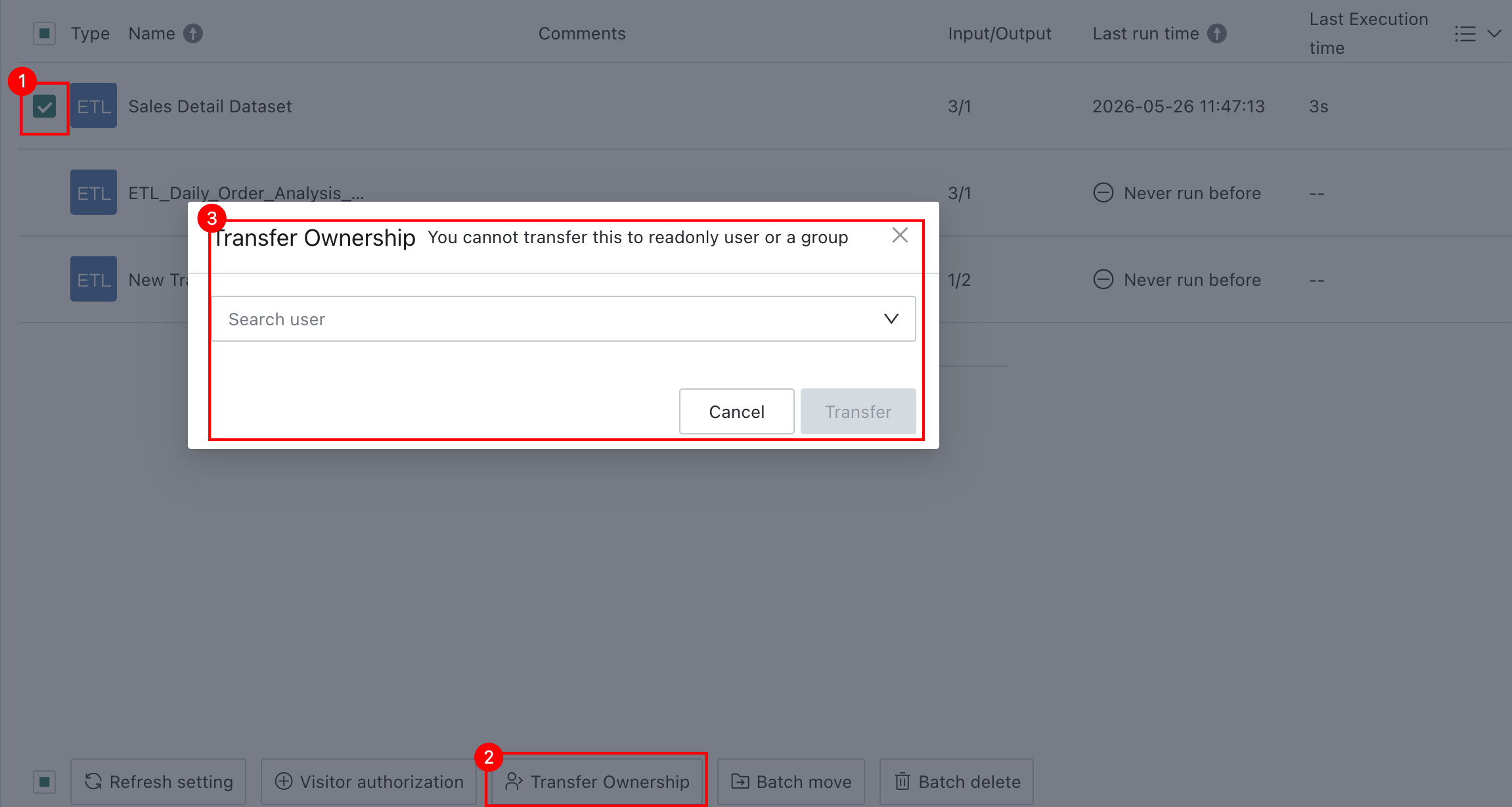
Transfer task ownership to another user. The new owner receives full permissions on the current task.
-
Grant current ETL task access to other users or team members. Permissions may include viewing tasks, editing tasks, running tasks, and viewing run history.
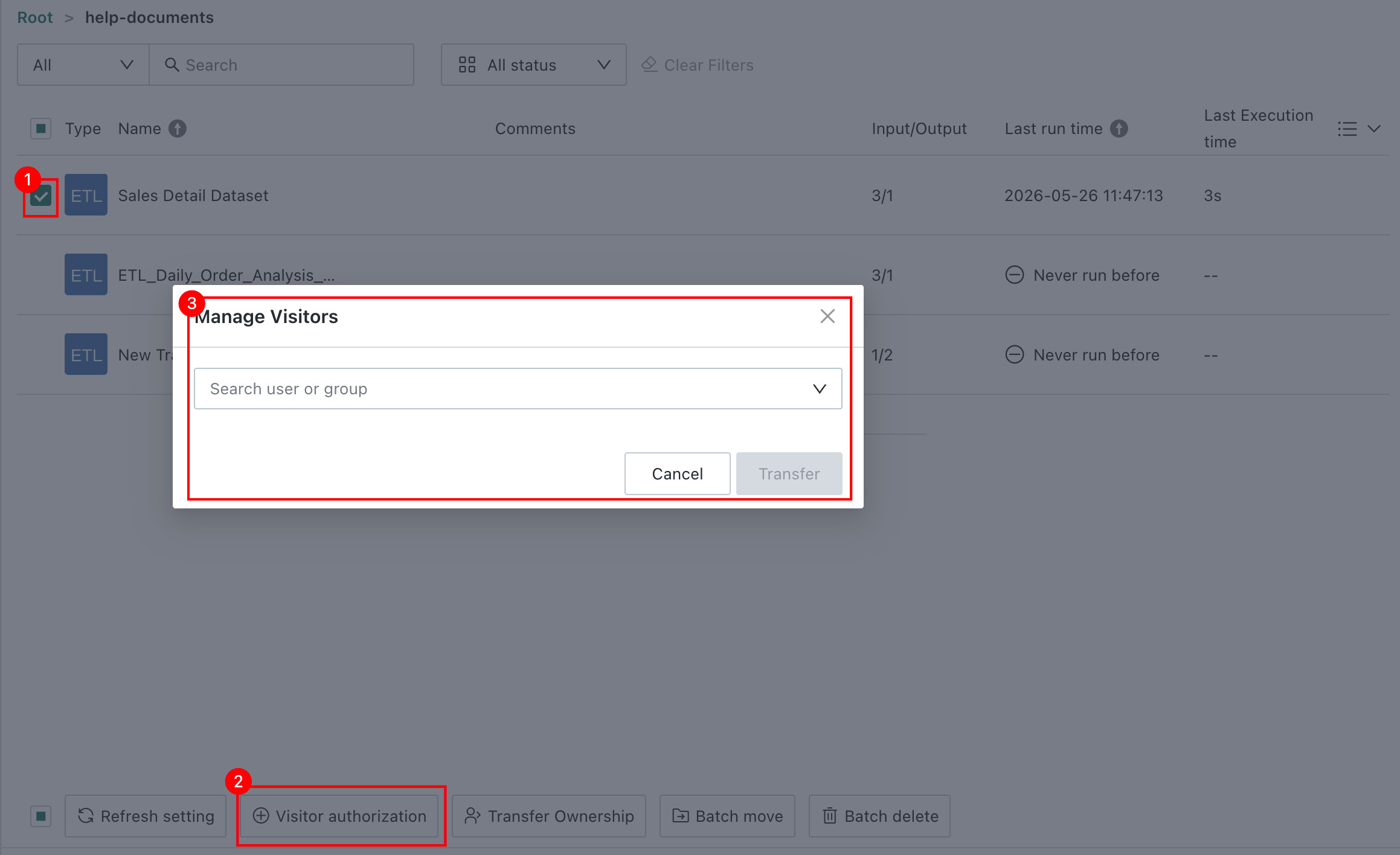
For more information, see ETL Permission Management.
- User groups and read-only users cannot be selected for
Owner Transfer. Owner TransferandVisitor Authorizationboth support batch operations.
ETL Refresh
Define different scheduling strategies for ETL tasks and control ETL execution through start time, execution cycle, and trigger conditions to meet different data processing requirements.
For details, see ETL Refresh Policy.