Write Back Data to Feishu Bitable
Overview
Guandata BI datasets can be written back to Feishu Bitable. After processed application-layer result data is written into Feishu Bitable, business users can consume and use the data flexibly on that basis.
Steps
Prerequisites
-
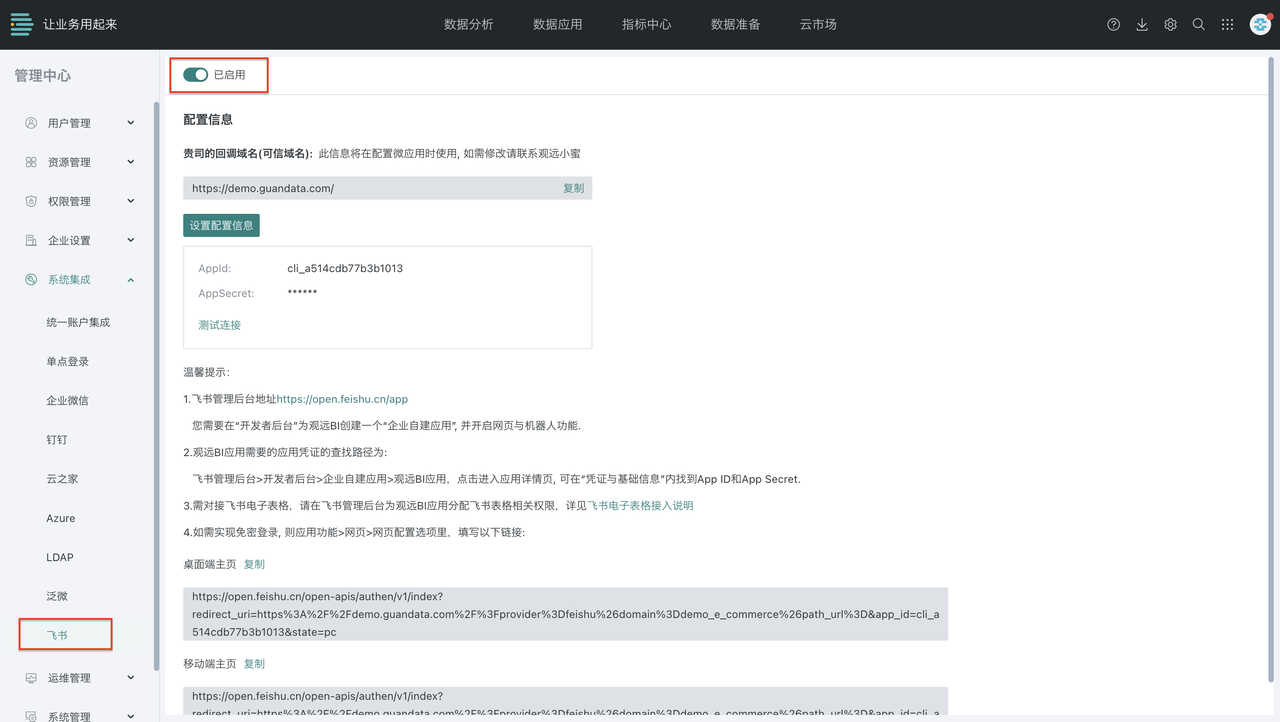
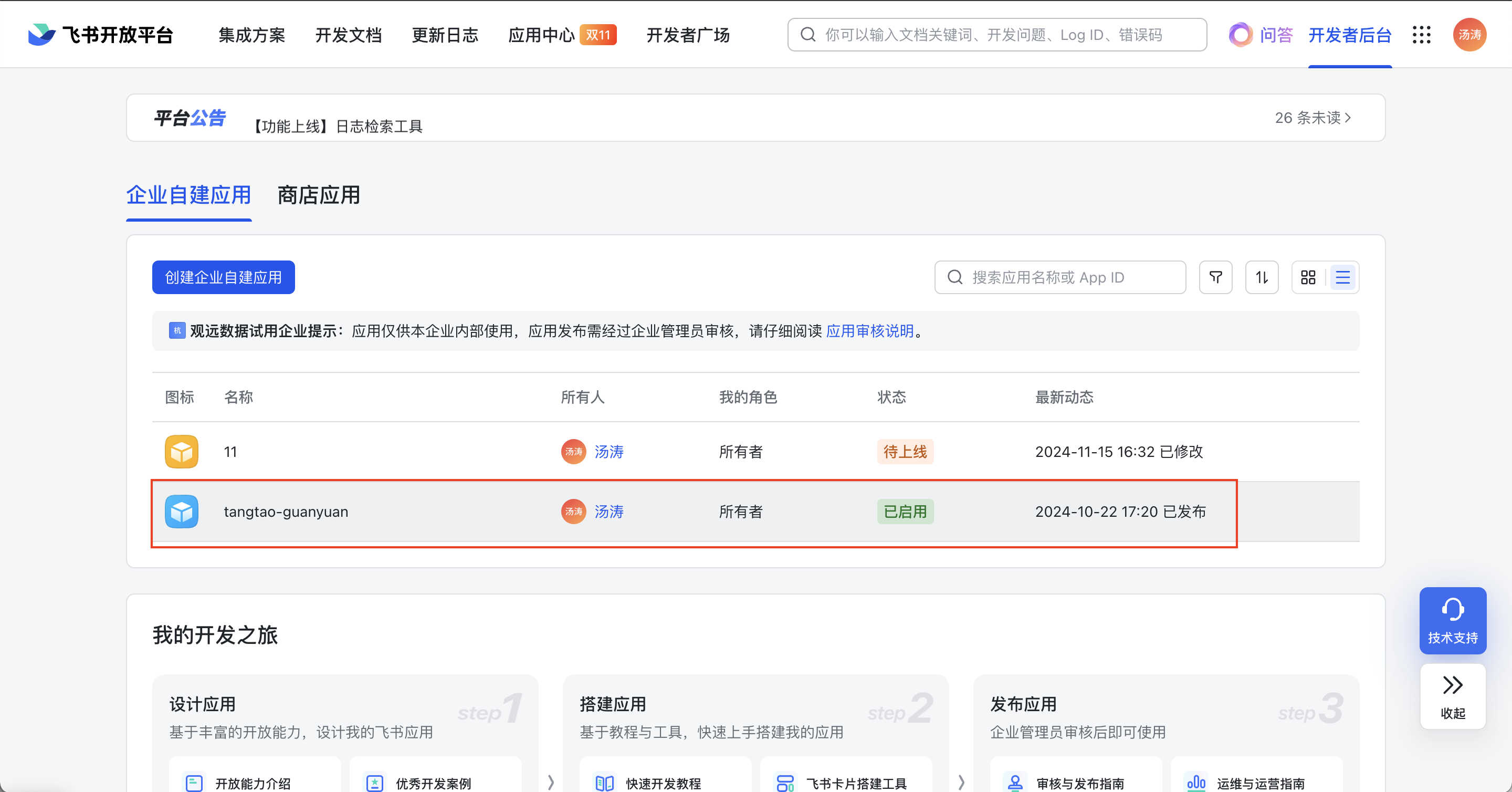
In the Guandata and Feishu admin backends, complete the preparation work for Feishu integration. For details, see Complete Feishu Integration Guide.
-
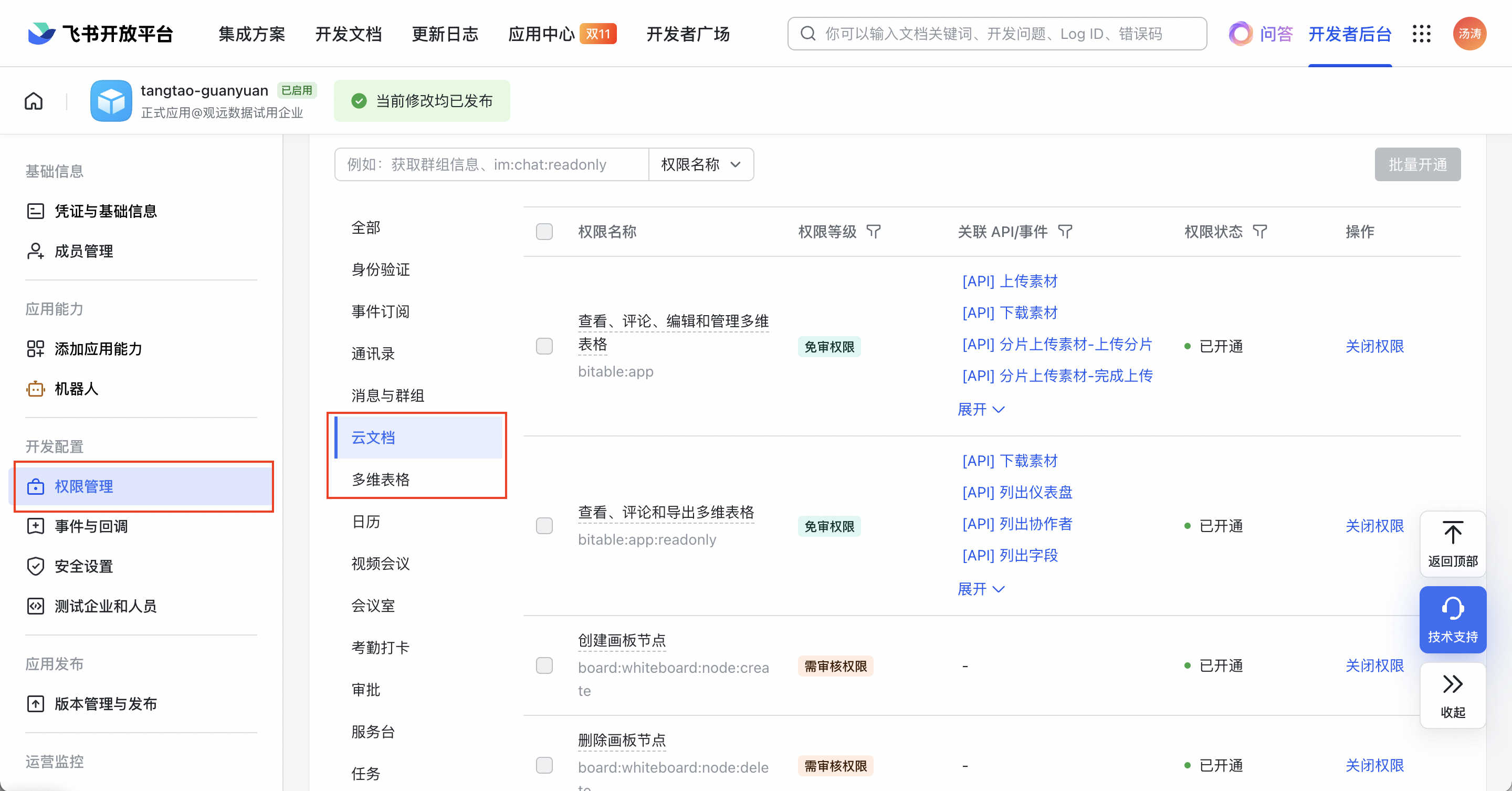
In the Feishu developer backend, enable all permissions for Cloud Docs and Bitable.
-
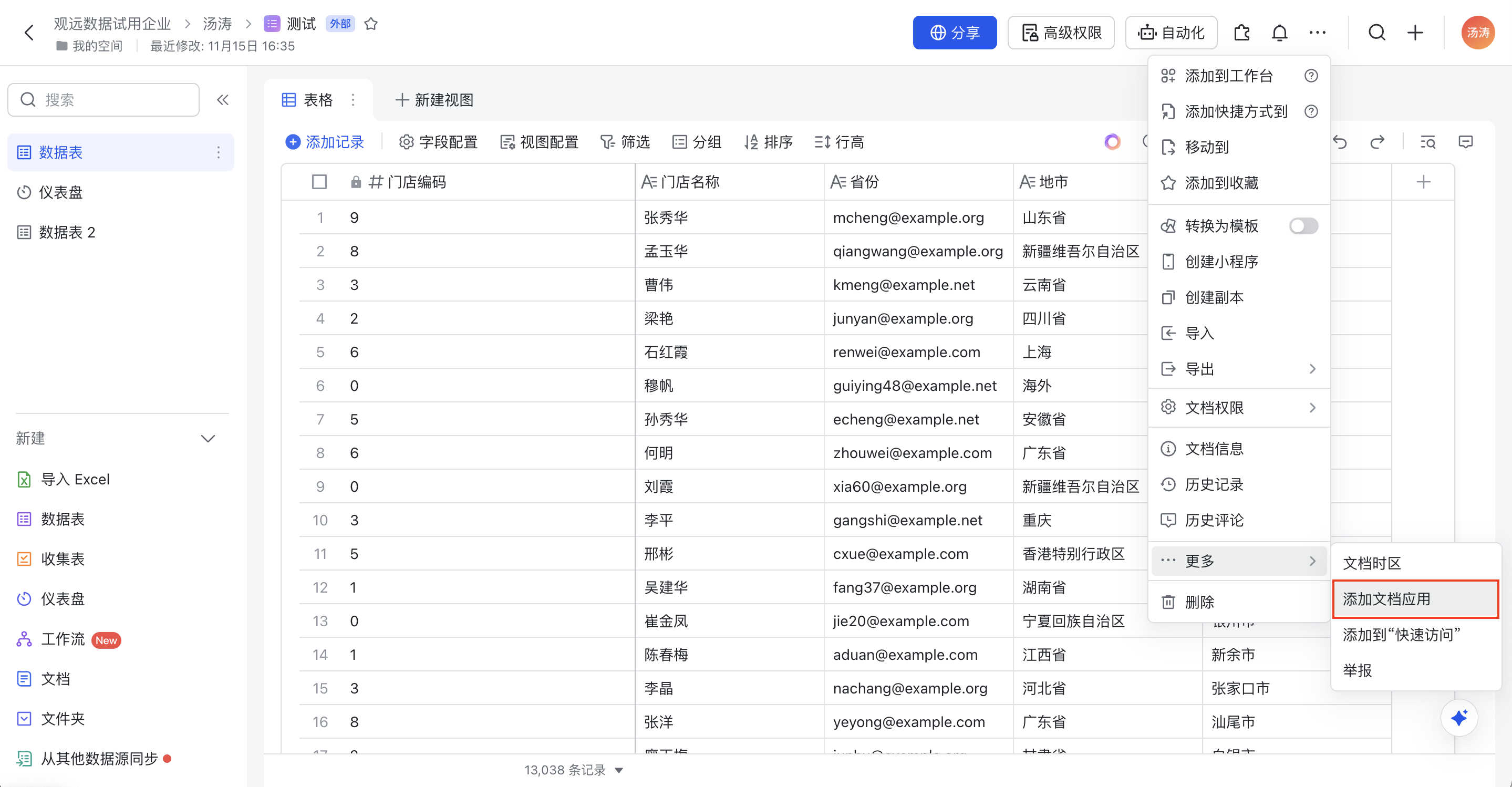
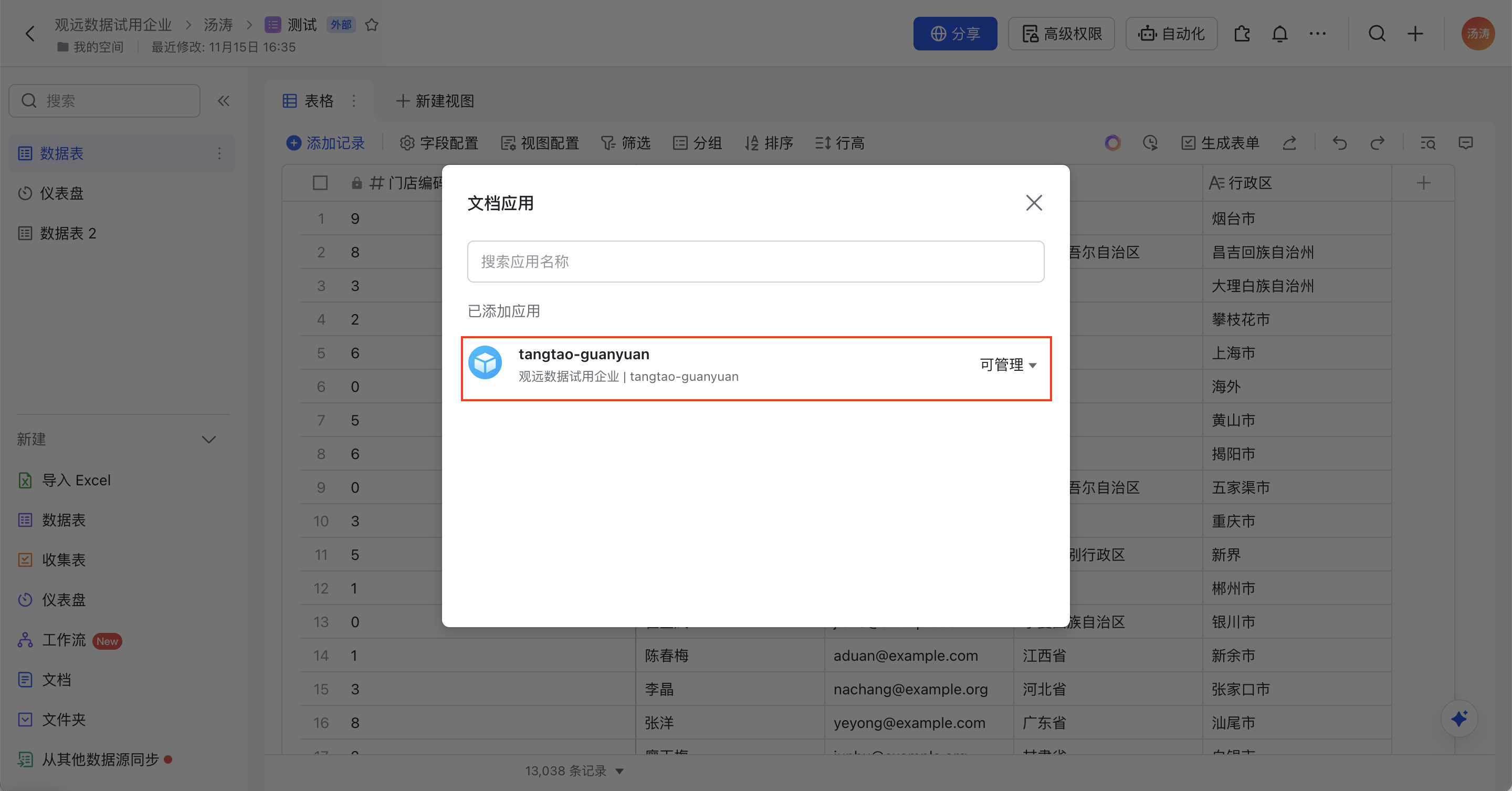
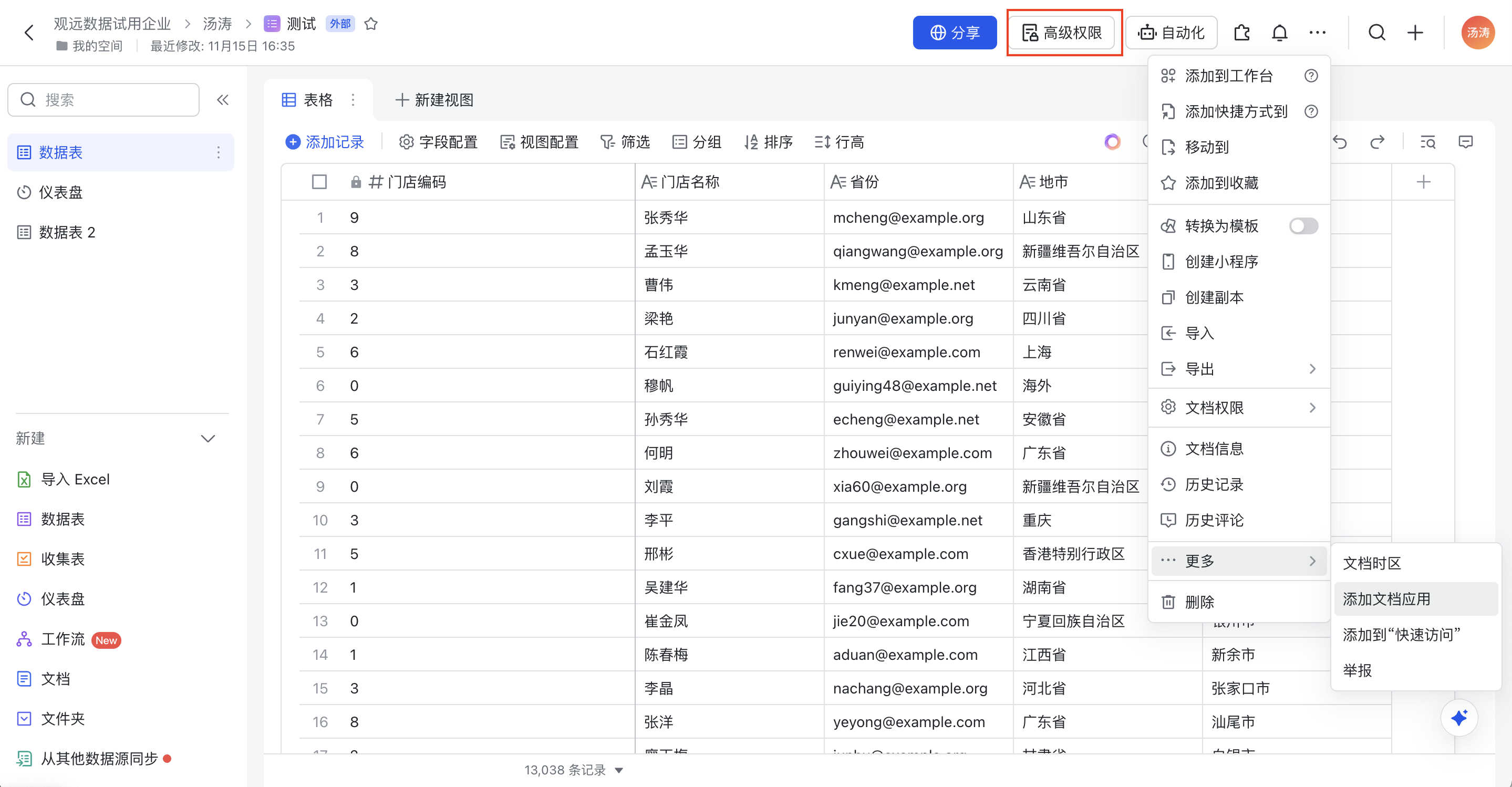
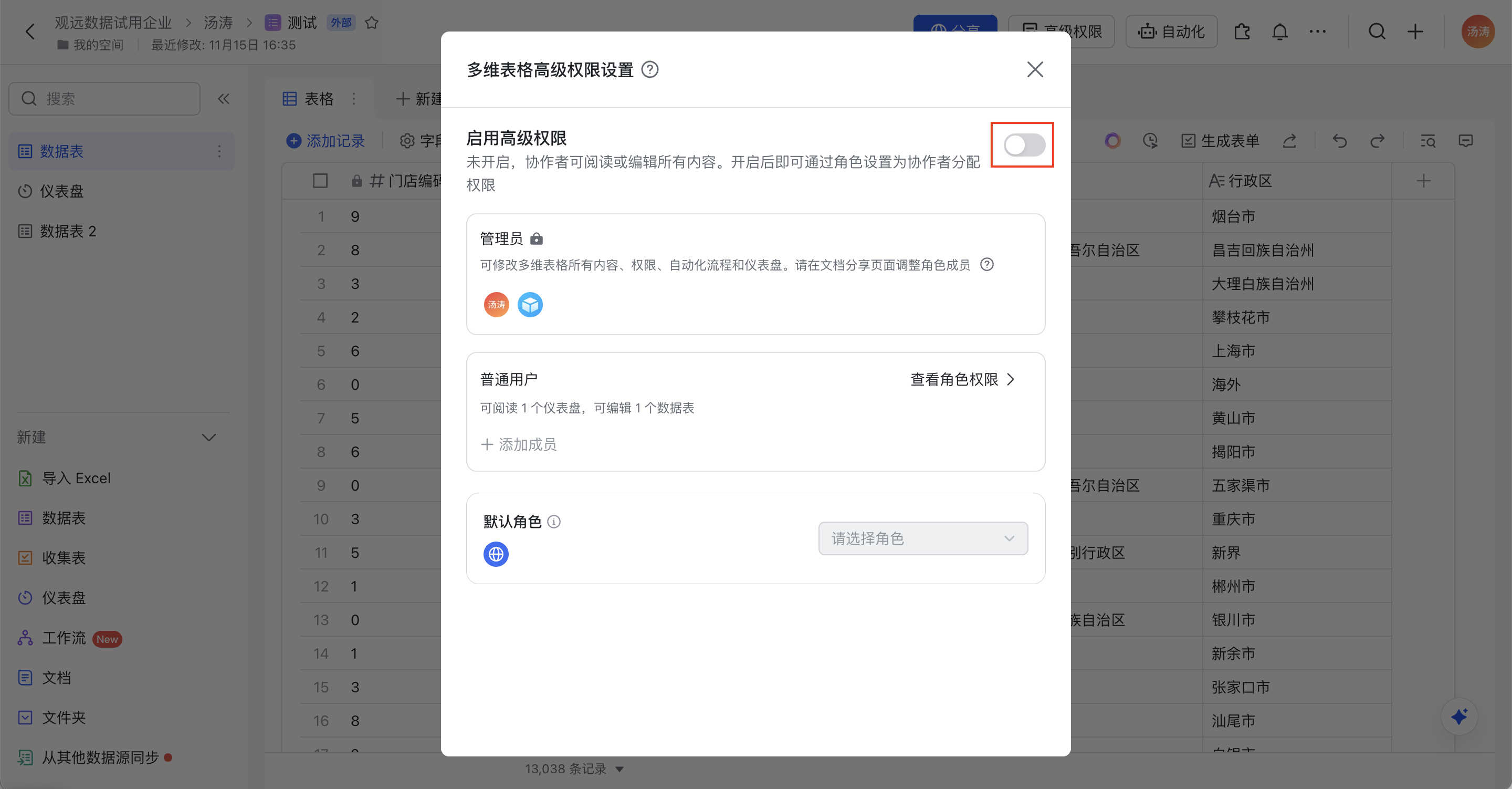
In Feishu, create the target Bitable that will receive the written-back data, add the BI application described in the Complete Feishu Integration Guide to Document Apps, and disable Advanced Permissions.
Configure Data Writeback in Guandata BI
-
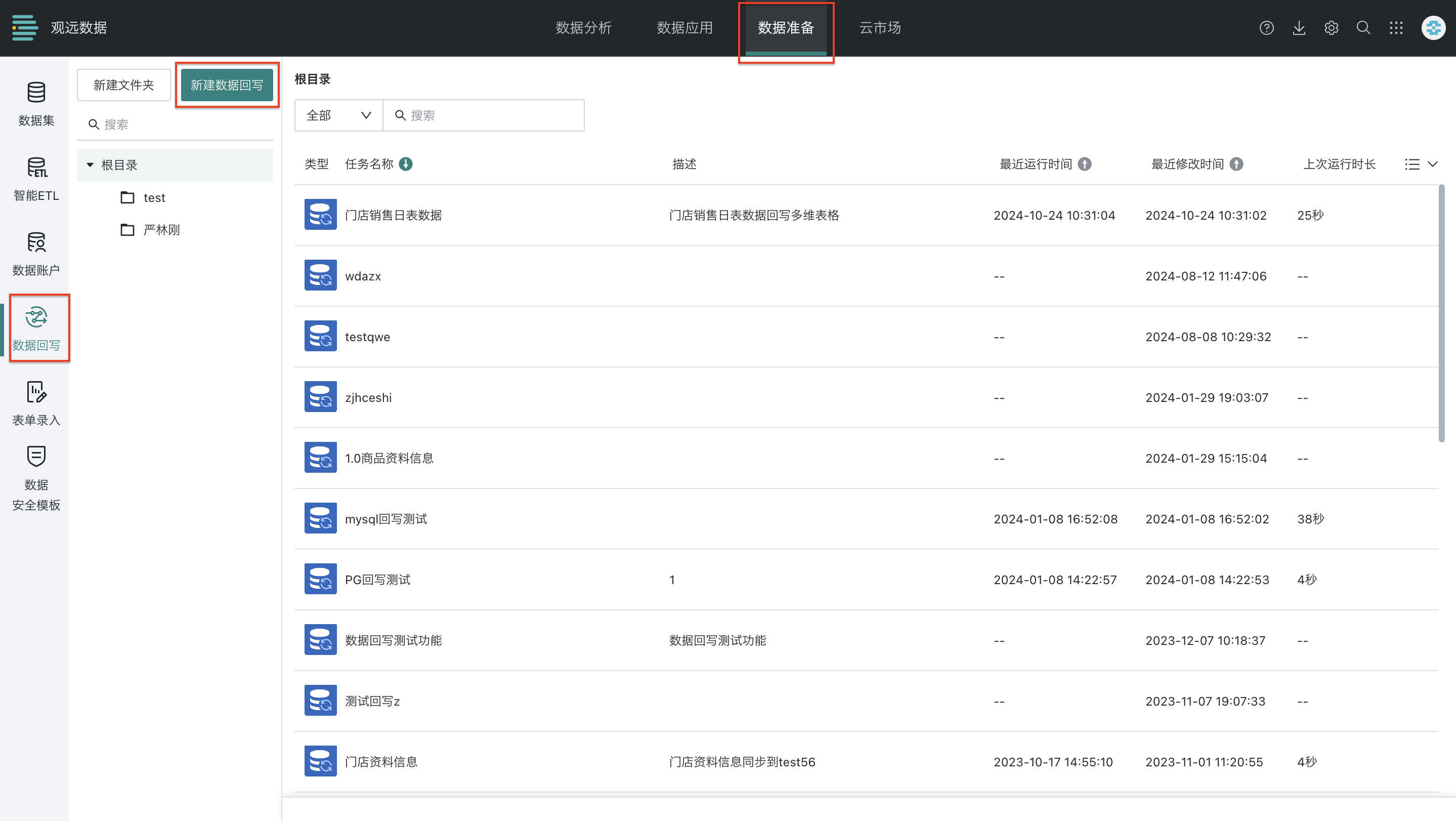
In Guandata BI, go to the Data Preparation module and create a Data Writeback task.
-
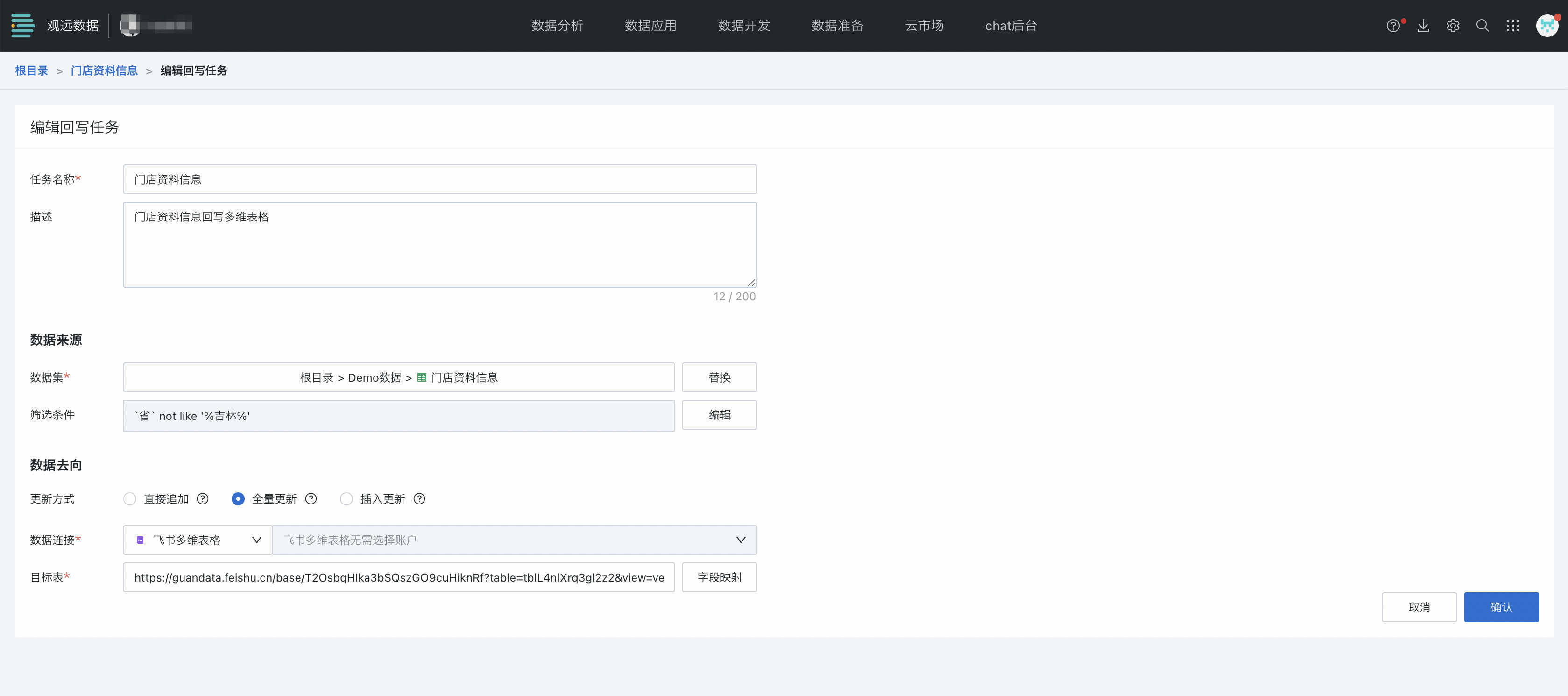
Configure the writeback task on the Data Writeback configuration page.
- Edit the task name and description.
- Configure the data source:
- Select the dataset that needs to be written back.
- Configure filter conditions to define the writeback data range.
- Configure the writeback target:
-
Feishu Bitable currently supports only Full Refresh for writeback, so choose Feishu Bitable under Full Refresh.

-
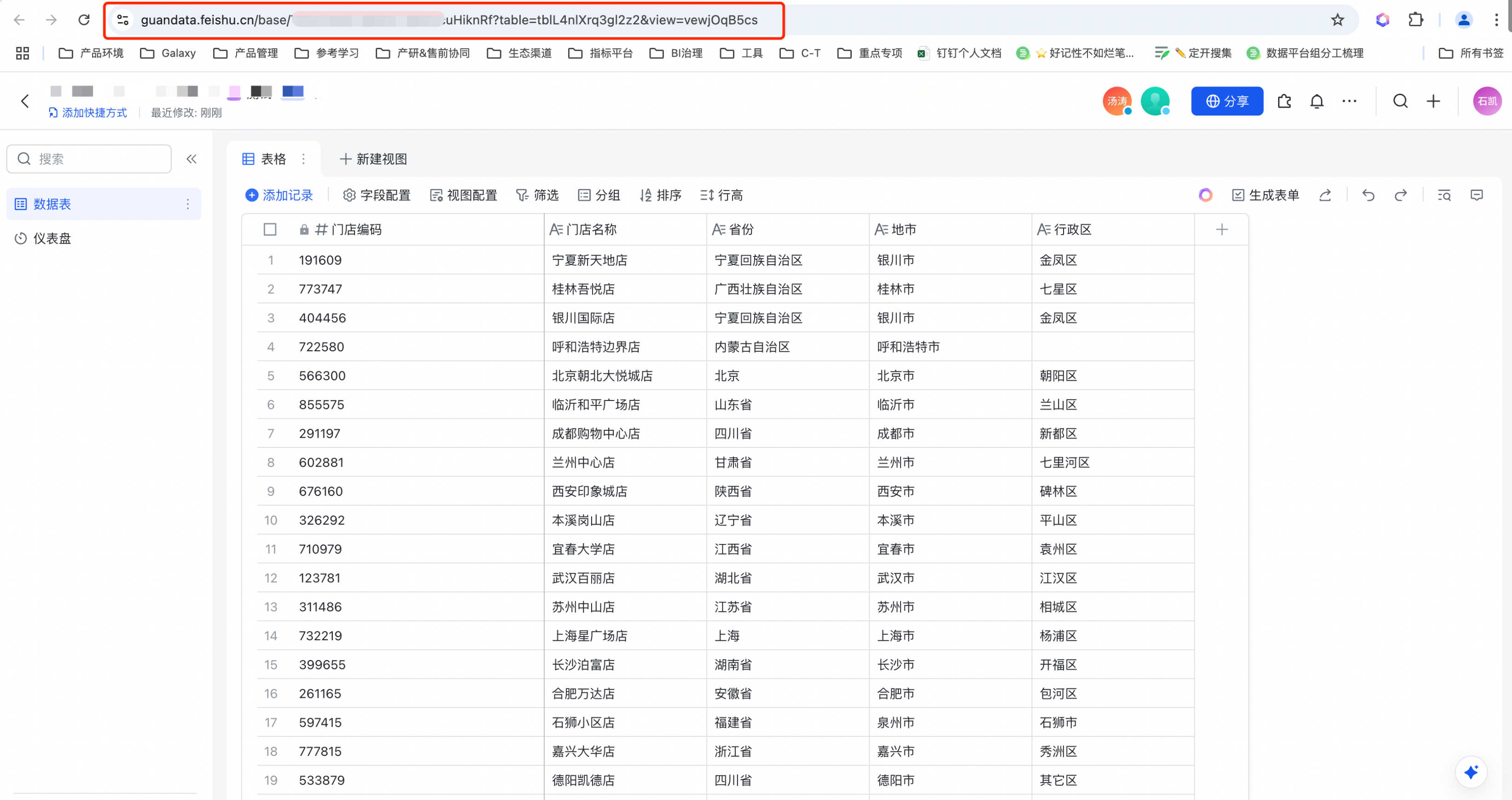
Enter the Bitable URL, which can be copied from the browser address.
-
Configure field mappings.

-
View the Data in Feishu Bitable
-
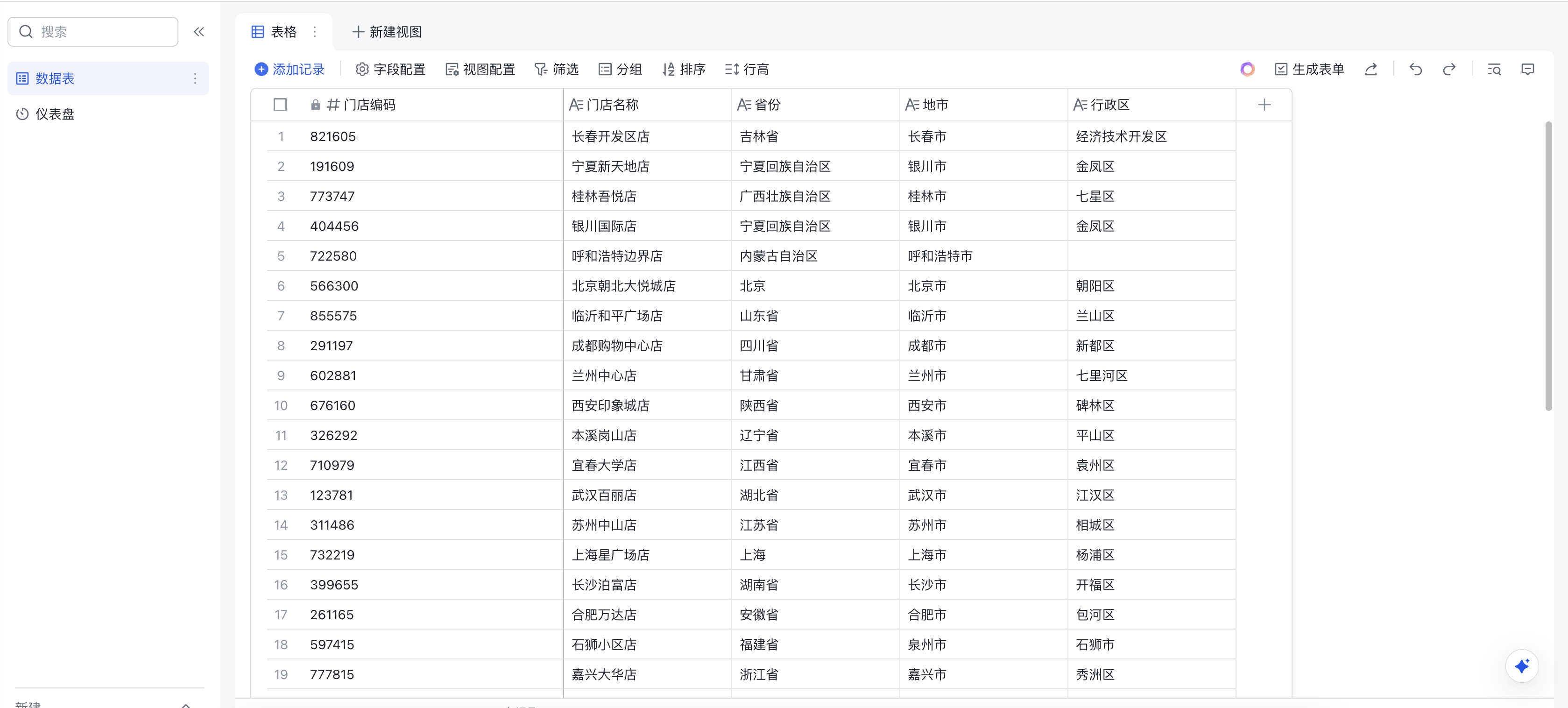
View the received data in Feishu Bitable and use it for analysis or other business scenarios.
-
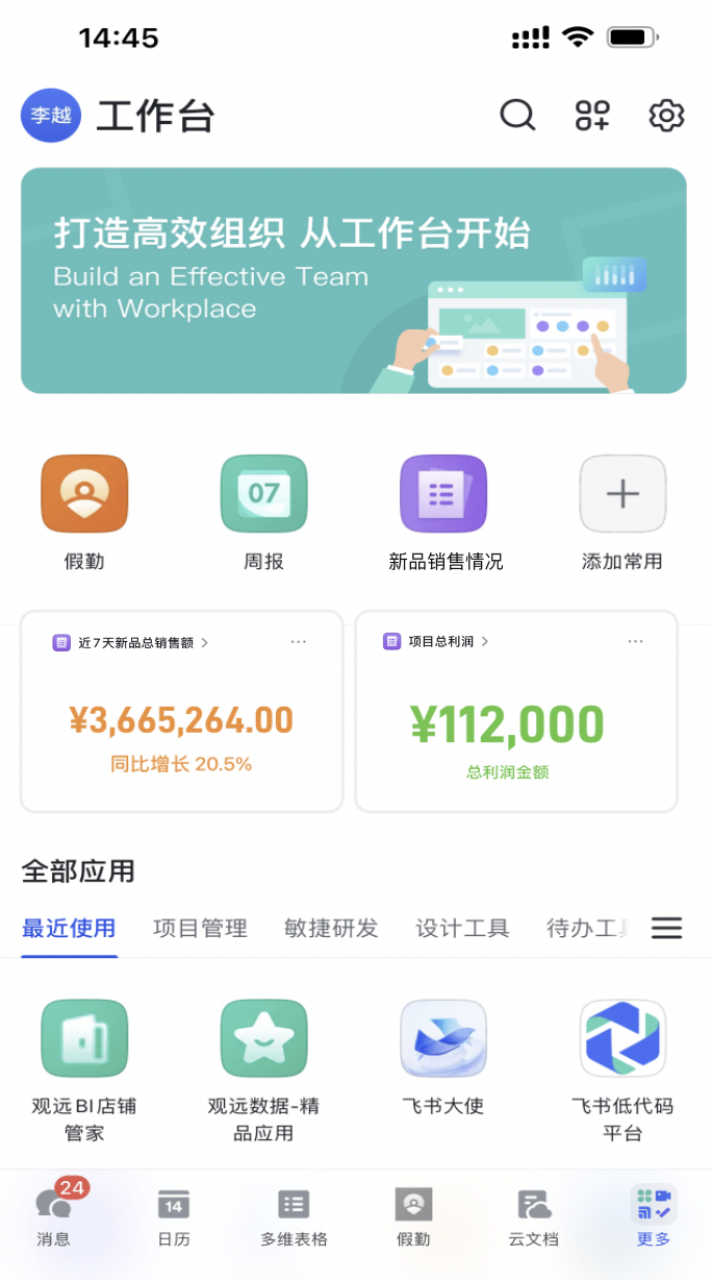
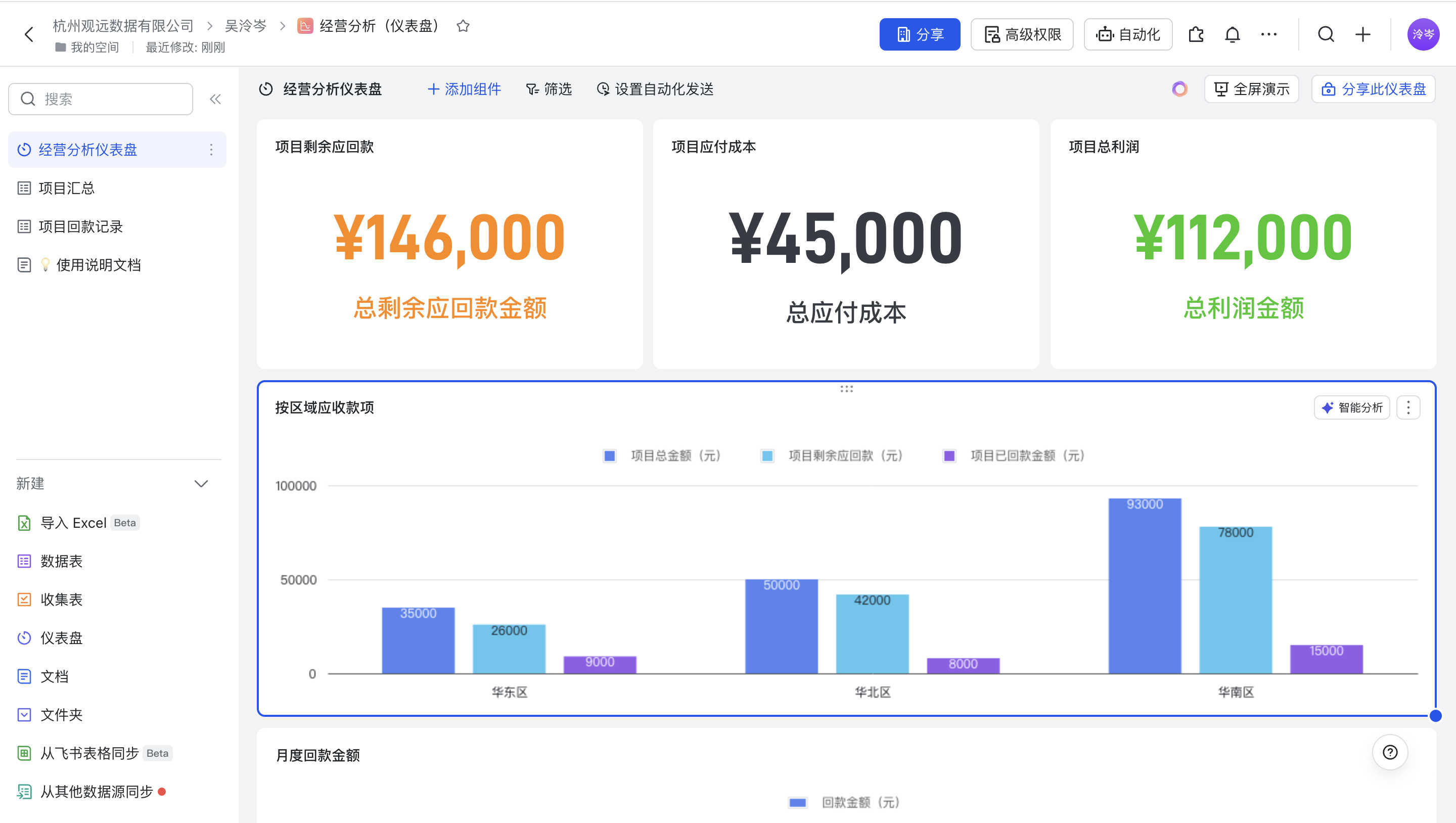
Business users can build dashboards in Feishu Bitable, perform self-service analysis, and create key metrics based on business needs.
-
Add dashboards from Feishu Bitable directly to the Workbench or Group Widgets, making it easy for executives or store managers to track key metrics and identify business pain points in time.