Write Back Data to a Database
Friendly Reminder: This product module is an add-on feature. If you want to request a trial, contact your Guandata sales representative or customer success manager, typically the main service contact for your company.
Overview
This feature allows users to write datasets that have been processed and analyzed in the BI platform into their business systems or underlying data warehouses through online configuration. It helps close the loop for downstream business marketing and data sharing scenarios, while also providing online operations and maintenance capabilities. Compared with integration through Public API, Data Writeback significantly lowers the development and management threshold and offers clearer performance advantages for large-scale writeback workloads.
Use Cases
Precision Marketing
After completing audience profiling analysis in BI, the marketing team may want to send promotional information to a target customer segment during a new product launch. Using Data Writeback, user attribute analysis data, purchase preferences, and customer feature tags for the target segment can be automatically written back to the marketing system database. The marketing system can then use that data to configure a targeted campaign and accelerate the full process from outreach to conversion.
ERP and Supply Chain Demand Planning
After analyzing hot-selling products in BI, the resulting data can be written back into ERP or supply chain systems to support downstream procurement planning, reduce excess inventory, and improve capital efficiency.
Enterprise Data Warehouse and Data Service Scenarios
In enterprise data warehouse architectures, strict data governance rules often prevent BI data from being exposed directly to other business systems. With Data Writeback, BI analysis results can be written back into the centralized data warehouse first, and then distributed onward to other business applications through the warehouse.
Product Value
Lower Total Cost of Ownership:
In the past, many enterprises relied on standalone products to complete data synchronization tasks. Although those products could meet synchronization needs, they usually required expensive software subscriptions and high-performance servers, which increased procurement and deployment costs. Now that Data Writeback is integrated into the Guandata BI platform, users can implement synchronization at much lower cost by purchasing the corresponding feature module and upgrading capacity by 2 GB of memory.
Lower Development and Maintenance Threshold:
In addition to standalone products, some enterprises implement data synchronization through API integration, but APIs introduce high development complexity and difficult maintenance requirements. API-based integration usually requires developers to write custom interface code and maintain complex technical documentation, which increases both implementation difficulty and operating cost.
By contrast, Guandata BI's Data Writeback feature lets users complete synchronization configuration online and then manage writeback tasks centrally in the data center. Even business users without coding experience can take on the configuration and maintenance of data synchronization tasks, which substantially lowers the barrier to development and operations while improving efficiency and reducing labor cost.
Larger Data Transfer Scale:
In traditional API-based approaches, individual transfers are often limited by record count for security reasons, which creates challenges for users with large-volume synchronization needs. Guandata BI's writeback module supports data transfer at scales starting from up to 200 million rows, meeting urgent large-scale synchronization requirements while significantly improving overall efficiency and security.
Instructions
Create a Task
Entry Point
Data Preparation > Data Writeback > Create new writeback
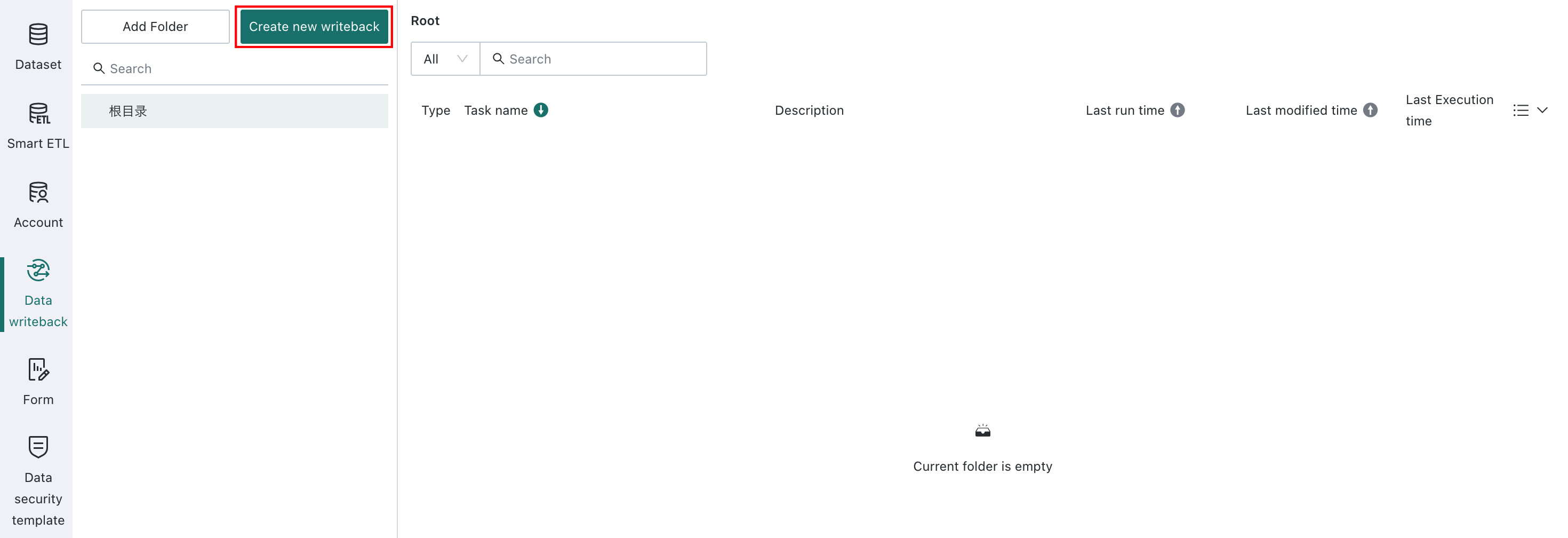
Edit the Task
-
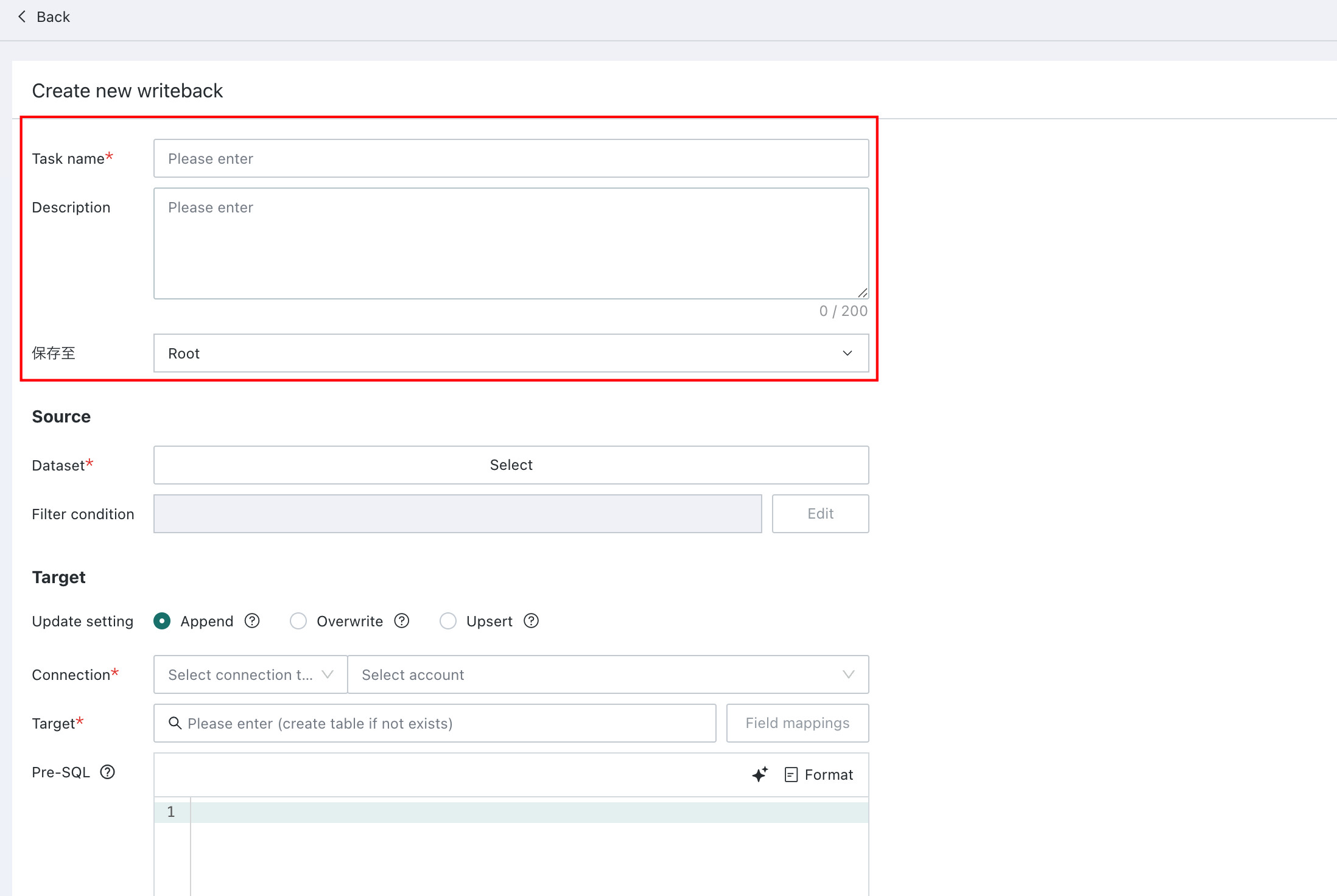
Enter the basic information: define a custom writeback task name (required) and an optional description.
-
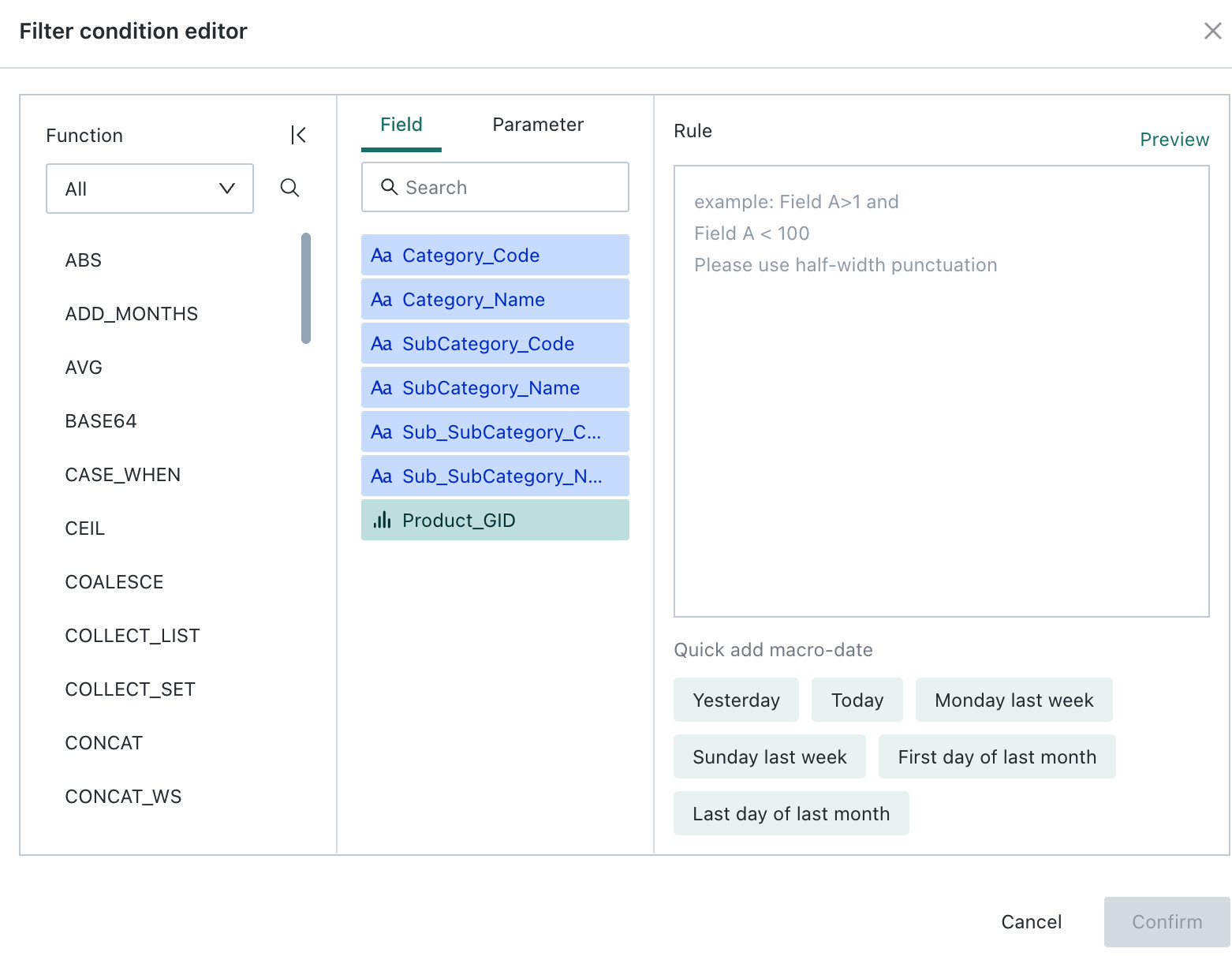
Configure the data source: select the dataset to write into the business system or data warehouse, then define the filter conditions.

- Dataset: Includes ETL result datasets, Card Datasets, Form Datasets, and other datasets available within the current user's permission scope.
- Filter Conditions: Time macros and global parameters can be used to define filter conditions for the source dataset. For example, in a recurring writeback task, a time macro can be used to filter incremental data from the previous day and write it back into the target database. The filtering logic is basically the same as chart filtering. See Charting.
-
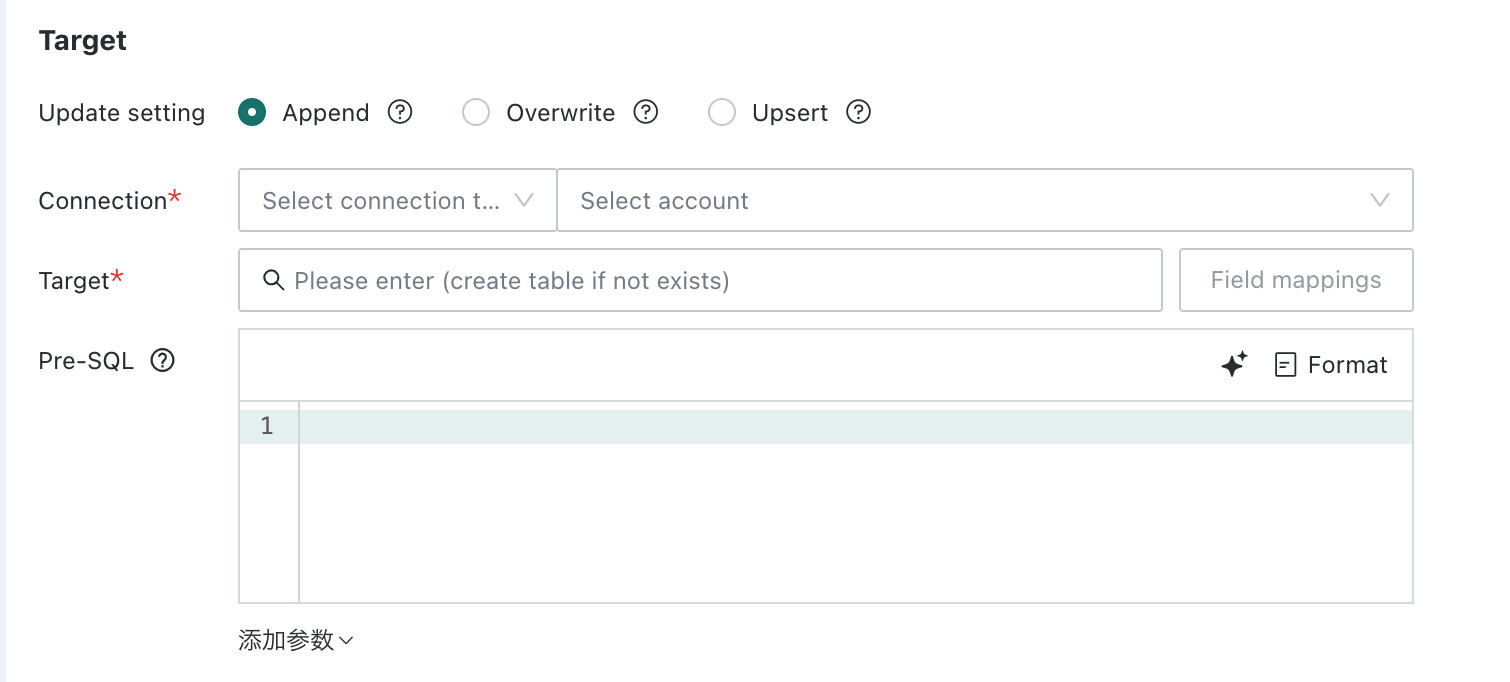
Configure the writeback target: specify the destination object, usually a customer business system or data warehouse, down to the exact database and table.
-
Update setting
- Append : Keep the existing data in the target table and write new data directly.
- Overwrite: Clear the historical data in the target table before writing new data.
- Upsert: Match data based on the comparison fields. If a matching row is found in the target table, the row is updated; otherwise, the new row is appended.
Note- For append and full refresh, if the target table does not exist, the system creates it automatically. In that case, the user must have table creation permissions. If the table already exists, table creation permission is not required except for MaxCompute and Hive.
- Upsert requires table creation permission.
- For each upsert execution, the system creates a temporary table using the current timestamp and then performs the upsert operation.
-
Data Connection
The currently supported target databases are MySQL, Oracle, SQLServer, Hive, MaxCompute, ClickHouse, PostgreSQL, Greenplum, Gbase, GaussDB, Impala, TiDB, StarRocks, Xingyun Database, Doris, SelectDB, LakeHouse, DAMENG, and HANA. When the
Update Methodis set toFull Refresh,Feishu Spreadsheetis also available as a target connection.When Hive is used as the target, Data Writeback supports a file-based high-speed import mode. After selecting a Hive connection while creating or editing a writeback task, you can enable
High-Speed Import Mode. Once enabled, you must upload thecore-site.xmlandhdfs-site.xmlconfiguration files required for the HDFS connection so temporary files can be cached into HDFS. -
Target Table
You can either select an existing table or create a new one. A newly created table uses the same data structure as the dataset being written back.
If the target table already exists, you must configure field mappings between the dataset and the target table. Target table fields without a defined mapping are written as empty values. Target fields can be populated from source table data, user-defined constants, or writeback task parameters.
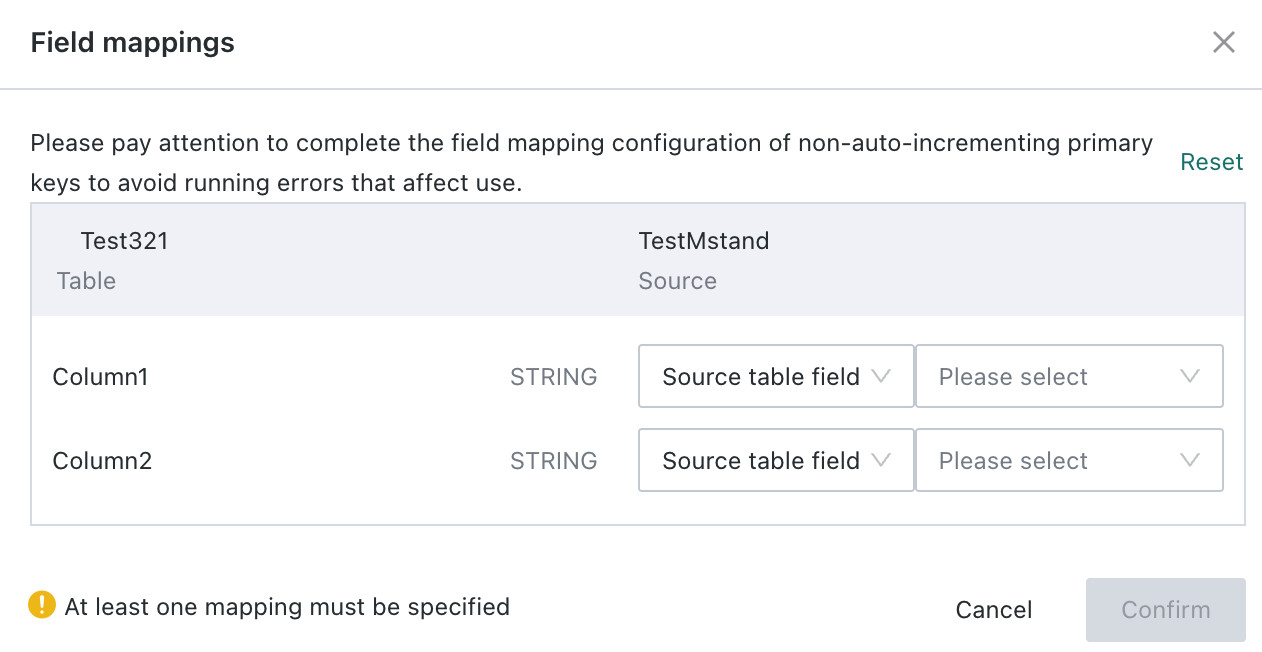
The following writeback parameters are available:
start_time: the start time of the writeback task instancetask_job_name: the writeback task nametask_id: the writeback task instance ID
-
Pre-SQL
-
Execute pre-SQL before writing data into the target table, for example to delete historical data in the target table.
-
Supports quick insertion of global parameters and time macros so data can be deleted dynamically using those values.
-
Typical scenario: if the target table should only retain the most recent 30 days of data, delete data older than 30 days before each write operation:
DELETE FROM table_name WHERE "date" <= "{{{today-30days}}}". -
Restrictions:
- Only
DELETEandTRUNCATEstatements are supported for the target table. DROP TABLEandDROP DATABASEstatements are not supported.
- Only
-
-
Scheduling Strategy Configuration
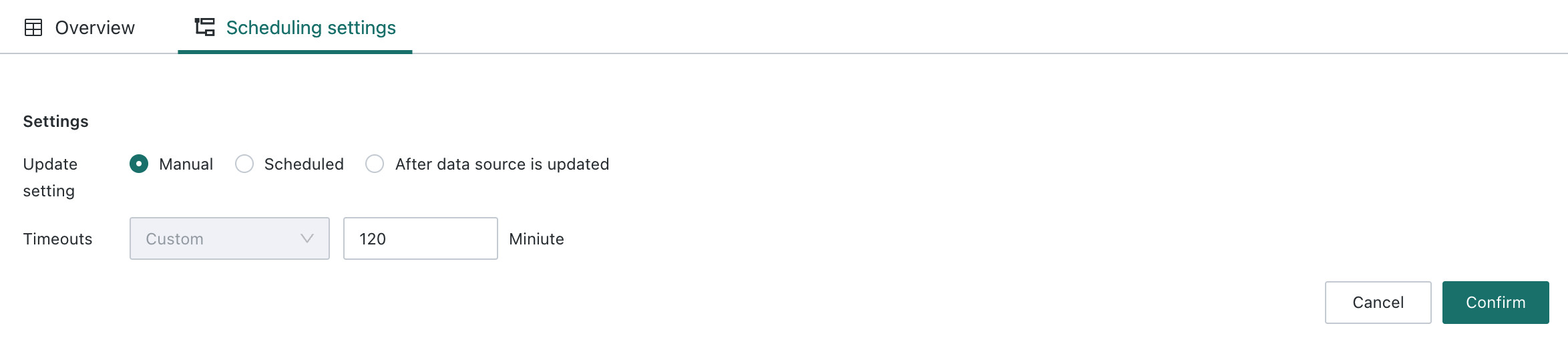
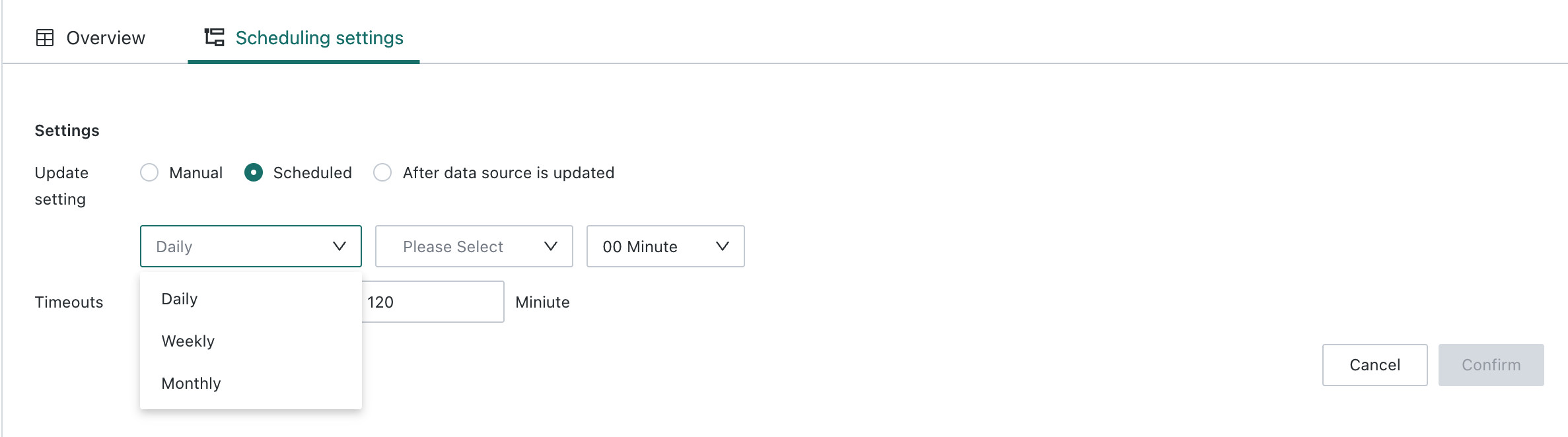
After a writeback task is created, go to the task details page and use Scheduling Configuration to define the execution strategy. Three update modes are available: manual, scheduled, and after source data updates.
-
Manual: A non-automatic scheduling strategy triggered manually by a user.
-
Scheduled: Configure a schedule by day, week, or month. The system runs the writeback task automatically at the specified time.
-
After Source Data Updates: The writeback task runs automatically after its upstream dataset is updated.
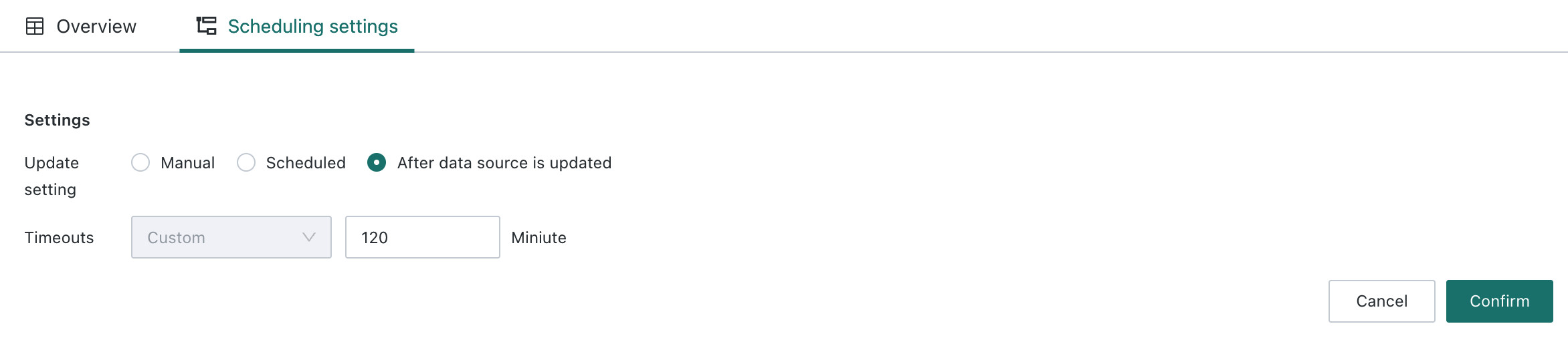
Task timeout configuration is also supported to prevent abnormal resource occupation caused by task failures. The default timeout is 120 minutes, and the configurable range is 1 to 300 minutes.
Task Management and Operations
You can manage Data Writeback tasks through a full set of operations, including viewing run history, editing task configurations, transferring ownership, granting visitor access, and configuring notification alerts.
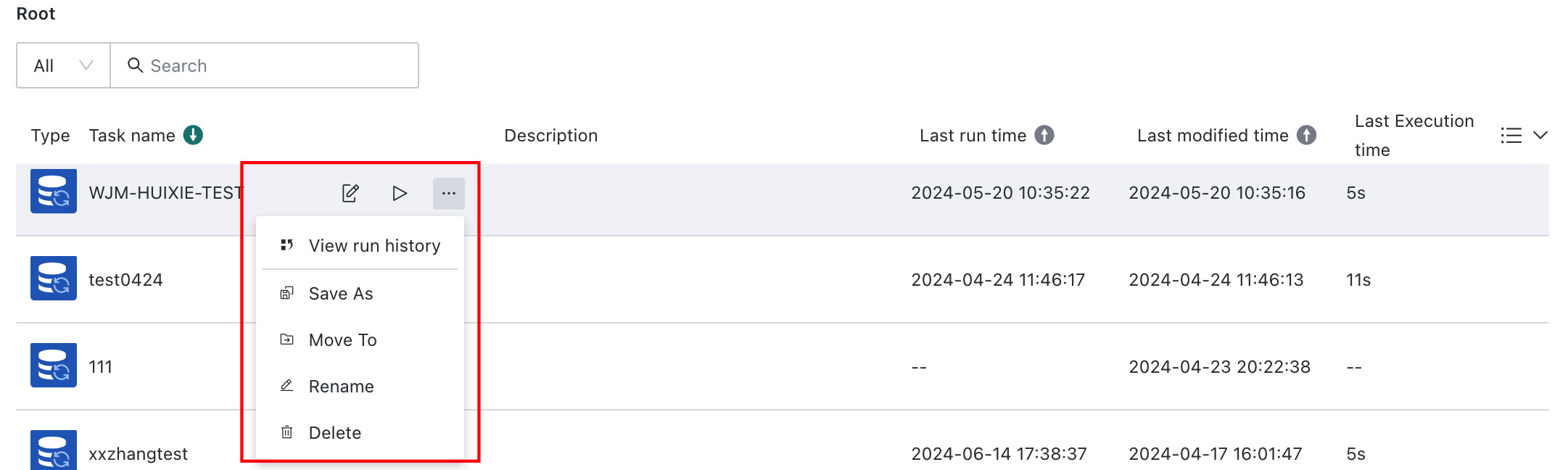
-
View Run History: Displays the current task status and historical execution records.
- Task statuses include
Completed,Failed, andCanceledwhere canceled refers to a writeback task manually stopped while running. - Each execution is traceable, including runtime duration, scheduling type, queue time, and the OKLlog runtime log. Logs can be viewed online or downloaded for analysis.

- Task statuses include
-
Transfer Ownership: Transfer full ownership of the writeback task as a resource to another user.
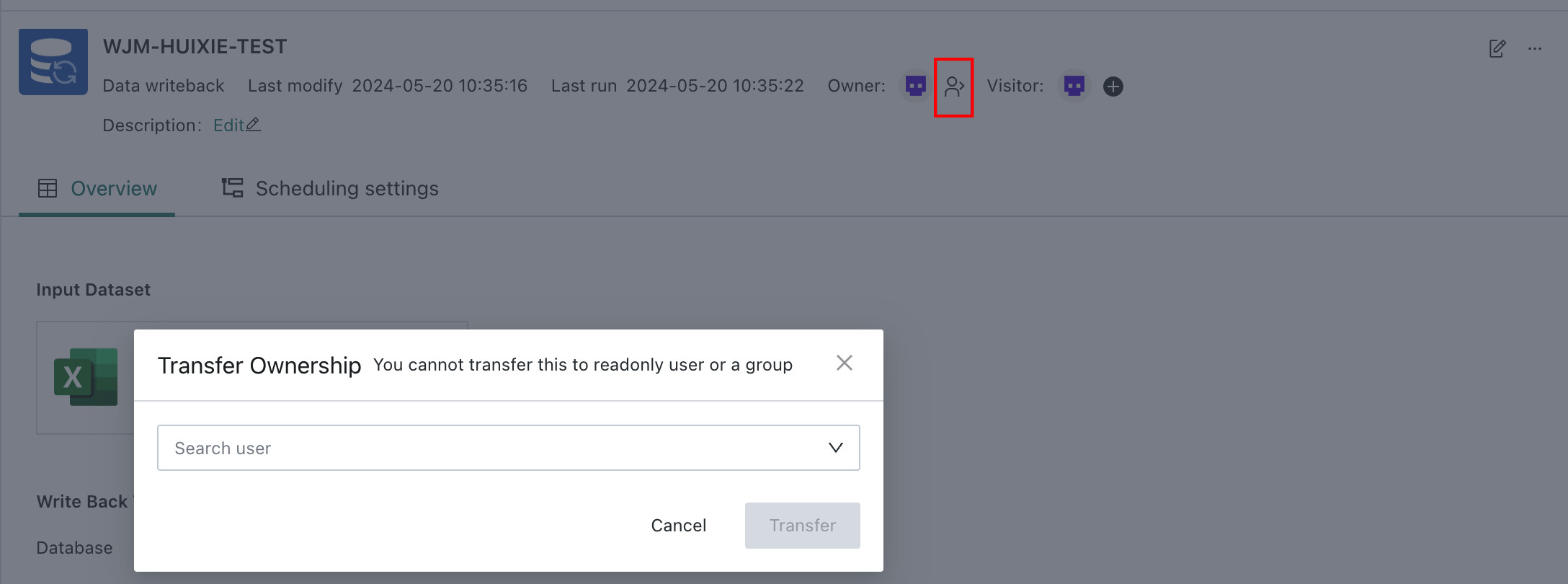 Note
NoteTransfer to a user group or a read-only user is not allowed.
-
Grant Visitor Access: Assign management access for the writeback task to a user or user group.
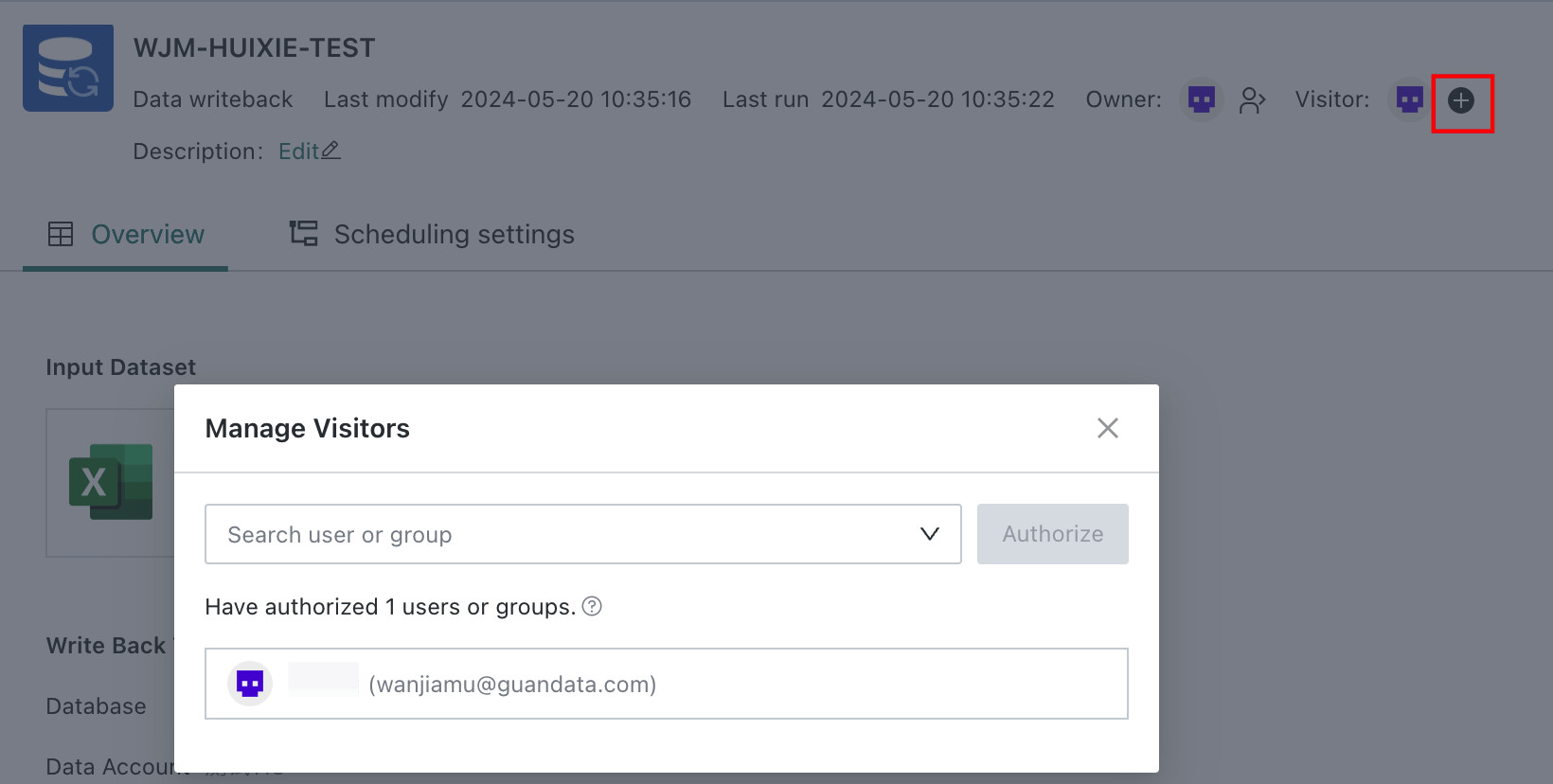 Note
NoteIf the task is assigned to a read-only user, that user can only view the task and has read-only permission.
-
Delete the Writeback Task: Once deleted, the task cannot be restored. This action is irreversible.
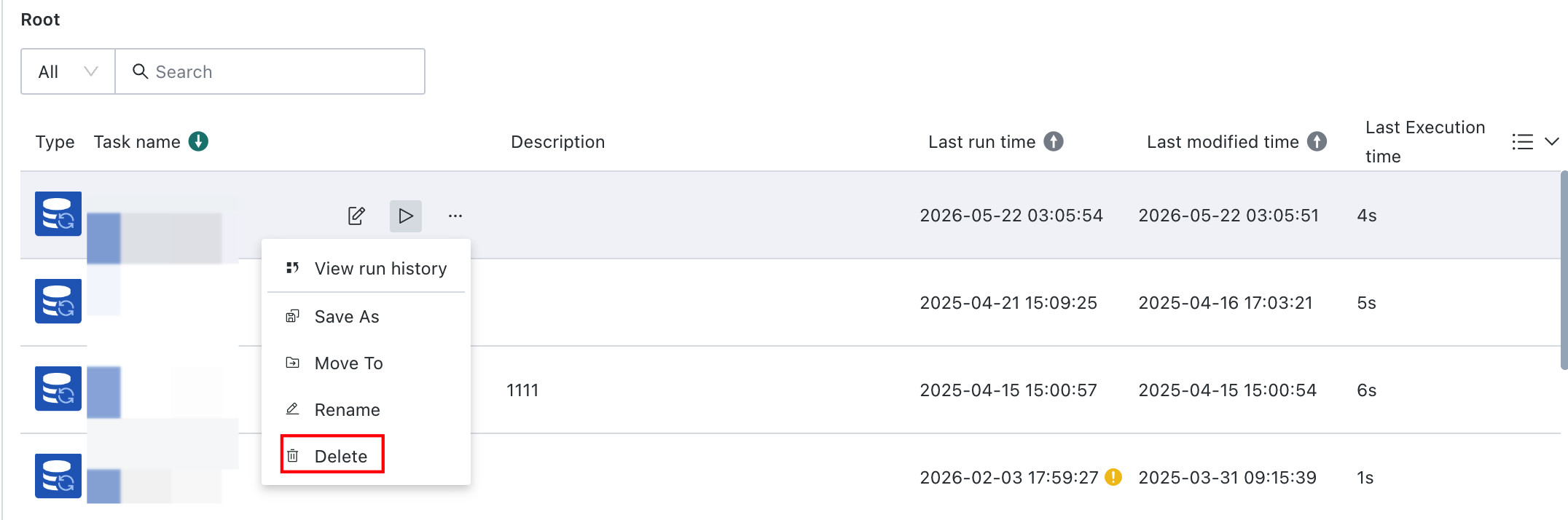
-
Edit Task Configuration: Re-edit the settings in the
Create Writeback Taskwindow. Note
NoteIf any setting under
Data SourceorWriteback Targetis changed, recheck the field mappings in the target table. Otherwise, there is a risk of data being written incorrectly. -
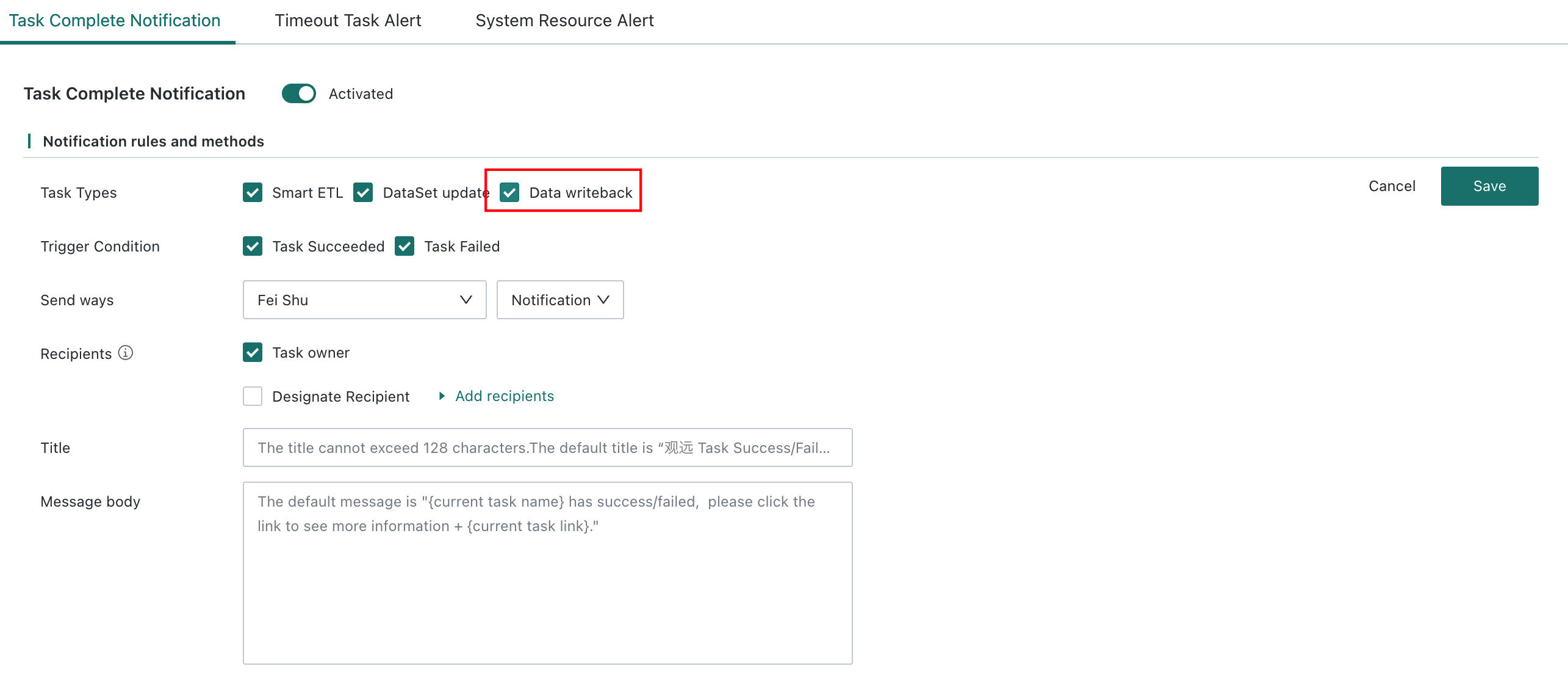
Configure Notification Alerts: Receive alerts when Data Writeback succeeds or fails. Entry point:
Admin Center > Operations Management > Notices > Task Completion Notification.