Chinese-style Reporting Pro Template Guide
Terminology
| Term | Description |
|---|---|
| Cell | A cell is the intersection of a row and a column in a table. It is the smallest unit that makes up a table and can be split or merged. Individual data entry and editing are performed in cells. Unlike Excel, Chinese-style Reporting Pro supports not only regular cells but also template cells. |
| Template Cell | A template cell is a cell that can be expanded according to configured attribute rules. Fields dragged from a View are automatically recognized as template cells. A regular cell can also be converted into a template cell through the right-click menu. |
| Template Field | Template fields are divided into four types: Data Fields, Function Fields, Expression Fields, and Worksheet Fields. See Template Fields |
| Template Attribute | Supports the definition of template attributes, including expansion direction, sorting, grouping, parent context, filtering, and more. See Template Attributes. |
Template Cells and Regular Cells
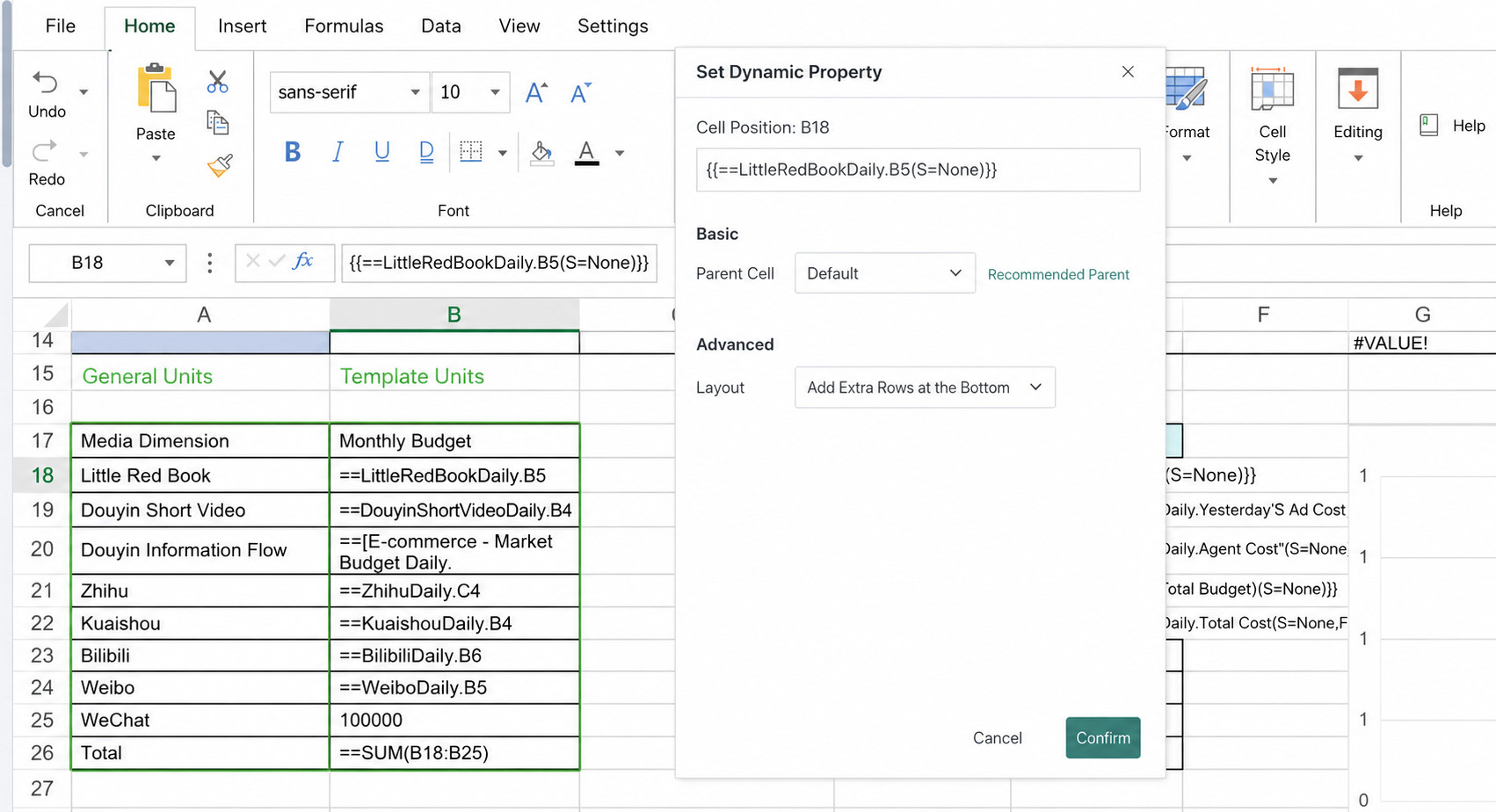
Compared with Excel, Chinese-style Reporting Pro introduces the concept of template cells, which provide more powerful capabilities than regular cells. To make them easy to identify, template cells display a small blue marker in the lower-left corner.
Regular Cells: Regular cells retain the same static data-carrying behavior as Excel cells. They are used only to store fixed information and are commonly used in headers, notes, and prompts.
Template Cells: Template cells can be flexibly expanded according to predefined attribute rules. They do not merely carry data; they also embed template fields and template attributes to support dynamic report generation. Through template cells, Chinese-style Reporting Pro greatly improves the flexibility and efficiency of report creation, making complex and changing reporting requirements easier to handle.
Template Fields
Template fields are divided into four types: Data Fields, Function Fields, Expression Fields, and Worksheet Fields.
Data Fields
Data fields can be created in two ways:
Method 1: automatic generation. Any field in a View created during the data preparation stage can be manually dragged into the report template editing area during template editing. The system will then automatically recognize it and generate the corresponding data field.
Method 2: manual formula input. For data fields that require special processing or calculation, users can generate them by manually entering a formula. The formula format is {{ViewName.FieldName}}, where both the View name and the field name must come from a View and field created during the data preparation stage.
Function Fields
Type 1: Aggregation Functions, format: {{=Function()}}
Supported aggregation functions include Sum, Count, Average, Max, Min, Product, StdDev, StdDevp, Var, and Varp.
You can reference either a cell ({{ =SUM(F4) }}) or a data field ({{ =SUM(team.score) }}), but only a single parameter is supported.
Type 2: Other Functions, format: {{\==Function()}}
Most Excel functions are supported. Data field references are not supported here; only cell references are allowed. During template population, these formulas expand together with the data.
Example: {{\==VLOOKUP(F4,A1:G7,2,false)}}
Expression Fields
Expression Fields can use the operators +, -, *, /, and () to perform calculations. Only cell references are supported as parameters.
Examples:
{{=A15*0.01}}
{{=A15+D15-G15}}
{{=(A15+ A20)*0.3}}
- Expression fields cannot be used together with template attributes. For example:
{{ =A18\*0.05 (E=H) }} - Function fields and expression fields cannot currently be used together. For example:
{{ =Sum(A5 + A6) }}or{{ =Sum(A5) * 0.01 }}
Worksheet Fields
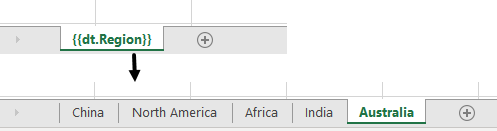
Worksheet fields support binding field values to worksheet names. In other words, the sheet name can be populated by data from the data source, and each sheet displays data corresponding to that value.
For example, if {{dt.Region}} is used as the worksheet name and the data source contains data for 5 regions, the final report will contain 5 worksheets, and each worksheet will contain the data for its corresponding region.
Template Attributes
For template cells, dynamic cell attributes can be configured in two ways:
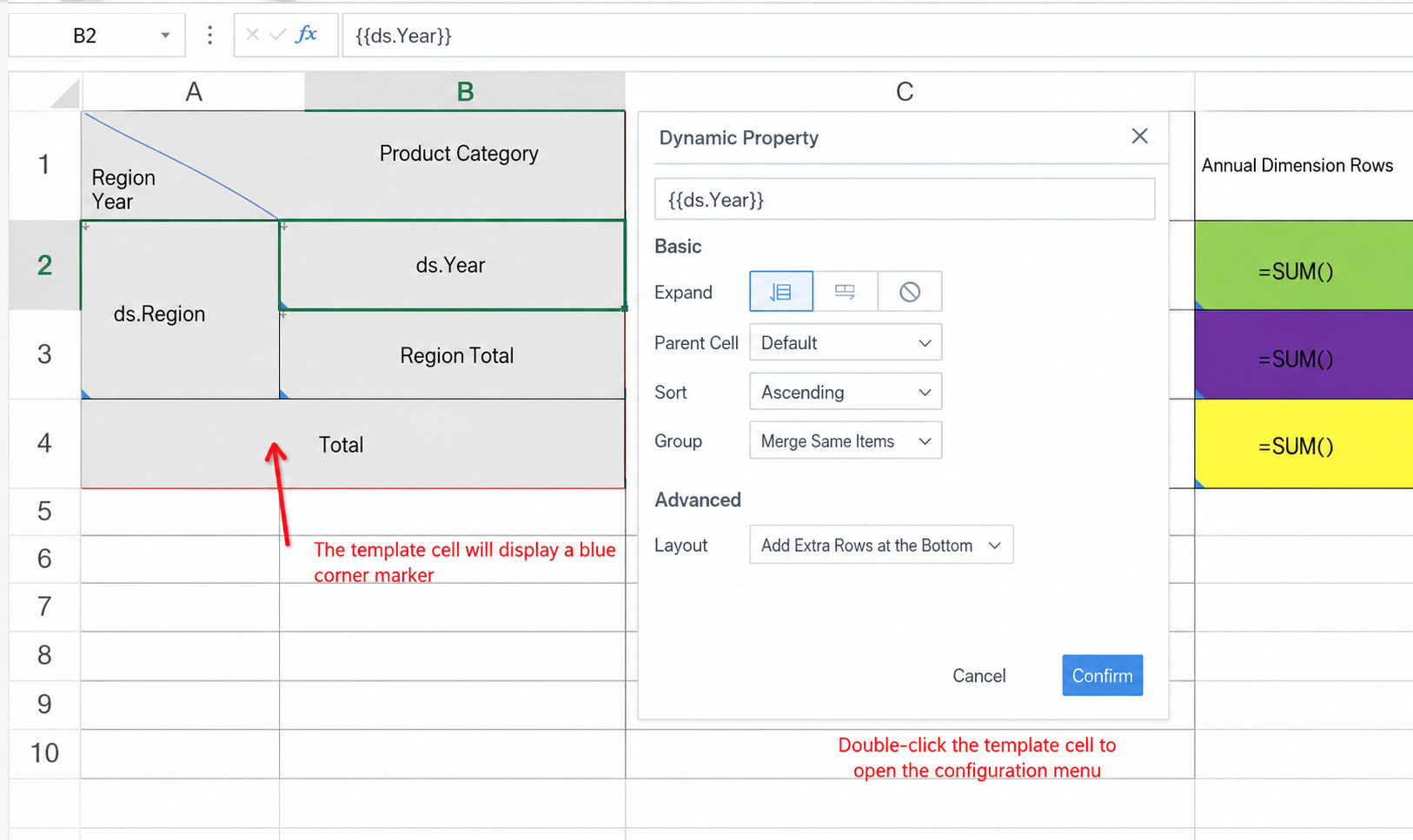
- Method 1 (recommended): visual configuration. Double-click a template cell, or right-click and choose
Attributes Menu > Dynamic Attributes, to open the visual configuration window and configure attributes there. - Method 2: manually enter attributes in the formula editing area.
| Attribute | Summary | Details |
|---|---|---|
| Expansion (E Attribute) | Supports vertical or horizontal dynamic expansion of cell data. | Expansion |
| Parent Context (C Attribute) | After a parent context is configured for a template cell, a parent-child relationship is established. In the final report, this relationship creates filtering or follow-along effects during expansion. | Parent Context |
| Grouping (G Attribute) | Groups data in the template. Supports grouped merge, grouped repeat, grouped non-repeat, and raw grouping. | Grouping |
| Sorting (S Attribute) | Supports sorting of template data, including ascending, descending, and no sorting. Template attribute sorting has higher priority than sorting performed during data preparation. If the template attribute is set to no sorting, the data preparation sorting takes effect. | Sorting |
| Filtering (F Attribute) | Supports quick retrieval and matching of required data in detailed filtering or multi-view analysis scenarios. Four filter types are supported: selection, range, condition, and field. | Filtering |
| Layout (FM Attribute) | Supports defining the fill mode of cells, including extra rows and columns, overwrite writing, and overwrite writing while preserving formatting. | Layout |