Summary of Inaccurate ETL Data Results
Common Issues
- ETL preview data is inconsistent with the result dataset. For example, data can be filtered in ETL, but does not appear in the result dataset.
- ETL preview data is inconsistent with the input dataset.
- The data produced by ETL differs each time it is calculated.
- The data produced by ETL is incorrect.
Causes
Row and Column Permission Issues
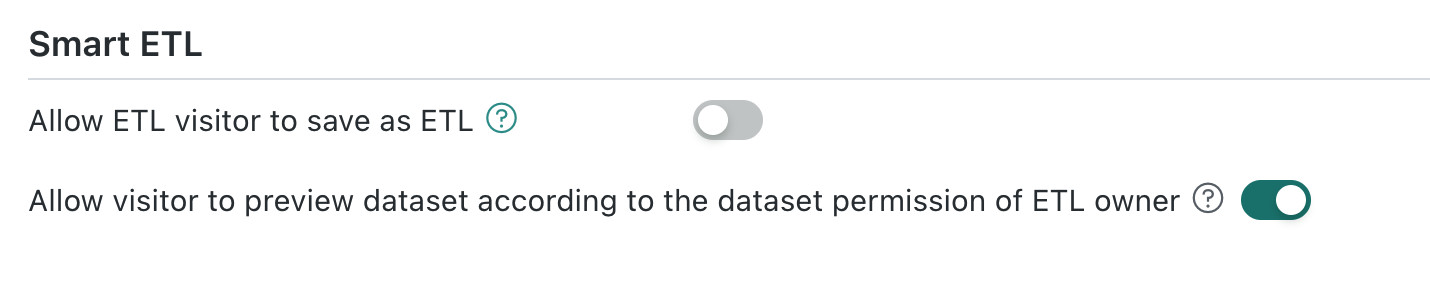
Row and column permissions are configured for the input dataset. In versions earlier than 5.5, ETL preview takes effect according to the row and column permissions of the ETL owner. This means ETL visitors may see data outside their own permissions during preview, but can see only data they have permission for in the result dataset. In this case, inconsistency between ETL preview data and the result dataset is normal.
Solution: Starting from version 5.5, administrators can configure whether visitors are allowed to preview datasets using ETL owner permissions in Admin Settings > System Management > Advanced Settings.
ETL Run Lag
- The ETL run time is inconsistent with the ETL Last Modified Time: The ETL logic was modified, but the ETL was not run in time.
Solution: Use preview data to validate data during modification, and run the ETL promptly after saving it.
- The ETL run time is inconsistent with the input dataset Last Update Time: There are multiple input datasets, and the ETL update logic is configured improperly.
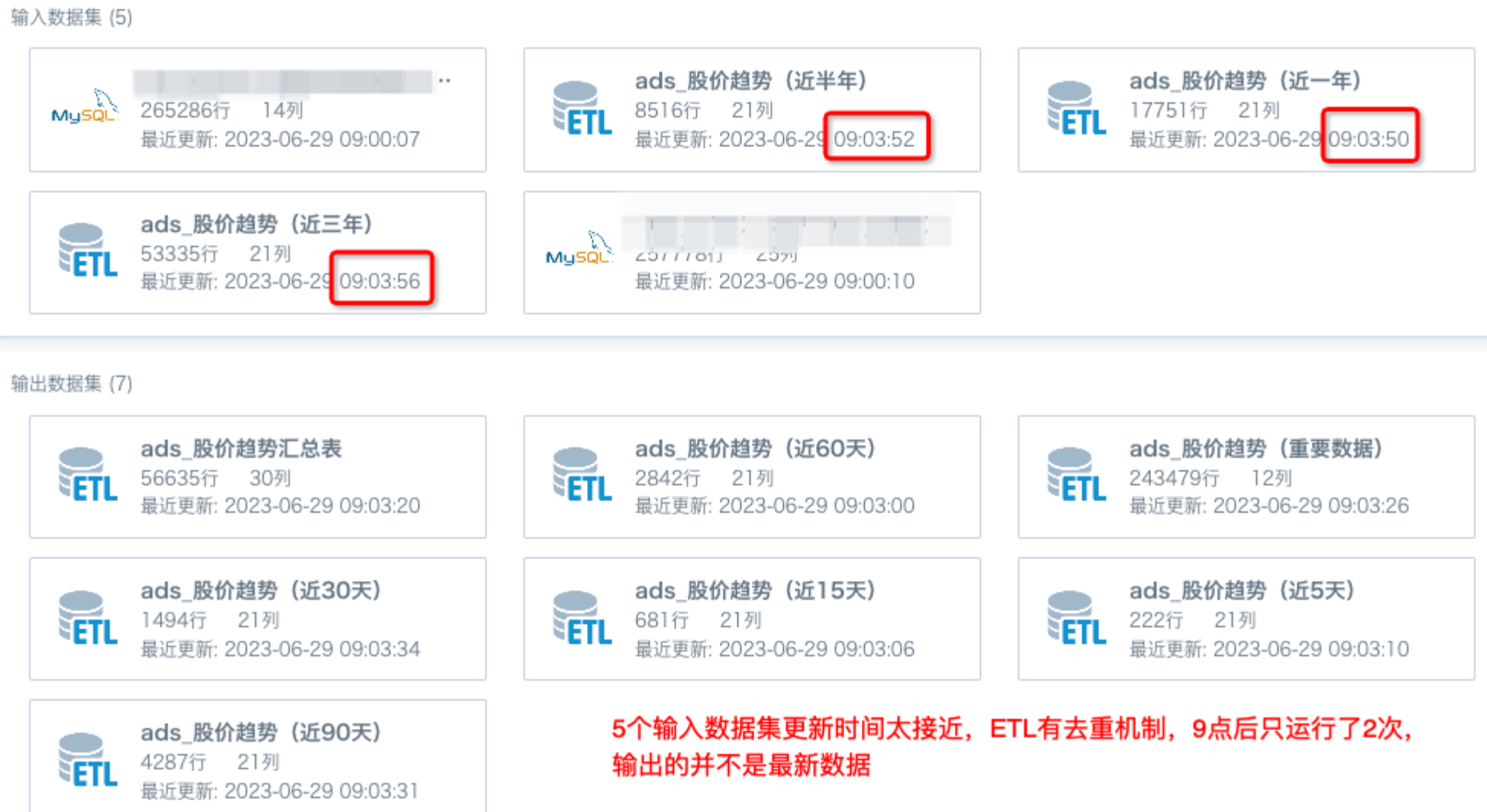
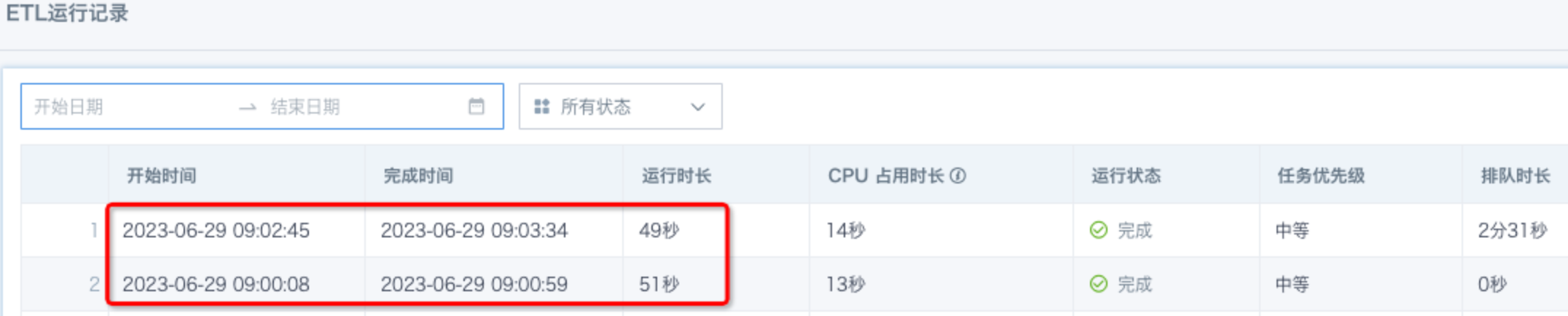
Solution: We recommend using Trigger only after all selected datasets are updated. If data timeliness is required and Trigger after any selected dataset is updated must be used, ensure that the update times of multiple input datasets are staggered and not clustered. The interval should be greater than the ETL run duration and leave room for queueing. Once multiple queued tasks appear for the same ETL at the same time, later duplicate queued tasks are automatically deduplicated and discarded by the system.
Example :
The ETL is set to Trigger after any selected dataset is updated. The update times of five input datasets are too close, causing new tasks to queue before the first run finishes. Because of the deduplication mechanism for ETL queued tasks, the ETL that should have run five times runs only twice, and the result dataset output is not the latest data.
ETL Preview Filtering
To improve preview speed and make data validation easier, ETL supports Preview Settings, which preview only part of the input dataset. This setting does not affect the result dataset, but users may forget that it was configured and mistakenly think the data is inaccurate.
Solution: Check whether there is a funnel icon in the upper-right corner of the input dataset node, and modify the setting as needed.
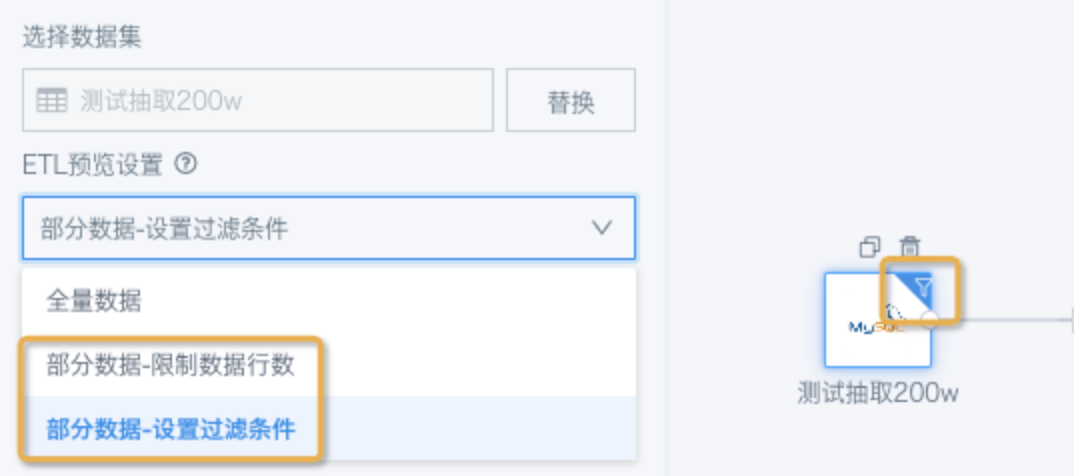
Deduplication Calculation
Using a deduplication node in ETL may introduce randomness into the output result. During deduplication, the corresponding deduplication primary key is selected. For the same group of deduplication primary keys, if multiple rows of different data exist, the data after each preview or run may differ.
Solution: Select an appropriate deduplication primary key and use Deduplicate together with Select Columns. If deduplication must follow specific logic, create a calculated field to sort or mark multiple rows under the same primary key group, then use Filter Rows to filter data.
Example (click to expand):
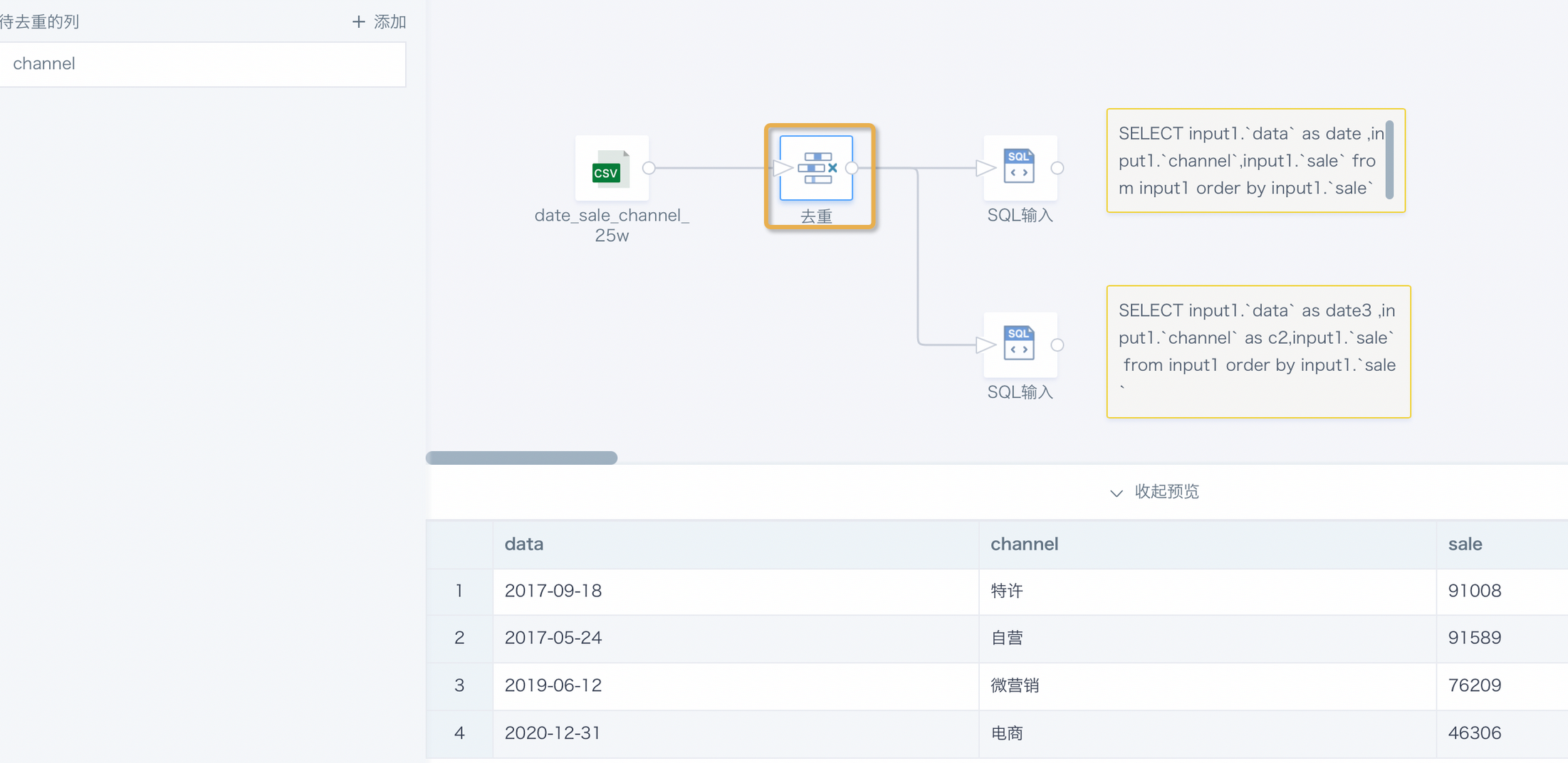
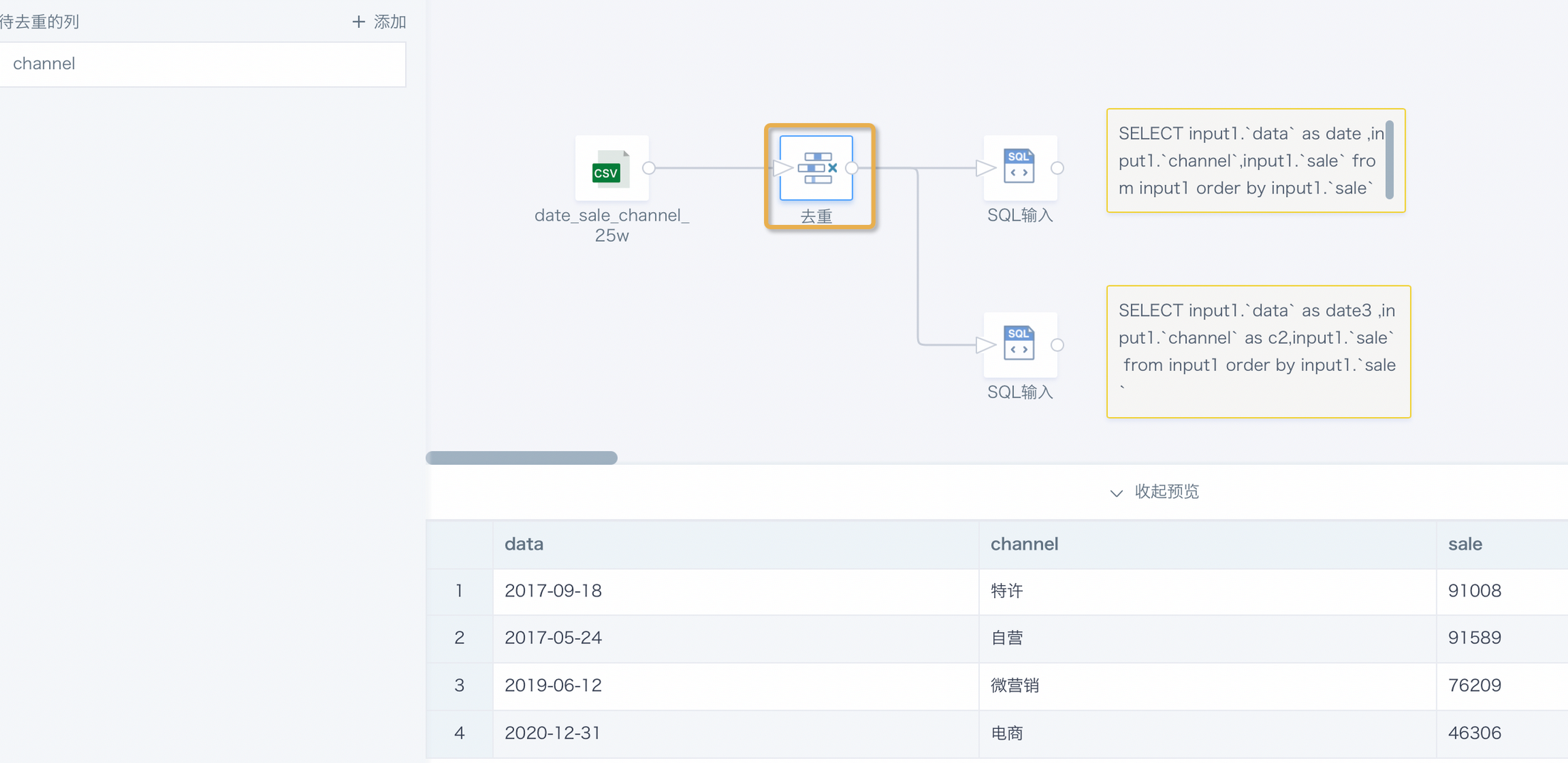
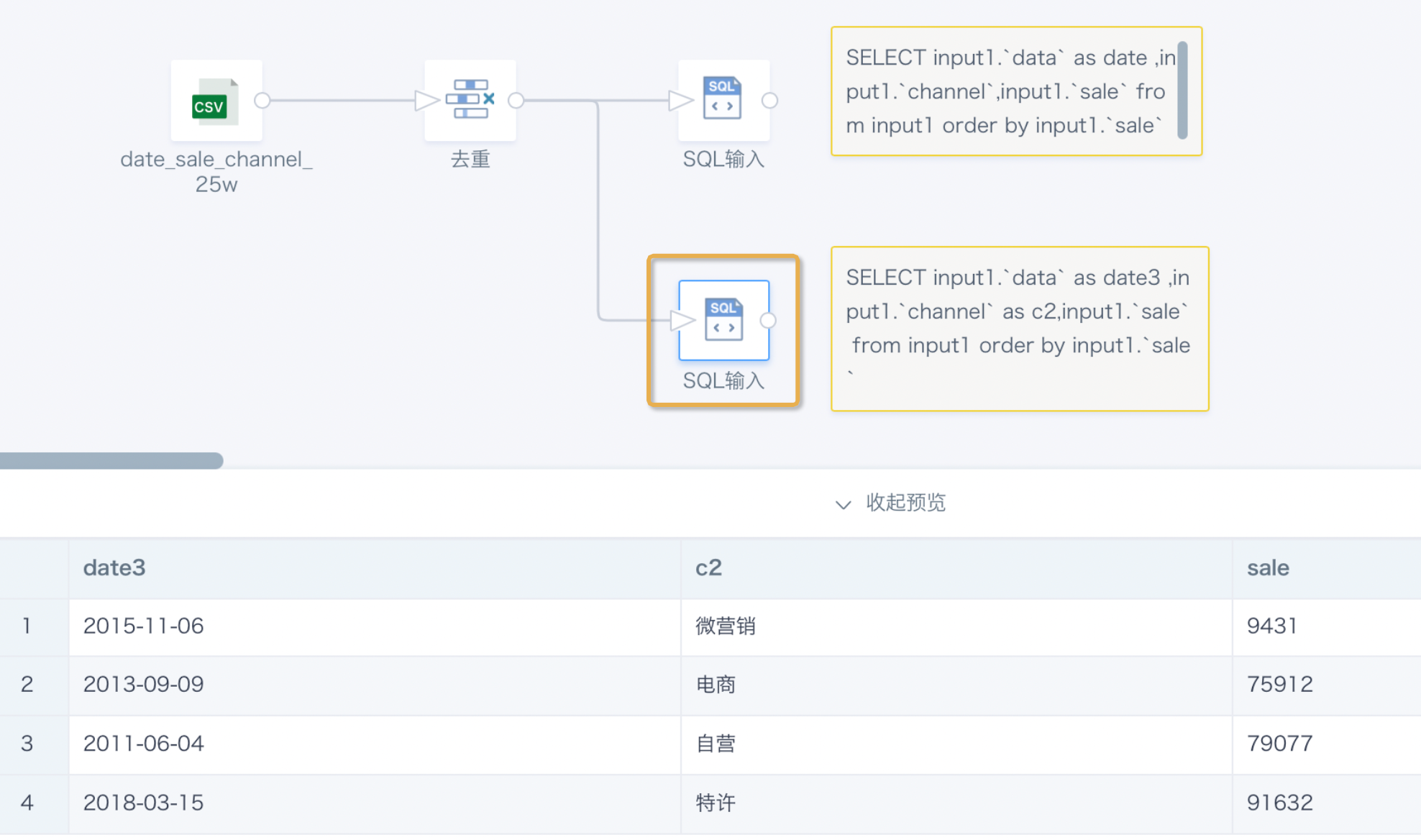
Deduplicate based on the channel field. The preview data from the three nodes is different.
Deduplication node preview result:
SQL input (upper) preview result:
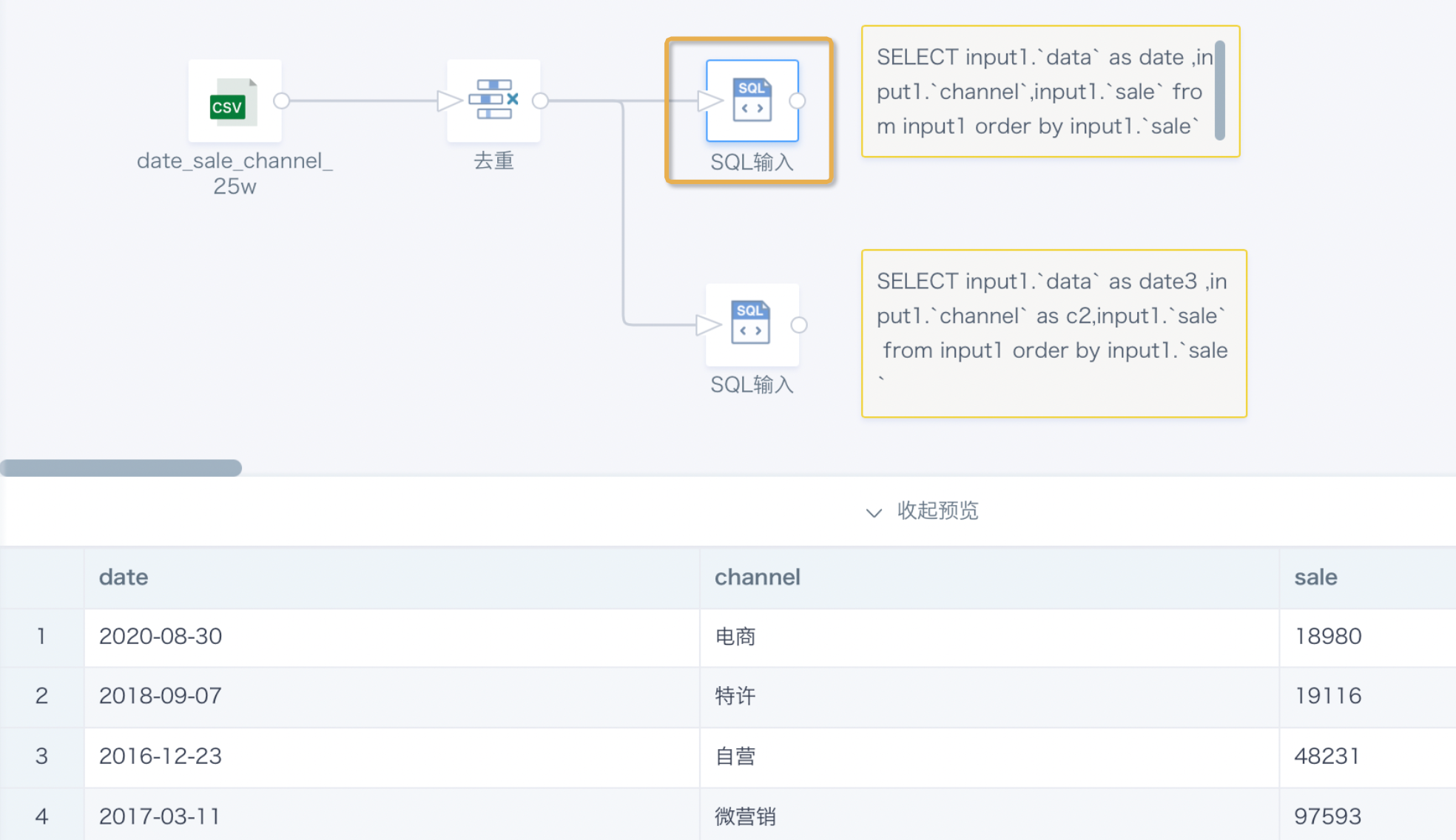
SQL input (lower) preview result:
row_number Function
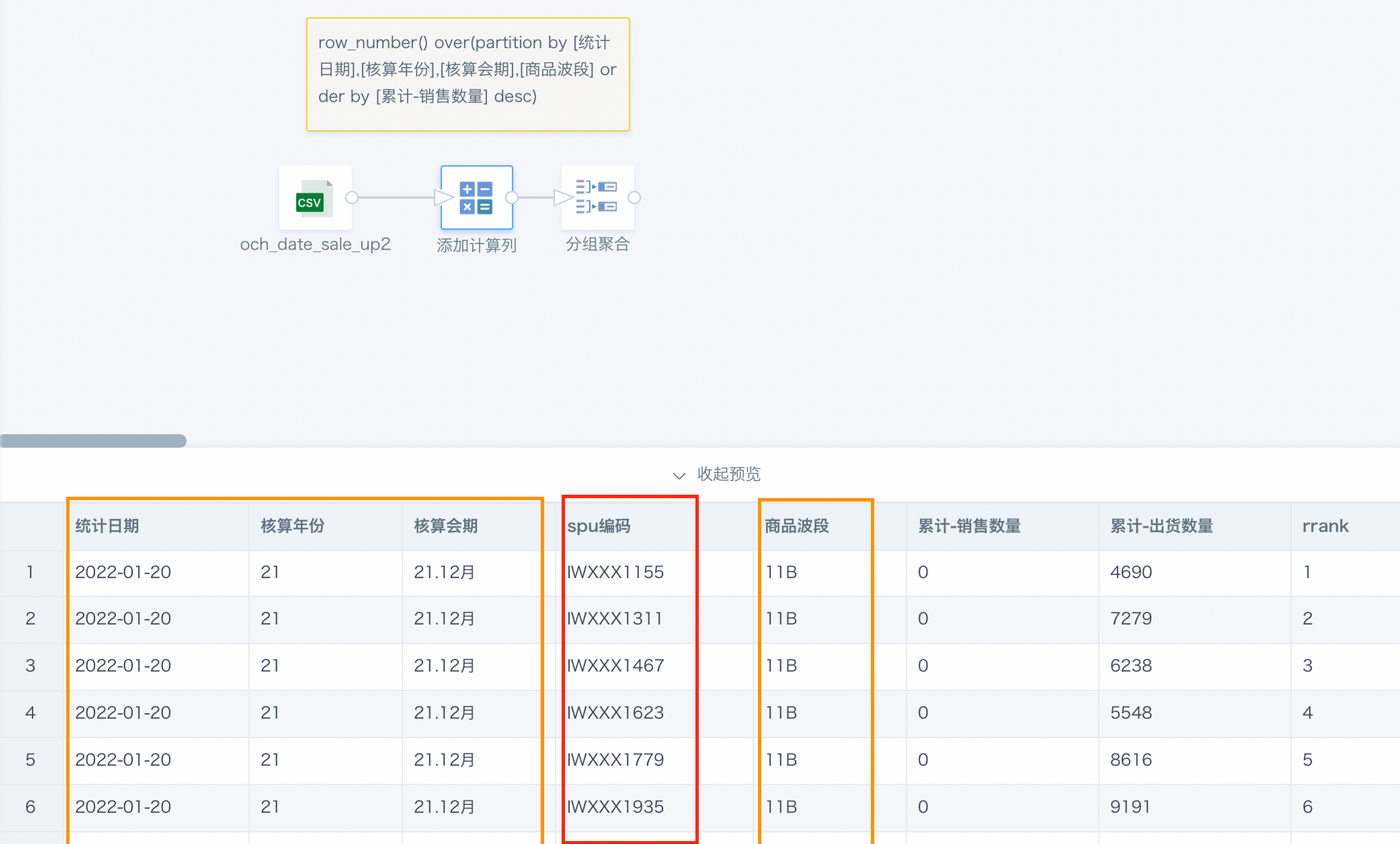
The main function of row_number() is to generate row numbers. A common usage is row_number() over(partition by [Grouping Field] order by [Sorting Field]). If row_number is used to rank data, its lack of support for tied rankings means rankings become random when data values are the same.
Solution: Use rank or dense_rank to calculate rankings. For details, see Sorting Functions and Applications.
Example - The calculation node adds sorting for Accumulated - Sales Quantity. It partitions by Statistical Date, Accounting Year, Accounting Contract, and Product Wave Band to obtain the sales ranking of different products on the same day.
Because Accumulated - Sales Quantity actually has duplicate values, different products with the same sales quantity in the same partition have random ranking order, and the result may differ each time.
Time Functions
Normal time functions such as date, day, and month are not random. However, if now() and current\_timestamp() are used in calculations, these functions generate the current time, so results run at different times are related to the BI server time.Example - Calculate the difference between the current date and a certain date: date_diff(now(), [date]).
Suppose the user server time is consistent with China UTC+8. Around midnight, the customer gets different date differences. If the server is overseas while the user is in China, the user may encounter this issue during the day.
Solution: If the server is overseas and there is a time zone difference, use time functions to convert date and time zones. For functions, see Spark Date Functions.
Floating-point Filtering
Computers store and calculate floating-point numbers based on binary representation, which causes inherent precision errors. For floating-point comparison, computers use approximate comparison. Therefore, when the floating-point error itself exceeds the precision range, the comparison result becomes inaccurate. For details, see Floating-point Accuracy Issues.
Solution:
- Convert data to integer (int) for comparison. Integer comparison does not have precision errors.
- Set the precision value you need for floating-point comparison. Suppose the floating-point precision is 0.00001. A value less than -0.00001 can be judged as less than 0. Similarly, to judge whether a floating-point number equals 0, set the condition to greater than -0.00001 and less than 0.00001. To judge whether it is greater than 0, set the condition to greater than 0.00001.
- First use round(x) to get the desired precision, then filter. round(6) is generally suitable because it matches the default BI display precision.
Filter Rows
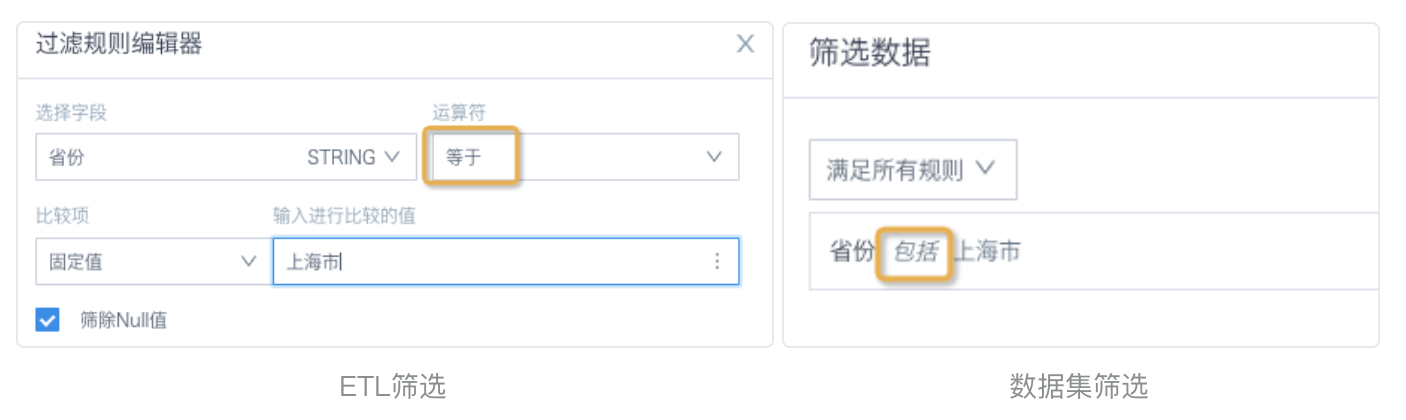
Scenario 1: In the ETL Filter Rows node, after selecting a text field, the operator defaults to Equals. For text field filters in datasets, pages, and cards, the common operation is to select options from a list. After submission, the operator is Includes. If a text field value has spaces or other invisible characters before or after it, the two filtering methods produce different results.
Solution: Change the ETL filter operator to Contains, or use a function to remove whitespace before and after the text, such as trim().
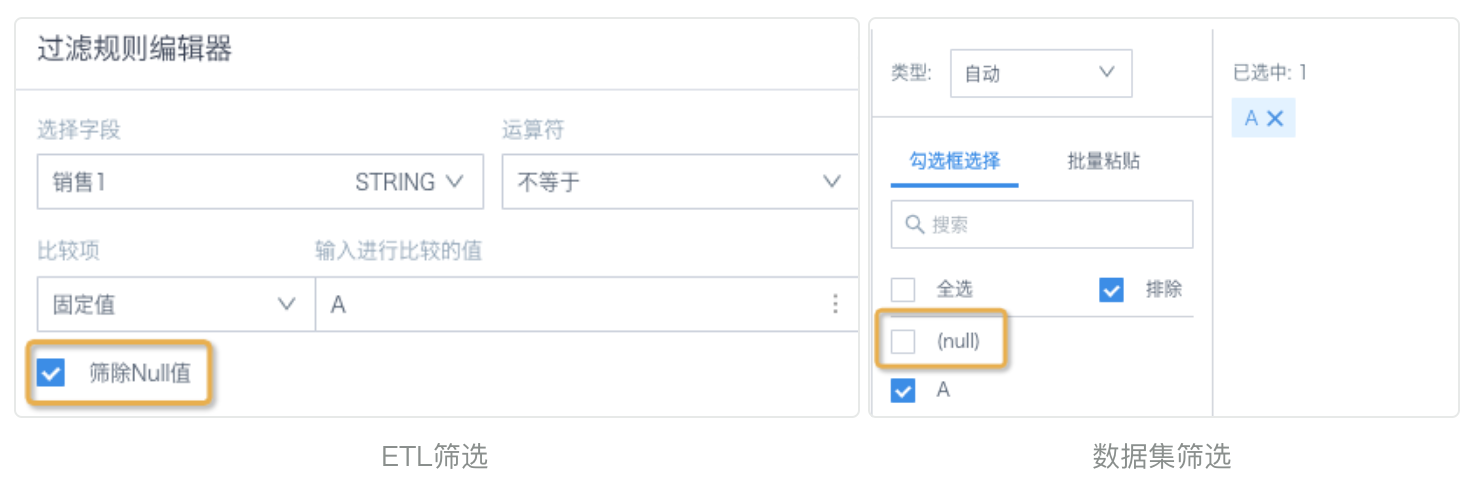
Scenario 2: When filter conditions are Not Equal, Does Not Contain, and similar conditions, ETL selects Filter Out Null Values by default and automatically filters null values. When filtering in datasets and cards with the Exclude feature, null values are not automatically filtered. This causes ETL results to differ from data obtained by directly filtering the input dataset under the same filter conditions.
Solution: In ETL, determine whether null values need to be filtered out and clarify the logic.