Add Row Numbers to Complex Reports
Requirement Background
When creating complex reports, users sometimes need the report to display row numbers on the left, like a regular table or Excel sheet. In complex reports, this is usually implemented with the inter-cell calculation formula =G_CELLCALCEXP(). This article demonstrates how to add row numbers for different requirement scenarios.
Scenario 1: Increment Row Numbers Sequentially by Data Row
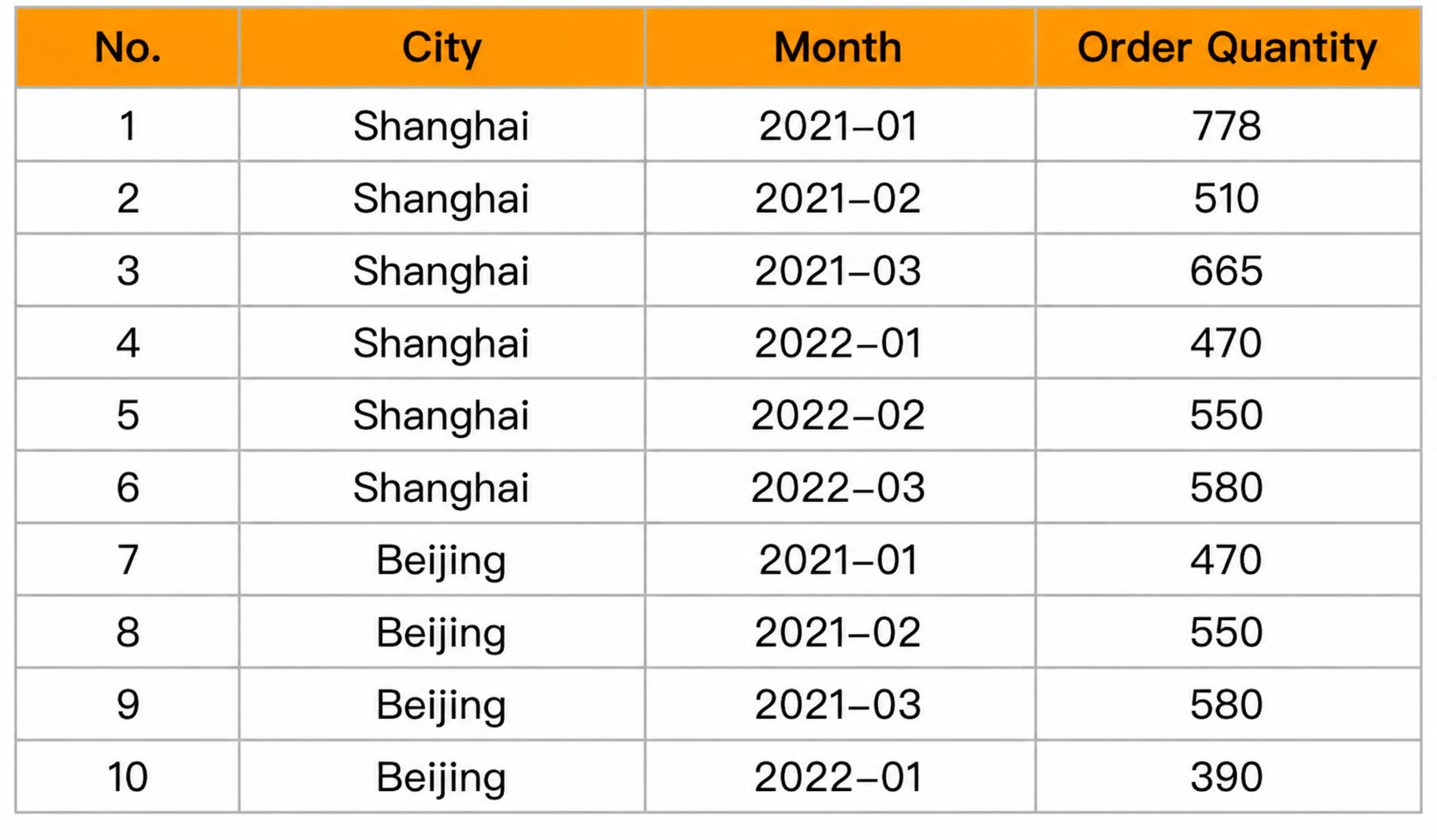
Implementation: Use the Excel function ROW().
Row number formula: =G_CELLCALCEXP(ROW()-1)
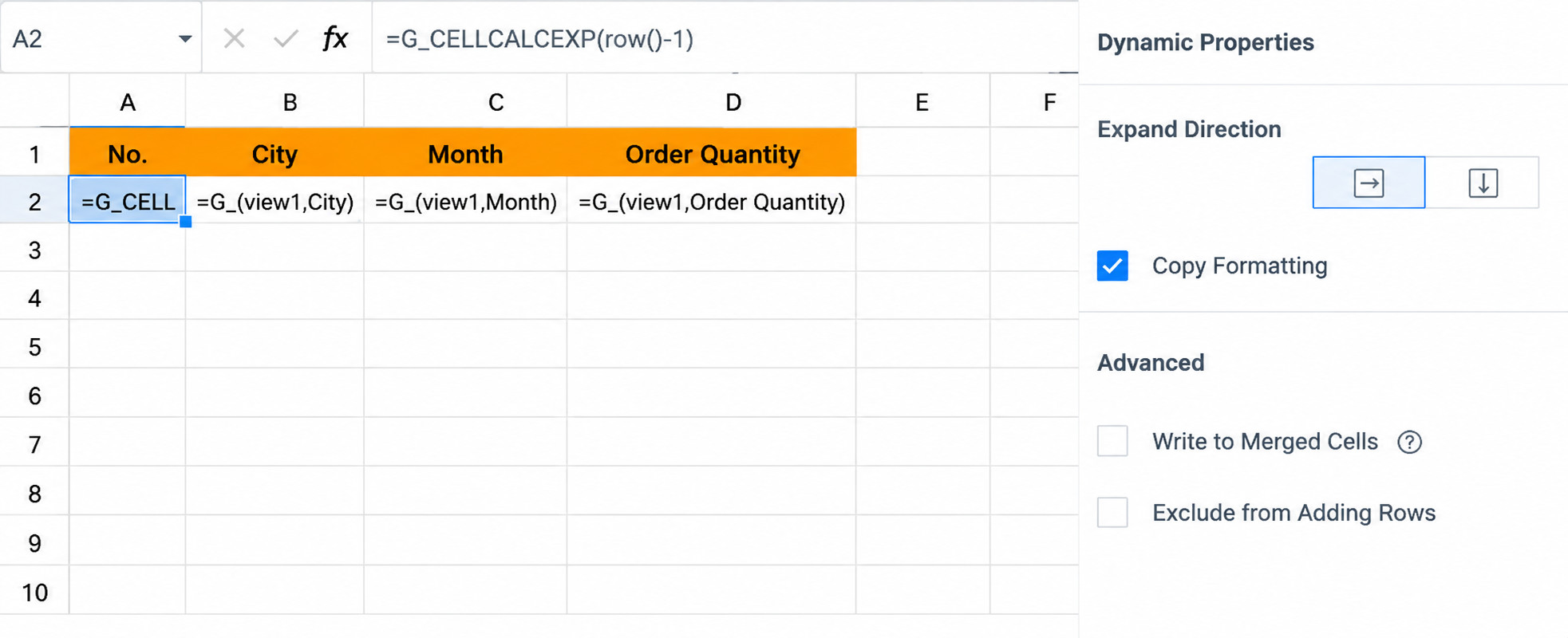
Scenario 2: Group by Dimension and Increment Row Numbers Within Each Group (Same Group, Different Row Numbers)
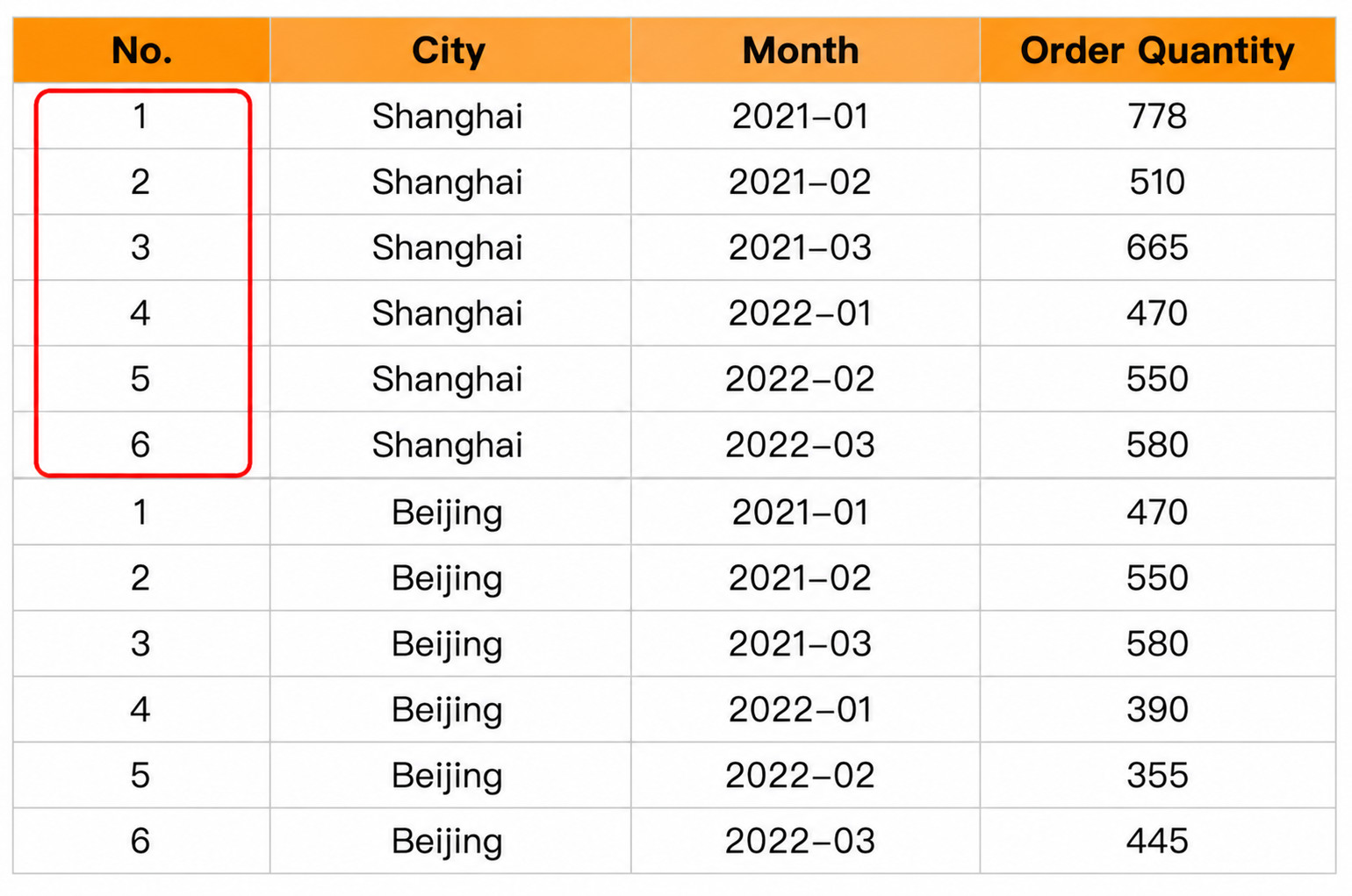
Implementation: Use shifted cells for judgment. Determine whether the value in column B of the current row equals the value in column B of the previous row.
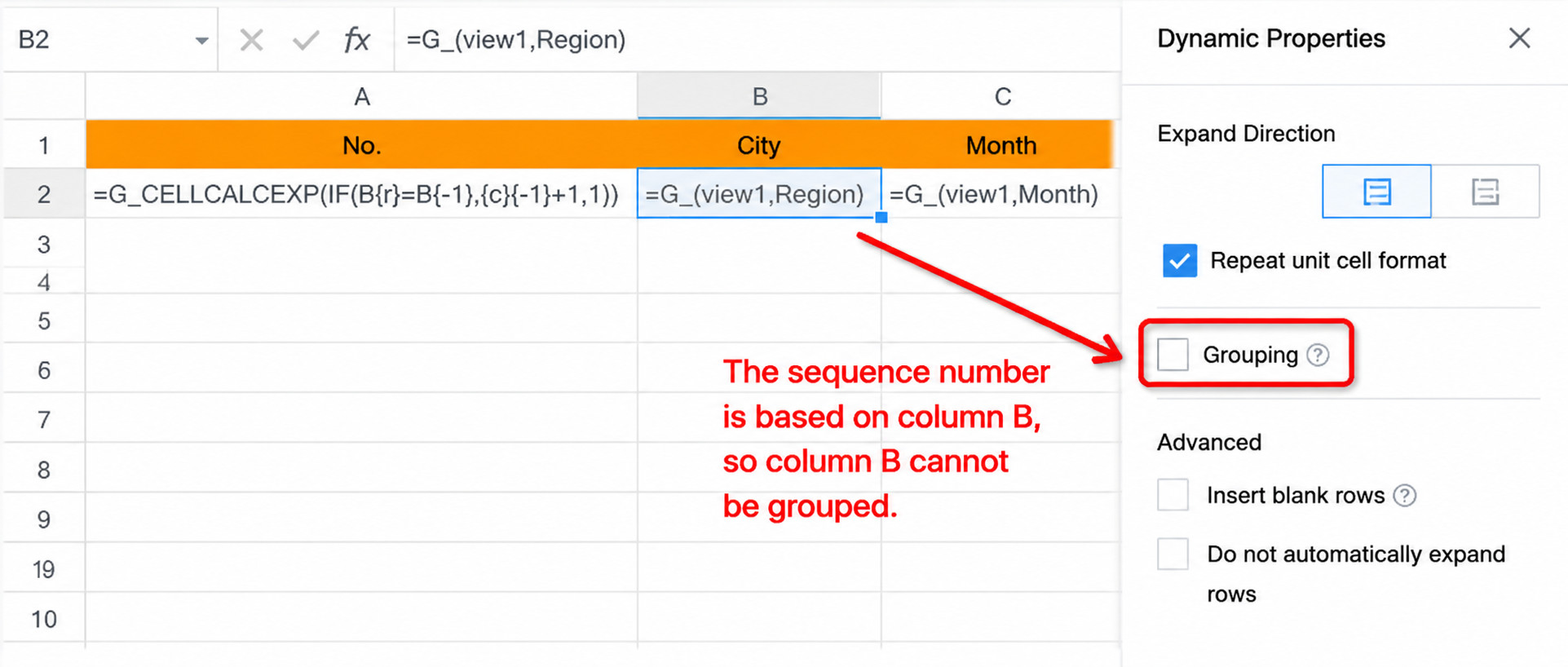
Row number formula: =G_CELLCALCEXP(IF(B{r}=B{-1},{c}{-1}+1,1))
Scenario 3: Group by Dimension and Increment Row Numbers by Group ID (Same Group, Same Row Number)
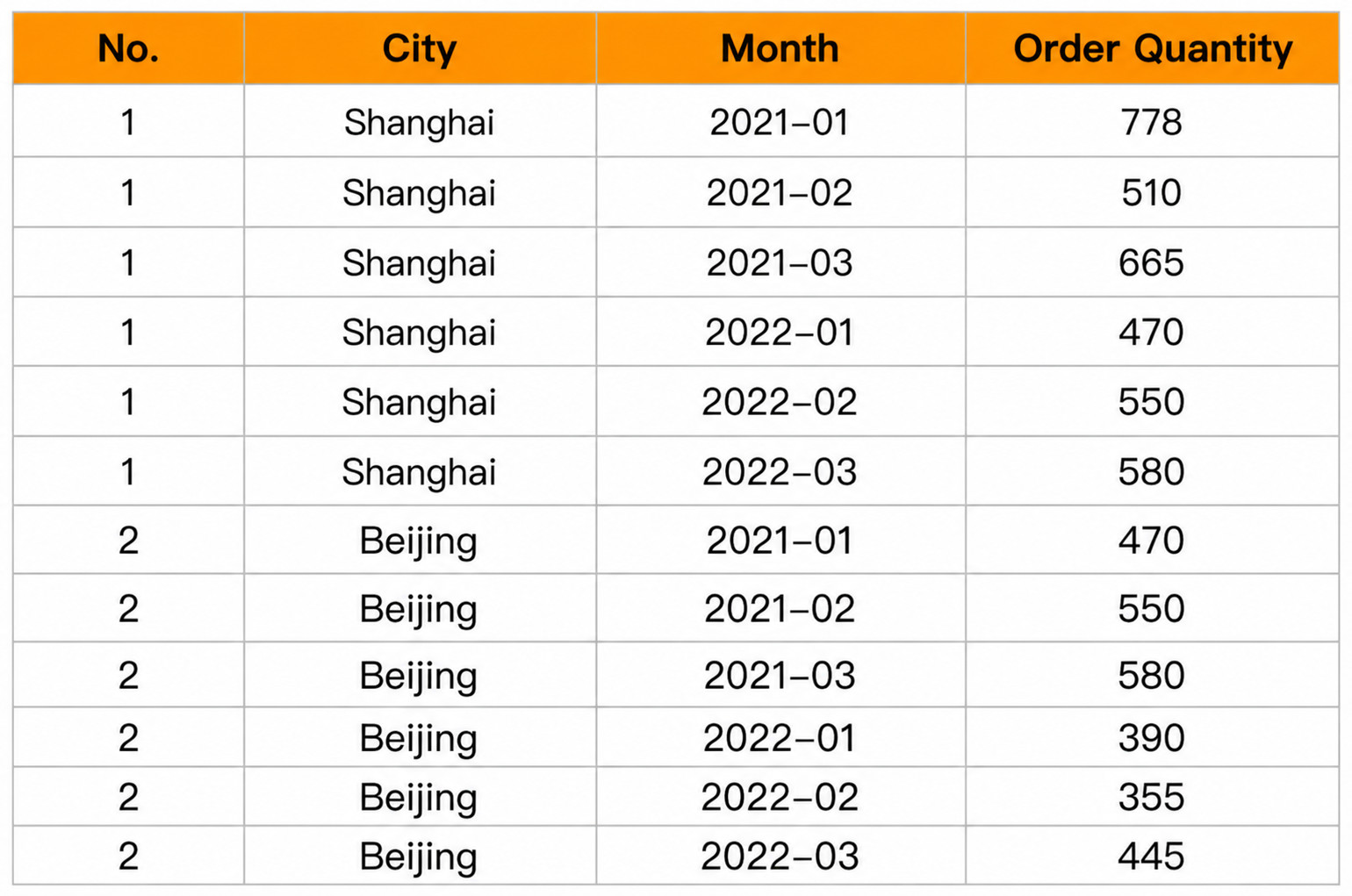
Implementation: Use shifted cells for judgment. Determine whether the value in column B of the current row equals the value in column B of the previous row.
Row number formula: =G_CELLCALCEXP(IF(ROW()=2,1,IF(B{r}=B{-1},{c}{-1},{c}{-1}+1)))
Notes
- In scenarios 2 and 3, note that merged cells cannot be configured for the dimension column involved in the inter-cell calculation formula. In other words, do not select grouping in dynamic properties. Otherwise, unexpected row number results may occur. If merged cells are required for the dimension column, the recommended approach is to copy the dimension column, leave grouping unselected in the cell dynamic properties, hide the copied column, and reference the hidden column in the row number formula.
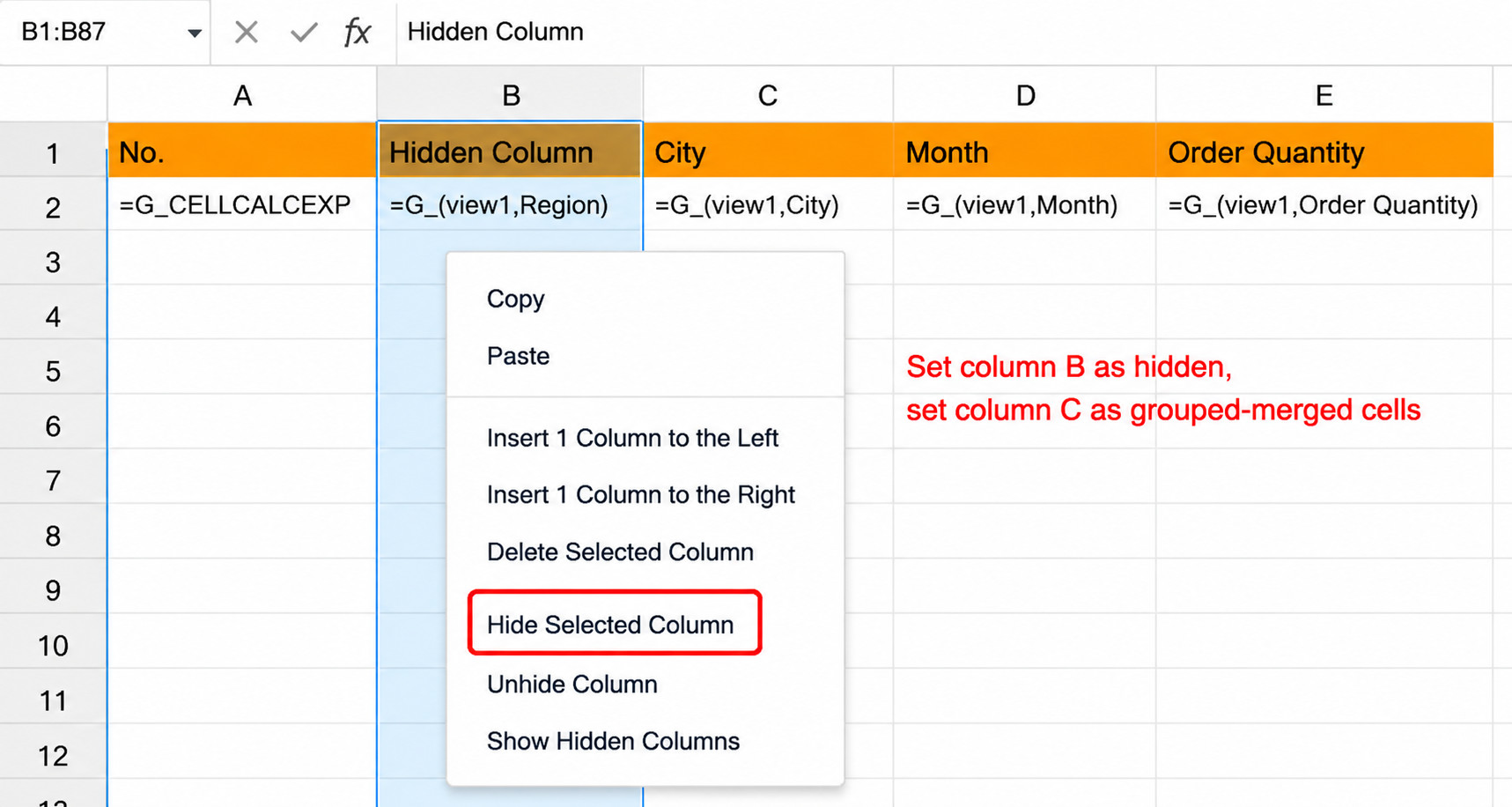
The effect is as follows:
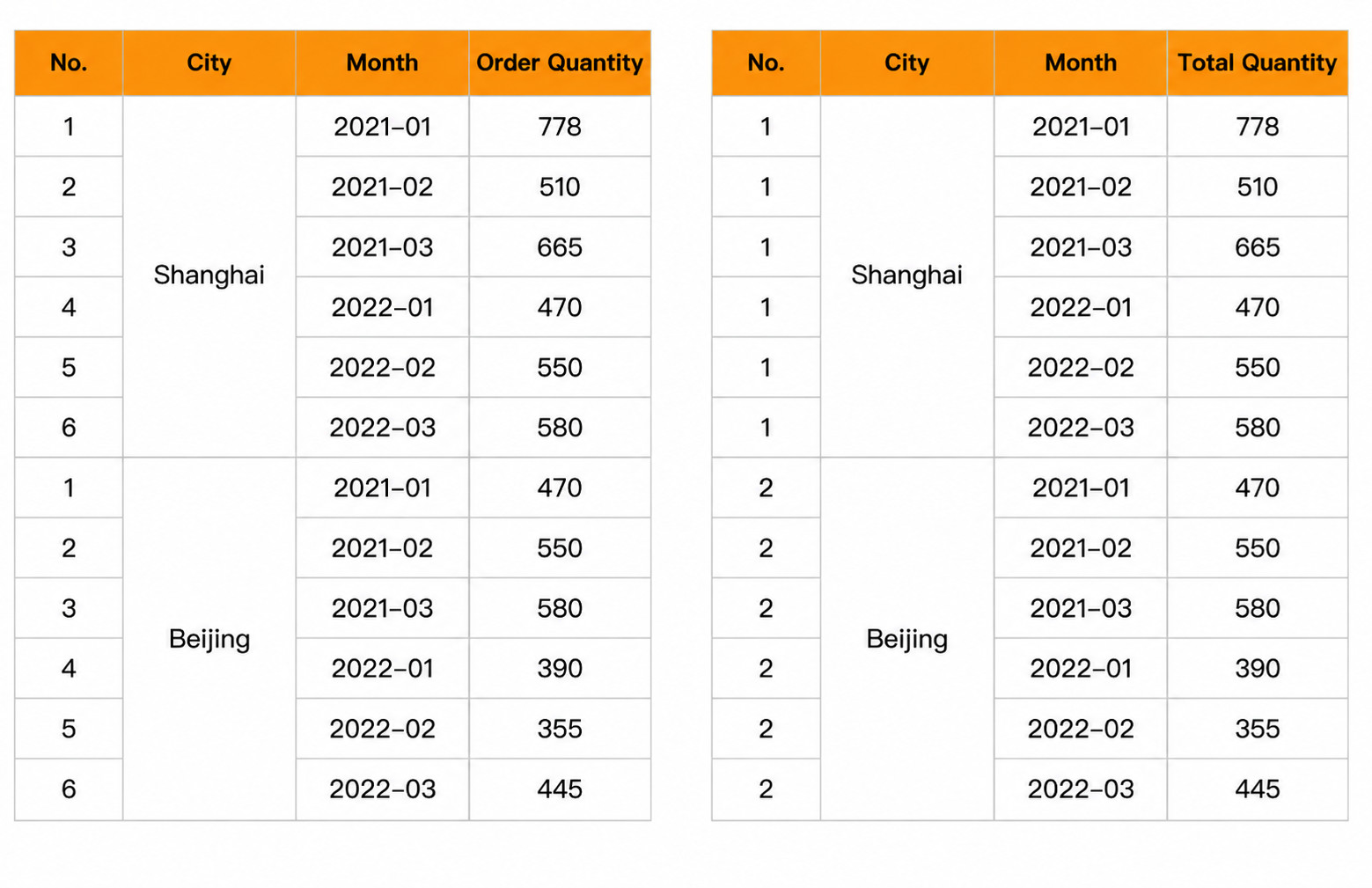
- The repeated row numbers generated in scenario 3 cannot be displayed with merged cells. If you need to merge cells like a dimension column, we recommend sorting the data and generating row numbers in the view, then directly using the row number field in the template.
- Row numbers are unrelated to data sorting. Configure sorting in the view.