Frontend Page Customization with Web Components
Flexible customization of Guandata BI frontend pages is a strong requirement for many customers, so Guandata provides corresponding capabilities based on real customer scenarios.
This article introduces methods and examples for implementing frontend page customization based on Web Component technology.
Overview of Open Capabilities
Guandata frontend code includes a built-in star-nova.js file, which is empty by default. When you need to override specific elements, you can implement the required code in that file. The underlying principle is Web Components. For a detailed explanation of this technology, refer to the article from the Guandata technical team.
When rendering a page, Guandata BI checks whether the constructor of a custom element exists. If it does, the custom element is rendered in a fixed position on the page, and the corresponding parameters are passed to it.
The currently supported page elements, scenarios, and examples are as follows:
| Supported Custom Page Element | Application Scenario | Example Use Case |
|---|---|---|
| page-feedback | Add a floating button on a Dashboard page | Quickly initiate feedback from the page; integrate the page with other business systems |
| login-boxlogin-box-mobile | Customize login-page logic | Implement custom password validation logic and customized image and button display |
| feishu-login-qrcode | Replace Feishu QR code display logic | Implement Feishu QR code login in private deployment scenarios |
For more requirements, feel free to contact us. Guandata always embraces openness and continues to expand related capabilities.
Scenario 1: Custom Floating Button on a Page
Custom element name: page-feedback
Parameters passed:
userid: UUID of the current userloginid: the account used for loginpgid: page ID
Applicable pages:
- Desktop: Dashboard pages, Dashboard casting pages, desktop application pages
- Mobile: Dashboard pages, lightweight application pages
Does not include custom report pages or custom list pages.
Floating button position:
- Desktop: lower-right corner of the page, container size
48px * 48px - Mobile: container size
50px * 50px
Desktop effect example:
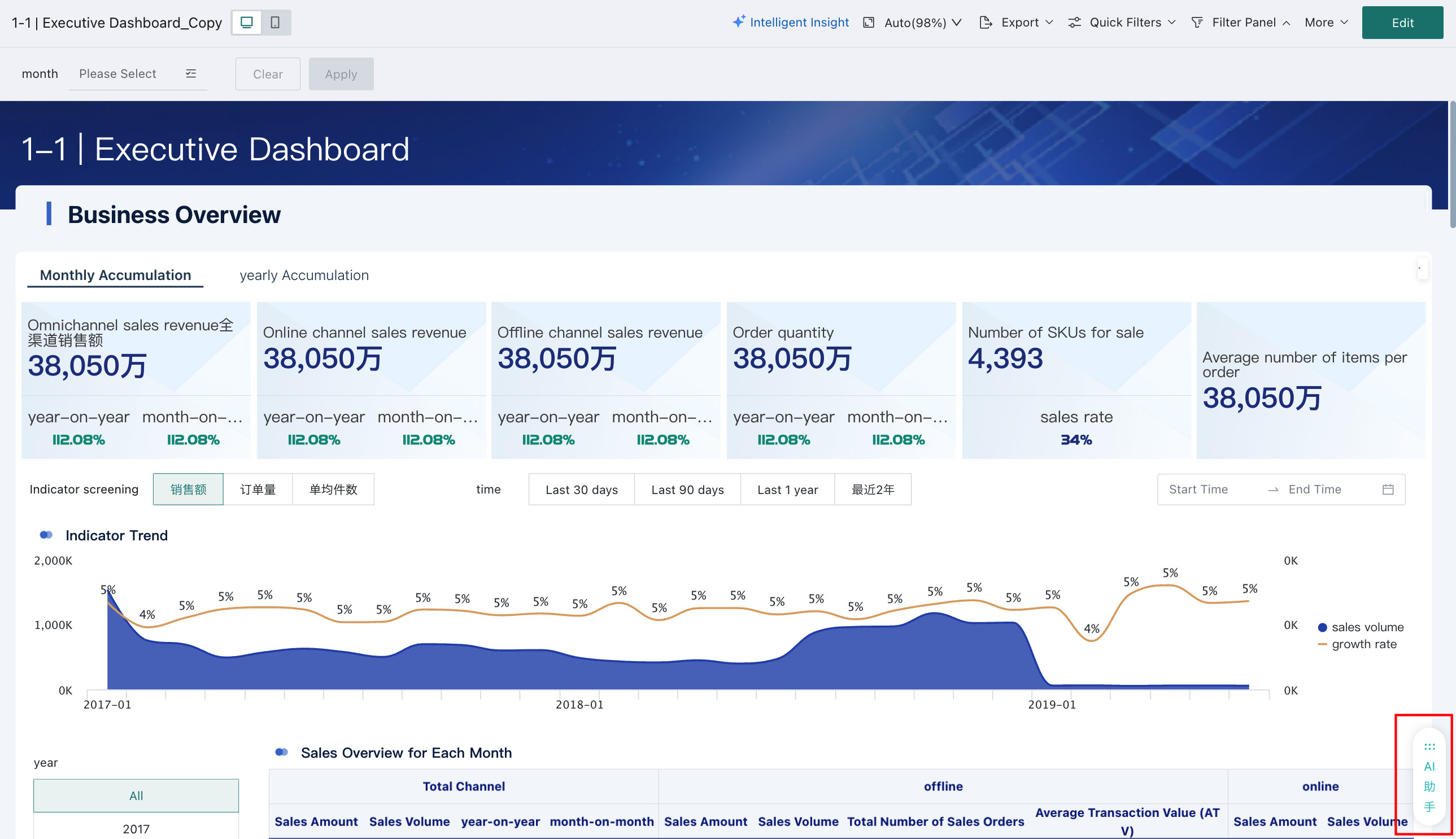
When features such as Quick Query are enabled on mobile pages, the custom button is collapsed by default and can be expanded by tapping it, as shown in the left figure.
Code Example
This example opens the Baidu home page on desktop and the JD.com home page on mobile after the floating button is clicked, while passing the corresponding parameters.
Code download, change the file suffix to .js after downloading:
After successful rendering, the page structure of the custom element is shown below:
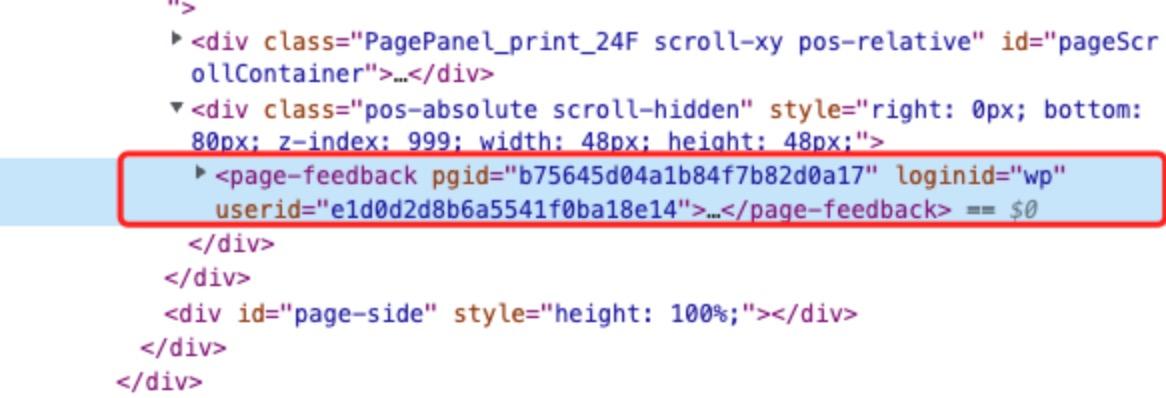
The outer div is the container where the custom element is rendered.
Code Deployment
Please contact Guandata.
Scenario 2: Custom Feishu QR Code
Custom element name: feishu-login-qrcode
Parameters passed:
gotourl: the QR code display logic used in standard mode. The correspondingapp_idconfigured in the backend can be parsed from it.
Applicable pages:
- Desktop: login page
Effect example:
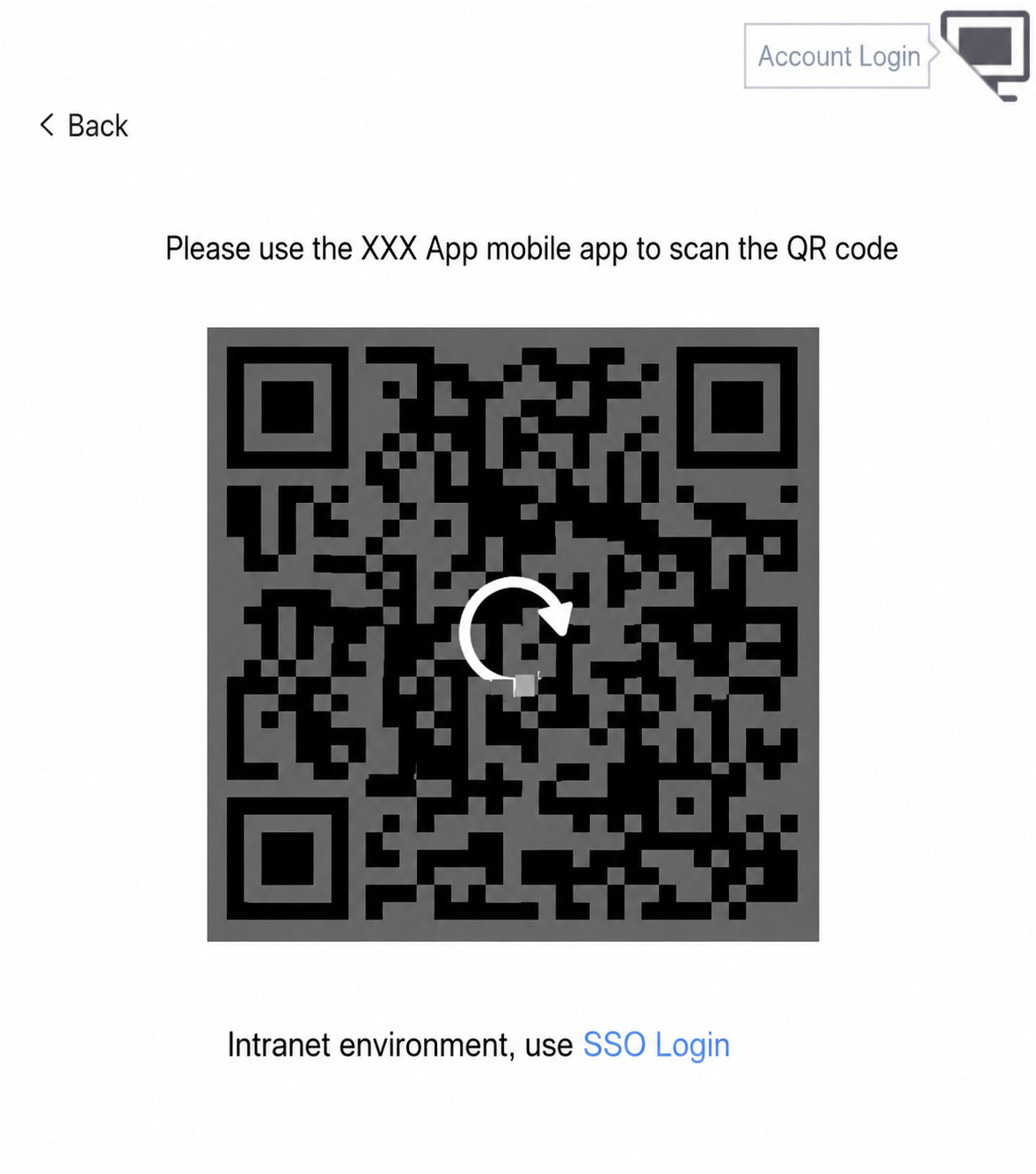
For code examples and deployment, please contact Guandata.