Dashboard Directory Rules and Sorting
Dashboard Directory Overview
A dashboard is a page that contains a collection of data visualization cards. It mainly includes dashboard pages and directories.
The left side of the dashboard contains the dashboard directory panel, which is divided into two tabs: Favorites and Dashboard. The directory in the Dashboard tab mainly contains three parts in order:
1. Overview
2. Enterprise-level directories, below Overview and above the separator line
3. Account-level directories, below the separator line
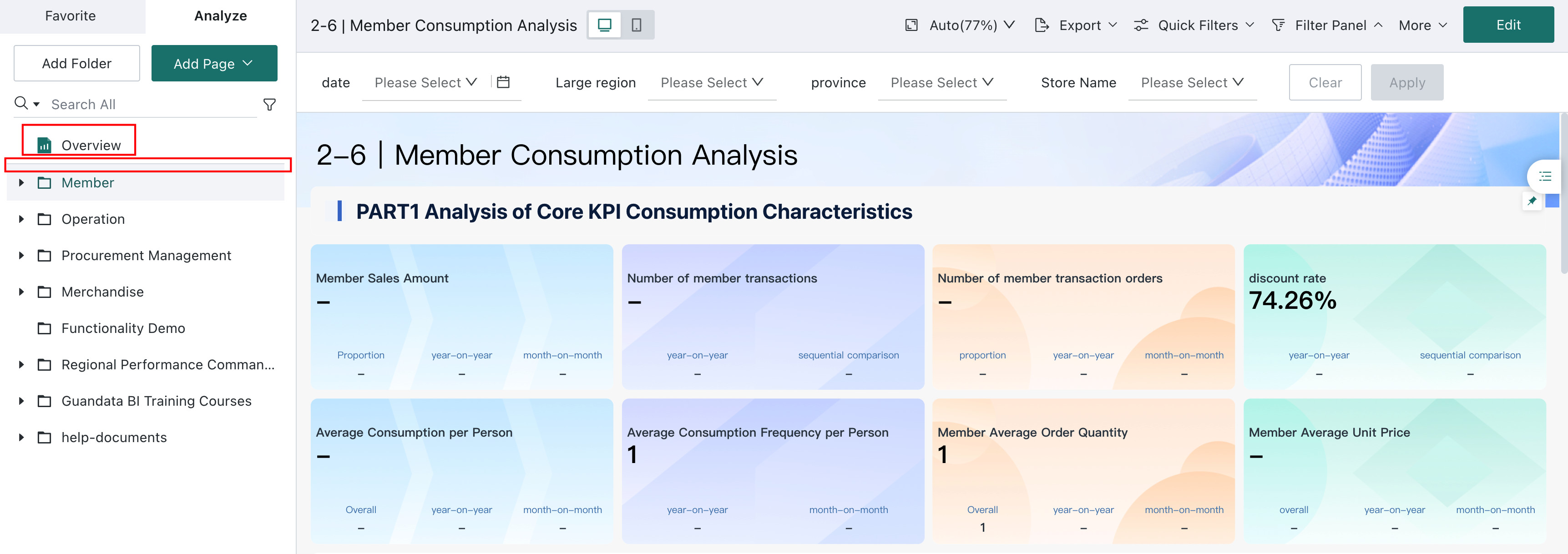
Overview Page
The Overview page is displayed at the top of the dashboard directory and its position cannot be moved. When each user account is created, an Overview page that belongs only to that user is created by default. It is equivalent to the user's personal draft page. It cannot be authorized to others, and all other users, including administrators, cannot view or operate this page.
If you do not want users to use the Overview page, an administrator can choose whether to hide the Overview page through the button in Admin > System Setting > General Settings > System rules.

Directory Sorting
Folders: sorted by folder creation time by default.
Dashboards in the same folder or at the same directory level: sorted by page creation time by default.
Modify the Dashboard Directory Order
Account-Level Directories
Drag items directly in the directory on the left side of the dashboard to adjust the order.
This method is a personal-level operation for the user, including administrators. It changes only the page order for the individual user and does not affect the page order in other users' directories.
Enterprise-Level Directories
Only users with administrator permissions can adjust this order, and it takes effect across the entire BI platform. Configure unified enterprise-level pages in Admin Settings > Enterprise Settings > Enterprise Page Settings. Hold the icon before a folder or page name and drag it to adjust the order.
